English
 The Witcher 3: Wild Hunt – Remastered takes its open-world adventure to another level with a massive continent, intricate character storylines, a mature RPG system, and further story and gameplay improvements. The swamps of Velen, the lights of Novigrad, and the fierce winds of Skellige have kept countless players immersed in its world. But playing on PC has always meant being tied to your desk. Once you leave your computer, your adventure has to stop.
Sneaking in a couple of rounds during a business trip or relaxing under the covers with a game before bed doesn't have to be limited to mobile titles. PC games can also be enjoyed wherever you are. OSLink lets you bring PC games to your mobile device, and even a AAA title like The Witcher 3: Wild Hunt – Remastered can be played with ease. It also comes with a wide range of handy features to choose from. This guide covers everything from installing the tools and pairing your devices to customizing controls and fine-tuning your network, helping you recreate the full PC gaming experience on mobile.
1. About The Witcher 3: Wild Hunt – Remastered
The original The Witcher 3: Wild Hunt was developed by CD Projekt Red and released in 2015, while the Remastered version updates the game with enhanced visuals and other improvements. It is a fantasy RPG set in a Western-style fantasy world. You play as the witcher Geralt, traveling across the vast Northern Kingdoms in search of Ciri while facing the Wild Hunt. The game is known for its interconnected storytelling and branching choices. Alongside the main story, there are plenty of witcher contracts and side quests to take on.
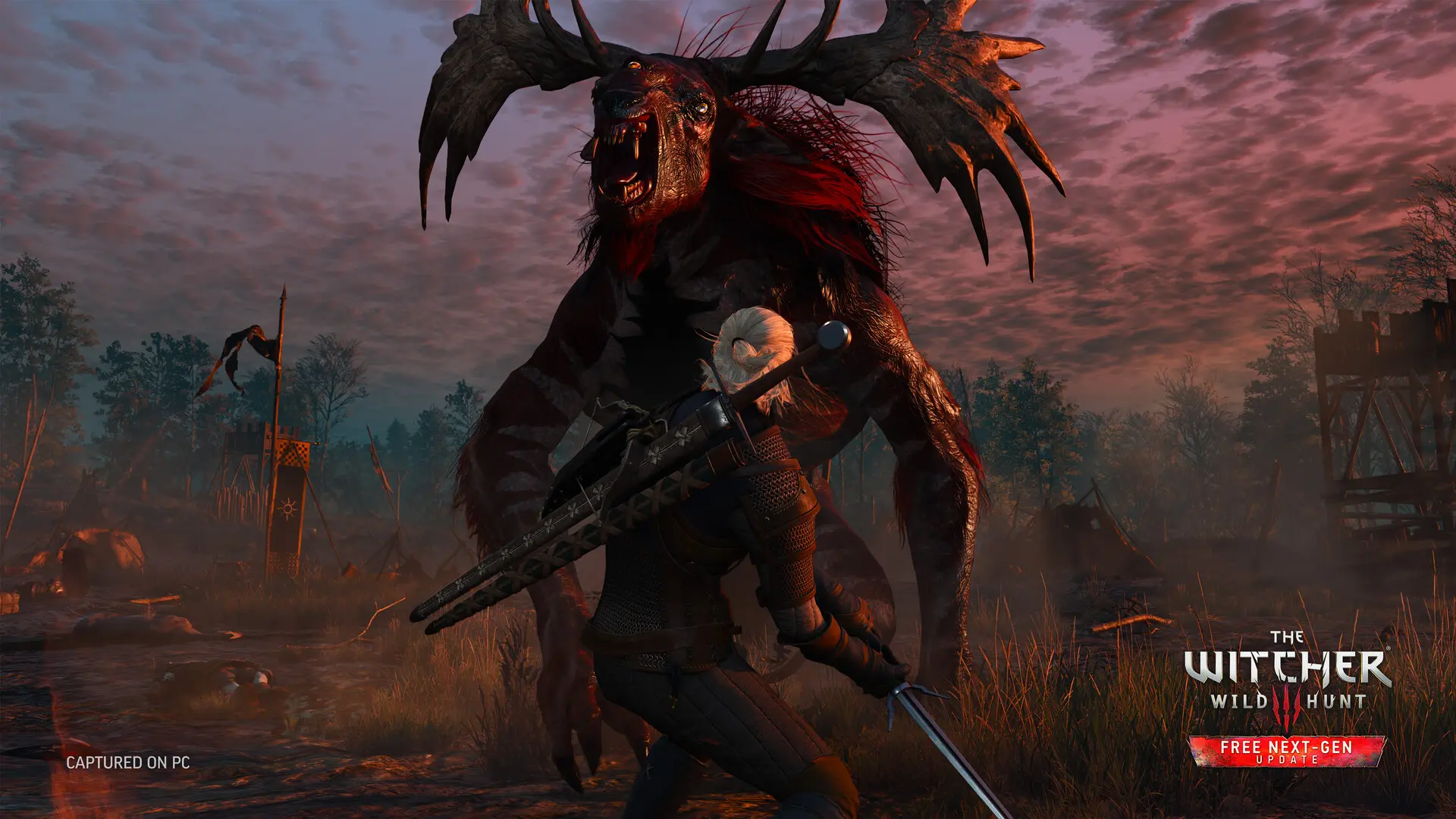
Combat combines swordplay, Signs, and alchemy items, with different builds offering distinct ways to fight. Its two DLC expansions, Hearts of Stone and Blood and Wine, are also comparable to standalone games in terms of quality. For players who enjoy open-world combat and adventure, it is a game well worth checking out.
2. Installing OSLink on PC and Mobile
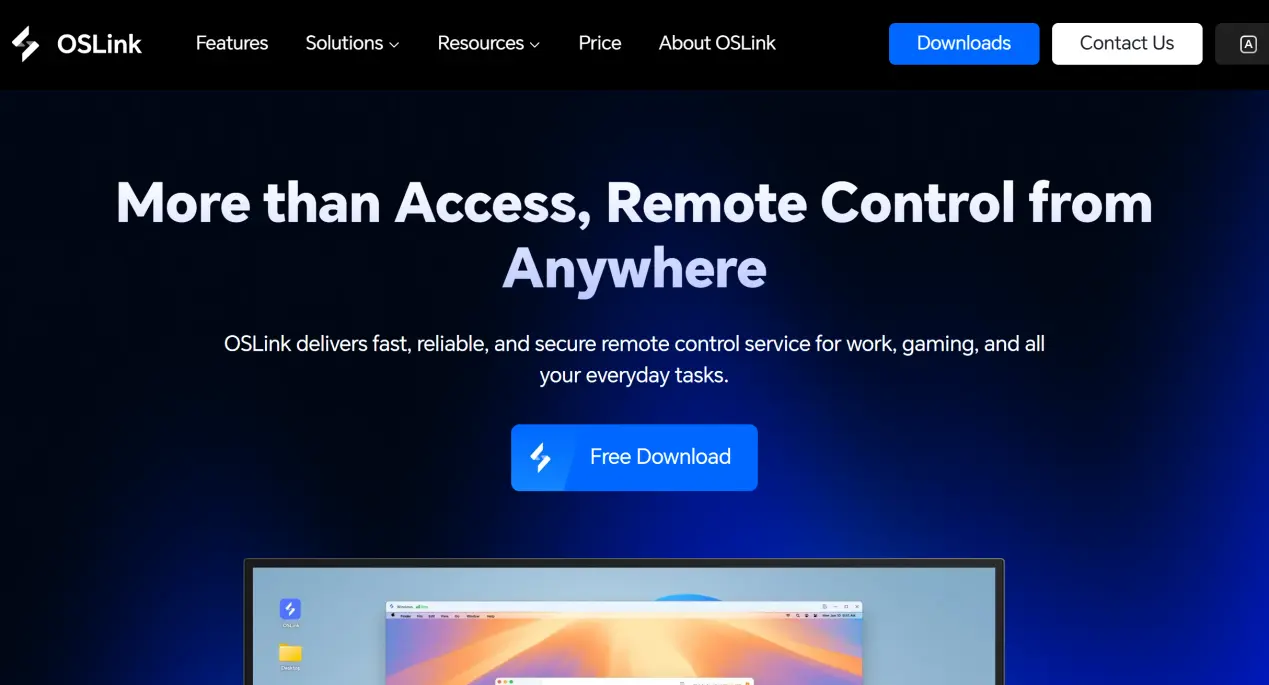
To play The Witcher 3: Wild Hunt – Remastered on your phone, you first need to own the game on your computer. Then, install OSLink on both your PC and mobile device to create a connection between the two devices.
PC setup: Visit the official OSLink website and download the Windows client. Once the installation is complete, sign in to your account.
Mobile setup: Search for “OSLink” on Google Play or the App Store to download the app. An APK package is also available on the official website. After installation, sign in with the same account you use on your PC. Once both devices are logged into the same account, the basic pairing process is complete.
3. Playing The Witcher 3: Wild Hunt – Remastered on Mobile
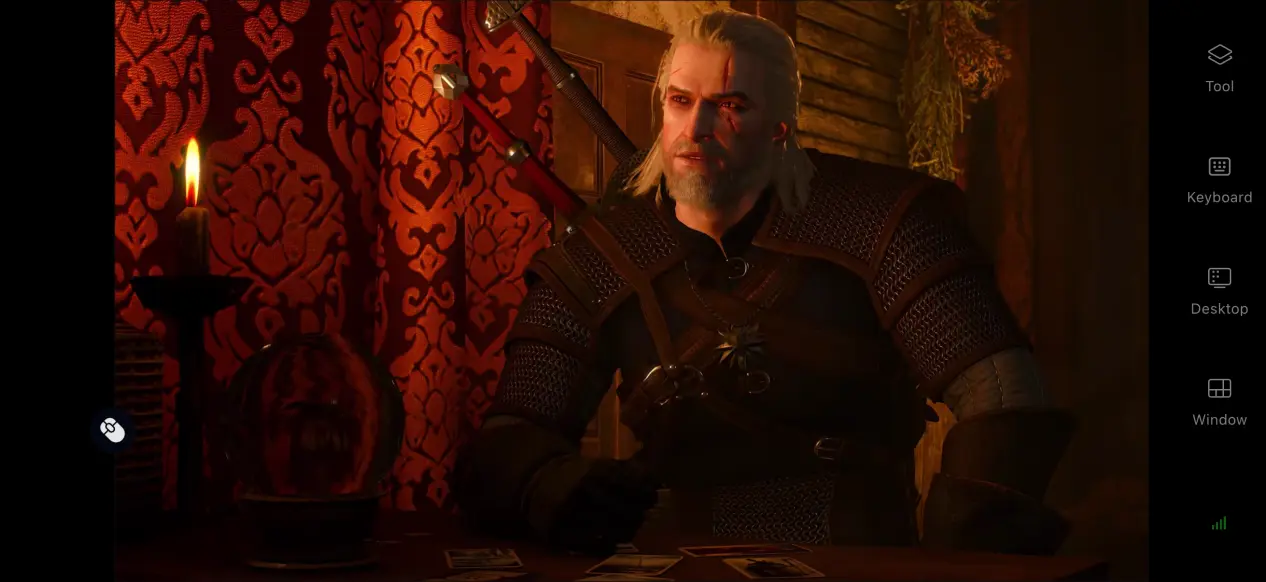
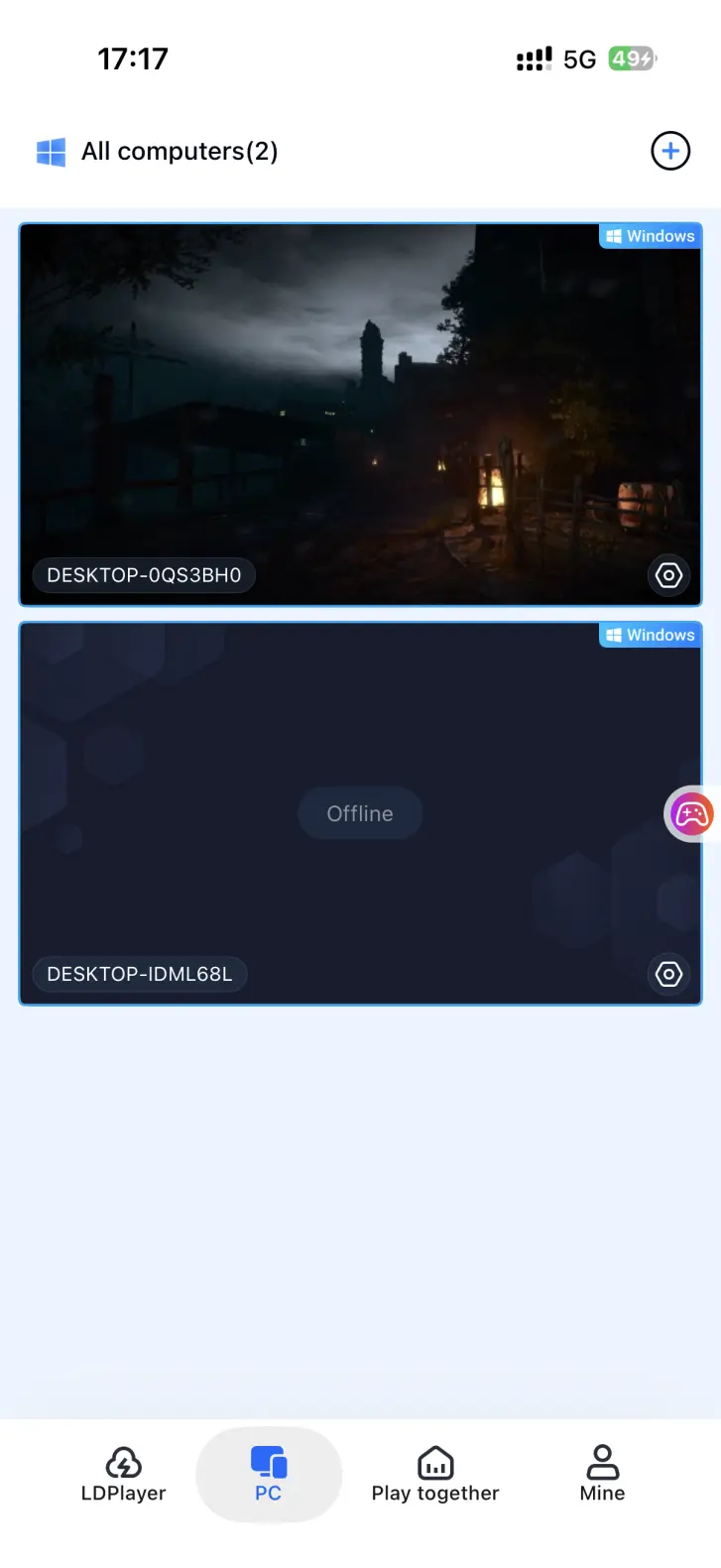
After signing into the same account on both devices and completing the pairing process, the OSLink app on your phone will display the connected computer. Tap it to enter the remote desktop. Launch The Witcher 3: Wild Hunt – Remastered on your computer, and the game screen will be streamed to your phone.
4. Benefits of Playing on Mobile
When it comes to image quality, OSLink can stream The Witcher 3: Wild Hunt – Remastered to your phone while preserving much of the original PC visual quality. The game runs on your PC while your phone only receives the streamed video. Image quality, frame rate, and graphics settings are primarily determined by your PC setup, so differences in phone hardware won't reduce the visual quality.
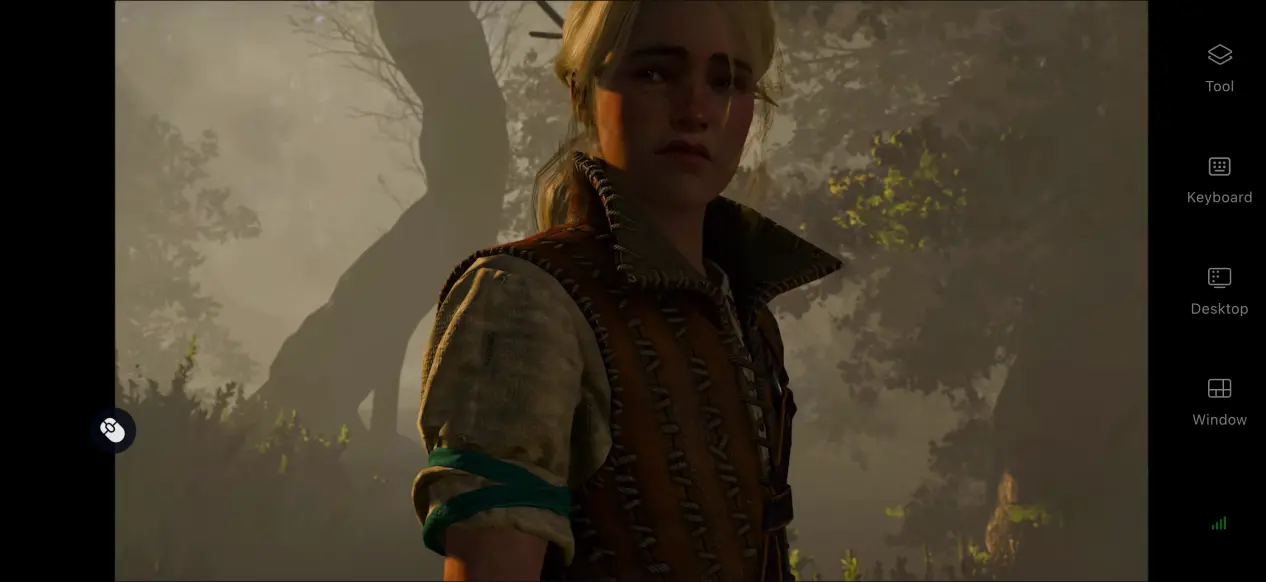
Even though you're running a AAA game, OSLink takes up virtually no storage space on your phone. The base game and its expansions require more than 50 GB of storage, but you don't need to download any game files to your mobile device. All the data stays on your computer's hard drive, while your phone only needs the OSLink app.
OSLink also supports screen sharing and multi-device control. The same account can be used to switch between devices such as phones and tablets. Pick up your phone and continue your quest when you're away from your computer, then seamlessly pick up where you left off when you return.
5. OSLink Features
OSLink isn't just a way to remotely play PC games. It also comes with plenty of convenient features that can make your gaming experience much smoother, so feel free to give them a try!
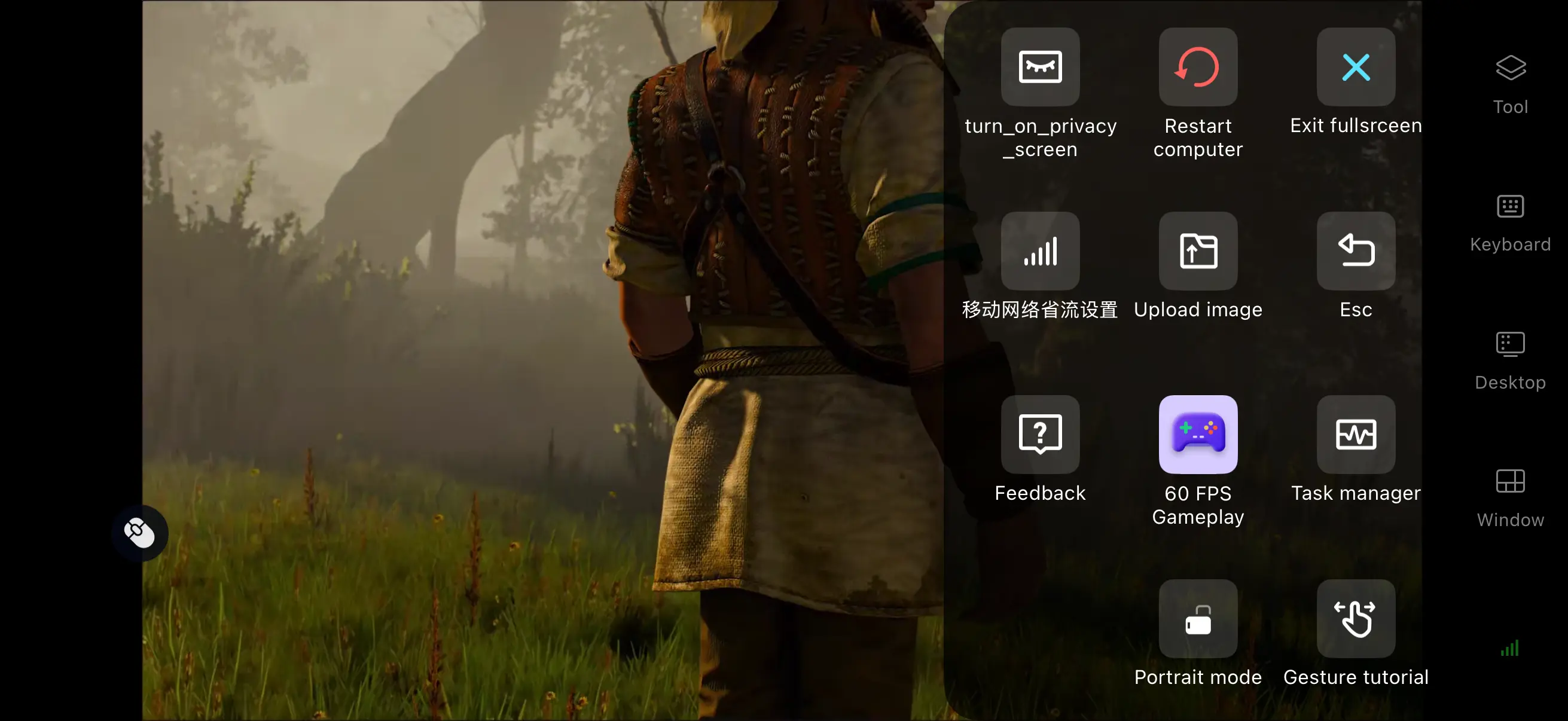
Enable 60 FPS Mode
Turn on “60 FPS PC Games” from the mobile toolbar to keep gameplay smooth while making animations feel more fluid. This is especially useful in The Witcher 3: Wild Hunt – Remastered when timing dodges, rolls, and Signs during combat.
Customize Virtual Controls
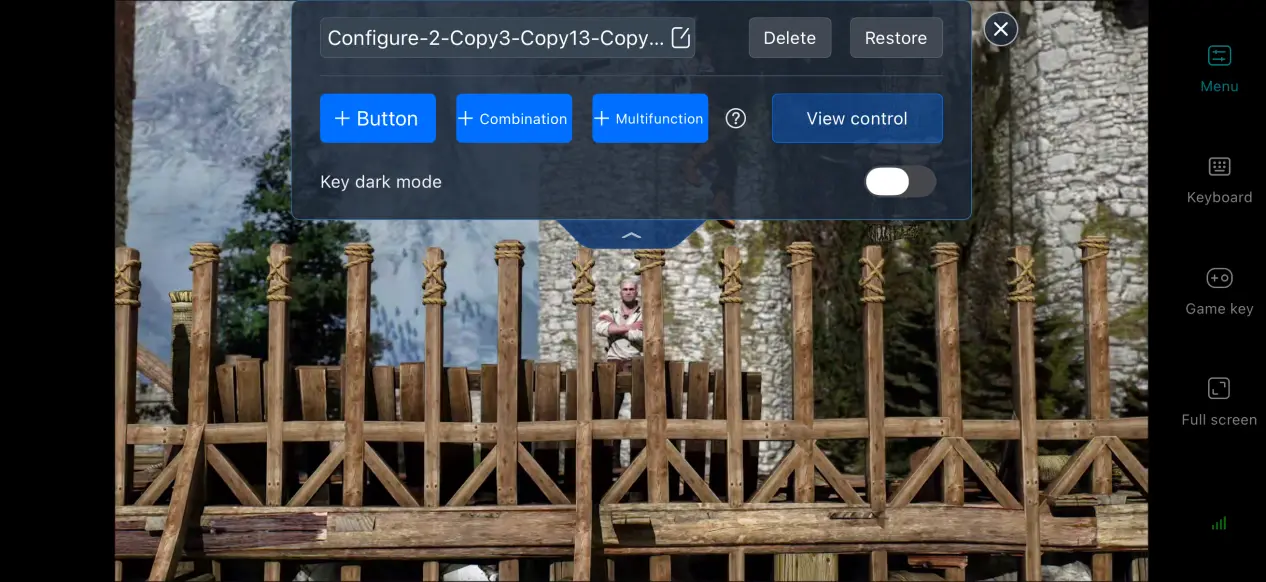
The Witcher 3: Wild Hunt – Remastered requires controls for movement, camera control, light attacks, heavy attacks, the five Signs, item switching, dodging, and rolling. Open the control editor to drag and adjust the position and size of each button. You can also change their transparency so they don't block the screen.
It's recommended to place the attack and dodge buttons where your thumbs can naturally reach them, with the Sign shortcuts arranged on the right side of the screen. You can also bind frequently used action sequences to a single trigger. For example, combine Quen and Roll into one button for a quick defensive move, or bind Heavy Attack and Light Attack together for a one-button burst combo. This reduces the need for multi-finger controls and lets you pull off combos with a single tap.
External Device Support
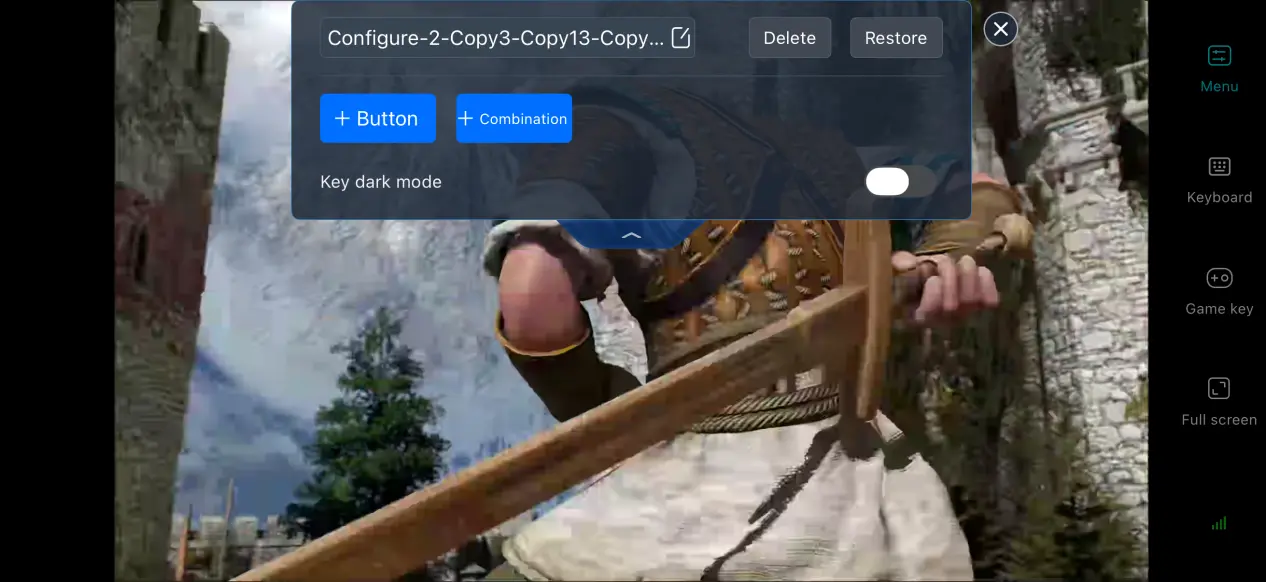
OSLink supports Bluetooth controllers and mobile gamepads. Connecting a controller gives you a control experience closer to playing on PC, making it a good option for long sessions spent progressing through the main story or exploring the map.
6. Frequently Asked Questions
Q: What is The Witcher 3: Wild Hunt – Remastered release time?
A: The Witcher 3: Wild Hunt – Remastered release date is September 29, 2026.
Q: What are the PC requirements for The Witcher 3: Wild Hunt – Remastered?
A: Minimum requirements: Windows 10 64-bit, 16 GB RAM, RTX 3060 graphics card, i5-12400 processor, and 80 GB of free space on an SSD. Recommended requirements: Windows 11 64-bit, 32 GB RAM, RTX 4070 graphics card, i7-13700K processor, and at least 80 GB of free space on an NVMe SSD.
Q: Can I play The Witcher 3: Wild Hunt – Remastered directly on an Android or iOSdevice?
A: There is no official native Android or iOS installation package, so The Witcher 3: Wild Hunt – Remastered cannot be installed and run directly on Android. You can play it remotely through OSLink by connecting your phone to a PC that already has the game installed.
Conclusion
The Witcher 3: Wild Hunt – Remastered is a major open-world RPG for PC with fully revamped visuals. Ray-traced lighting, redesigned environments, and improved story side content give the game a fresh look and feel, earning it a strong following among players. There is no official native mobile version. If you want to experience the full remastered edition on your phone, OSLink's remote streaming solution provides a practical option. With streaming technology, you can break free from your PC setup and continue Geralt's adventure on your phone while enjoying the remastered visuals and story.
 Download