English
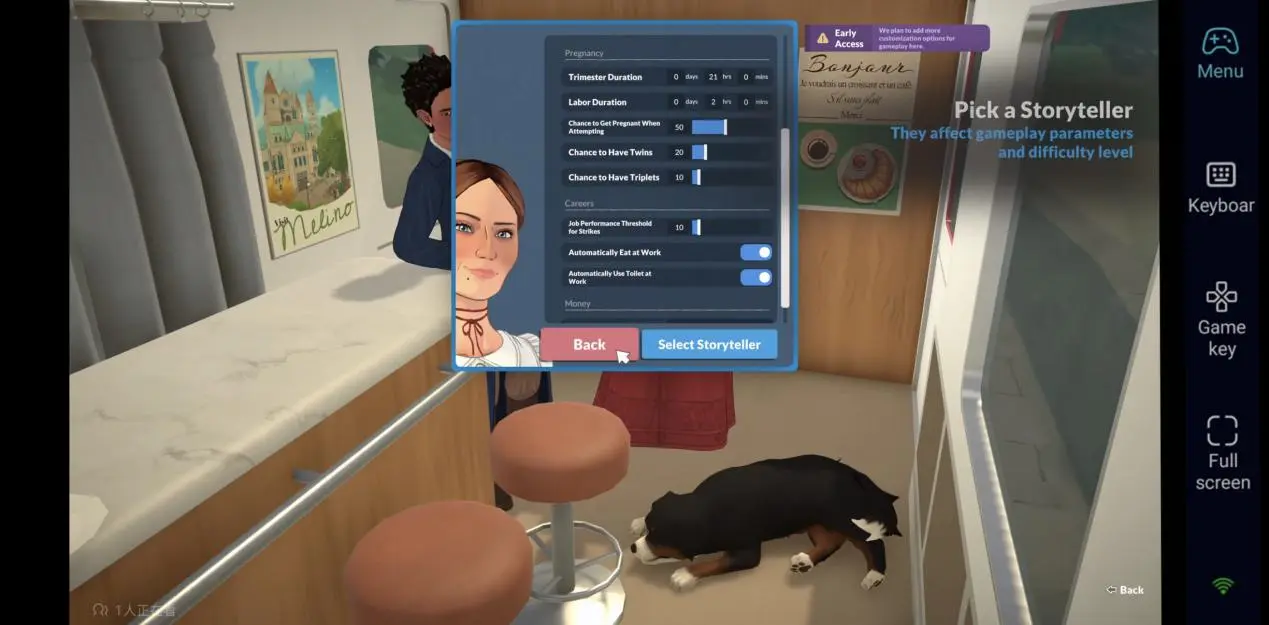
 Paralives entered Early Access on PC and Mac on May 25, 2026. It’s a life simulation game all about building homes, shaping lives, and forging connections—letting you explore an open town, develop relationships, and guide your characters through their daily stories.
If you want to tweak a room layout during your commute, keep decorating from the couch, or move a character’s story forward in those spare moments, streaming your PC screen to a mobile device is the way to go. OSLink handles that bridge perfectly. It doesn't run the game on your phone—instead, it streams the gameplay from your computer to your mobile screen in real time, turning your phone into a display and control terminal. Here’s how to set it all up.
Getting Started: What You Need Before Streaming
Before you start any streaming setup, make sure Paralives is fully installed on your computer.
System Requirements: Paralives has some hardware demands, and optimization is still being worked on during Early Access. The minimum specs call for 12GB of RAM and a dedicated graphics card. Your network matters too—wired Ethernet or a stable 5GHz Wi-Fi connection is strongly recommended to avoid lag and stuttering during streaming.
Where to Get the Game: Head to the Steam store, search for "Paralives," and purchase it there, then install it on your PC. If the game isn’t available in your region or the language doesn’t match, try switching your Steam store region before purchasing.
Installing OSLink
OSLink needs to be installed on both your computer and your phone. Make sure you download it only from official sources.
On Your Computer: Visit the OSLink website and download the version for Windows or macOS. Install it, launch the app, and log in to your account.
On Your Phone: Head to the App Store (iOS) or Google Play (Android), search for "OSLink," and download the app. Android users can also grab the APK directly from the OSLink website. Once installed, log in with the same account you used on your computer.
After both devices are signed in to the same account, OSLink will automatically set up a secure connection between them.
Connecting and Launching the Game
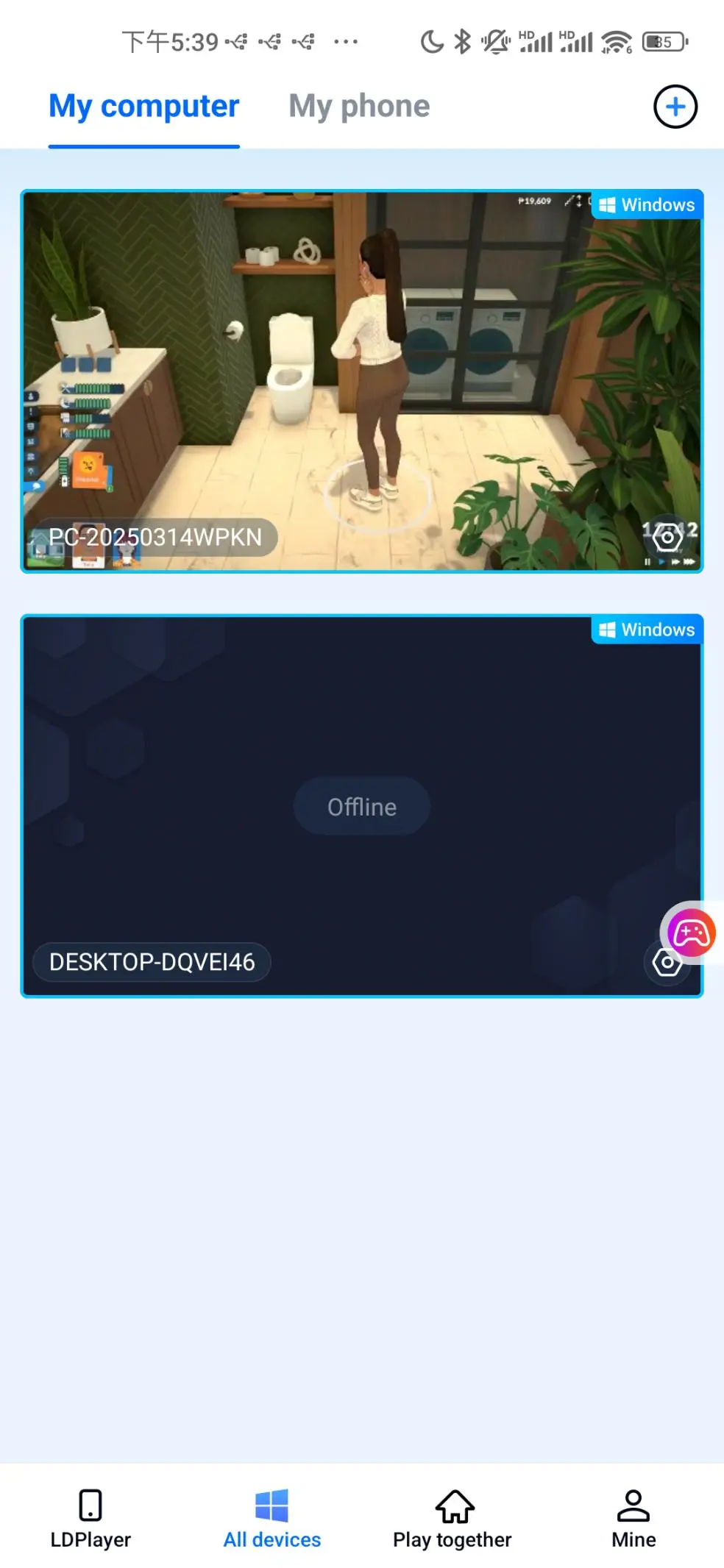
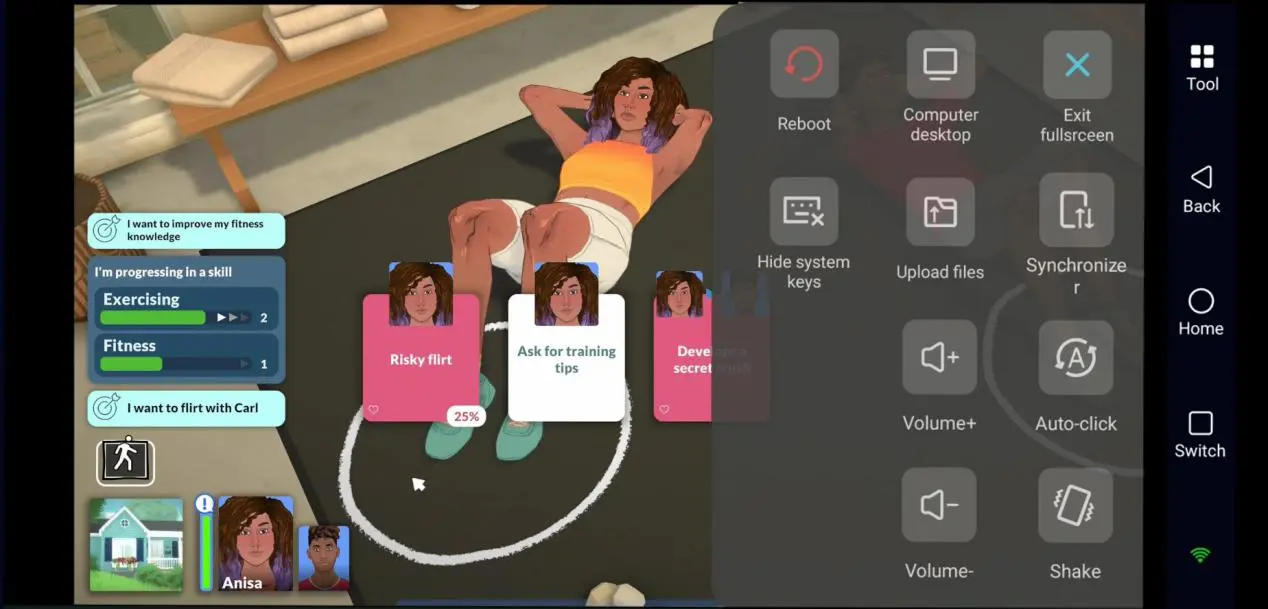
Open OSLink on your phone and switch to Game Mode. From the list of available devices, select the computer that's logged into the same account. Once connected, your phone screen will show your computer's desktop in real time.
From there, you can tap directly on your phone to open the Paralives icon on your PC. The game will appear on your mobile screen instantly, and you'll be able to build, customize characters, manage lives—everything—right from your phone.
What Makes Mobile Play Work So Well
The real strength of streaming is how flexibly it adapts to how you play.
Seamless Progress: Every tap on your phone sends commands back to your computer instantly, so your game stays perfectly synced across both devices. That means you can stop playing at your desk and pick up exactly where you left off on your phone—whether you're mid-construction on a house, tweaking a character's look, or working through a relationship arc. No extra saves or file transfers needed.
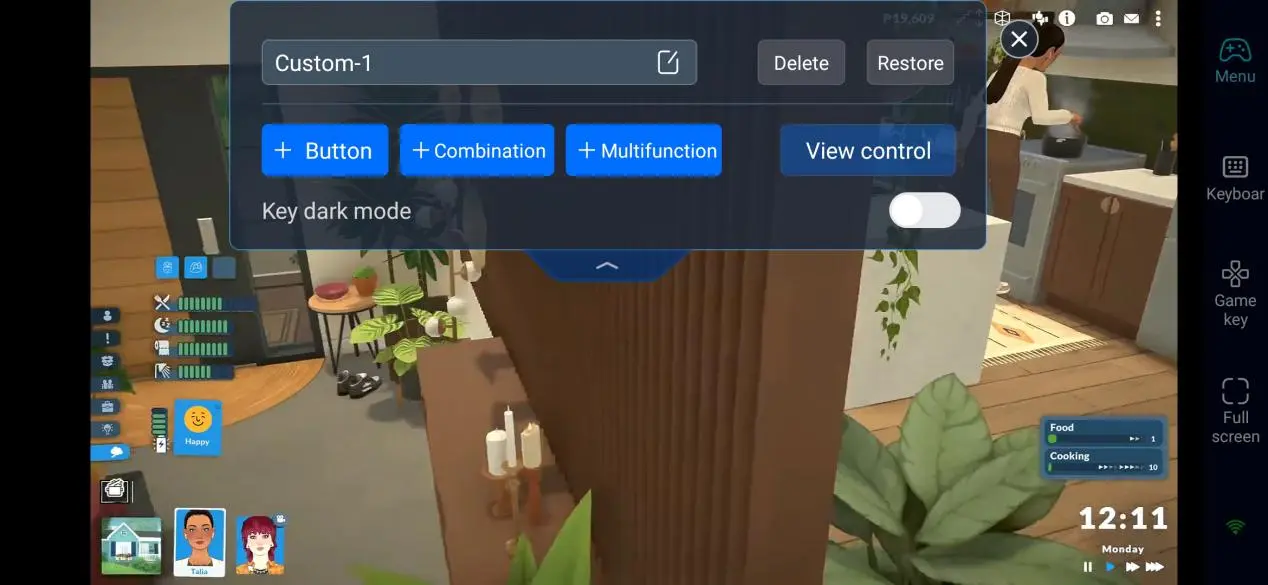
Key customization is another critical function. OSLink has a built-in key mapping editor, so you can freely add virtual buttons on your phone screen and tweak each button's size, position, and transparency. For Paralives, you can assign dedicated buttons to frequent actions like camera movement, object placement and rotation, or pulling up the character editor menu. The developers also include preset key layouts, so you can restore the PC control scheme with just one tap.
OSLink Features Worth Knowing
OSLink comes with several handy options to improve your streaming experience:
60 FPS PC Game Mode: Tap "Tools" in the OSLink mobile app and enable this mode to boost smoothness. It's especially useful when you're doing a lot of camera movement during building.
Resolution & Frame Rate Settings: OSLink supports up to 4K resolution and 144Hz refresh rate output. You can adjust image quality and frame rate under "Panel" > "Display" to balance visual fidelity with network performance.
External Device Support: OSLink works with Bluetooth keyboards, mice, and game controllers. Pair a controller and the gameplay starts to feel more like a console experience.
FAQ
Q: Is OSLink free?
A: Yes, OSLink offers a free version for everyday use.
Q: What kind of phone do I need?
A: Since your computer does all the heavy lifting, your phone just handles display and input. As long as it can run the OSLink app smoothly and stay connected to the network, you're good to go—no high-end specs required.
Q: What if my network is unstable?
A: Stick with 5GHz Wi-Fi or 5G mobile data if possible. If the screen starts to stutter, lower the resolution and frame rate in OSLink's display settings to match your available bandwidth.
Q: Can I use mods on mobile?
A: Mods are loaded on your computer, and the stream will reflect those changes automatically. No extra steps needed on your phone.
Final Thoughts
With OSLink streaming, you can take the build-and-live experience of Paralives with you on mobile—even though there's no official phone version. The whole process breaks down into three parts: install the game and OSLink on your PC, download the app on your phone and log in, then connect and customize your controls to start playing. On the optimization side, 60 FPS mode keeps things smooth, privacy mode protects your main screen, and resolution adjustments help you adapt to different network conditions. The key mapping editor also lets you tweak virtual button size and placement to suit your preferences. This setup combines the full power of your PC with the portability of your phone—giving you a practical way to keep your virtual life going, wherever you are.
 Download