English
 As a new spin-off of the series, FINAL FANTASY RESONANCE has attracted attention with its enhanced visuals, revamped combat system, and new storyline. However, with the game available only on PC and consoles, many players may want a more flexible way to continue the story or complete side quests without being tied to their gaming setup.
This guide walks you through the full remote-streaming setup, covering game access, software installation, actual gameplay, and experience optimization. Follow the steps below to get everything set up and start playing on your phone.
Want to play FINAL FANTASY RESONANCE smoothly on your phone? Give OSLink a try! The software is optimized for PC game streaming at the connection level, helping maintain responsive controls whether you're chaining skills during combat or switching between long story conversations. It also helps reduce input delay caused by network fluctuations for a smoother remote-play experience.
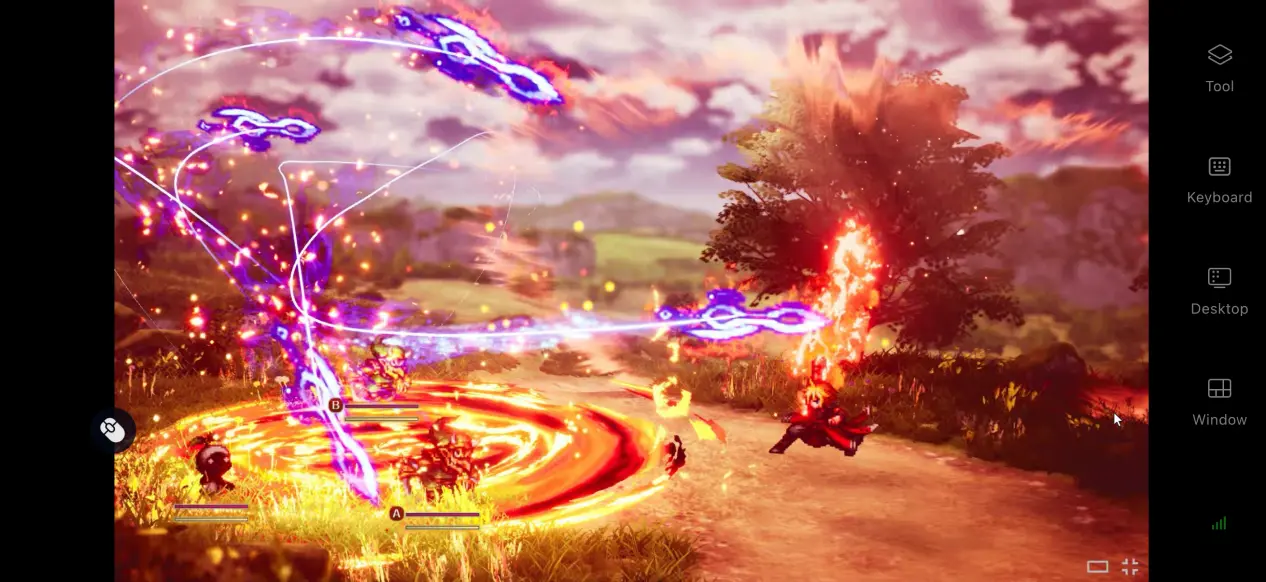
1. How to Play FINAL FANTASY RESONANCE
The PC version of FINAL FANTASY RESONANCE is available on Steam. Open the Steam client, search for the full game title on the store page, and purchase it to add the game to your library. You can then download and install it from there.
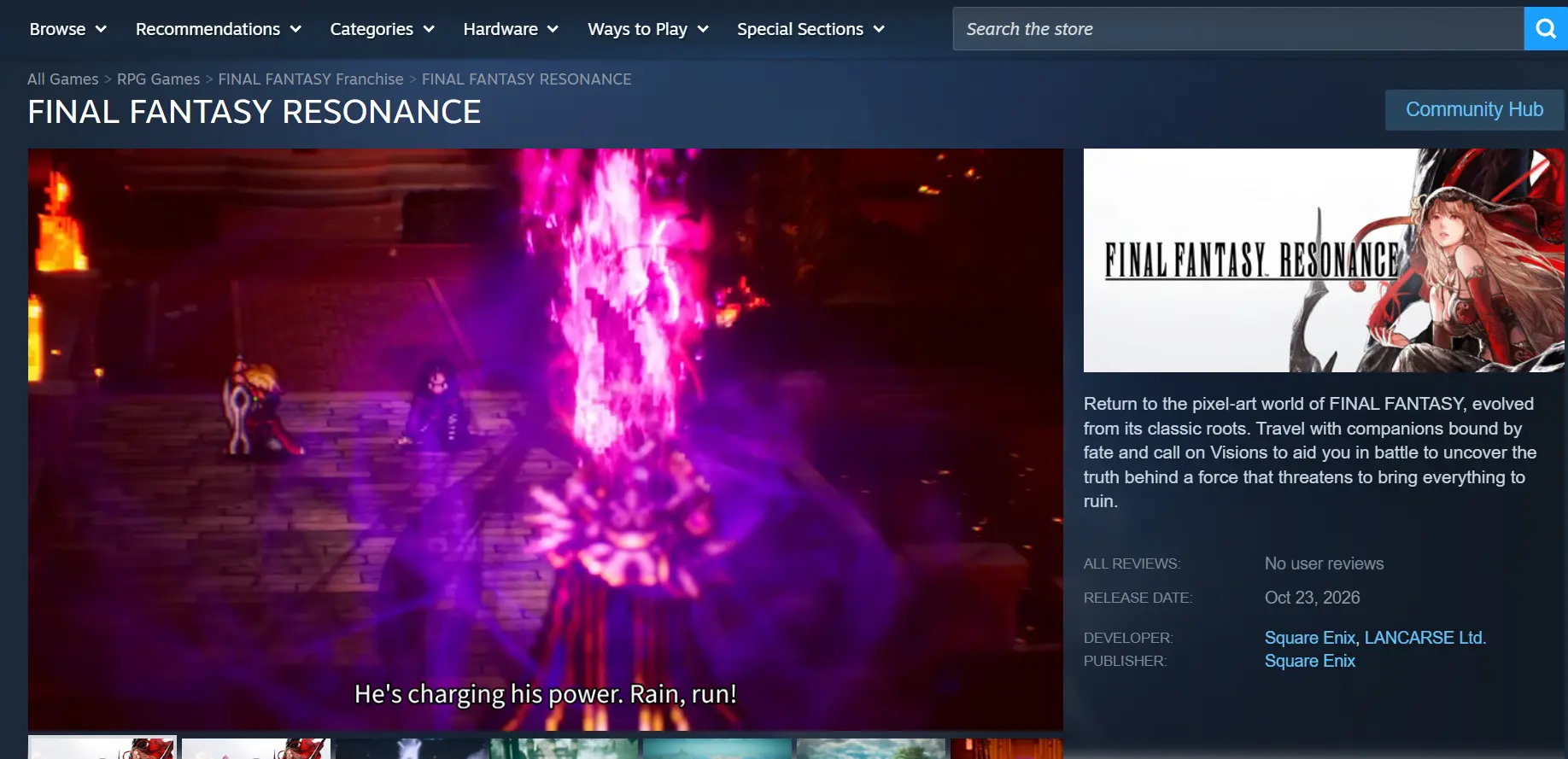
Once the installation is complete, we recommend launching the game on your PC at least once to make sure everything runs properly before configuring your streaming software.
2. OSLink Installation Guide
Installing on PC
Visit the official OSLink website through your browser and download the Windows installer. Once installation is complete, launch the software and create or log in to your account.
OSLink needs to remain running in the background to receive connection requests from your mobile device. We recommend adjusting your PC's power settings to prevent it from entering sleep mode during remote play. You can also review your network adapter's power-saving settings to reduce the risk of unexpected disconnections.
Installing and Setting Up on Mobile
Android users can download the OSLink client from Google Play or get the installation package through official channels. iOS users can open the App Store, search for OSLink, and download the corresponding app.
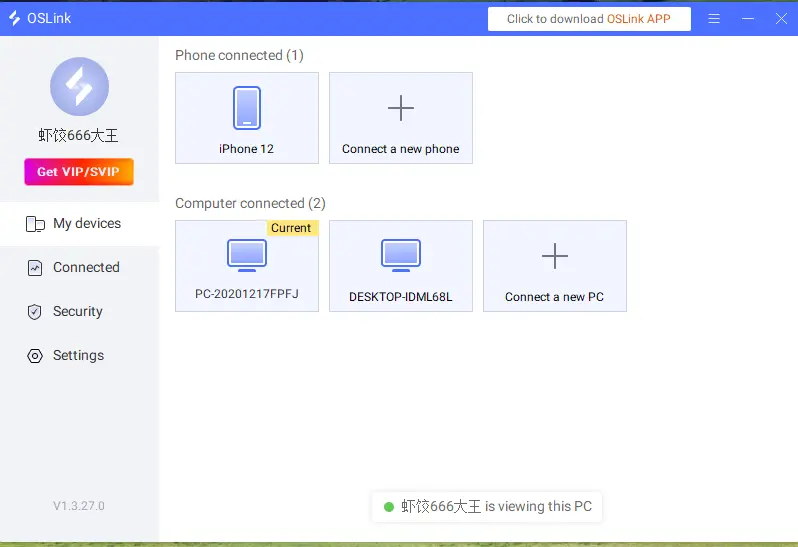
Make sure the account signed in on your phone is the same one used on your PC. OSLink can automatically detect online devices on both local and external networks, so you don't need to manually enter a device ID to pair them.
3. How to Play FINAL FANTASY RESONANCE with OSLink on Mobile
Step 1
Open the Steam client on your PC and launch FINAL FANTASY RESONANCE. Stay on the game's main menu and keep the game window running in the foreground. Do not minimize it to the background.
Step 2
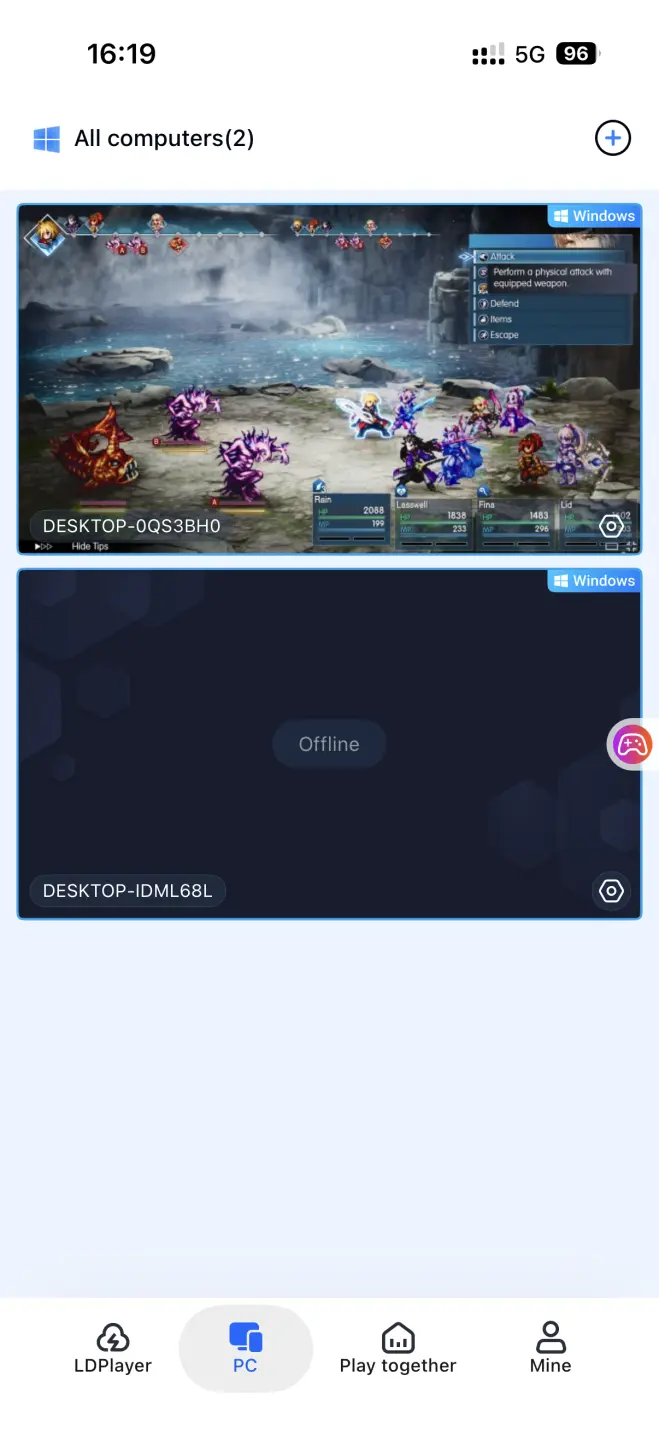
Open OSLink on your phone. The device list will show online computers linked to the same account. Tap the target PC to establish the streaming connection.
Step 3
Once the streaming connection is established, open the software's side toolbar, switch to Game Mode, and load the default RPG virtual controls. After making any adjustments, you can use your phone's touchscreen to progress through the story and play the full game.
4. Benefits of Playing FINAL FANTASY RESONANCE on Mobile
Pick Up Your Game Anytime
As long as your PC stays powered on and connected to the internet, your phone can connect through Wi-Fi or mobile data. Whether you're waiting somewhere or have a few spare minutes, you can pick up from your existing save and continue your adventure without being tied to your PC.
No Game Storage Required on Your Phone
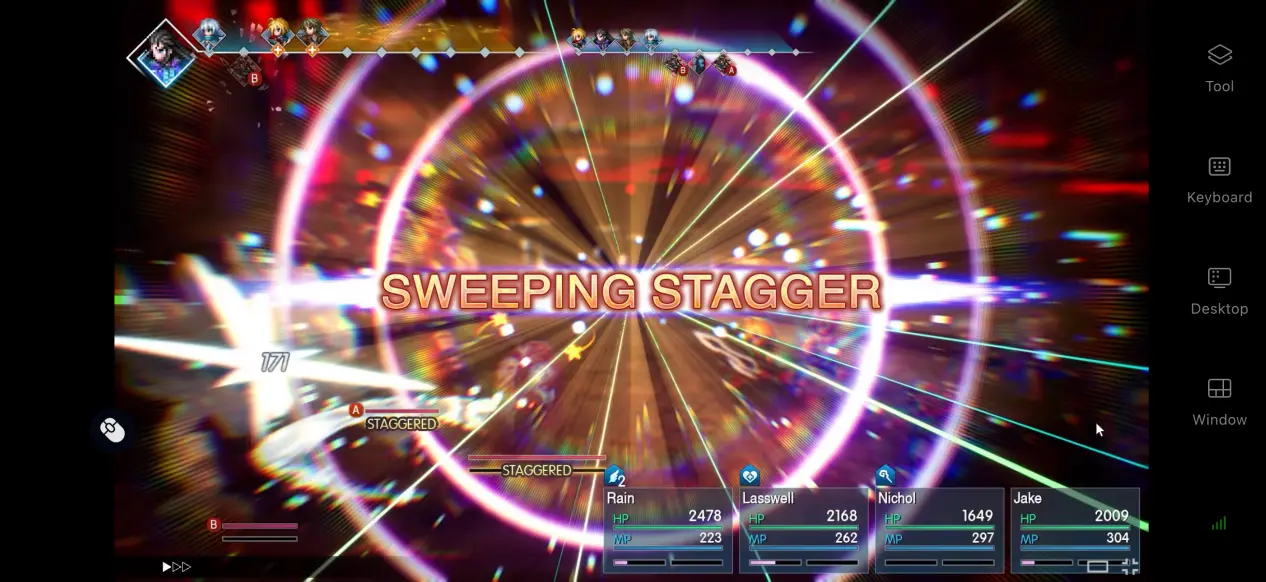
All game files and save data remain on your PC, while your phone receives the streamed video and sends your control inputs back to the computer. This means you can enjoy the game remotely even on an older phone or a device with limited storage, without having to free up space to install the game itself.
Shared Multiplayer Rooms
OSLink includes a room-sharing feature that lets you share FINAL FANTASY RESONANCE running on your PC with other users and invite them to join. Multiple players can take turns controlling the same game session, making it suitable for watching story scenes together or taking turns challenging difficult battles.
5. How to Optimize Your OSLink Gaming Experience
Customize Your Controls
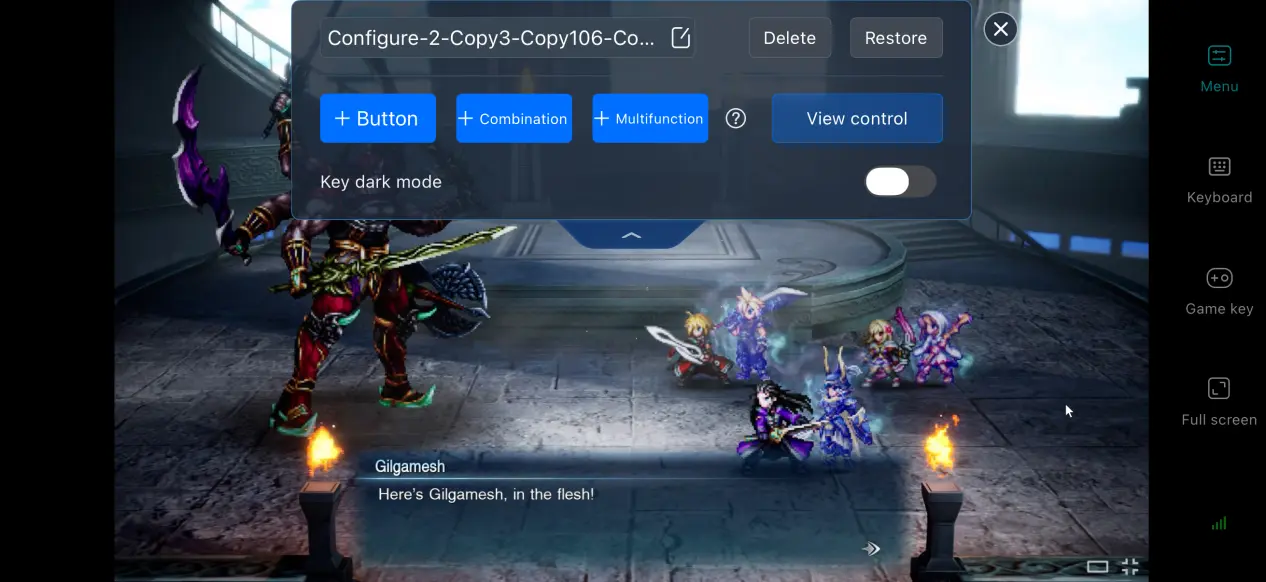
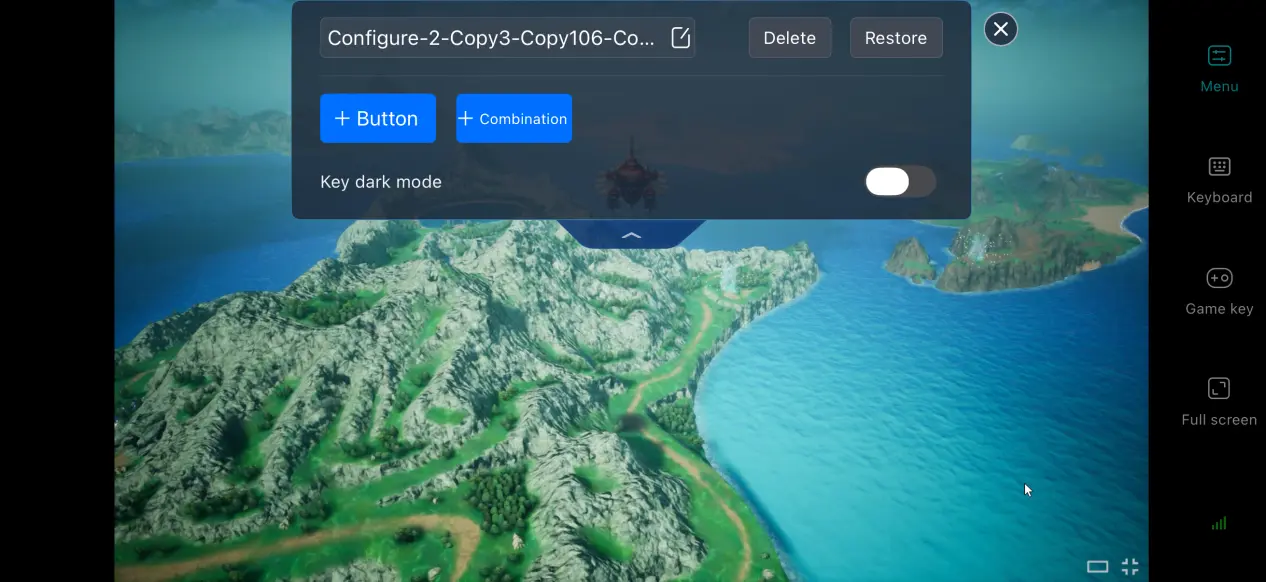
OSLink lets you freely adjust the size, position, and transparency of virtual controls. You can add or remove buttons based on your own play style. We recommend placing frequently used controls such as combat skills, item switching, and menu access within comfortable touch areas. You can also save multiple control layouts and switch between them whenever you move between exploration and combat.
60 FPS PC Gaming Mode
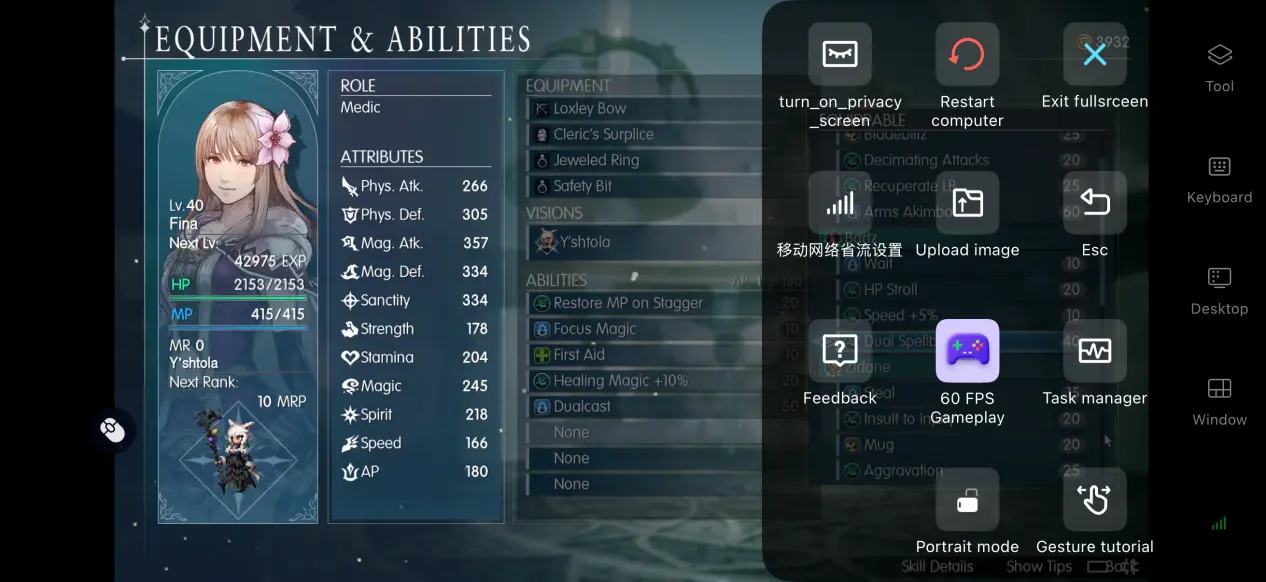
When you enable OSLink's 60 FPS PC Gaming Mode, the software adjusts its streaming settings to deliver smoother visuals during exploration and combat. This mode can help improve motion clarity and input responsiveness, providing a more fluid remote-play experience when your PC and network conditions allow.
Streaming History
OSLink keeps a record of previously connected devices. The next time you want to connect, simply select a device from your history instead of pairing it again. When an unfamiliar device attempts to connect, you can directly freeze its access permissions to help protect your account.
Support for Multiple Peripherals
OSLink supports mainstream peripherals such as Bluetooth and wired controllers, and automatically adapts the input settings after a controller is connected. Using an external controller can reduce accidental touches caused by touchscreen controls and provide a more console-like experience, especially in an action game like FINAL FANTASY RESONANCE.
6. FAQ About Playing FINAL FANTASY RESONANCE on OSLink
Q: what is FINAL FANTASY RESONANCE release time?
A: FINAL FANTASY RESONANCE release date is October 23, 2026. The PC version will launch on Steam alongside the PS5 and Switch versions. There is no native mobile version officially available.
Q: What PC specifications are required for FINAL FANTASY RESONANCE?
A: Minimum requirements: Windows 10/11, Ryzen 5 2600, 8 GB RAM, GTX 1060, and 20 GB of available SSD storage. Recommended requirements: Windows 10/11, 16 GB RAM, and a graphics card more powerful than the GTX 1060. Installing the game on an SSD is recommended.
Q: Can I play FINAL FANTASY RESONANCE on an Android device?
A: There is no native Android client officially available. Android devices can use OSLink to remotely stream the PC version, but the game cannot be downloaded and installed directly on the phone.
Q: Can I play FINAL FANTASY RESONANCE on an iOS device?
A: There is no native game installation package for iOS. Apple device users can use OSLink to stream the PC version and play remotely.
Conclusion
FINAL FANTASY RESONANCE is a fantasy RPG that carries the series' signature visual style. Although it does not offer a native mobile client, OSLink's remote-streaming solution can bring the full game experience to your phone. You can continue your progress during spare moments, use a controller for more comfortable gameplay, and take advantage of shared rooms for a more flexible way to play. Break free from the limitations of your PC's location and jump into this vibrant fantasy adventure whenever you want.
 Download