English
 Football Manager 26 (FM26) is the latest installment of the classic football simulation game, developed by Sports Interactive and published by SEGA. Powered by an upgraded engine, the game brings enhanced tactics, player statistics, youth development and women’s football content. Its extensive gameplay often keeps players sitting in front of computers for a long time.
With the remote control tool OSLink, you can turn your mobile phone or tablet into a portable managerial console. Break free from your desktop and handle team affairs during your commute or leisure time.
Table of contents
How to Set Up Remote Play for Football Manager 26 on Mobile
FM26 mainly involves interface navigation and data browsing. For smooth remote streaming, use a stable Wi-Fi or high-quality 5G mobile network, and keep your PC powered on and connected to the internet.
On PC:
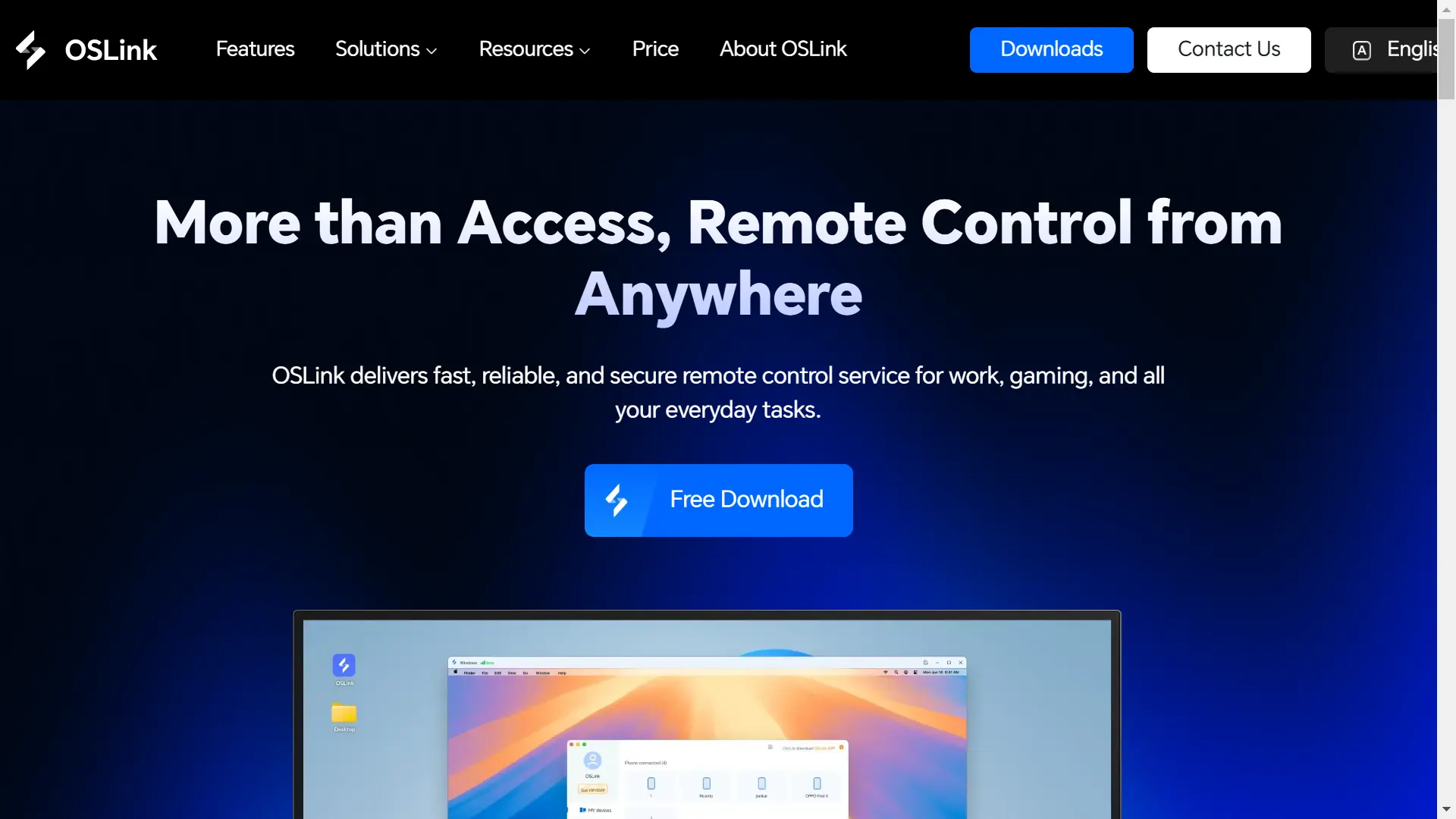
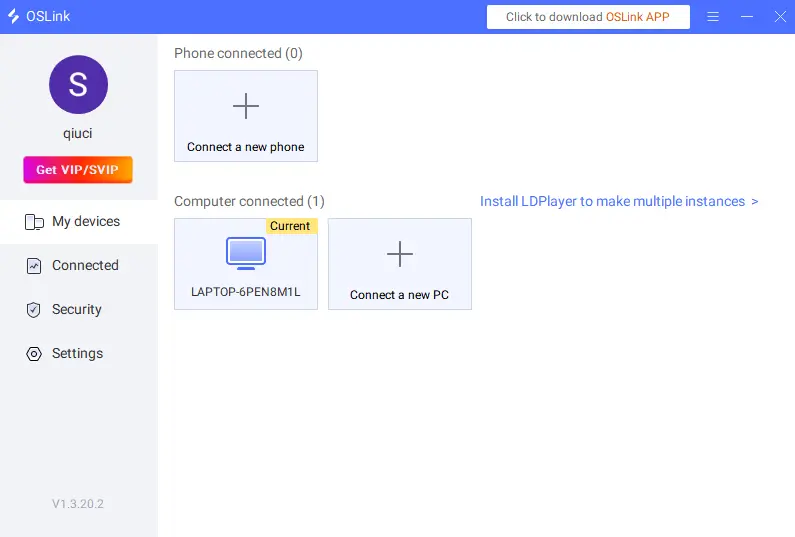
Open your browser and visit the official OSLink website (https://www.oslink.io), download the Windows client and follow the installation wizard to complete setup. Launch OSLink on your PC and log in to your account. Make sure your device is shown as Online.
On Mobile:
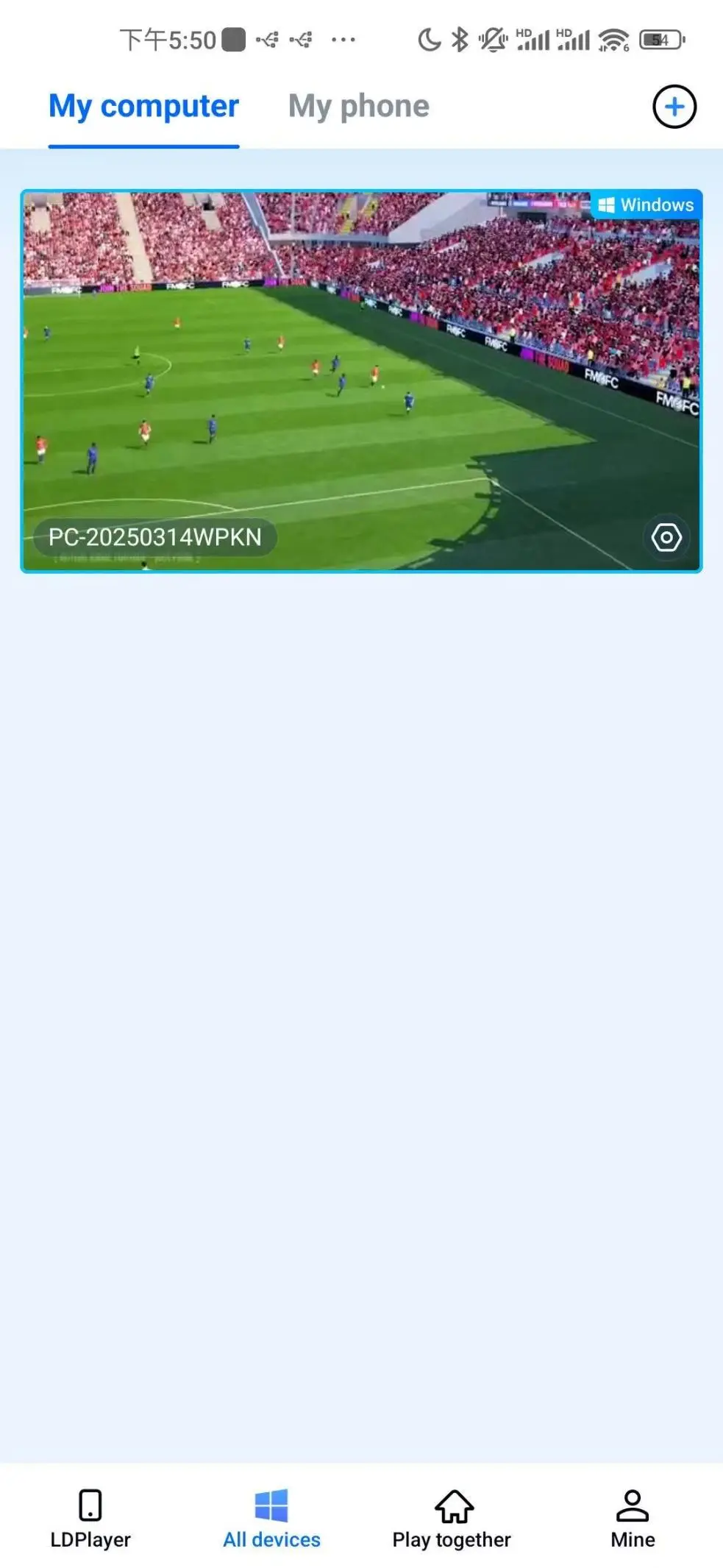
For Android users, download OSLink from Google Play or the official website. For iOS users, get the app from the App Store. Log in with the same account used on your PC. The app will automatically detect your paired computer and connect with one tap. No manual IP address entry is required.
Once connected, tap the PC icon to access the remote desktop and start playing the game.
Operation Mode Switch & Custom Key Layout
FM26 relies heavily on mouse clicks, page switching and hotkeys. It is recommended to use OSLink’s virtual mouse mode combined with custom virtual keys for better operation.
Switch to Dedicated Game Mode
1. Open the toolbar on the right side of the OSLink mobile app and enable「 60fps PC Game」Mode. This optimizes streaming quality and fluidity to keep in-game text and data clear.
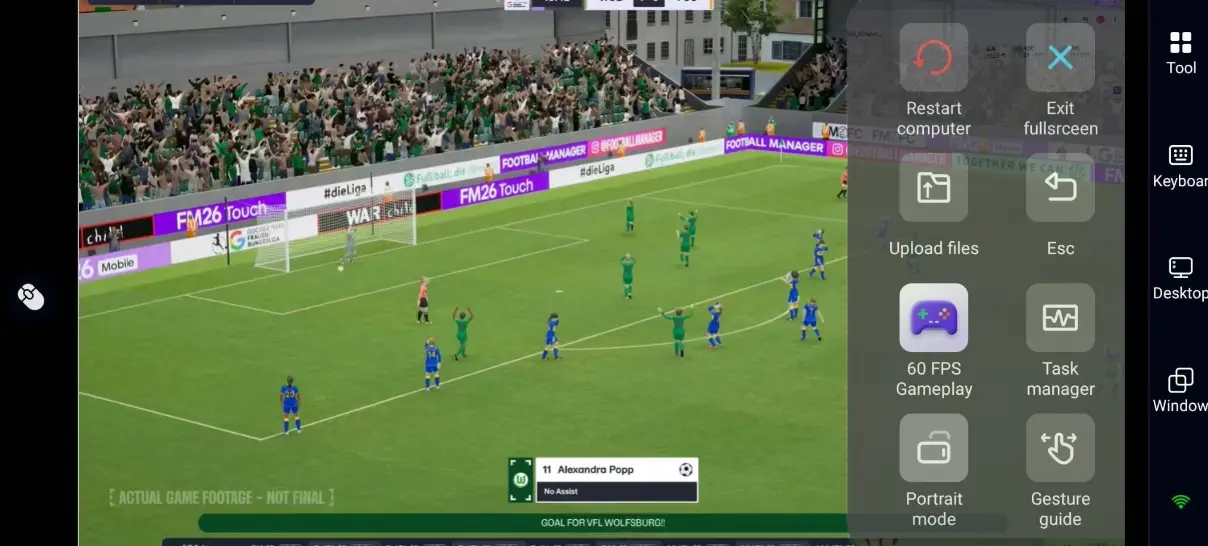
2. Choose your preferred control method: use the virtual mouse for precise clicking, or turn on virtual keys. You can also connect a Bluetooth gamepad for gameplay.
3. It is advised to enable Hide System Buttons to avoid accidental taps that interrupt your game.
Custom Virtual Key Recommendations for FM26
Configure hotkeys in the Virtual Key Settings of OSLink based on different in-game scenarios. Refer to the layout below:
|
Function Category |
Recommended Keys |
Description |
|
Basic Interface Controls |
Left-click, Right-click, Page Scroll |
Navigate menus, switch tabs, browse player lists and statistics |
|
Match & Tactics Controls |
Pause/Resume, Skip Cutscenes, Tactics Panel Shortcut |
Pause matches for substitutions, skip animations, quickly open tactics settings |
|
Club Management Shortcuts |
Transfer Market, Training Centre, Message Panel |
Check transfer offers, adjust training schedules, reply to team emails |
|
Auxiliary Controls |
Save Game, Load Game, Return to Previous Page |
Save managerial progress, load save files, exit sub-interfaces |
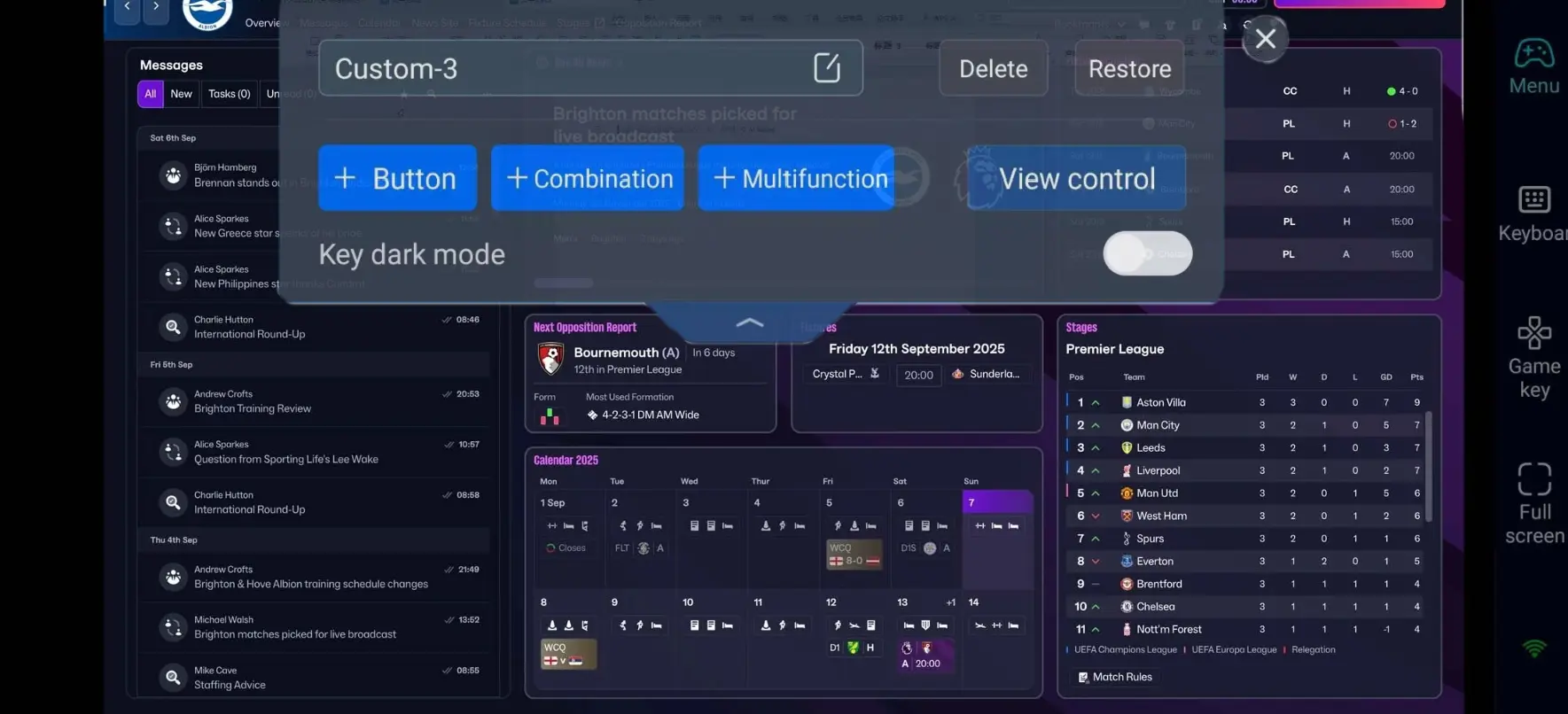
You may adjust the size and transparency of virtual keys to prevent them from blocking player stats and tactic boards.
Gameplay Scenarios for Remote Play
As a non-action simulation game with a relaxed pace, FM26 is perfect for playing during spare moments.
1. Daily Club Management in Spare Time
During commutes, queues or lunch breaks, you can remotely scout potential players, review contract renewals, adjust training plans, and respond to media and player inquiries. These simple tasks are ideal for short free periods.
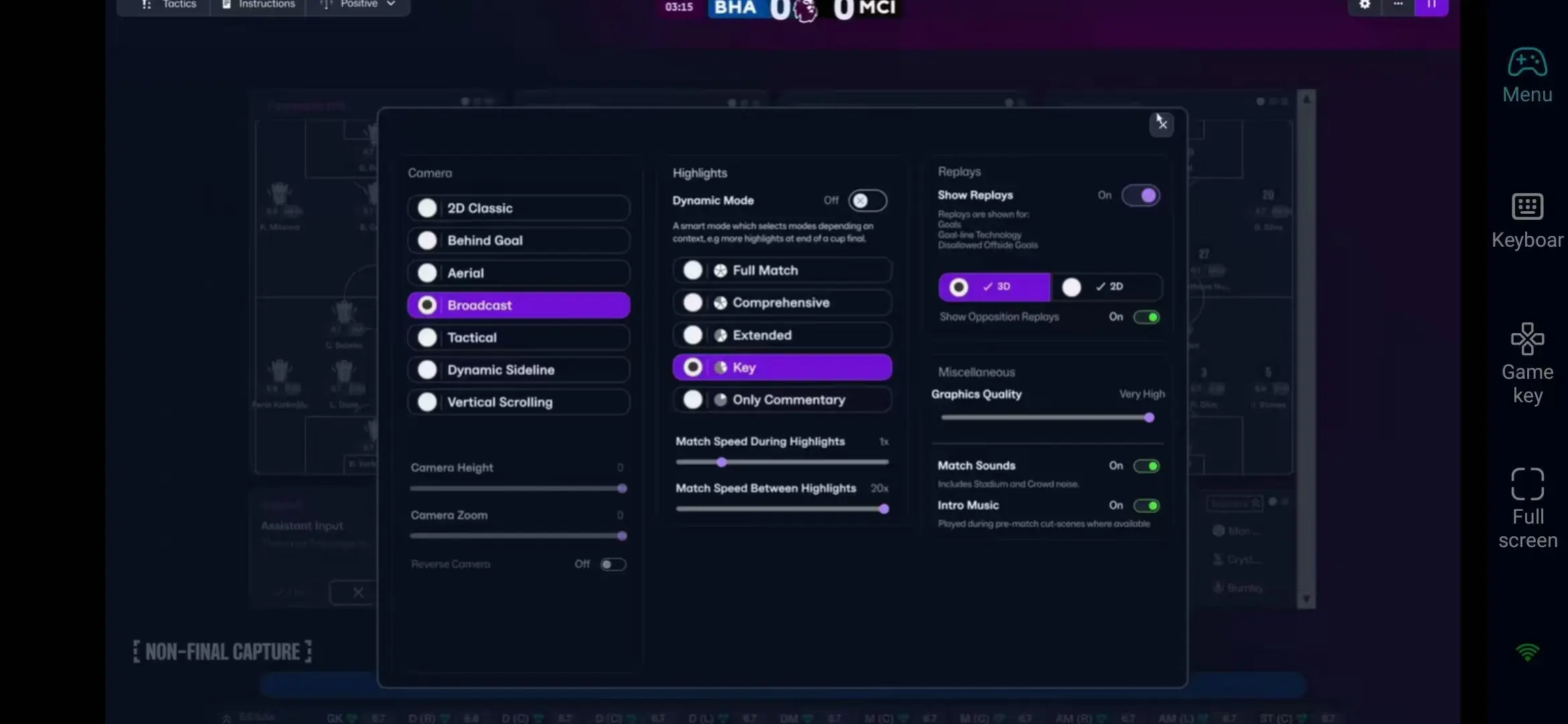
2. On-site Match Command via Remote Stream
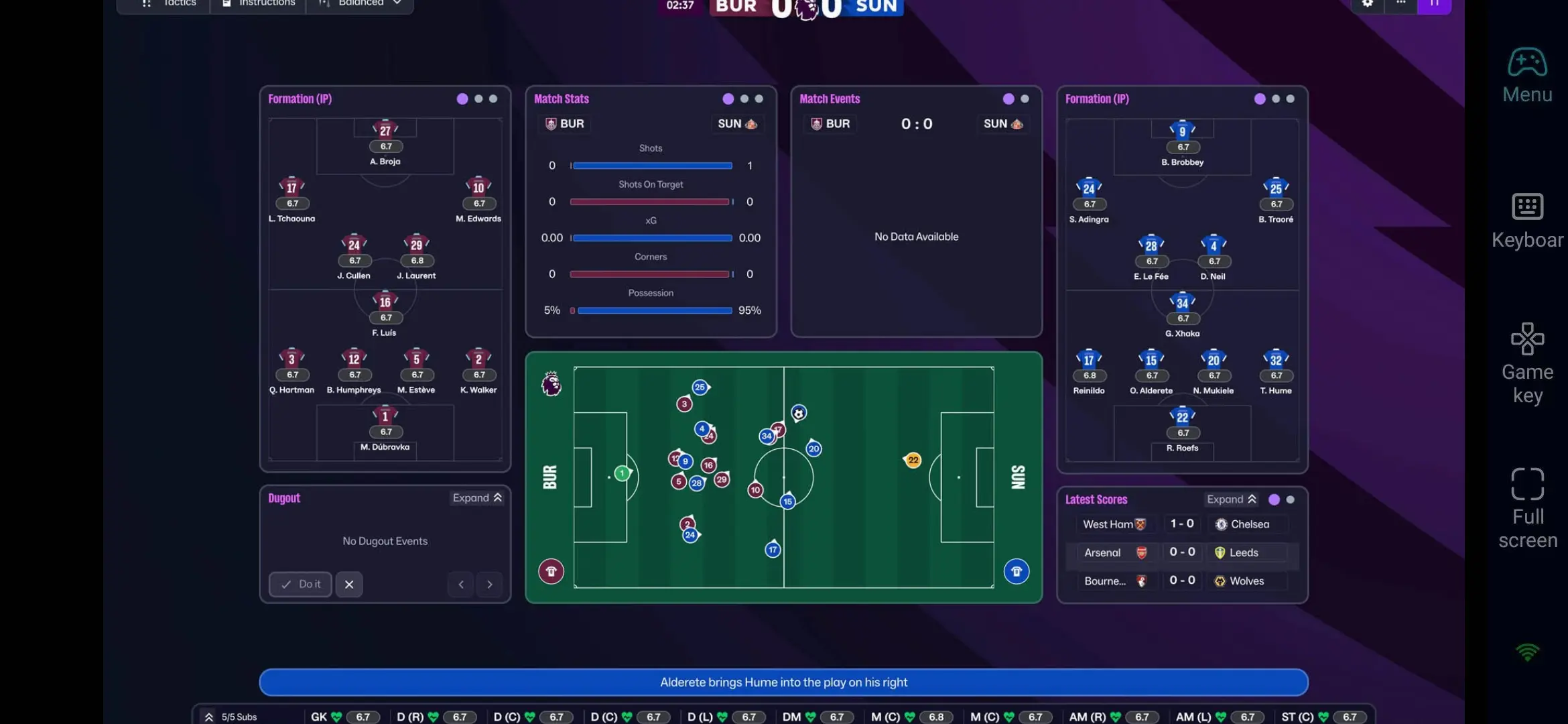
Watch 3D match footage on your mobile device during crucial league or cup games. Pause the match anytime to make substitutions and tweak tactics, so you can stay in full control even when you are away from home.
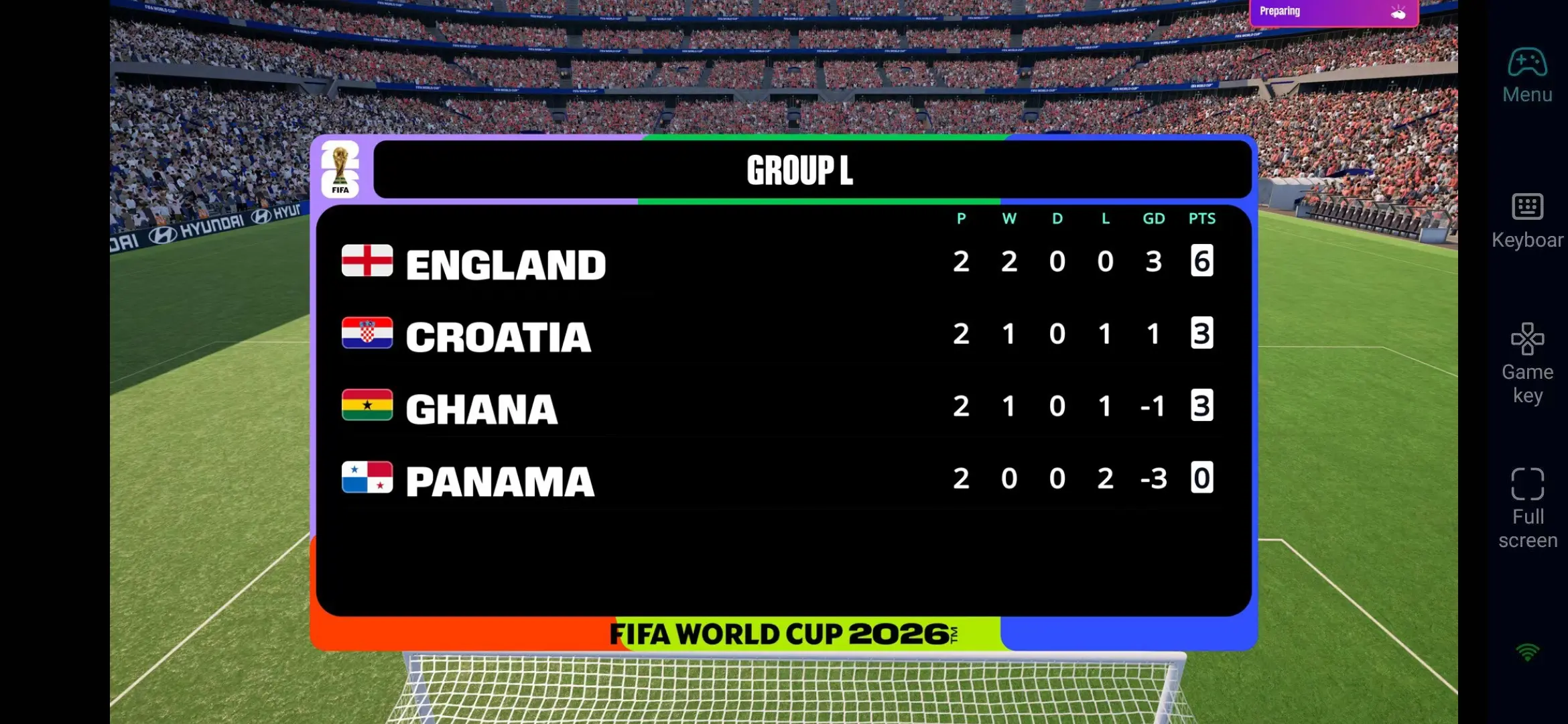
3. Monitor Simulated Matches Remotely
Set your PC to simulate consecutive league games or youth team matches. Use your phone to remotely check match results, player injuries and accumulated yellow cards. Adjust the squad rotation plan immediately if emergencies occur.
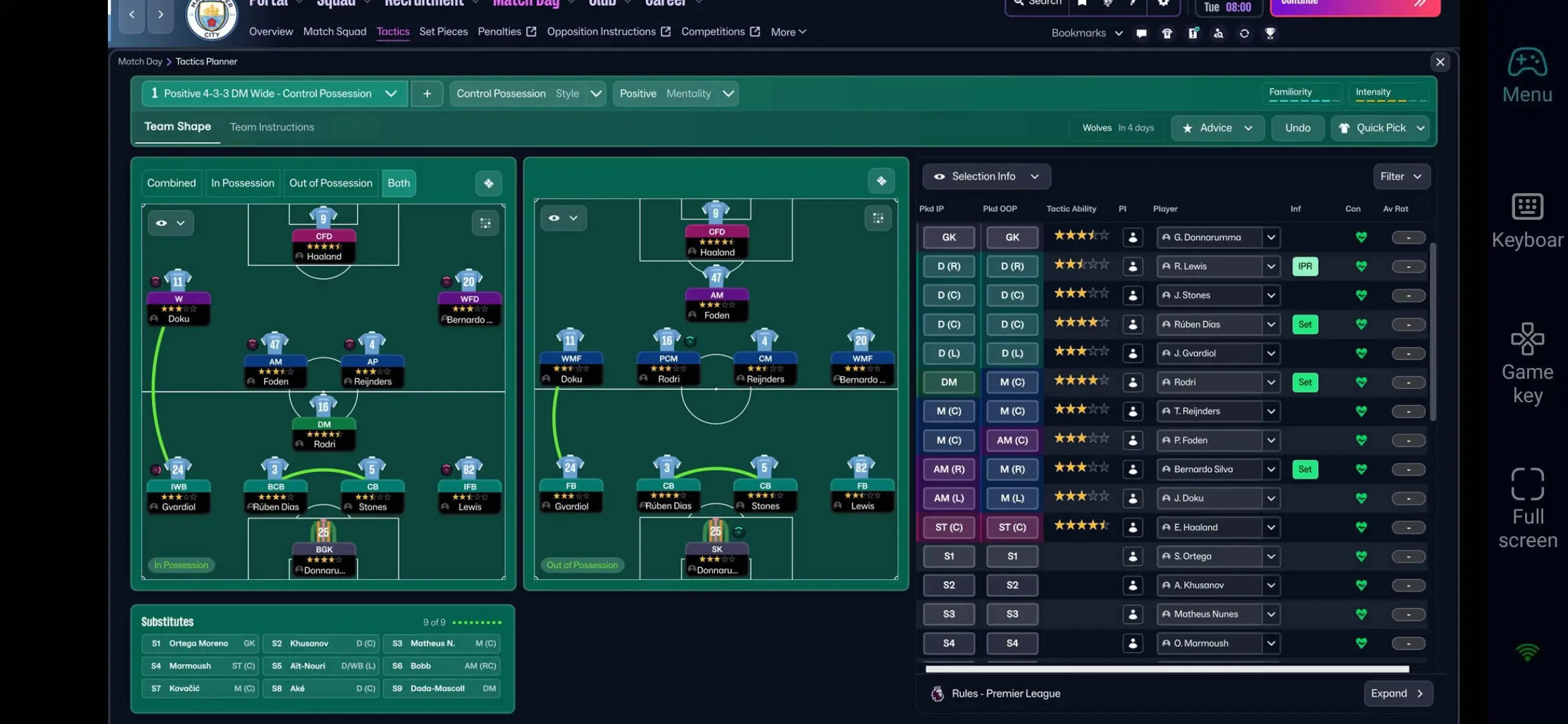
4. Long-term Team Planning & Data Analysis
Browse the complete player database, league standings and tactical statistics while relaxing at home. Analyze opponents, plan transfer targets and refine your tactics to enjoy in-depth football management.
Advantages of Using OSLink for Remote FM26 Gameplay
Unrestricted Access & Seamless Progress Sync:A single FM save file can last for dozens or even hundreds of hours. OSLink allows you to perform detailed operations on PC and handle routine tasks on mobile. All progress is fully synchronized across devices.
Low-latency Streaming for Simulation Games:FM26 is a data-driven simulation game that does not require fast reflexes. Equipped with intelligent bandwidth optimization, OSLink delivers low-latency streaming, offering an experience nearly identical to playing locally.
Full PC Game Content Preserved:There is no official full version of Football Manager 26 for mobile platforms. Mobile editions are simplified spin-offs with cut-down content. Remote streaming lets you access all original features, competitions, statistics and tactical systems of the PC version.
Tips for Remote FM26 Management
1. Develop a Habit of Multiple Saves
Create separate save files before transfer negotiations, important matches and at the end of each season. Occasional network fluctuations may cause stuttering, and multiple saves can prevent progress loss.
2. Keep Track of Transfer Windows & Fixture Deadlines
All leagues and cup competitions follow fixed schedules, and transfer windows have strict deadlines. Complete transfers and contract renewals in advance. Always pay attention to players’ fitness, injury status and morale.
3. Optimize Network Conditions
Use a stable Wi-Fi network when browsing massive data or watching 3D matches. Choose areas with strong signal if using mobile data to reduce frame drops. OSLink supports remote access over public networks for on-the-go use.
4. Plan Your Tasks Efficiently
Reserve complex tasks such as detailed tactic design and large-scale player filtering for your PC. Use mobile devices only for viewing content and minor adjustments to improve efficiency.
FAQ
Q: When was Football Manager 26 officially released?
A: Football Manager 26 was officially released on November 5, 2025. The game is available on PC (Steam/Epic), PlayStation 5, Xbox Series X|S and macOS. There is no Nintendo Switch version.
Q: What are the PC system requirements for Football Manager 26?
A: Below are the official PC hardware requirements released by SEGA and Sports Interactive:
|
Hardware Item |
Minimum Requirements |
Recommended Requirements |
|
Operating System |
Windows 10 64-bit |
Windows 10 / Windows 11 64-bit |
|
Processor |
Intel Core 2 Duo / AMD Athlon 64 X2 |
Intel Core i5 / AMD Ryzen 5 or higher |
|
RAM |
4 GB |
8 GB or higher |
|
Graphics Card |
Intel UHD Graphics / NVIDIA GeForce 900 Series / AMD Radeon R5 Series |
NVIDIA GTX 1050 / AMD RX 560 or higher |
|
Storage |
15 GB available space |
15 GB or more available space |
|
Additional Notes |
DirectX 11 compatible, internet connection |
DirectX 11 compatible, stable internet connection |
Q: Can I download and play the full version of Football Manager 26 directly on my mobile phone?
A: There is currently no official mobile version that offers the full PC experience. Players who want access to the complete PC version can use OSLink to play and manage their saves on mobile devices.
Q: How to fix frame drops when watching 3D matches remotely?
A:
- Switch to a stable Wi-Fi network and turn off downloads or video streaming on the same network to free up bandwidth.
- Lower the streaming resolution and frame rate in OSLink settings.
- Reduce the 3D match graphics quality inside the game. These methods will effectively improve streaming performance.
Conclusion
Boasting in-depth club management and tactical gameplay, Football Manager 26 is a beloved title among football fans. With OSLink remote streaming, you are no longer tied to your computer. Manage your football empire anytime and anywhere, and make every spare moment count on your managerial journey.
 Download