English
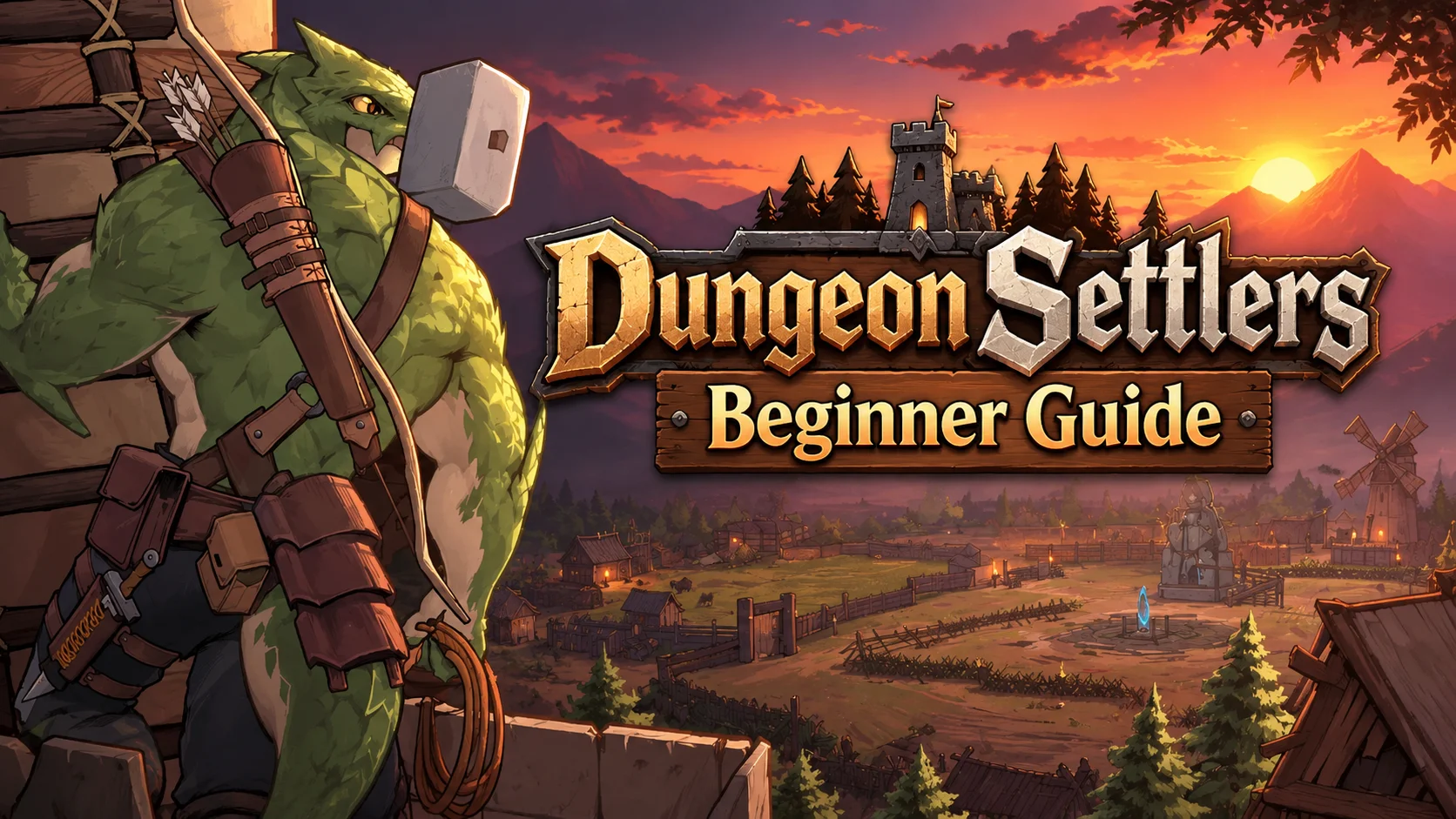
 Dungeon Settlers combines colony management with dungeon exploration, drawing plenty of attention from strategy game fans since its release. However, the game is only available on PC, with no native Android or iOS client from the developer. This leaves players tied to their computers when they want to keep their adventure moving. This guide walks through a practical way to play a PC game remotely from your phone, covering how to get the game, set up the software on both devices, connect and run it, optimize the experience, and deal with common questions. If you want to give it a try, follow the steps below to get everything set up.
Still looking for a convenient way to play smoothly? OSLink fits the bill. The entire remote streaming setup is straightforward, with no need to buy any extra hardware. The software also optimizes its connection for strategy games, improving response times when managing your settlement or issuing commands to your party, making the overall experience feel much smoother.
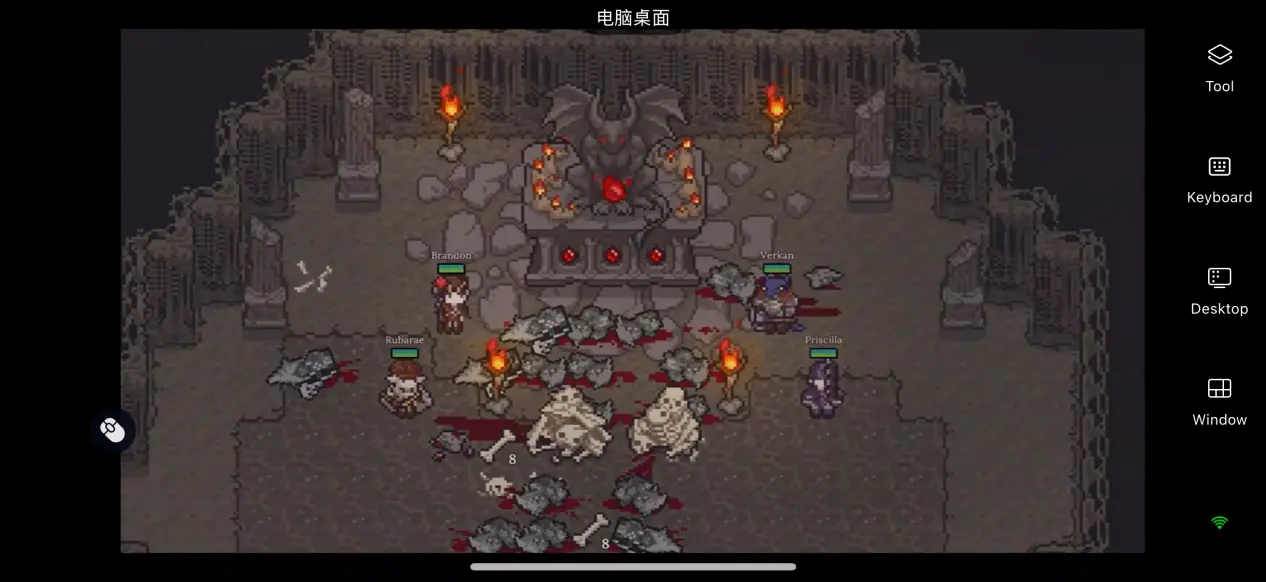
1. How to Play Dungeon Settlers
How to Get the Game
The PC version of Dungeon Settlers is mainly available through the Steam store. Search for the full game title in the store, complete your purchase, and then download and install it from your Steam library. Your save files are synced through the platform's cloud service, so you can access your existing settlement saves on other PCs logged into the same account.
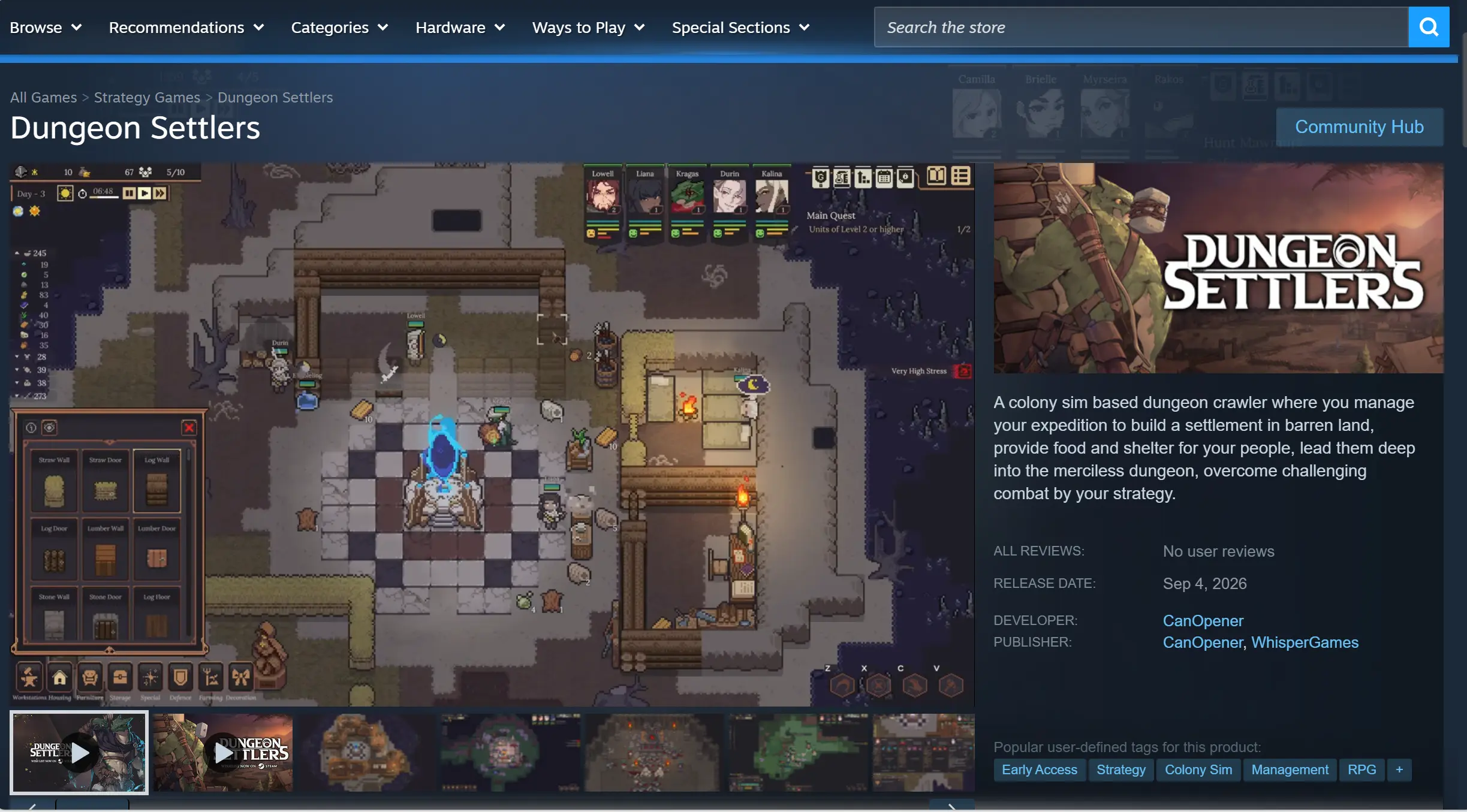
Once the download is complete, it is recommended that you launch the game at least once to make sure the save screen loads correctly and that features such as settlement building and party setup work without crashes or visual issues. After confirming that the game runs properly on your PC, you can move on to the remote streaming setup.
2. How to Install OSLink on PC and Mobile
PC Setup
Open your browser and visit the official OSLink website to download the Windows installer. Complete the installation, launch the program, register an account, and sign in.
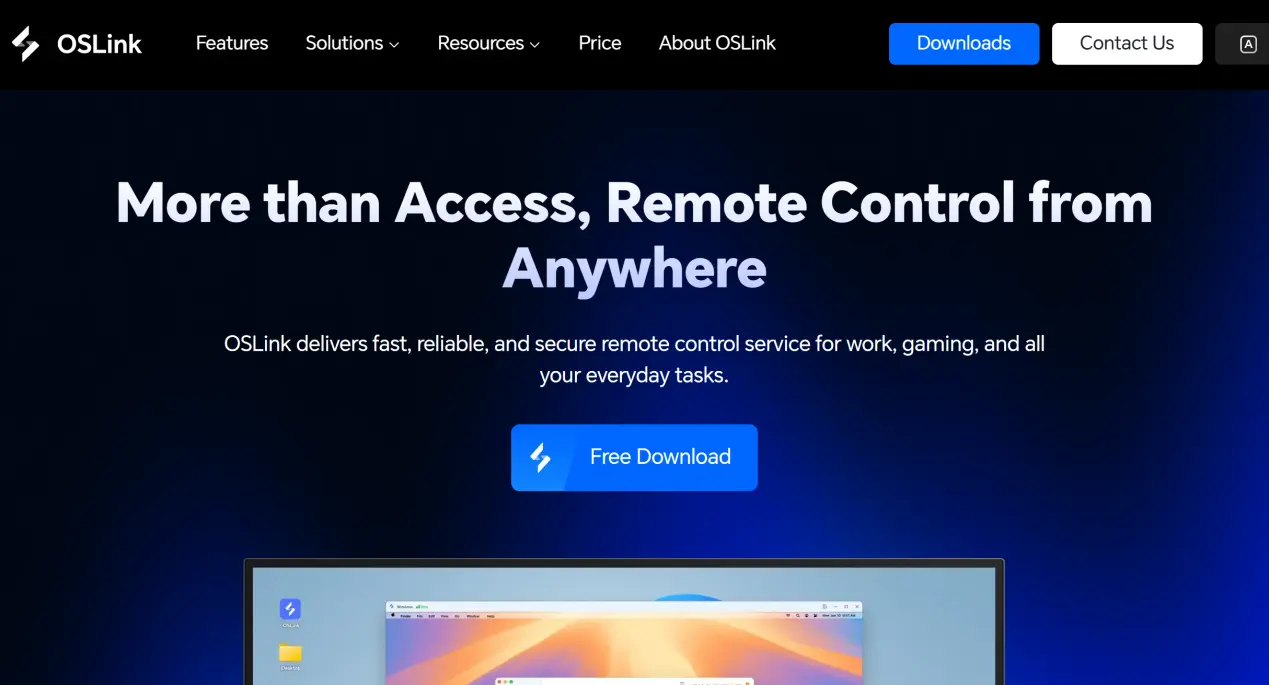
The software needs to keep running in the background. In your system settings, disable automatic sleep and network adapter sleep options to prevent the connection from dropping while the computer is idle. This ensures that your phone can connect to the PC whenever needed.
Mobile Setup
Android users can search for OSLink in their app store and install it.
iOS users can open the App Store and search for the corresponding client.
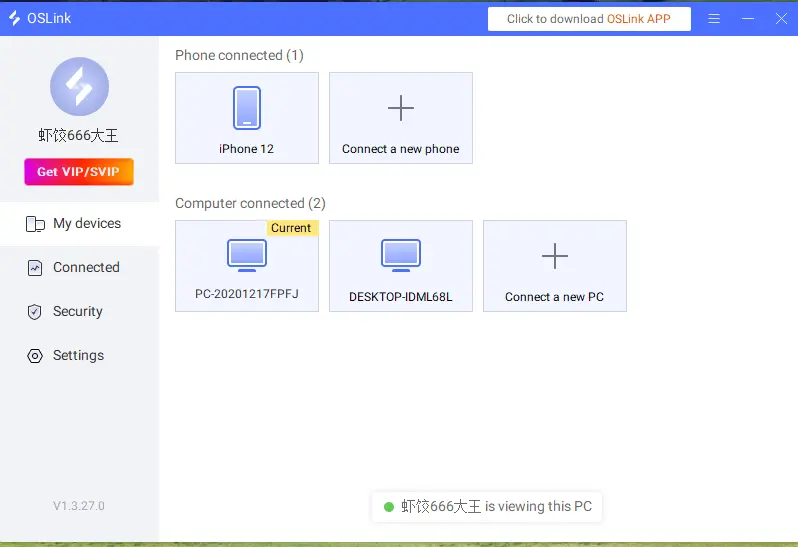
The account signed in on your phone must be the same one used on the PC. The software can detect PCs on the same local network, while devices on different networks can also be paired automatically, so there is no need to enter a device ID manually.
3. How to Run Dungeon Settlers on Mobile with OSLink
On your PC, open the Steam client and launch Dungeon Settlers. Stay on the main settlement screen and keep the game window running in the foreground. Do not minimize it.
Open OSLink on your phone. The device list will show available PC hosts linked to the same account. Tap the name of the PC you want to connect to start streaming.
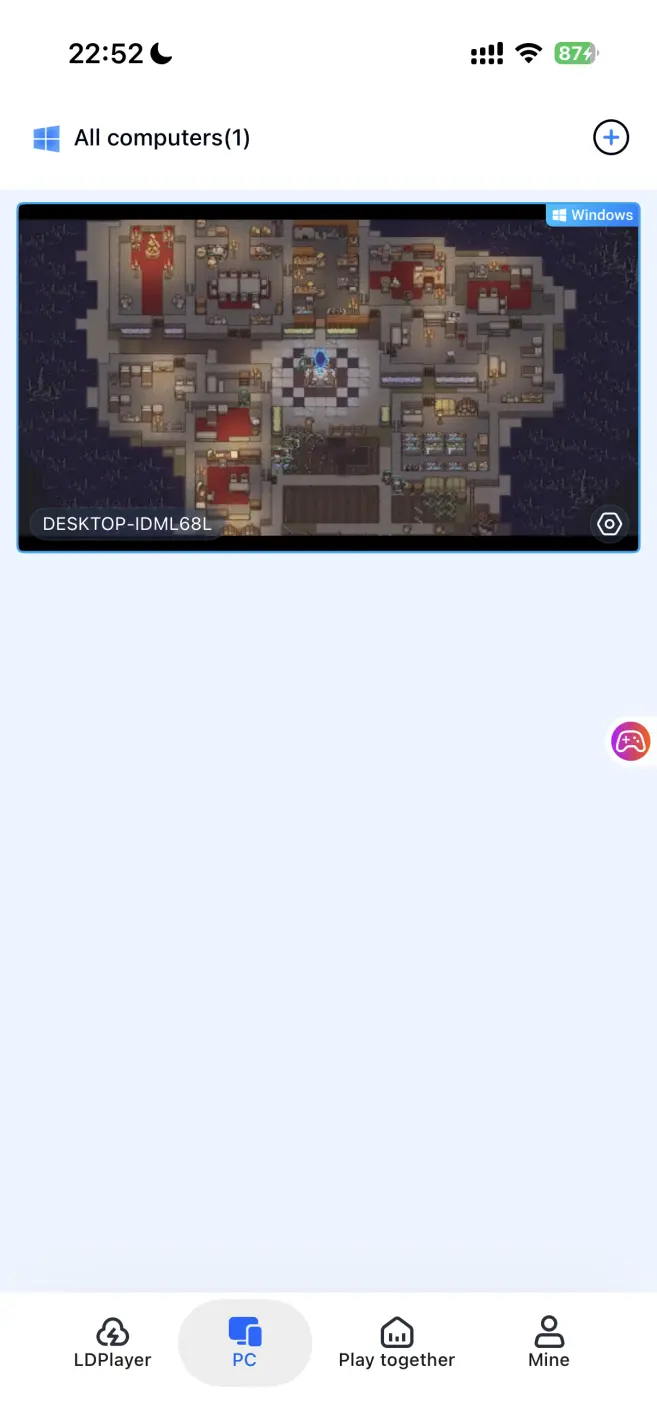
Once the PC screen appears on your phone, open the toolbar on the right and adjust the control layout to suit your play style. You can also connect external peripherals. After setup is complete, you can manage settlement resources, assemble exploration parties, issue dungeon commands, and handle the rest of the gameplay directly from your phone.
4. Benefits of Playing Dungeon Settlers on Mobile
Play Whenever You Have a Moment
As long as your PC stays powered on and connected to the internet, your phone can connect through Wi-Fi or mobile data. Whether you are waiting during your commute or taking a break while out, you can quickly pick up from your existing save, rearrange buildings, manage supplies, and organize exploration parties without being tied to your computer.
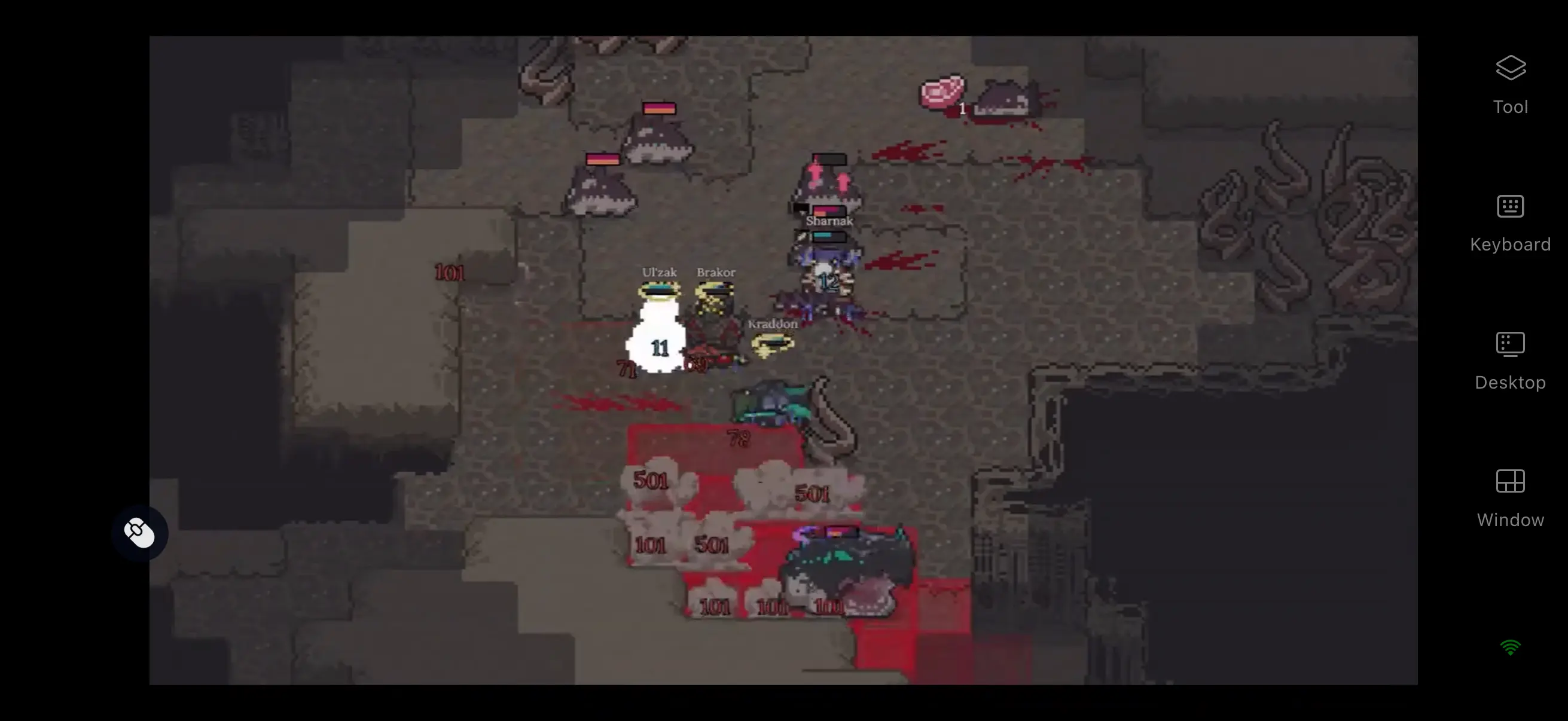
No Need to Use Your Phone's Storage
The game files and save data remain on your PC's hard drive. Your phone only handles the streamed display and input, so there is no need to download the full game package. Even phones with modest storage can be used without having to clear out space for the game.
Support for Different External Peripherals
OSLink supports Bluetooth and wired connections for controllers, keyboards, and mice. Once a peripheral is connected, the controls automatically adapt to the game. Issuing party, movement, and combat commands feels much closer to playing locally on a PC, helping make up for the limitations of touch controls on a smaller screen.
5. How to Optimize Dungeon Settlers on OSLink
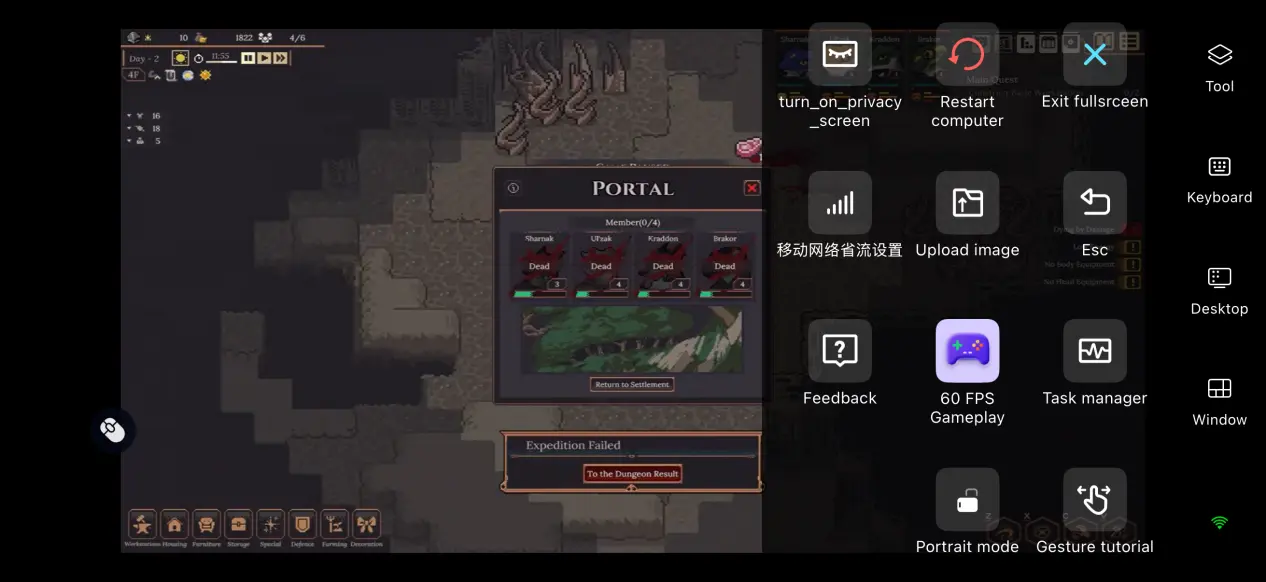
60 FPS PC Gaming Mode
After enabling 60 FPS PC Gaming Mode from the toolbar on the right side of OSLink, the software automatically optimizes its encoding. In scenes with large groups of dungeon enemies or densely built settlements, this helps reduce visual trails and shortens the delay between issuing a command and seeing the result on screen, making strategy-focused controls feel more responsive.
Full Streaming History
When streaming between your PC and phone, the PC displays a connection pop-up in real time, allowing you to immediately check whether the device connecting to your PC is the one you intended to use. The software also keeps a record of previous device connections, so if an unfamiliar device connects, you can cut it off right away and help keep your account secure.
Customizable Control Layout
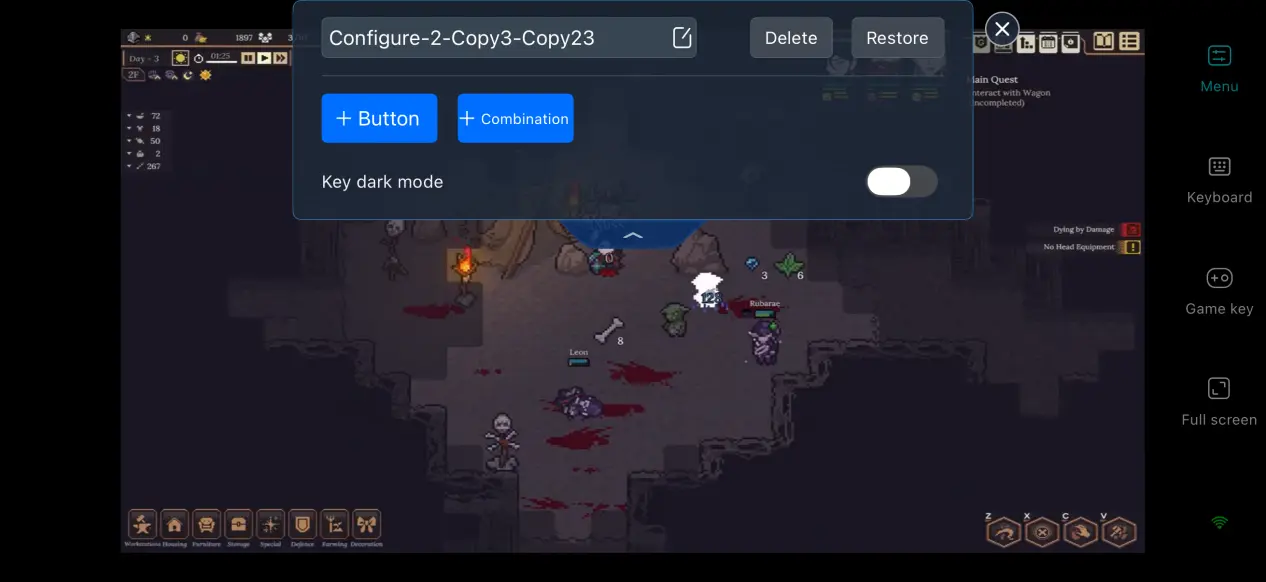
You can add or remove virtual touch buttons and adjust their size, transparency, and position. For Dungeon Settlers, frequently used controls such as party management, pausing, and unit selection can be placed in easy-to-reach areas. You can also save multiple control layouts and quickly switch between setups for settlement building and dungeon exploration.
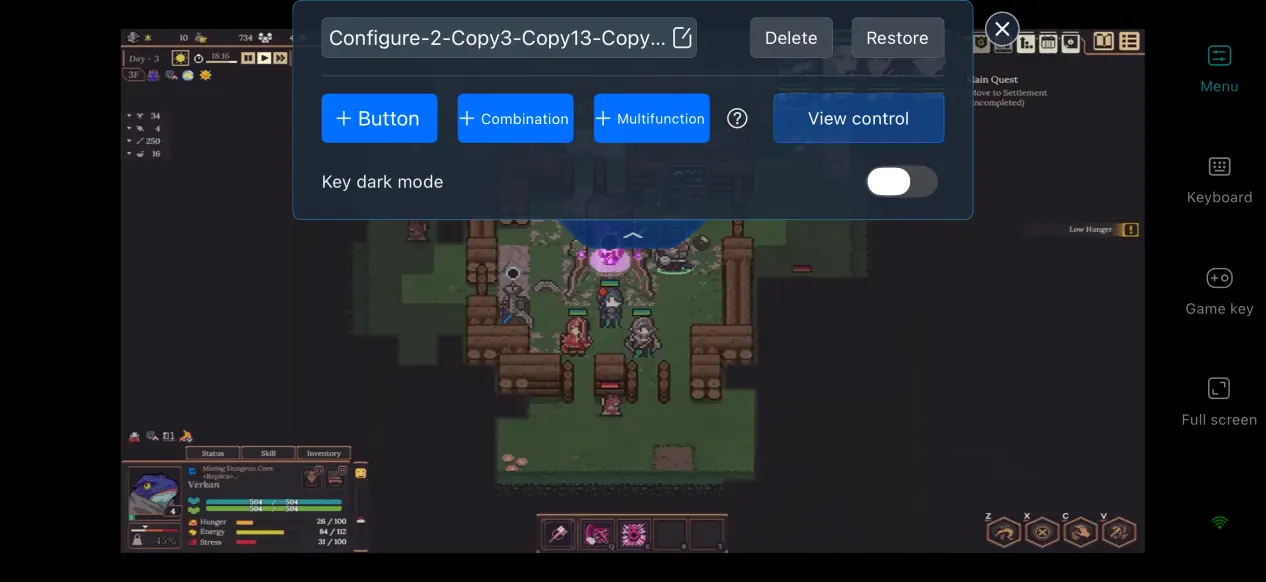
Mobile Screen Optimization
When the network connection is strong, you can increase the bitrate in OSLink to preserve details such as settlement buildings and character status. If the connection becomes unstable, you can lower the bitrate to keep the stream running smoothly. The software can also detect network quality automatically and adjust the output quality dynamically, balancing image clarity with connection stability.
6. Frequently Asked Questions About Playing Dungeon Settlers on OSLink
Q: Dungeon Settlers release date
A: Dungeon Settlers launches on September 4, 2026, and there is currently no native version for mobile devices.
Q: What PC specifications does Dungeon Settlers require?
A: Minimum requirements: Windows 10 or later, a Core 2 Duo processor, 4 GB of RAM, Intel HD Graphics 4000, and 2 GB of SSD storage. Recommended requirements: Windows 10 or later, a higher-spec processor, 4 GB or more of RAM, and an SSD for storing the game files.
Q: Can I play Dungeon Settlers directly on an iOS or Android device?
A: The developer has not released native iOS or Android versions. You can run the game through OSLink remote streaming from a PC.
Conclusion
Dungeon Settlers is a strategy game that combines colony building with dungeon exploration. Players need to manage settlement survival while handling tactical battles in underground dungeons, with the permanent character death mechanic adding another layer of strategic depth. At present, the game is only available on PC, with no native mobile version released by the developer. With OSLink remote streaming, the PC handles all the rendering and processing while the phone works as the display and input device. This lets players break free from the limitations of a fixed PC setup and use spare moments to manage their settlement and prepare for dungeon expeditions.
 Download