English
 Persona 5 Royal is the kind of JRPG that’s hard to put down once you get immersed in it. By day, you’re an ordinary Tokyo high school student balancing classes, part-time jobs, and relationships. By night, you lead the Phantom Thieves, infiltrating Palaces within distorted hearts to steal their Treasures. Persona 5 Royal’s structure is actually perfect for short play sessions. With the OSLink remote access tool, your phone or tablet can act as a portable way to continue playing. Whether you’re on the train, sitting in a café, or relaxing on the couch, you can reconnect to your PC anytime and continue living your double life.
Table of Contents
Setup Guide
Preparation: Installation and Connection
PC Setup:
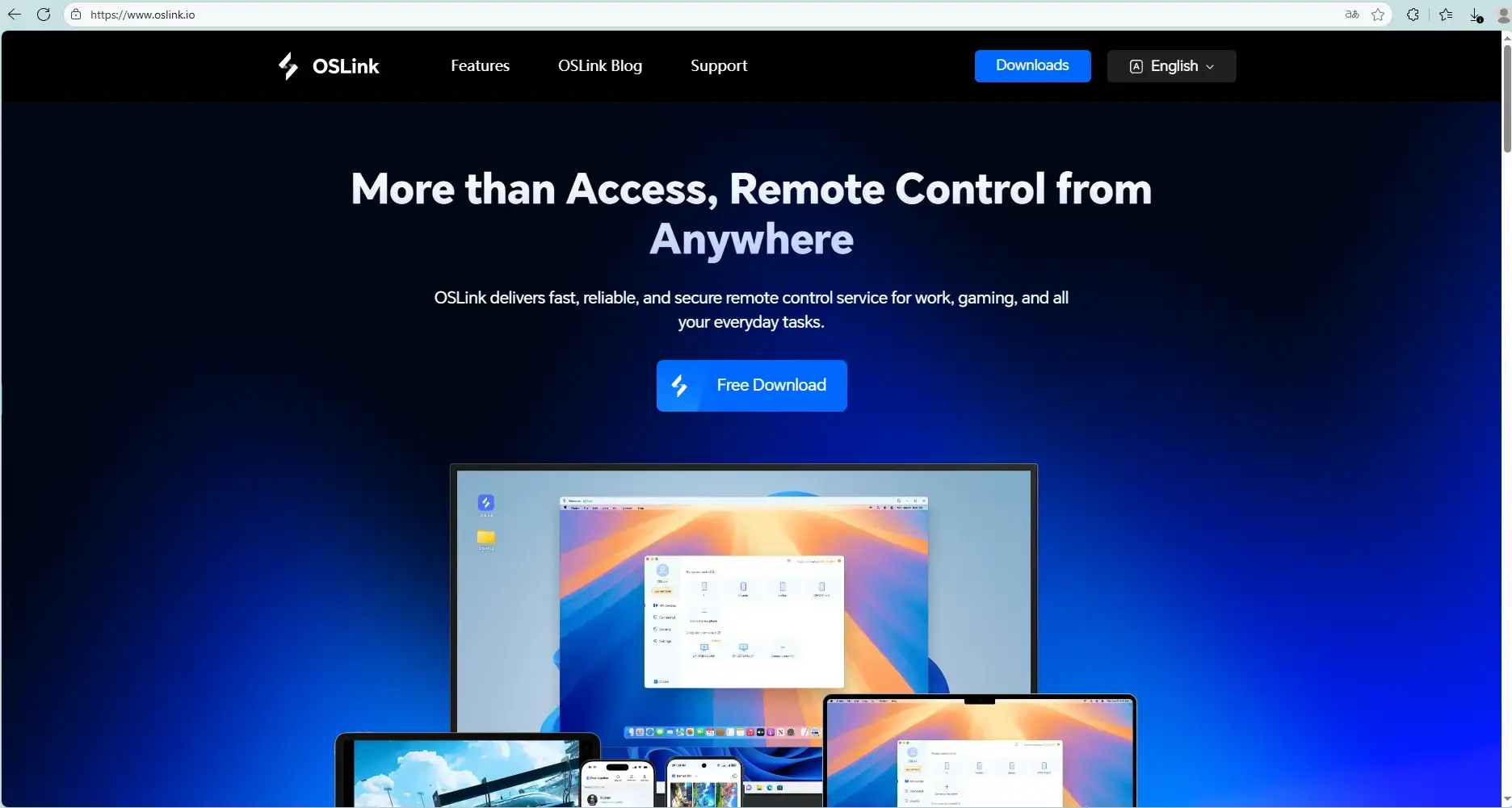
Go to the OSLink Official Website and download the PC client. After installation, log in to your account.
Mobile Setup:
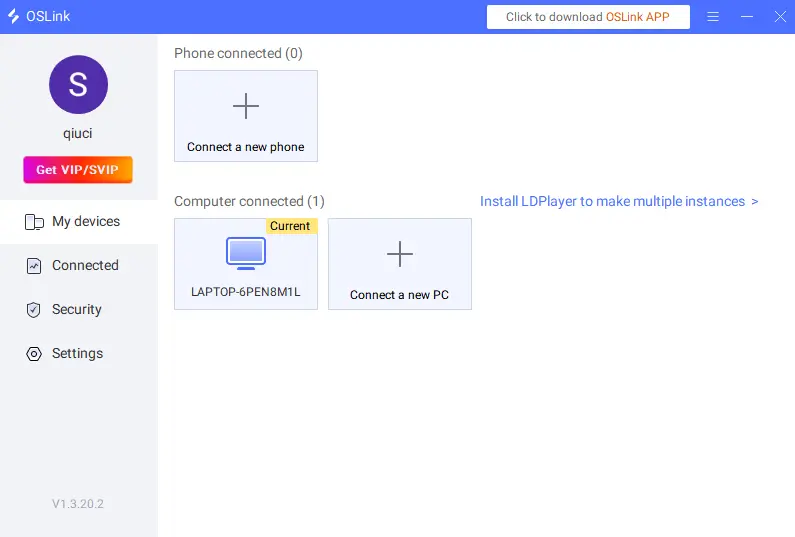
Download the OSLink app from Google Play or the App Store, or download the APK package directly from the official website. Log in using the same account as your PC client, and your devices will automatically pair and connect.
Launching the Game:
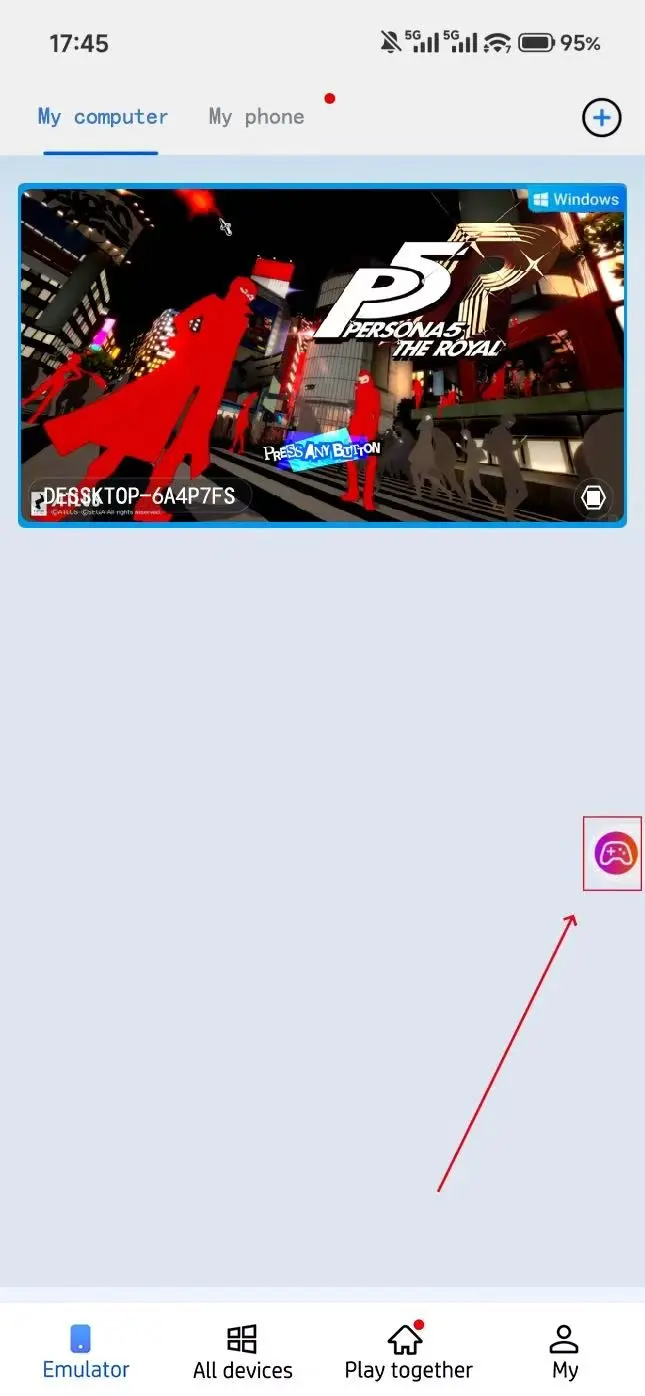
Once connected, tap your PC icon in the OSLink mobile interface to access your desktop.
Choosing a Control Method
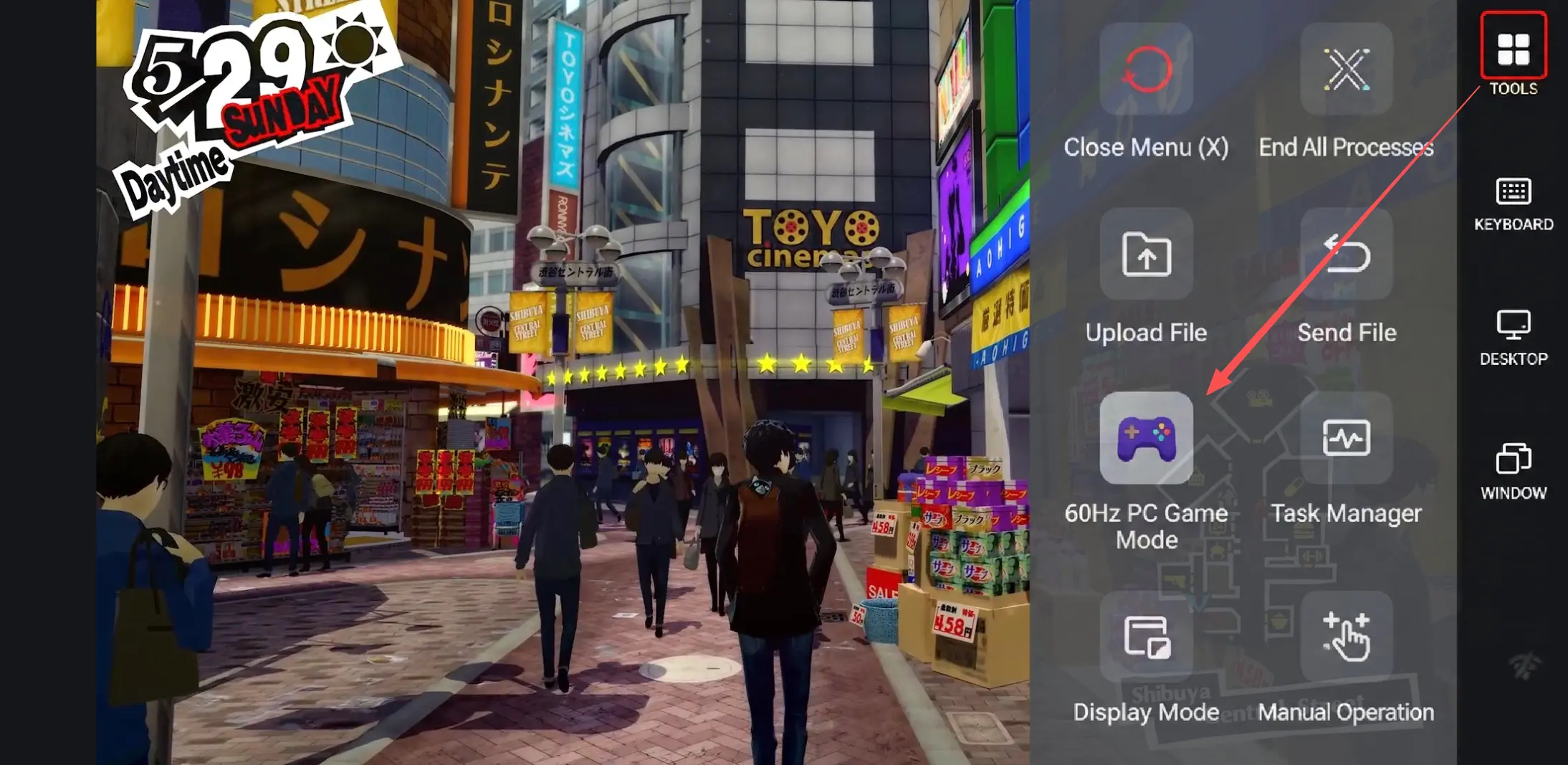
Tap the toolbar on the right side of the mobile interface and enter “60 FPS PC Games” . From there, choose either a touch keymapping layout or connect a virtual gamepad based on your preferred playstyle.
Recommended Keybinding Setup
Recommended control settings for Persona 5 Royal:
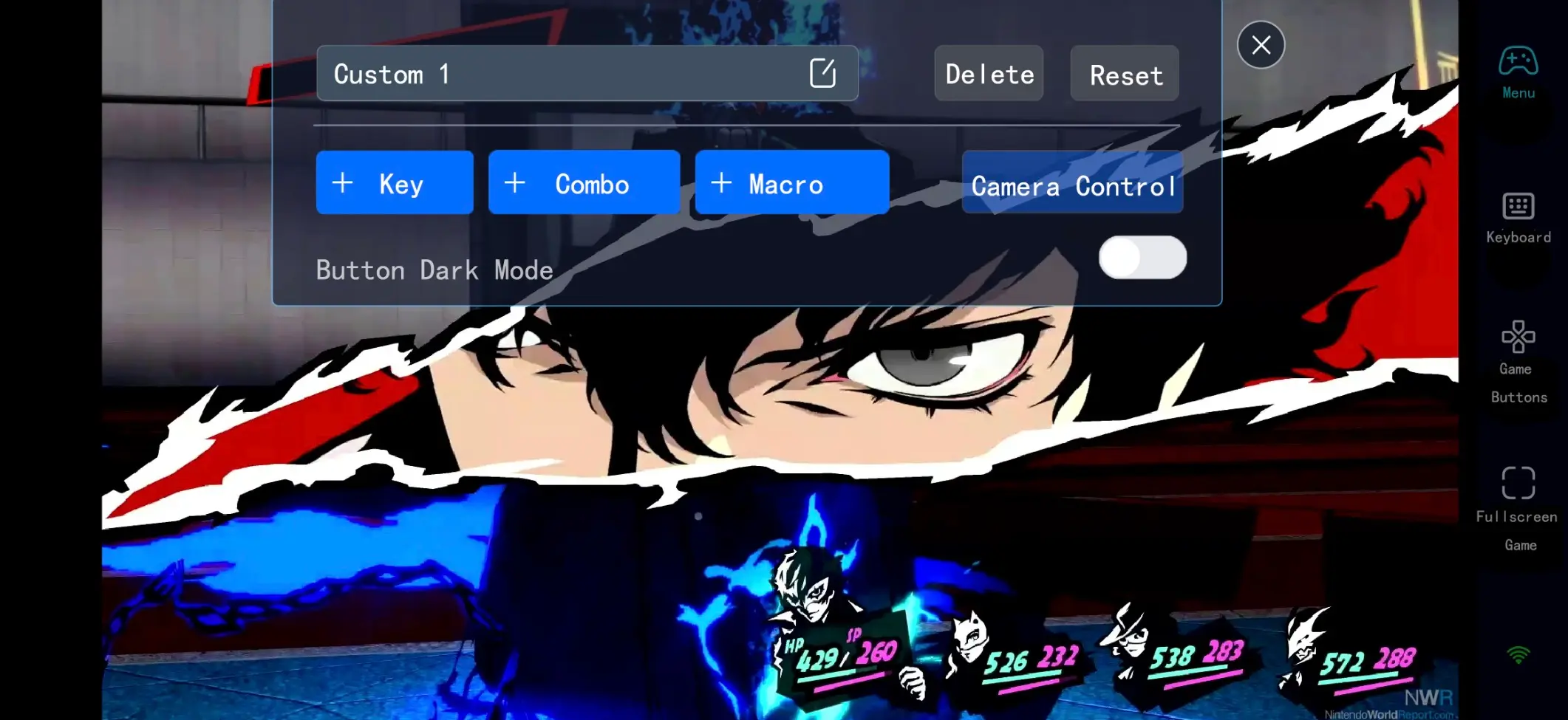
To fully optimize Persona 5 Royal’s smooth daily-life management and fast-paced combat flow, it’s recommended to prioritize the following key functions in OSLink’s “Virtual Key Mapping” settings.
|
Category |
Recommended Keys |
Purpose |
|
Core Movement |
Virtual joystick (WASD), Confirm (Enter), Cancel (Esc) |
Basic movement and menu navigation |
|
Combat Controls |
Attack, Gun, Persona Skills, Guard, Baton Pass |
Core turn-based battle commands |
|
Quick Functions |
Map (M), Confidant overview (N), Menu (Tab) |
Essential functions for exploration and progression |
|
Support Actions |
Sprint, Stealth |
Fast movement and ambushing enemies inside Palaces |
Once configured, you’ll be able to enjoy the full Persona 5 Royal experience smoothly on mobile. Whether you’re walking through Shibuya, answering questions in class, or engaging Shadows in strategic combat, the game still feels smooth on mobile.
Recommended Ways to Play
Progress Daily Activities During Short Breaks:
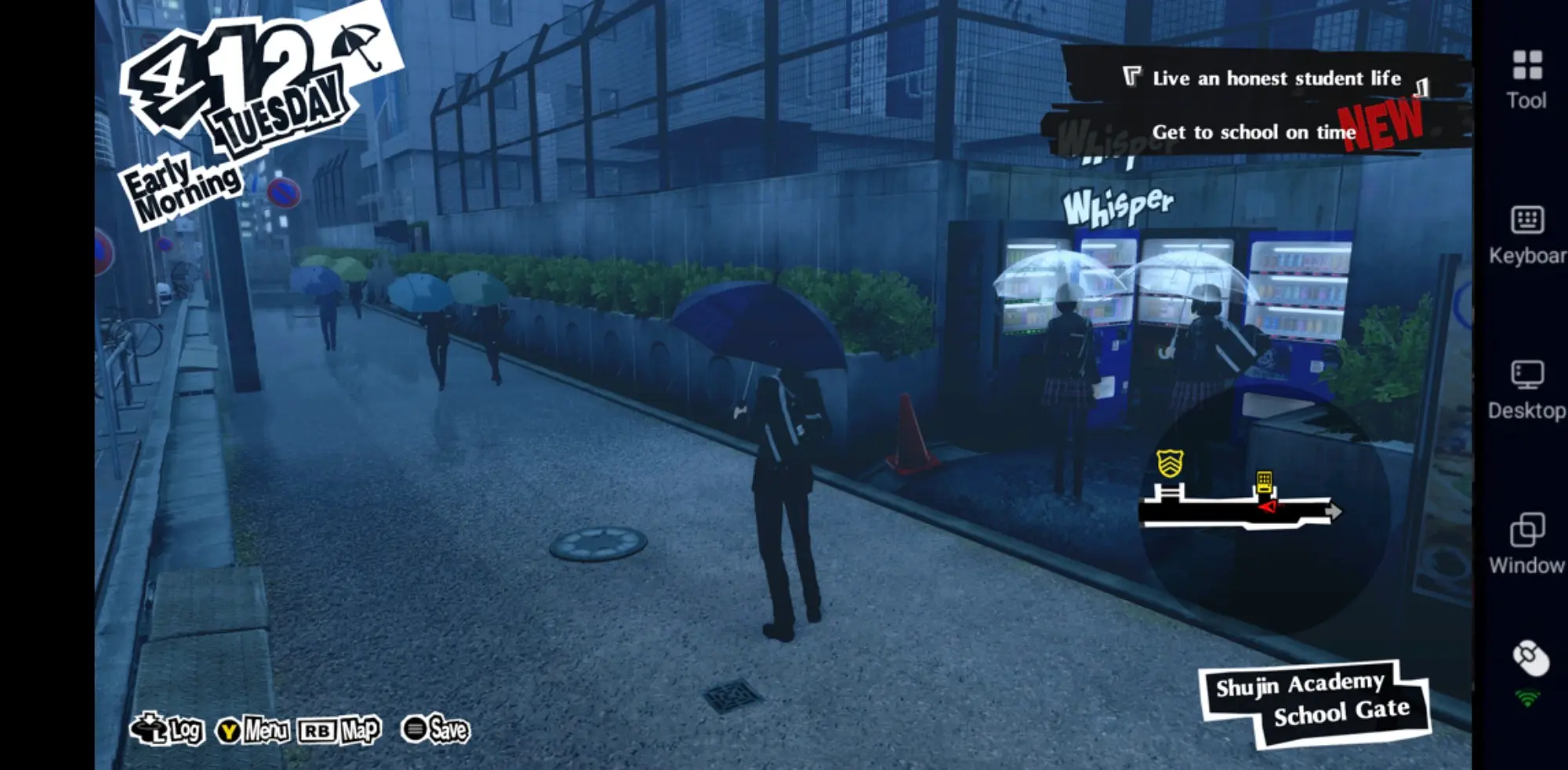
While commuting or waiting in line, you can use your phone to complete a full in-game day of school life — studying at the library to raise Knowledge, visiting the bathhouse to improve Charm, or hanging out with teammates to increase Confidant ranks.Persona 5 Royal’s calendar-based progression is perfect for short sessions, since one “After School” or “Evening” time slot usually fits neatly into a five-to-ten-minute window.
Remote AFK Farming and Level Grinding:
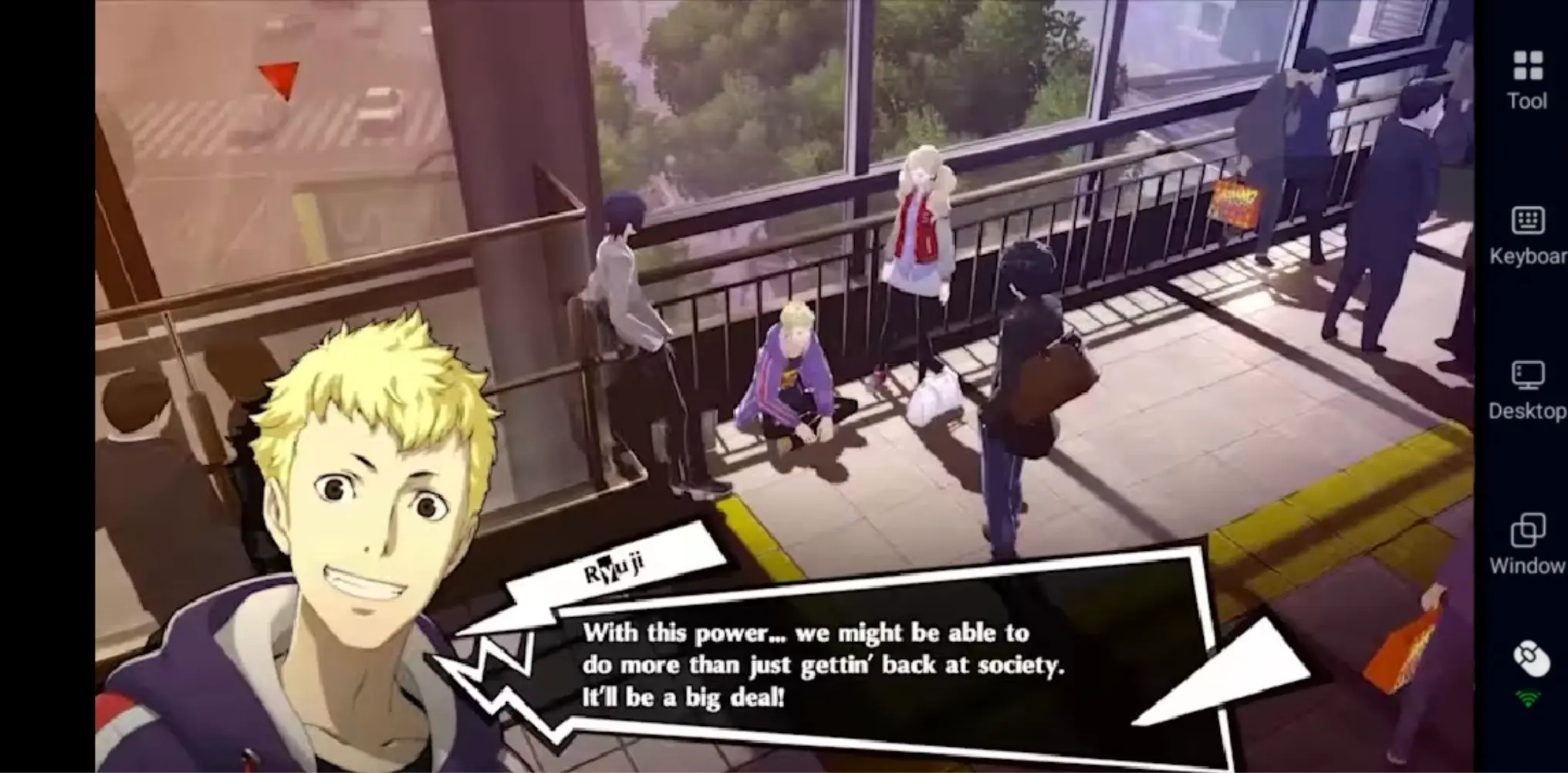
When grinding in Mementos, Ryuji Sakamoto’s Rank 7 Confidant ability, Insta-Kill, allows you to instantly defeat weaker Shadows for quick EXP and money farming. With OSLink connected, you can monitor your grinding progress remotely and jump in whenever you need to manually handle stronger enemies or boss fights.
Enjoy the Story More Comfortably:
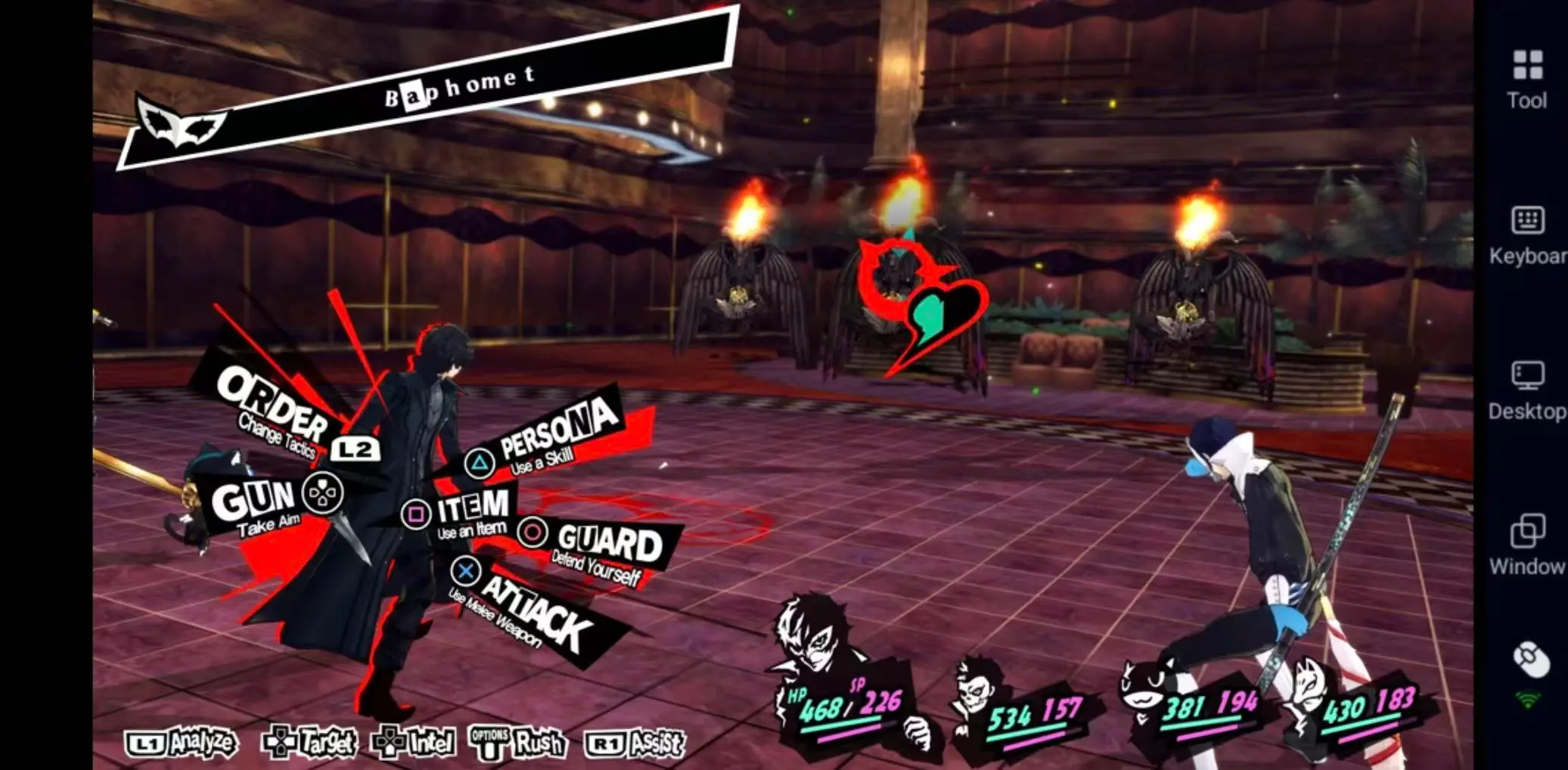
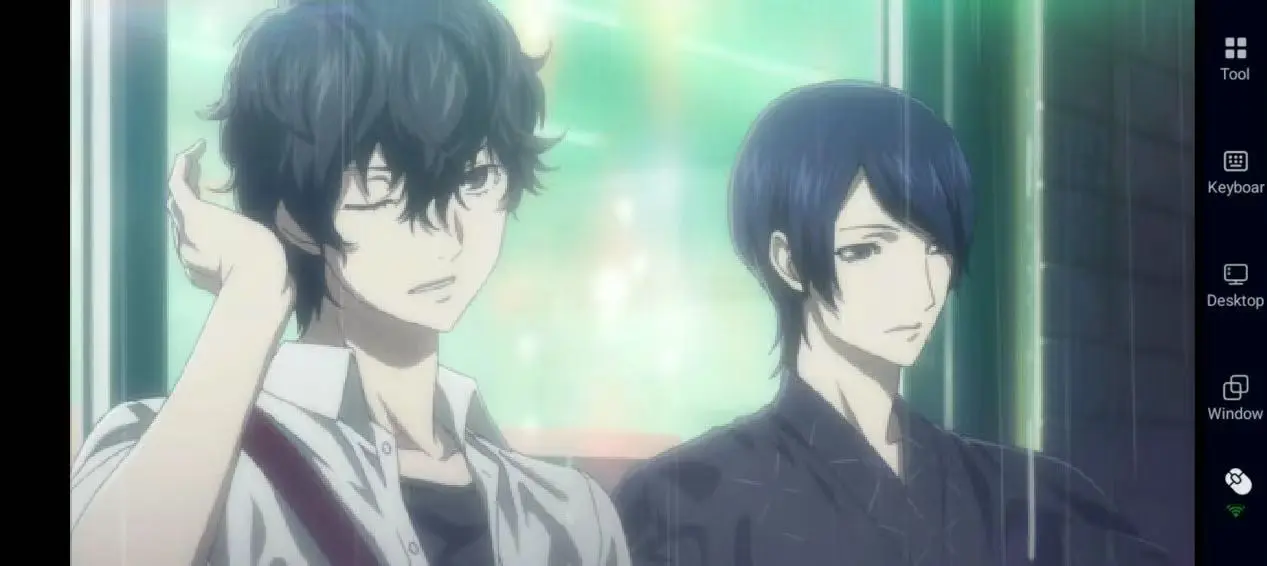
Lie back on the couch or in bed and enjoy Persona 5 Royal’s beautifully animated cutscenes and Confidant storylines directly from your phone.
Why Use OSLink to Play Persona 5 Royal Remotely?
Although Persona 5 Royal is available across multiple platforms including PC, PS5, Nintendo Switch, and Xbox, streaming the PC version remotely through OSLink offers several unique advantages:
1. Continue Your Progress Anywhere
Persona 5 Royal’s main story can easily exceed 100 hours, and it’s unrealistic to stay in front of your PC all the time. With OSLink, you can remotely access your home computer while outside, continue progressing the story or raising Confidant ranks, then seamlessly switch back to your large monitor for difficult boss fights once you get home.
2. PC-Level Visual Quality and Smooth Performance
Persona 5 Royal is famous for its stylish red-and-black UI design and highly polished character animations. Thanks to OSLink’s high-frame-rate streaming, you can enjoy the original PC graphics quality directly on your phone without missing any flashy All-Out Attacks or Persona fusion animations.
Important Tips for Remote Persona 5 Royal Players
Keep Multiple Save Files:Persona 5 Royal features multiple ending routes, and several key choices can affect the final outcome. It’s highly recommended to keep separate save files before clearing Palaces, before major Confidant rank-ups, and around important dates in November so you can easily revisit critical decisions later.
Don’t Wait Until the Last Day to Clear Palaces: Every Palace has a Deadline. From infiltration to sending the Calling Card, clearing a Palace usually requires at least two to three in-game days. It’s strongly recommended to complete Palaces as soon as they become available to avoid triggering a bad ending.
How to Unlock the Third Semester: To access Persona 5 Royal’s full true ending content, you must raise Takuto Maruki’s Councillor Confidant rank to Rank 9 before November 18. In addition, reaching Goro Akechi’s Justice Confidant Rank 4 before November 17 and Kasumi Yoshizawa’s Faith Confidant Rank 5 before December 22 will unlock additional story content and important scenes.
Carry Matching Personas for Confidants: When spending time with Confidants, carrying a Persona that matches their Arcana grants additional affinity points, helping you rank up relationships faster and save valuable calendar time.
Frequently Asked Questions (FAQ)
Q:When was Persona 5 Royal released?
A:Persona 5 Royal originally launched on PS4 in 2019. The PC version (Steam/Windows) was officially released on October 21, 2022, with support for 4K resolution and high frame rate.
Q:What are the PC system requirements for Persona 5 Royal?
A:According to the official Steam page, the system requirements are as follows:
|
Item |
Minimum Requirements |
Recommended Requirements |
|
Operating System |
Windows 10 64-bit |
Windows 10 64-bit |
|
Processor (CPU) |
Intel Core i7-4790/AMD Ryzen5 1500X |
Intel Core i7-6700/AMD Ryzen5 2600 |
|
Memory (RAM) |
8GB |
8GB |
|
Graphics Card (GPU) |
NVIDIA GeForce GTX 760/AMD Radeon R9 280 |
NVIDIA GeForce GTX 970/AMD Radeon RX 580 |
|
Storage |
Approx. 45 GB |
Approx. 45 GB |
Q:Can I play Persona 5 Royal on mobile?
A:Persona 5 Royal currently does not have an official mobile version and cannot be directly downloaded on smartphones. However, with OSLink remote streaming, you can smoothly play the PC version on Android or iOS devices and enjoy the full experience remotely.
Q:Will remote play cause input lag?
A:OSLink uses proprietary streaming technology and intelligent bandwidth optimization to maintain stable connections with low latency. Since Persona 5 Royal is a turn-based RPG rather than a real-time action game, latency has very little impact on combat, while daily-life sections are barely affected.
Conclusion
Persona 5 Royal is a coming-of-age story worth savoring slowly. Part of its charm comes from the quiet everyday moments — wandering through Shibuya with friends, answering unexpected classroom questions, or listening to jazz late at night.
With OSLink’s remote streaming technology, you no longer need to stay tied to your PC. Whether you’re progressing the story during your commute, clearing a Palace before bed, or squeezing in a few Confidant ranks during your lunch break, your beloved Tokyo school life is always right at your fingertips.
 Download