English
 Fortnite remains one of the most popular battle royale games in the world. In addition to its classic 100-player Battle Royale mode, the game now features Zero Build, LEGO Fortnite, Rocket Racing, Fortnite Festival, and many other experiences. Combined with frequent crossover collaborations, Fortnite has maintained an extremely high level of popularity for years. Recently, Fortnite launched another major collaboration with Star Wars, introducing Lightsabers, Force abilities, Darth Vader NPCs, General Grievous skins, and even Star Wars-themed maps and special quests in certain modes.
Table of Content
Fortnite is a large-scale multiplayer game powered by Unreal Engine 5. Playing for long periods on mobile devices can easily lead to overheating, frame drops, and excessive battery drain, especially during large team fights or when using high graphics settings. In addition, the iPhone and iPad versions are still affected by regional restrictions, meaning not all players can download the game directly. Because of this, many players now choose to use OSLink remote streaming to play the PC version of Fortnite on mobile devices. This method preserves full graphics quality and controls while reducing the hardware burden on smartphones.
OSLink Remote Play Setup Guide
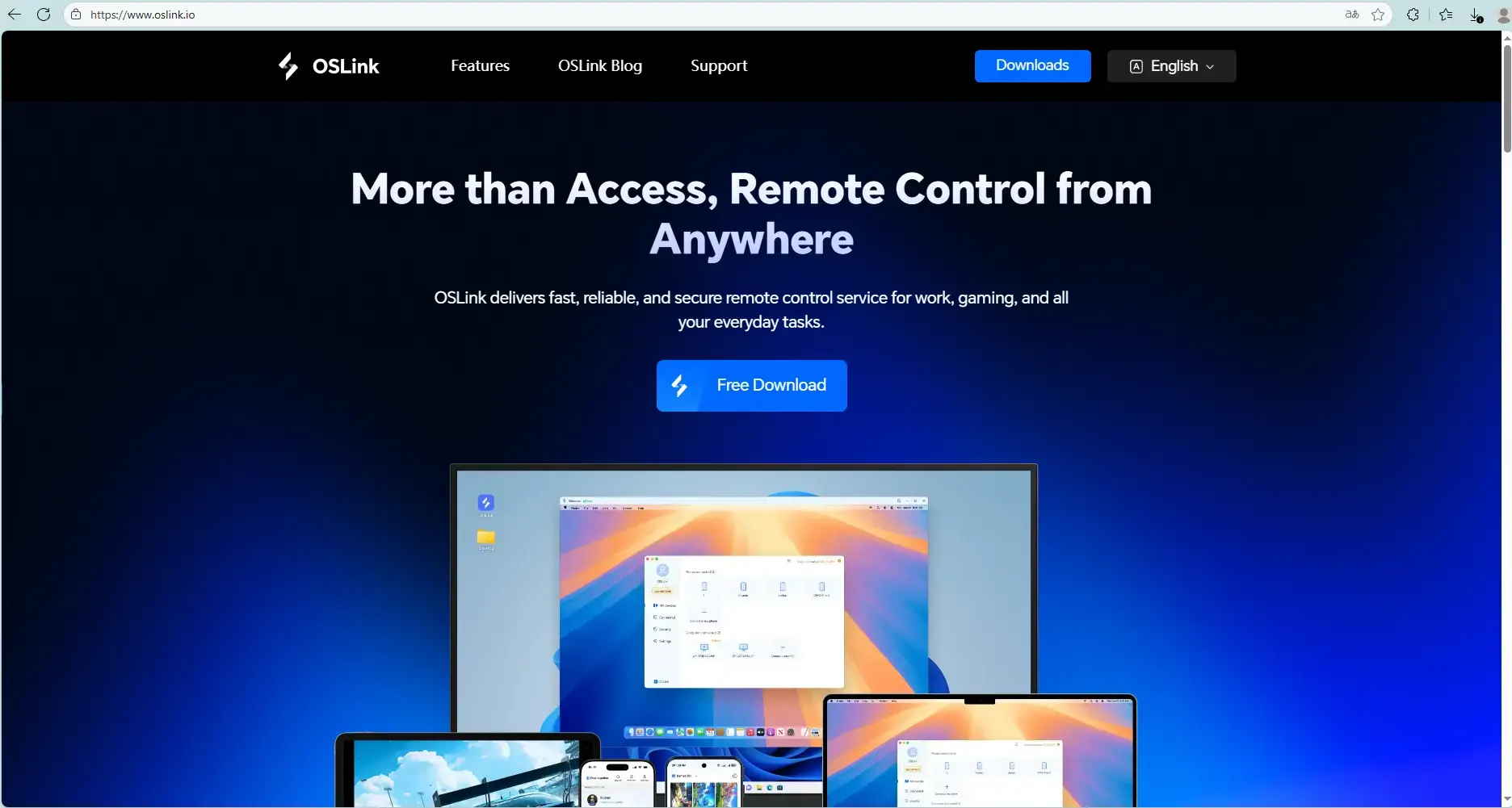
First, install the OSLink desktop client on your PC. After downloading and installing it from the official OSLink website, simply log in with your account. It is recommended to use a stable internet connection on your PC. A wired Ethernet connection can further improve streaming stability and reduce latency.
Next, install the OSLink mobile app on your smartphone or tablet. Android users can download it from Google Play, while iPhone and iPad users can install it through the App Store. After logging in with the same account used on the PC, device pairing is usually completed automatically.
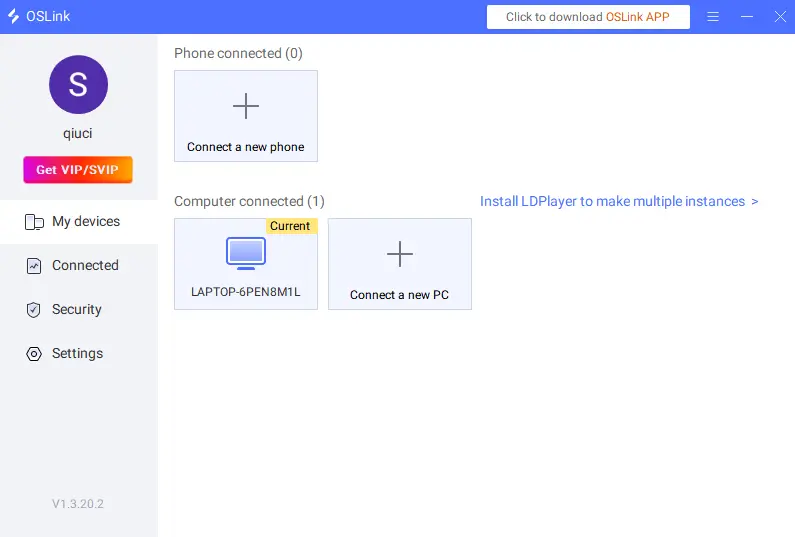
Once connected successfully, your phone will be able to access the PC desktop directly. Simply open the Epic Games Launcher and launch Fortnite to start playing. If OSLink has already detected the game, you may also be able to launch it directly from the mobile interface.
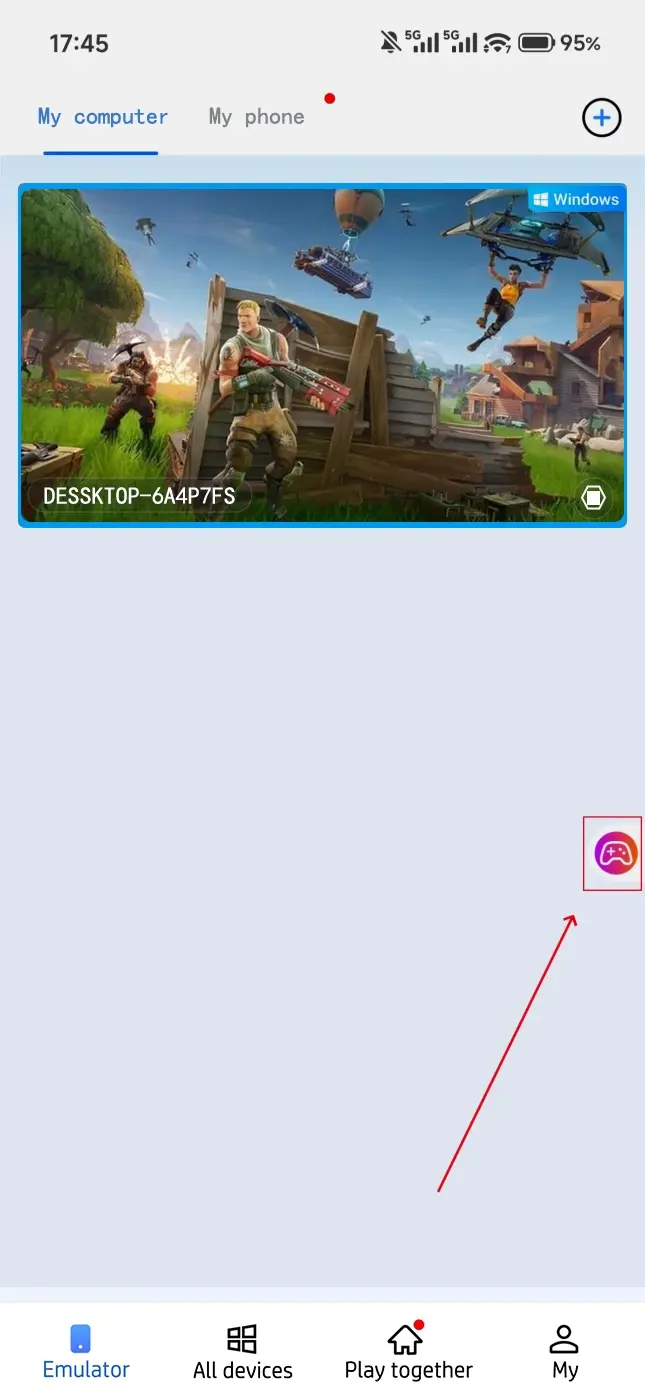
Recommended Mobile Control Settings
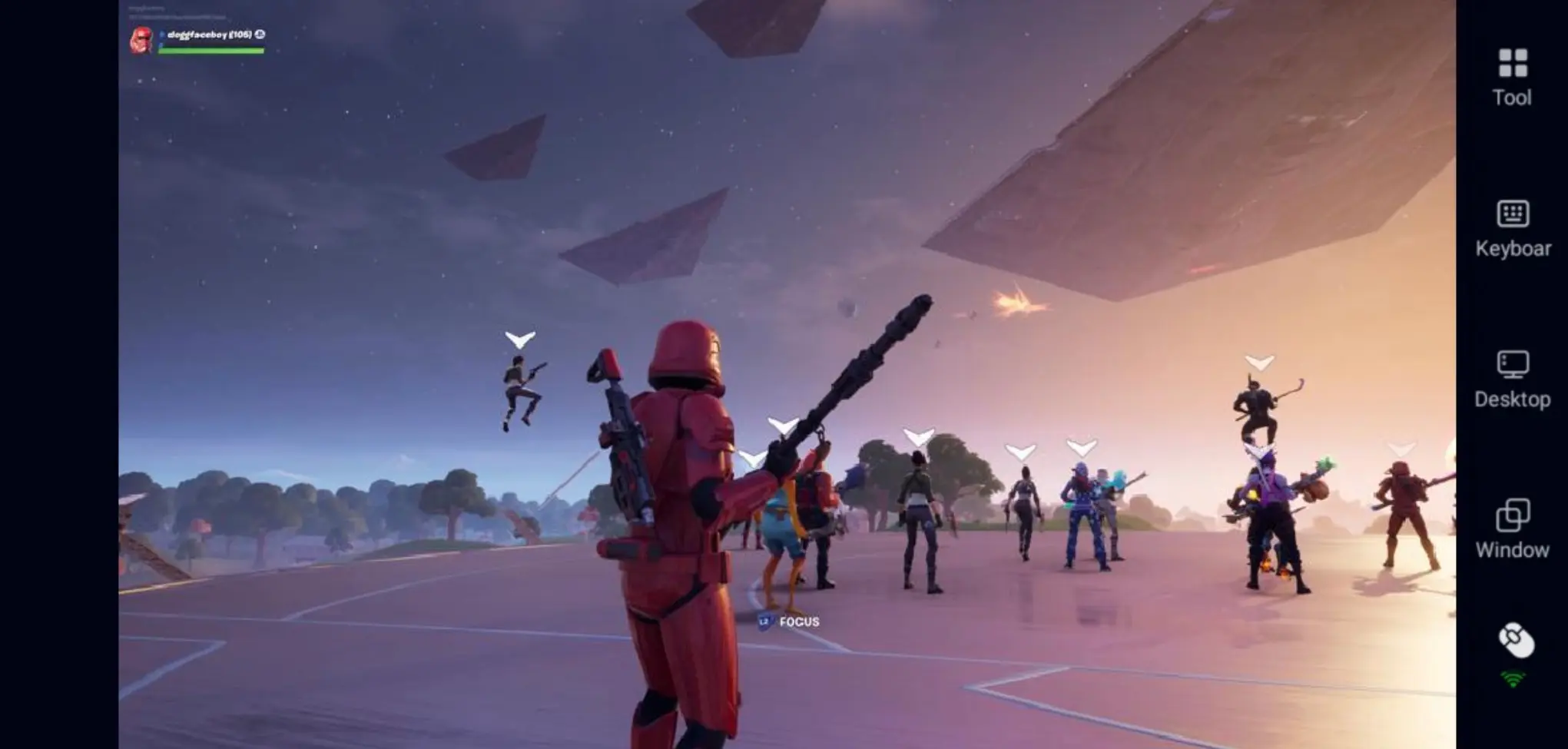
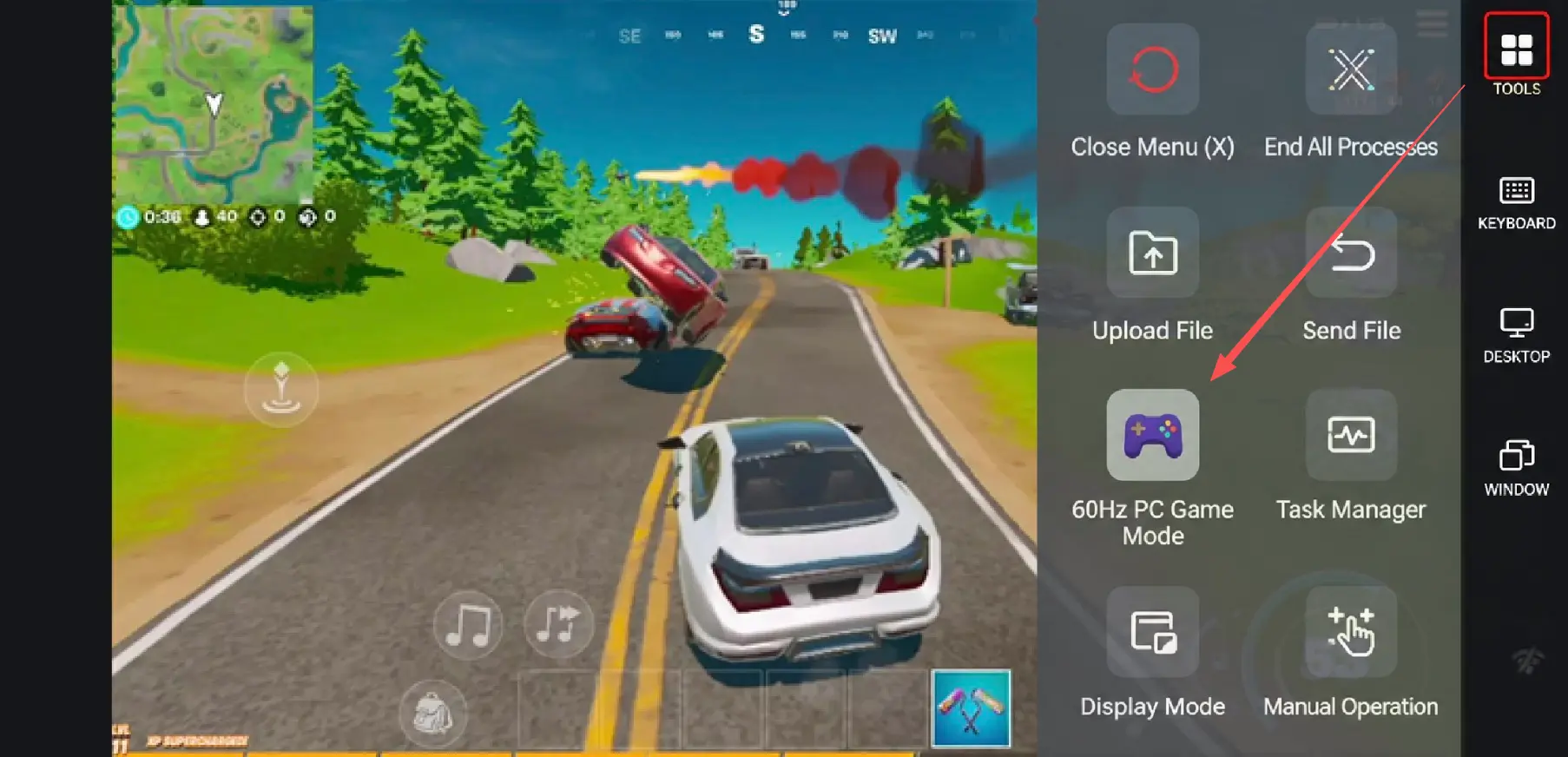
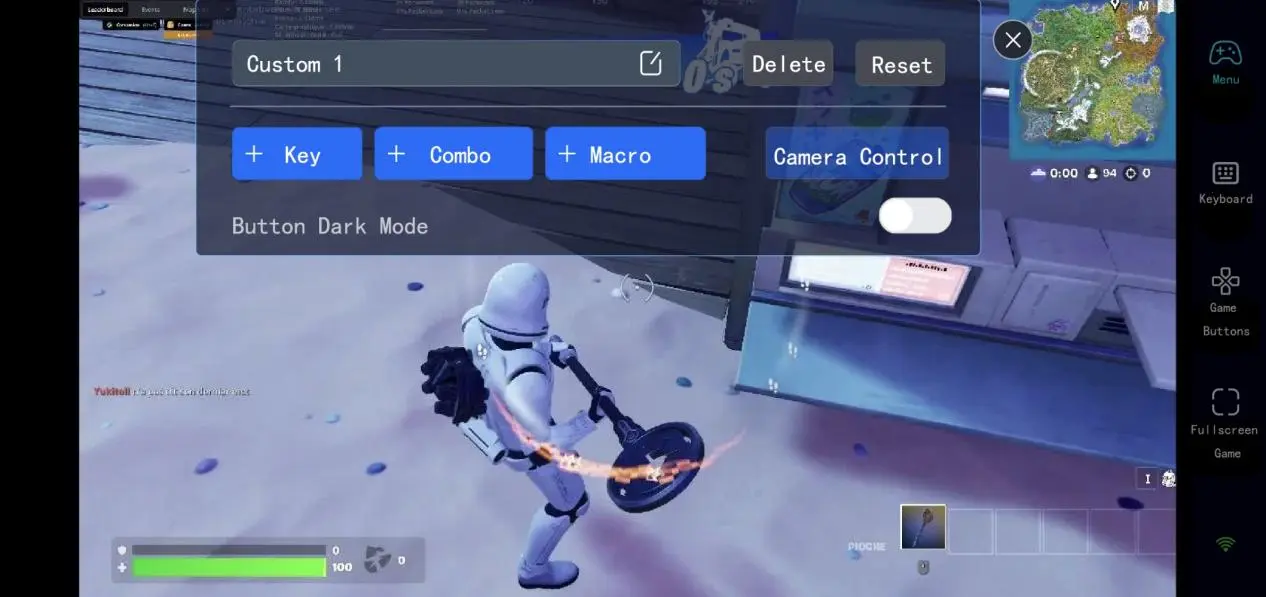
Fortnite has a very fast-paced control system, especially in the traditional Build Mode where players constantly switch materials and build structures in real time. Because of this, it is recommended to customize the virtual button layout in OSLink before playing. By entering the “60 FPS PC Gaming” section in the right-side toolbar, you can enable virtual buttons, customize touch positions, or connect a Bluetooth controller directly.
If you prefer Zero Build mode, mobile gameplay becomes much easier because there is no need for rapid building controls. The experience feels much closer to a traditional FPS game.
After completing the setup, your smartphone or tablet can become a portable Fortnite platform. Whether you want to finish daily quests quickly or play a full Battle Royale match, remote play makes gaming far more convenient.
Why Is OSLink Great for Playing Fortnite Remotely?
Fortnite receives updates extremely frequently. From daily quests and Battle Pass progression to limited-time crossover events, many rewards are only available for a short period. With OSLink remote streaming, players can quickly log in to claim rewards, check the Item Shop, or complete event challenges even when away from home.
In addition, the PC version of Fortnite supports higher graphical quality and more advanced Unreal Engine 5 effects, including high-resolution lighting, Nanite details, and high frame rate modes. Through remote streaming, mobile devices do not require a powerful GPU to enjoy visuals close to the native PC experience. For users with mid-range Android phones or older iPhones, this method is often more stable than running the game directly on mobile hardware.
Furthermore, because the iOS version of Fortnite is still affected by regional policies, some iPhone and iPad users may not be able to download the game directly. By remotely accessing the PC version through OSLink, players can avoid unofficial installation methods and bypass regional App Store restrictions entirely.
Beginner Tips for Fortnite
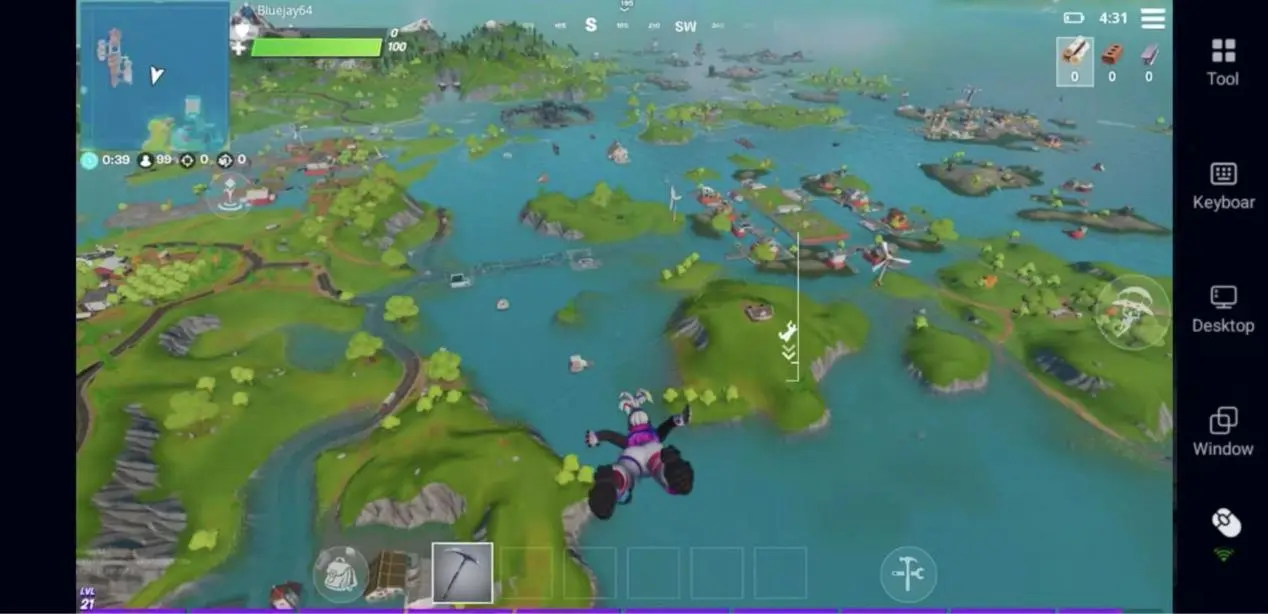
Many beginners rush into fights immediately after landing, but Fortnite’s shield system is extremely important. In addition to regular health, players can also gain extra shield points. Because of this, prioritizing Small Shield Potions, Shield Potions, and Slurp items early in the match is usually more important than engaging in unnecessary fights.
Many players also spend too much time looting and end up taking damage from the Storm. In reality, experienced players usually rotate into the safe zone early, secure high ground positions, and control the edge of the circle to avoid third-party attacks. In Fortnite, movement timing and positioning are often even more important than raw aiming skill.
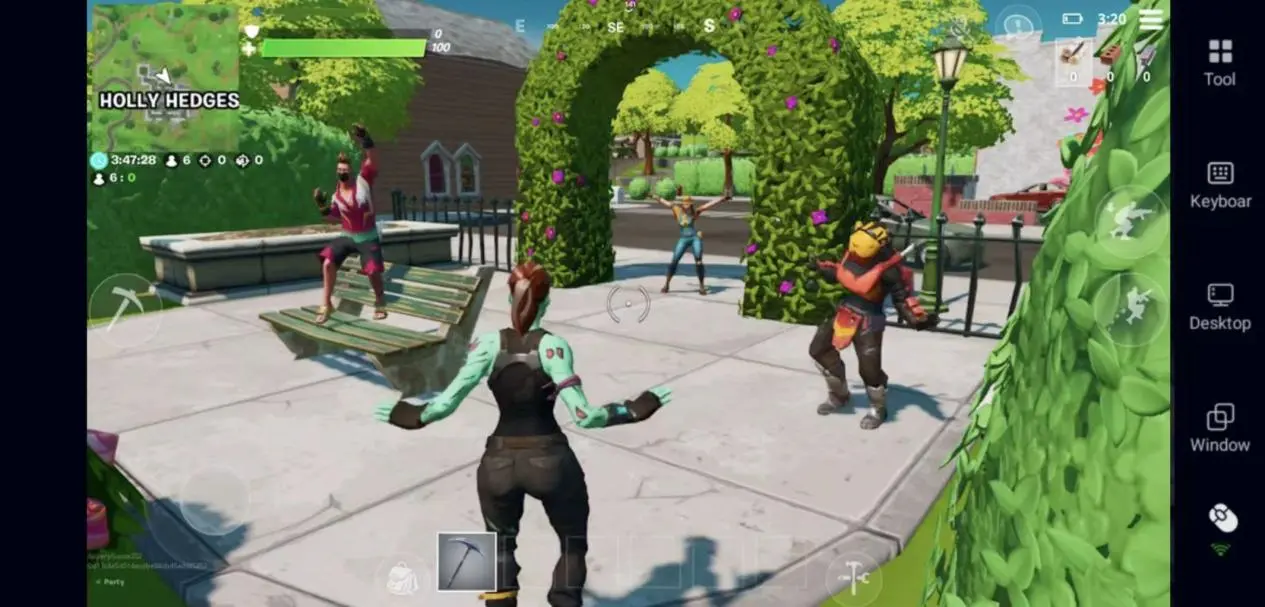
For completely new players, starting with Zero Build mode is highly recommended. Since the building system is removed, the gameplay feels much closer to a traditional FPS experience, making remote mobile controls easier to learn and manage.
FAQ
Q: When Was Fortnite Released?
A: Fortnite was originally released in 2017 and quickly became one of the world’s most popular battle royale games. The mobile version later launched on both iOS and Android in 2018.
Q: What Devices Are Recommended for Playing Fortnite?
A: Recommended PC specifications are listed below:
|
Component |
Recommended Requirement |
|
Operating System |
Windows 10 / 11 64-bit |
|
Processor |
Intel Core i5 / Ryzen 5 |
|
Memory |
8GB RAM |
|
Graphics Card |
GTX 960 / RX 460 or higher |
|
Storage |
SSD recommended |
For mobile devices, a mid-range or high-end Snapdragon processor or Apple A-series chip is recommended, along with at least 4GB RAM and a stable Wi-Fi or 5G connection. Since Fortnite updates frequently, actual hardware requirements may increase over time.
Q: Can I Play Fortnite on Android?
A: Yes. Fortnite is still fully supported on Android devices. Players can download and install the game through the Epic Games platform, and in some regions the game has also returned to Google Play.
Android remains one of the best-supported mobile platforms for Fortnite. However, if your phone lacks sufficient performance or you want better graphics quality and more stable frame rates, you can also stream the PC version remotely through OSLink for a smoother gameplay experience.
Q: Can I Play Fortnite on iOS?
A: Yes, but availability depends on your region.
Currently, Fortnite availability on iPhone and iPad varies depending on the country or region. Some markets, including parts of Europe, have regained access to the game, but it has not fully returned worldwide.
Due to the long-running policy disputes and legal issues between Epic Games and Apple, the availability on iOS remains subject to regional policies. As a result, many players choose to use OSLink remote streaming on iPhone or iPad to access the PC version of Fortnite directly without relying on regional App Store availability.
Conclusion
Fortnite has maintained its massive popularity largely because of its constant gameplay updates and crossover collaborations. Whether you enjoy classic Battle Royale, Zero Build mode, or recent Star Wars events, there is always something new for players to experience.
With OSLink remote streaming, you no longer need to stay in front of your PC or worry about limited mobile performance. Whether you are checking the Item Shop during your commute, completing daily quests, or relaxing on the couch while playing Zero Build matches, you can reconnect to your PC anytime and continue your Fortnite adventure anywhere.
 Download