English
 Valheim is an open-world survival game set against a backdrop inspired by Norse mythology. Players must gather resources in a dangerous world, build a base, and take on regional bosses. You can explore the wilderness alone or team up with friends to get your adventure started. The game is currently focused on PC and console platforms and does not have a native mobile version. Many players still want to manage their base, explore the map, and continue their adventure from their phones when they are away from their computers. The sections below cover the entire process, including getting the game, setting up the software, using remote play, optimizing the experience, and answering common questions.
Looking for an easy way to play Valheim remotely on your phone? OSLink can stream your PC game screen to a mobile device and send your controls back to the computer. The setup requires no complicated parameter adjustments. Simply sign in with the same account to pair your devices. When running Valheim, you can handle all in-game interactions on your phone, including placing structures, crafting equipment, and fighting in the wilderness, with smooth controls that fit the survival gameplay.
1. How to Get Valheim
Before starting remote play, you need to have the full version of Valheim installed on your PC. The game is mainly available through Steam and the Microsoft Store. Open the store section of the corresponding client, search for the full game title, purchase it, and download and install it from your game library.
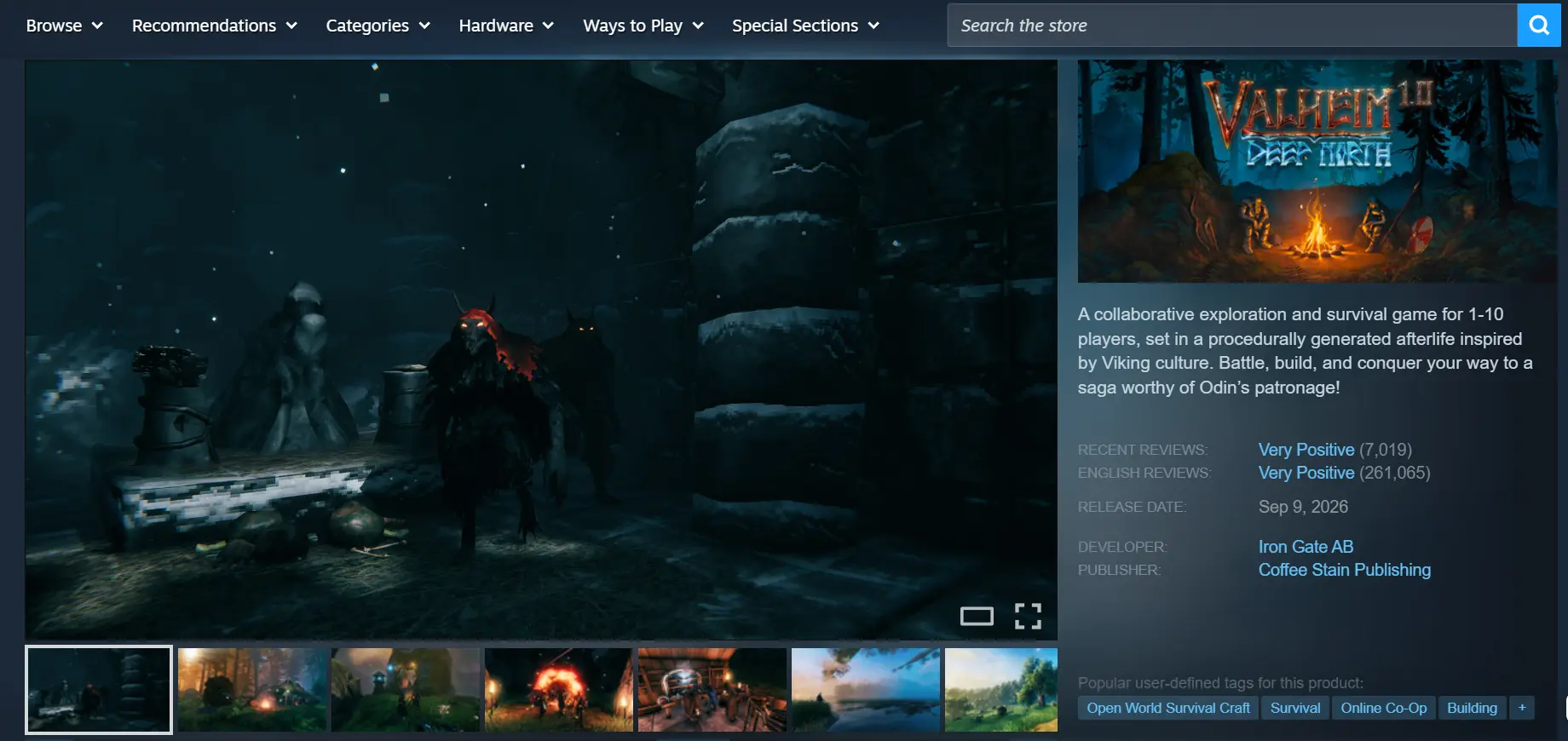
Once the installation is complete, it is recommended that you launch the game manually once to make sure everything runs properly. Check that there are no crashes, texture issues, or other problems before setting up remote streaming. This helps avoid confusion during troubleshooting later on.
2. How to Install OSLink on PC and Mobile
PC Installation
Open your browser and visit the official OSLink website. Download the installer that matches your operating system, complete the installation, launch the program, then register and sign in to your account.
If this is your first time using OSLink, it is recommended to keep the software running in the background and disable your computer's automatic sleep mode. This prevents the remote connection from being interrupted when the system enters sleep mode.
Mobile Installation
Android users can search for OSLink on Google Play and install the app. iOS users can open the App Store, search for the corresponding client, and download it.
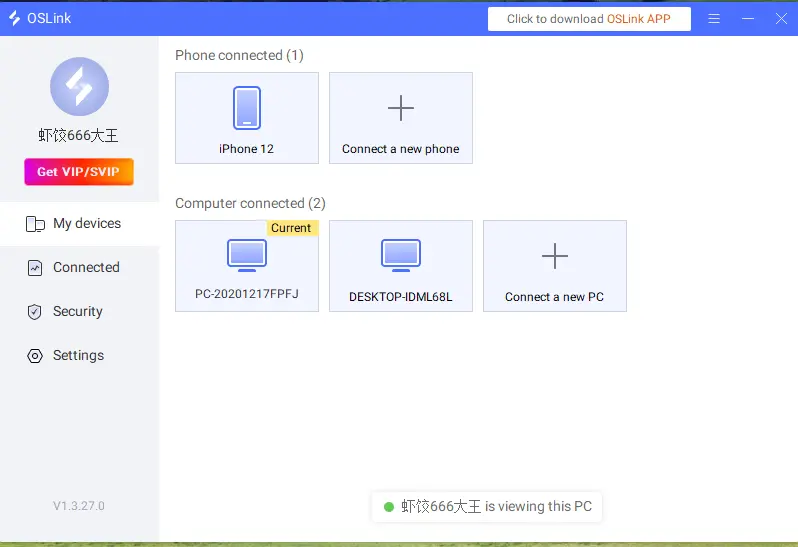
The account signed in on your phone must be exactly the same as the one used on your PC. The software automatically detects computers on the local network that are signed in with the same account, so there is no need to manually enter a device ID. Device pairing is completed automatically.
3. Running Valheim on Mobile with OSLink
After pairing the devices, open the game client on your computer, launch Valheim, load your save, and enter the game world. Keep the game window running in the foreground rather than minimizing it, as minimizing it may cause problems when OSLink captures the game screen.
Open OSLink on your phone. The device list will show computers under your account that are currently online. Tap the target PC to start the streaming connection.
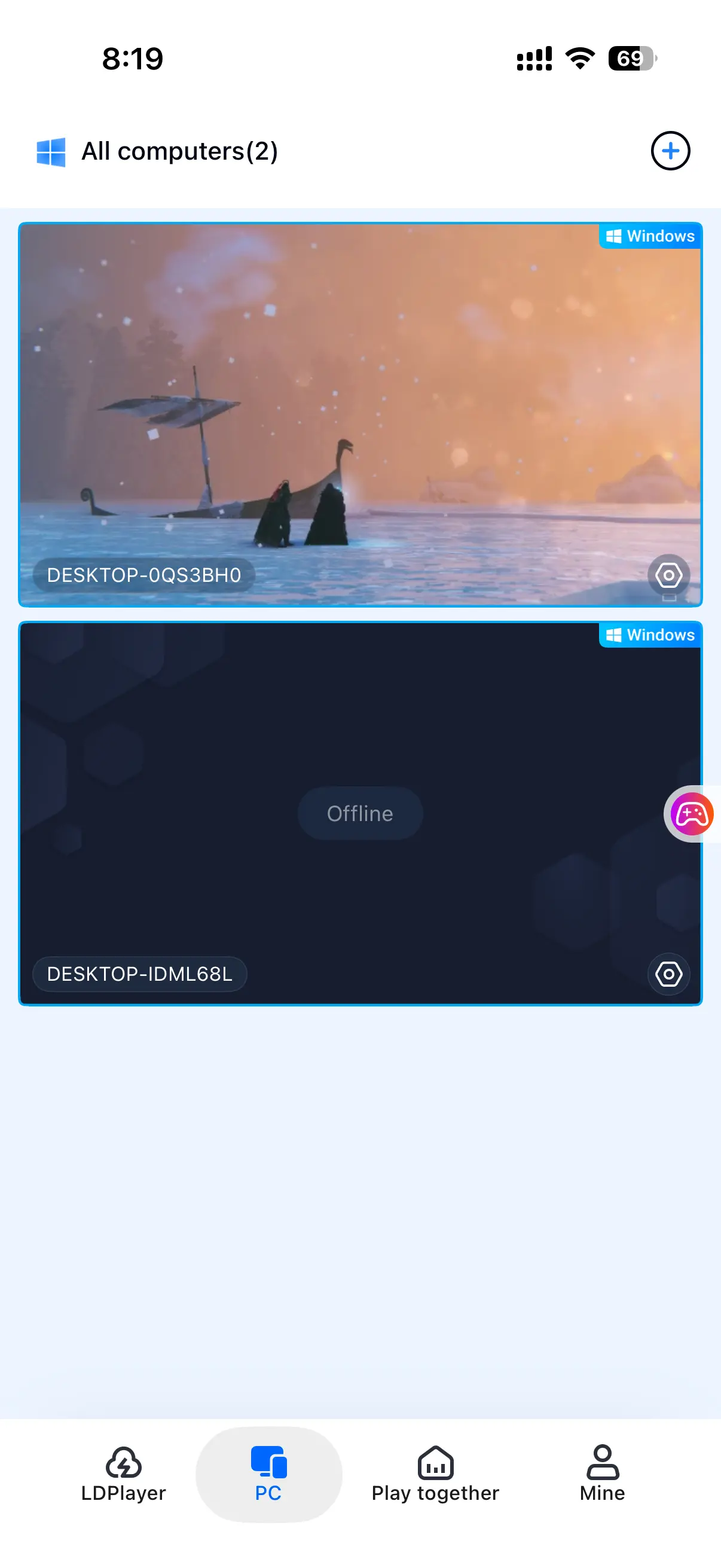
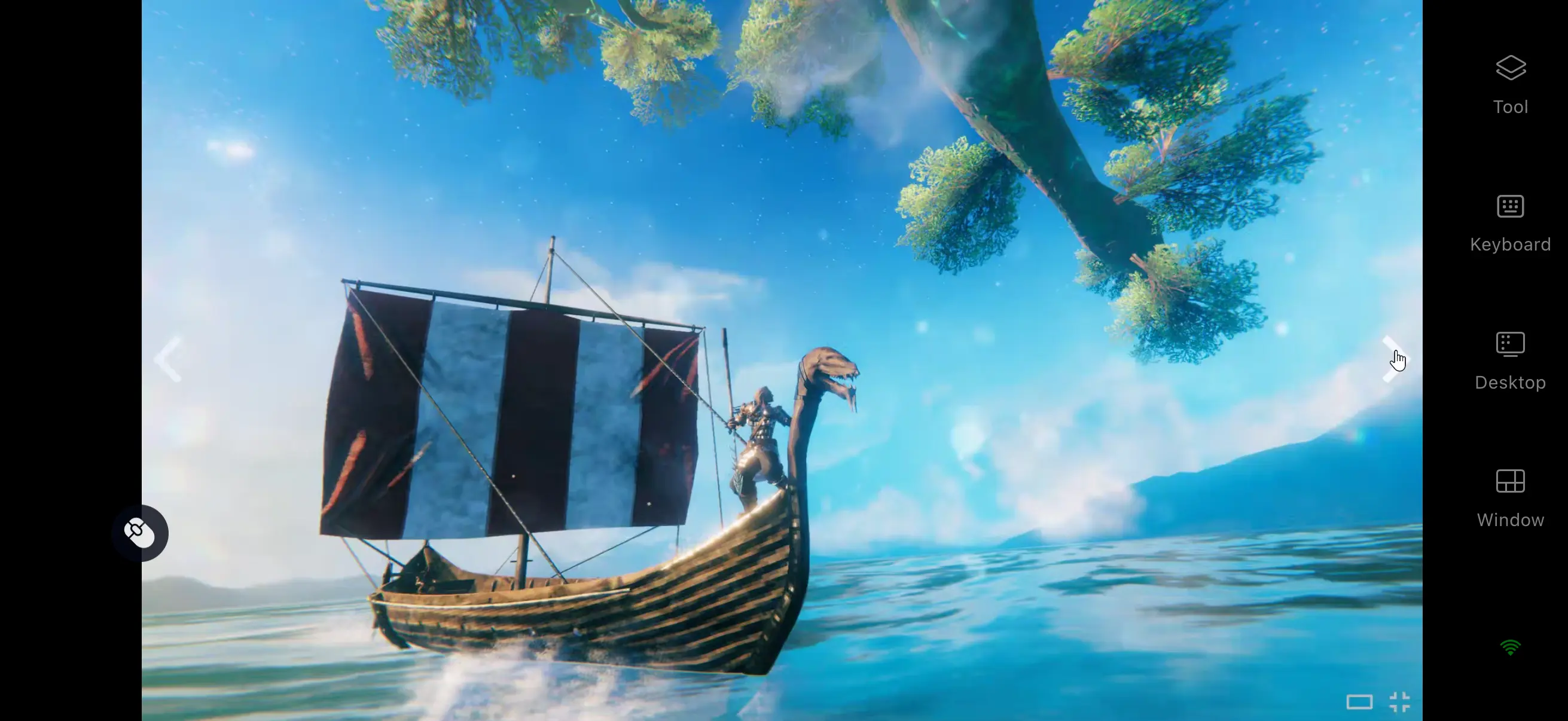
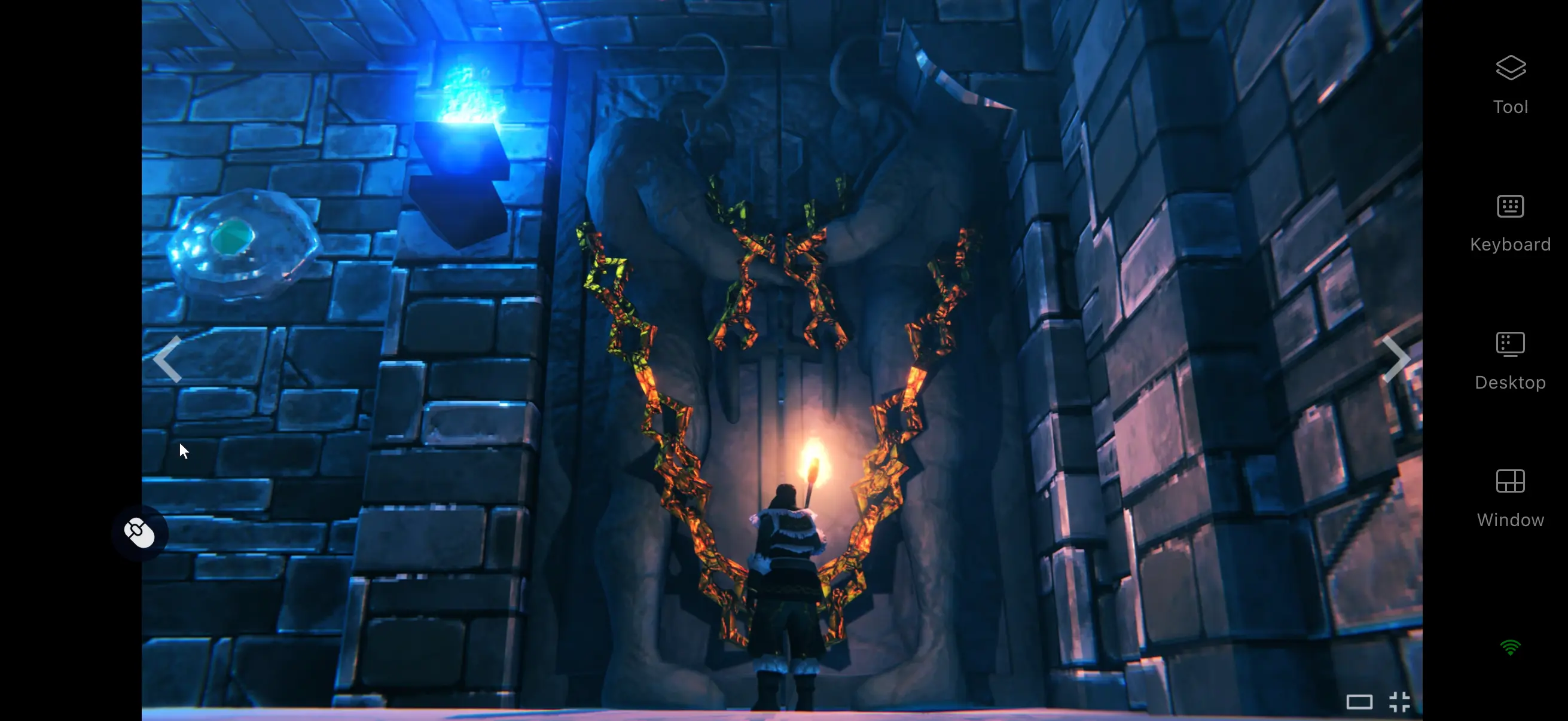
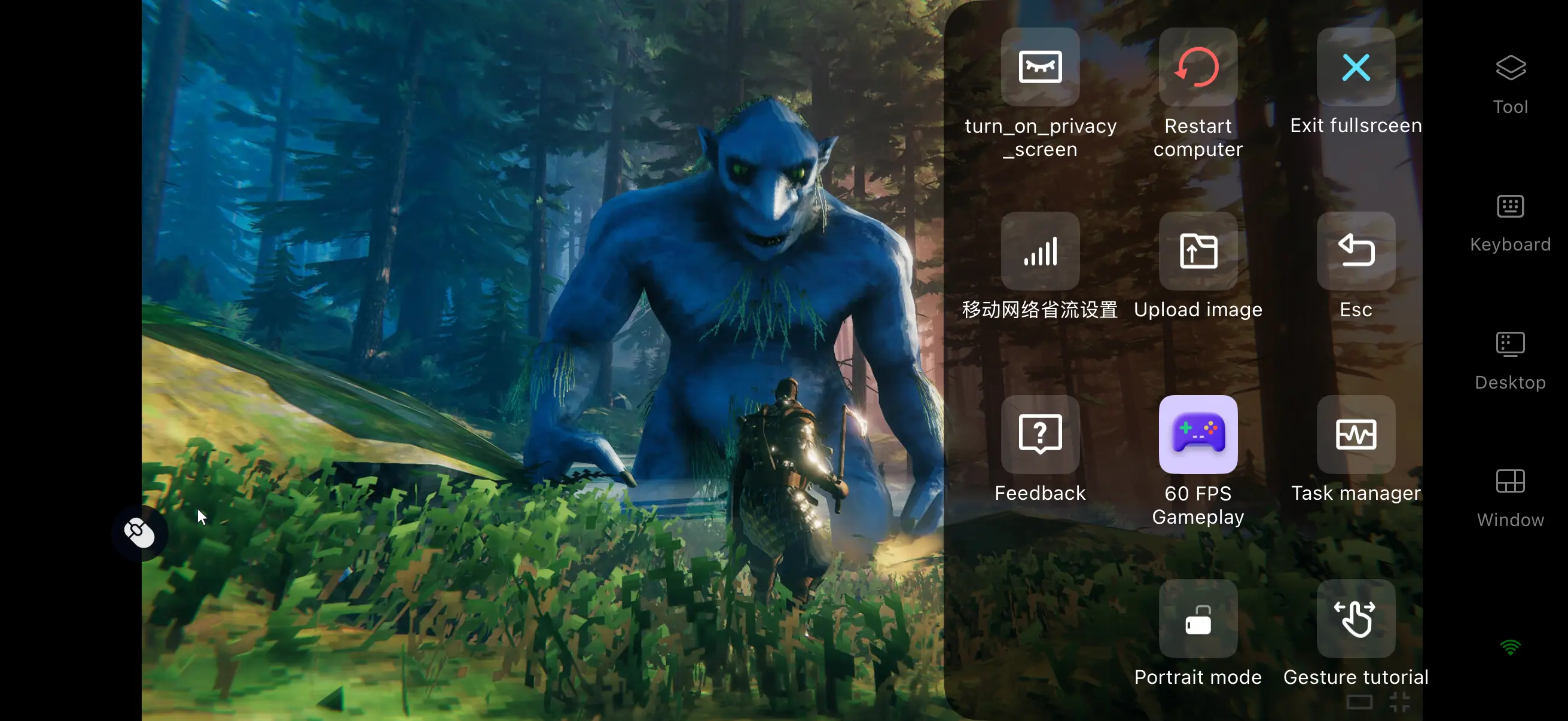
Once the PC screen has loaded successfully, open the side toolbar and switch to the dedicated game mode. You can adjust the touch-control layout to match your preferred play style. You can also connect external controllers or other input devices. After you finish configuring the settings, you can play Valheim from your phone, including building your base, hunting in the wilderness, and sailing.
4. Benefits of Playing Valheim Remotely on Mobile
Play Anywhere with One Tap
As long as your computer remains powered on and connected to the internet, your phone can establish a streaming connection over either Wi-Fi or mobile data. This makes it easy to log in during short breaks, organize your stored resources, or reinforce your base defenses without being tied to your computer desk. Your existing save progress carries over, so there is no need to start a new game.
No Local Storage Required
The game files and all save data remain stored on your computer's hard drive. Your phone only receives the game screen and sends control commands back to the PC. Even phones with limited storage or older hardware can still connect and play normally, without needing to reserve a large amount of space for the game's installation files.
Room Sharing
The software includes a built-in room-sharing feature. The host can create a dedicated room on the PC and generate an invitation code. Other players can enter using the invitation details and view the Valheim game screen in sync. You can watch base-building and boss fights together, while also playing multiplayer and sharing the fun.
5. How to Optimize the OSLink Gaming Experience
Dedicated Game Mode
OSLink supports a “60 FPS PC Game” mode that can make remote gameplay feel smoother by providing a higher streaming frame rate. Valheim requires frequent camera movement, character movement, and building actions, so a stable frame rate helps keep controls responsive and consistent. It is recommended to enable this mode when your network connection is stable.
Custom Controls
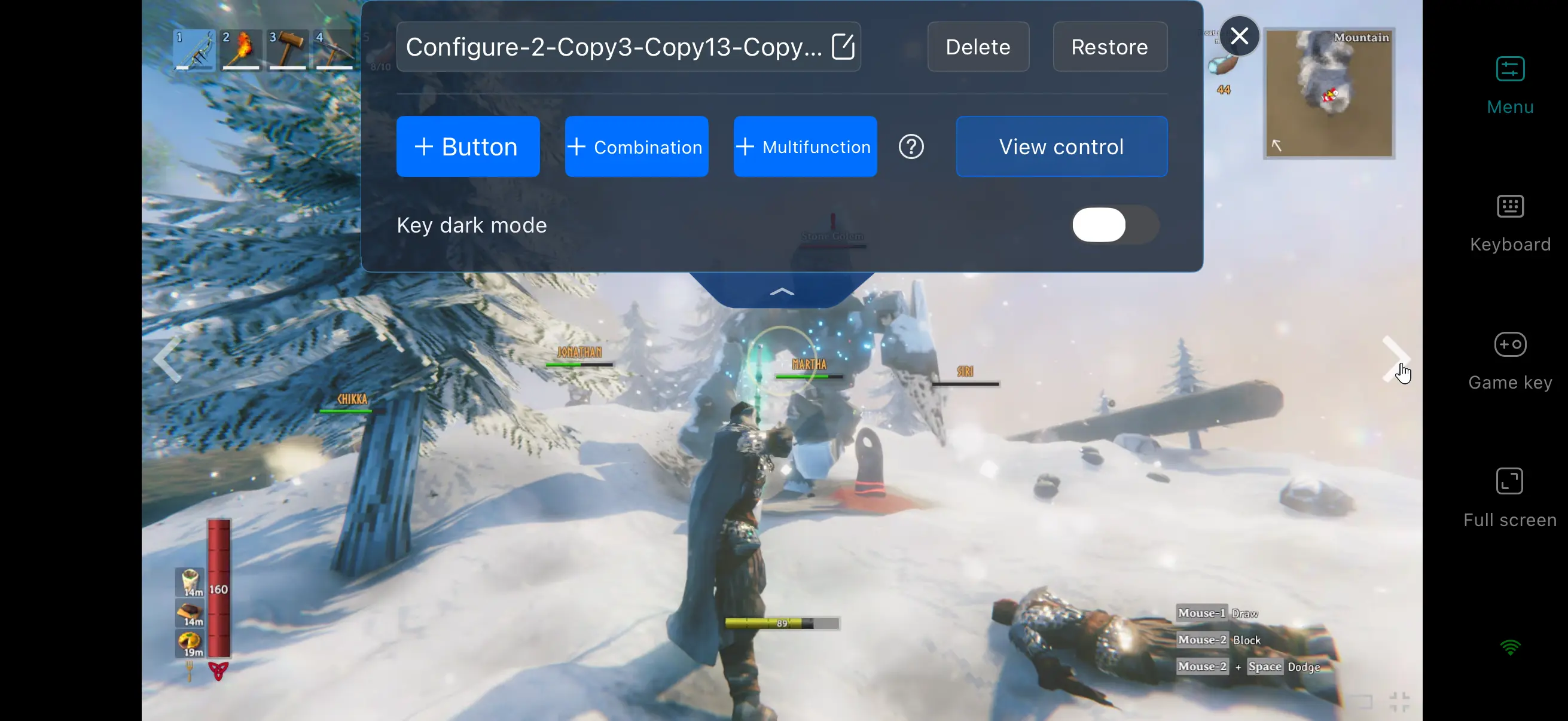
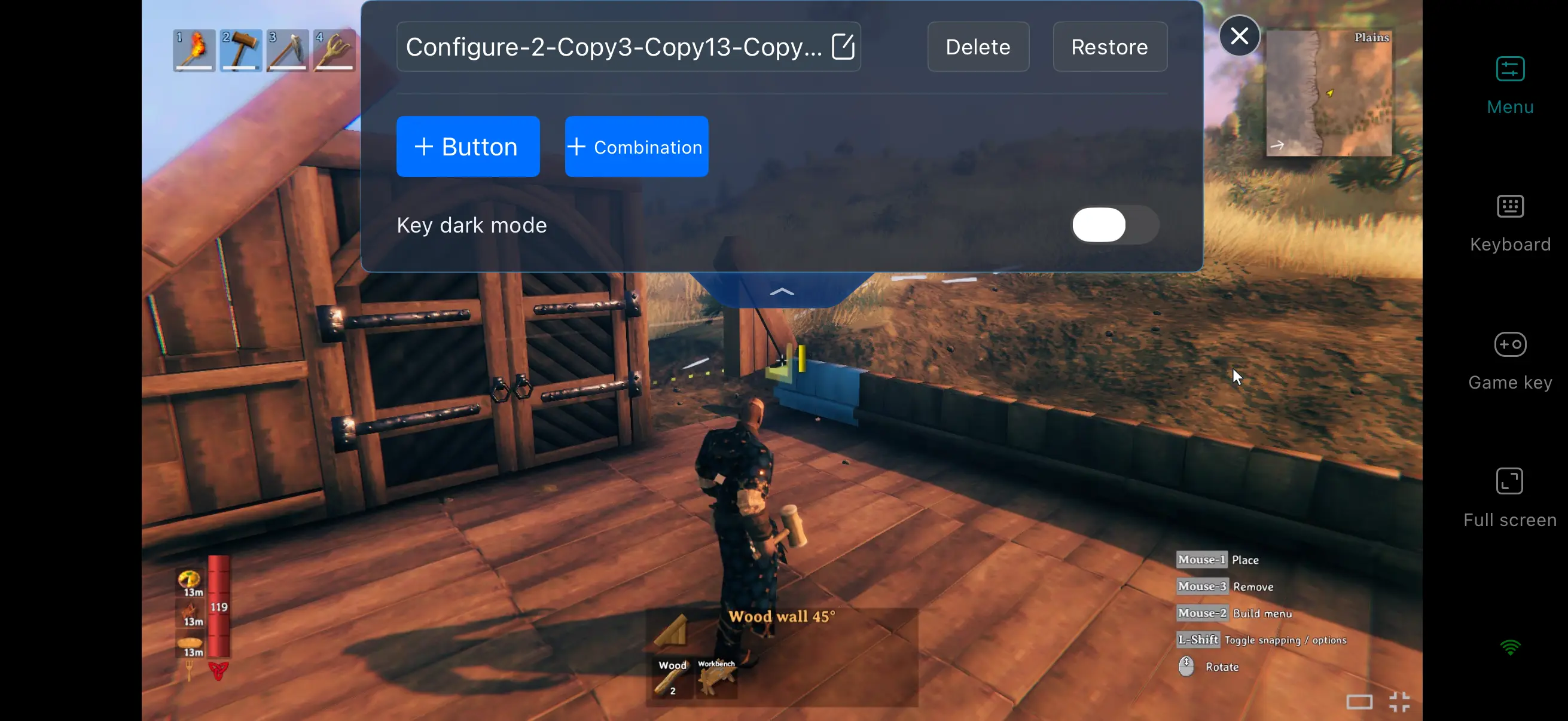
With custom controls enabled, you can arrange the virtual buttons on your phone to suit your preferred play style. For Valheim, you can configure movement, attacks, interactions, inventory access, and frequently used functions. Button positions, sizes, and transparency can also be adjusted to make frequently used actions easier to perform.
Complete Streaming History
OSLink keeps a record of streaming activity, making it easy to review your recent remote connection history. For players who regularly switch between PC and mobile, these records provide a convenient way to check recent remote sessions. If an unfamiliar device connects, you can also cut off the connection as soon as possible to help protect your account.
Support for Various External Controllers
The software supports mainstream wired and Bluetooth controllers, as well as keyboard and mouse setups. Once a controller is connected, the system automatically adapts to the game's input system, helping reduce accidental touches caused by touchscreen controls. This can further improve the experience during intense wilderness combat and precise building.
6. Frequently Asked Questions About Playing Valheim on OSLink
Q1: What's the Valheim 1.0 release time?
A: The Valheim release date is February 2, 2021, and the Valheim 1.0 release date is September 9, 2026. The PC version launched on Steam and the Microsoft Store, while the game was also released on consoles such as Xbox. The official release does not include a native mobile version.
Q2: What PC specifications are required for Valheim?
A: According to the official Steam minimum requirements, the Windows version requires a 64-bit processor and operating system, Windows 10 or later, a 2.6 GHz quad-core processor or equivalent, 8 GB of RAM, a GeForce GTX 950 or Radeon HD 7970, DirectX 11, and 1 GB of available storage space.
Q3: Can I play Valheim directly on Android or iOS?
A: Valheim currently does not have a native iOS or Android version, so the PC version cannot be installed directly on a phone. If you want to play on mobile, you can use OSLink to connect your phone to a computer running the game and control it remotely.
Conclusion
Valheim is an open-world game centered around exploration, survival, building, and cooperation. Players gather resources, craft equipment, and establish a base in a procedurally generated world inspired by Norse mythology. The game currently has no native mobile version, so the PC version cannot be installed directly on iOS or Android devices. If you want to keep exploring or managing your base after leaving your computer, OSLink provides a way to connect your phone to your PC for remote control. With 60 FPS PC Game mode, custom controls, and external controller support, OSLink can make mobile remote play smoother and more convenient.
 Download