English
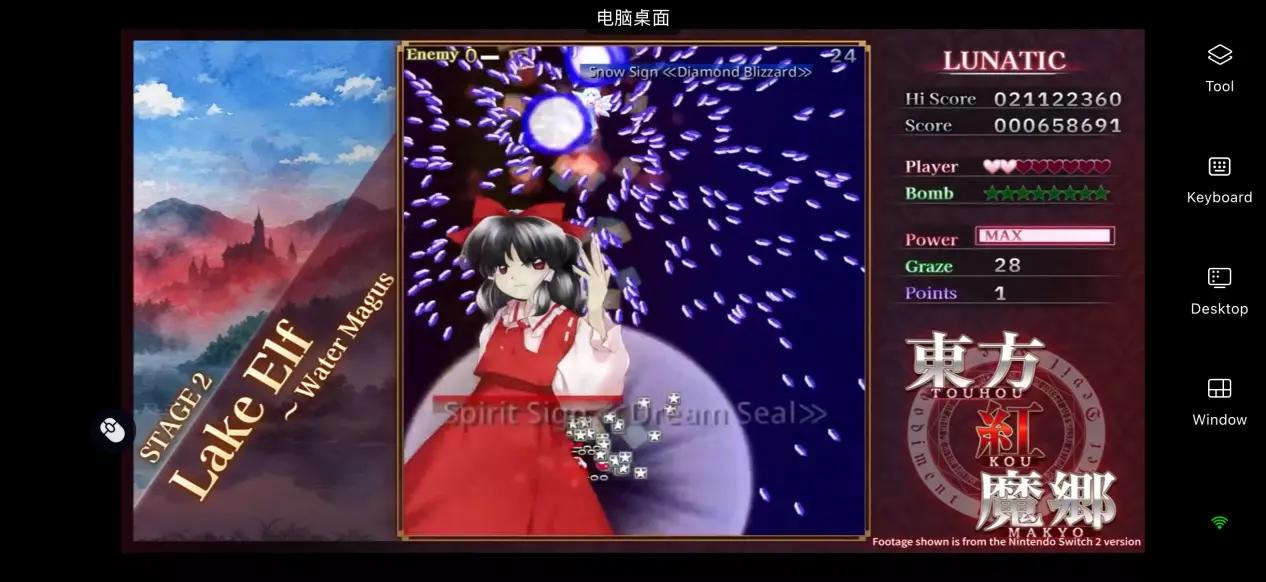
 The remastered Touhou Koumakyou: New Classic brings back the bullet-hell style of the original Touhou Koumakyou, complete with newly arranged music and high-definition visuals. It has given many series fans a reason to revisit this classic. As a vertical PC bullet-hell shooter, the game puts your reflexes to the test. Many players would also like to break free from their desks and keep practicing stages or chasing higher scores whenever they have a little free time. This guide covers a practical remote streaming setup, from downloading the game and installing the software on both devices to actually playing and adjusting the experience, helping you use your existing devices to enjoy the game on the go.
If you want to play a bullet-hell shooter like Touhou Koumakyou: New Classic smoothly on your phone, OSLink provides stable remote streaming support. Bullet-hell games are highly sensitive to input response, and the software streams the PC game screen to your mobile device while quickly sending control inputs back to the computer. This helps you react to incoming bullets and execute attacks with minimal input delay, providing an experience close to playing directly on PC.
1. How to Play Touhou Koumakyou: New Classic
Getting the Official Game
The PC version is available exclusively on Steam, with no separate third-party client. All official game content is distributed through the Steam Store. The game includes both the high-definition New Classic version and the nostalgic Original Classic version, allowing players to experience both after purchasing the game.
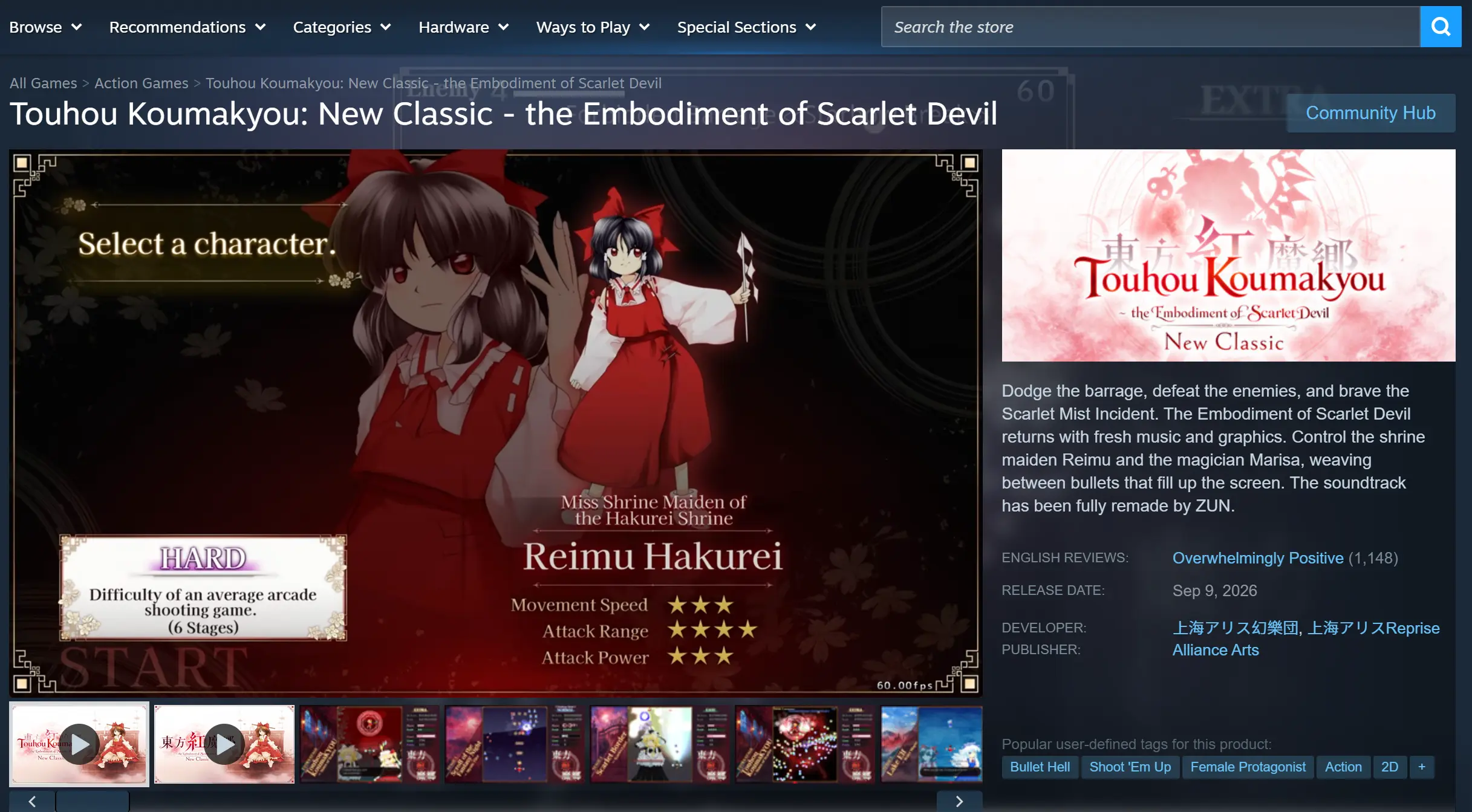
Open the Steam client on your computer and enter the full game title Touhou Koumakyou: New Classic in the store search bar. Open the product page and complete your purchase. Once the purchase is complete, the game will be added to your library. Select it from your library to begin the download.
2. How to Install OSLink on PC and Mobile
Windows PC Setup
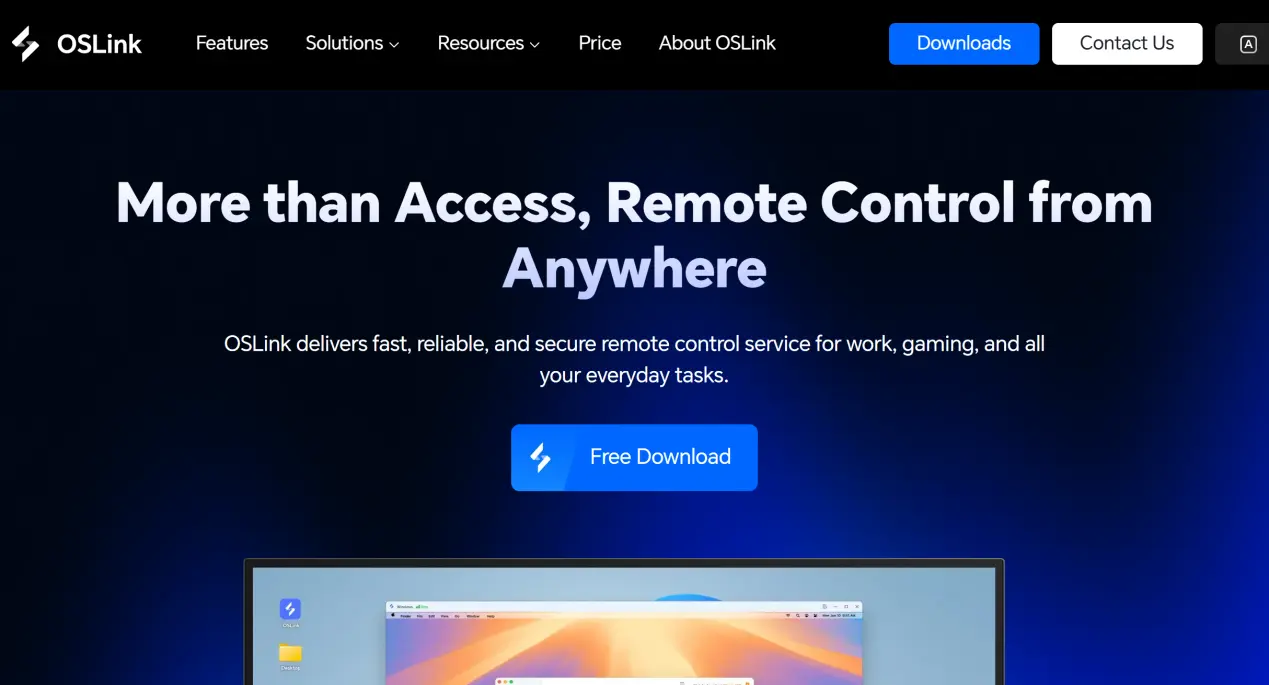
Open a browser and visit the official OSLink website to get the installer for Windows. Run the installer and follow the setup wizard to complete the installation. After launching the software, register or log in to your account. It is recommended to enable the option to keep OSLink running after startup, making it easier for external devices to send connection requests whenever needed.
Mobile Installation and Account Pairing
Android users can search for OSLink in the Google Play Store and download the app. iOS users can open the App Store and search for the same app to install it.
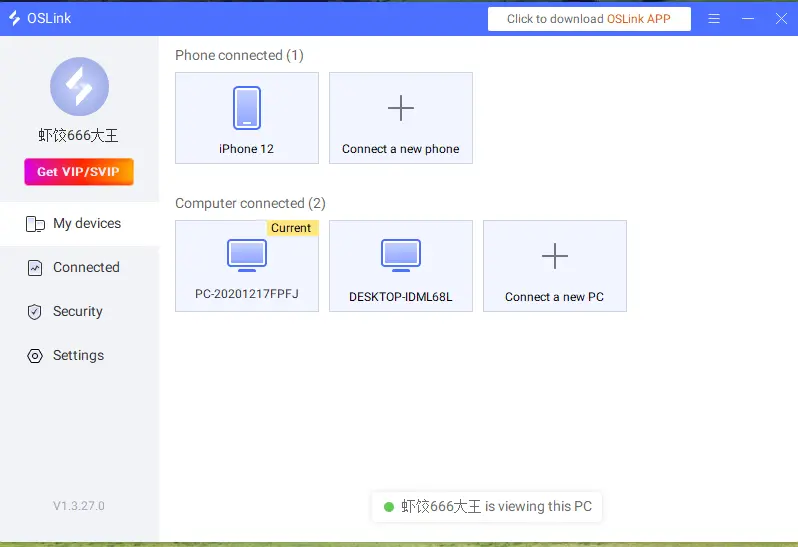
Note: You must sign in to the same OSLink account on both your mobile device and PC. The software automatically scans the local network and online PCs that are already logged in, so there is no need to manually enter an IP address for pairing.
3. How to Run Touhou Koumakyou: New Classic on Mobile with OSLink
Step 1: Keep Steam running on your PC and launch Touhou Koumakyou: New Classic in advance. Leave the game on the main menu with the window running in the foreground. Do not minimize it or leave it suspended in the background, as this can cause the streamed screen to freeze.
Step 2: Open the OSLink client on your phone. Your Windows PC should appear in the device list under the logged-in account. Tap the corresponding PC name to start the connection and wait for the game screen to finish loading.
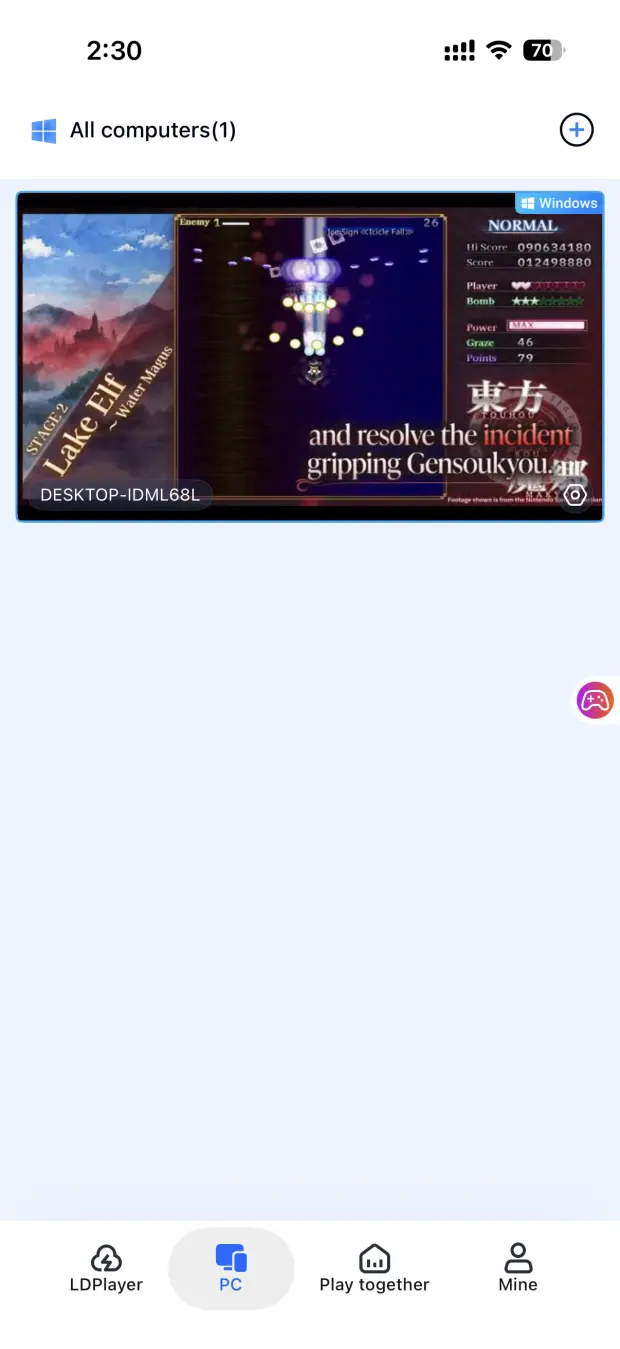
Step 3: Once you enter the streaming interface, open the side toolbar and select the shooting game mode. Load the preset control layout for shooting games. After the layout is loaded, perform a quick test by moving your character, firing, and using bombs. Once you confirm that the controls respond without noticeable input lag, you can start taking on the bullet-hell stages.
4. Benefits of Playing Touhou Koumakyou: New Classic on Mobile
Play Anywhere Without Being Tied to Your Desk
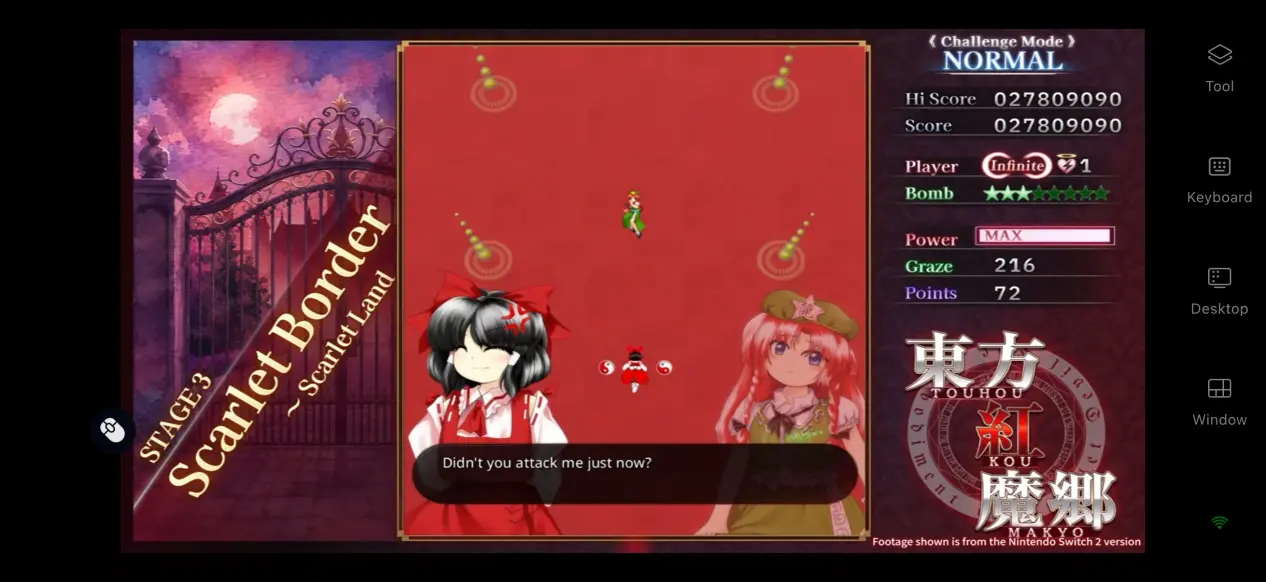
As long as your PC stays powered on and connected to the internet, your phone can connect through any mobile network. During a commute, while waiting, or whenever you have a few spare minutes, you can pick up your phone and practice bullet-hell stages without having to sit at your computer. This makes it easier to repeatedly practice difficult sections and work toward beating your personal high score.
No Need to Use Your Phone’s Storage
All game rendering and processing are handled by the PC, while the phone only receives the streamed video and sends control inputs back to the computer. You do not need to download the game, which can take up several GB, to your phone. Even devices with limited storage can be used normally without taking up local storage space.
Support for Multiple External Controllers
The software supports Bluetooth controllers. Once a controller is connected to your phone, the streaming session can recognize its input. Players who prefer physical buttons can use a controller for an experience closer to playing directly on PC, reducing mistakes caused by accidental touchscreen inputs and making the setup better suited to the precise controls required by bullet-hell shooters.
5. How to Optimize Your OSLink Gaming Experience
60 FPS PC Gaming Mode
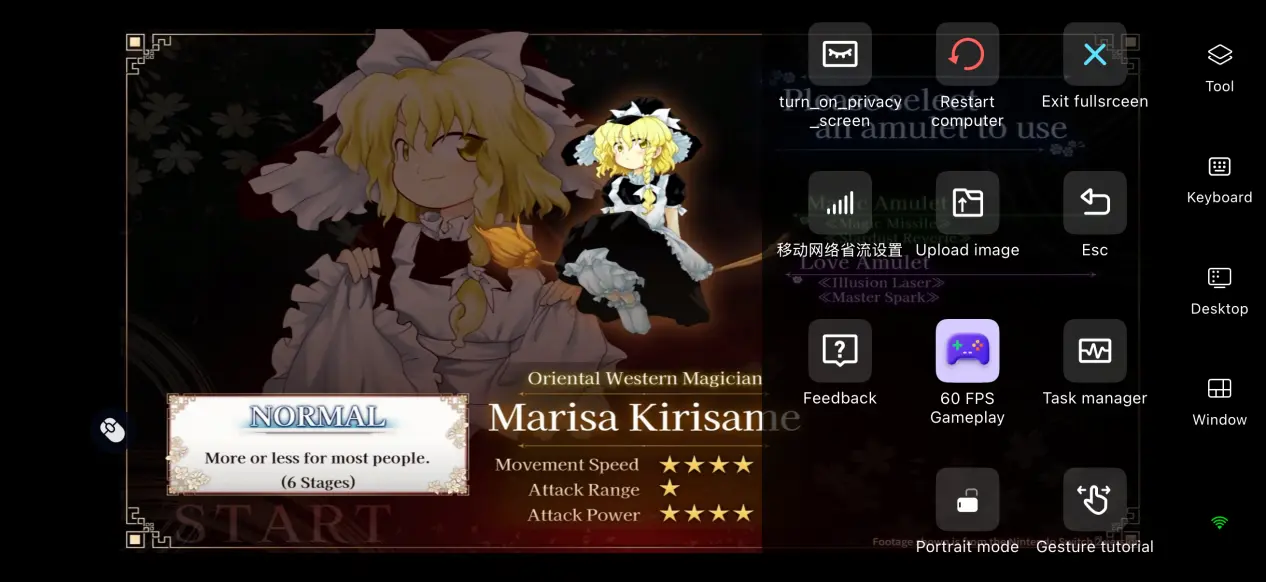
Enable OSLink's dedicated 60 FPS PC Gaming Mode to increase the streaming frame rate, making bullet movement look smoother and reducing motion trails. When facing dense bullet patterns, a more responsive screen update makes it easier to track bullet positions and reduces the chances of failing a stage because of screen stuttering.
Streaming History
The software automatically saves previous connection records, while frequently used PCs remain in the device list. The next time you open the software, you can connect directly by tapping the saved record instead of searching for the PC again, cutting down on repeated setup.
Custom Control Layout
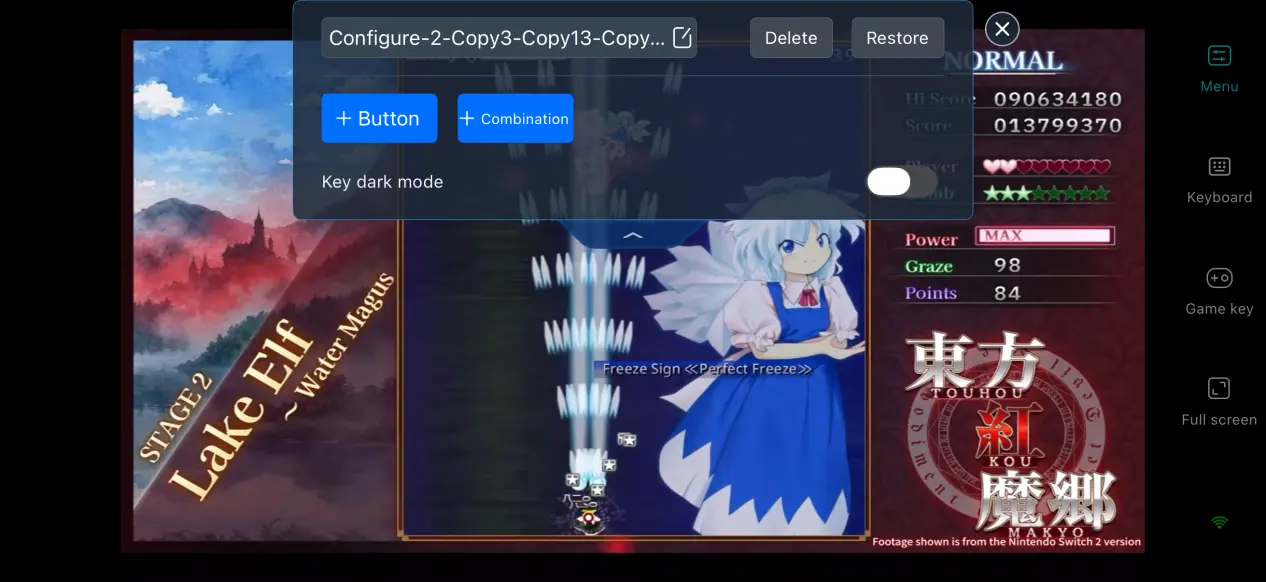
OSLink's custom control mode lets players add or remove controls for actions such as shooting, using bombs, and switching difficulty according to their preferred play style. You can freely adjust button size, transparency, and position. Two control layouts can be saved: one for touchscreen controls and another for an external controller. You can switch between the two with a single tap, helping reduce accidental inputs.
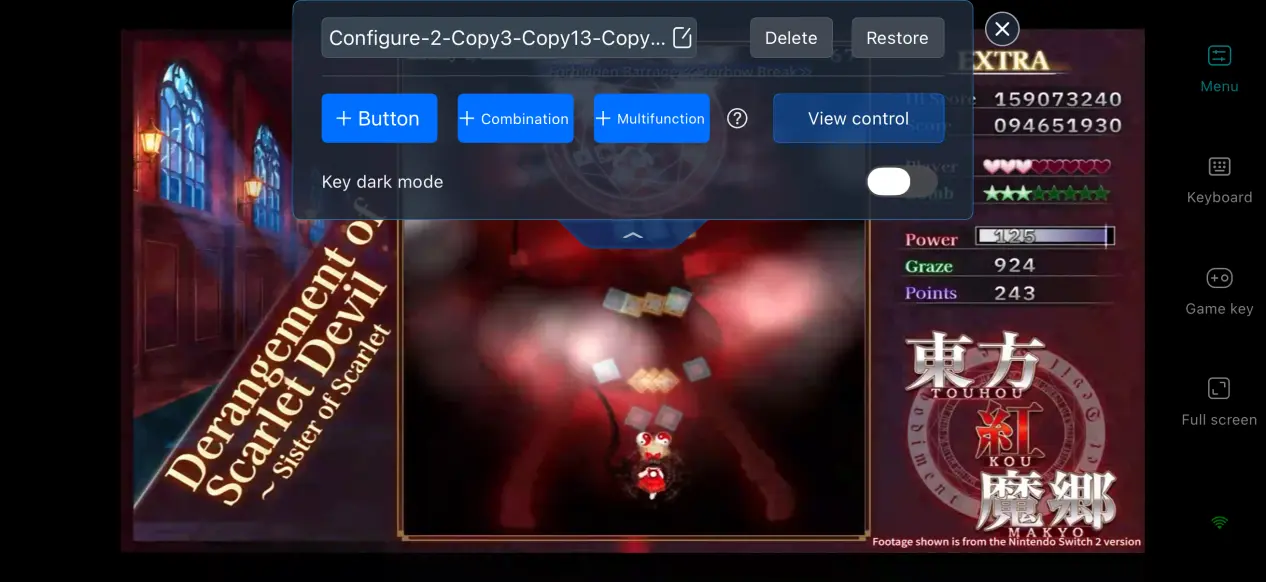
Mobile-Friendly Screen Mapping
When full-screen game mapping is enabled, unnecessary system UI can be hidden while keeping only the custom controls on screen. Bullet-hell shooters require you to watch every part of the screen, so removing extra interface elements gives you a clear view of the entire game without other UI blocking incoming bullets.
6. Frequently Asked Questions
Q: When was Touhou Koumakyou: New Classic released?
A: The PC version was released on Steam on September 9, 2026. Both the Standard Edition and Deluxe Edition are available, with both the New Classic and Original Classic modes included.
Q: What PC specifications are required for Touhou Koumakyou: New Classic?
A: The minimum requirements include a 64-bit version of Windows 10 or later, an i5-8350U processor, 4 GB of RAM, UHD Graphics 620 integrated graphics, and 1 GB of available storage space. For stable high-frame-rate gameplay, a more powerful processor and graphics card are recommended, especially when handling dense bullet patterns.
Q: Can I play it directly on Android or iOS?
A: There is no native Android or iOS version, so there is no standalone mobile installer. Mobile play requires remotely streaming the game from a PC.
Conclusion
Touhou Koumakyou: New Classic is a remastered vertical bullet-hell shooter for PC, but there is no official native mobile version, so the game cannot be installed and run directly on a phone. With OSLink's remote streaming solution, players can connect their mobile devices to a home PC without complicated setup. This makes it possible to use spare moments to practice bullet patterns and chase higher scores without being tied to a computer desk, while still enjoying the full Touhou Koumakyou stage experience on a mobile device.
 Download