English
 As an open-world RPG based on the popular Seven Deadly Sins IP, The Seven Deadly Sins: Origin offers a vast world to explore, along with deep character progression and strategic combat systems. Players can freely explore, build their teams, and experience a highly immersive adventure.
However, since the game currently doesn’t have an official mobile version, many players are looking for ways to continue playing outside their PC setup.
That’s where OSLink comes in. With OSLink, you can stream your PC screen directly to your phone or tablet and control the game remotely. Whether you’re commuting or away from your desk, you can still log in, complete quests, farm resources, and continue your journey anytime.
Quick Setup Tutorial for Playing The Seven Deadly Sins: Origin on Mobile
Step 1: Download OSLink and Connect Devices
PC Side:
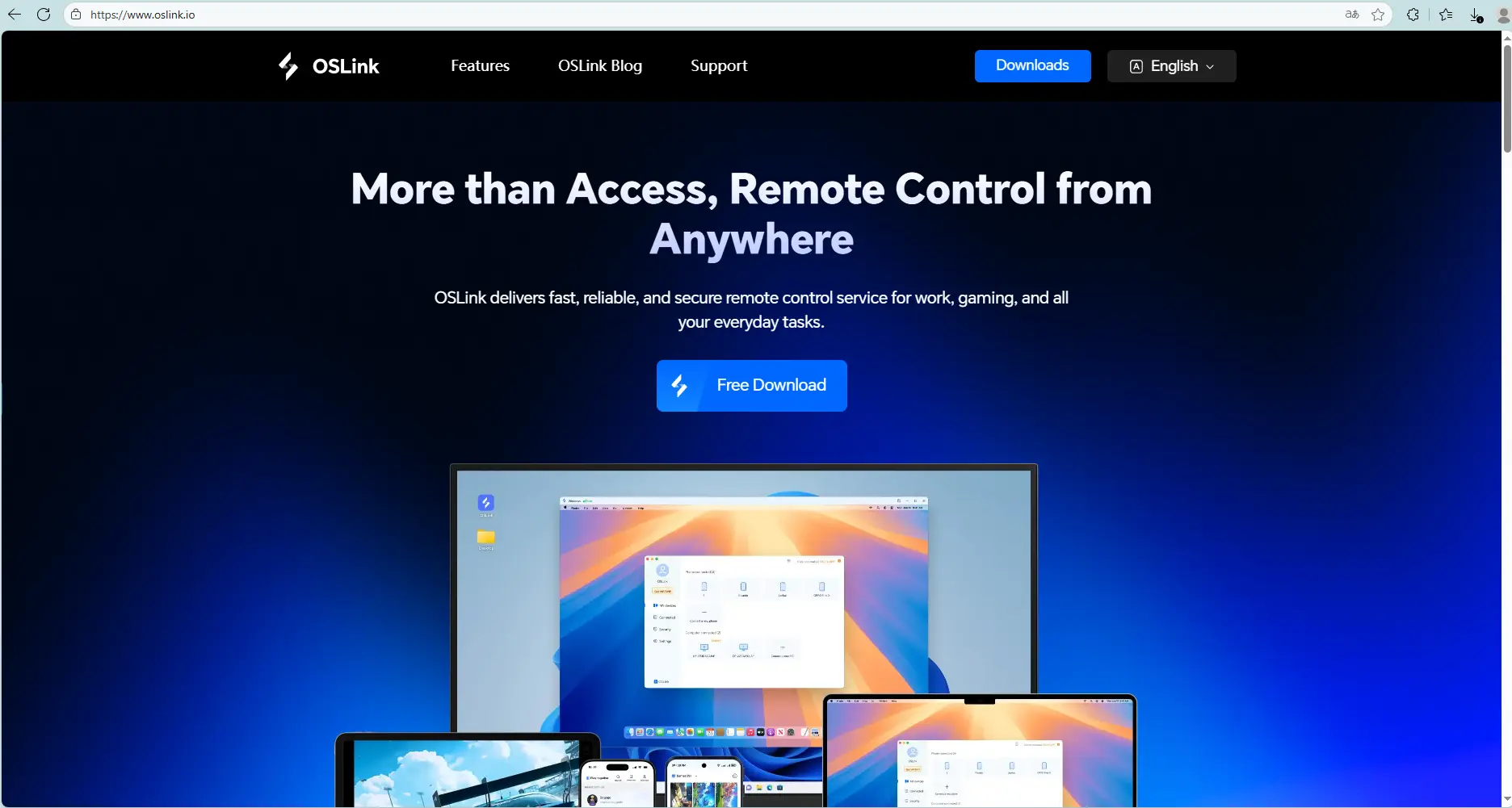
Visit the OSLink official website to download the software and complete the installation.
Mobile Side:
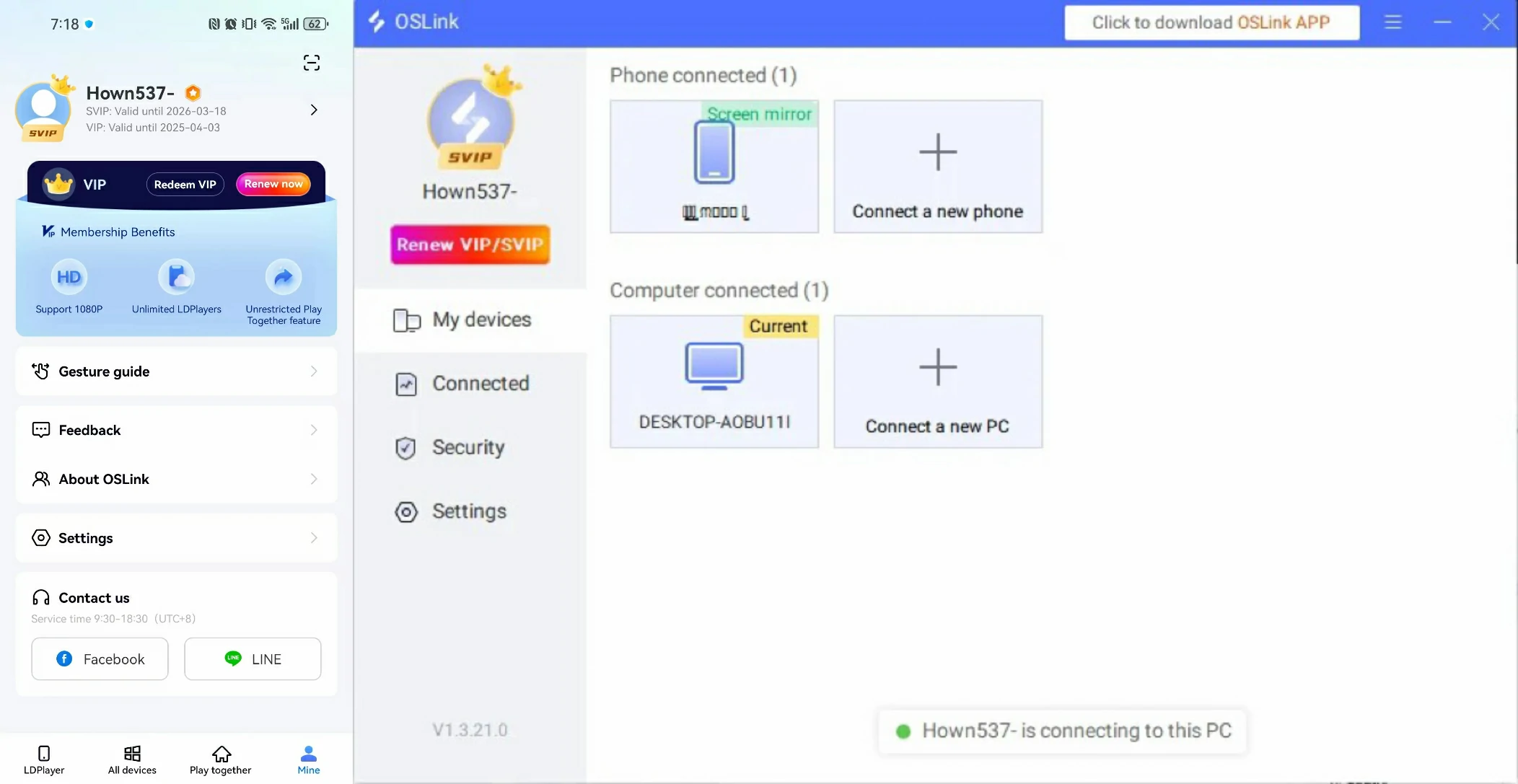
Download the OSLink App from the App Store or Google Play; the official website also offers APK downloads.
Log in with the same account as on the PC side to automatically connect.
Step 2: Control Optimization
1. Launch the Game
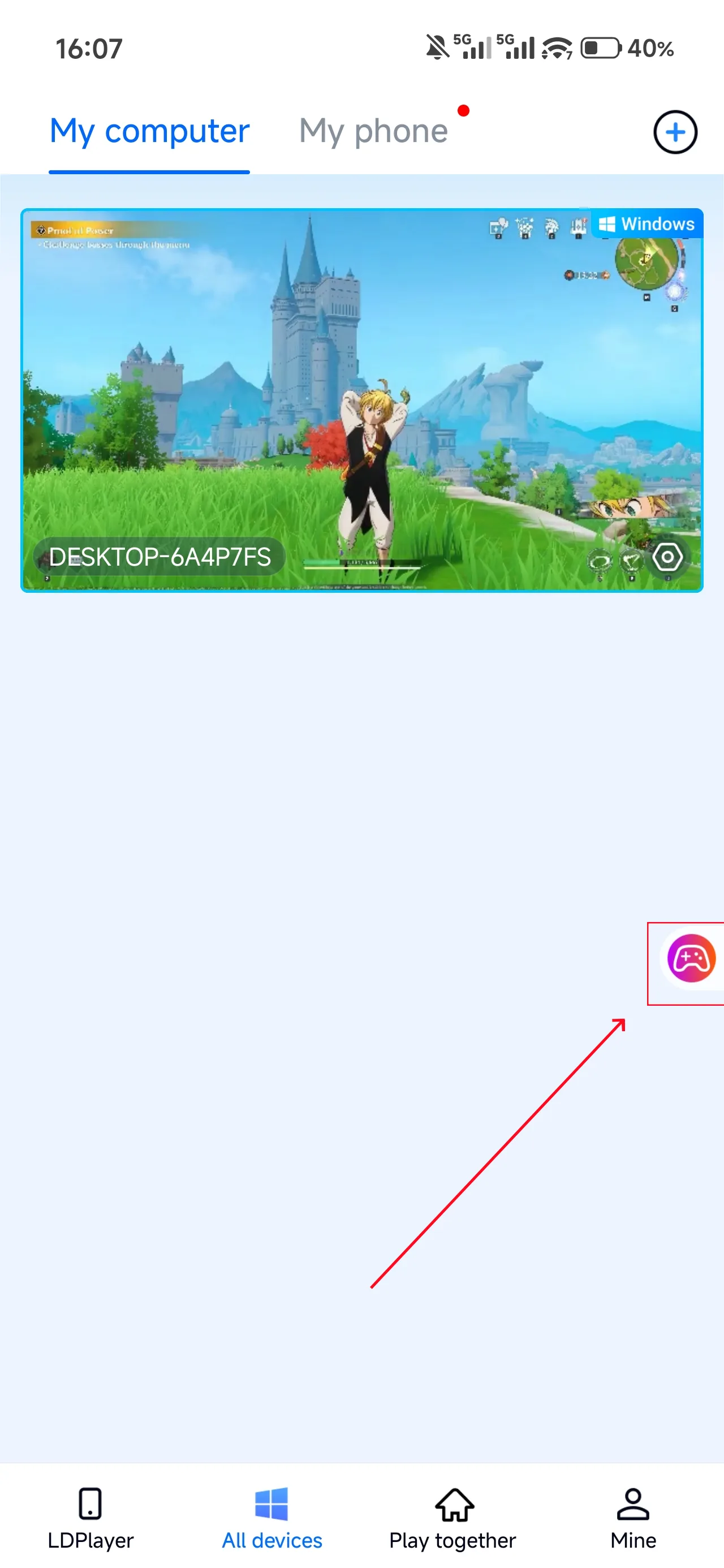
Open 7DS Origin on your PC, and the mobile side can connect directly; if 7DS Origin hasn't been launched on the PC yet, click the game icon on the mobile side for quick startup
2. Control Mode
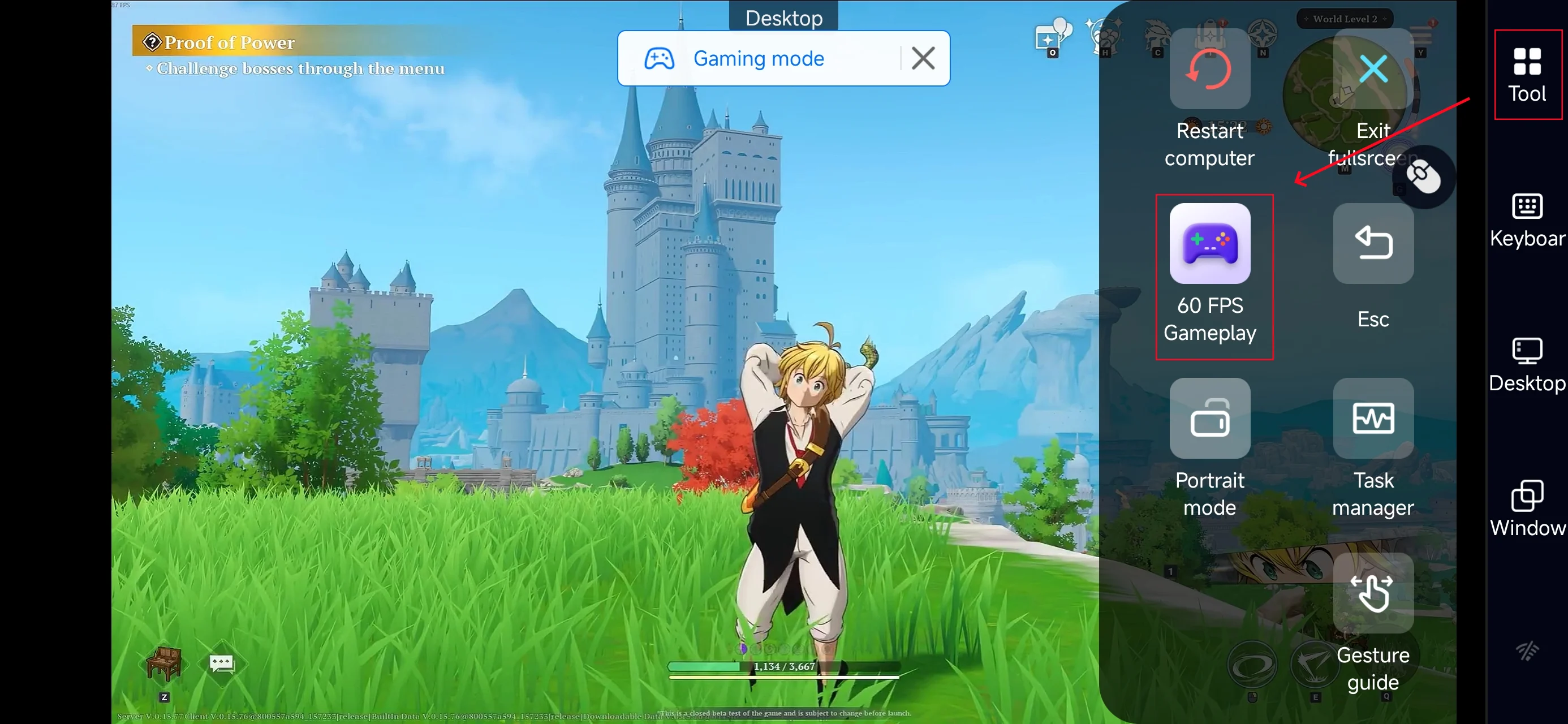
Click the toolbar on the right side of the mobile app, enter "60 FPS Gameplay," and choose key mode or link a controller based on your gaming preferences.
3. Customize key bindings
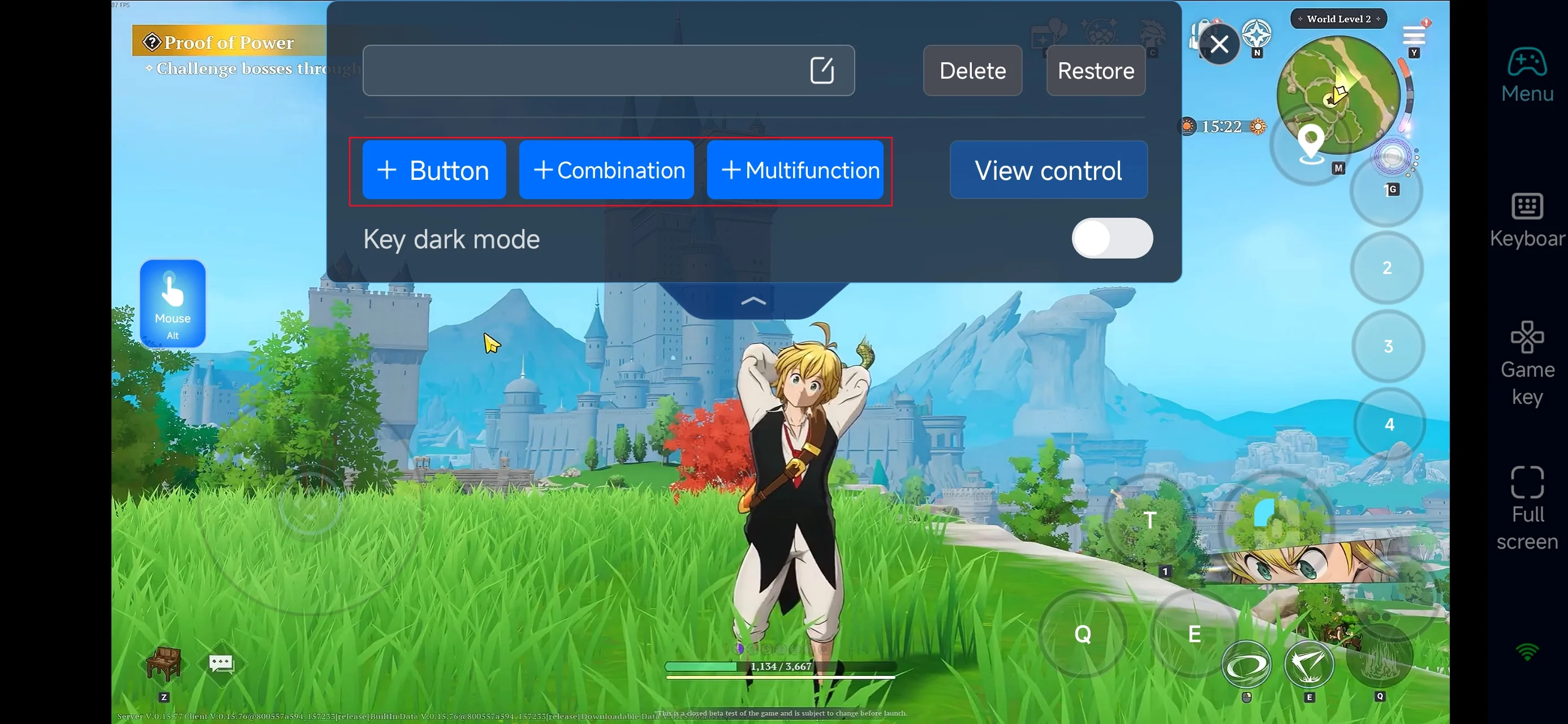
After enabling PC mode, go to the “Game Controls” panel on the right side of your screen.
Since 7DS Origin focuses on character switching, skill combos, and real-time combat, you should customize:
-
Movement controls
-
Basic attacks
-
Skill buttons
-
Character switching
-
Interaction and menu shortcuts
With proper key mapping, you can smoothly handle exploration, combat, and farming even on mobile.
4.Connect external devices
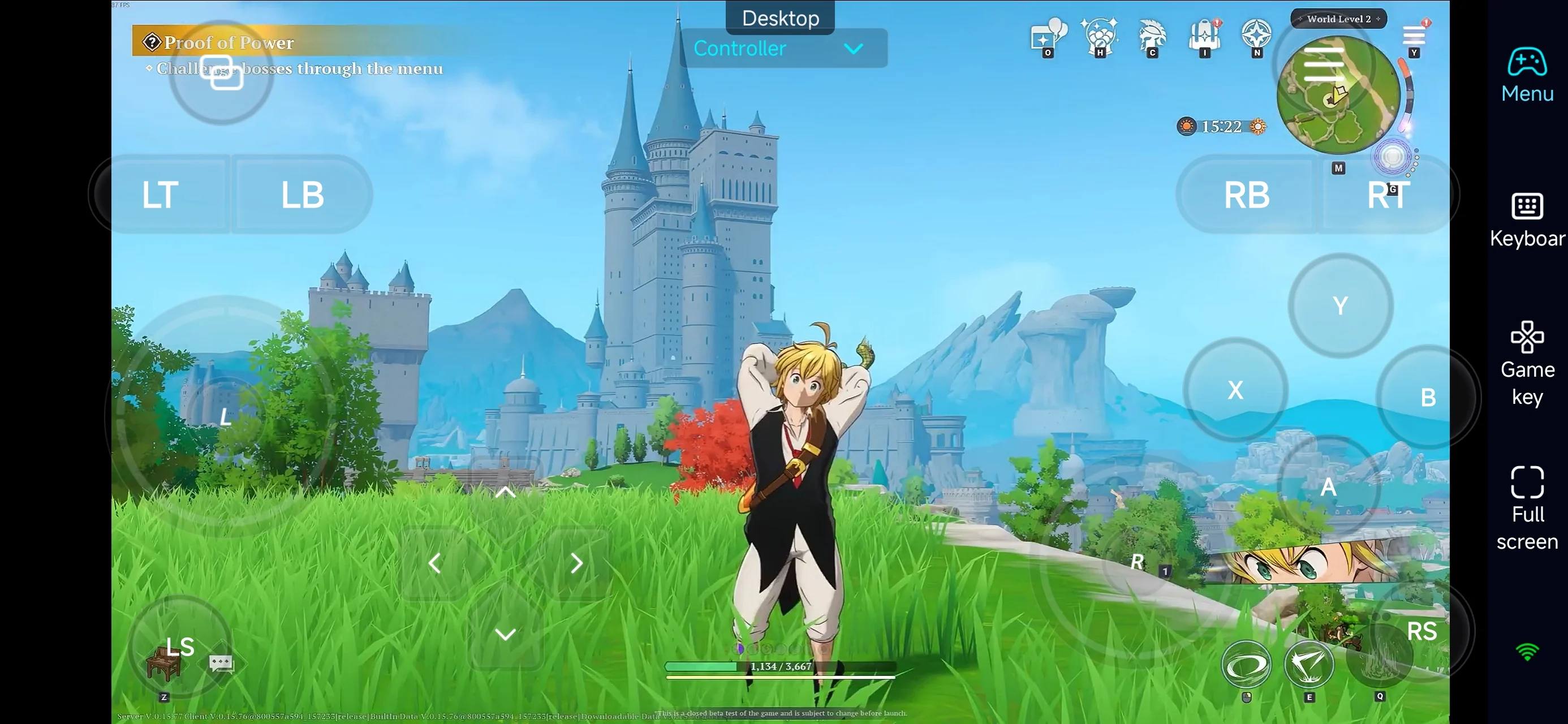
Beyond customizable buttons, OSLink supports a variety of external devices such as Bluetooth controllers and mobile gamepads clipped to your phone. This compatibility frees you from touchscreen limitations and offers a wider range of control options.
Step 3: Continue Your Adventure Anywhere
Once everything is set up, your phone or tablet becomes a portable way to play The Seven Deadly Sins: Origin.
Simply open OSLink to connect to your PC instantly. Whether you want to:
-
Progress the main story
-
Explore the open world
-
Run dungeons
-
Farm materials
-
Manage your characters
You can do it all anytime without being tied to your desk.
Why Use OSLink for 7DS Origin?
1. Play Anytime, Anywhere
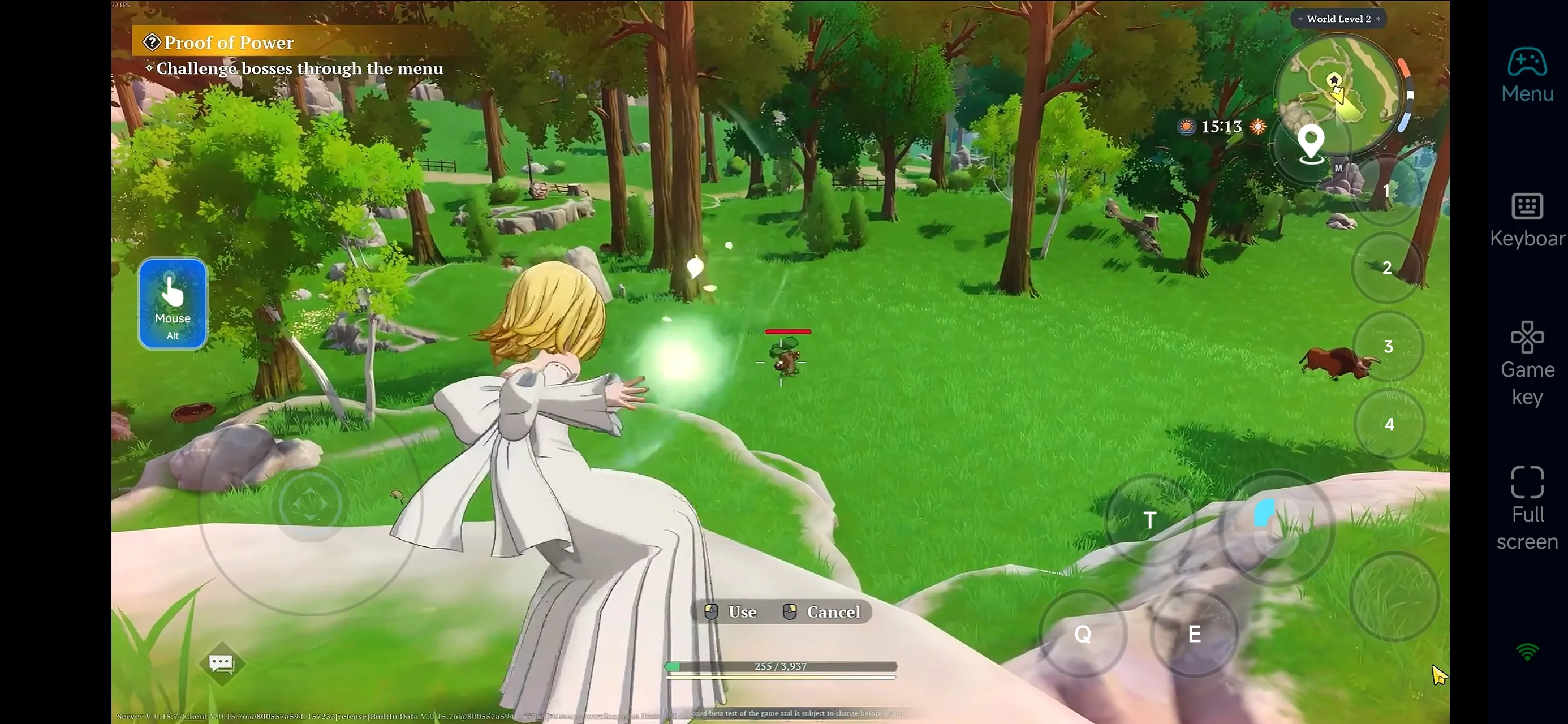
With OSLink, you can remotely control the PC version of The Seven Deadly Sins: Origin from your phone.
Whether you’re commuting, waiting in line, or away from home, you can keep progressing, farming, and exploring without interruption.
2. Smooth and Intuitive Controls
Even though you’re playing remotely, the experience remains smooth and responsive.
With OSLink’s virtual controls, you can easily:
-
Move and fight in real time
-
Use skills and combos
-
Access menus and quests
-
Manage gear and character progression
This makes it a great option for maintaining gameplay flow on mobile.
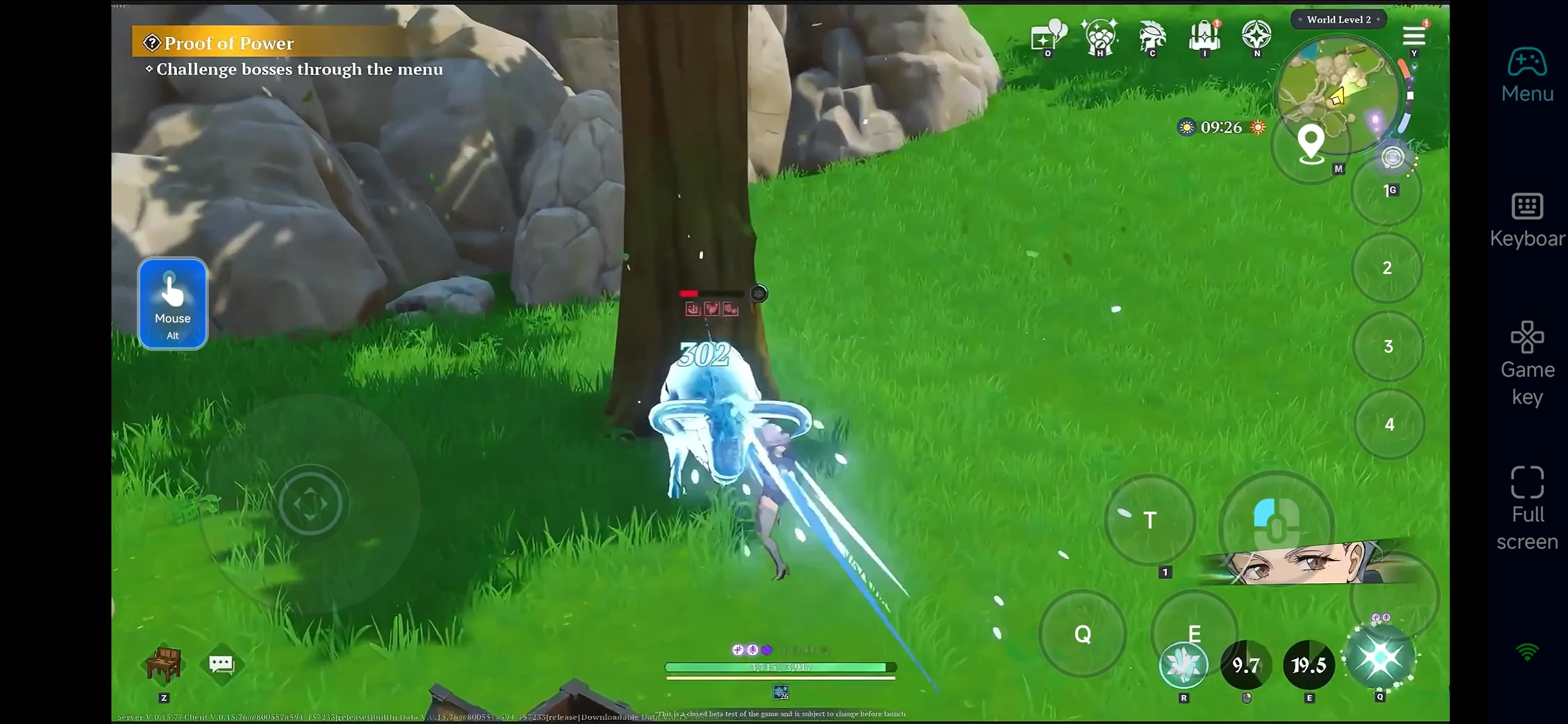
3. Make the Most of Your Free Time
Character progression and resource farming are key in 7DS Origin.
With OSLink, you can use short sessions to:
-
Complete daily missions
-
Farm materials and gear
-
Upgrade characters and weapons
-
Run resource dungeons
Then, when you’re back at your PC, you can focus on harder content and boss fights.
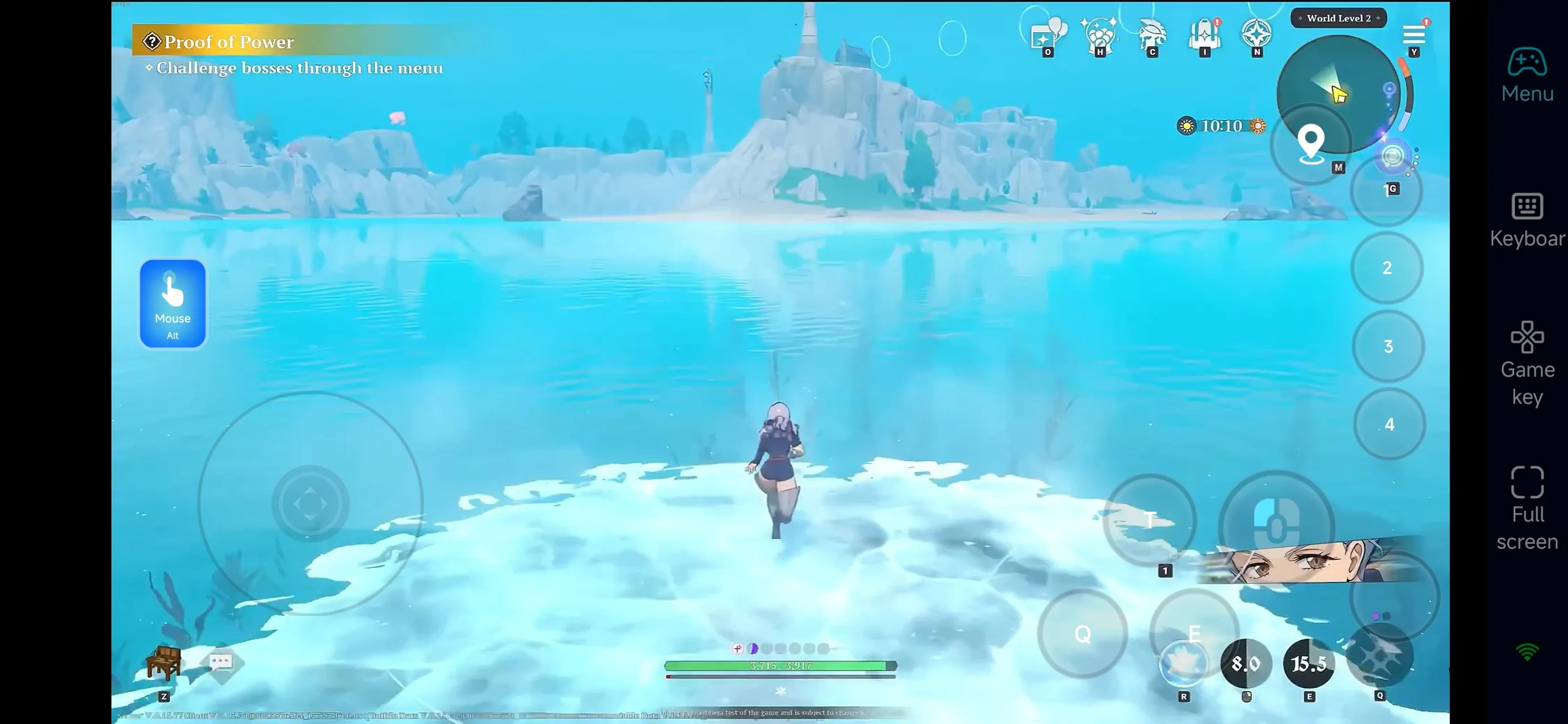
FAQ
Q: What is The Seven Deadly Sins: Origin release date?
A: The game launched on March 17, 2026, on PC (Steam) and consoles.
Q: What are the PC system requirements?
A: Minimum requirements include:
-
Windows 10 / 11 (64-bit)
-
Intel i5 or equivalent
-
16GB RAM
-
GTX 1060 / RX 580 or better
-
Around 30GB of storage
Higher specs are recommended for smoother performance.
Q: Can I play The Seven Deadly Sins: Origin on Android?
A: There is currently no official Android version. However, you can use OSLink to remotely access your PC and play the full game on your phone.
Q: Can I play The Seven Deadly Sins: Origin on iOS?
A: There is no official iOS version yet. But with OSLink, you can stream the PC version to your iPhone or iPad and play it remotely anytime.
Conclusion
Using OSLink, your phone or tablet can become an extension of your gaming setup for The Seven Deadly Sins: Origin.
With remote access, you can continue exploring, farming, and upgrading your characters anytime, turning short breaks into real progress. No matter where you are, your adventure in 7DS Origin never has to stop.
 Download