English
 The Binding of Isaac: Rebirth is an action RPG shooter with roguelike dungeon crawling at its core. You guide Isaac through randomly generated basement floors, facing all kinds of weird monsters and traps. Every run feels fresh, item combos are wildly varied, and with over 450 collectibles and 10 playable characters, the build possibilities are nearly endless. This game is only available on PC and consoles–the developers never made a mobile version. So how do you actually play it on your phone? This tutorial walks you through every connection step, so you can enjoy it anytime, anywhere.
OSLink is a remote control tool that breaks down device barriers. It streams your PC gameplay while giving you access to your saves, progress, and achievements on your phone, connects directly to your home computer, and turns that desktop game into a handheld you can fire up anytime.
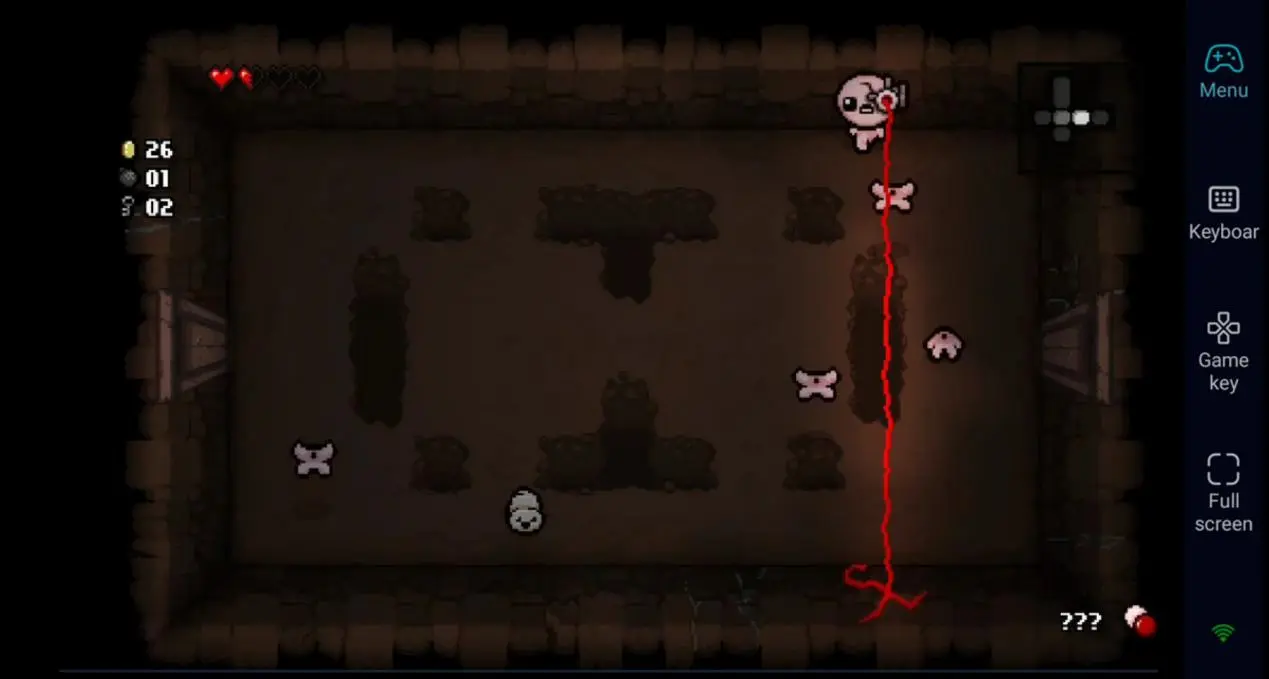
How to Play The Binding of Isaac: Rebirth on Your Phone
(1) Download The Binding of Isaac: Rebirth on Your PC
On PC, the game is sold mainly through Steam. Steam has two separate listings–the original Flash version and the remake Rebirth. New players should make sure to grab the “Rebirth” line. Besides the base game, there are three DLCs: Afterbirth, Afterbirth+, and Repentance. They stack in order, each adding new characters, items, and chapters. If you’re interested, grab the bundle with all DLCs–it gives you the complete experience and saves you money.
(2)Install OSLink on both your PC and phone
To get rid of the wall between your phone and computer and set up remote play, you need to download OSLink on both ends.
On PC: Search for OSLink in your browser, go to the official site, download the Windows version, install it, and log in.
On phone: iOS users, search “OSLink” on the App Store; Android users, get it from Google Play or grab the APK from the official site.
Critical step: your phone and PC must log into the same account–otherwise they won’t connect. Once you’re logged in, both devices recognize each other automatically; no extra pairing needed.
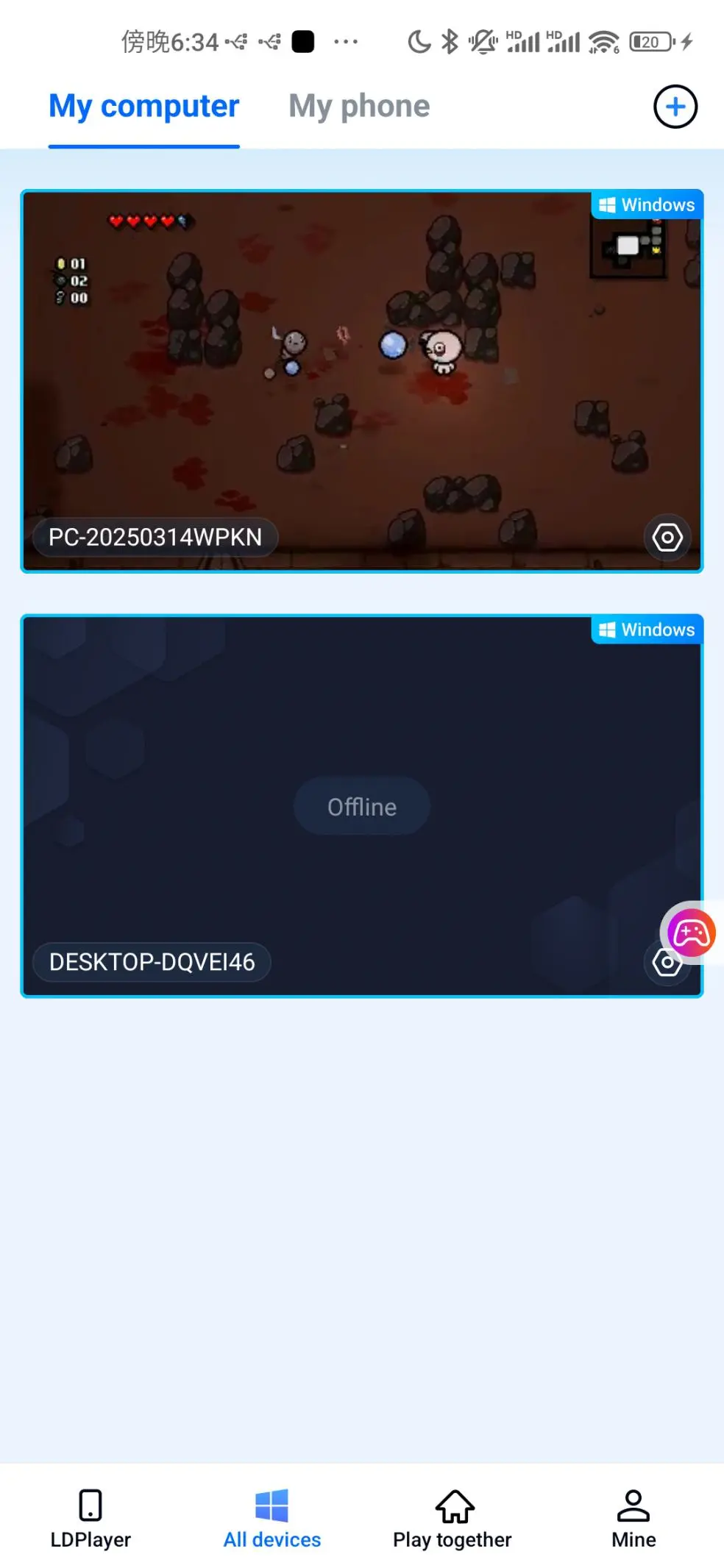
(3) Launch Rebirth from your phone
You can start Rebirth through Steam or your desktop shortcut, then open OSLink on your phone and connect to your PC. Or just tap the game icon inside the phone app, and it will remotely launch The Binding of Isaac: Rebirth on your PC.
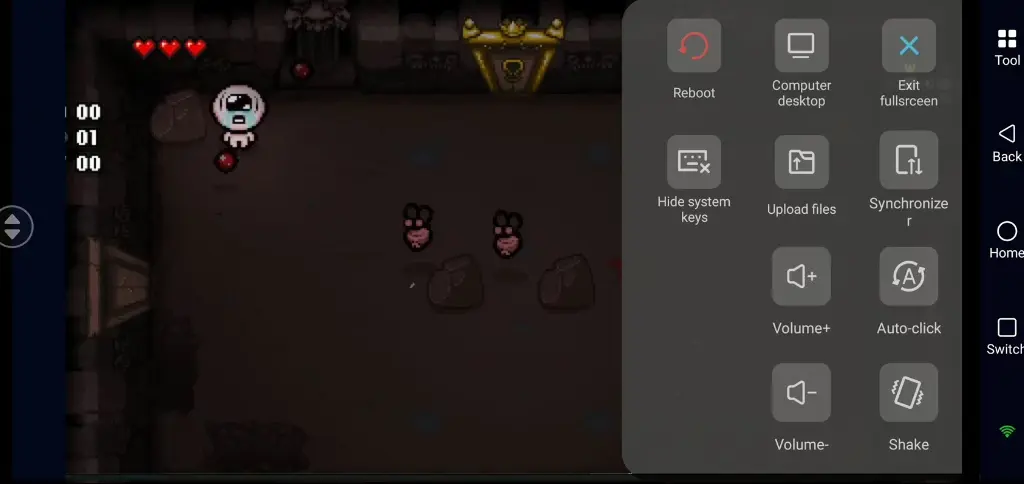
After the connection is live, it’s a good idea to tap the right-side toolbar on your phone and switch to “60fps PC Game” mode. That mode tunes the stream parameters for action games, so your shooting and dodging in Rebirth feel responsive and snappy.
Benefits of Remote PC Gaming on Your Phone
Progress follows you: all your PC saves, achievements, and unlocked characters sync fully–the phone shows exactly what’s on your computer screen.
Play anywhere: on the commute, during lunch break, or in a coffee shop–pull out your phone and continue right where you left off.
Efficiency: you can batch-process logins, task loops, and scripted farming to cut down on manual repetition.
OSLink Features That Boost the Experience
60fps high-quality streaming
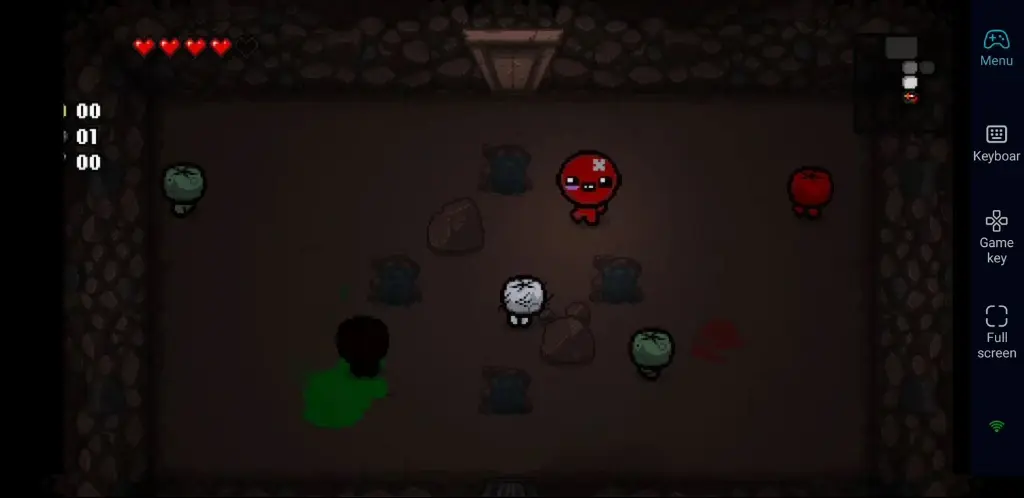
The game actually runs on your PC; your phone only receives the video feed, so it’s not limited by the phone’s processor or resolution. You get the full original PC quality, with streaming at up to 60 FPS.
Peripheral compatibility
Bluetooth keyboards, mice, and gamepads can connect directly to your phone and map through to the PC. If you’re used to playing Rebirth with a controller, just pair it to your phone and you’re back to that console-like feel.
Custom button mapping
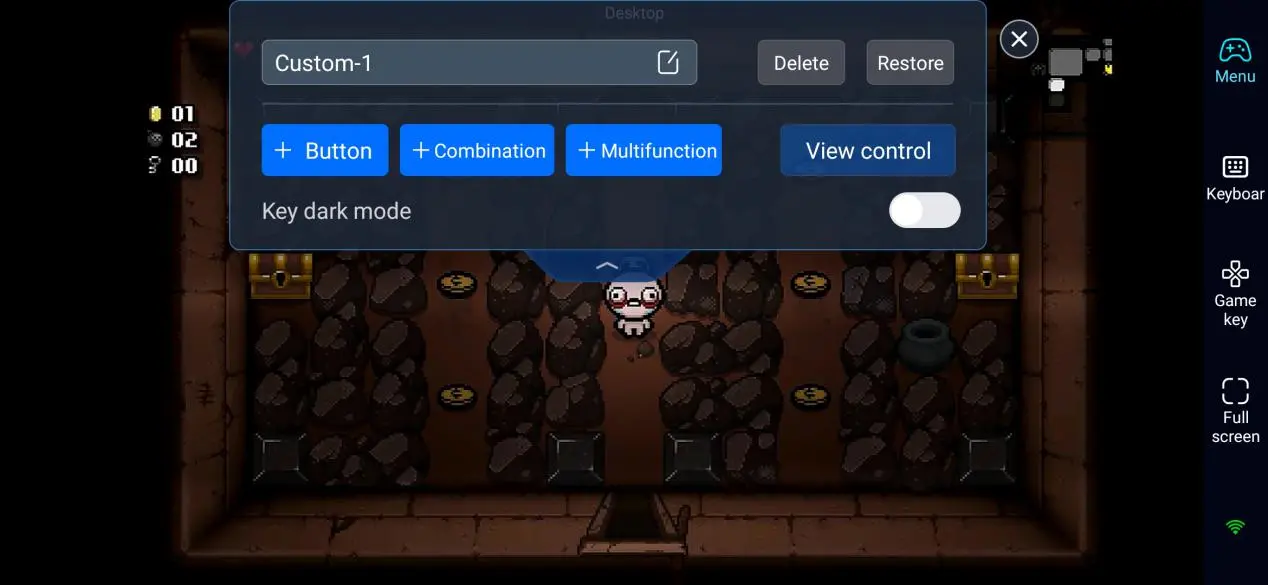
OSLink comes with several preset cloud control schemes for PC games like Rebirth. Shooting, bombs, active items–all mapped to specific areas on your phone screen. Tap and go, no external keyboard required. You can also resize, reposition, and adjust transparency on your own.
FAQ
Q: Why does OSLink show offline when I try to connect from my phone?
A: Check if your PC lost internet, power, or froze. Also confirm both devices are logged into the same OSLink account, and that your PC isn’t in sleep or shutdown mode.
Q: The stream lags or has high delay during OSLink.
A: Check your home upload bandwidth–10 Mbps or higher is recommended. Switch to “60fps PC Game” mode on your phone to optimise transmission.
Q: The phone screen is too small–hard to see details.
A: OSLink supports zoom and local magnification, and you can rotate to landscape for a wider view.
Q: Can Android devices connect to non-Android phones (like iPhones)?
A: OSLink works on Windows, macOS, iOS, and Android. Android devices (including tablets and TV boxes) and iPhones just need the same OSLink account–there’s no system barrier. The game runs on your PC, the phone controls the display, so cross-platform works fine.
Closing
Rebirth’s random nature and short-run rhythm fit perfectly into your spare moments. OSLink turns your phone into a launch button–no matter where you are, tap and pick up right where you left off. No need to wait until you get home, no worries about save mismatches, and even idle farming can run in the cloud. One train stop gets you a floor; a five-minute queue lets you test a new item combo. Dungeon crawling isn’t just for long sessions anymore–it fits into every little gap in your day.
 Download