English
 Since its release, Star Wars Jedi: Survivor™ has hooked tons of fans of third-person action-adventure games. Right now, it’s only out on PC—you won’t find a mobile client on either the App Store or Google Play. So is there a way to skip third-party servers, let your PC do all the heavy lifting, and just have your phone show the video and handle controls? This guide will break down every step, from installation to gameplay, so you can follow along easily.
Ready to take your lightsaber out the door? With OSLink streaming, you can enjoy a pixel perfect PC experience on your phone—Koboh’s blowing sand can hit your screen wherever you are. Plus, OSLink’s built-in helper features make the game more comfortable and hassle-free, whether you’re a newbie or a veteran. It’s a total game-changer for your comfort!
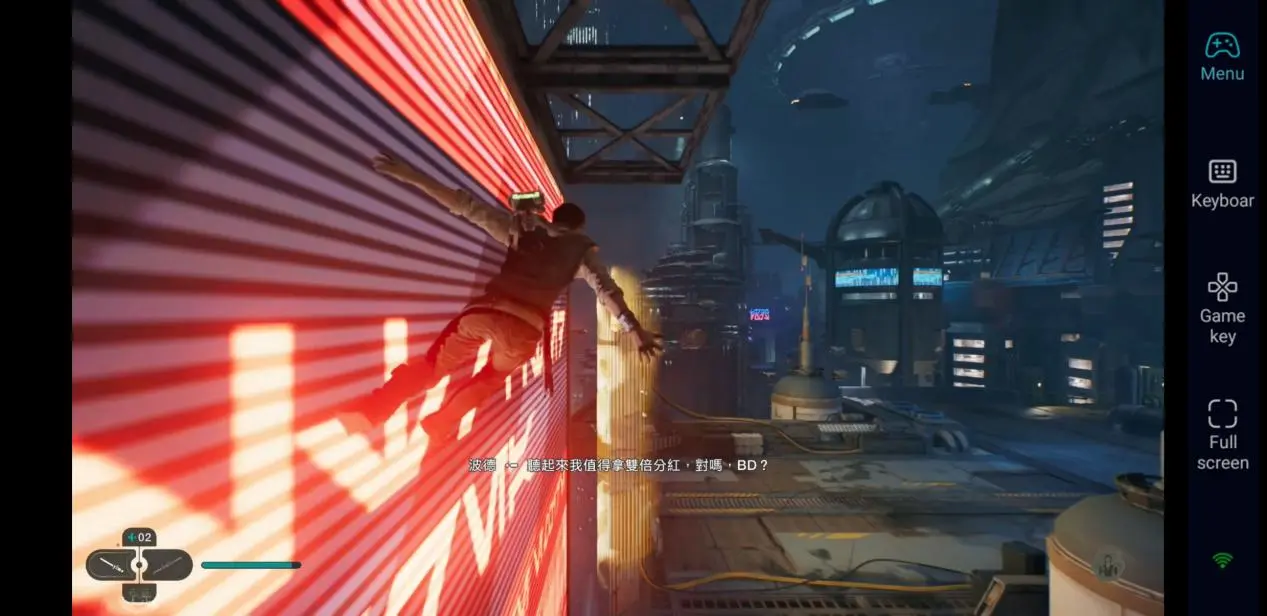
Installing the Game on Your PC
Since Star Wars Jedi: Survivor™ doesn’t have a native Android or iOS version, you can’t just install it straight onto your phone. You’ll need to get the PC version first, then use the streaming method below. Buy and download the game from your preferred platform, get it installed, and make sure your rig can run it smoothly. Remember, all the processing stays on your PC—your phone just mirrors the display and sends your taps—so a capable computer is the foundation for this whole setup.
Installing OSLink on Both Your PC and Phone
On PC: Head to the official OSLink website, grab the Windows version, and install it.
On phone: open Google Play (for Android) or the App Store (for iOS), search for "OSLink", and download the app.
You can also get the APK directly from their site. Once both ends are set up, sign in with the same email account. OSLink will automatically create an encrypted tunnel to get everything ready for the next steps.
Launching the Game on Your Phone
Keep OSLink running on your PC. On your phone, open the OSLink app, and you’ll see a list of "Available Devices" showing any computer logged in with the same account. Tap your PC’s name to connect. Once connected, your phone screen will mirror your desktop. You can double-click the game icon on your desktop, and the phone will follow right along.
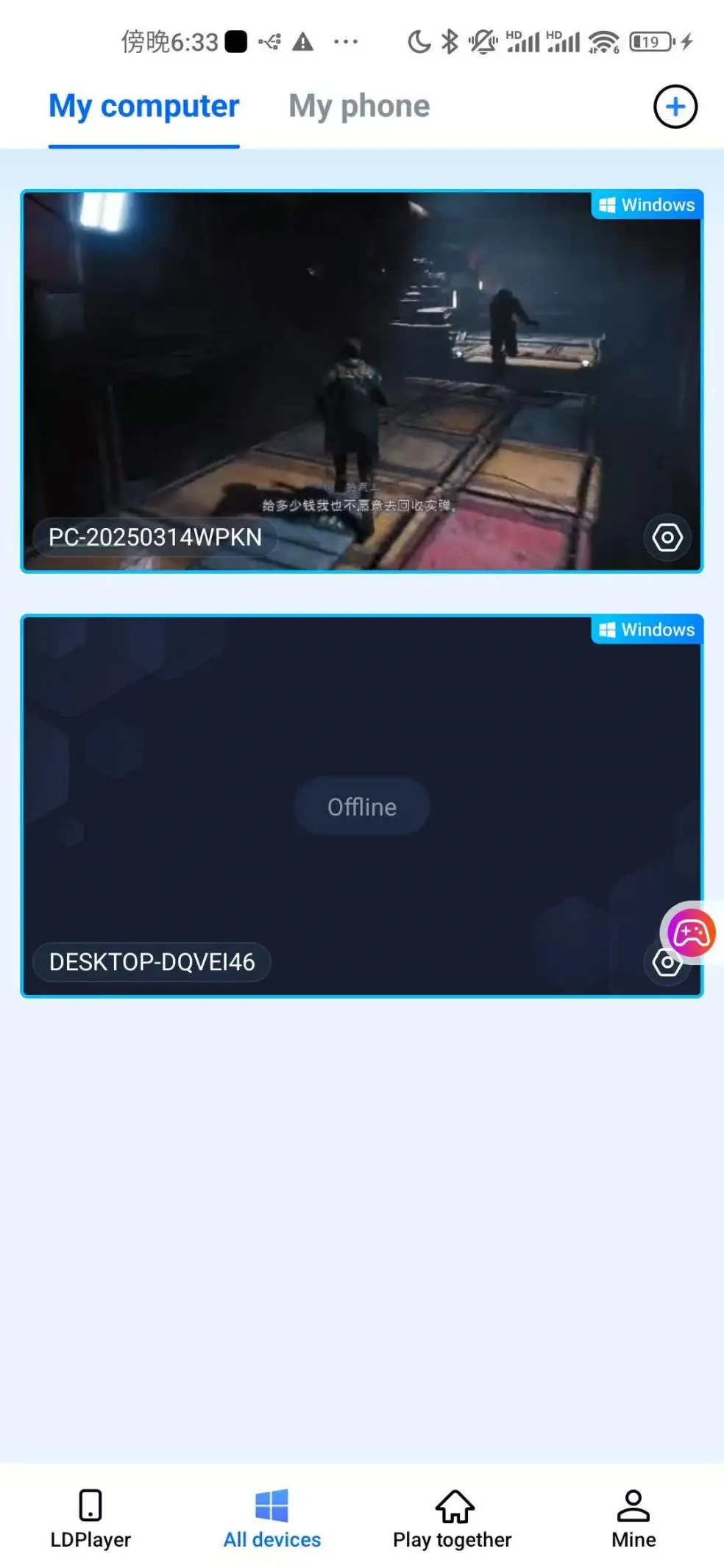
Also, you can tap the game’s small icon right inside the OSLink screen on your phone to launch it remotely—no need to walk back to your computer.
After your first connection, it’s a good idea to tap the toolbar icon on the right side of the OSLink screen and choose "60fps PC Game" mode. That tweaks the streaming settings specifically for gaming, cutting down lag and making everything smoother.
Why Play Star Wars Jedi: Survivor™ on Your Phone?
Lighter gaming sessions
Your PC stays in your study or bedroom, but your phone goes everywhere with you. Out and about, waiting for a bus or commuting? As long as you’ve already linked both devices with OSLink, you can jump back into the fight anytime you have a network connection—no need to be back at your desk.
Room feature for coop viewing
OSLink’s "Room" function lets you share your PC game screen with other devices. Multiple people can remotely watch or even take control of the same game instance. Want to show off a boss fight or get help getting past a tough spot? This turns a single-player game into a collaborative experience.
Saves your phone storage
The PC version of Jedi: Survivor™ takes up over 100GB. Your phone simply can’t hold that, and its processor and cooling system would struggle to handle it. Streaming keeps all that storage and processing weight on your PC; your phone only receives the video feed, taking up almost zero internal space. Even a lower-end phone can handle it with ease.
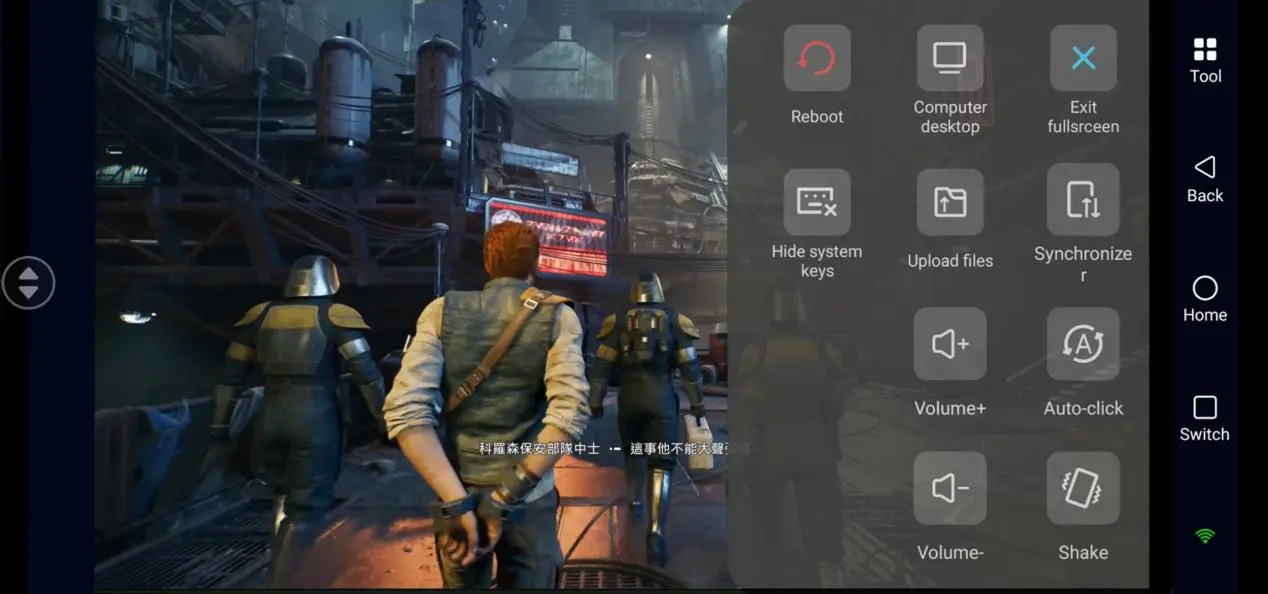
Built-in Helpers Inside OSLink
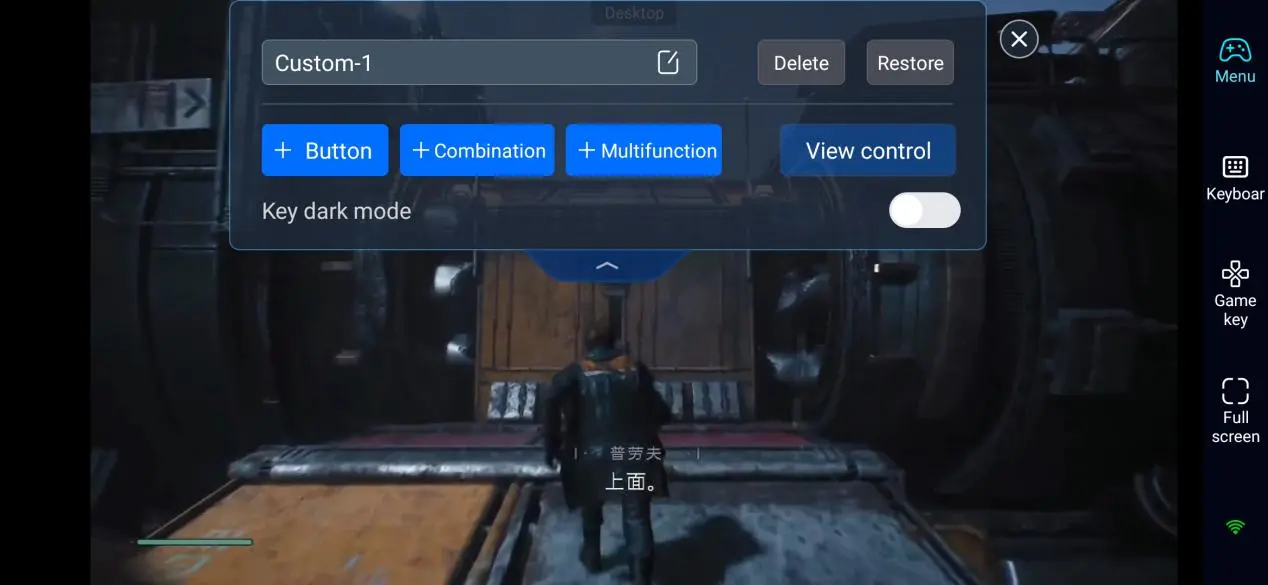
Touch controls mapped for mobile
OSLink adapts the touchscreen for PC games. Instead of clunky keyboard-mouse overlays, it maps buttons like a native mobile game. When you’re playing Jedi: Survivor™, lightsaber parry lands on the left side of the screen, and Force abilities sit on the right—way more natural than copying a PC keyboard.
Cloud-based key profiles for specific games
OSLink has preset control schemes for many PC games stored in the cloud. Just pick the profile for Star Wars Jedi: Survivor™, and all the key bindings apply automatically, with no manual setup needed. One tap and you’re good.
External device support
Not a fan of touch? OSLink works with external keyboards, mice, and gamepads. Hook up a controller and it feels like a handheld console; plug in a keyboard and mouse for that classic PC feel.
Low latency and high-quality visuals
The game runs on your PC, so it’s not held back by your phone’s processor, RAM, or screen resolution. OSLink’s streaming is tuned for game scenarios, keeping response times and visual lag within a comfortable range.
FAQs
Q: Do both devices need to be on the same Wi-Fi?
A: Not at all. OSLink works over both LAN and the internet. Same Wi-Fi gives you lower latency, but as long as both ends have internet access, you can connect from anywhere.
Q: Does my phone need to be high-end?
A: No. All the heavy work is on the PC; your phone just decodes the video and sends control inputs. A mid-range phone will run it just fine, provided you have a stable connection.
Q: Can I run multiple games at once?
A: Yes. OSLink supports running several games or apps simultaneously on the same PC, and you can monitor their progress in real time from your phone.
Closing
Star Wars Jedi: Survivor™ has earned a solid reputation on PC thanks to its fluid lightsaber duels, varied Force power combos, and open-world exploration across places like Koboh and the Shattered Moon. Until an official mobile port comes out, OSLink’s remote streaming tech lets you turn your phone or tablet into a portable gaming rig. Roll, parry, and slice through Koboh’s canyons, solve puzzles among Jedha’s ruins, and switch between different lightsaber stances to counter enemies—all without being chained to your desk. The Force is with you, wherever you go.
 Download