English
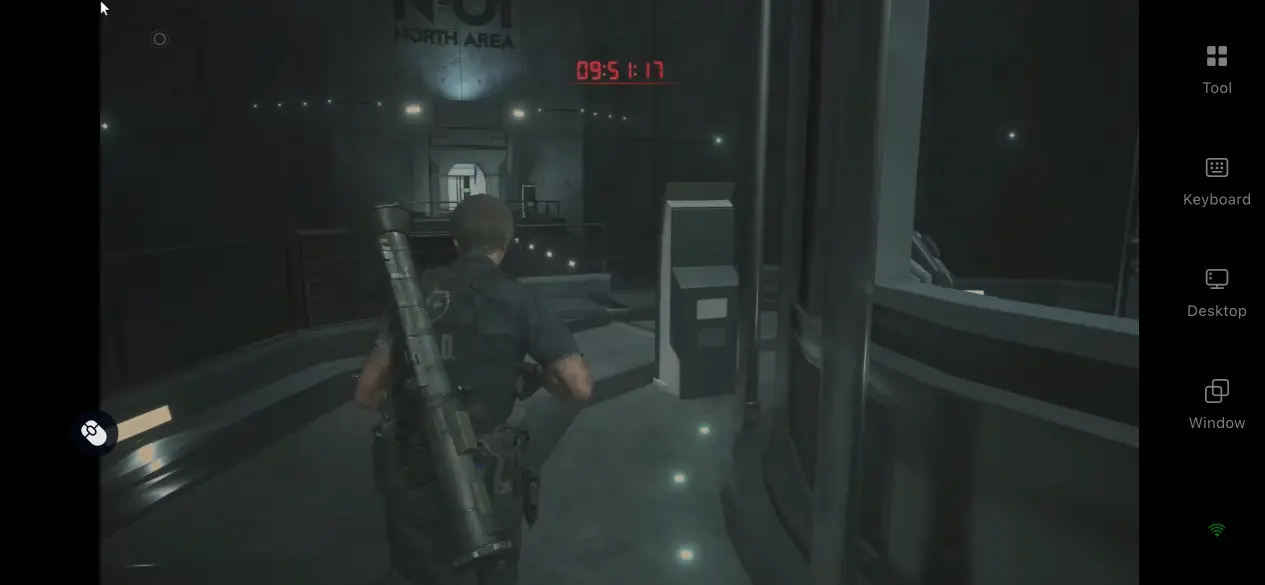
 Resident Evil 2 remains a standout survival horror game thanks to its tense exploration, detailed environments, and modern reimagining of the original Raccoon City story. Whether you are following Leon and Claire for the first time or returning for another high-difficulty run, the game normally requires you to remain at your PC.
With OSLink, you can remotely access the PC version from your phone and continue exploring, solving puzzles, or managing your inventory away from your desk. This guide explains where to get Resident Evil 2 on PC, how to connect your devices, and how to configure the controls for mobile remote play.
1. How to Get Resident Evil 2
Steam
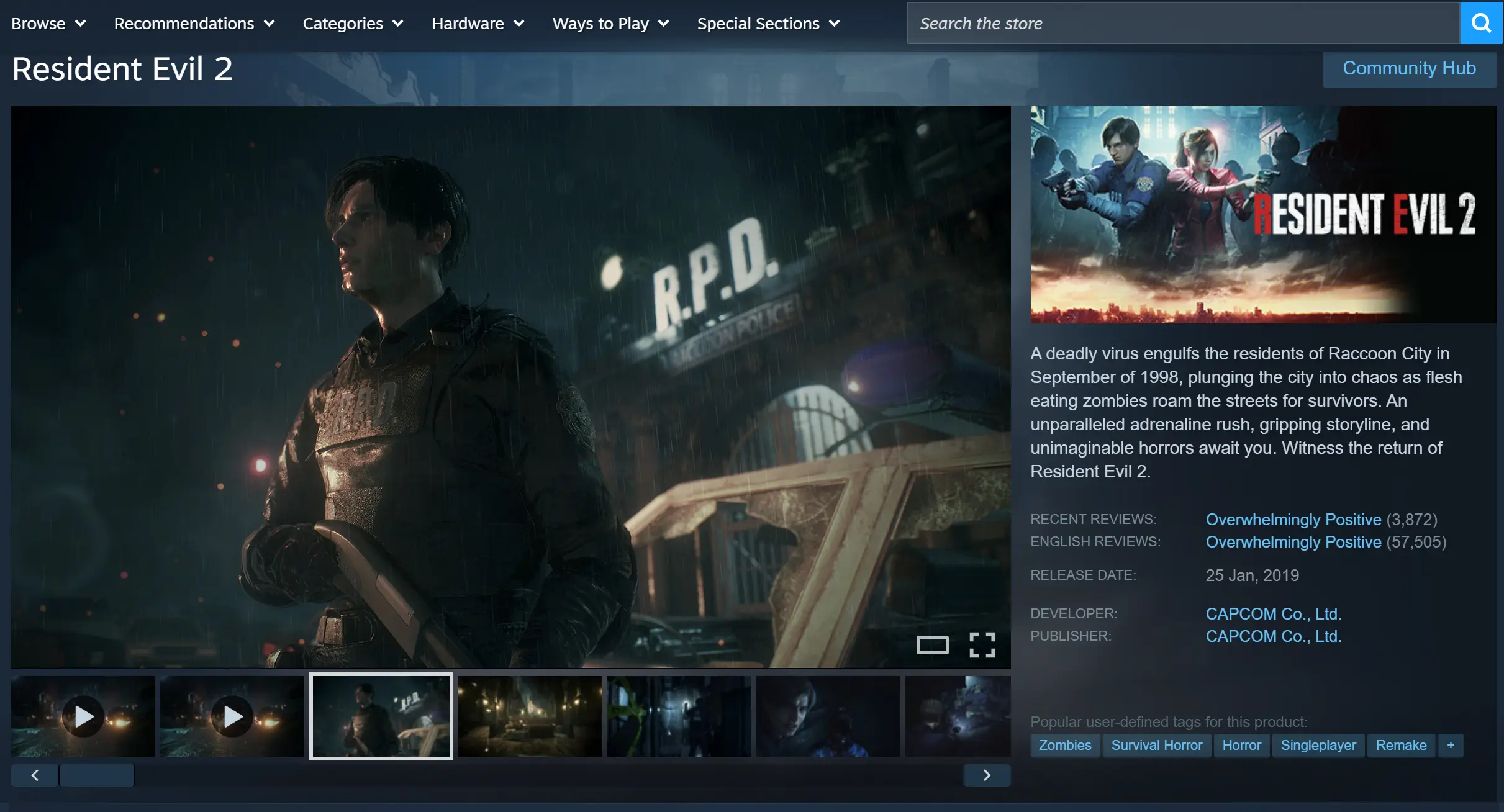
Search for Resident Evil 2 in the Steam client, complete your purchase, and download the game. The title supports both Simplified and Traditional Chinese and automatically syncs your cloud saves.
Capcom Town Store
Purchase the game through CAPCOM's official store and sign in with your CAPCOM account to unlock all available DLC and bonus content.
2. Install OSLink on Your PC and Mobile
On PC
Visit the official OSLink website and download the Windows version. After installation, sign in with your account, keep the application running in the background, and make sure your PC remains connected to the internet.
On Mobile
Android users can download OSLink from their preferred app marketplace, while iPhone and iPad users can install it directly from the App Store.
After signing in with the same account used on your PC, OSLink will automatically detect devices that are currently online. No complicated pairing process is required, allowing you to complete the connection in just a few taps.
3. How to Launch Resident Evil 2 with OSLink on Your Phone
Step 1
Turn on your PC and make sure OSLink is running. Open Steam and launch Resident Evil 2.
You may leave the game at the main menu before connecting, although you can also launch it after accessing your desktop remotely.
Step 2
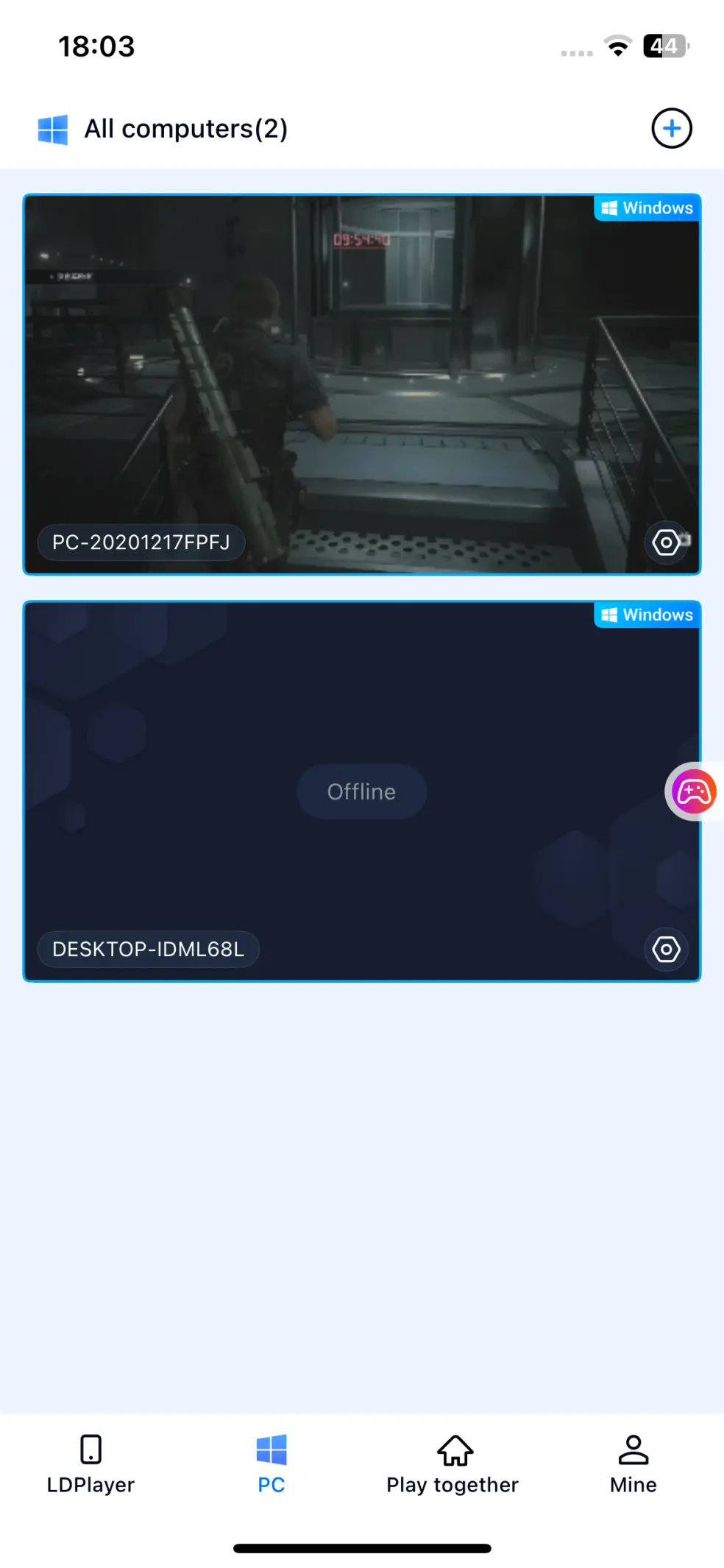
Launch the OSLink app on your phone. On the home screen, you'll see a list of computers signed in with the same account. Tap the PC you want to connect to, and within a few seconds your desktop will be mirrored to your mobile device.
Step 3
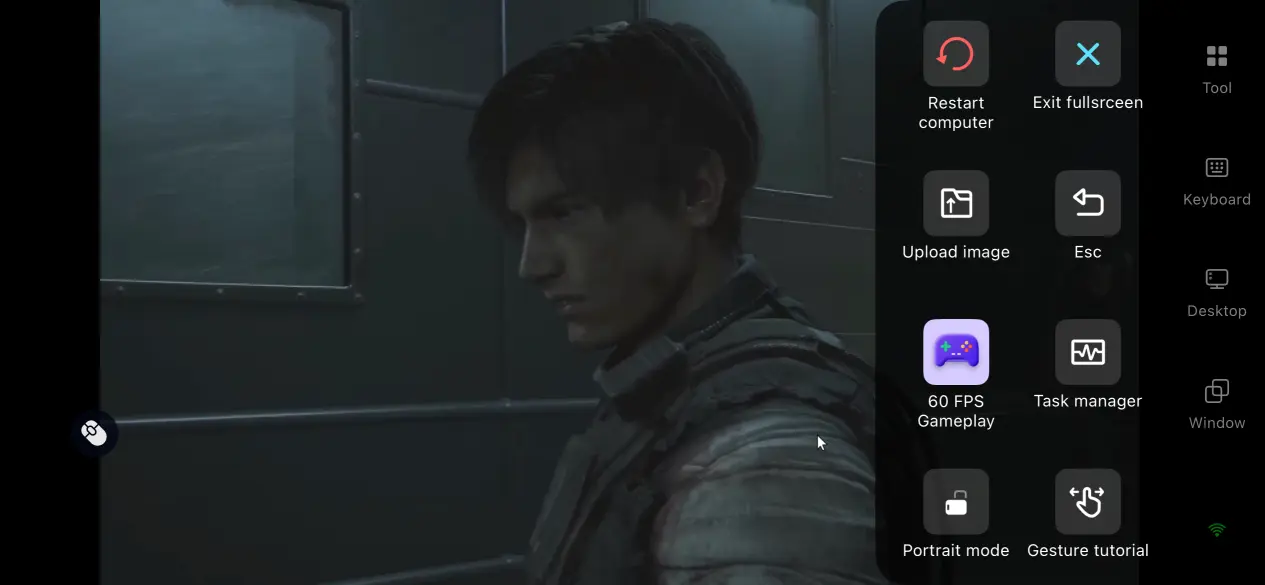
Once the connection is established, open the side toolbar and switch to the dedicated 60 FPS Single-Player Mode. OSLink automatically optimizes video encoding for darker scenes, reducing ghosting and improving image clarity in low-light environments. You can also load a preset virtual controller layout and customize the size and position of each button based on your preferred playstyle, whether you focus on puzzle-solving, dodging enemy attacks, or switching weapons quickly. Save your layout, and you're ready to continue your adventure.
4. Advantages of Playing Resident Evil 2 Remotely on Your Phone
Continue Your Progress Anytime, Anywhere
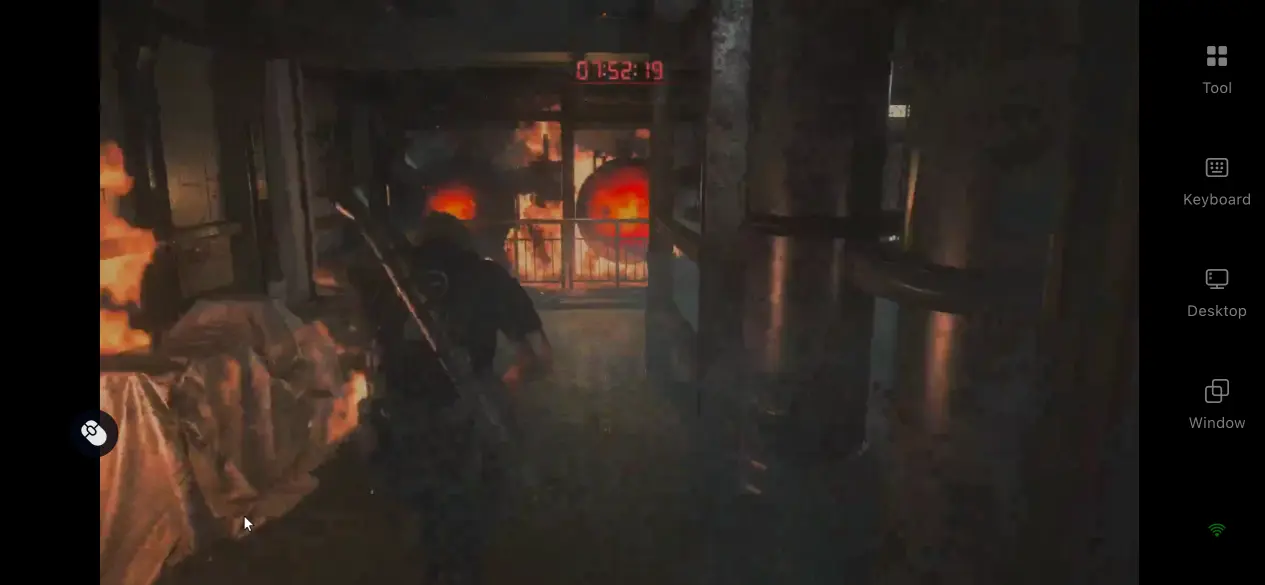
Whether you're commuting, traveling, waiting for an appointment, or taking a short break, you can instantly connect to your home PC and jump right back into the game. Finish side objectives, collect hidden items, unlock extra rewards, or continue the main story whenever you have a few free minutes. OSLink preserves the original image quality, save data, and gameplay experience without requiring the game to be installed on your phone, allowing even lower-spec mobile devices to stream the game smoothly.
Full Support for Gaming Peripherals
OSLink is compatible with both wired and wireless keyboards, mice, and game controllers through Bluetooth. Once connected to your phone, these peripherals recreate the familiar PC control experience, making aiming, shooting, emergency dodges, and inventory management much more accurate than using touchscreen controls alone. It's an excellent solution for players who prefer precise movement and smoother puzzle-solving.
Share the Session with Friends
OSLink's room-sharing feature can be used to invite friends to view or assist with the same PC session. This can be helpful when discussing puzzle solutions, locating missed items, or reviewing difficult encounters.
Resident Evil 2 remains a single-player game. Connecting several devices to the same host PC does not create a multiplayer or co-op mode.
5. Detailed Overview of OSLink Features
Low-Latency 60 FPS Single-Player Mode
OSLink's dedicated 60 FPS gaming mode dynamically optimizes video encoding for the many dimly lit corridors, sudden turns, and surprise enemy encounters found throughout Resident Evil 2. This helps minimize motion blur in dark scenes while reducing input latency, delivering smoother controls when escaping zombie hordes or reacting to unexpected attacks.
Fully Customizable Virtual Controls
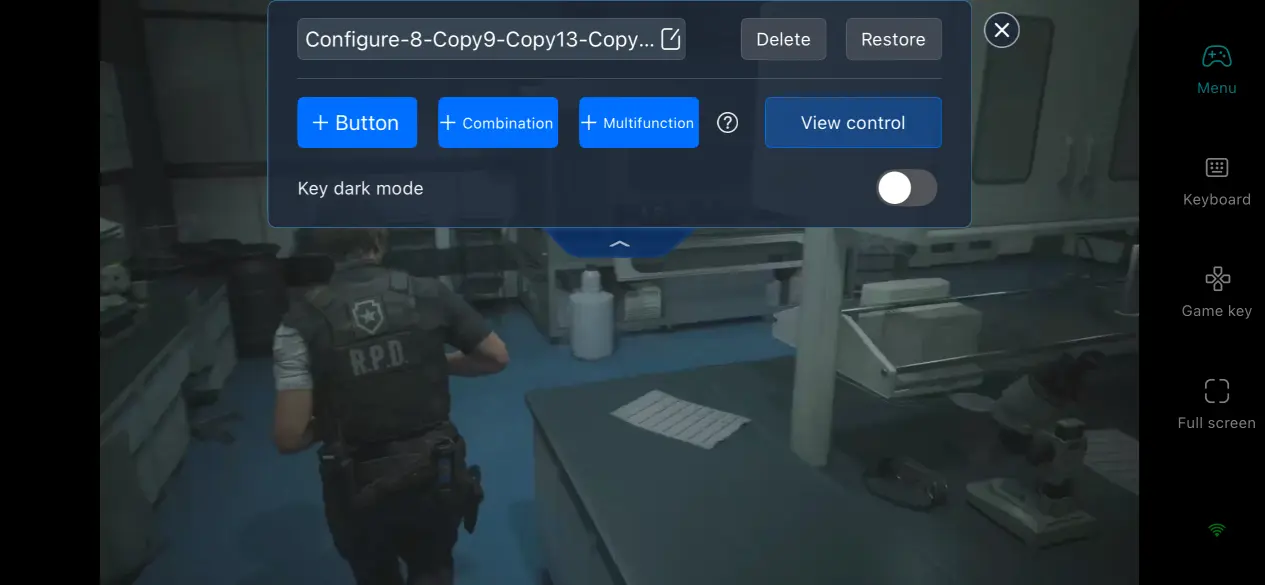
OSLink allows players to freely add virtual joysticks and buttons for movement, firing, reloading, opening the inventory, dodging, and other actions. Each button's transparency, size, and position can be adjusted independently. You can even save separate control layouts for Leon and Claire, making it easy to switch characters without having to reconfigure your controls each time.
Adaptive Streaming Quality Based on Network Conditions
OSLink automatically adjusts its streaming bitrate according to your current network bandwidth. When connected to a fast 5G or high-speed Wi-Fi network, you can enable high-definition streaming for the best visual quality. If you're using a weaker mobile network outdoors, the software intelligently lowers the resolution to maintain a smooth and stable connection without requiring you to manually adjust streaming settings, providing a balanced experience between image quality and performance.
6. FAQ
Q: Is Resident Evil 2 available on mobile?
A: No. The 2019 Resident Evil 2 remake does not have an official Android or iOS version. However, you can run the PC version on your computer and use OSLink to stream it to your phone for remote play.
Q: Can iOS and Android devices connect to the same PC?
A: Yes. Supported Android and iOS devices can sign in to OSLink and access an online PC associated with the same account. The available controls and peripheral support may differ depending on the mobile device and operating system.
Q: Does Resident Evil 2 have demanding PC hardware requirements?
A: The minimum system requirements include 8 GB of RAM and an NVIDIA GeForce GTX 760 graphics card. While this is sufficient for running the game locally at lower settings, remote streaming performance may suffer from frame drops. For a smoother 60 FPS streaming experience, a system with at least 16 GB of RAM and an NVIDIA GeForce GTX 1060 or a more powerful graphics card is recommended.
Q: What should I do if the stream keeps stuttering??
A: First check both the host PC's upload connection and the phone's network stability. You can also try the following:
- Connect the PC through Ethernet;
- Close downloads, live-streaming tools, and other bandwidth-heavy applications;
- Update the graphics driver;
- Reduce the OSLink resolution, frame rate, or bitrate;
- Lower demanding in-game graphics settings;
- Prevent the host PC from sleeping;
- Test the connection on a different network.
Avoid stating that a fixed speed such as 5 Mbps will always be sufficient. The required bandwidth varies with the selected resolution, frame rate, bitrate, network stability, and encoding conditions.
Conclusion
Resident Evil 2 continues to be regarded as one of the greatest survival horror games ever made, and remote streaming makes revisiting Raccoon City more convenient than ever. After completing the initial game installation and device setup, you can jump directly into your existing PC gaming environment from your phone, even when you're away from your computer. Combined with OSLink's high-frame-rate streaming, peripheral support, customizable virtual controls, and multiplayer collaboration rooms, you can seamlessly continue your progress whether you're relaxing at home, commuting, traveling, or simply making the most of a few spare moments, all while enjoying an experience that feels remarkably close to playing directly on your PC.
 Download