English
 PEAK is a physics-driven multiplayer climbing adventure where players work together to scale randomly generated mountains. Different terrain, changing environments, and survival pressure make every expedition unpredictable. As a PC-focused multiplayer game, its full missions and exploration content rely on computer hardware to run. With remote streaming, however, you can enjoy a lighter way to play without being tied to a specific device. This guide covers the game itself, software setup, device connection, streaming adjustments, and common questions to help you play PEAK remotely on your phone.
Worried that switching between devices will make the game harder to control? OSLink is well suited to the remote play needs of multiplayer PC games like PEAK. It supports the control schemes commonly used in adventure games and lets you customize the touchscreen button layout. With a gamepad connected, the controls can feel much closer to playing locally, so you can prepare climbing supplies or join a friend's session even when you're away from your PC.
1. How to Get PEAK
Downloading PEAK on PC
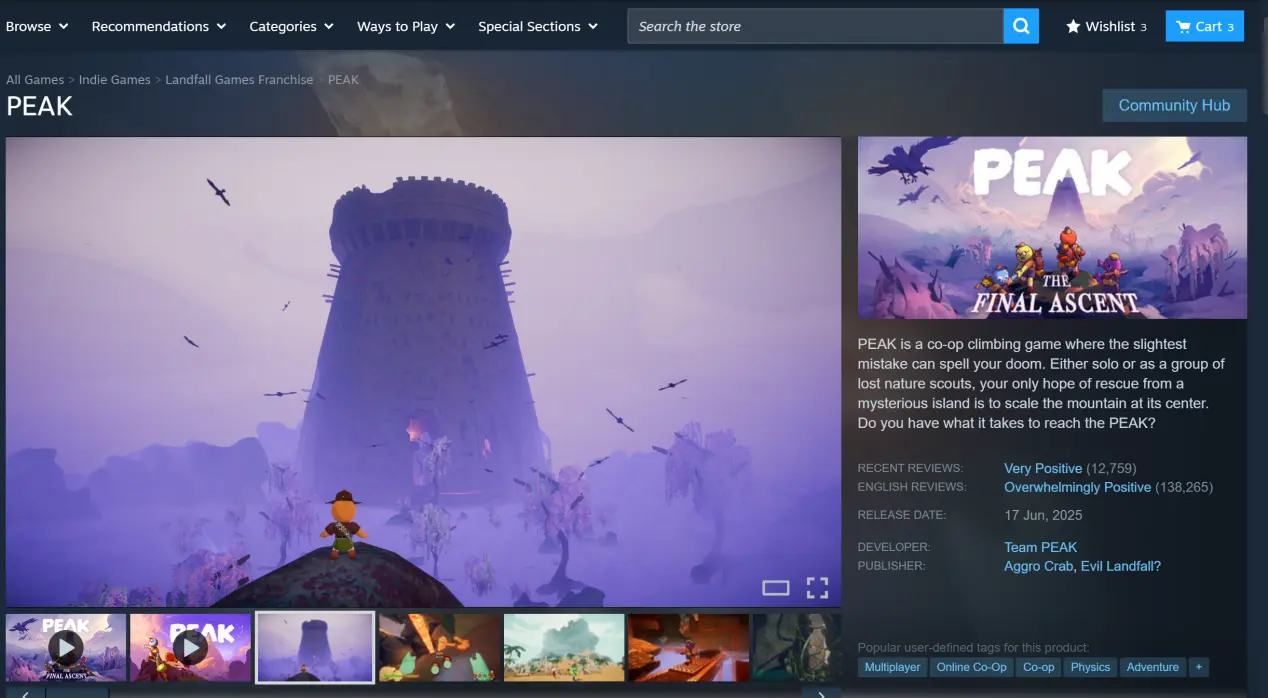
PEAK does not have a native mobile version, so the game must be installed on a Windows PC. Steam is currently the main way to get the game. Open the Steam Store, search for PEAK, purchase it and add it to your library, then download the full client. Once you sign in to your account, you can launch the game. Your save data is tied to the corresponding platform account, so switching accounts may prevent your progress from loading. It's recommended to keep using the same account when playing.
2. Setting Up OSLink on PC and Mobile
Installing the Windows Client
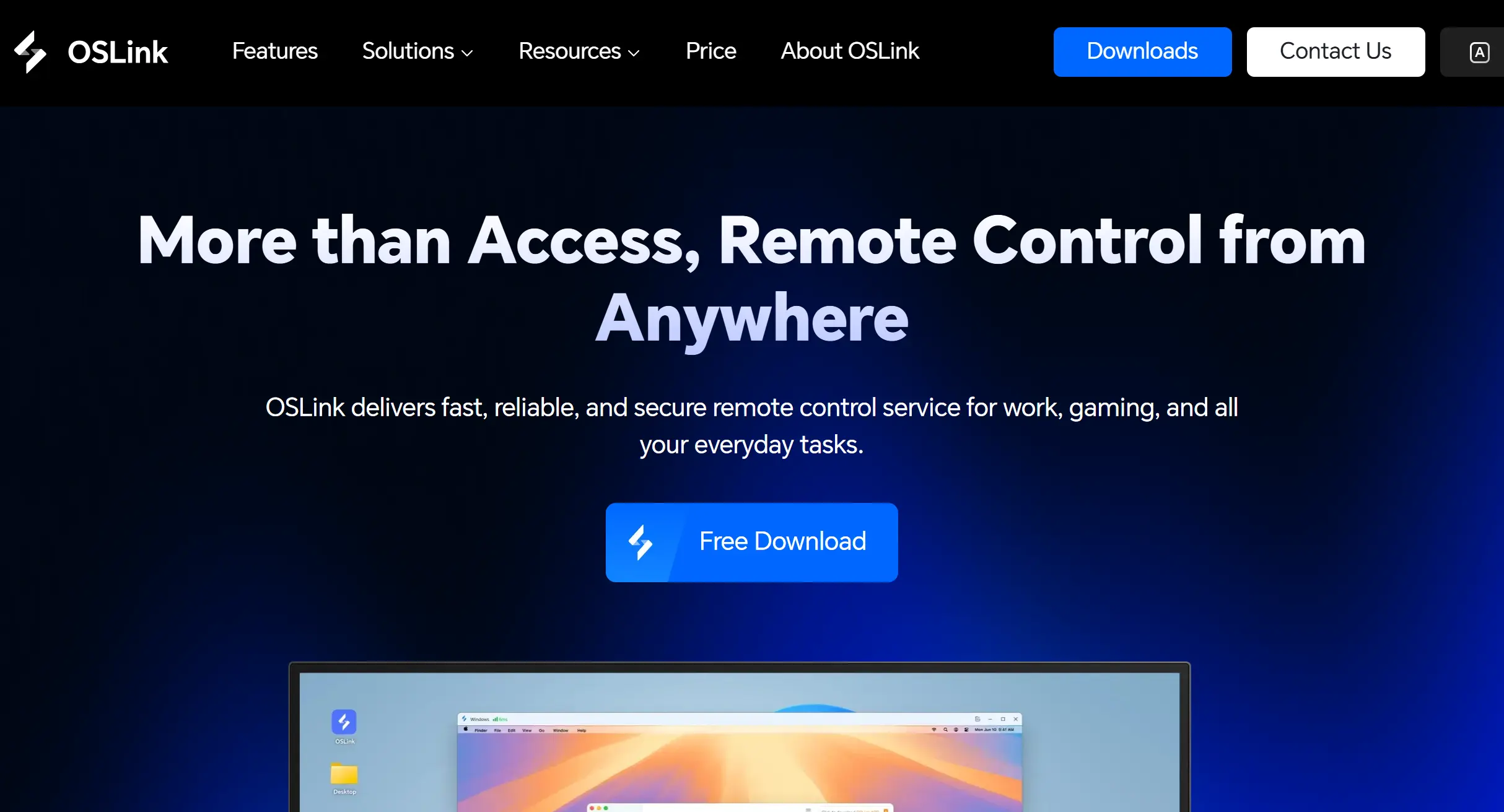
Search for OSLink using your browser, make sure you select the official OSLink download site, and download the Windows installer. Choose an installation location and complete the setup. Once installation is finished, create an account and sign in. The software needs to keep running in the background, so don't close it. This keeps OSLink available for remote connections.
Installing the Mobile Client
Android users can search for OSLink in the official app store and download it, or visit the official website to get the installation package.
For iOS devices, simply open the App Store and search for OSLink to download it.
Pairing OSLink on Both Devices
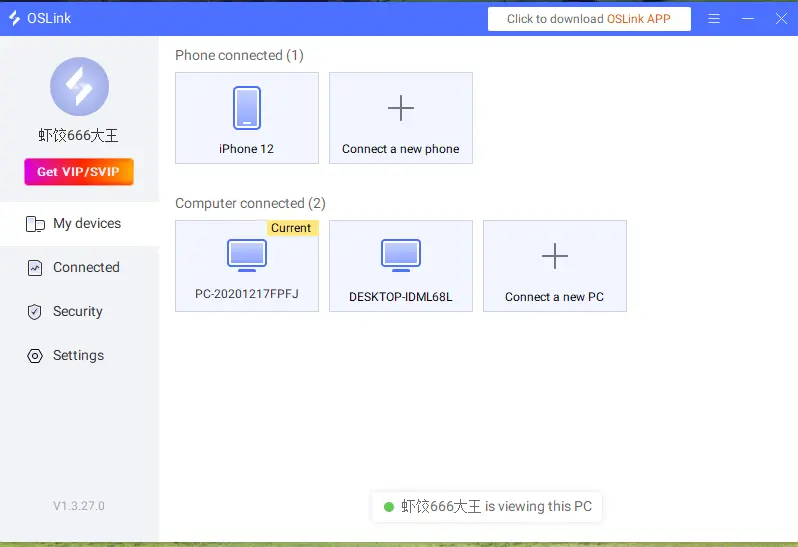
Sign in to the mobile client with exactly the same account used on the PC. The system will automatically detect online PCs linked to the same account, so there's no need to enter a pairing code manually.
3. How to Launch PEAK with OSLink on Mobile
First, launch the game platform client on your PC, open PEAK, and leave the game at the main menu. Keep the game running in the foreground; there's no need to enter a session ahead of time. Keep your PC monitor powered on as well to prevent the graphics card from entering power-saving mode, which could interrupt the video output.
Open OSLink on your phone. The device list will show PC devices under the same account that are currently online. Tap the PC you want to connect to and wait for the PC desktop to appear on your phone.
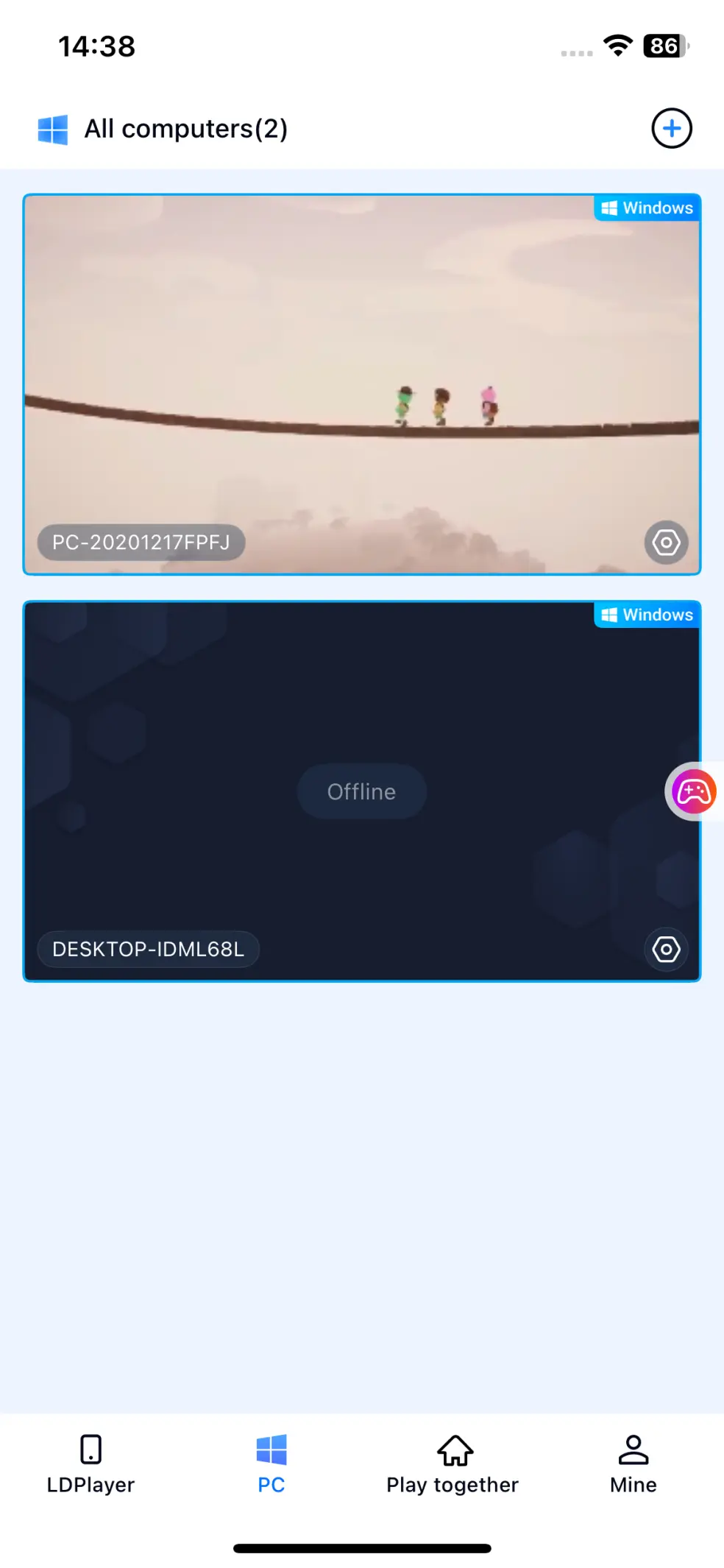
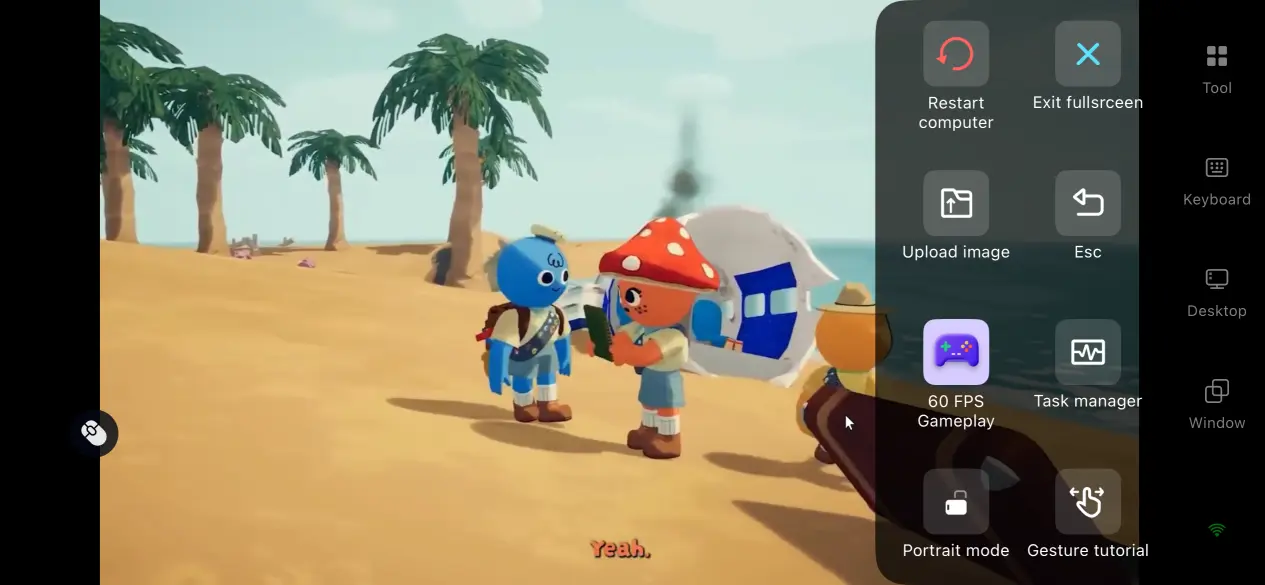
Once the streaming connection is established, it's recommended to open the side panel and enable the dedicated PC game streaming mode. Switch to full-screen display to better match the aspect ratio used by adventure games. After adjusting the settings, you can create a room, invite friends, and start your remote climbing adventure.
4. What Are the Benefits of Playing PEAK Remotely on Mobile?
Play Anywhere Without Being Tied to a Location
As long as your PC stays powered on and connected to the internet, you can connect to the game from your phone wherever you are, provided your network connection is good enough. During spare moments while you're out, you can organize climbing supplies, check mountain terrain, or wait for friends to come online and form a team. Since all game resources are stored on the PC's hard drive, your phone doesn't need a large amount of storage space for the game itself.

Strong Compatibility with External Devices
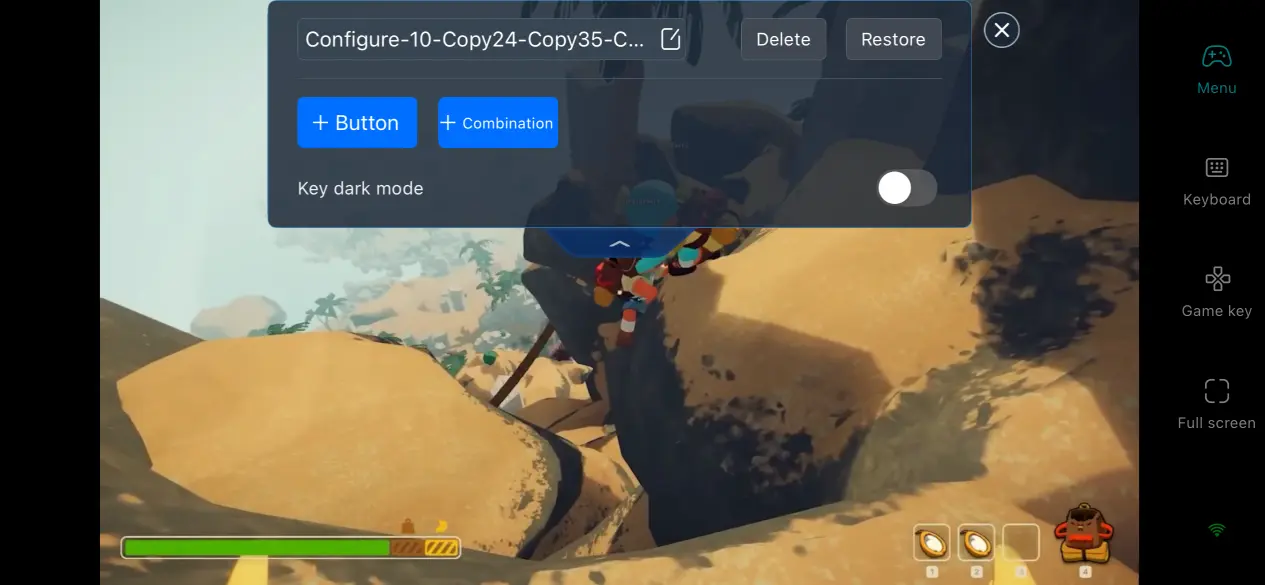
The software supports most mainstream wired and Bluetooth game controllers. Once a controller is connected to your phone, its buttons can be mapped to the game's controls. This helps reduce the control issues that can come with touchscreen input and makes precise actions such as climbing, setting up ropes, and switching items easier to handle.
Share Multiplayer Rooms in Real Time
OSLink includes a multiplayer collaboration room feature. Create a room to generate a dedicated invitation code and share it with other players. Multiple mobile devices can connect to the same PC at the same time, with different control permissions assigned to each device. This works well for groups who want to watch the game together or experience the climbing adventure as a team.
5. Why Use OSLink to Play PEAK?
60 FPS Game Streaming Mode
Enable the dedicated PC game streaming mode and the software will dynamically adjust its video encoding strategy. In scenes with heavy visual changes, such as collapsing mountain sections or areas with lots of object interactions, it helps reduce motion blur and shorten the response time between commands. This can also reduce stuttering during gameplay.
Real-Time Performance Monitoring
Players can open OSLink's floating performance panel at any time to check streaming frame rate, network packet loss, round-trip latency, and other data in real time. If you experience stuttering or screen tearing, the monitoring window can help identify the source of the problem without having to adjust settings through trial and error.
Customizable Controls
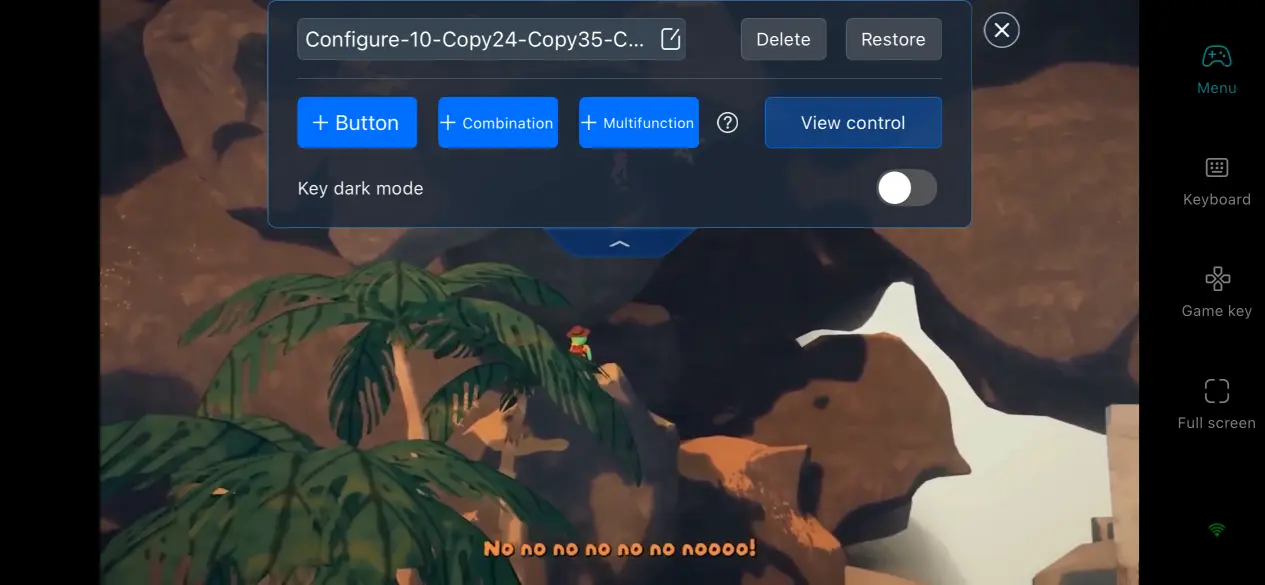
OSLink lets players add or remove touchscreen buttons based on their preferred controls. You can also adjust button size, transparency, and position. For PEAK's frequently used actions, such as grabbing, climbing, switching items, and interacting with supplies, you can create a dedicated control layout and save it as a custom profile. When you connect another device later, the same setup can be applied directly.
Complete Streaming Session Records
The software keeps a complete record of streaming access. For each session, the software records the connected device model, login time, IP address, and session duration. Whether you're connecting from your personal phone or using a multiplayer collaboration room, all access activity can be reviewed later, helping protect your game account security.
6. Frequently Asked Questions
Q: When was PEAK released?
A: The PC version officially launched on June 16, 2025. There is currently no official native mobile version of PEAK.
Q: What PC specifications are required to run PEAK?
A: The minimum requirements are a 64-bit version of Windows 10, an i5-class 2.5 GHz processor, 8 GB of RAM, a GTX 1060 graphics card, and 4 GB of storage space. For a more stable remote streaming experience, an i5-class 3.0 GHz processor or Ryzen 5-level CPU, 16 GB of RAM, an RTX 2060 or better, and an SSD are recommended for smoother gameplay.
Q: Can Android devices run PEAK directly?
A: No. There is no native Android installation package. Android phones can only play PEAK through remote streaming from a PC and cannot install the game itself directly on the phone.
Conclusion
The fun of PEAK comes from working together to climb and survive in the mountains. Remote streaming expands where you can enjoy this PC adventure, so you don't have to stay in front of your computer monitor. The setup is straightforward and doesn't require complicated steps. As long as your PC stays powered on and connected to the internet, your phone can connect remotely. It's a convenient option for anyone who enjoys multiplayer co-op games and wants to take their PEAK adventures on the go.
 Download