English
 Mortal Shell 2 is a "Soulslike" action RPG that continues the intense combat and punishing death penalties of its predecessor. Players must precisely master parrying, blocking, dodging, and stamina management. The game demands highly responsive controls. Since the game is only available on PC and consoles, you cannot practice your skills away from your screen. The OSLink remote tool solves this problem. As long as your PC stays on, you can connect remotely via your mobile device and take on high-difficulty battles anytime, anywhere.
Want to practice your parrying skills in Mortal Shell 2 on your commute, but worried mobile controls won't keep up? OSLink features a dedicated "60 FPS Low-Latency Mode" optimized for gaming. Combined with Bluetooth controller support, it provides an experience closer to playing on PC or console, allowing you to smoothly tackle high-difficulty combat even when you're away from home.
Step 1: Download OSLink & Pair Devices
1. PC Client
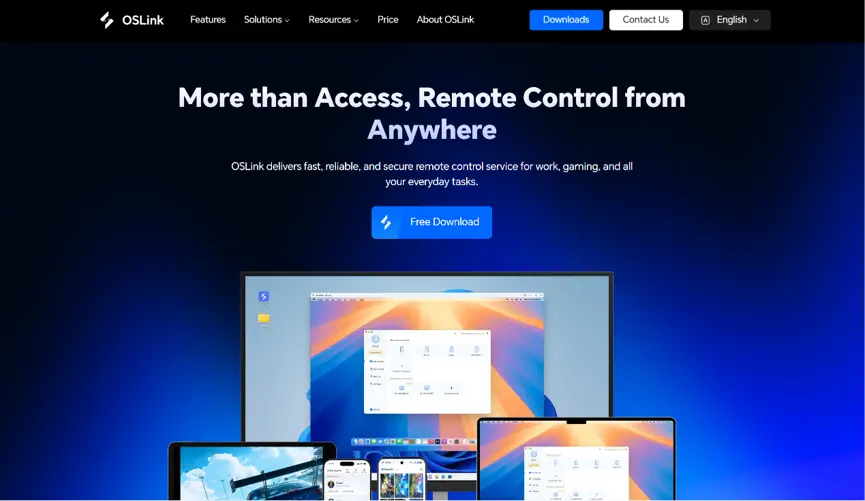
Head to the official OSLink website to download and install the desktop client. We recommend a wired ethernet connection or high-speed Wi-Fi to minimize input lag.
2. Mobile Client
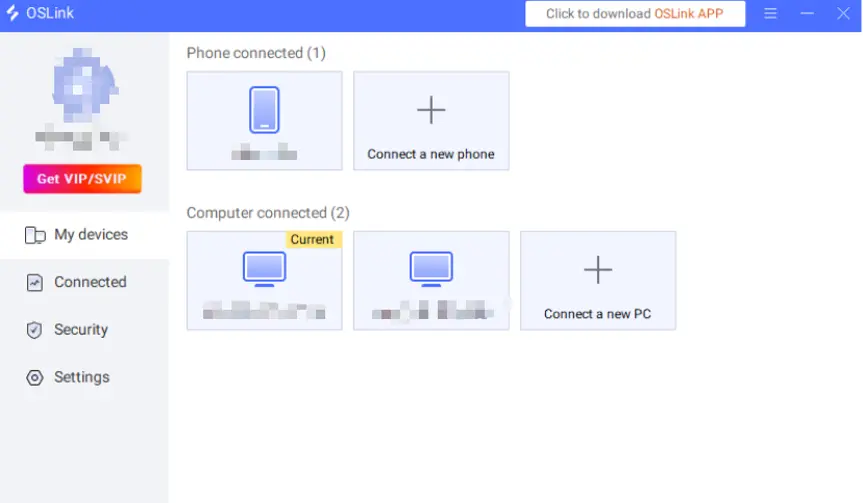
Download the OSLink app from the Apple App Store or Google Play Store; the official website also offers the standalone APK file. Log into the exact same account used on your PC, and your devices will automatically pair.
Step 2: Control Optimization Settings
1. Launching the Game
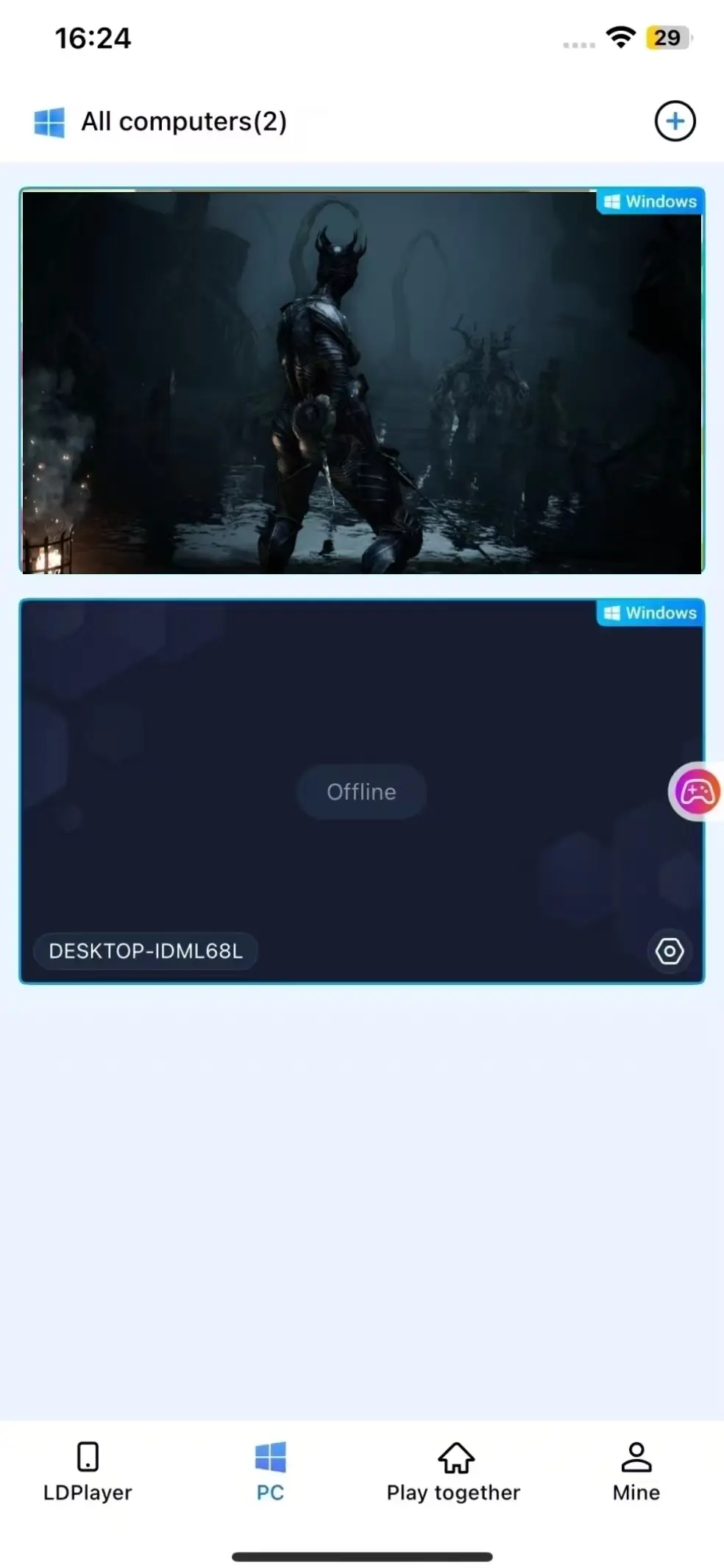
You can launch Mortal Shell 2 on your PC beforehand. If you haven't, you can use the game shortcut button within the OSLink mobile interface to launch the game on remotely with a single tap.
2. Enable 60 FPS PC Gaming Mode
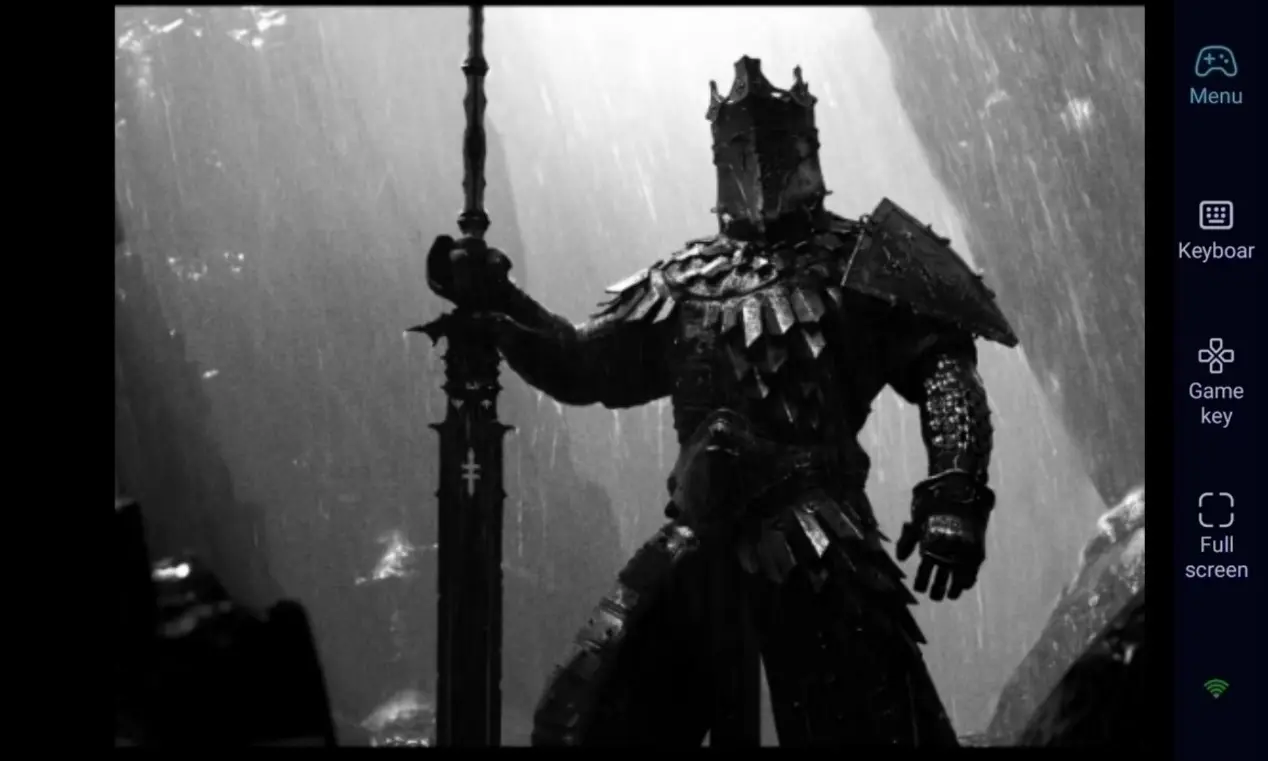
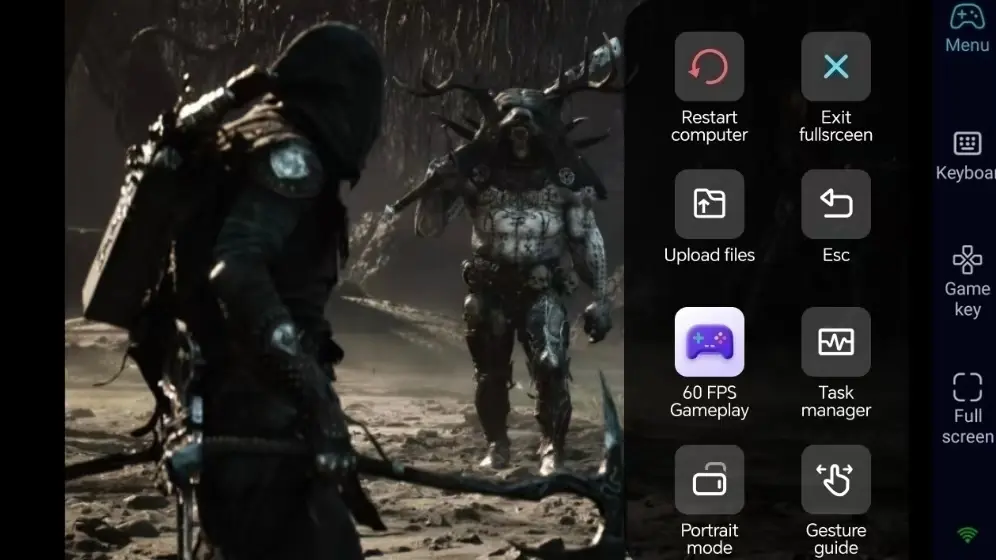
Once your PC screen is successfully streaming to your phone, tap the tool menu on the right side and enable "60 FPS PC Gaming" mode. This ensures smooth combat visuals and prevents input lag from causing missed parries or dodges.
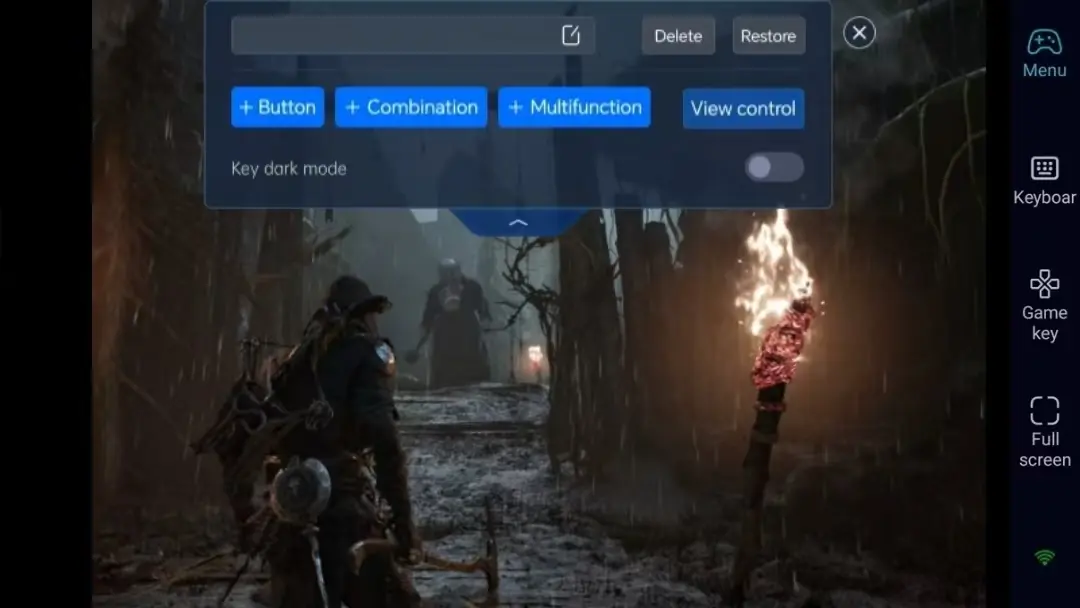
3. Customize Combat Action Keys
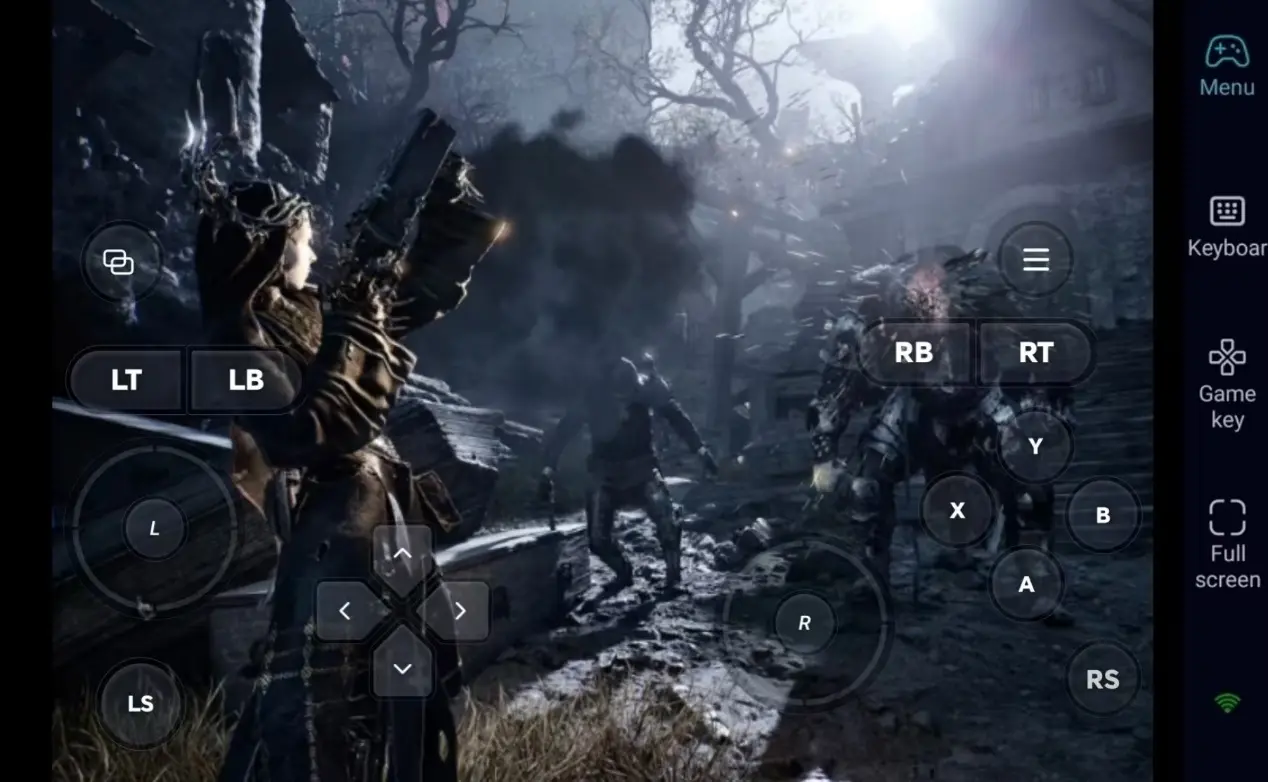
For the hardcore combat demands of Mortal Shell 2, adjust the key positions for movement, attack, block, dodge, and interaction. Freely adjust the size and opacity of the buttons to ensure the combat screen is not obscured, keeping your reaction speed sharp.
4. External Controller Support
OSLink supports Bluetooth game controllers. Since Soulslike games demand extremely high precision, connecting a Bluetooth controller is strongly recommended. A controller significantly provides a control experience closer to playing on PC, making parrying, blocking, and dodging more comfortable.
Step 3: Practice Combat Skills and Challenge Bosses Anytime
Once the setup is complete, your phone or tablet becomes a perfect remote terminal. As long as your PC stays awake, you can connect via OSLink at any moment. Use spare moments to practice combos, memorize boss attack patterns, or adjust your equipment and stat builds.
Why Choose OSLink for Mortal Shell 2?
1. No Location Limits–Practice Combat Anytime
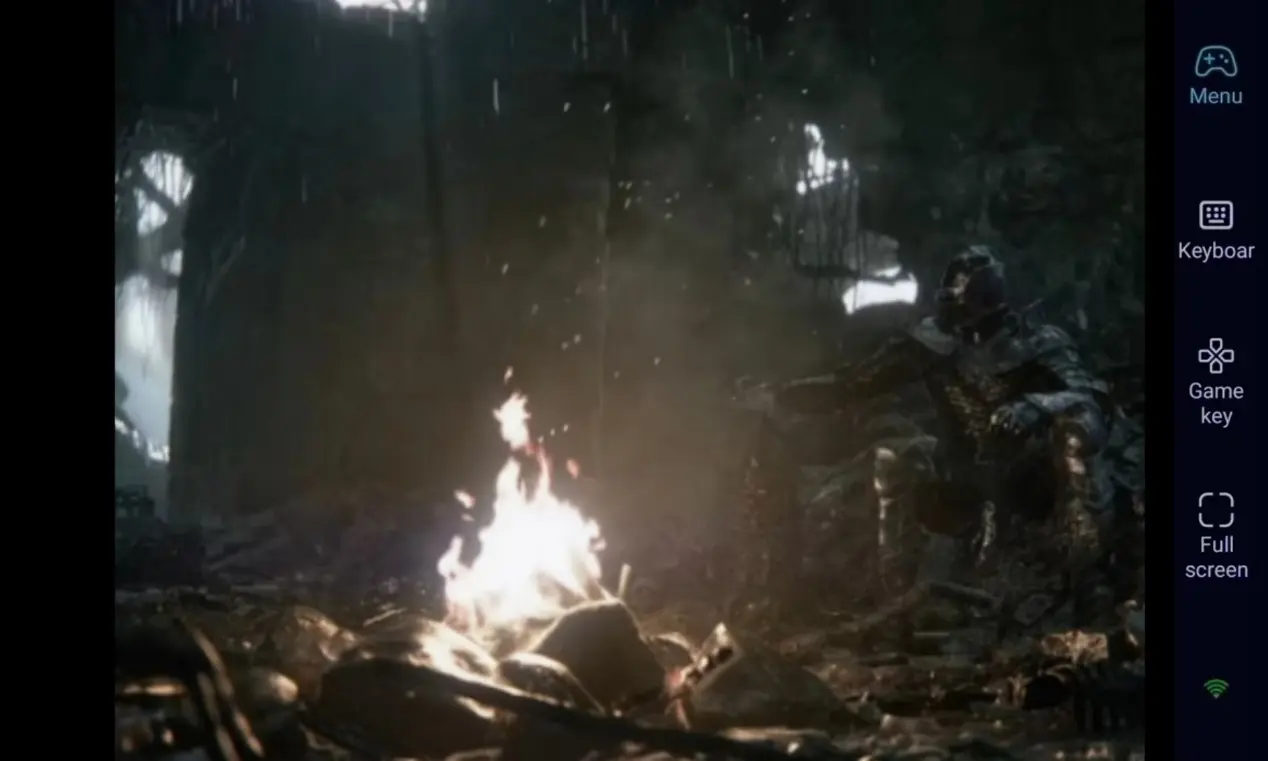
When you're out and about, step into the wasteland and practice your skills via your phone. Once you get home, seamlessly switch back to your computer screen to advance the main story. With a local network, latency is extremely low, helping provide responsive controls of a hardcore action game.
2. 60 FPS Streaming–Restore the Hardcore Combat Feel
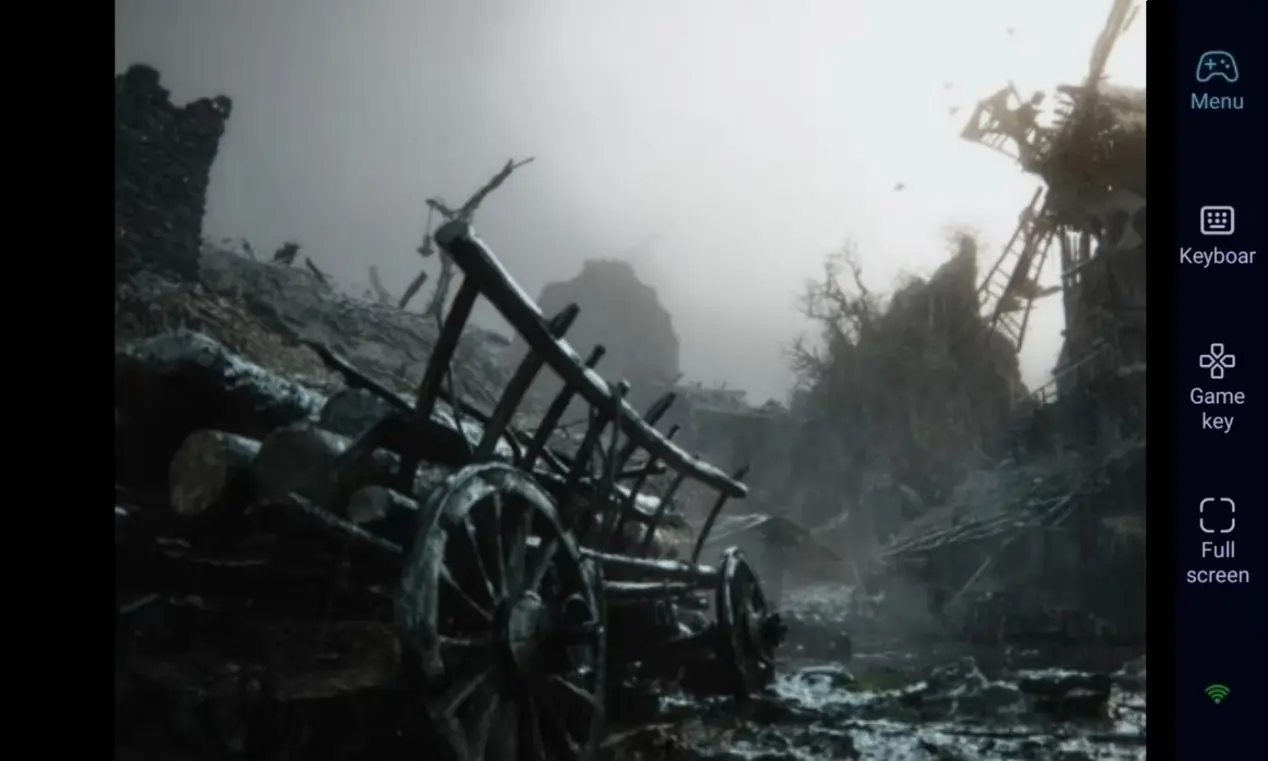
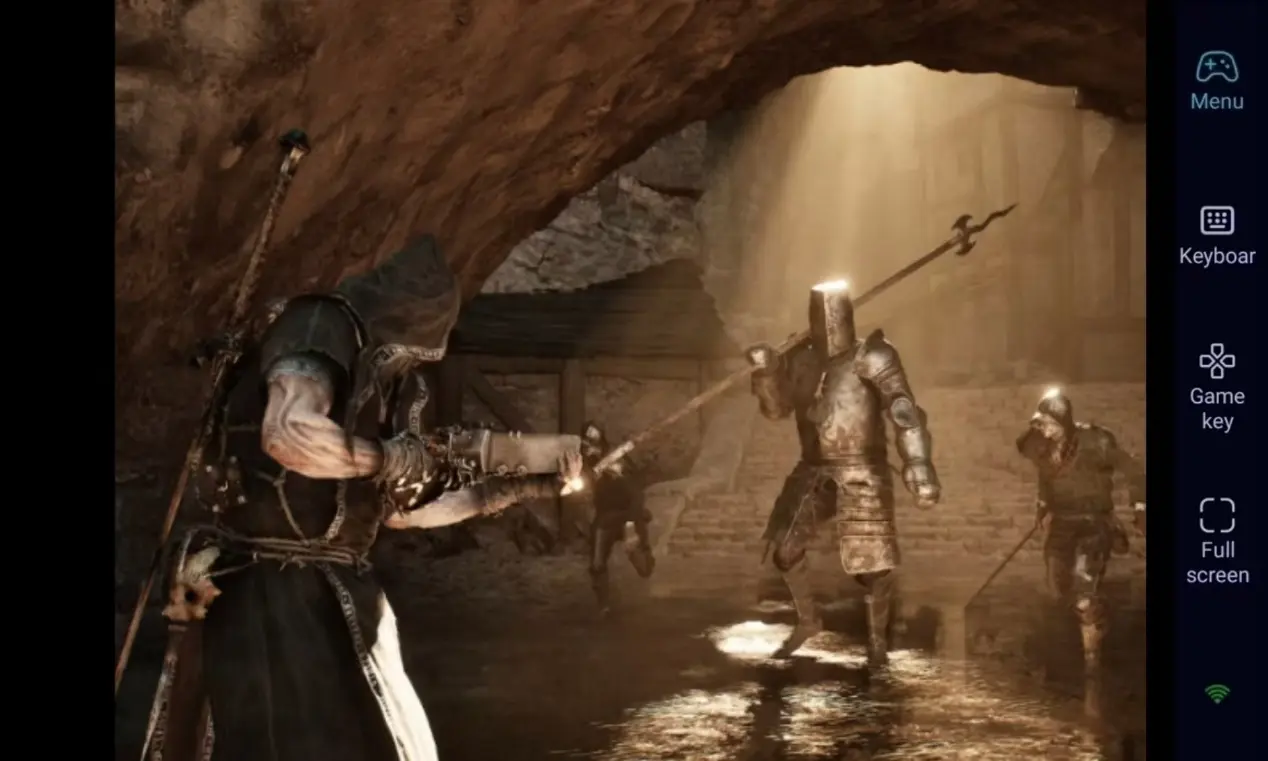
Stable 60 FPS streaming faithfully reproduces the dark gothic scenes and fluid animations of Mortal Shell 2. Custom virtual keys make parrying and dodging more responsive, fully restoring the tense combat experience of a hardcore action game.
3. Seamless Progression–Saves Stored Locally
All game save data is stored locally on your PC. Whether you are playing remotely via your phone or directly on your computer, your progress syncs perfectly. You can adjust your stat builds or switch shell archetypes at any time.
FAQ–Frequently Asked Questions
Q1: What's the release date of Mortal Shell 2?
A1: The hardcore Soulslike action game Mortal Shell 2 is officially released on Steam on August 20. It is a PC and console-exclusive title with no native mobile version.
Q2: Can I play Mortal Shell 2 directly on my iOS or Android phone?
A2: No. This game is available on PC and consoles and does not have a native iOS or Android mobile version. However, using OSLink's remote streaming function, you can connect your phone to your PC remotely and engage in high-difficulty battles smoothly anytime, anywhere.
Q3: Will lag cause me to fail due to the hardcore combat requirements?
A3: Latency is extremely low over a local network, more than enough for the parrying and dodging needs of an action game. For the best experience, we recommend using stable, high-speed Wi-Fi or a wired USB connection, and enabling OSLink's "60 FPS PC Gaming" mode. Connecting a Bluetooth controller will also provide the smoothest experience closest to PC gameplay.
Conclusion
OSLink's remote streaming technology frees you from being tied to your desk. Whether you want to quickly practice boss dodge patterns on the go or challenge difficult levels from the comfort of your bed, as long as your PC stays connected, your phone can take over at any moment, continuing your deadly journey through the wasteland.
 Download