English
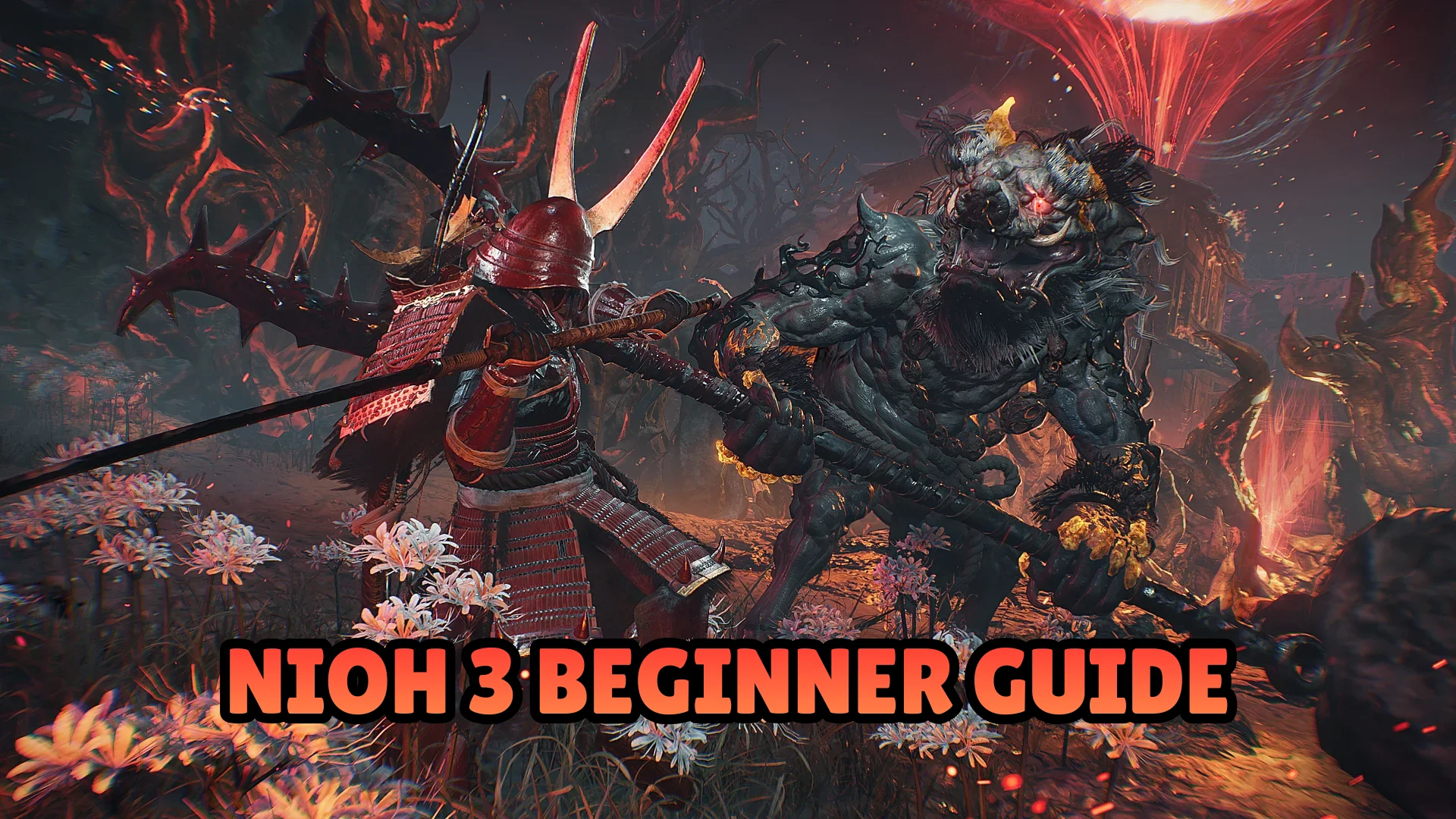
 Want to keep progressing in Nioh 3 even when you’re away from your PC?
With OSLink, you can stream and control your home computer directly from your phone or tablet, letting you continue your journey in Nioh 3 anytime, anywhere. Whether you’re clearing missions, farming gear, reorganizing your equipment, or adjusting skills and combat setups, everything can be done remotely with smooth and responsive controls.
In this guide, you’ll learn how to set up OSLink and optimize your display and control layout so you can enjoy Nioh 3’s fast-paced, high-precision combat comfortably on mobile devices.
Quick Setup Tutorial for Playing Nioh 3 on Mobile
Step 1: Download OSLink and Connect Devices
PC Side:
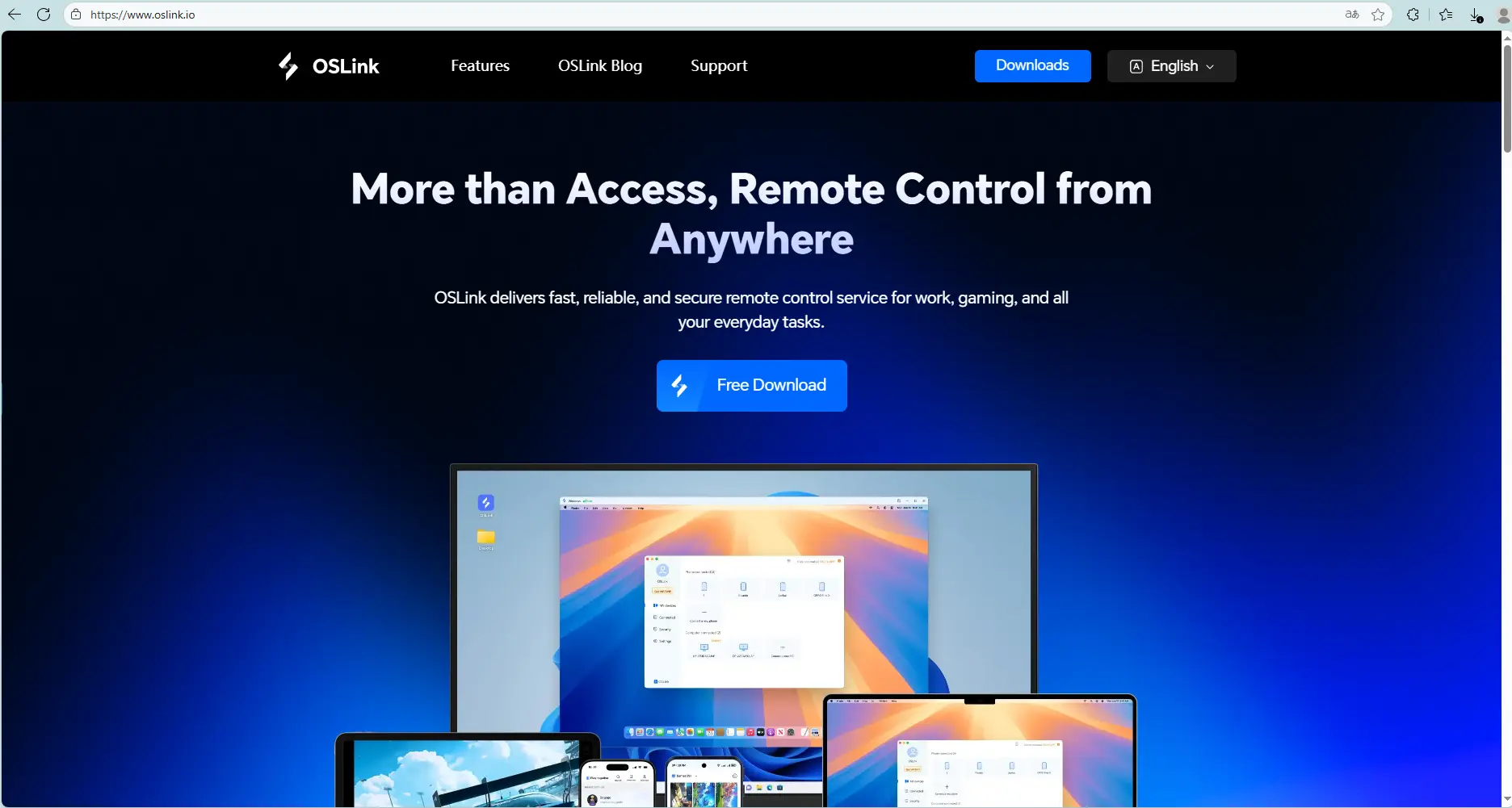
Visit the OSLink official website to download the software and complete the installation.
Mobile Side:
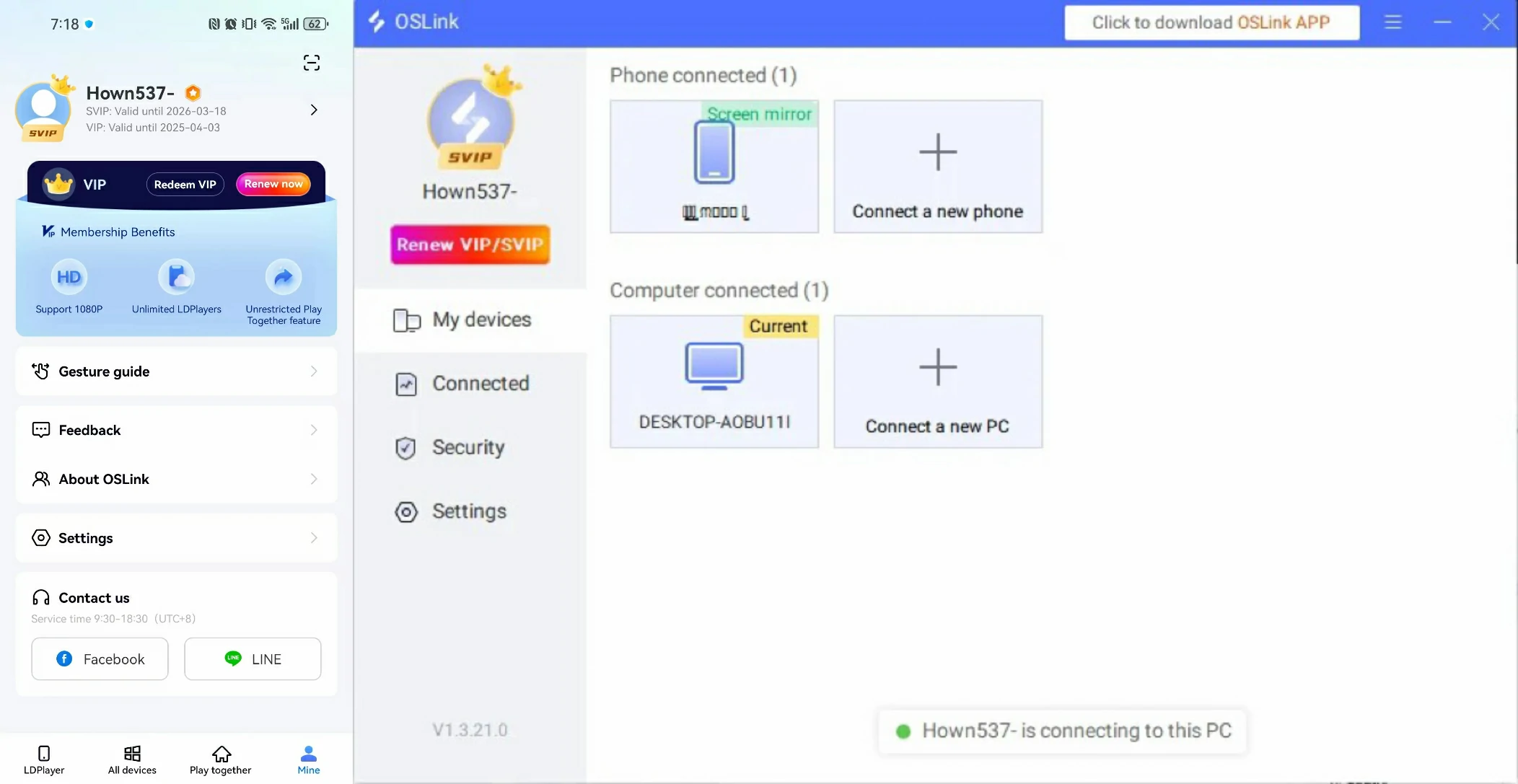
Download the OSLink App from the App Store or Google Play; the official website also offers APK downloads.
Log in with the same account as on the PC side to automatically connect.
Step 2: Control Optimization
1. Launch the Game
Open Nioh 3 on your PC, and the mobile side can connect directly; if Nioh 3 hasn't been launched on the PC yet, click the game icon on the mobile side for quick startup.
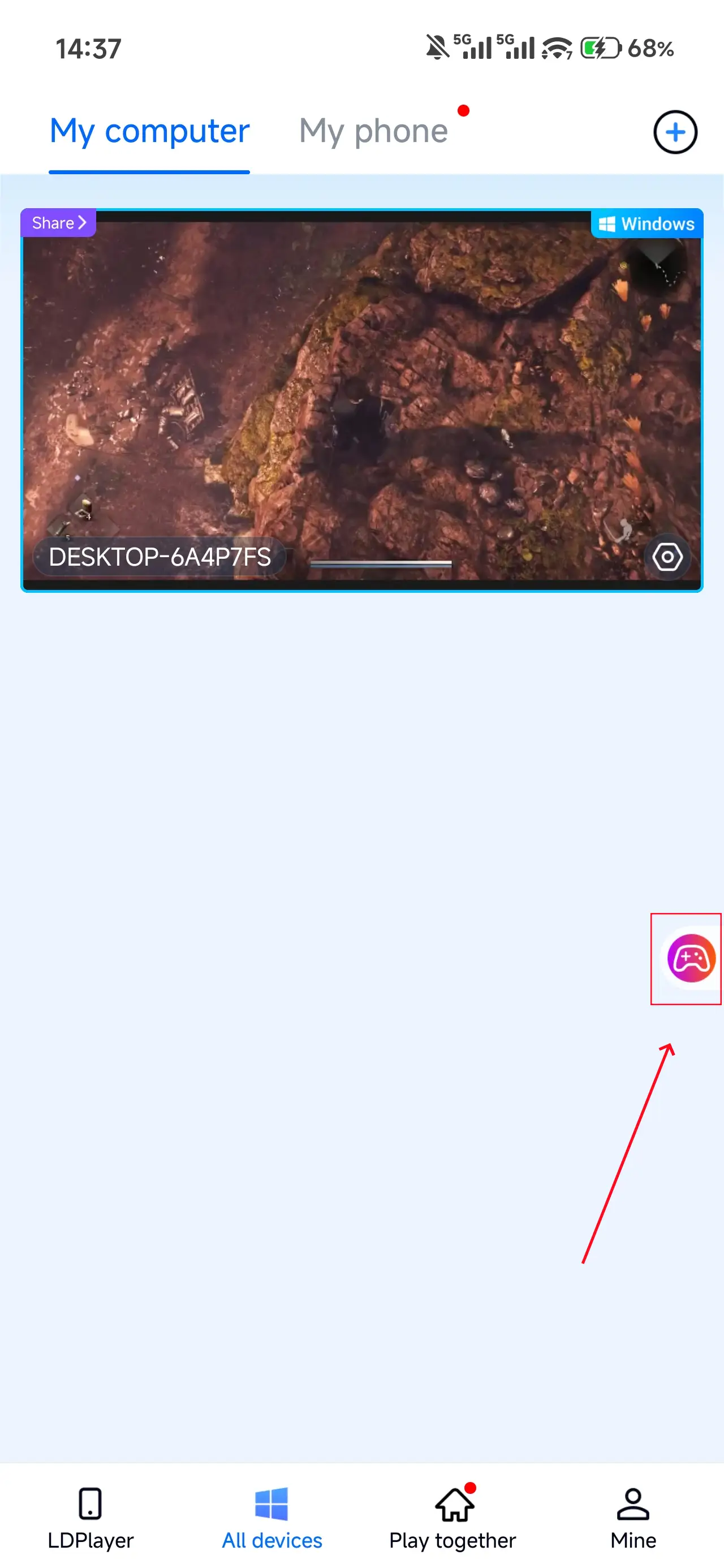
2. Control Mode
Click the toolbar on the right side of the mobile app, enter "60 FPS Gameplay," and choose key mode or link a controller based on your gaming preferences.
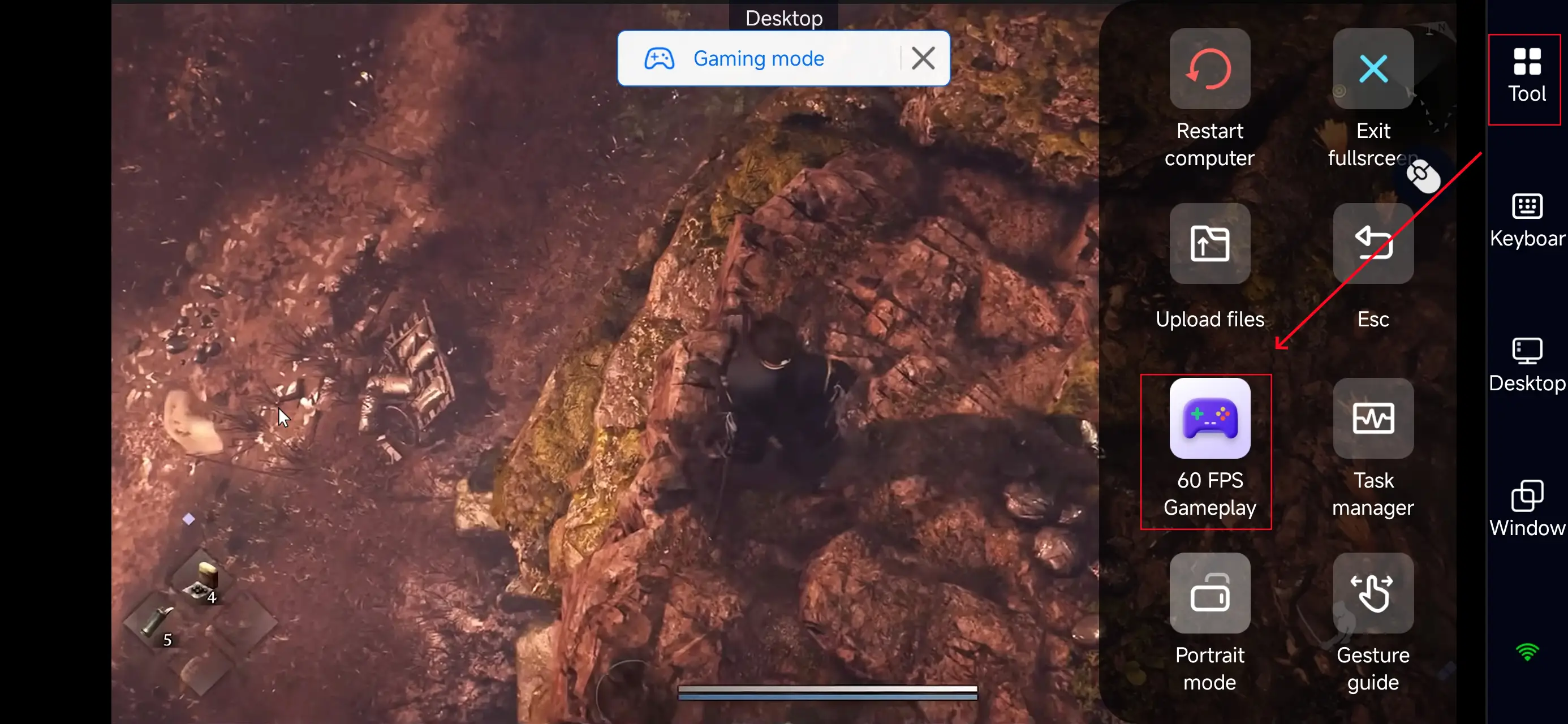
3. Key Selection
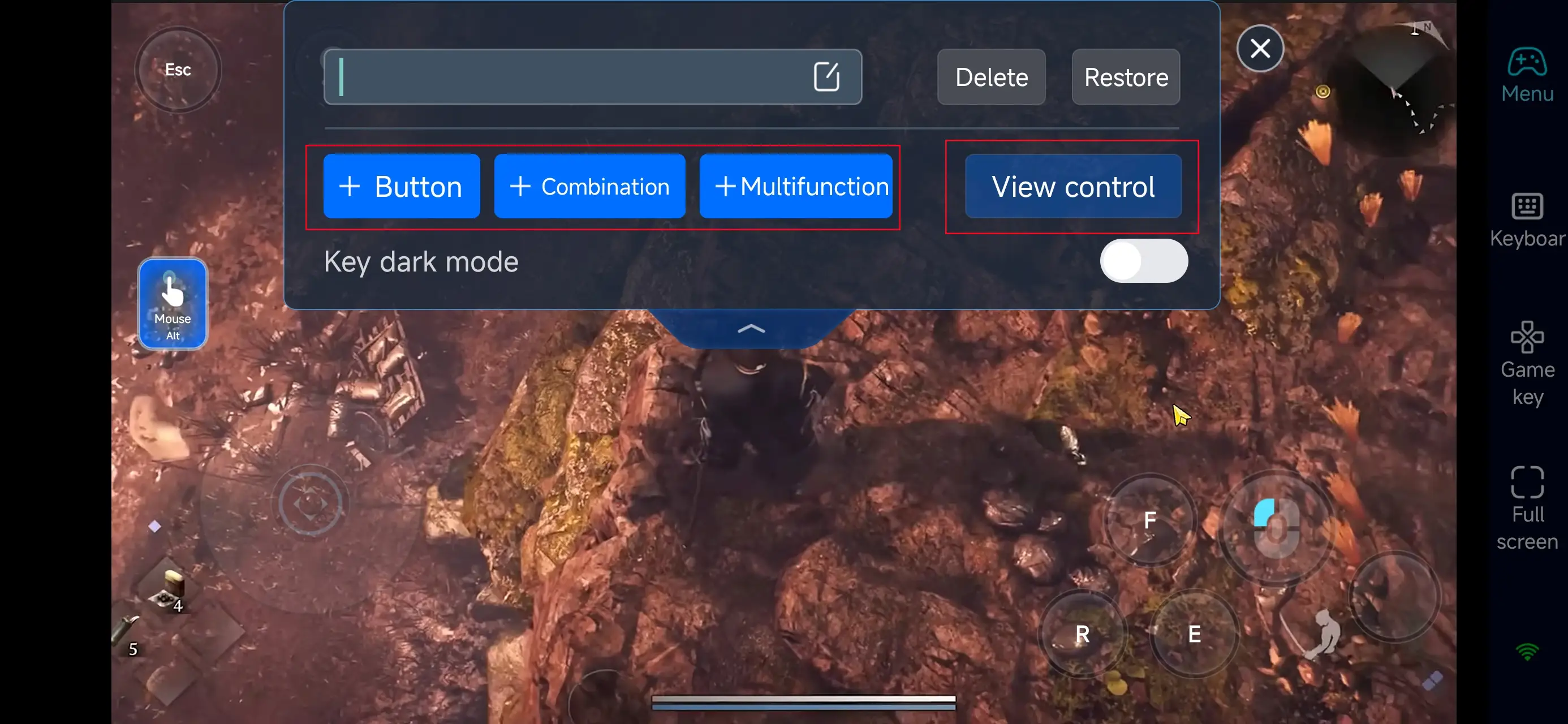
After enabling PC mode, open the on-screen control editor and select a layout suitable for Nioh 3.
You can freely adjust the position of key actions such as:
-
Movement
-
Attacks
-
Guard
-
Dodge
-
Skill usage
-
Item shortcuts
OSLink allows full customization of virtual buttons. You can add, resize, and reposition buttons, as well as adjust their transparency. This helps keep your screen clear while maintaining fast and reliable inputs during Nioh 3’s intense, high-speed combat.
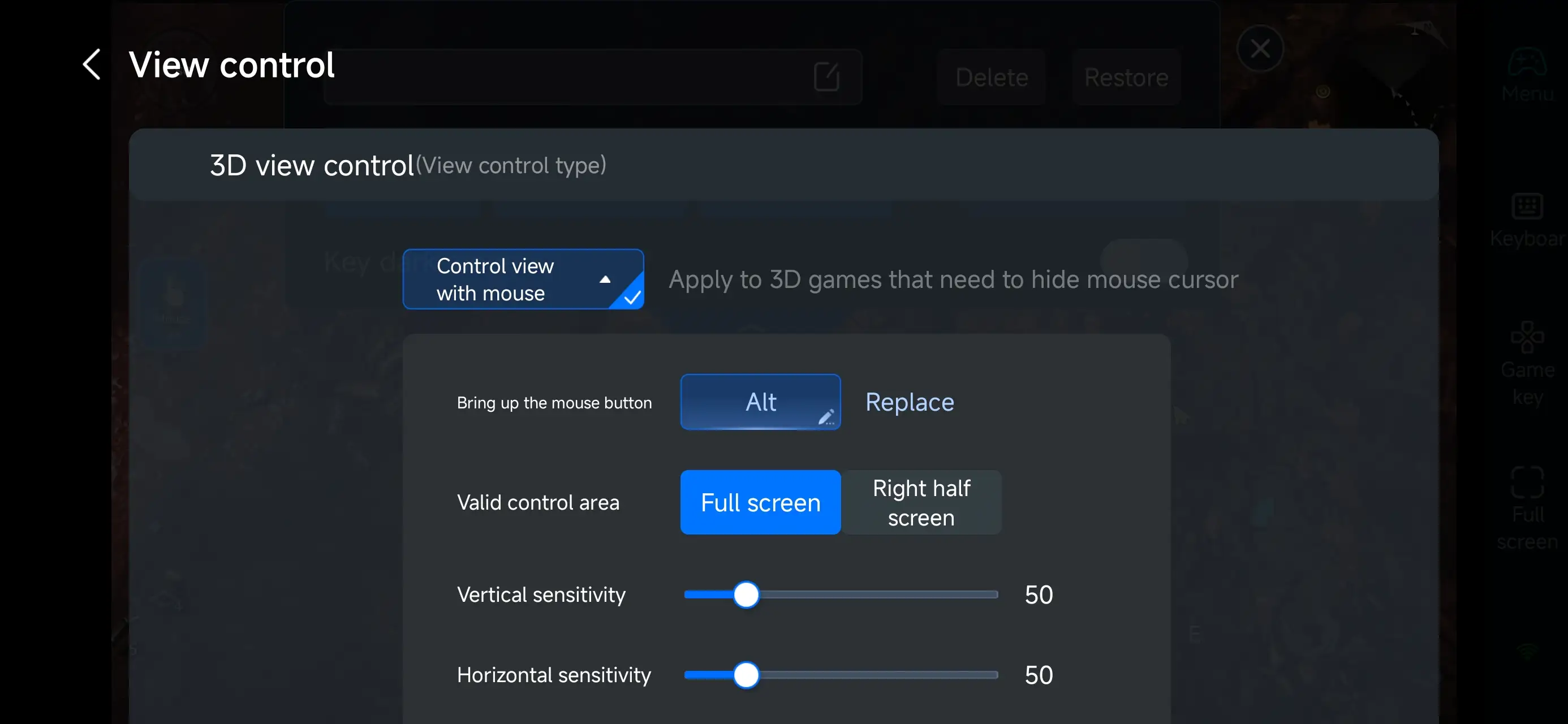
4.Connect external devices
Beyond customizable buttons, OSLink supports a variety of external devices such as Bluetooth controllers and mobile gamepads clipped to your phone. This compatibility frees you from touchscreen limitations and offers a wider range of control options.
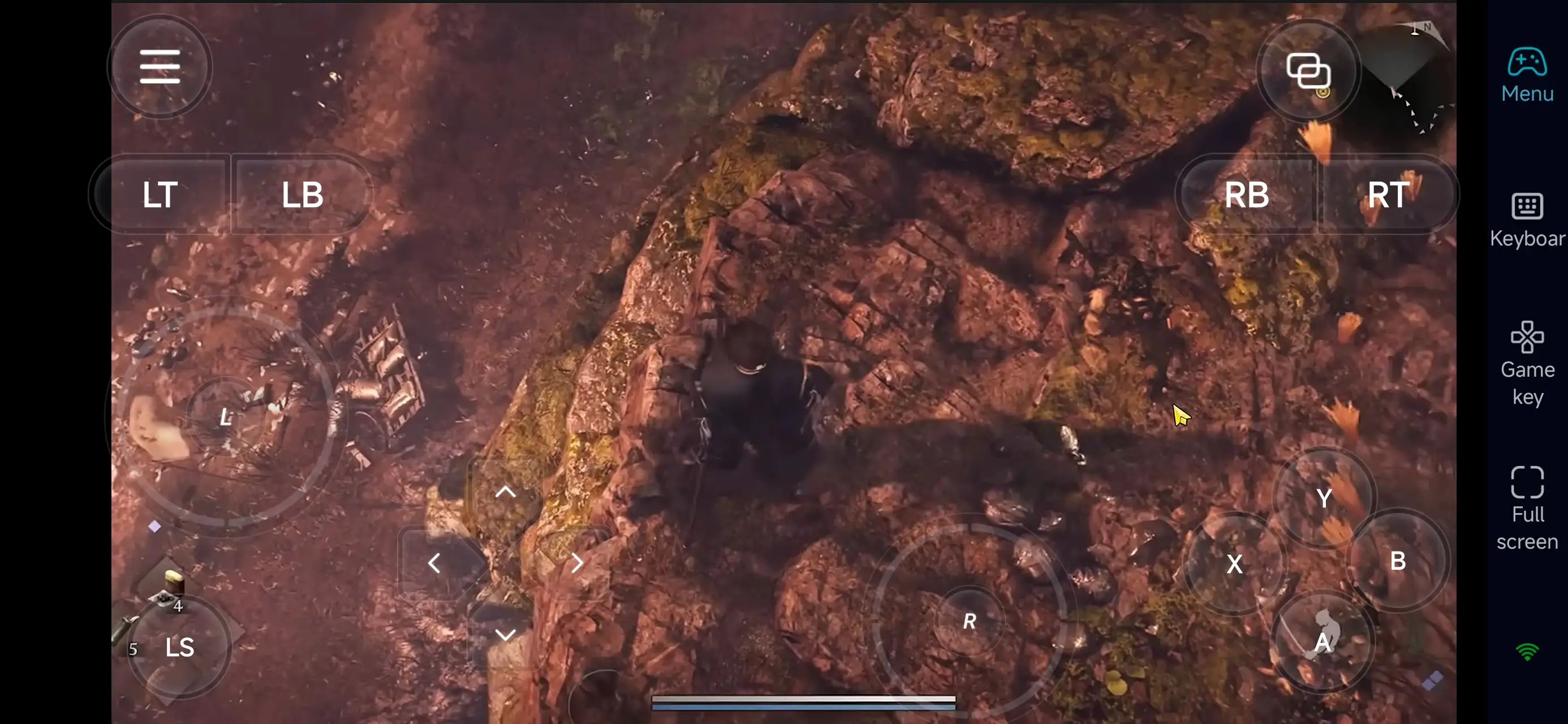
Step 3: Continue your Nioh 3 adventure anywhere
Once everything is set up, your phone or tablet becomes a portable control station for Nioh 3.
Simply launch OSLink and connect to your PC to immediately continue your progress.
You can:
-
Push through main story missions
-
Farm equipment and materials
-
Practice enemy patterns and combat timing
-
Adjust weapons, armor, and skill setups
All without being physically in front of your computer.
Why use OSLink for Nioh 3?
1. Play and progress anytime, anywhere
With OSLink, you can remotely control Nioh 3 on your PC from your phone. Whether you’re commuting, traveling, or just away from your desk, you can keep completing missions and farming gear so your character progression never stops.
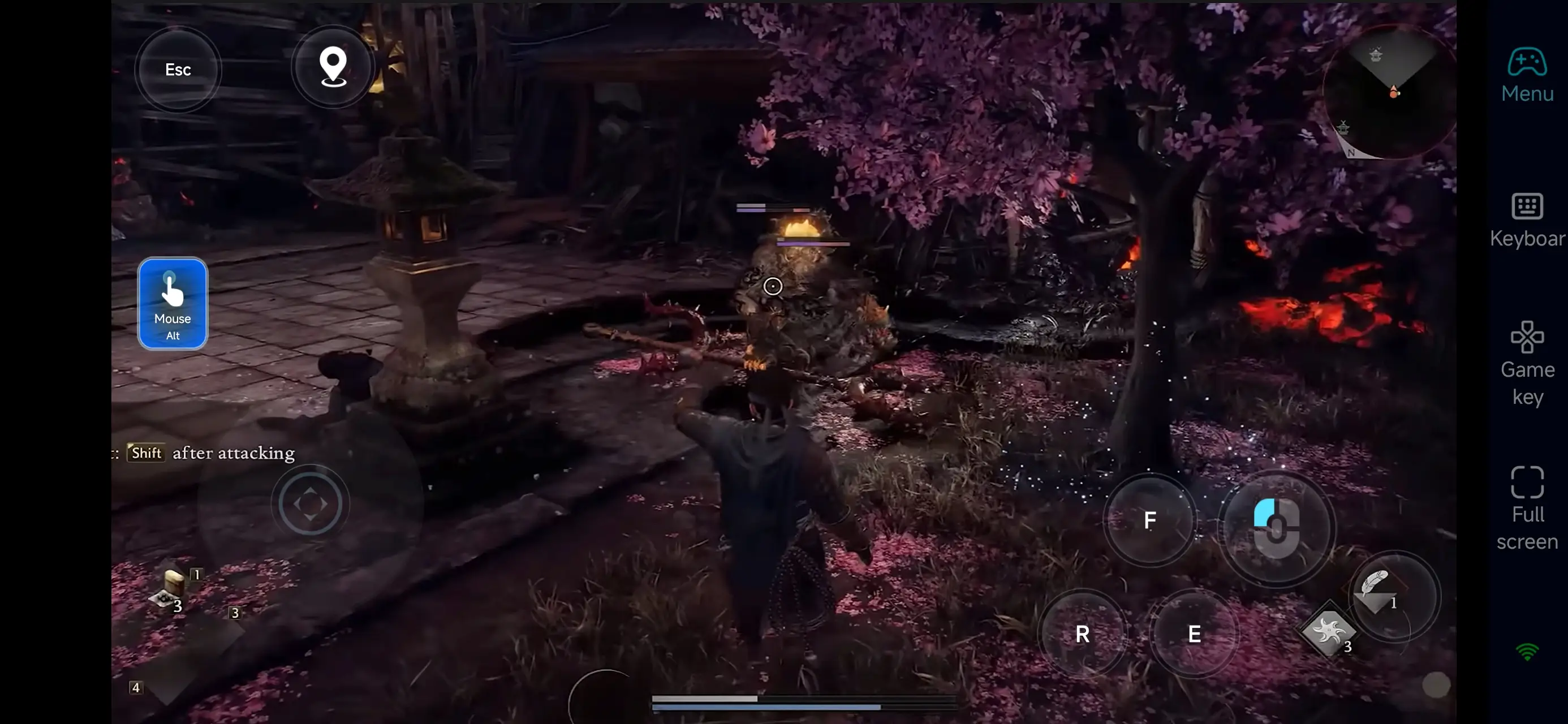
2. Flexible control layouts built for fast action combat
Nioh 3 is built around high-speed melee combat, precise dodging, and tight timing.OSLink’s customizable virtual controls let you tailor attacks, dodges, guards, weapon skills, and item shortcuts to match your personal play style—helping you maintain consistent performance even when playing remotely.
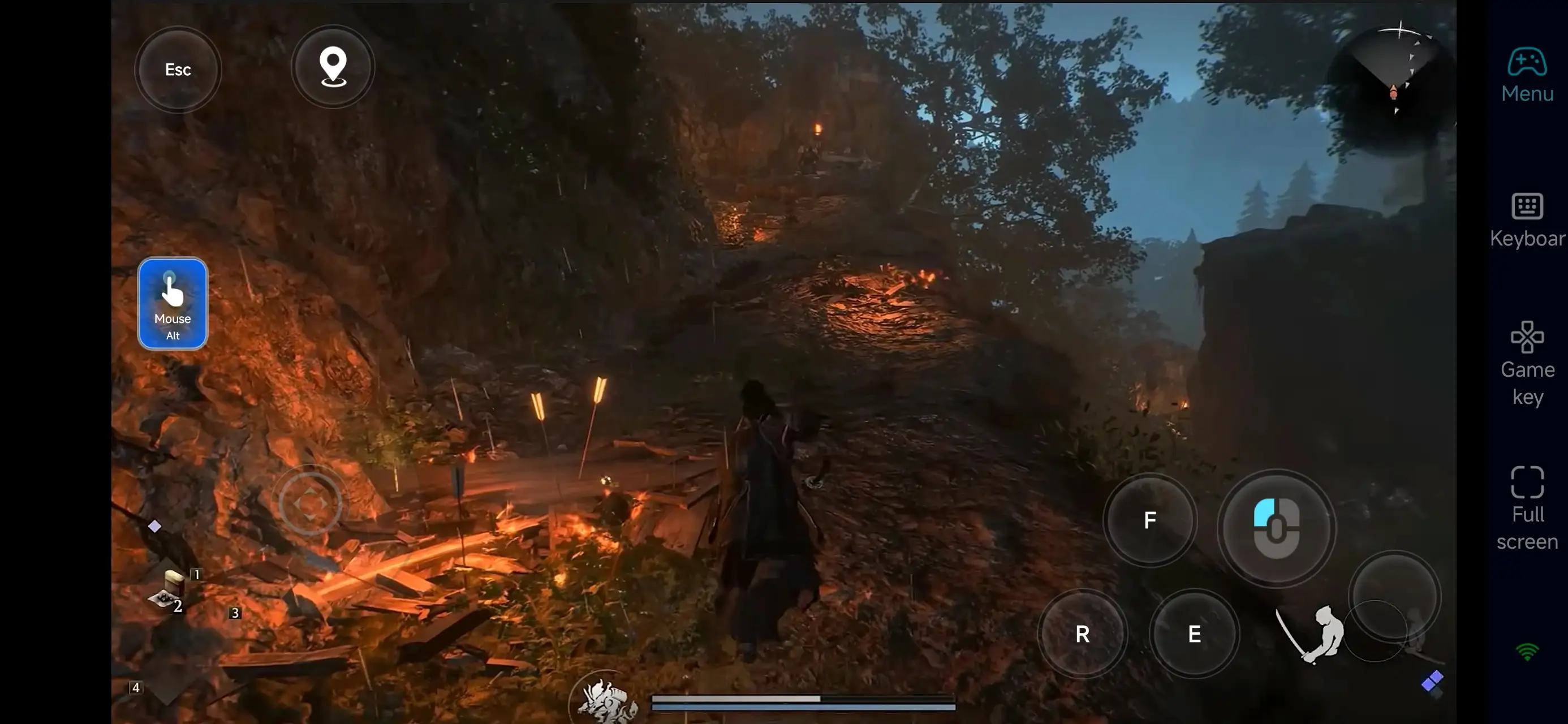
3. Use short sessions for farming and training
Equipment farming, level grinding, and material collection can take a lot of time in Nioh 3. With OSLink, you can use short breaks to farm gear or train combat routes, and save your PC sessions for boss fights and challenging missions. This makes your overall play time far more efficient.
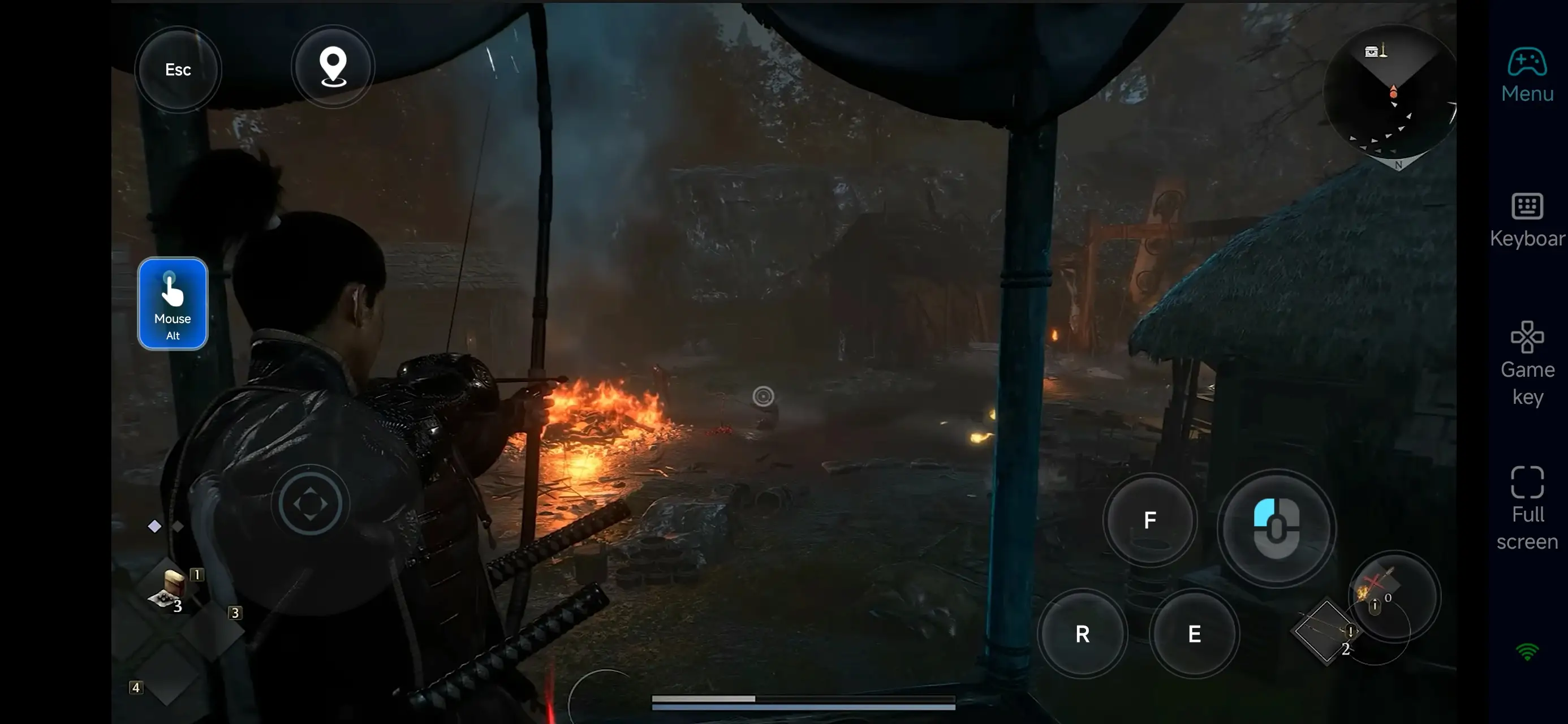
With OSLink, your mobile device becomes an extension of your battlefield in Nioh 3. Connect instantly, continue your adventure, farm powerful gear, and sharpen your combat skills wherever you are—turning spare moments into real progress against ever-stronger enemies.
 Download