English
PeeVPee is a chaotic multiplayer party game built around drinking, filling your bladder, and peeing on objects to claim territory and score points. You can also disrupt opponents, while different drinks change the effects of your attacks. Fast-paced movement and aiming make matches hectic, and jumping into a spontaneous game with friends becomes more difficult when you're away from your PC.
OSLink lets your Android or iOS phone control PeeVPee running on your own Windows PC. This guide covers Steam access, device pairing, PC gaming mode, touch layout, and external controls.
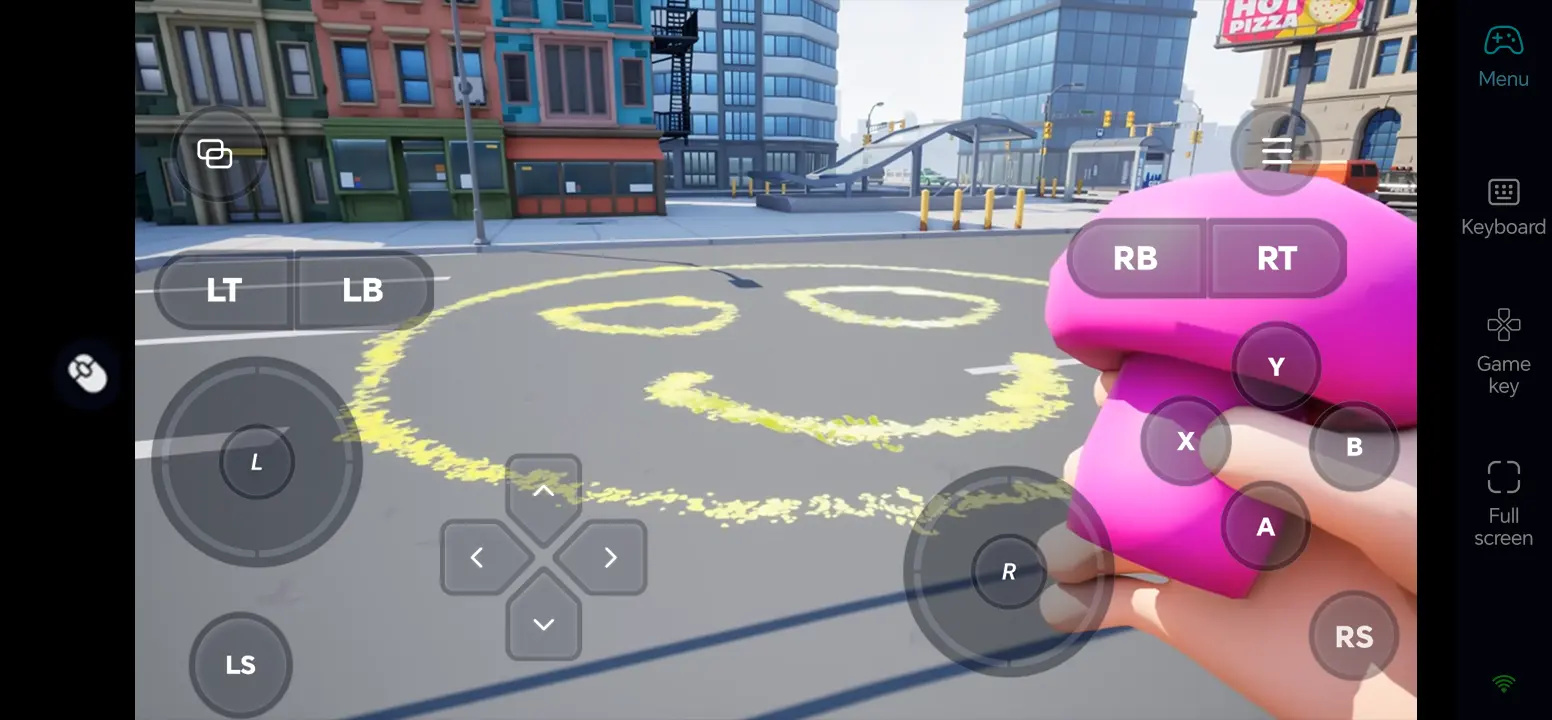
Play PeeVPee Remotely on Mobile
Step 1: Install OSLink and Connect Your Devices
1. Install OSLink on Your PC
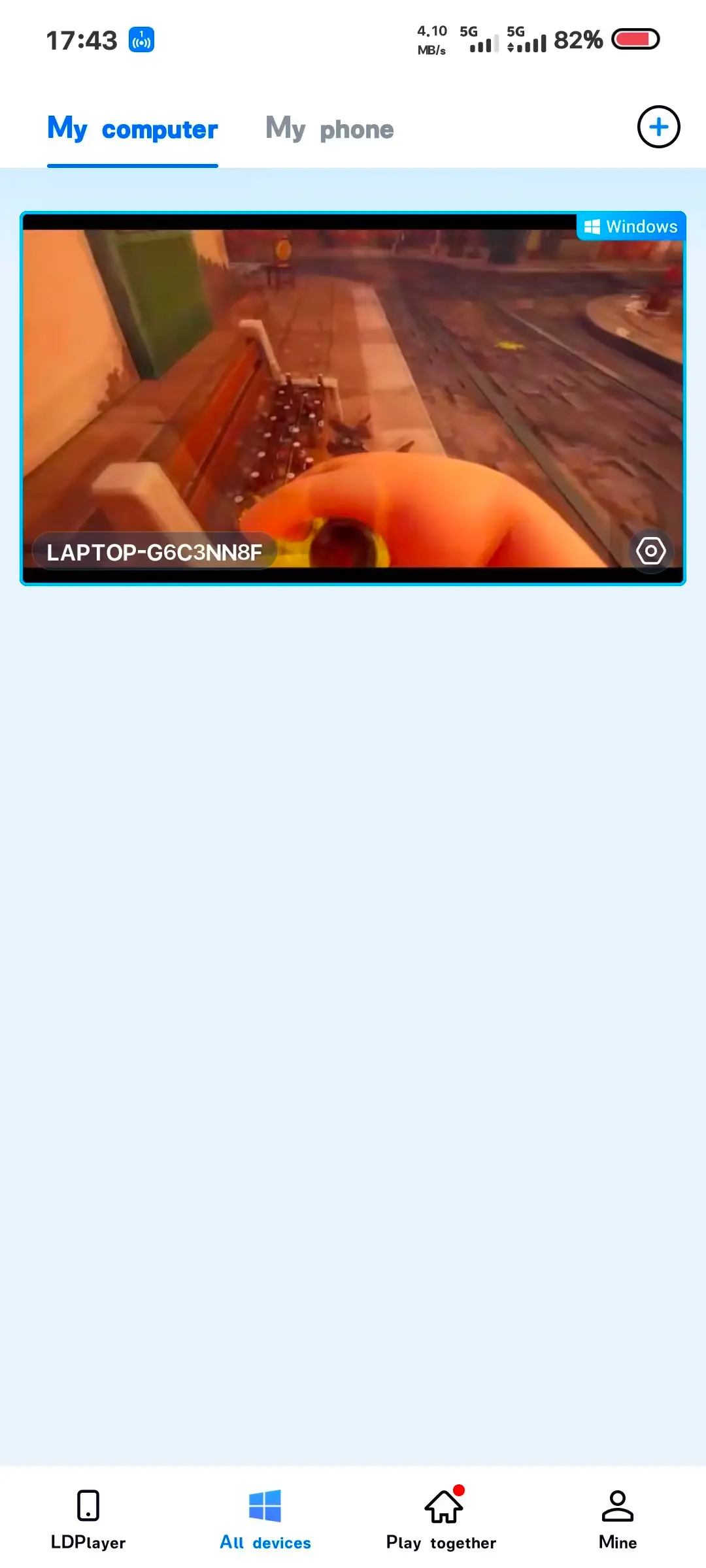
Download the OSLink Windows client on the PC that runs the game and sign in. Keep the host PC powered on, signed in, and connected to a stable network during remote play.
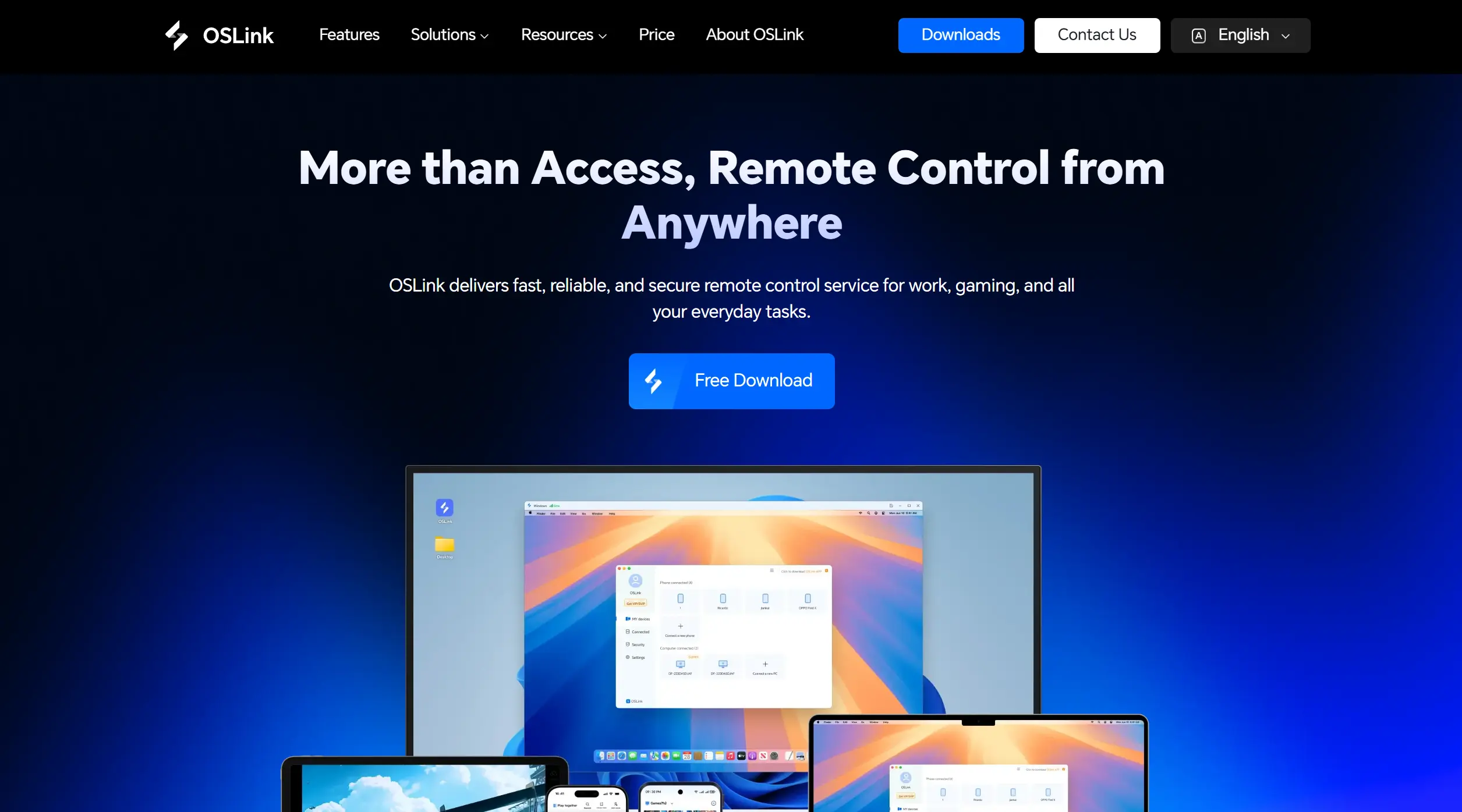
2. Install OSLink on Your Phone
Install OSLink from Google Play on Android or the App Store on iPhone. Sign in with the same account, then select the online PC in the device list.
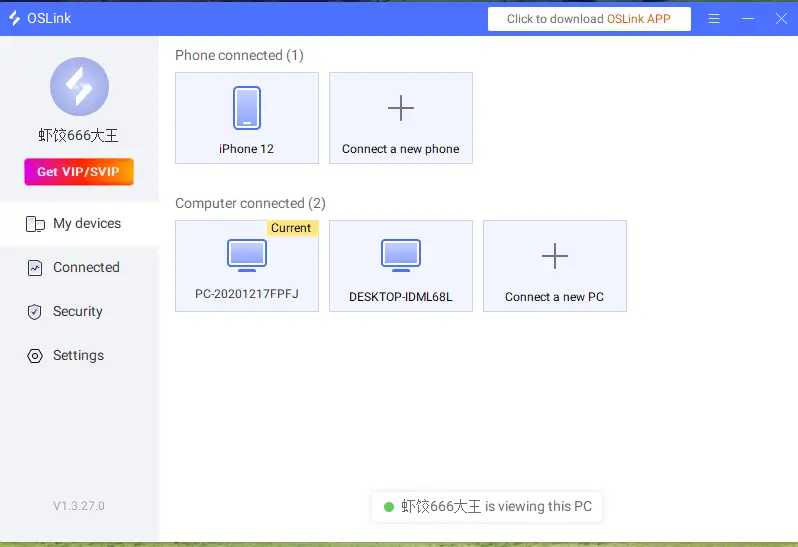
Step 2: Optimize Remote Controls
1. Launch the Game on the Host PC
On your host PC, launch the PeeVPee demo or full game available through Steam, then enter an area where you can test the controls.
2. Connect and Test Both Devices
Open the remote desktop on your phone. Check the video and audio, then test movement, camera controls, drinking, aiming, interactions, and menu navigation.
3. Turn On 60 FPS PC Gaming Mode
In the full-screen remote desktop, use the top-right toolbar and select Tools > Play PC games at 60 frames. If the picture is unstable, lower the game resolution or streaming quality and retest.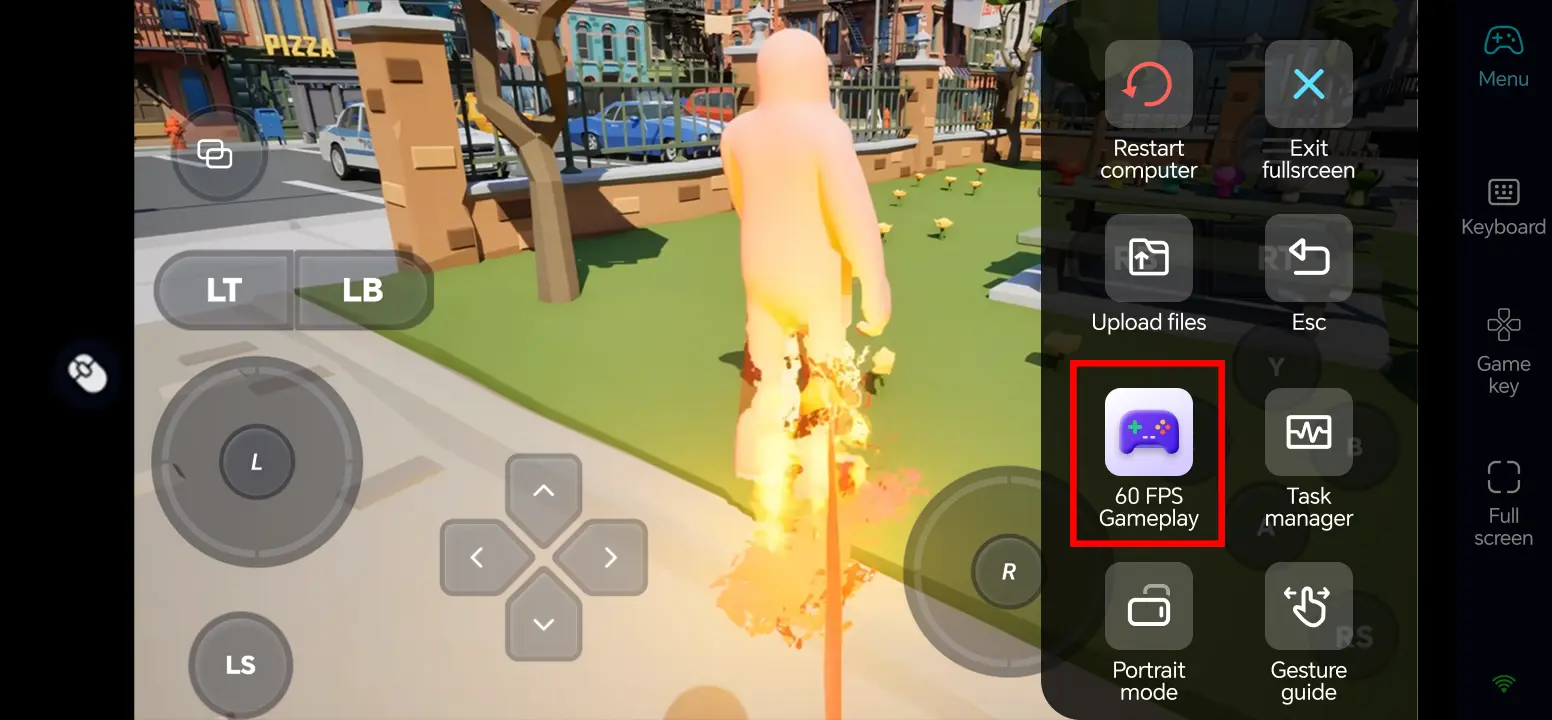
4. Customize Touch Controls
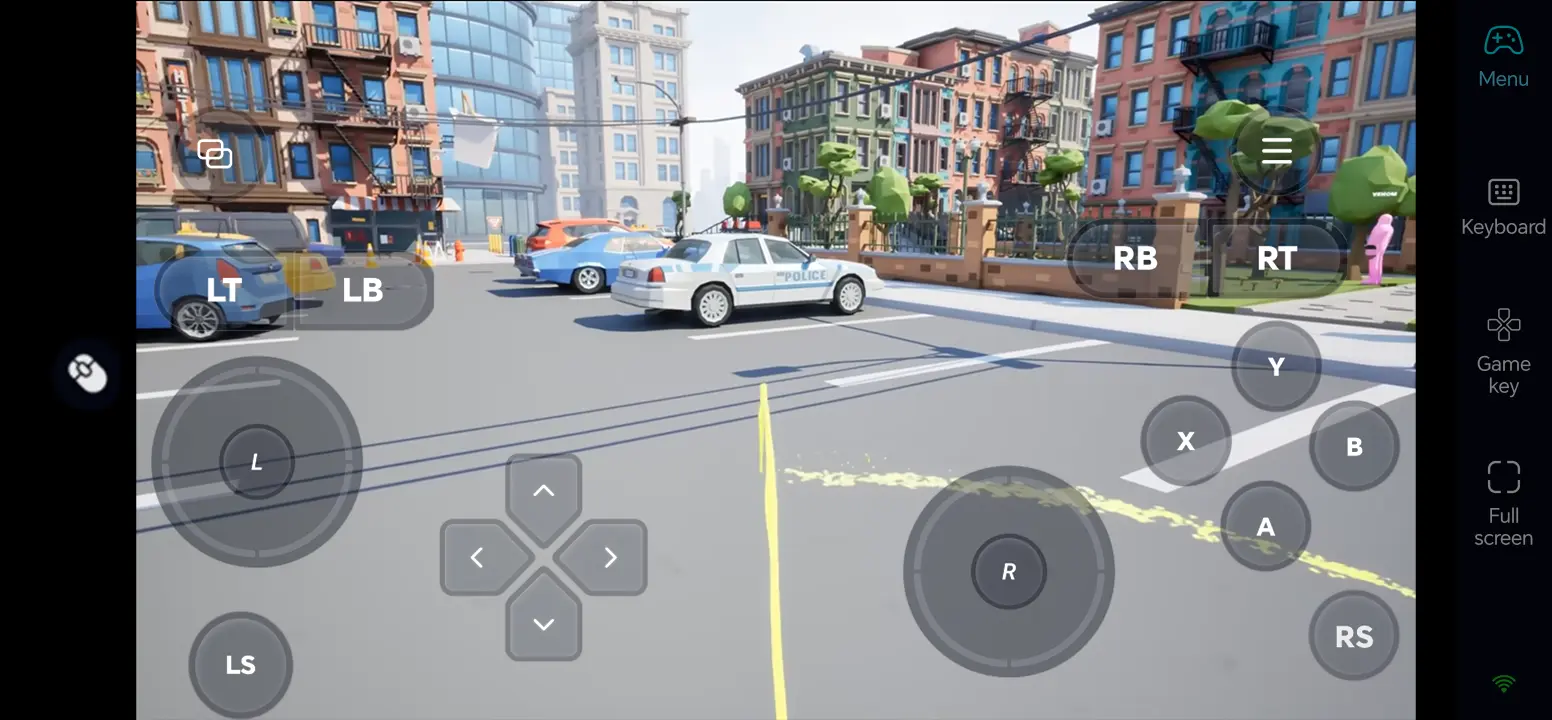
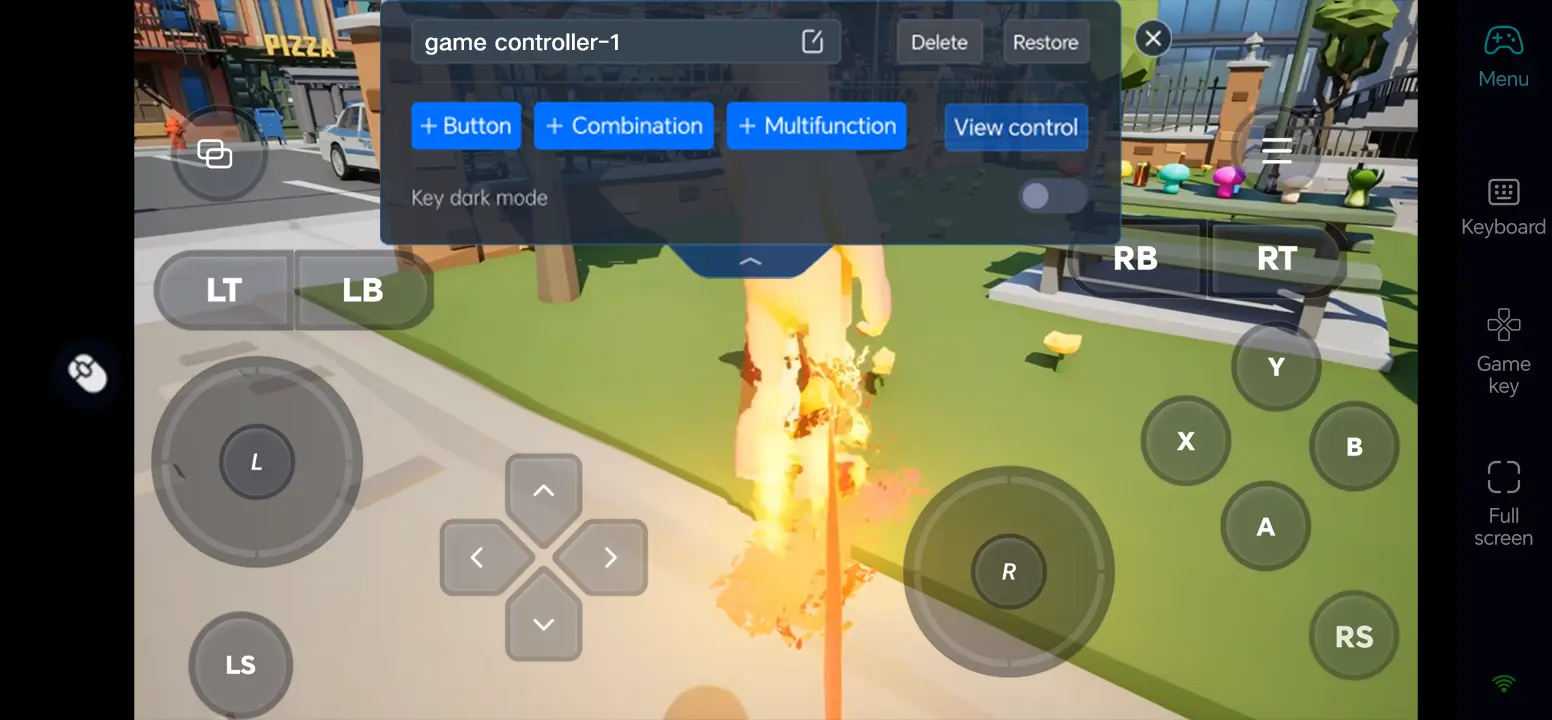
Open Game Button and its edit control. Position movement, camera, drinking, aiming, and interaction keys so they do not cover targets. Save the layout and practice claiming a few objects before joining a multiplayer match.
5. Connect an External Input Device
For more precise movement and aiming, connect a compatible Bluetooth controller or external keyboard and mouse to your phone. Test the bindings, and keep a stable connection during multiplayer.
Three OSLink Benefits for PeeVPee
1. Keep movement and aiming separate
A tailored touch layout reduces accidental taps while you race to claim objects.
2. Follow fast action more clearly
When your PC and network can maintain a stable connection, 60 FPS PC gaming mode can make fast-paced scenes appear smoother.
3. Use familiar controls for quick turns
A compatible controller or keyboard and mouse can help with rapid direction changes and aiming.
Frequently Asked Questions
Q1: What is the release date of PeeVPee?
The release date of PeeVPee is November 9, 2026.
Q2: Can I play PeeVPee directly on Android?
Steam does not list a native Android version of PeeVPee. You can run the PC game on your own Windows computer and control it from Android with OSLink.
Q3: Can I play PeeVPee directly on iOS?
Steam does not list a native iOS version of PeeVPee. You can access the Windows game running on your own PC from an iPhone with OSLink.
Q4: What PC specifications does PeeVPee require?
Steam minimum: Windows 10 64-bit or later, i5-4460 or FX-8350, 8 GB RAM, GTX 1060 or RX 580, DirectX 12, and 5 GB storage. Recommended: i5-8400 or Ryzen 5, 8 GB RAM, RTX 2060 or RX 6700 XT, with the same OS and storage requirements.
Q5: Will aiming in PeeVPee be difficult over a remote connection?
Give movement, camera, and the main action separate controls, or use a compatible controller or keyboard and mouse. Test the demo first and use a stable network; remote input delay can still affect a fast match.
Conclusion
Try the demo or install the full game through Steam if it's available to your account, then connect your phone using OSLink. Tune the touch controls or add a controller before a multiplayer round so you can keep claiming territory away from your PC.
 Download