English
 CookieRun Classic is a fast-paced side-scrolling endless runner centered around jumping, sliding to dodge obstacles, activating cookie and pet skills, and collecting power-ups. Timing and continuous quick reactions are critical for smooth gameplay.
The small mobile screen blocks your view of distant track sections, leaving little time to anticipate incoming obstacles. Frequent rapid taps on the touchscreen often lead to misinputs, causing you to miss massive jelly bonuses and score boosters, which hinders high-scoring attempts and tournament rankings.
OSLink mirrors your full mobile game display onto a computer monitor and supports keyboard, mouse, and external gamepad controls. The large screen reveals the entire track at a glance, while keyboard and mouse inputs deliver lower latency and more consistent commands, allowing precise execution of jumps, slides, and skill activations. Below is a complete, actionable setup guide.
How to Play CookieRun Classic on PC Using OSLink
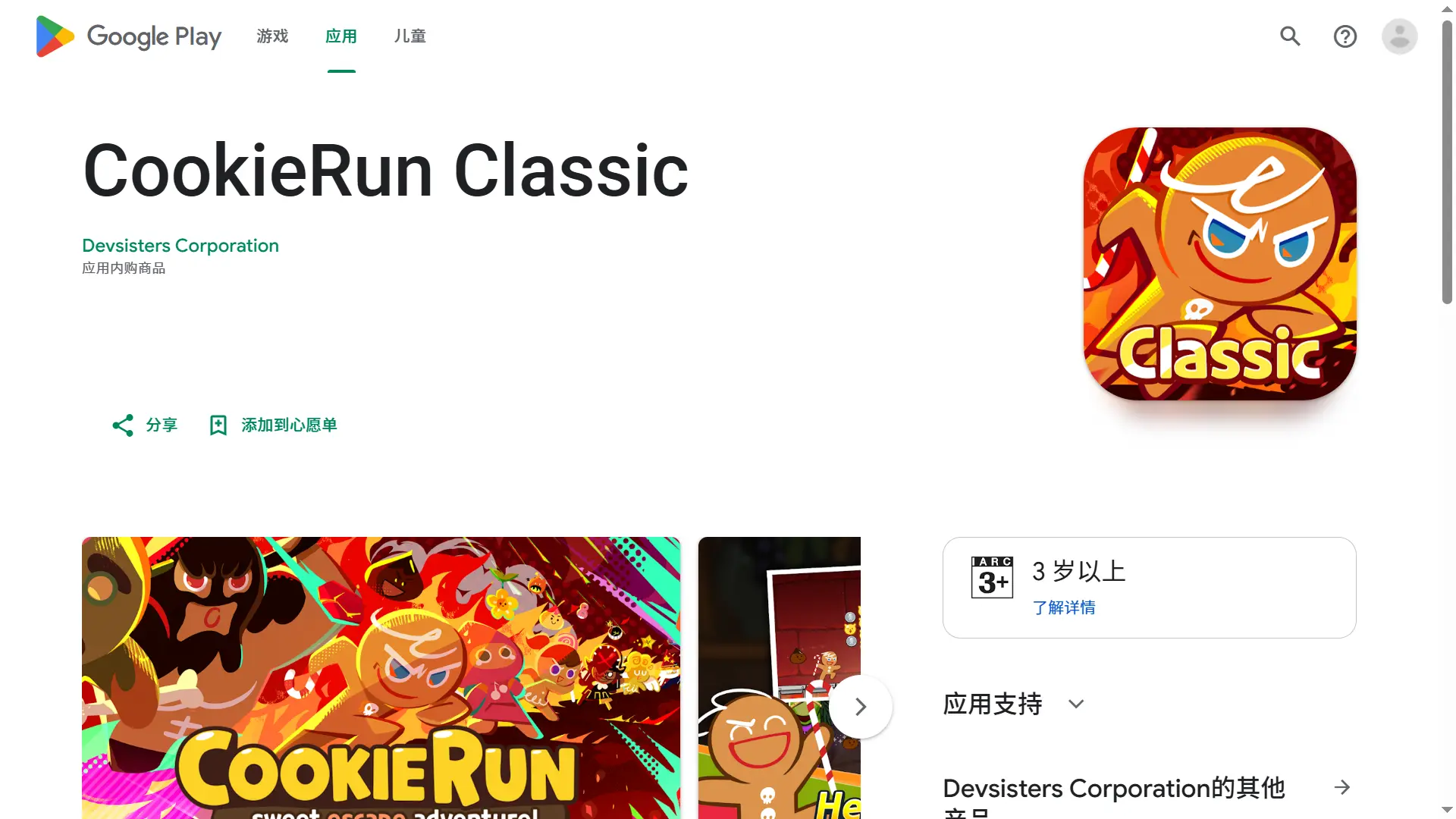
Step 1: Install CookieRun Classic on Your Mobile Device
Open your device’s native app store (Google Play / App Store) and search for "CookieRun Classic" to download and install the game.
If the game is unavailable in your region, download the APK file from trusted third-party sources for Android installation.
Step 2: Install OSLink on Both PC and Mobile
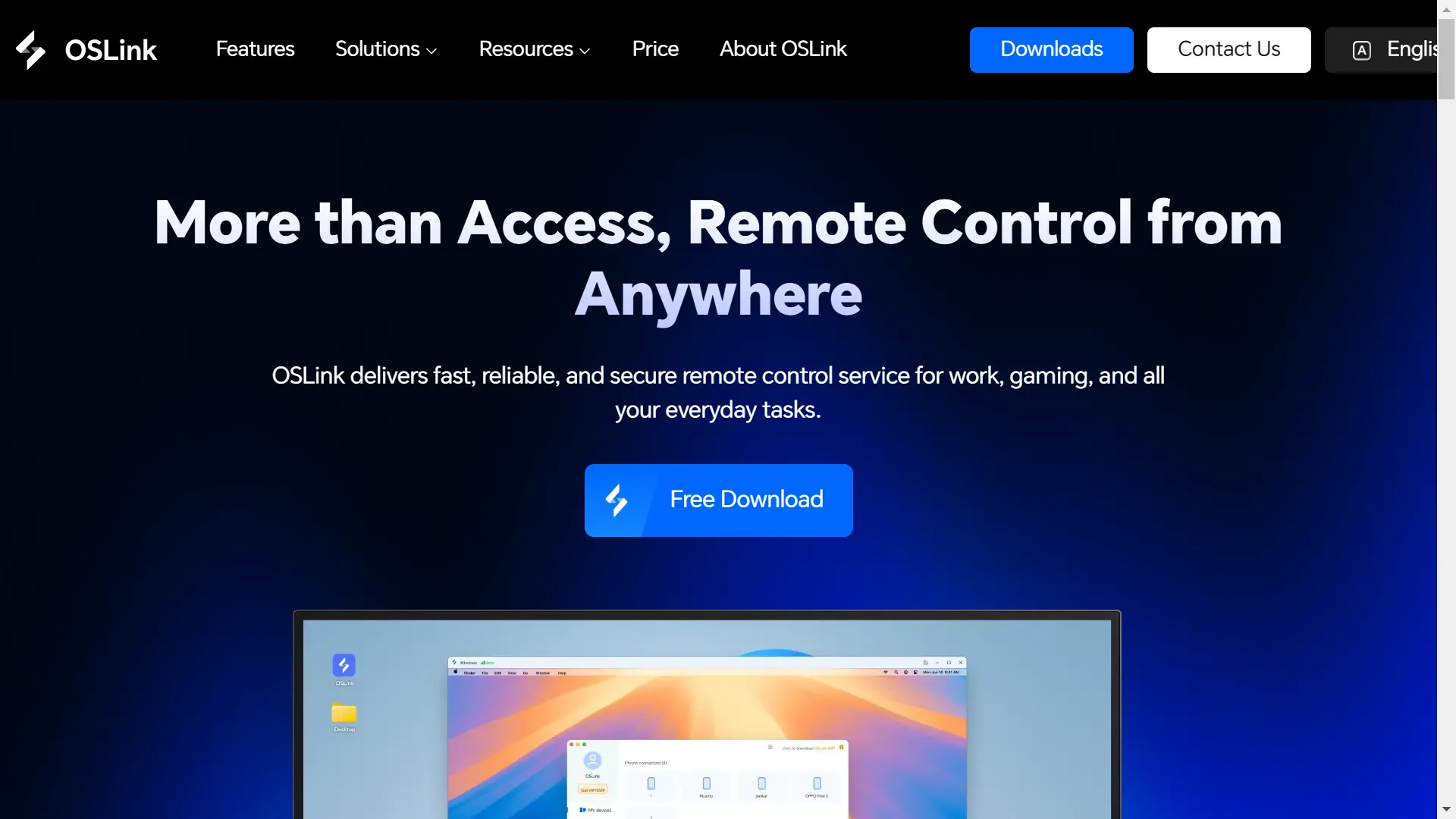
Visit the official OSLink website at https://www.oslink.io, then download and install the Windows PC client and mobile application respectively.
OSLink delivers low-latency, securely encrypted remote device control and screen mirroring, split into two mirroring modes: Normal Mode and Game Mode. Core features are available for free.
Step 3: Pair and Connect Mobile and PC with the Same Account
Launch OSLink on both your phone and computer, and log in using the same account.
Physically connect your mobile device to the PC with a USB data cable.
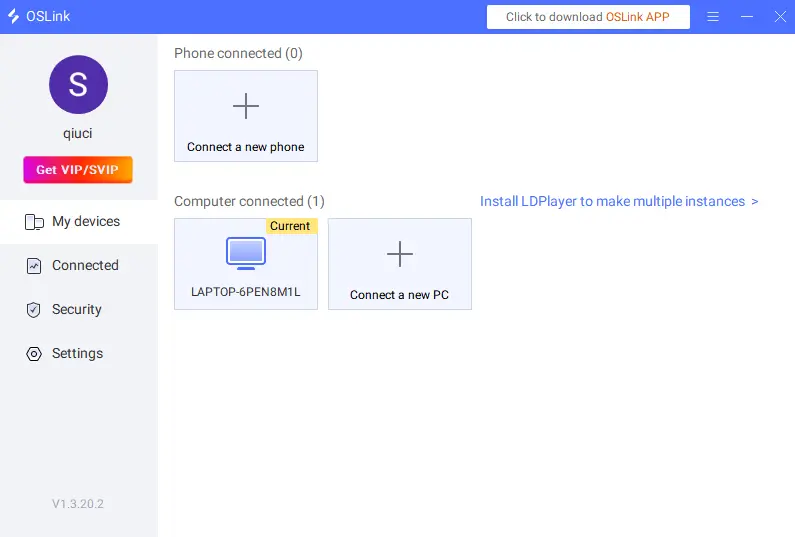
Select your corresponding mobile device from the device list within the PC OSLink client to complete pairing.
The interface lets you view connected devices, add new paired hardware, launch multiple LDPlayer instances, adjust VIP privileges, and modify software settings.
Step 4: Switch to Game Mode for Minimal Input Latency
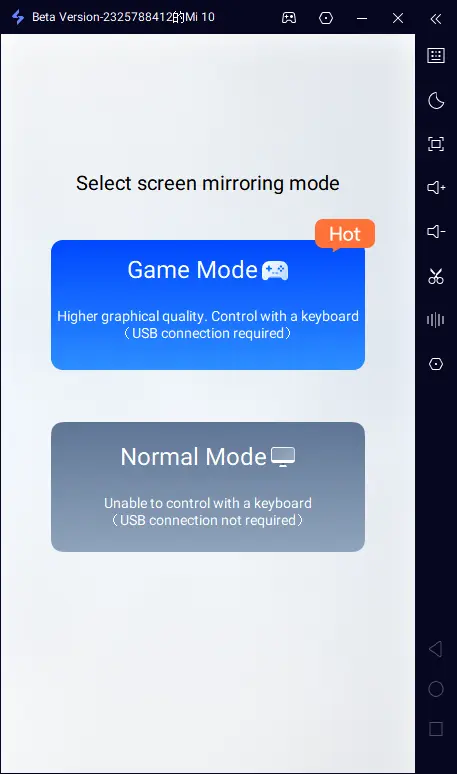
Follow the on-screen prompts to select Game Mode. This mode requires a USB cable connection; tap the pop-up on your mobile device to initiate screen mirroring:
Step 5: Enable Developer Options & USB Debugging (Android Only)
Android devices require extra permission setup for first-time Game Mode use:
- Go to Settings > About Phone, tap Build Number seven times to unlock Developer Mode.
- Return to Settings, enter Developer Options, and toggle on USB Debugging.
- Tap Allow when the authorization pop-up appears; enter your device passcode if prompted.
iOS devices have no Developer Options; simply grant OSLink screen capture permissions after connecting.
Step 6: Launch Screen Mirroring and Start Playing
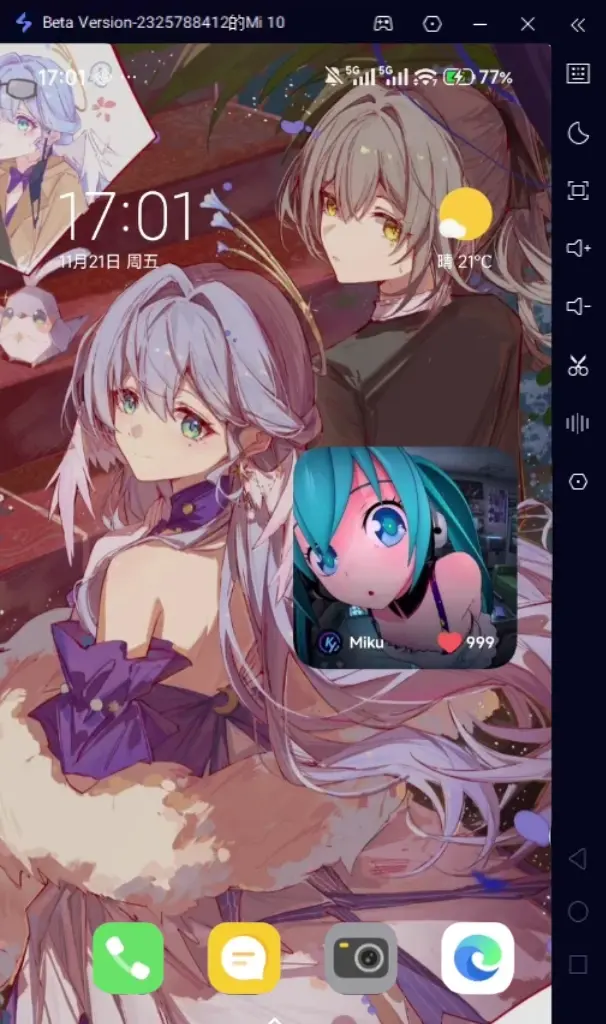
Confirm all OSLink connections and permission settings are fully configured. Your mobile screen will instantly sync to the computer monitor. Open CookieRun Classic to begin your game.
Custom Keyboard & Mouse Control Settings for CookieRun Classic
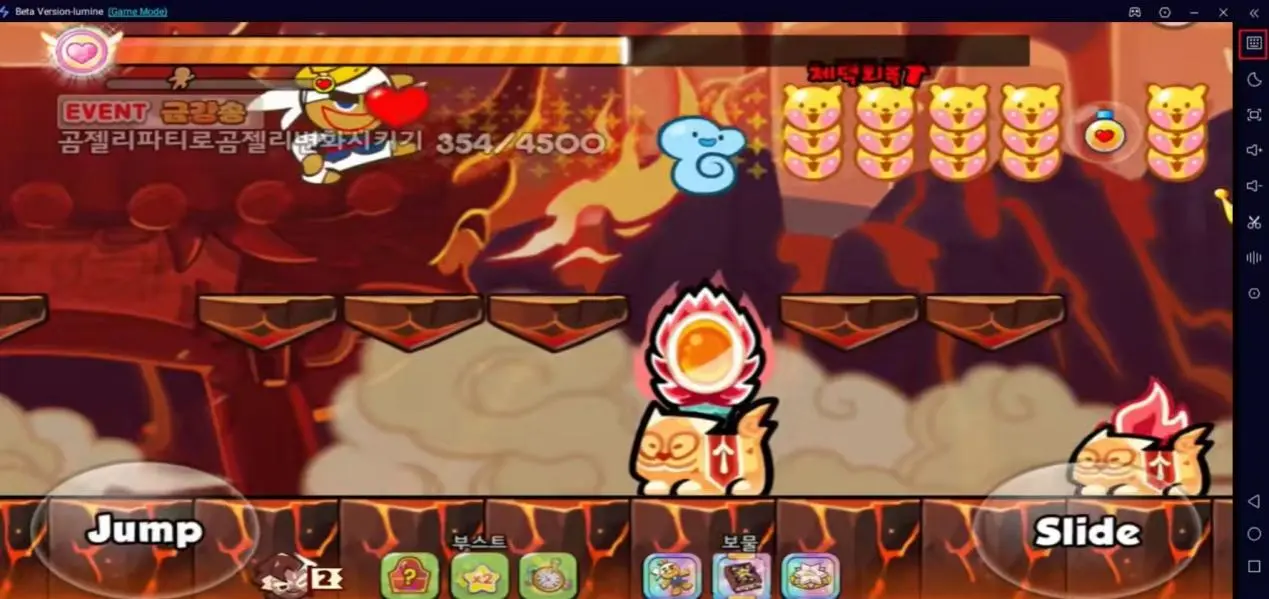
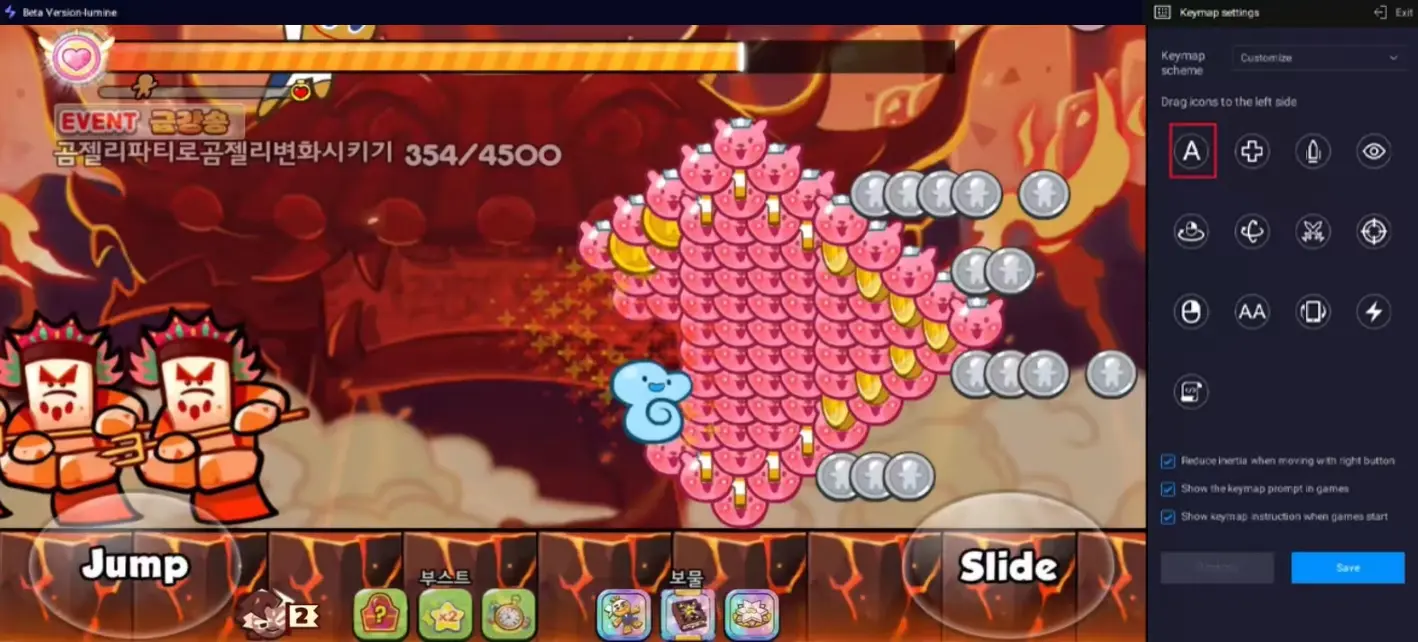
Once screen mirroring is active, click the keyboard icon on the OSLink sidebar to open the key mapping editor.

1. Custom Key Mapping Setup
Drag virtual button icons to align with the game’s respective interactive zones.
Recommended control layout:
Jump: W / Up Arrow Key
Slide: S / Down Arrow Key
Assign shortcut skills to Spacebar, Q, E, Z, X:
Q: Cookie Active Skill
E: Pet Skill
Spacebar: Revival Items, Dash Boosters
Add extra shortcut buttons for stage restarts, shop navigation, league interface switching, and other functions.
The editor includes toggles for movement inertia, in-game key hint overlays, and auto-load mapping presets on game launch. Click Save to permanently store your custom control layout.
2. External Gamepad Compatibility
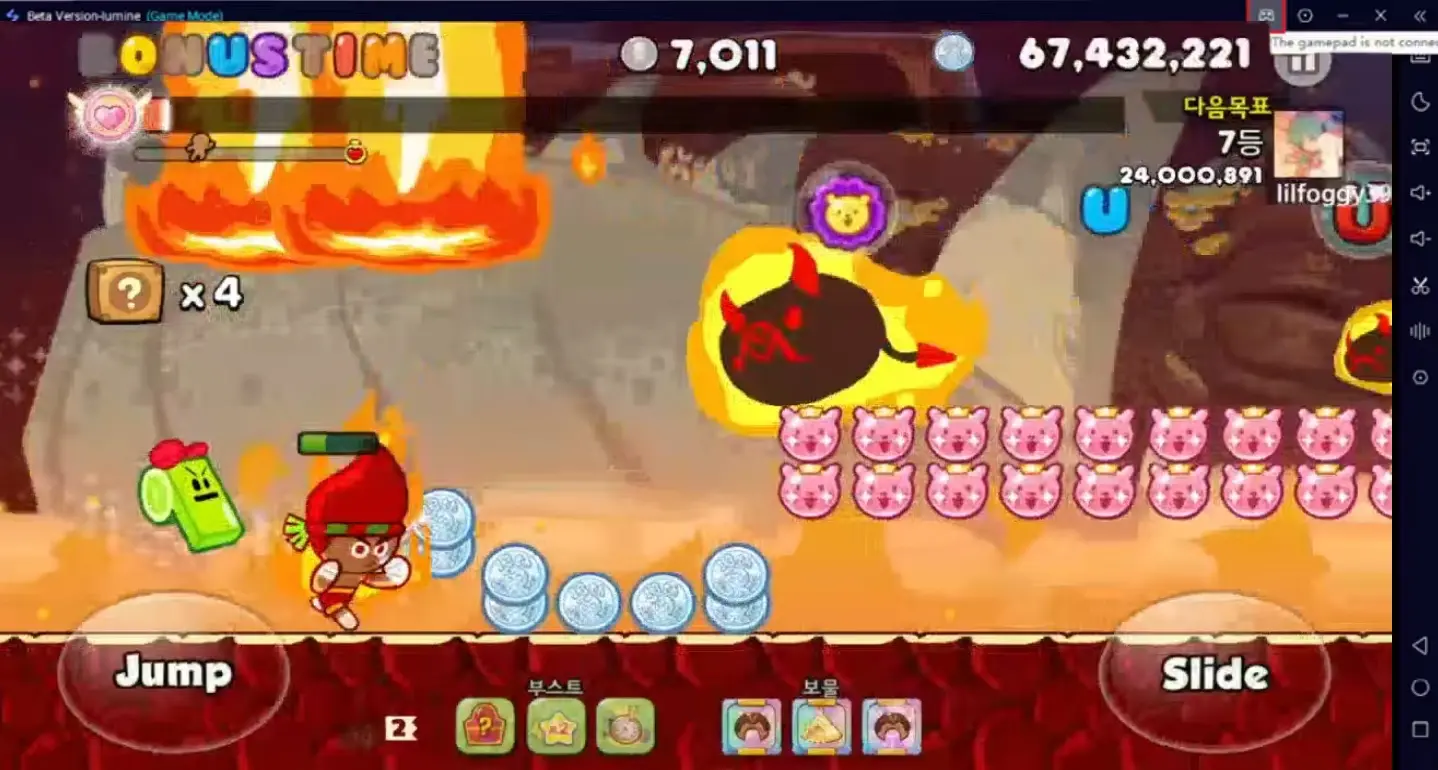
OSLink fully supports wired and Bluetooth external game controllers. Connect a gamepad to auto-bind controller buttons for console-style gameplay, perfect for long high-scoring runs and league matches.
Adjust output resolution and frame rate freely based on your PC hardware and network conditions to maintain smooth, lag-free gameplay with no stuttering.
Important Usage Tips
- For stable connectivity, use high-quality USB 3.0 data cables. Charging-only cables may cause connection failures and prevent Game Mode from functioning properly.
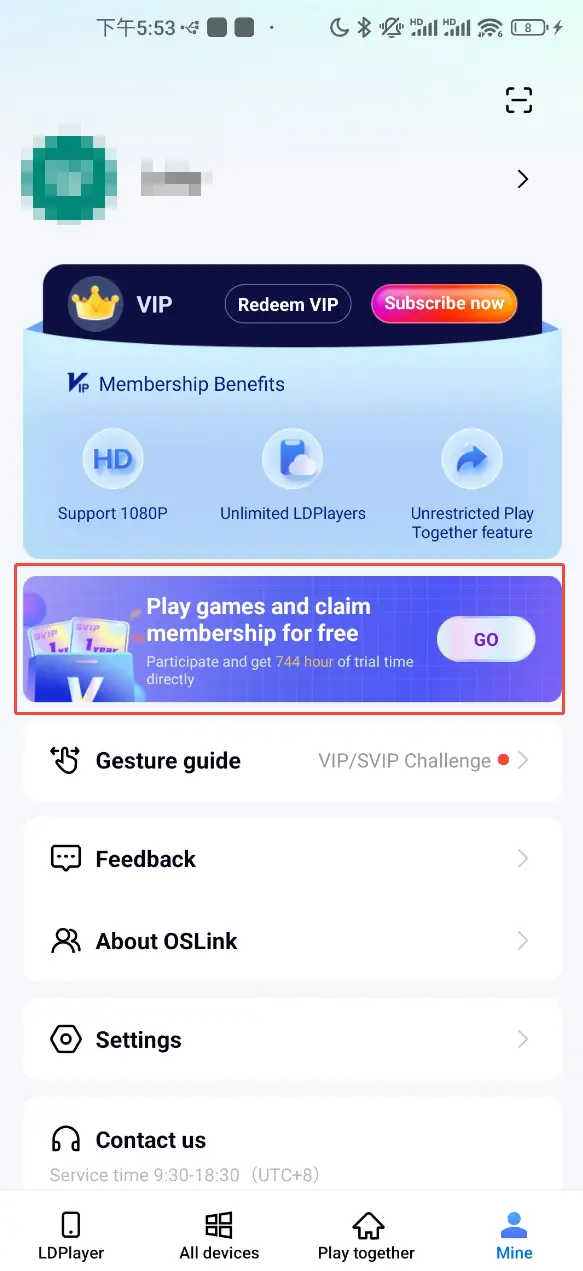
- Earn free high-definition mirroring hours by watching ads and completing platform tasks within OSLink; premium mirroring features are accessible without paid subscriptions.
- VIP/SVIP premium membership unlocks 1080P HD output, unlimited LDPlayer multi-instances, unrestricted playtime, cross-device multiplayer, and other advanced functions.
FAQ
Q: What is the official global launch date of CookieRun Classic?
A: The game is only available on Android and iOS devices. Devsisters officially announced the global launch date as June 25, 2026. No standalone PC client or Steam version exists at present.
Q: What hardware specifications are required to run CookieRun Classic smoothly?
A: Per official release information, stable gameplay requires the following specifications:
Storage: Base game installation package is approximately 362MB. Reserve over 800MB of free storage for game updates and cache files.
RAM: Minimum 3GB RAM; 4GB or higher RAM recommended for high graphics and high frame rate settings.
Android OS: Android 7.0 or newer
iOS OS: iOS 15.0 or newer
Q: Is there an official PC version of CookieRun Classic? How can I play it on a computer?
A: No native official PC build has been released. You can only mirror the original mobile game screen via OSLink and operate the title with a keyboard, mouse, or gamepad on your computer.
Summary
OSLink delivers a brand-new way to experience CookieRun Classic. The large computer monitor grants full visibility of every track segment, and fully customizable keyboard controls drastically improve parkour accuracy, offering clear advantages for casual play, high-scoring challenges, and league competitions. The entire setup workflow is straightforward, and your saved key mappings load instantly every time you launch mirroring. Compared to cramped touch controls on small mobile screens, the PC mirroring solution delivers a far smoother, more comfortable long-duration gaming experience.
 Download