English
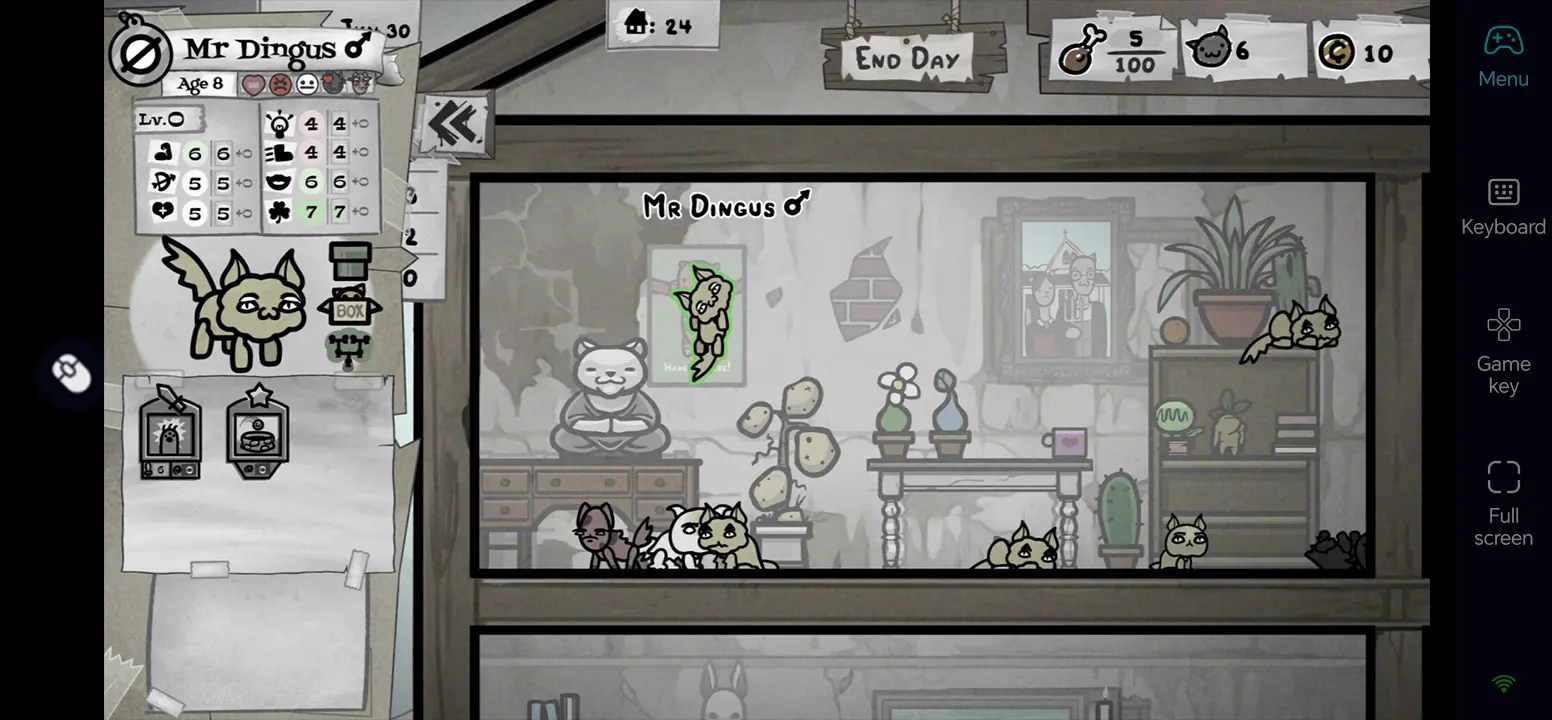
Mewgenics combines cat breeding with turn-based tactical adventures. In Boon County, you assemble a squad, assign class collars, choose abilities and items, then navigate battles where positioning and terrain matter. Returning cats pass traits to later generations, giving each run a longer-term purpose. The game has been nominated for Best Independent Game at The Game Awards 2026. The game's detailed menus and tactical grids require careful control adjustments when playing remotely on a smaller screen.
OSLink lets your Android phone or iPhone control Mewgenics running on your own Windows PC. This guide covers the Steam download, device pairing, PC gaming mode, and a touch layout for breeding and tactical decisions.
1. Download Mewgenics on PC
Buy on Steam and Test Locally
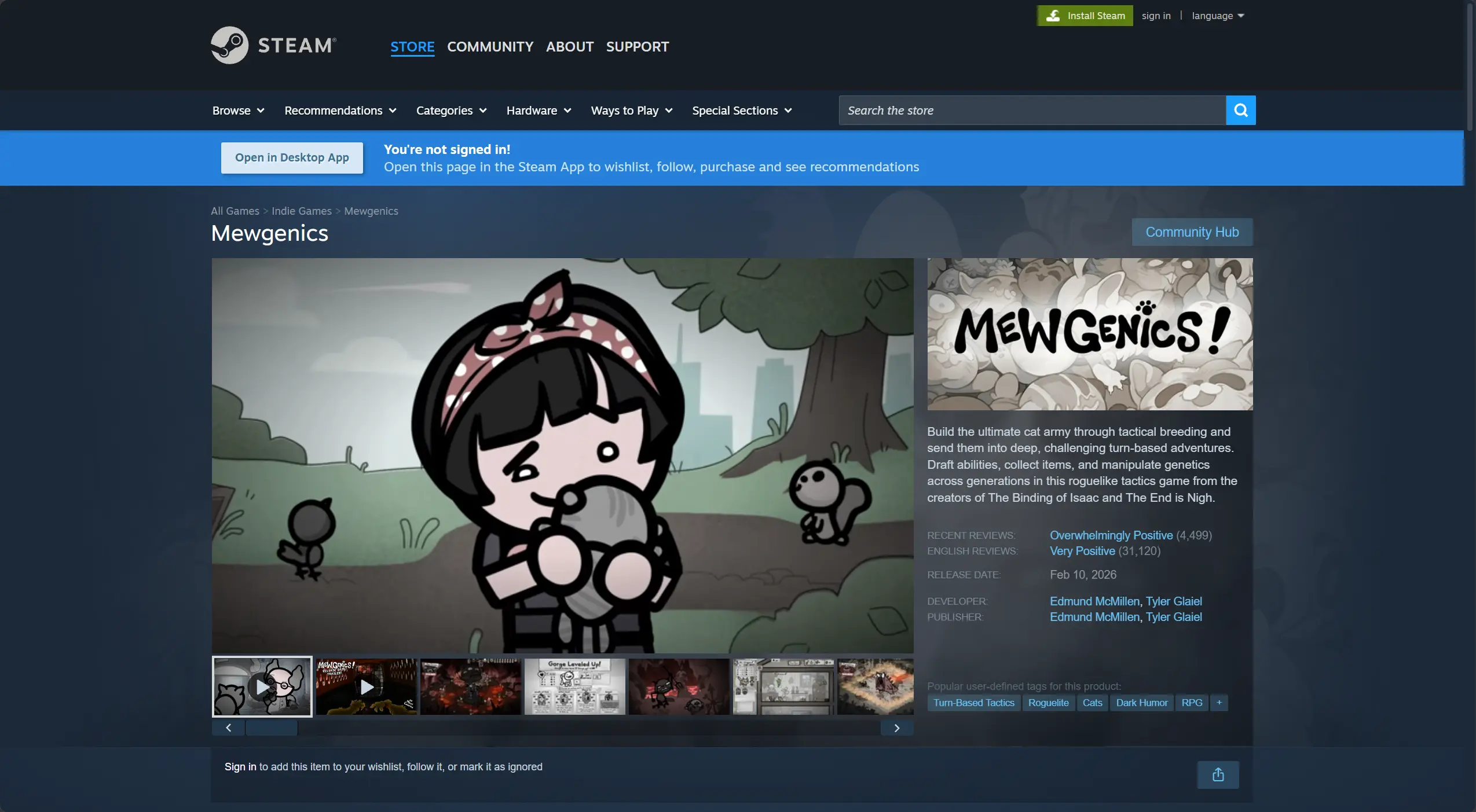
Find Mewgenics on Steam, confirm Edmund McMillen and Tyler Glaiel as the creators, then buy and install the Windows edition. Launch the game on your PC first. Make sure you can access the cat house, select your squad, navigate the battle grid and item menus, and save your progress before setting up remote access. Once the game runs smoothly on your PC, use OSLink to stream it to your phone and control it remotely.
2. Play Mewgenics Remotely on Mobile
Step 1: Install OSLink on Both Devices
Install OSLink on the Windows PC
Download the OSLink Windows client on the PC running Mewgenics and sign in. Keep the host powered on and connected to the internet during remote access.
Install OSLink on Your Phone
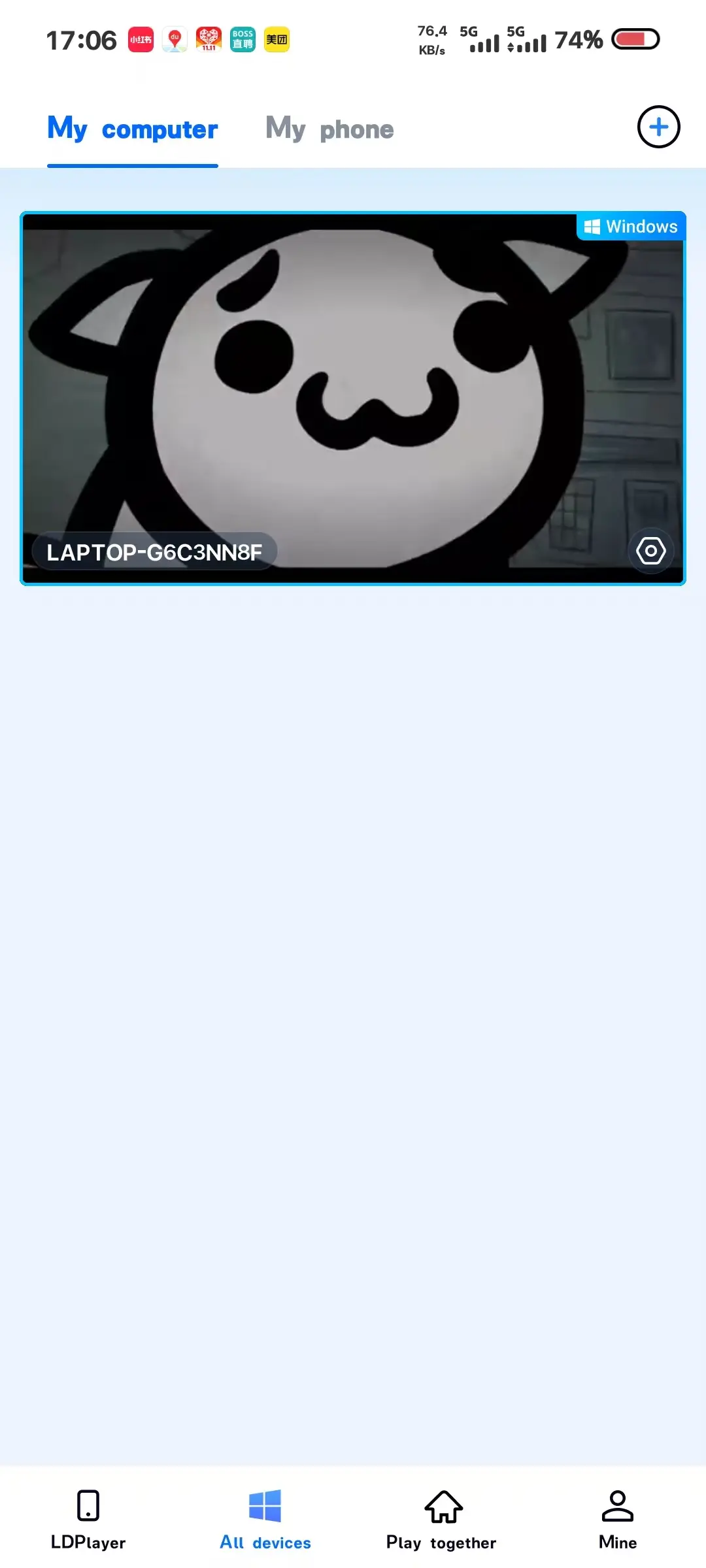
Install OSLink from Google Play on Android or the App Store on iPhone. Sign in with the same account and choose your online PC from the device list.
Step 2: Tune Controls for Cats and Battles
1. Launch the Game on the Host PC
Start Mewgenics from Steam on your Windows PC. Open the cat house or a safe battle state and check that text, icons, and the tactical grid remain readable.
2. Pair Devices and Test Input
Open the remote desktop on your phone. Test selecting cats, browsing collars and items, highlighting grid tiles, and confirming or cancelling a move before an important run.
3. Enable 60 FPS PC Gaming Mode
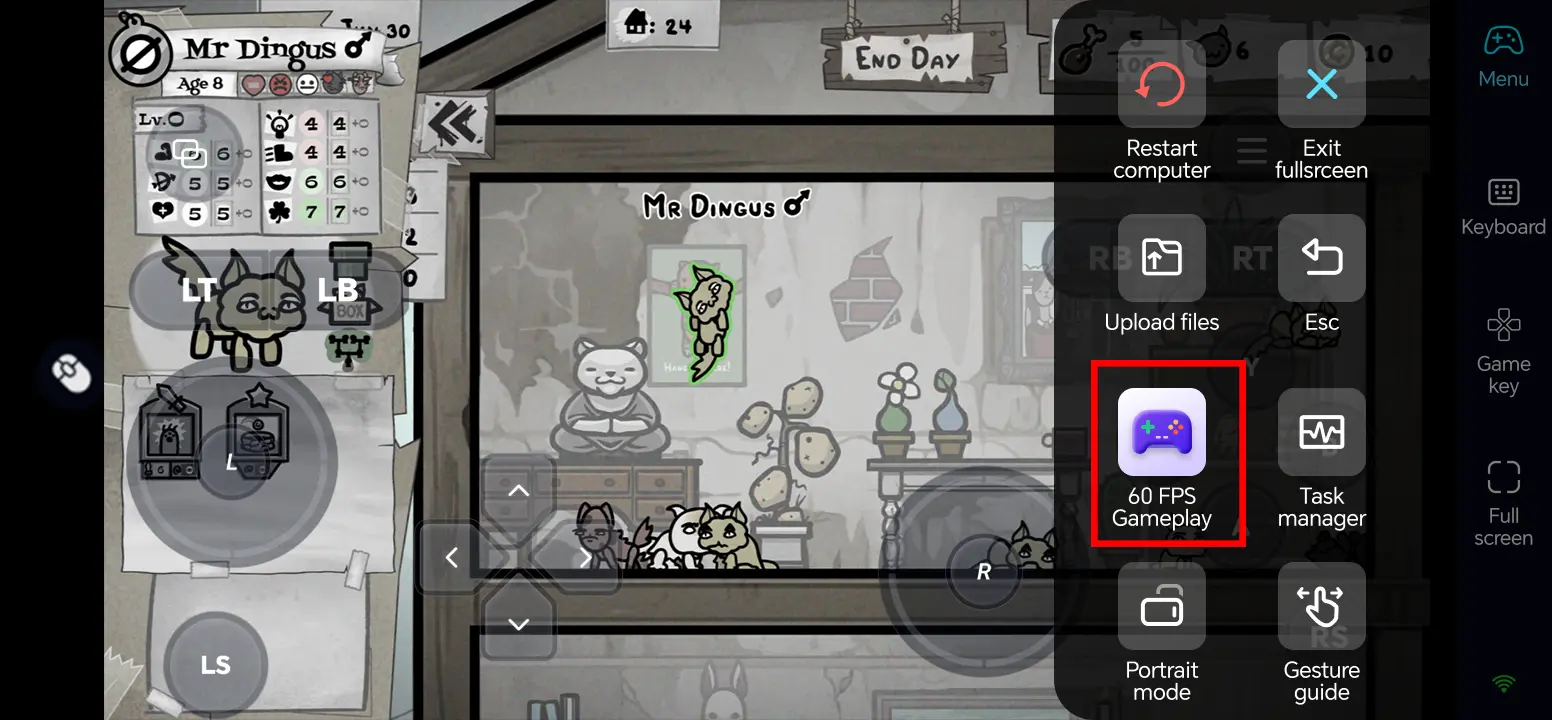
From the remote desktop toolbar, choose Tools > Play PC games at 60 frames. The mode is available for PC games, but a clear, readable readable picture matters more than maximum frame rate in this turn-based game.
4. Customize Touch Controls
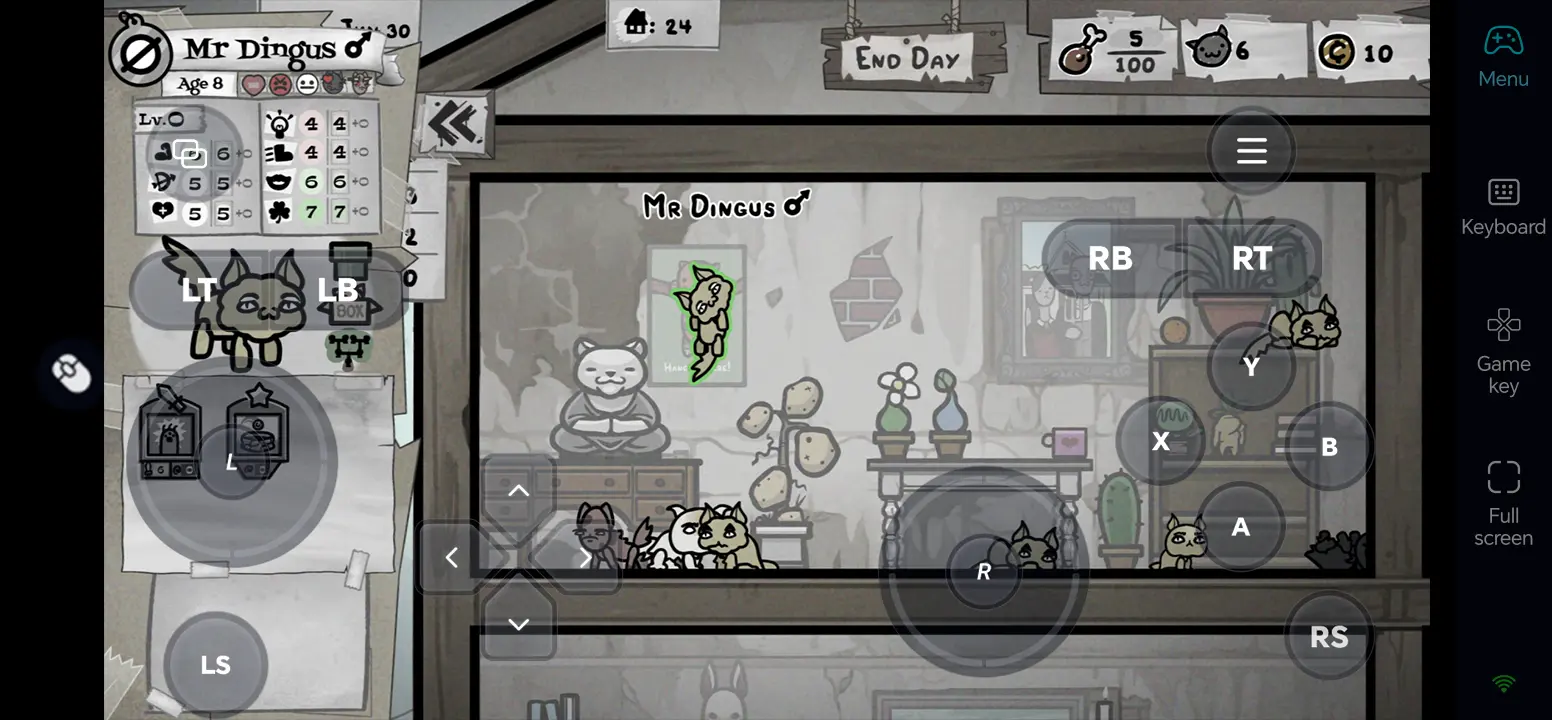
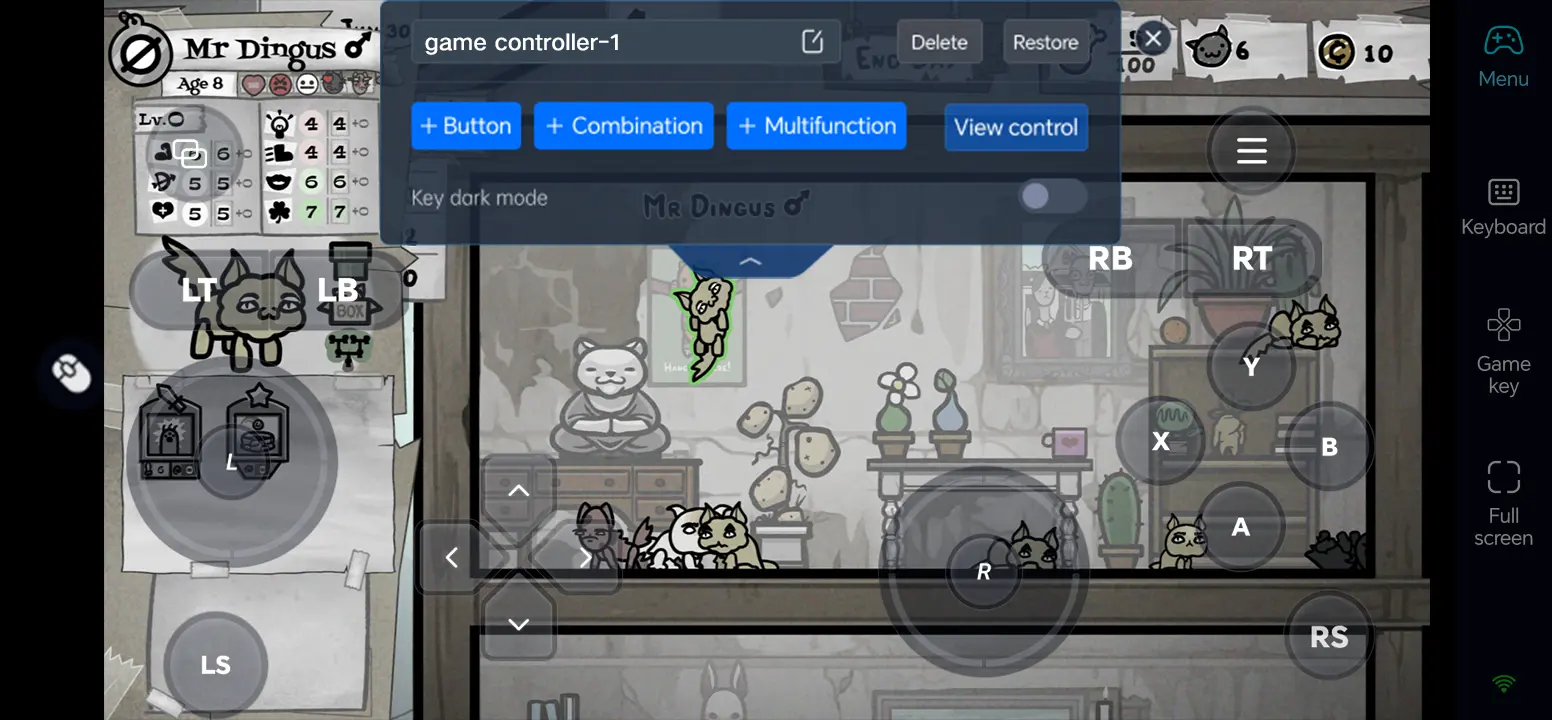
Open Game Button and tap the edit icon. Arrange the buttons for selection, confirmation, navigation, camera control, and menu access without obstructing the battle grid or item descriptions. Save the layout, then test it during a full combat turn.
5. Connect External Controls
For longer planning sessions, connect a compatible keyboard and mouse or Bluetooth controller to the phone. Check how the game responds to the chosen device before committing to a battle.
What You Can Do After Setup
Review cats and inherited traits at home, assign class collars, and prepare a balanced squad.
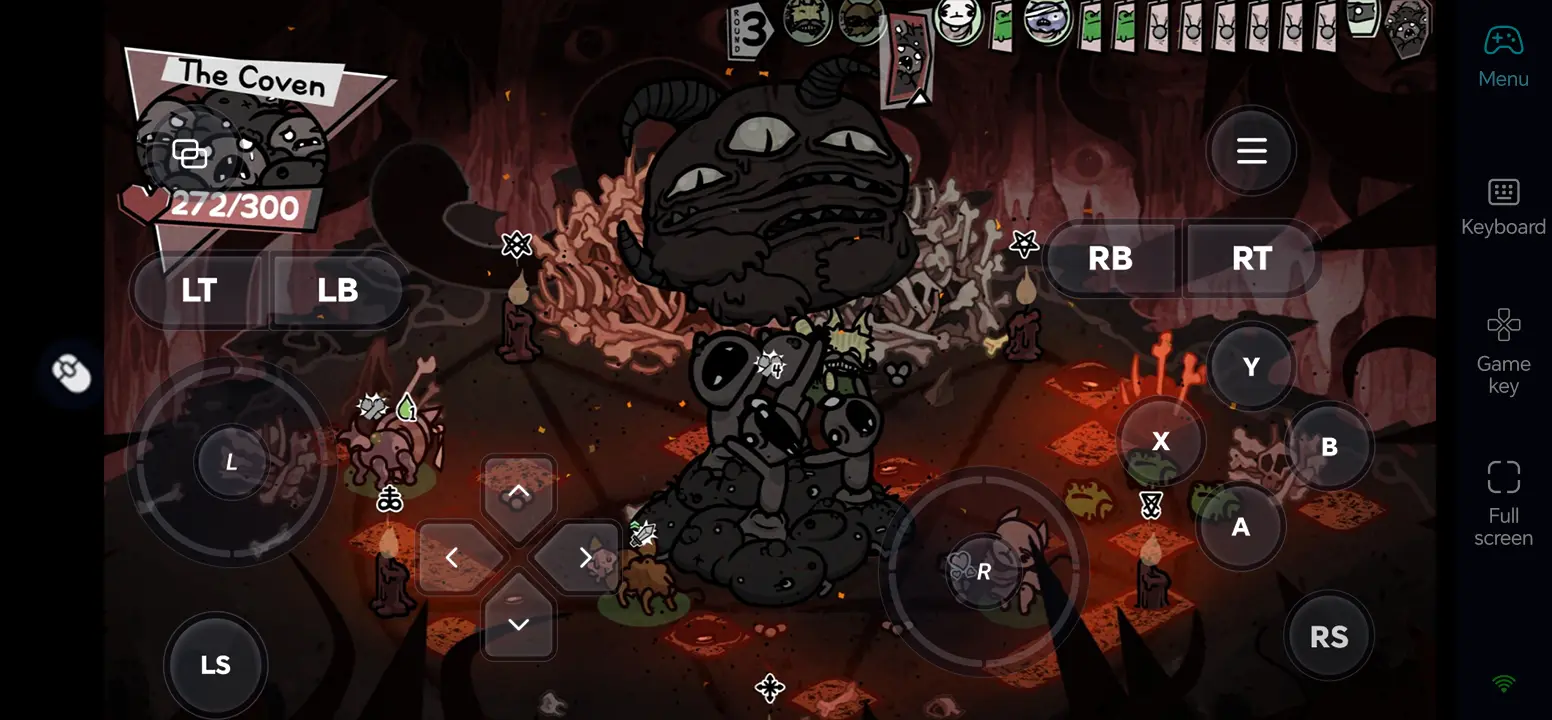
Choose abilities and items, plan positioning on the tactical grid, and resolve battles one turn at a time.
Return from an adventure, manage resources, and make breeding decisions for the next generation.
3. Three OSLink Benefits for Mewgenics
1. Handle breeding decisions between sessions
Remote access lets you check traits, adjust the house, and plan the next squad during a short break.
2. Keep the tactical grid readable
A custom touch layout keeps grid tiles, ability descriptions, and item information visible, allowing you to make tactical decisions without obstructing important on-screen information.
3. Use precise input for menu-heavy play
A compatible mouse, keyboard, or controller can make repeated selections more comfortable than a crowded touch layout.
4. Frequently Asked Questions
Q1: What is the release date of Mewgenics?
The release date of Mewgenics is February 10, 2026, according to Steam.
Q2: Can I play Mewgenics directly on Android?
There is not a native Android edition. You can run Mewgenics on your own Windows computer and use OSLink to control it remotely from Android.
Q3: Can I play Mewgenics directly on iOS?
There is not a native iOS edition. On an iPhone, OSLink can display and control the game running on your own Windows PC.
Q4: What PC specifications does Mewgenics require?
Steam minimum: Windows 10 64-bit, a four-core processor from 2014 or later, 8 GB RAM, graphics with 2 GB VRAM and OpenGL 4.4 or newer, and 6 GB available storage. Steam does not give a detailed recommended specification.
Conclusion
Install and test Mewgenics on your PC, then connect your phone with OSLink. Keep the grid and menus visible as you breed cats, build a squad, and plan tactical turns away from your desk.
 Download