English
FINAL FANTASY XIV Online lets adventurers follow a sweeping story, explore dungeons, join group battles, and spend time gathering, crafting, or improving gear. It has been nominated for Best Ongoing Game at The Game Awards 2026. Hotbars, party information, and quest menus demand attention, and keeping up with everyday character tasks is less convenient when you are away from your PC.
OSLink lets an Android phone or iPhone control the game running on your own Windows PC. This guide covers Steam access, device pairing, PC gaming mode, hotbar controls, and external input.

Get FINAL FANTASY XIV Online on PC
Choose a Steam Edition and Test Locally
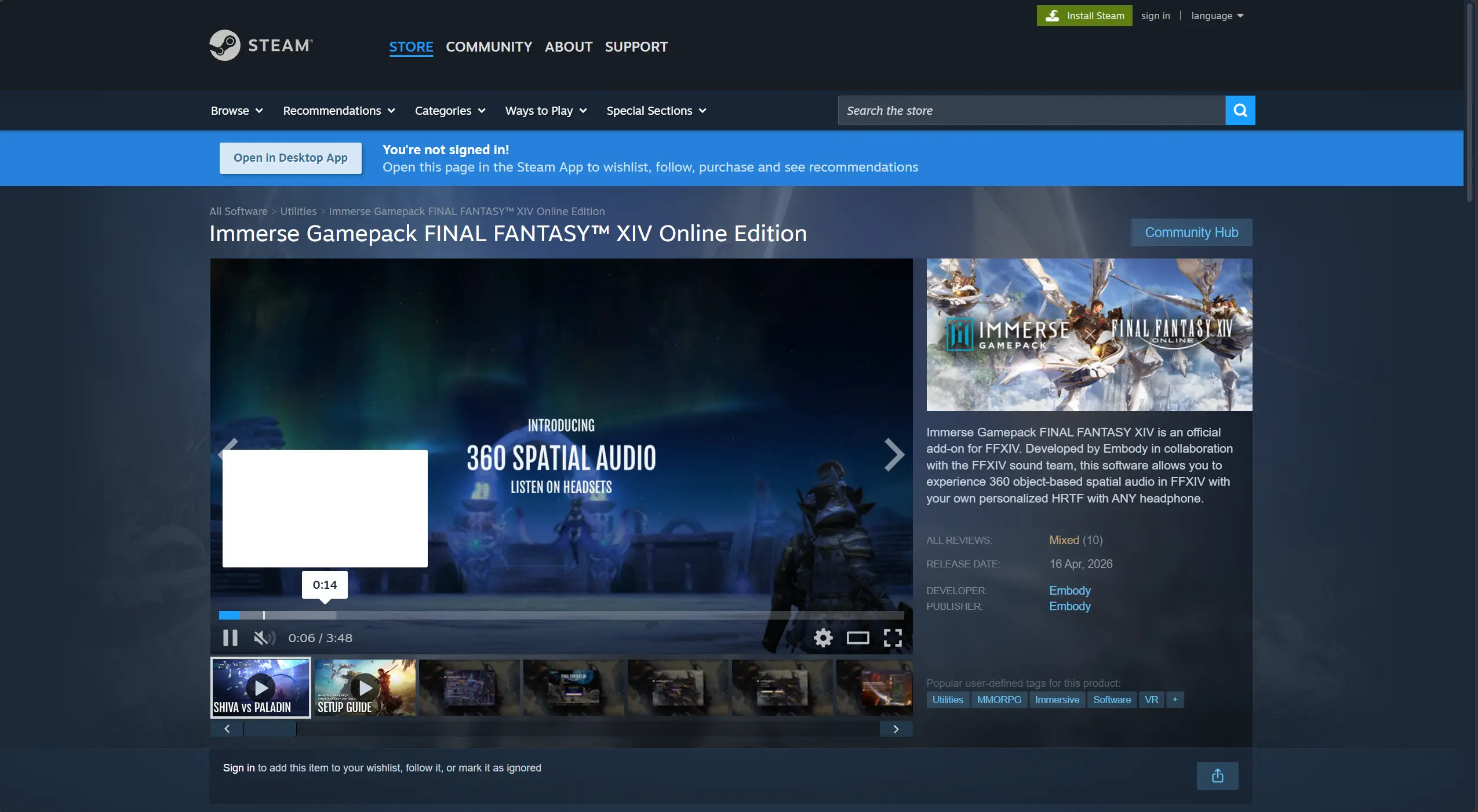
Find FINAL FANTASY XIV Online on Steam. You can start with the free trial or buy the Starter or Complete Edition for the content you need. A purchased edition needs a Square Enix account and, after any included free period, an active subscription. Check the compatibility of your Steam license and Square Enix account, then test sign-in, your character, the map, and saving on the PC.
Once the game works on the host PC, use OSLink to carry its display and controls to your phone.
Play FINAL FANTASY XIV Online Remotely on Mobile
Step 1: Install OSLink on Both Devices
Install OSLink on the Windows PC
Download the OSLink Windows client on the PC running FINAL FANTASY XIV Online and sign in. Keep that PC powered on, logged in, and connected to a stable network during remote play.
Install OSLink on Your Phone
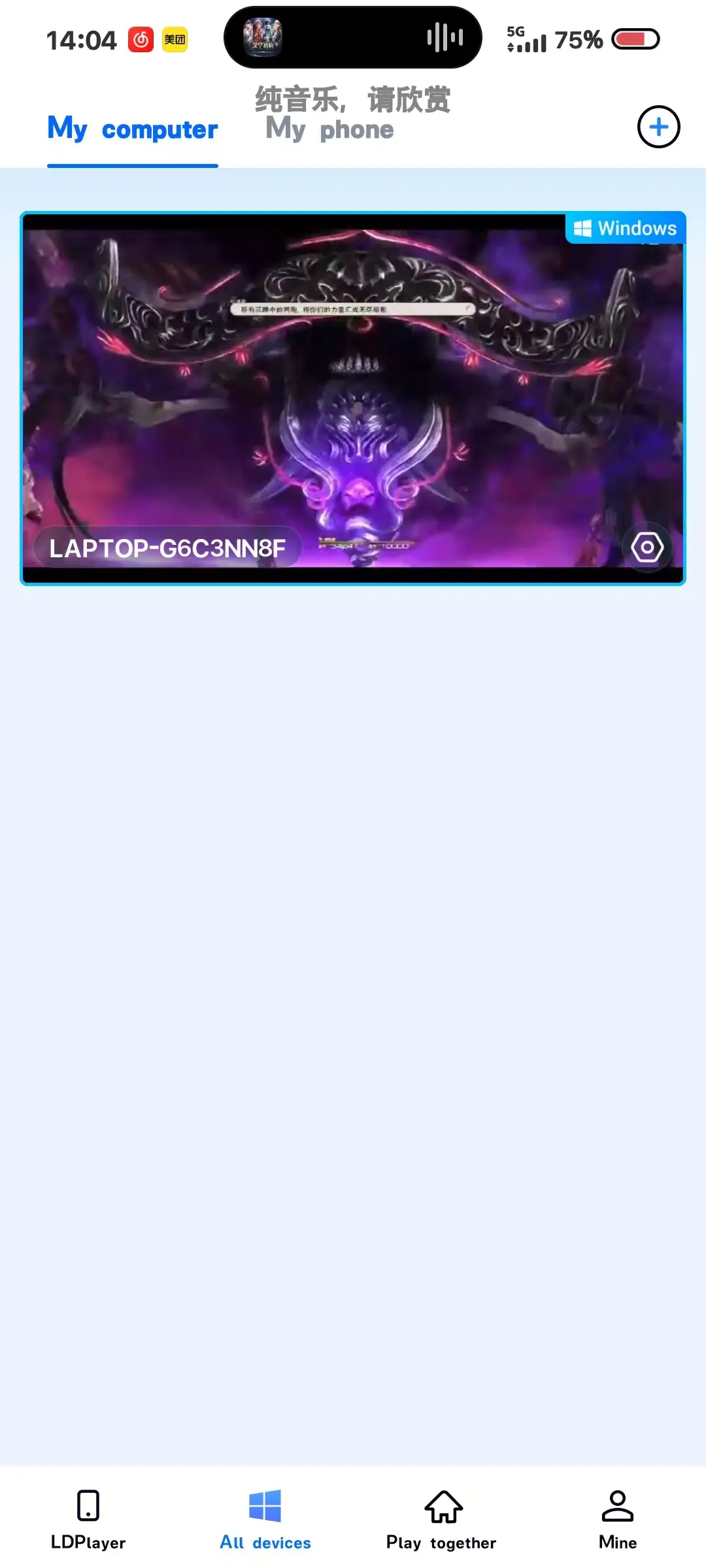
Install OSLink from Google Play on Android or the App Store on iPhone. Sign in with the same account and select the online host PC in the device list.
Step 2: Tune Controls for Your Job
1. Launch the Game on the Host PC
Start your licensed Steam edition on the Windows PC, sign in, and move to a safe area. Adjust resolution and graphics if needed so hotbars and party information remain readable.
2. Pair Devices and Check Input
Open the remote desktop on your phone. Test movement, camera, targeting, map, inventory, and actions before starting remote gameplay.
3. Enable 60 FPS PC Gaming Mode
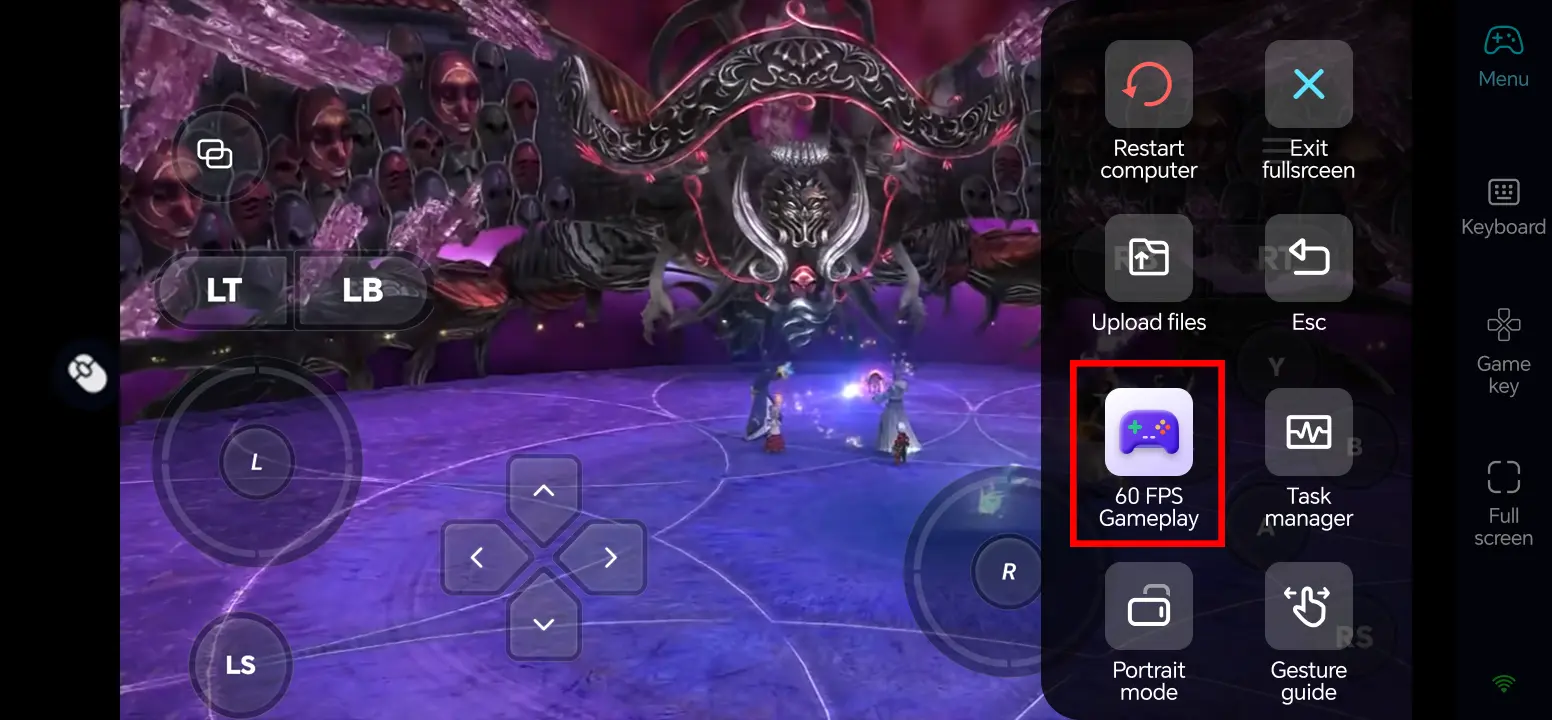
From the remote desktop toolbar, choose Tools > Play PC games at 60 frames. The actual frame rate depends on the PC, game, and connection; lower graphics settings if the picture is unstable.
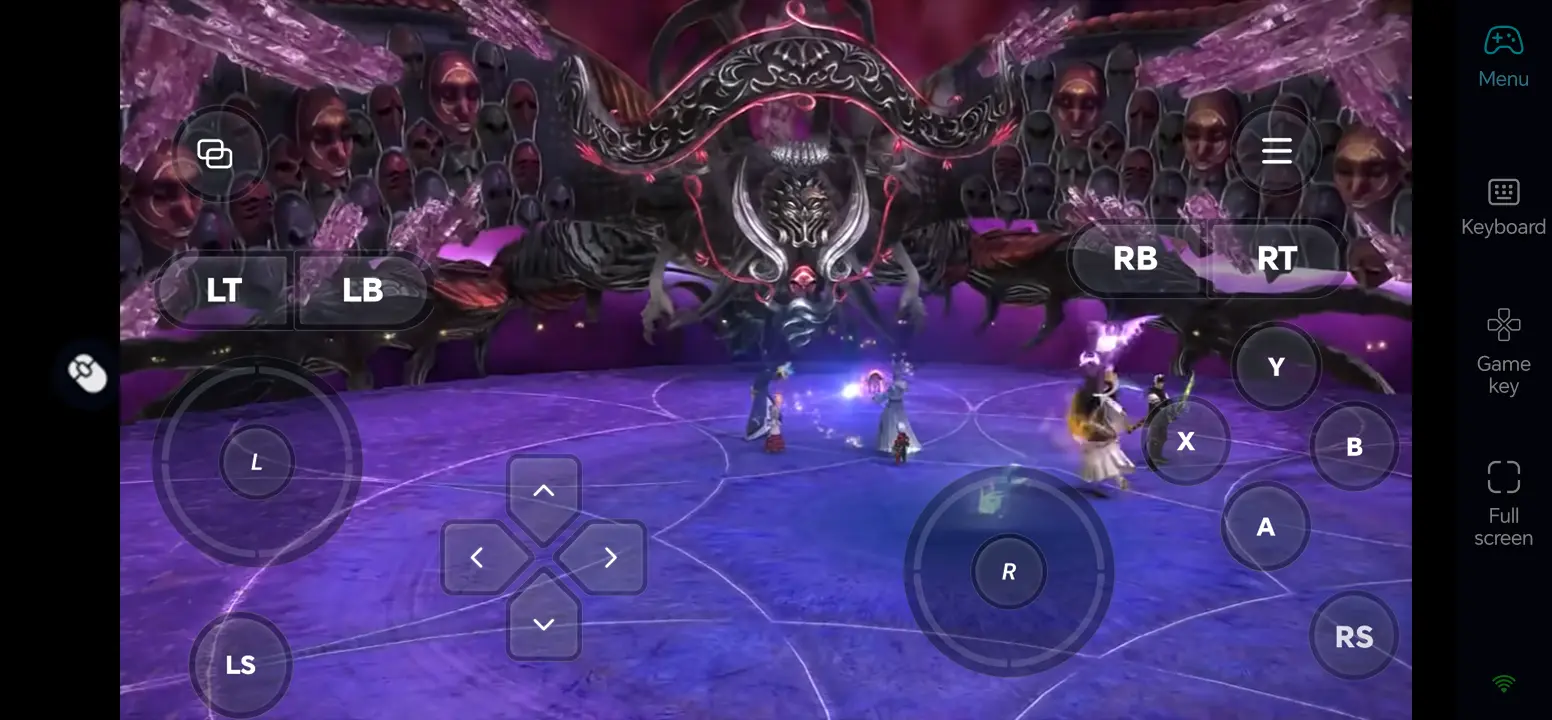
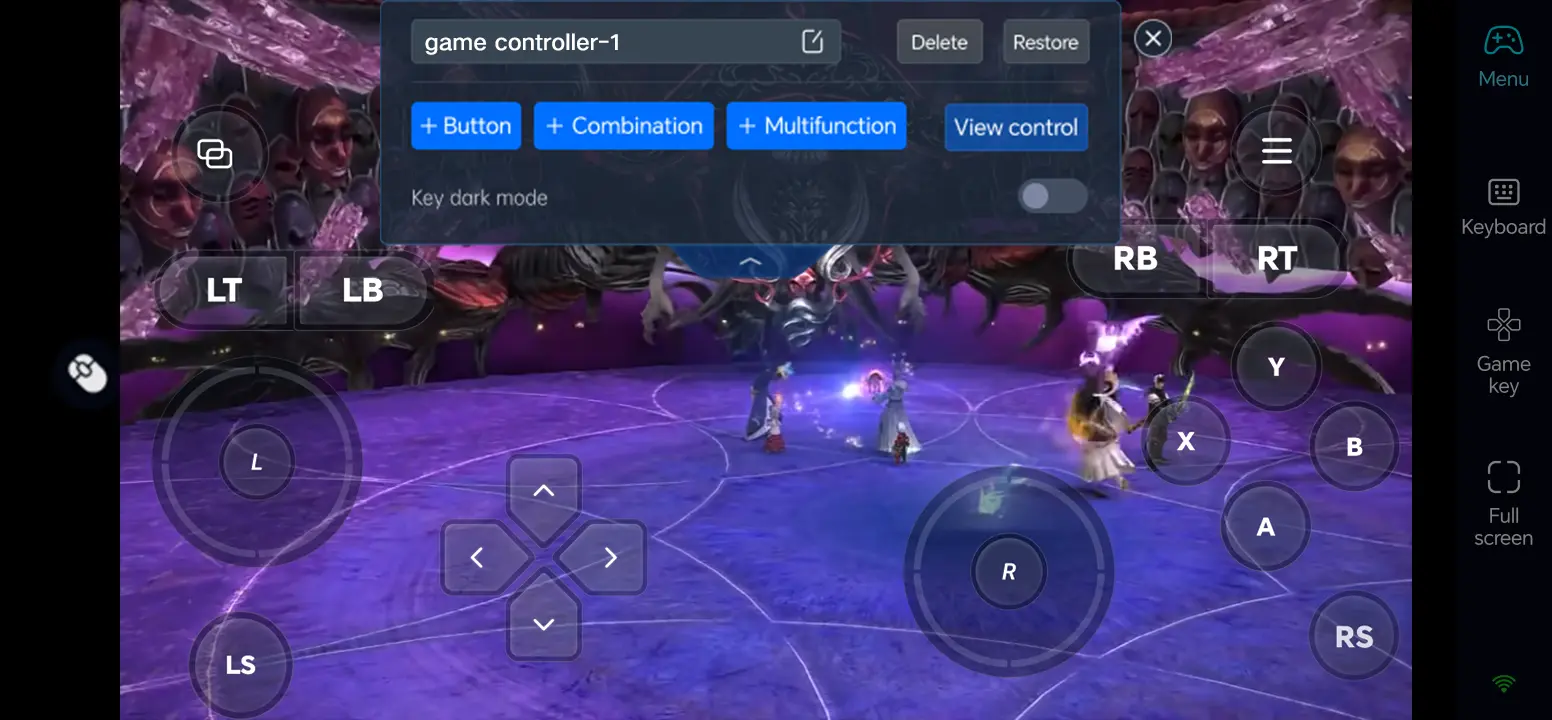
4. Customize Touch Controls
Open Game Button and its edit icon. Separate movement, targeting, frequent job actions, interaction, and inventory. Leave room to see boss telegraphs and party status, then test the layout in the field.
5. Connect External Controls
For more physical inputs, connect a compatible Bluetooth controller or keyboard and mouse to your phone and test each action. Assess connection quality before time-sensitive group content.
What You Can Do After Setup
Follow quests, travel to objectives, and manage inventory, gear, and hotbars in safe areas.
Gather materials, craft items, and handle everyday character tasks during short breaks.
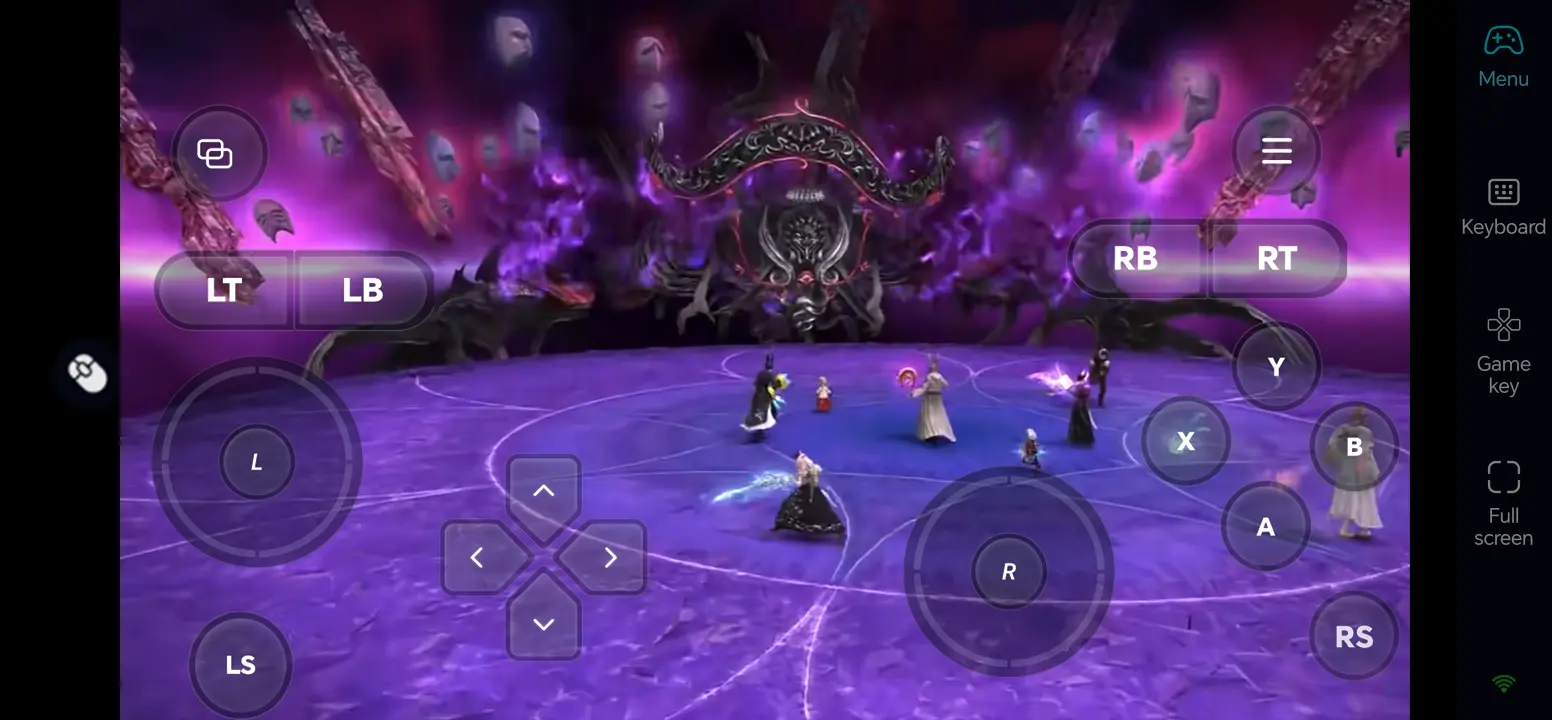
Join supported dungeons and group activities after checking the controls and connection; difficult boss mechanics still demand timely input.
Three OSLink Benefits for FINAL FANTASY XIV Online
1. Handle character tasks away from your desk
Check quests, sort gear, and gather or craft without returning to your computer for every small task.
2. Fit controls around your job
Place movement, targeting, and common actions where they do not hide party status or boss cues.
3. Add physical input when needed
A compatible controller or keyboard and mouse offers a familiar option for longer hotbars; results still depend on the PC and network.
Frequently Asked Questions
Q1: What is the release date of FINAL FANTASY XIV Online?
The release date of FINAL FANTASY XIV Online on Steam is February 18, 2014. This is the Steam listing date, rather than the original launch date of the game.
Q2: Can I play FINAL FANTASY XIV Online directly on Android?
The Steam edition is a Windows PC game, not a native Android app. Run it on your own Windows PC and use OSLink to view and control that PC from Android.
Q3: Can I play FINAL FANTASY XIV Online directly on iOS?
The Steam edition is not a native iOS app. OSLink can show and control your own Windows PC session from an iPhone; the game continues to run on the PC.
Q4: What PC specifications does FINAL FANTASY XIV Online require?
Steam currently lists a minimum of Windows 11 64-bit, Core i5-8400, 8 GB RAM, GTX 970 or RX 480, DirectX 11, broadband internet, and 140 GB storage. It recommends Core i7-9700, 16 GB RAM, and RTX 2060 or RX 5600 XT.
Conclusion
Install and test your Steam edition on the host PC, then connect your phone with OSLink. Tune PC gaming mode and job controls for quests, crafting, and everyday play away from your desk.
 Download