English
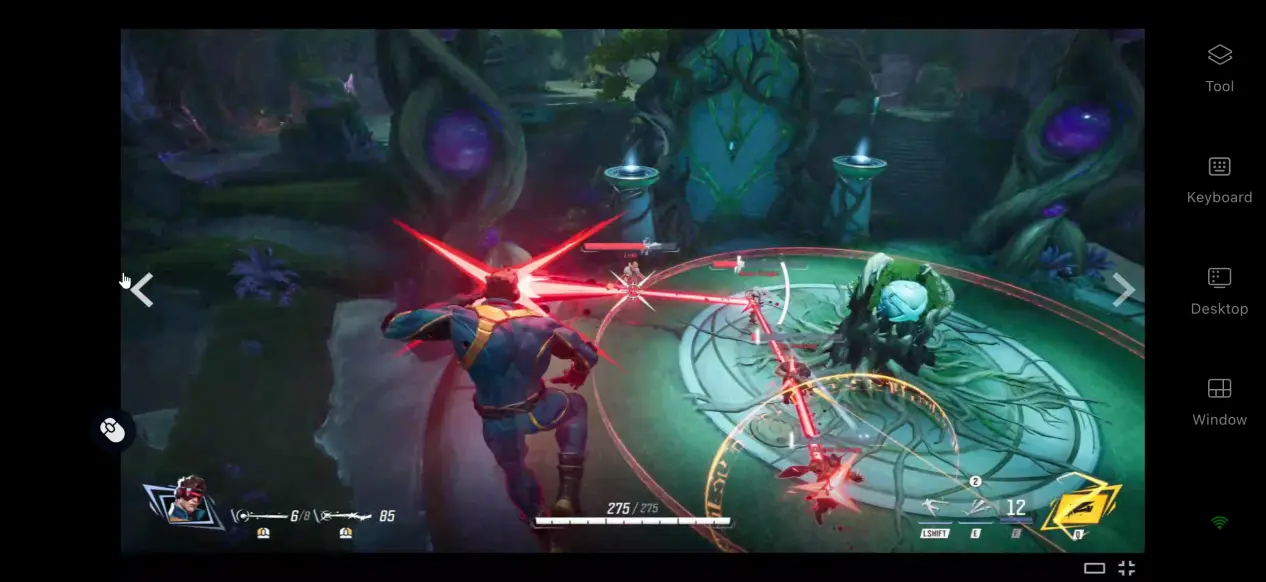
 Marvel Rivals is an officially licensed Marvel 6v6 team shooter featuring iconic heroes such as Iron Man, Spider-Man, and Hulk. With destructible maps and team-up abilities, matches are fast-paced and packed with action. Many players want to break free from their desktop setup, whether they want to jump into a match while away from home, get familiar with hero abilities, or complete daily tasks. This guide walks through a complete way to play a PC game remotely on your phone, covering game access, software setup, practical steps, experience tuning, and common questions. The entire process is straightforward, so even first-time remote streaming users can get started with ease.
If you want a more convenient and smoother streaming experience, OSLink simplifies the entire process of streaming a PC game to your phone. Simply sign in with the same account to pair your computer and phone. The computer runs Marvel Rivals, while the phone only receives the streamed game display and sends your inputs. Even during fast-paced firefights, a stable network connection lets you smoothly handle basic actions such as selecting heroes, moving around, and using abilities.
1. How to Play Marvel Rivals
Getting the Game
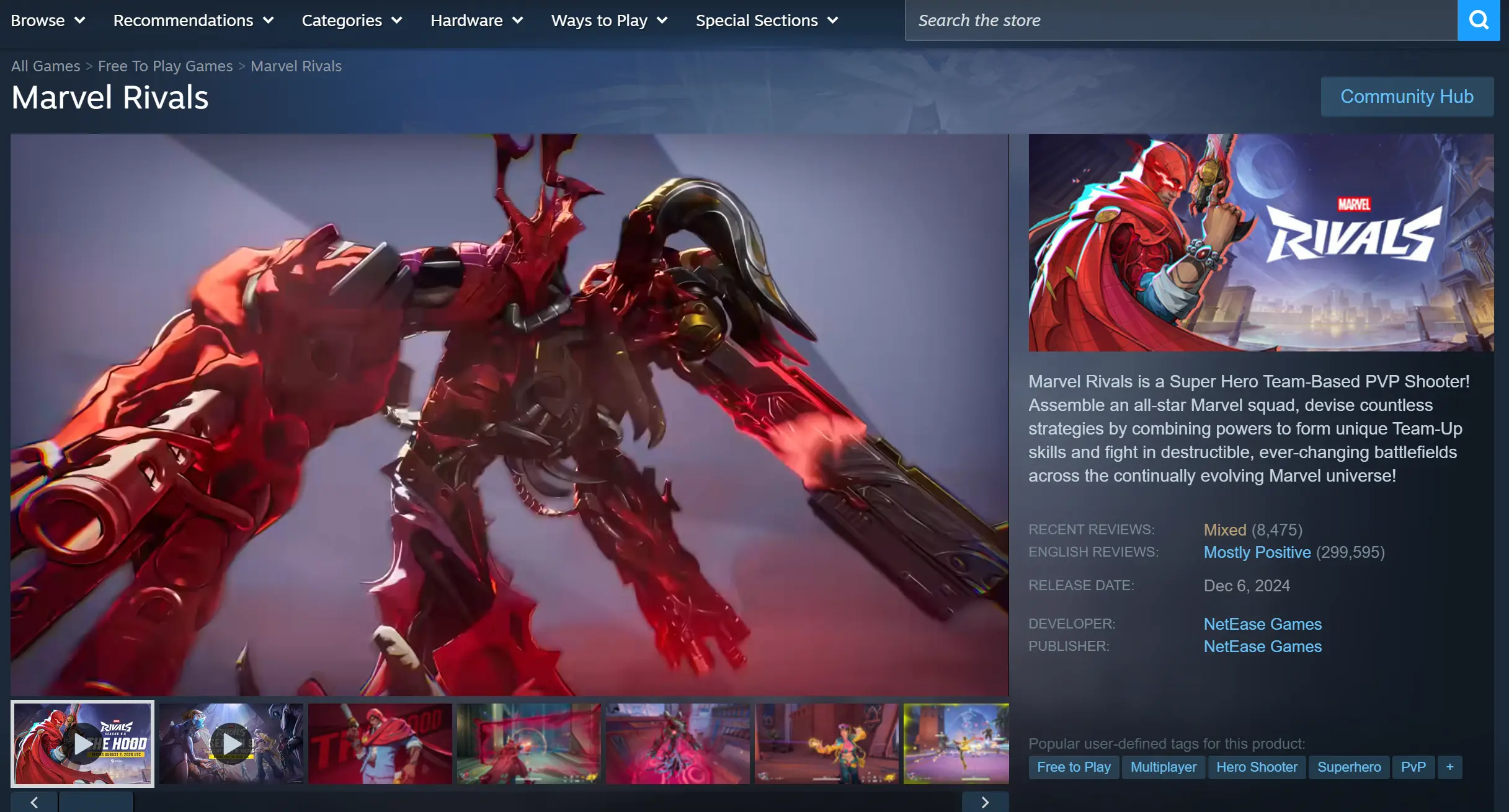
The official PC version of the game can be obtained through Steam or the official regional PC distribution channel. Open the Steam client, enter the game name in the search bar, and open the game page. Marvel Rivals is free to play, so click Add to Account, then open your library, choose an installation location, and start the download.
Once the download is complete, verify the integrity of the game files. Launch the game and enter the main menu to make sure it loads normally without crashes or error messages before moving on to the remote connection setup.
2. How to Install OSLink on PC and Mobile
PC Setup
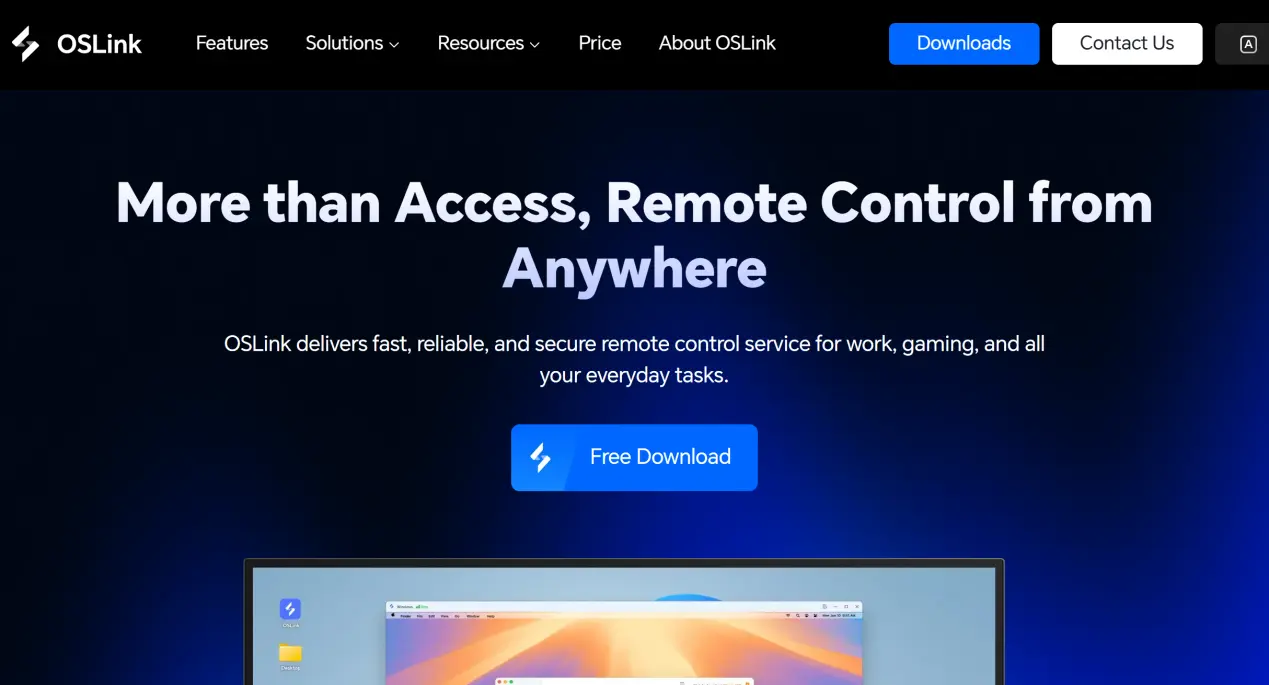
Open a browser and visit the official OSLink website to download the appropriate PC installer. Follow the on-screen instructions to complete the installation. Once the client is running, register and sign in using your email address or mobile number.
After signing in, the program will automatically link the current computer to your account. Your device name will appear in the device list. Then, open the settings and enable the option that keeps the software running in the background. Do not close the process.
Mobile Setup
Android users can search for OSLink in their app store and download it.
iOS users can open the App Store, search for the same app, and install it.
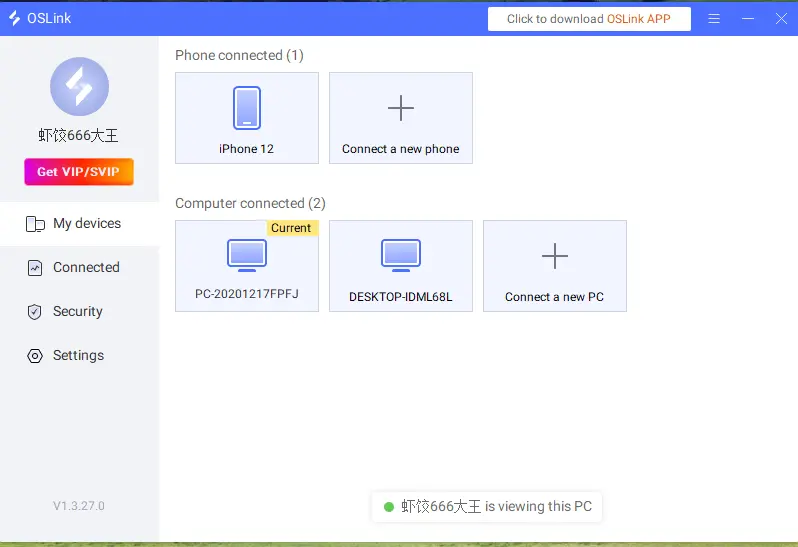
Once the installation is complete, open the app and sign in with exactly the same account used on the computer. The system will automatically pair the two devices, and the linked computer will appear in the device list on both ends.
3. How to Run Marvel Rivals on Mobile with OSLink
1. Check Before Connecting
Make sure the computer is powered on and the OSLink client is running in the background. You can launch Marvel Rivals in advance and leave it on the main menu. Your phone should also have a stable network connection. A 5 GHz Wi-Fi connection or 5G mobile network is recommended to avoid bandwidth fluctuations on public Wi-Fi affecting streaming quality.
2. Access the Game Remotely
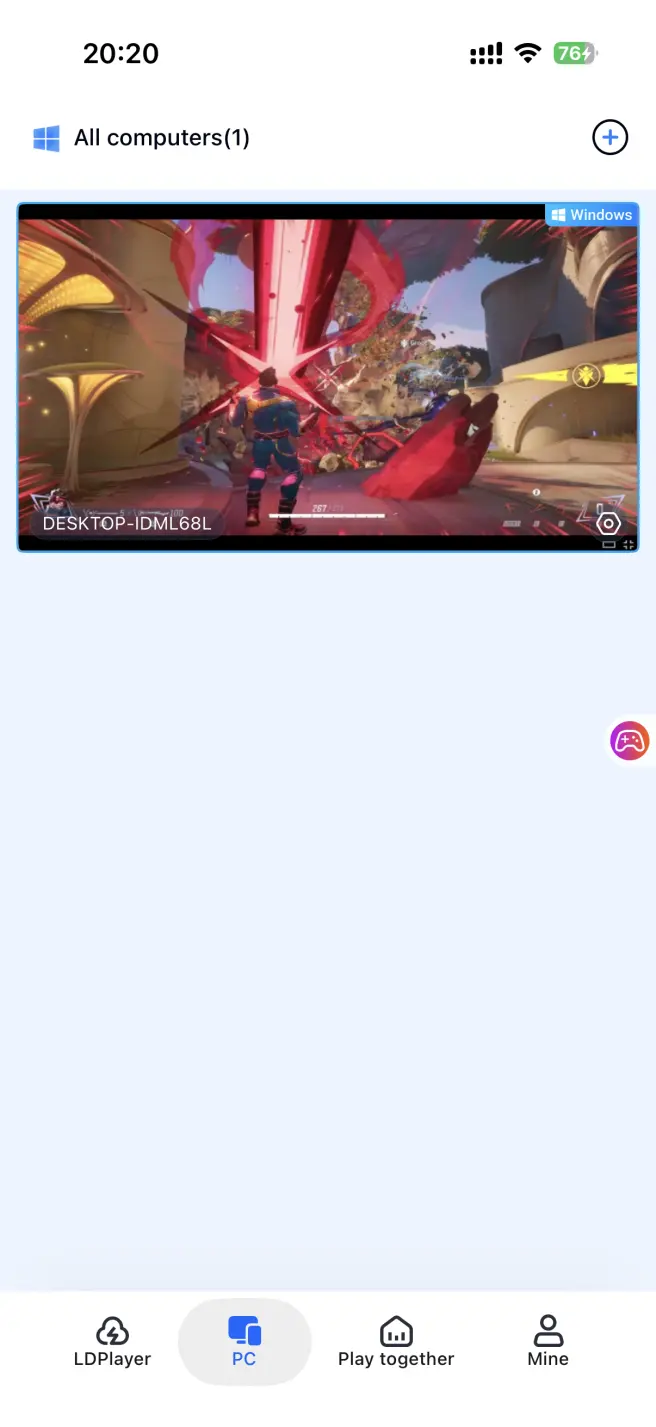
Open OSLink on your phone and tap the computer icon in the device list. Your phone screen will then mirror the computer desktop in real time. Find the Marvel Rivals game window and tap it to enter full-screen mode.
3. Adjust the Mobile Controls
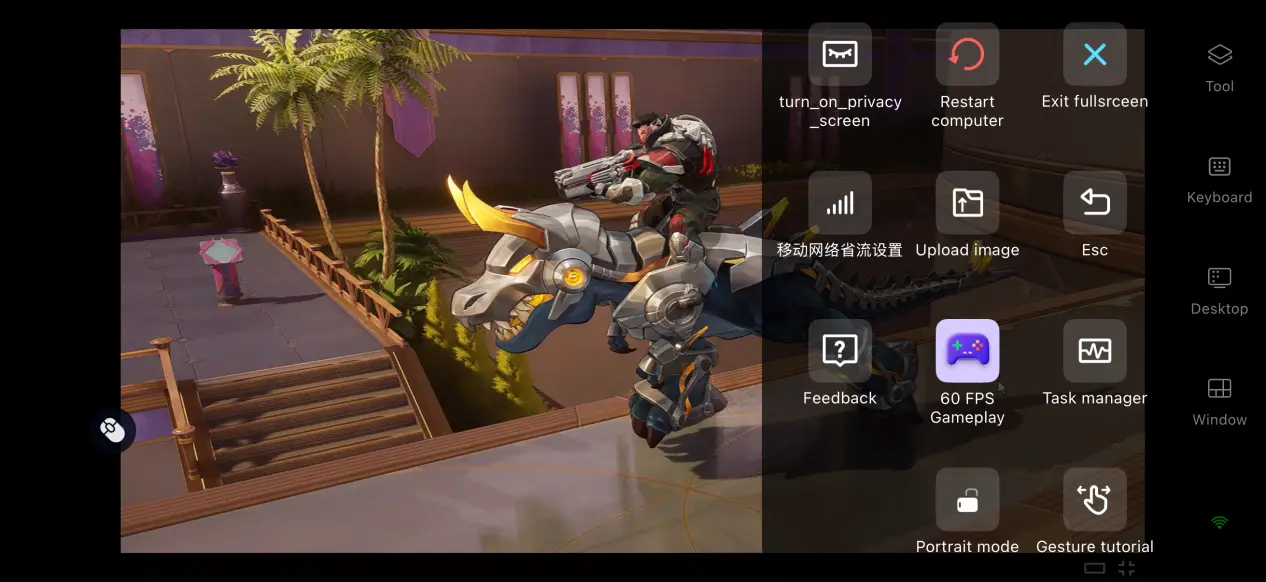
For your first connection, it is recommended to enable 60 FPS PC Gaming from the toolbar on the right. This mode adjusts encoding parameters for shooter games, optimizing fast camera movement and ability-heavy scenes while reducing input response delay. You can also enable full-screen mode to better fit the mobile display.
4. Benefits of Playing Marvel Rivals on Mobile
Play Without Being Tied to Your PC
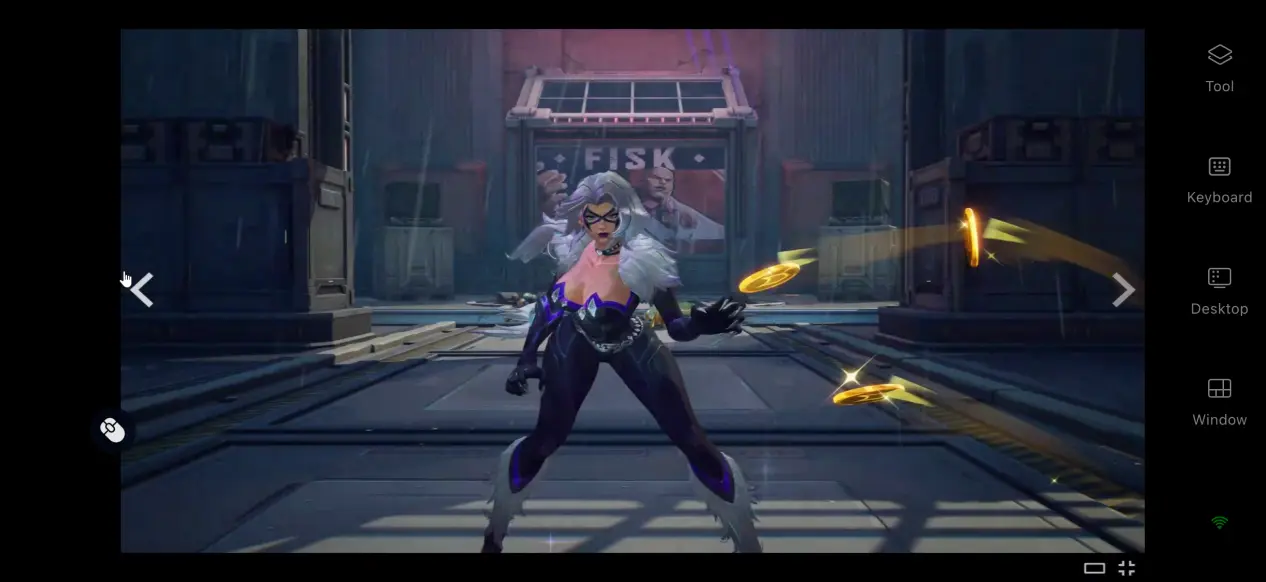
With OSLink remote streaming, you no longer need to stay in front of your computer. You can jump into the game during spare moments while you're out, browse hero information, play Training mode, and complete weekly or daily missions.
No Need to Use Up Phone Storage
All game files are stored on the computer's hard drive, while the phone only needs the lightweight OSLink app. Even older phones or devices with limited storage can connect and play normally, since all rendering and processing are handled by the PC hardware.
Support for Different Controllers and Peripherals
Your phone can connect to mainstream gaming controllers through Bluetooth, and OSLink can automatically recognize the connected device. Using the analog stick for movement and shoulder buttons for firing or ability activation provides noticeably better precision in a shooter compared with relying entirely on touch controls.
5. How to Improve Your OSLink Gaming Experience
60 FPS PC Gaming Mode
Players can enable 60 FPS PC Gaming Mode from the toolbar on the right. This mode adjusts encoding parameters for competitive games and increases the output frame rate, making character movement and ability animations feel smoother. If the network signal becomes unstable, switch to the balanced setting and lower the bitrate slightly to maintain a continuous image and reduce stuttering or disconnections.
Streaming History
The software keeps a record of previous streaming connections, making it easy to access computers you have connected to before without repeating the search and pairing process. It also records basic information from each streaming session. If an unfamiliar device connects, you can quickly check the records and investigate, helping keep your account secure.
Custom Button Layout
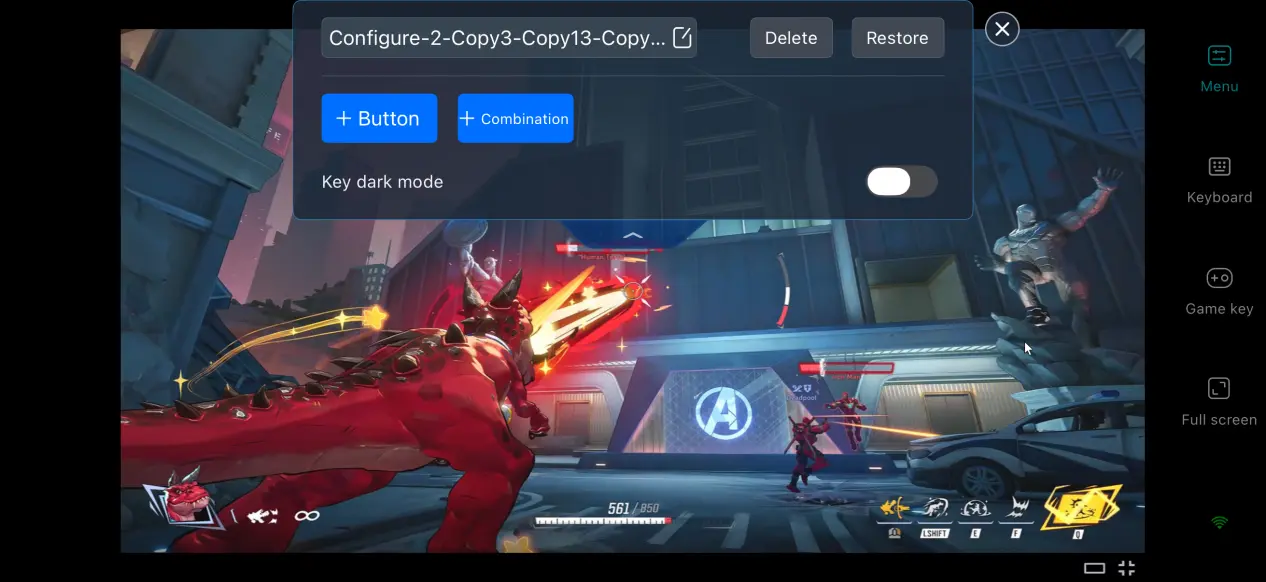
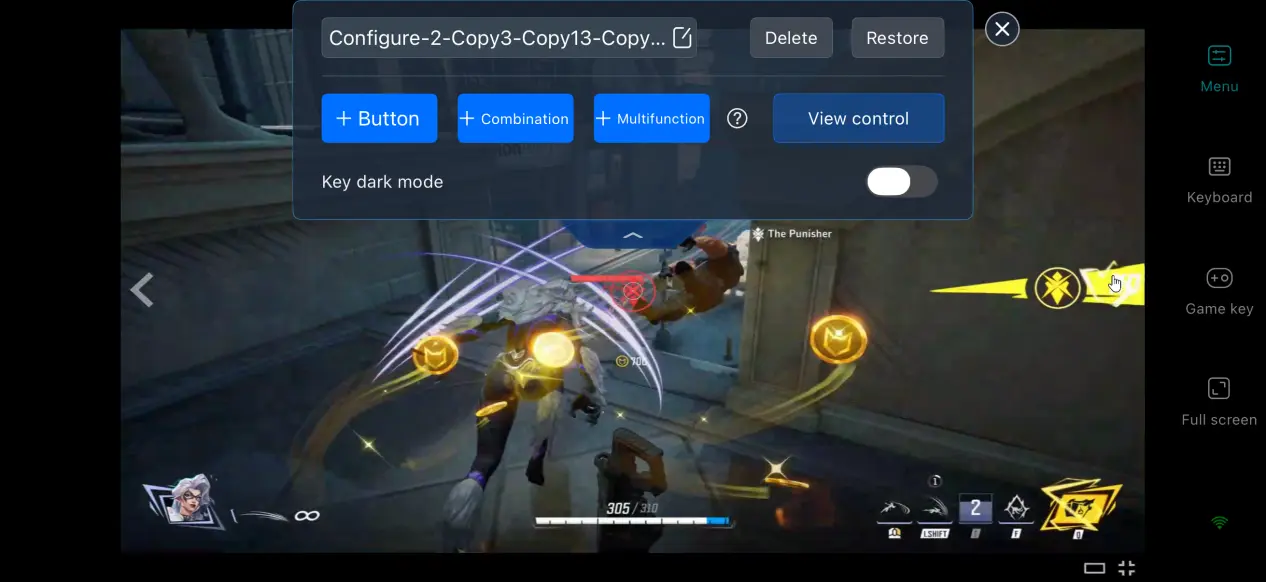
OSLink allows players to freely add virtual touch buttons and adjust their size, position, and transparency. For Marvel Rivals, it is recommended to place the movement joystick on the left and arrange frequently used buttons such as fire, abilities, and jump on the right. Less frequently used functions can be placed near the corners of the screen to avoid accidental taps and prevent the buttons from blocking your view during a match. Your layout can also be saved for future use.
Mobile Screen Mapping
Enable OSLink's full-screen display feature to hide the phone's system status bar and gesture bar, allowing the game to use the entire mobile screen. When the PC game's resolution does not match your phone's aspect ratio, you can either stretch the image to fit the screen or keep the original aspect ratio with black bars. This helps prevent the UI and character models from appearing stretched or distorted.
6. Frequently Asked Questions
Q: When was Marvel Rivals released?
A: Marvel Rivals officially launched worldwide on December 6, 2024. Seasonal content has continued to roll out since launch, including new heroes, maps, and various limited-time events.
Q: What PC specifications does Marvel Rivals require?
A: The minimum requirements are a 64-bit Windows 10 system, an i5-6600K or R5-1600X processor, 16 GB of memory, a GTX 1060 or RX 580-class graphics card, and 70 GB of available hard drive space. The recommended setup is an i5-10400 or R5-5600X processor, 16 GB of memory, and an RTX 2060 Super or RX 5700 XT graphics card. Installing the game on an SSD is recommended for faster loading times on Steam.
Q: Can I play Marvel Rivals directly on iOS or Android?
A: There is currently no native iOS or Android version officially available, so Marvel Rivals cannot be installed and run directly on mobile.
To enjoy the full PC version on an iPhone, you can use OSLink to remotely stream the game from a computer where Marvel Rivals is already installed.
Conclusion
Marvel Rivals is a team-based shooter built around 6v6 superhero battles, but it currently does not have a native mobile version. OSLink provides an accessible remote streaming solution that relies on your computer's hardware to run the game while your phone handles image reception and input. There is no need to store the full game on your phone, and pairing it with a controller and custom controls can also make up for some of the limitations of touch controls. This makes it possible to keep up with the latest seasonal content even when you're away from your PC and only have a few spare moments.
 Download