English
 WARDOGS has gained attention with its 100-player sandbox battles, destructible environments, and flexible class system. However, its full physics destruction, vehicle combat, and team-based gameplay are currently available only on PC, with no official native mobile client. This guide covers game access, software setup, remote play, experience optimization, and common questions, providing a complete setup process for players who want to play on mobile.
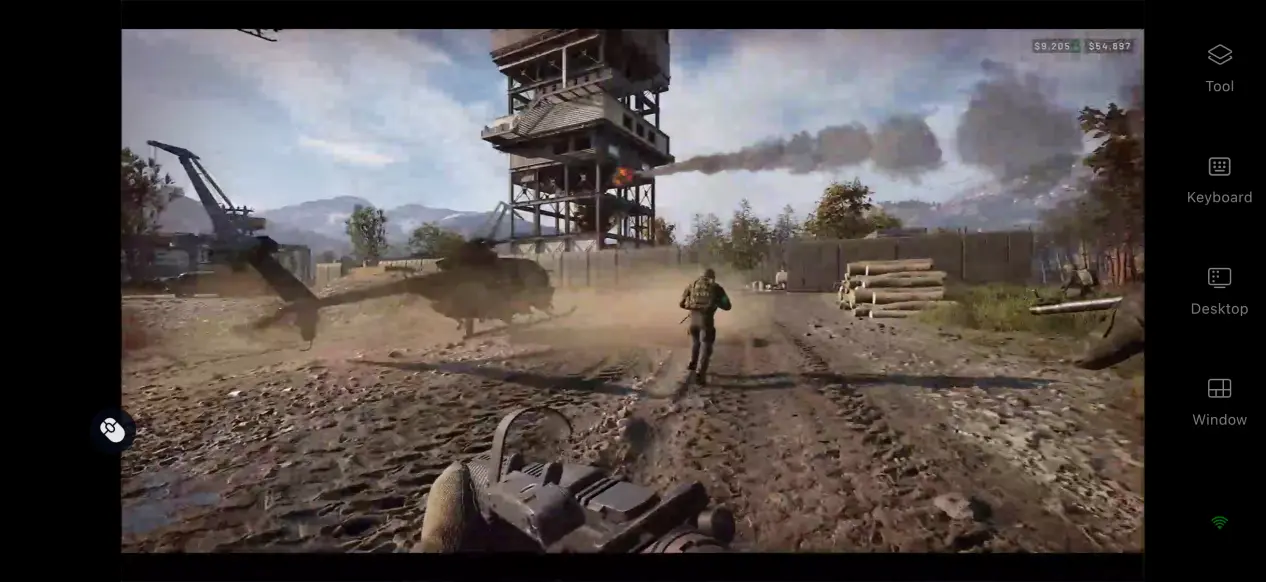
OSLink lets you stream your PC games directly to a mobile device without modifying your computer hardware. Once the basic setup is complete, the full WARDOGS game screen can be streamed from your PC to your phone. The connection is designed to stay stable and responsive enough for the demands of shooter games, allowing you to jump into a match during spare moments without being tied to your desk.
1. How to Play WARDOGS
Getting the Game
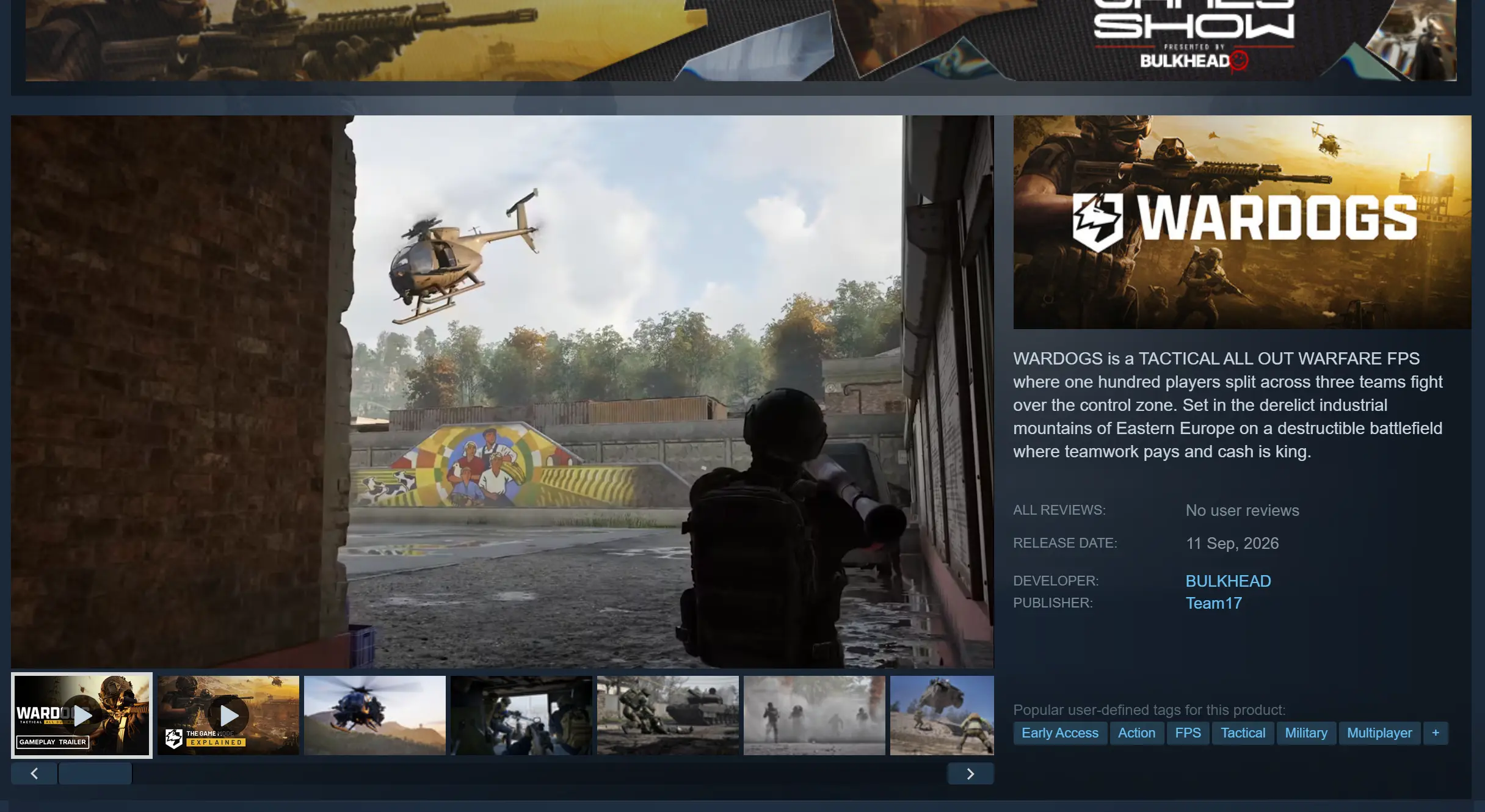
The PC version is mainly distributed through Steam. Open the Steam client, search for WARDOGS in the store, check the version details, and complete the purchase. Once purchased, the game will be added to your personal library for installation.
After all game files have finished downloading, launch WARDOGS on your PC first. Enter a match and test loading, weapon interactions, vehicle controls, save and load functions, and other basic features. Make sure there are no crashes, missing textures, or other issues before moving on to the streaming setup.
2. Install OSLink on Both Devices
Windows PC Setup
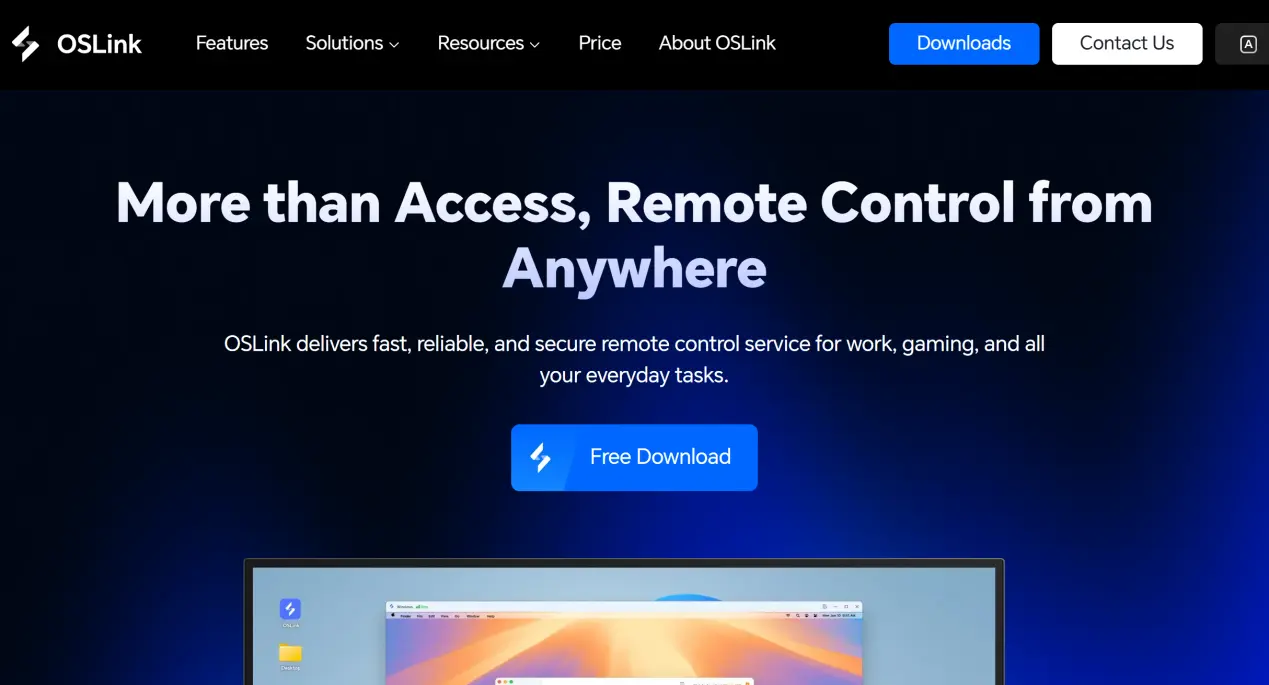
Open your browser and search for OSLink. Make sure you access the official OSLink website and download the Windows installer. Follow the on-screen instructions to complete the installation. Once installed, add the software to your system's background app allowlist to prevent background cleanup from terminating the process and interrupting the connection.
Mobile Setup
Android users can download the APK from the official website or search for the app in their app store. iOS users can search for the corresponding app directly in the App Store and install it.
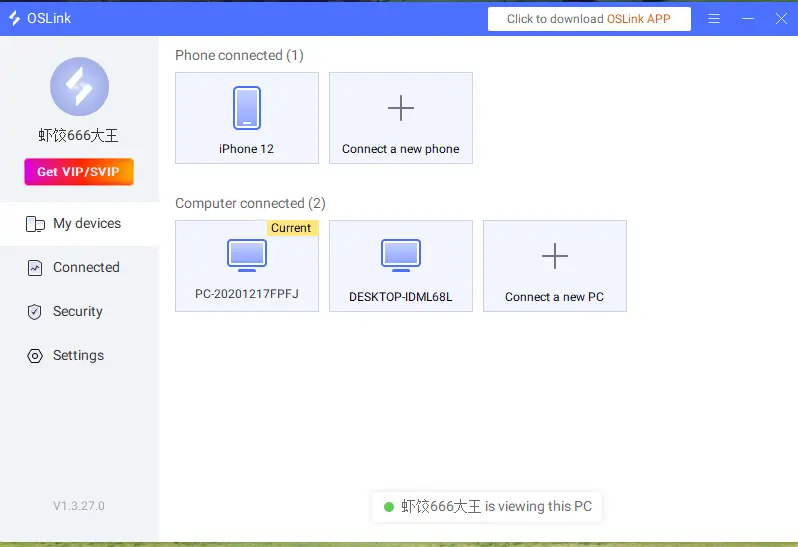
Once OSLink is installed on both devices, log in to the same account on your PC and phone. The app will automatically establish an encrypted connection, completing the initial device pairing setup.
3. How to Run WARDOGS Through OSLink on Mobile
Step 1: Keep OSLink running in the background on your PC and disable automatic sleep. Sleep mode will immediately break the streaming connection. Launch WARDOGS on the PC and wait for the game to finish loading. Leave it at the main menu.
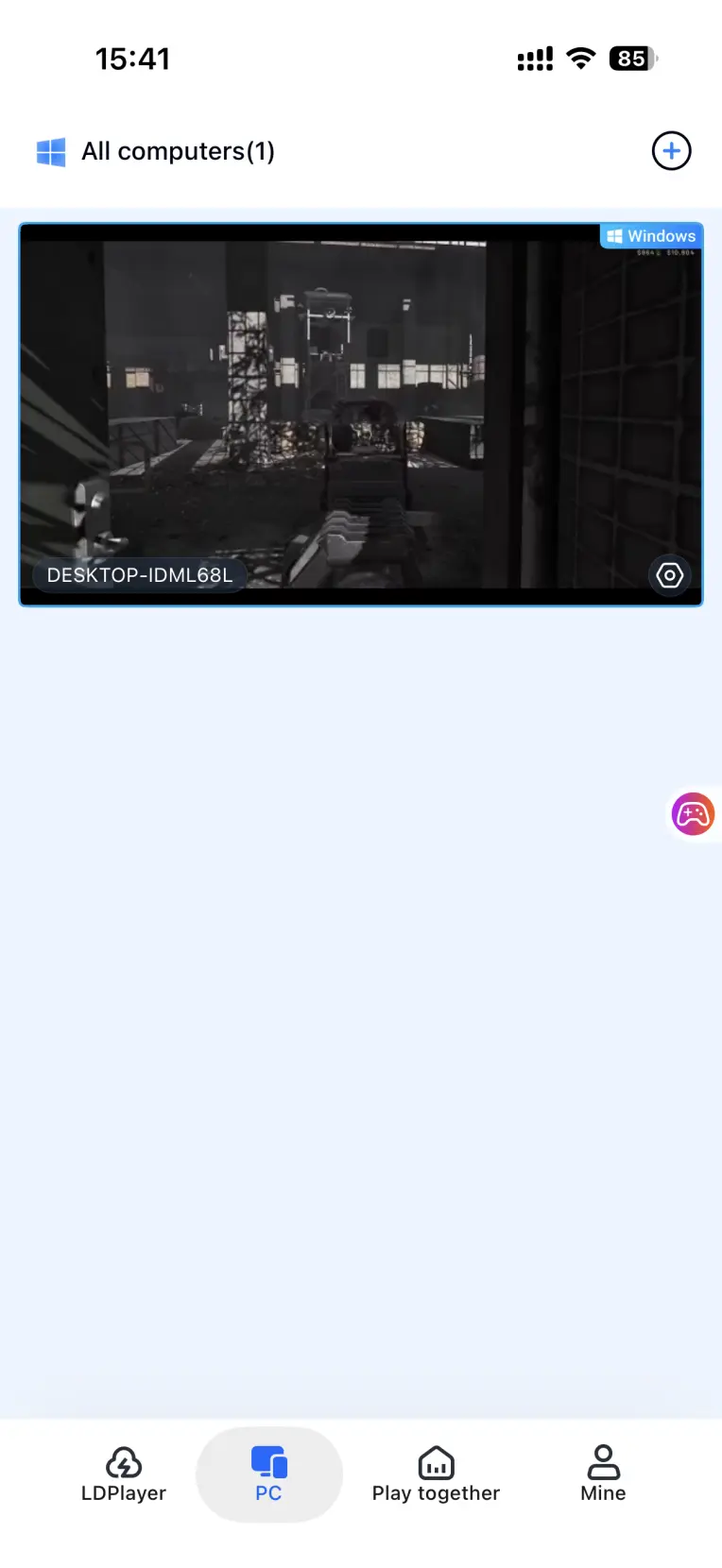
Step 2: Open OSLink on your phone. The device list will show online computers linked to the same account. Select the target PC to start the connection. Once connected, switch the streaming preview window to full-screen mode. Your PC game screen will then be displayed on your phone.
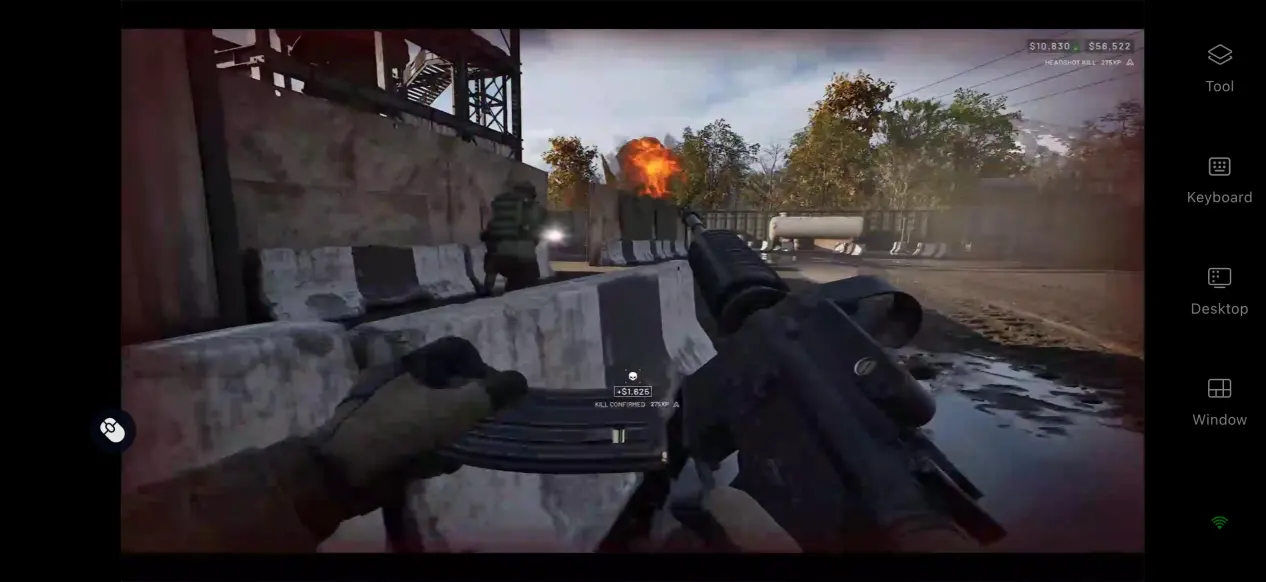
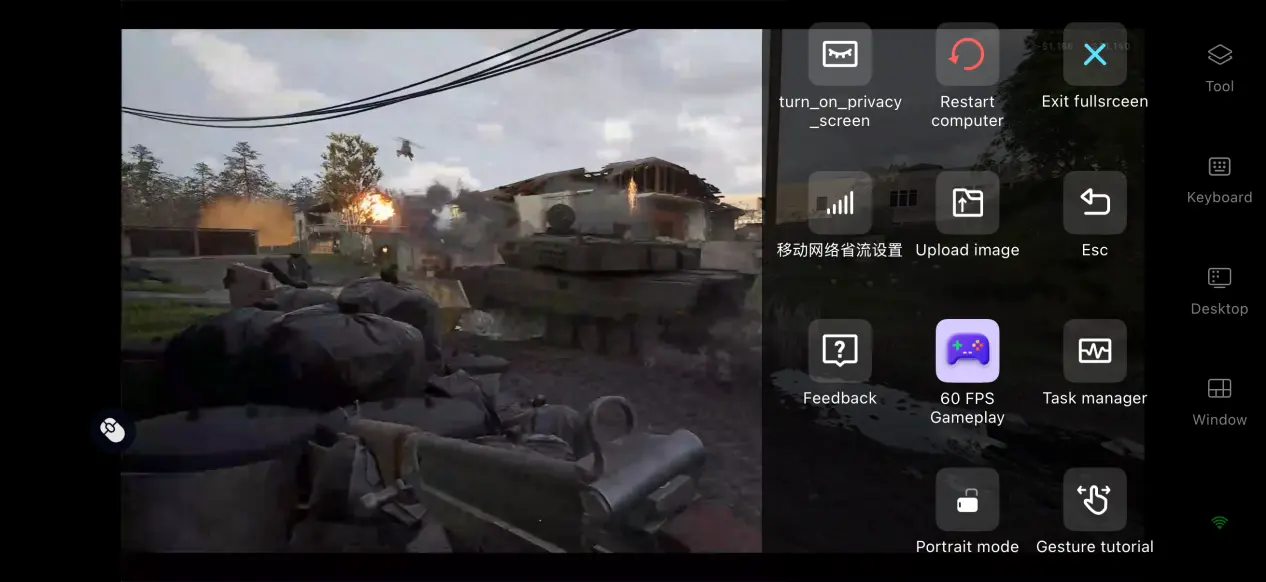
Step 3: Open the toolbar on the side of the mobile screen and switch to the dedicated game streaming mode. This mode adjusts encoding priorities and reduces input delay to better match the pace of aiming, shooting, and movement in shooter games. Once the settings are applied, you can control the entire game directly from your phone.
4. Advantages of Playing WARDOGS on Mobile
Play Anytime, Anywhere
As long as your network connection is good enough, your phone and PC do not need to be on the same local network. When you're away from home, a stable connection lets you continue your previous progress and join the sandbox battlefield without being tied to your desk.
Low Storage Usage
All game files remain stored on your PC, while your phone only receives the streamed video signal. There is no need to download the large game data package to your phone. Since the phone does not handle the game's rendering workload, even devices with limited storage or older hardware can be used for remote play.
Multiplayer Room Feature
OSLink includes a room feature that lets you share WARDOGS running on your PC with others. Even if your friends do not have WARDOGS installed, you can authorize them to connect, view the game, and interact with it. This makes it possible to watch the same battle together and is useful for discussing tactics or reviewing matches with friends.
5. How to Improve the WARDOGS Mobile Experience
Custom Controls
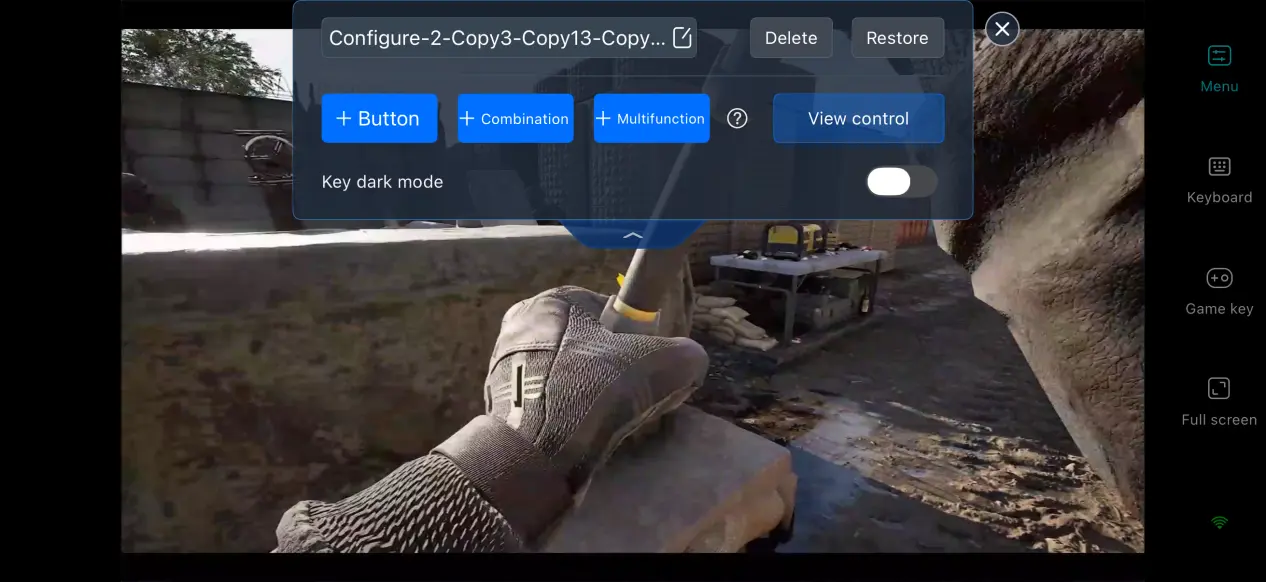
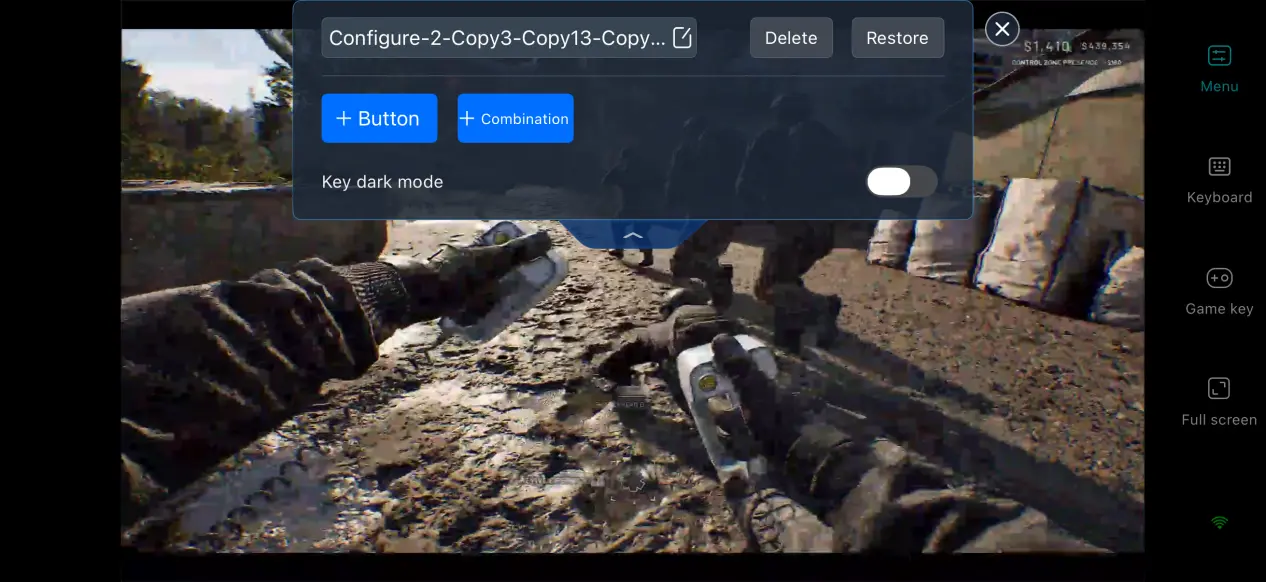
For frequently used actions such as aiming down sights, shooting, switching weapons, and deploying fortifications, OSLink's built-in custom control feature lets you add or modify virtual buttons and button combinations based on your preferences. You can also adjust their positions to make mobile controls feel more natural.
Mobile Screen Mapping
After switching to full-screen mode, the program automatically hides the phone's status bar and gesture area. If the game's resolution and your phone's aspect ratio are different, the image is scaled automatically while keeping the original aspect ratio, reducing the visual distraction caused by black bars.
Dedicated Game Streaming Mode
After enabling 60 FPS PC mode, the software reallocates bandwidth to prioritize input transmission. In scenes with rapid visual changes, such as explosions and large-scale firefights, this helps reduce input delay. If the network connection is unstable, you can lower the video bitrate slightly to prioritize overall smoothness.
Support for Multiple Peripherals
OSLink offers broad support for external devices. On mobile, players can connect most common gamepads, keyboards, and mice. Using a keyboard and mouse can replicate the original PC control layout and provide an experience closer to playing directly on a PC. Players can choose peripherals based on their own preferences.
6. Frequently Asked Questions
Q: What is the WARDOGS release time?
A: The WARDOGS release date is September 10, 2026. There is no native mobile version.
Q: What PC specifications does WARDOGS require?
A: Minimum requirements: Windows 10 64-bit, 16 GB RAM, GTX 1660 graphics card, i5-8600 processor, and 50 GB of available SSD space. Recommended requirements: Windows 11 64-bit, 16 GB RAM, RTX 3070 graphics card, i7-12700K processor, and more than 50 GB of available SSD space.
Q: Can I play WARDOGS on iOS or Android ?
A: There is no official native installation package for iOS and Android, so WARDOGS cannot be installed and run directly on mobile. You can play it through OSLink remote streaming by connecting to a PC that has the game installed.
Conclusion
WARDOGS is a tactical shooter built around 100-player sandbox battles, featuring large-scale battlefields, destructible environments, and a variety of classes. However, the developers have not released a native mobile client. For players who want the full WARDOGS experience on a mobile device, OSLink's remote streaming solution provides a practical option. The setup process is straightforward, removes the need to stay at a desktop, and does not place heavy storage or hardware demands on your phone. It also supports external peripherals and room sharing. For players who want to keep up with battles during their spare time, following the steps above makes it possible to experience the full PC game on a mobile device.
 Download