English
 1666: Amsterdam is a dark action-adventure game set in 17th-century Amsterdam. It is currently only available on PC. Is there a way to play the game without being tied to your computer or a specific location? This guide covers a practical way to remotely stream the game to your phone, from getting the game and setting up the software to actual operation, performance tweaks, and common questions. Even if you have never used remote streaming before, you can follow the steps to complete the setup and enjoy a smoother experience.
With OSLink, you can play 1666: Amsterdam remotely on your phone without complicated network configuration. The software also supports custom key mapping, allowing you to reposition and resize movement, skill, and interaction buttons to suit the controls of a third-person action game. This makes the layout more comfortable for touchscreen play and provides a control experience similar to using a keyboard and mouse.
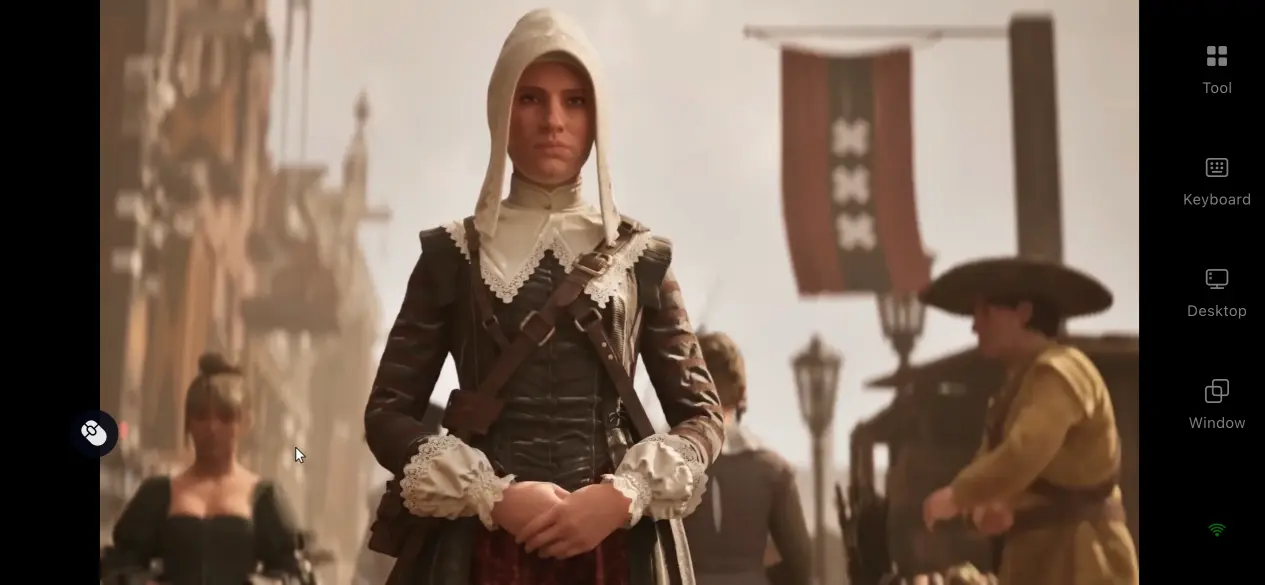
1. How to Play 1666: Amsterdam
Where to Download the Game
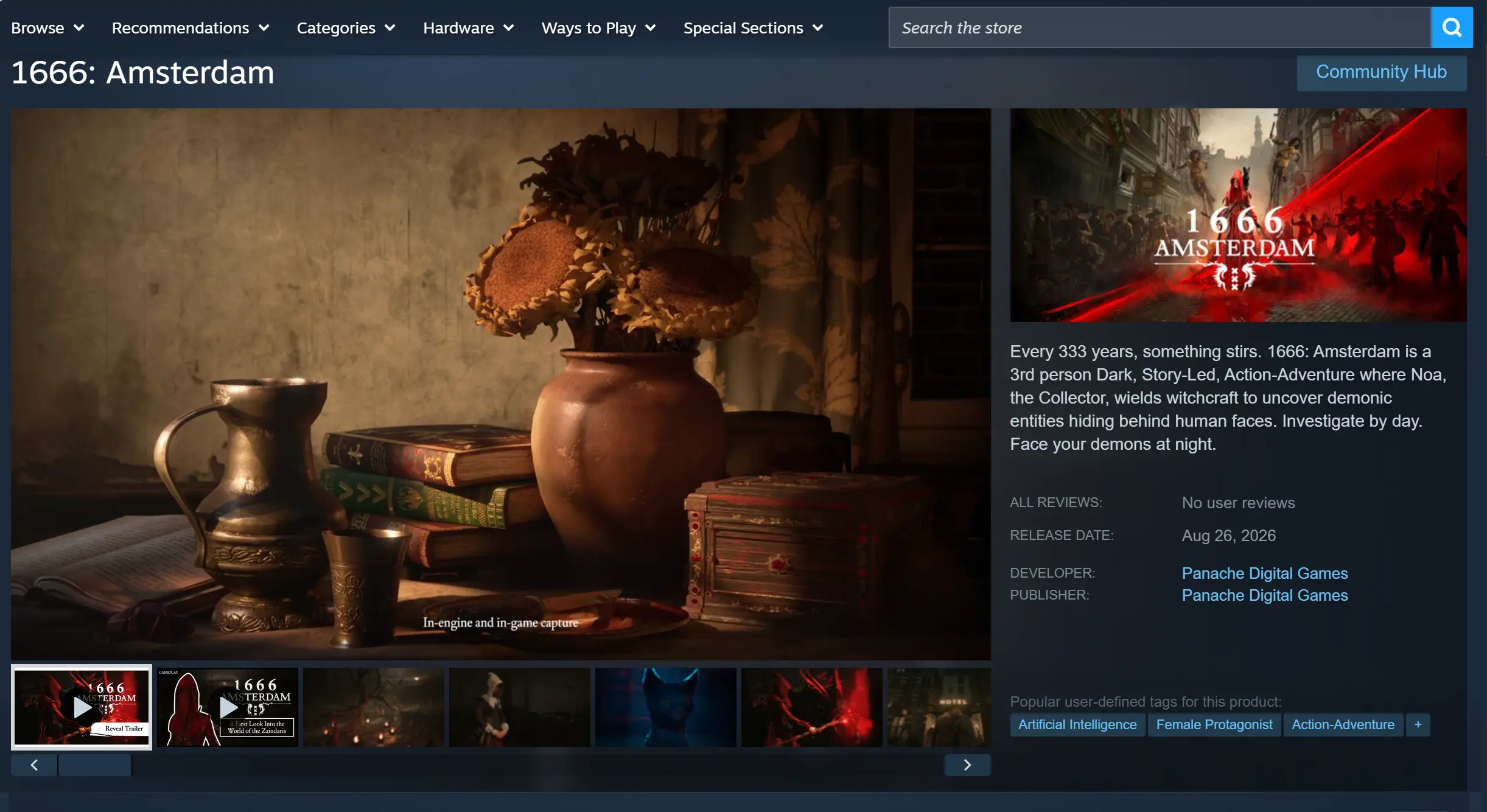
1666: Amsterdam is officially available on PC through Steam and the Epic Games Store. The Early Access version can only be purchased and downloaded through these two platforms. After completing your purchase through either store, you can find the game in your library and start the download. A free Prologue Demo is also available on both platforms, allowing you to try out the basic gameplay in advance.
2. How to Install OSLink on Your Computer and Phone
Installing and Setting Up OSLink on Windows
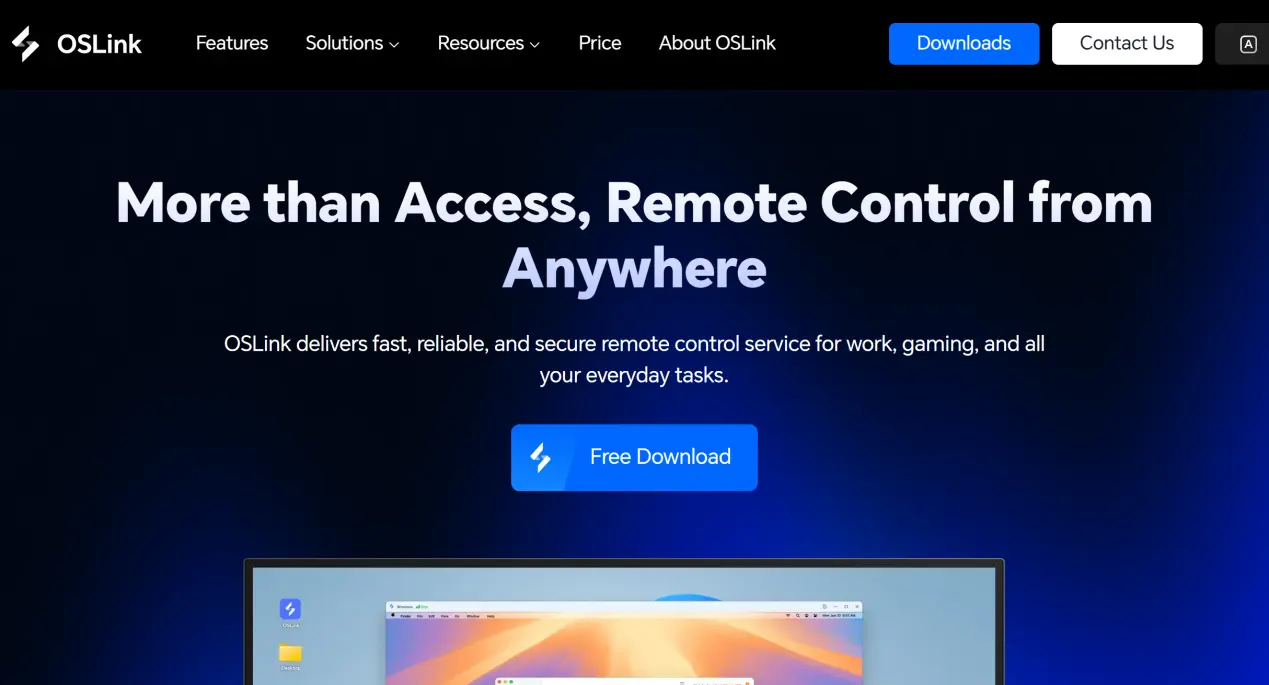
Visit the official OSLink website and download the Windows installer. Once the installation is complete, launch the client, register an account, and sign in. Keep the software running in the background after logging in.
Next, open the Windows power management settings and disable automatic sleep for both the computer and hard drive. Also turn off the automatic screen-off timer. This prevents the computer from entering sleep mode during a remote connection, which could cause the streaming session to disconnect.
Installing and Signing In on Mobile
On Android devices, search for OSLink in the Google Play Store and install the app.
On iOS devices, open the App Store and search for OSLink to download the app.
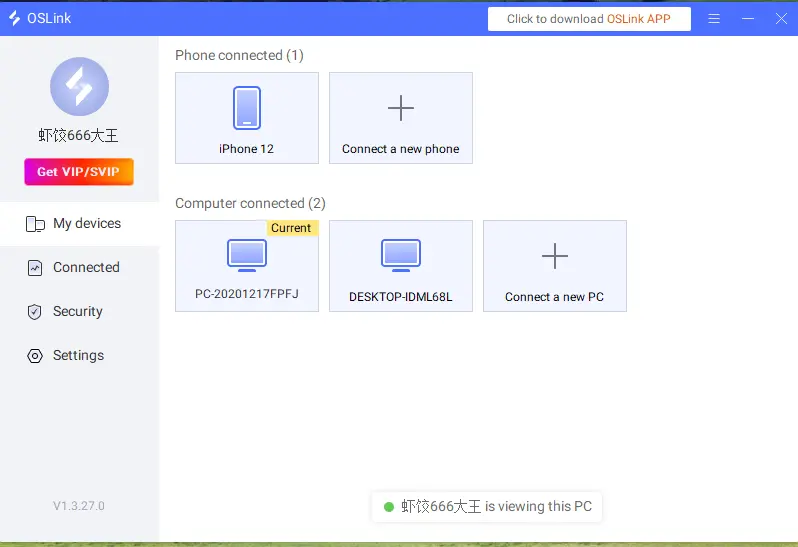
After installing the mobile app, sign in with the same account used on your computer. The system will automatically detect your online computer, so there is no need to manually enter a pairing code.
3. Run 1666: Amsterdam on Your Phone with OSLink
Launch 1666: Amsterdam on your Windows computer and enter the game. Switch from fullscreen to windowed mode, then resize the game window according to your phone's screen ratio.
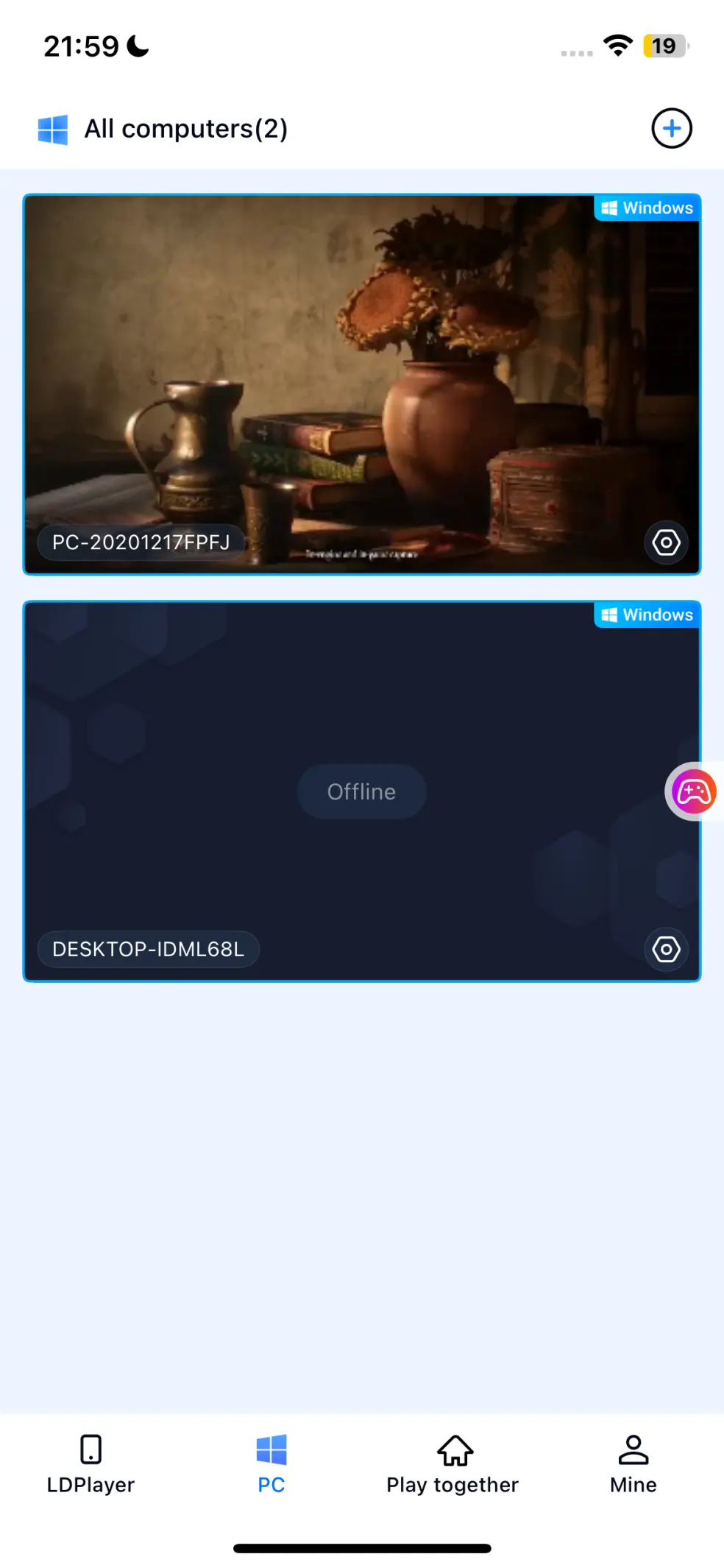
Make sure OSLink is running normally in the background on your computer. Open the OSLink mobile app and select your online home computer from the device list, then tap Connect to establish the remote desktop connection.
Once the streaming connection is established, your phone will display the computer screen. Simply use the controls on your phone to handle movement, dialogue, combat, and other in-game actions.
4. Benefits of Playing 1666: Amsterdam on Your Phone
Start the Game Anytime
You are no longer tied to your computer's location. When you have some free time while away from home, you can connect your phone to your PC and continue the main story, investigation missions, or environmental exploration without putting your progress on hold.
No Need to Use Your Phone's Storage
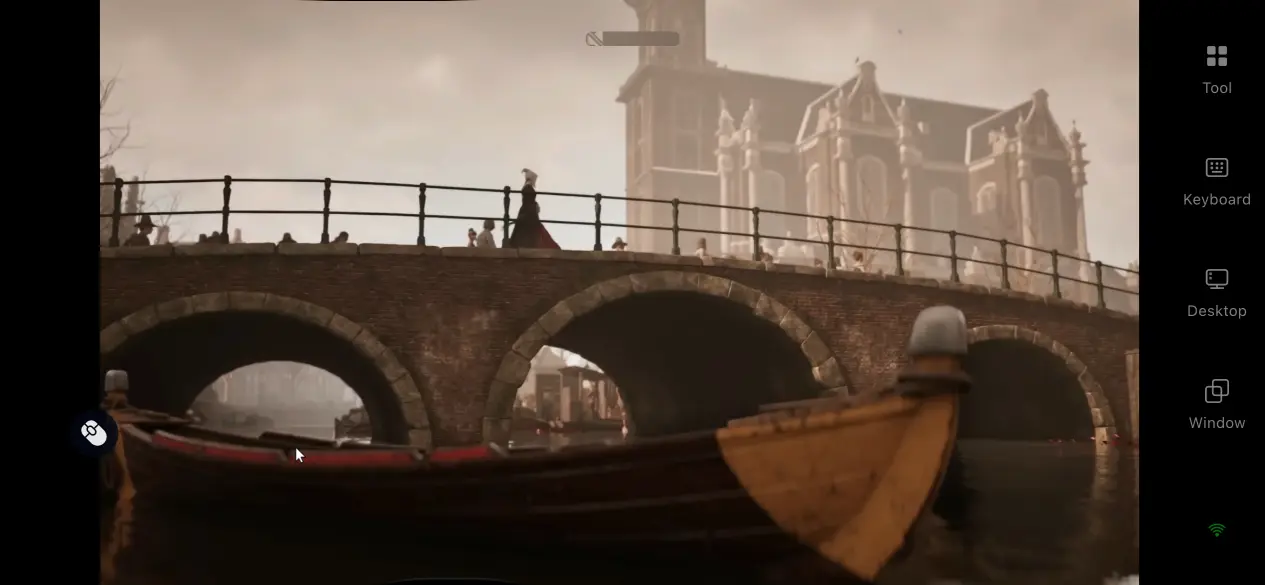
All 50 GB of the game's files remain stored on the computer's SSD. Your phone only receives the streamed video and sends back touchscreen input. Even older phones may be able to handle the streaming session smoothly, so there is no need to clear local storage or upgrade your device just for the game.
Support for Different Types of Peripherals
OSLink supports external game controllers. After connecting an Xbox or PlayStation controller to your phone, the system can recognize the controller inputs. For a third-person action-adventure game, the analog sticks can be used for character movement and camera control, while the buttons can trigger witchcraft abilities. Compared with touchscreen controls, a controller provides an experience closer to playing the game directly on PC.
5. How to Improve the OSLink Gaming Experience
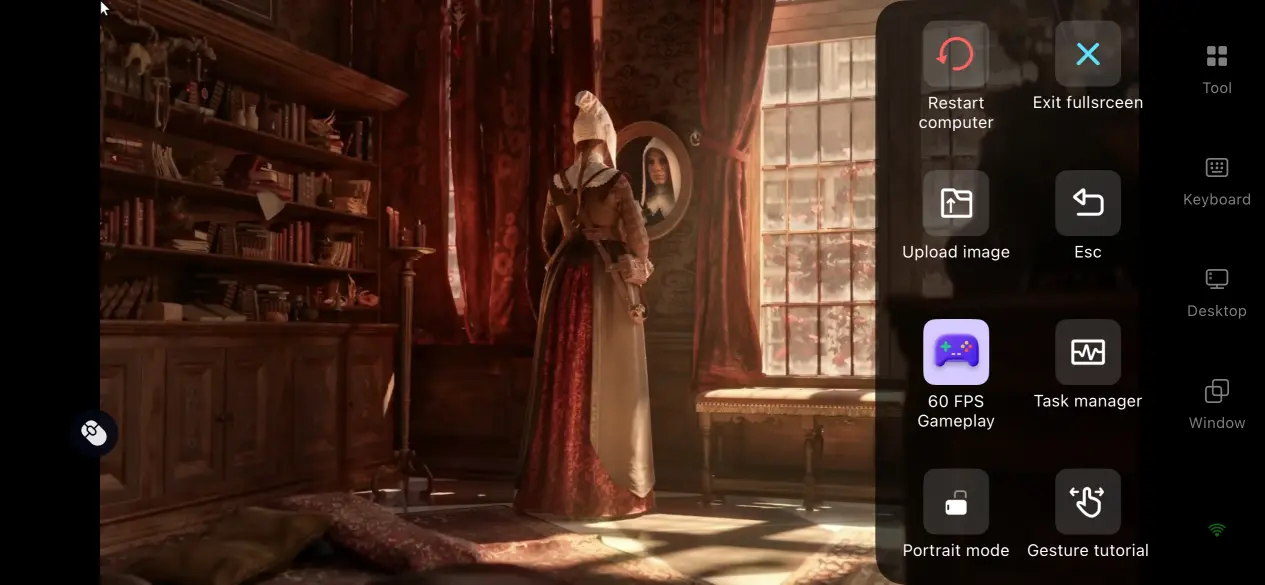
Dedicated 60 FPS Game Mode
Enable the OSLink's dedicated streaming mode and the software will automatically adjust the video streaming bitrate to reduce input latency during action-heavy scenes. When your character turns quickly or enters combat, this can reduce motion trails and make the gameplay feel smoother.
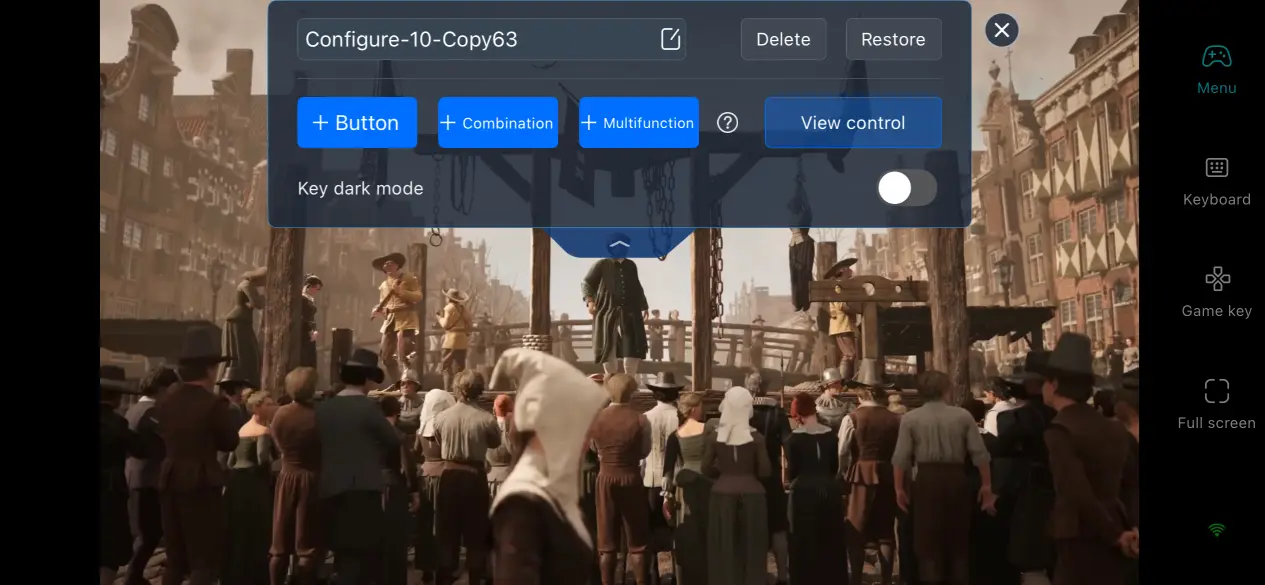
Custom Virtual Touch Controls
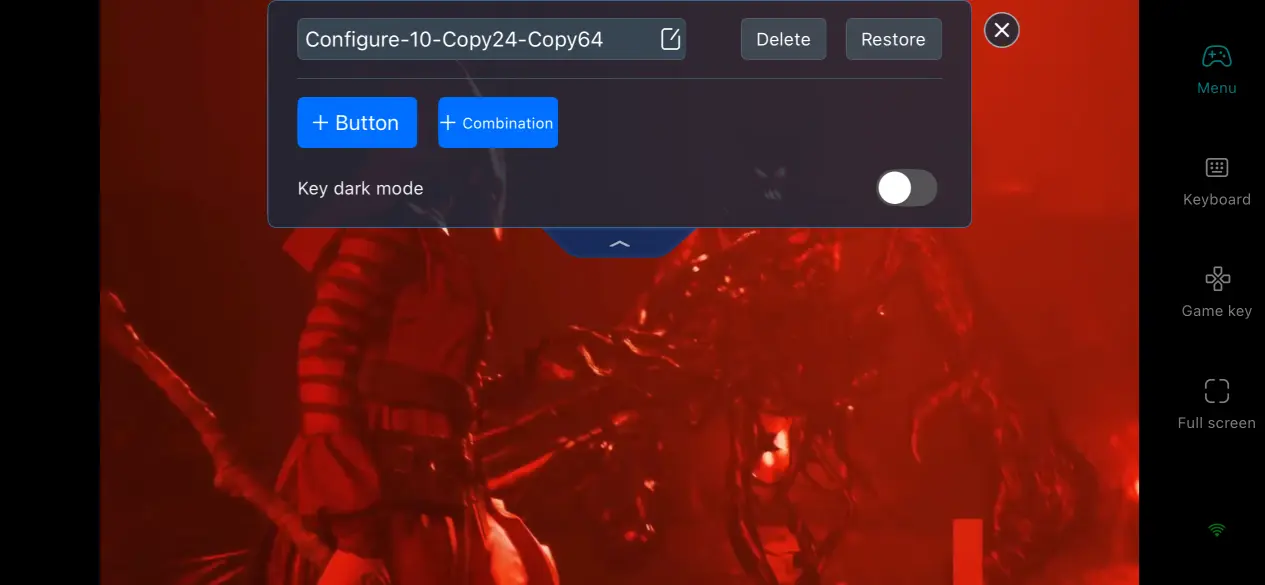
The mobile app lets you freely add and move virtual buttons, as well as adjust their size and transparency. Since 1666: Amsterdam features plenty of investigation, interaction, and witchcraft skill sequences, you can place interaction and skill buttons within easy reach on the screen. Multiple control layouts can also be saved and loaded whenever needed.
Manually Adjust Display Settings
When the network connection is unstable, you can manually lower the streaming resolution and reduce image quality slightly in exchange for a more stable connection. When network conditions improve, raise the resolution and image quality again to bring back more of the game's visual detail.
6. Frequently Asked Questions
Q: When was 1666: Amsterdam released?
A: The Early Access version officially launched on PC on August 25, 2026. It is available for purchase through both Steam and Epic Games Store. The official free Prologue Demo is also available for players who want to try the game ahead of time.
Q: What PC specifications does 1666: Amsterdam require?
A: The minimum requirements are Windows 10 64-bit, an R5 3600 / i7-10700K processor, 16GB of RAM, an RTX 2060 Super graphics card, and an SSD. The graphics card must also support hardware-accelerated ray tracing. The recommended configuration includes an RTX 3080 Ti graphics card to maintain stable performance during combat and city scenes at higher image quality on Steam. OSLink itself does not impose any additional hardware requirements. If your computer can run the game locally, it can generally stream the game through OSLink.
Q: Can I play 1666: Amsterdam directly on Android or iOS?
A: The developer has not released a native Android or iOS version at this time. The game cannot be installed and run directly on a mobile device. Instead, you need to use OSLink for remote streaming, with your phone serving as the display and control device.
Conclusion
Remote streaming through OSLink solves the main limitation of 1666: Amsterdam being available only on PC, allowing you to continue playing even when you are away from home. Once the game and OSLink are set up according to this guide, you can keep exploring the strange mysteries of Amsterdam from your phone, whether you are waiting somewhere or simply taking a break.
 Download