English
 Total War: WARHAMMER III has remained one of the most popular grand strategy games thanks to its massive battlefields, diverse factions, rich campaign content, and large-scale real-time battles. Its enormous campaign map, extensive unit roster, and highly detailed battlefield visuals demand powerful PC hardware, leading many players to believe it's only practical to play on a desktop computer. So, is there a way to enjoy this demanding title smoothly on a phone? The answer is yes. This guide introduces a straightforward remote streaming setup that allows your phone to display and control the game running on your PC.
I. Installing OSLink on Your PC and Mobile Device
Windows Installation
Visit the official OSLink download page and download the Windows installer. During the initial setup, follow the prompts to authorize your computer so it can be accessed remotely.
Android & iPhone Installation
For Android: Install OSLink from Google Play or install the APK downloaded from the official website.
For iPhone or iPad: Simply search for OSLink in the App Store and install it.
After installation, sign in using the same OSLink account as your PC. Once logged in, the app will automatically detect every powered-on computer associated with your account. There's no need to manually enter an IP address or pairing code.
II. Stream Total War: WARHAMMER III to Your Phone
Run the Game
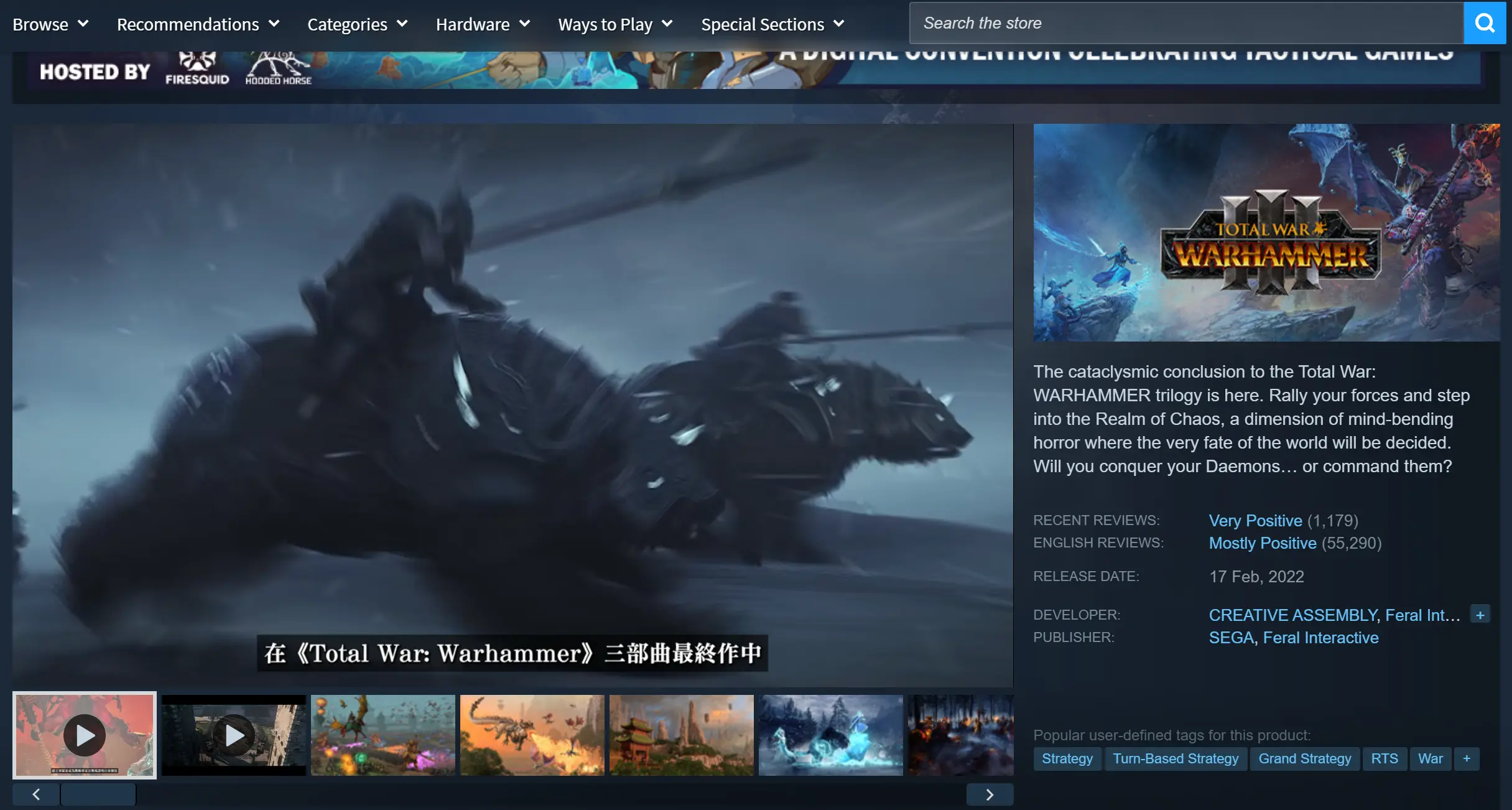
Launch Steam on your PC and start Total War: WARHAMMER III. Wait until you reach the campaign menu or main interface, then keep the game running in the foreground without minimizing it.
Stream the PC to Your Phone
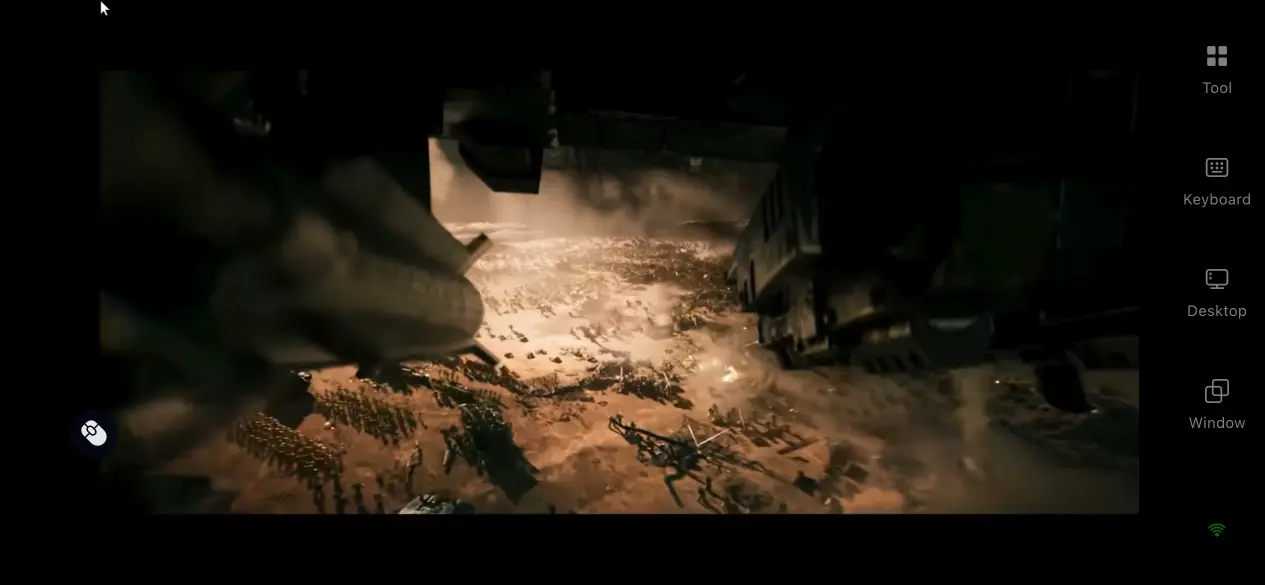
Open the OSLink app on your phone. The device list will automatically display every online computer linked to your account. Tap the target PC to establish a remote streaming session. Once connected, your phone will instantly mirror your computer's desktop in real time.
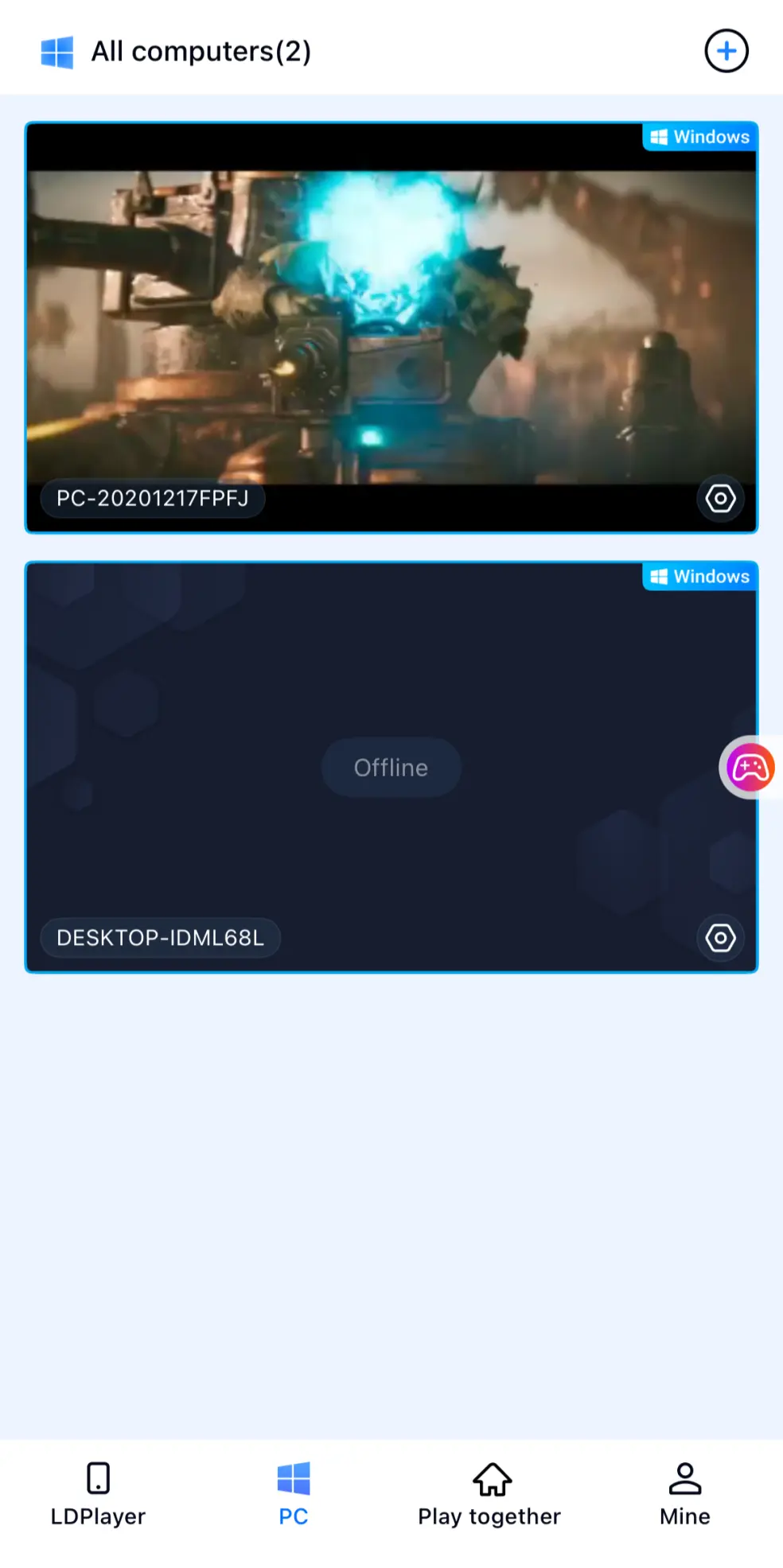
Play Total War: WARHAMMER II on Mobile
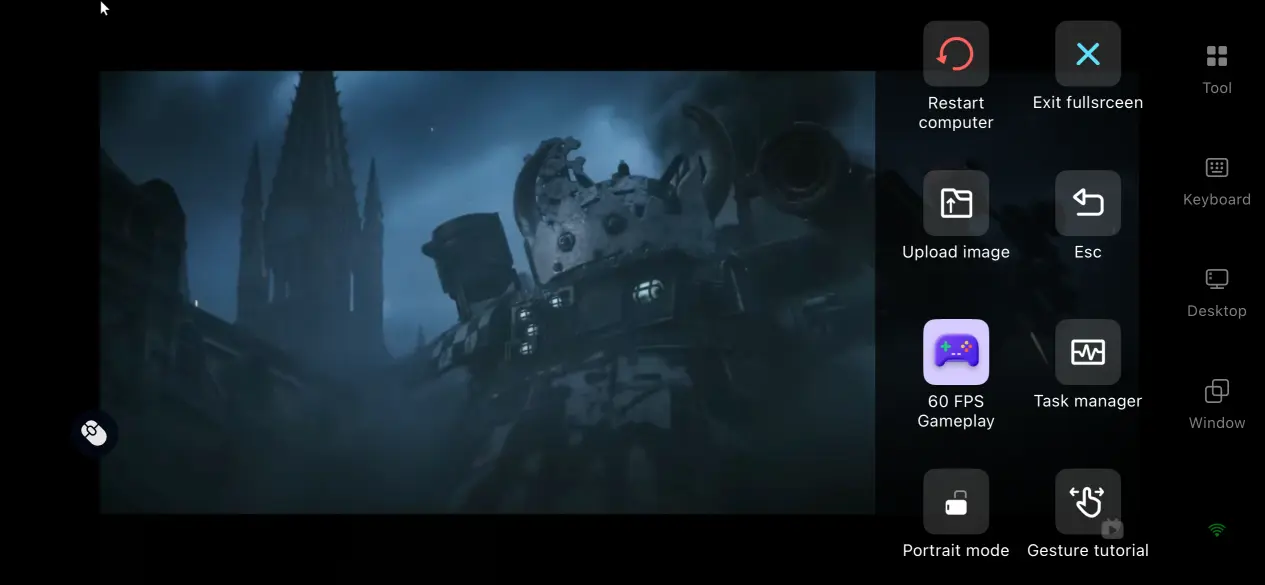
After the connection is established, open the OSLink sidebar and enable High Frame Rate Strategy Mode. This mode is specifically optimized for games like Total War: WARHAMMER III, improving responsiveness during large-scale map navigation, drag-and-select operations, and multi-unit control while delivering sharper visuals and smoother streaming performance.
III. Why Play Total War: WARHAMMER III Remotely on Your Phone
Continue Your Campaign Anytime
You no longer need to stay at your desk to make progress. During breaks, while commuting, or whenever you have a few free minutes, simply open your phone to access your latest save. You can expand settlements, recruit armies, negotiate diplomatic agreements, or review your strategic situation before moving on to the next turn. Even while traveling or waiting in line, it's easy to keep your campaign moving forward.
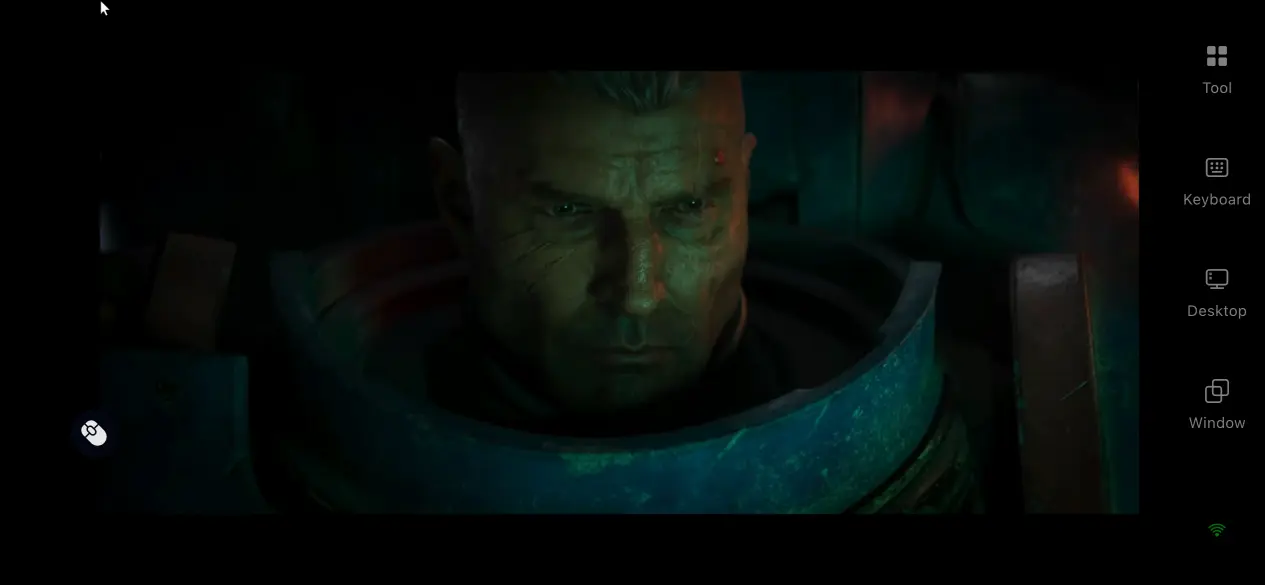
No Mobile Storage Required
The complete installation of Total War: WARHAMMER III, including its approximately 120 GB of game data, DLC content, mods, and save files, remains stored entirely on your computer. Your phone doesn't need to reserve large amounts of storage space, making remote play accessible even on older or lower-spec devices. There's also no lengthy installation or download process on the mobile side—connect to your PC and start playing immediately.
Built-in Multiplayer Collaboration Rooms
OSLink includes a built-in collaborative room feature. Create your own room to generate an invitation code, then share it with your friends. After installing the client and entering the invitation code, they can join your session remotely. Up to five participants can interact with the same game screen simultaneously, making it easy to discuss tactics, coordinate strategic decisions, or enjoy multiplayer gameplay together. Friends can remotely participate in commanding battles without each person needing to purchase a separate copy of the game.
IV. Recommended OSLink Settings for the Best Streaming Experience
High Frame Rate, Low Latency Mode
Because Total War: WARHAMMER III frequently involves massive campaign maps, rapid camera movement, and large-scale battles with thousands of units, enabling the 60 FPS Game Mode significantly reduces input latency and display delay. Zooming across the campaign map, selecting multiple armies, and issuing large-scale commands all become noticeably smoother, with fluid transitions even during the most intense battlefield encounters. This provides a control experience that feels much more responsive for real-time strategy gameplay.
Fully Customizable Virtual Controls
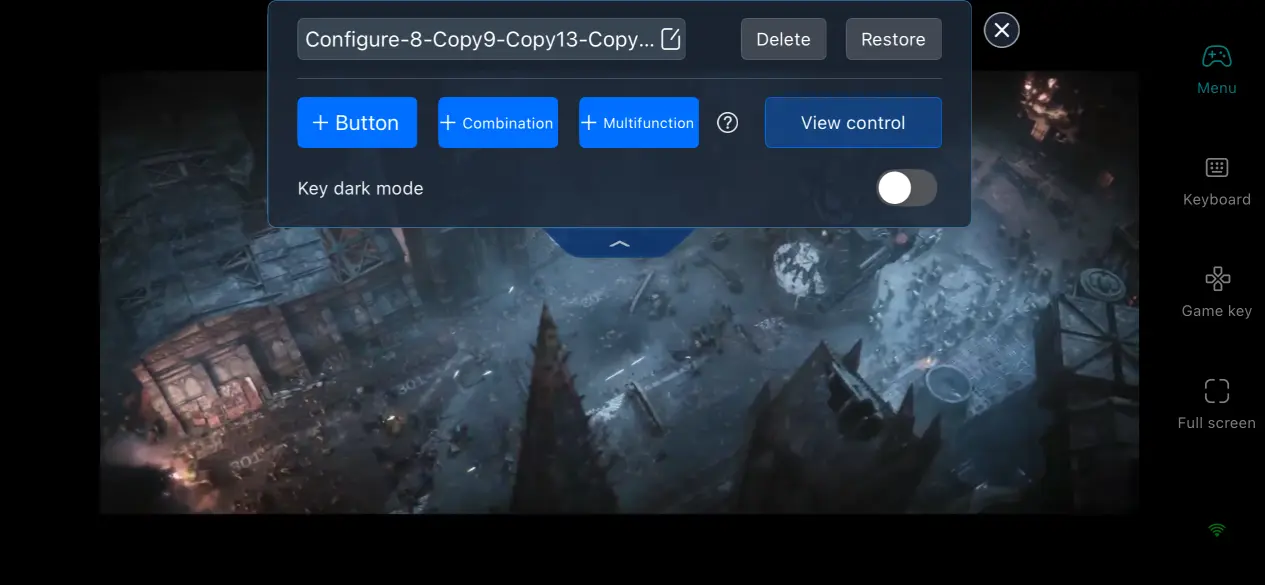
Every virtual button in OSLink can be customized independently, including its size, transparency, and on-screen position. Players can arrange camera controls, army command shortcuts, and other frequently used actions according to their own habits. If a button blocks an important part of the battlefield or campaign map, simply lower its transparency or move it elsewhere to create a control layout that feels much closer to playing with a mouse and keyboard.
V. Frequently Asked Questions
Q: Can Android and iPhone devices connect to the same PC?
A: Yes. Android and iOS devices are fully compatible with one another. Simply sign in using the same OSLink account, and both platforms can access the same computer. Differences between mobile operating systems will not affect connectivity or available remote control features.
Q: What are the PC system requirements for Total War: WARHAMMER III?
A:Minimum Requirements: Windows 7 64-bit, an Intel Core i3-class processor (or equivalent), 6 GB of RAM, an NVIDIA GeForce GTX 900 Series graphics card (or equivalent), and at least 120 GB of available storage.Recommended Requirements: Windows 10 64-bit or later, an Intel Core i5-class processor (or equivalent), 8 GB of RAM or more, an NVIDIA GeForce GTX 1660 Ti-class graphics card (or equivalent), and installing the game on an SSD is recommended for smoother loading and overall performance.
Q: What should I do if the streaming connection is laggy or has high latency?
A: First, check your computer's upload bandwidth. A stable upload speed of at least 5 Mbps is recommended for a smooth basic streaming experience. Whenever possible, connect your PC to the router using a wired Ethernet connection, and connect your phone to a 5 GHz Wi-Fi network to reduce latency and improve image stability.
Conclusion
For players who want to enjoy Total War: WARHAMMER III anytime and anywhere, OSLink provides a flexible and convenient remote streaming solution. Since everything is processed by your PC, you won't need to download dozens of gigabytes of game files to your mobile device. Even a phone can reconnect to your campaign, check the current situation, end turns, or participate in large-scale battles from virtually anywhere.
 Download