English
 Silver Palace is a carefully crafted PC adventure exploration title known for its original experience, open-world exploration and puzzle-solving gameplay. This tutorial will walk you through the complete setup and optimization process to remotely control the PC version of Silver Palace on your phone using OSLink.
Download & Install Tools
First, head to the official websites of OSLink and LDPlayer. Download and install the OSLink remote control tool and LDPlayer respectively. The combination of these two programs lays the foundation for remote game control.
PC Side
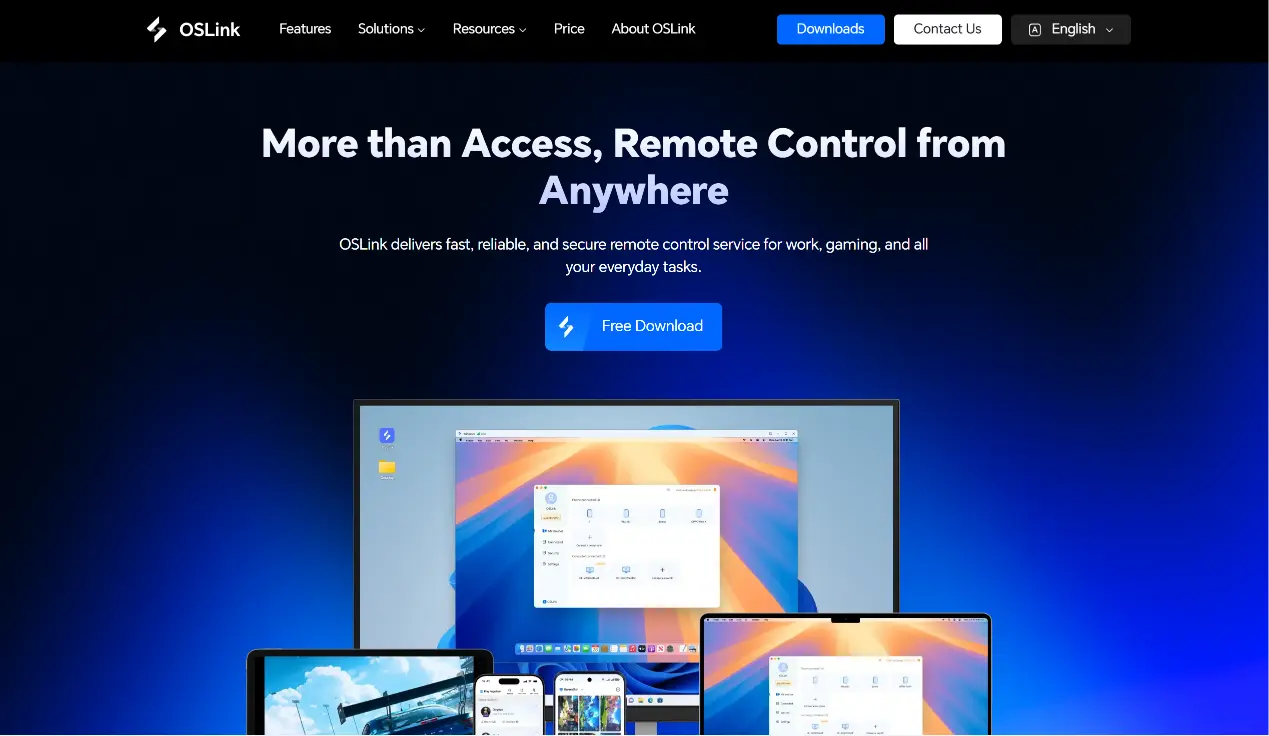
Visit the official OSLink website to download the desktop client. After installation, register and log into your account. Keep the software running in the background, and grant permissions to prevent the system from automatically clearing background applications.
Mobile Side
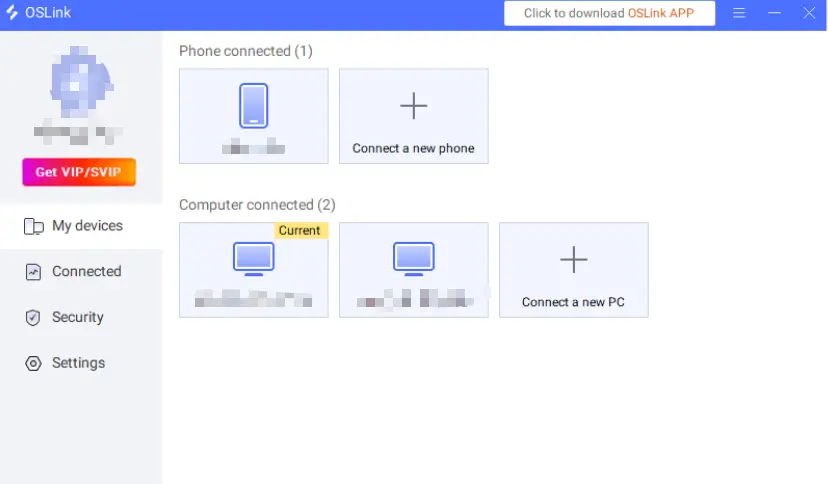
Download the OSLink app from app stores or the official OSLink website. Log in using the exact same account as your PC.
Grant permissions for floating windows, auto-launch and background execution to avoid remote connection interruptions.
Control Optimization
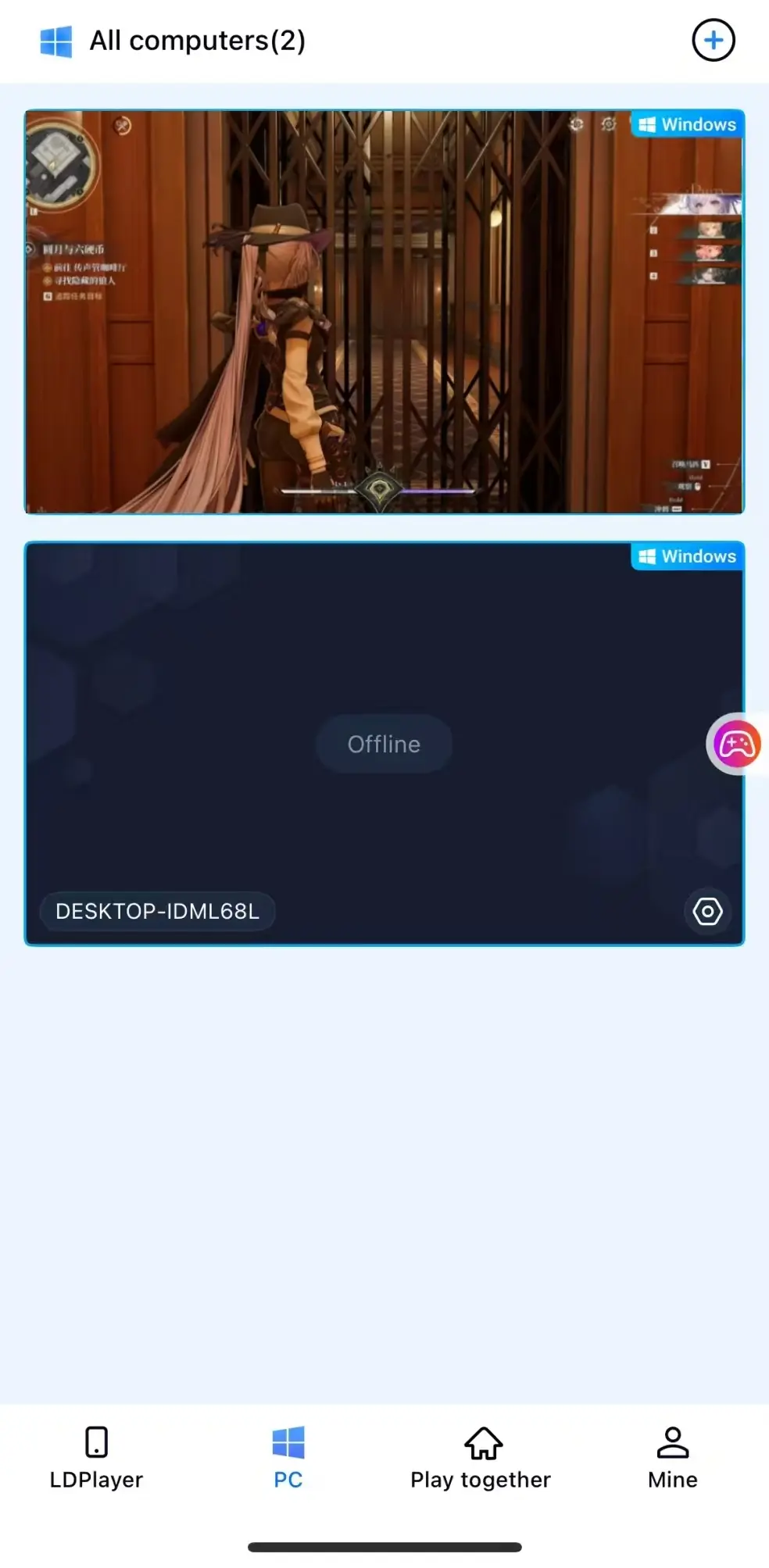
Launch the game: Open Silver Palace on your desktop PC, then establish a remote connection directly from your mobile device.
Enable 60fps PC Gaming Mode
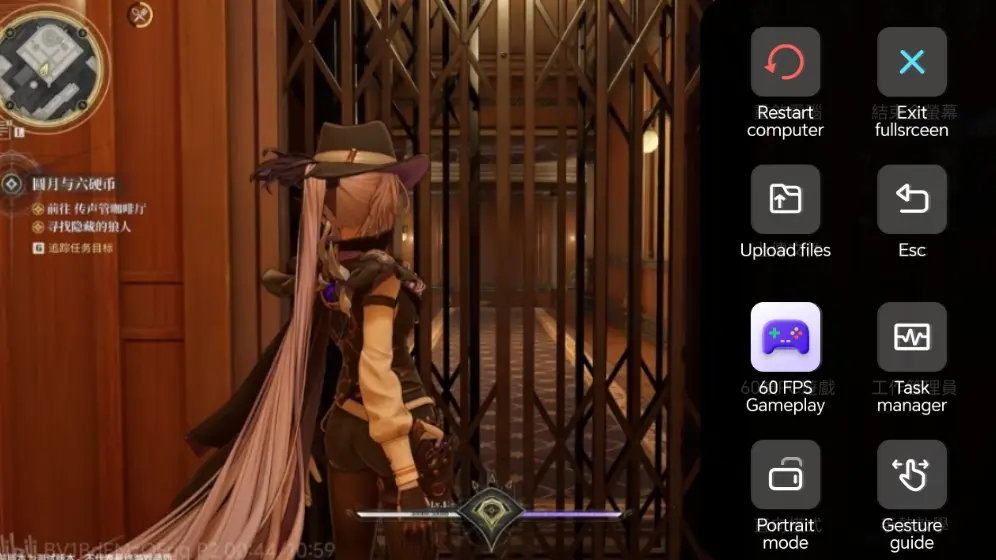
After a successful screen-streaming connection, open the sidebar toolbar on your mobile screen and activate the 60fps PC Gaming Mode. You may use customized virtual on-screen buttons or pair a compatible Bluetooth game controller.
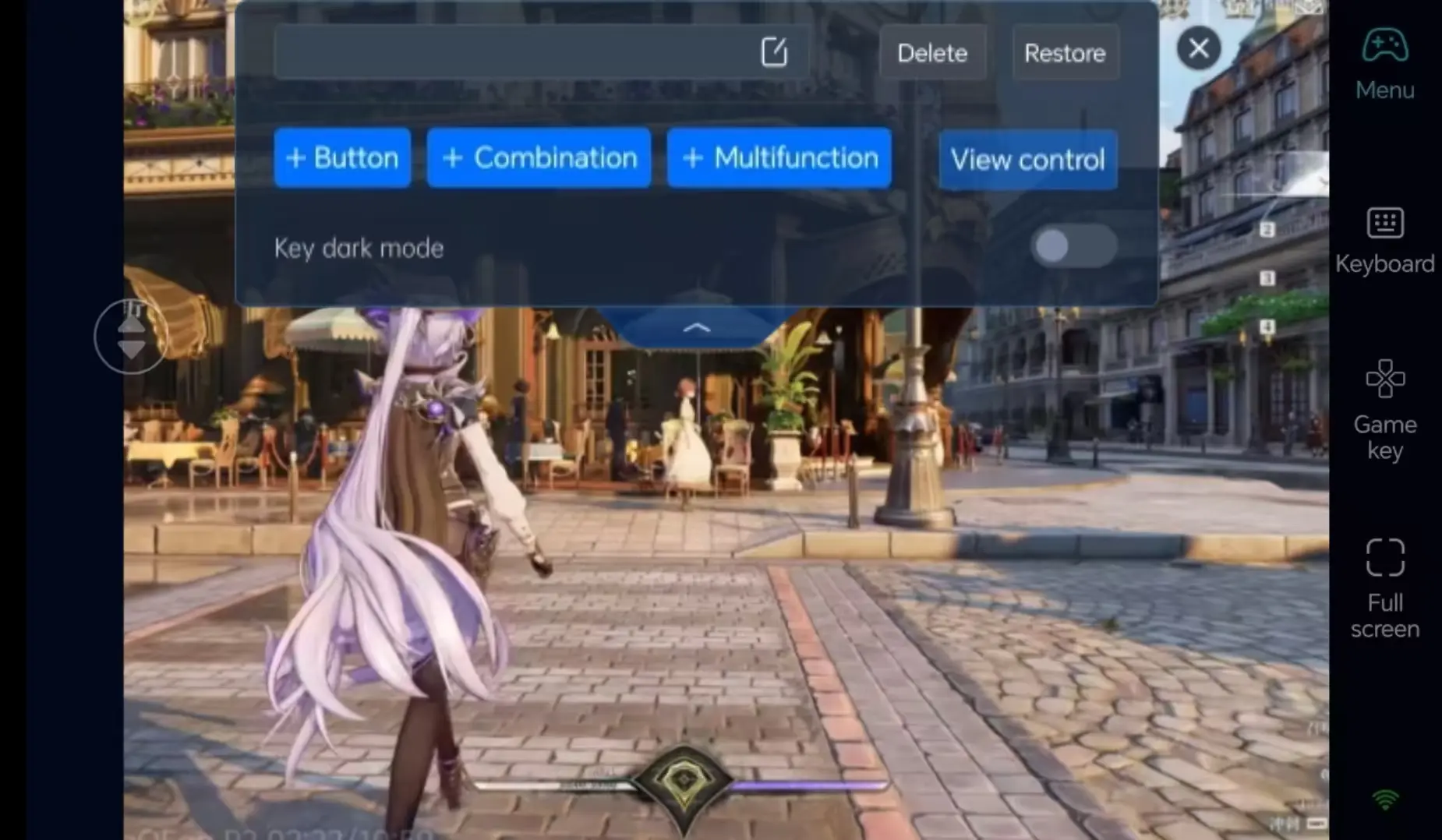
Custom Combat Control Layout
Adjust the positioning of movement, attack, block, dodge and skill buttons based on your playstyle. Resize touch controls freely to improve touch accuracy. Pair with 3D camera adjustment for smoother aiming and camera tracking during combat encounters.
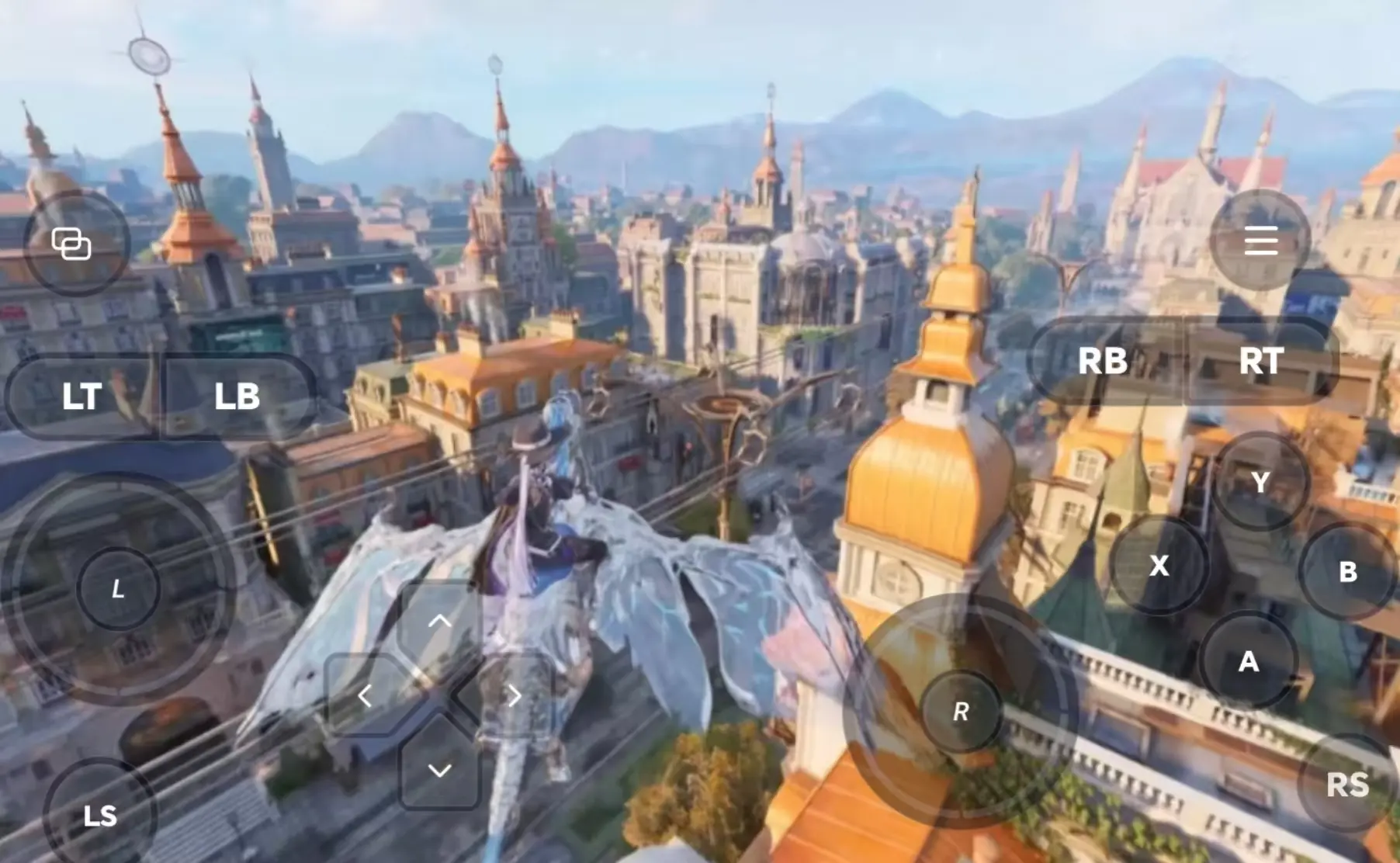
Connect External Game Controllers
OSLink supports Bluetooth gaming controllers. Pair your controller to replicate the native PC control scheme perfectly, ideal for resource farming and challenging boss battles.
Why Choose OSLink for Silver Palace?
1. Location-Free Gaming: Adventure Anytime
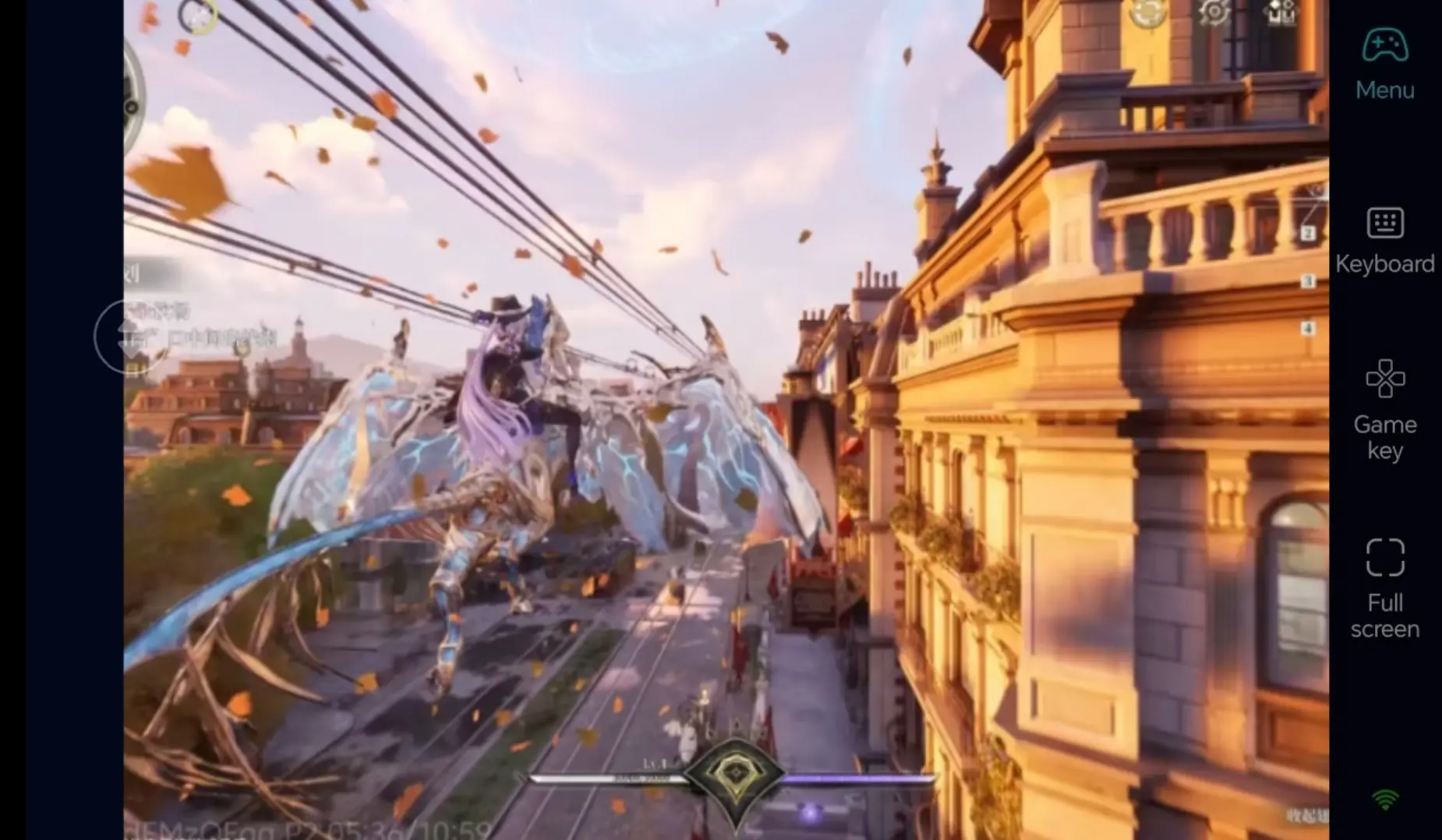
When out and about, remotely launch the game from your mobile to complete daily collection and side quests. At home, switch back to your PC for in-depth open-world exploration. A stable network connection ensures smooth traversal across large maps and interactive puzzle areas.
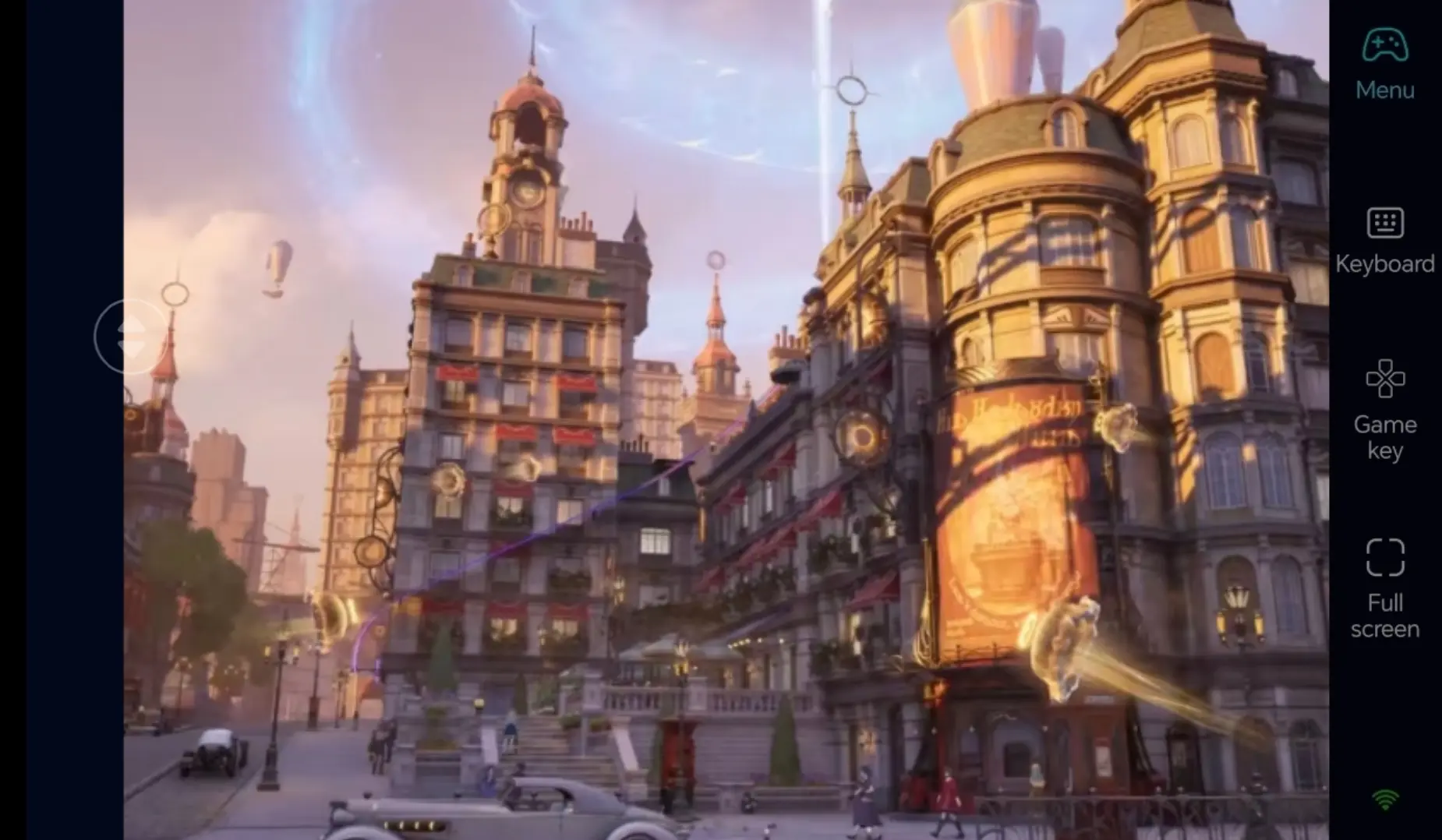
2. Smooth High-FPS Streaming with Stunning Visuals
Crystal-clear low-latency streaming fully retains the game’s signature art style, detailed environments and lighting effects. Custom touch controls and seamless camera switching deliver an immersive way to experience the fantasy city world of Silver Palace.
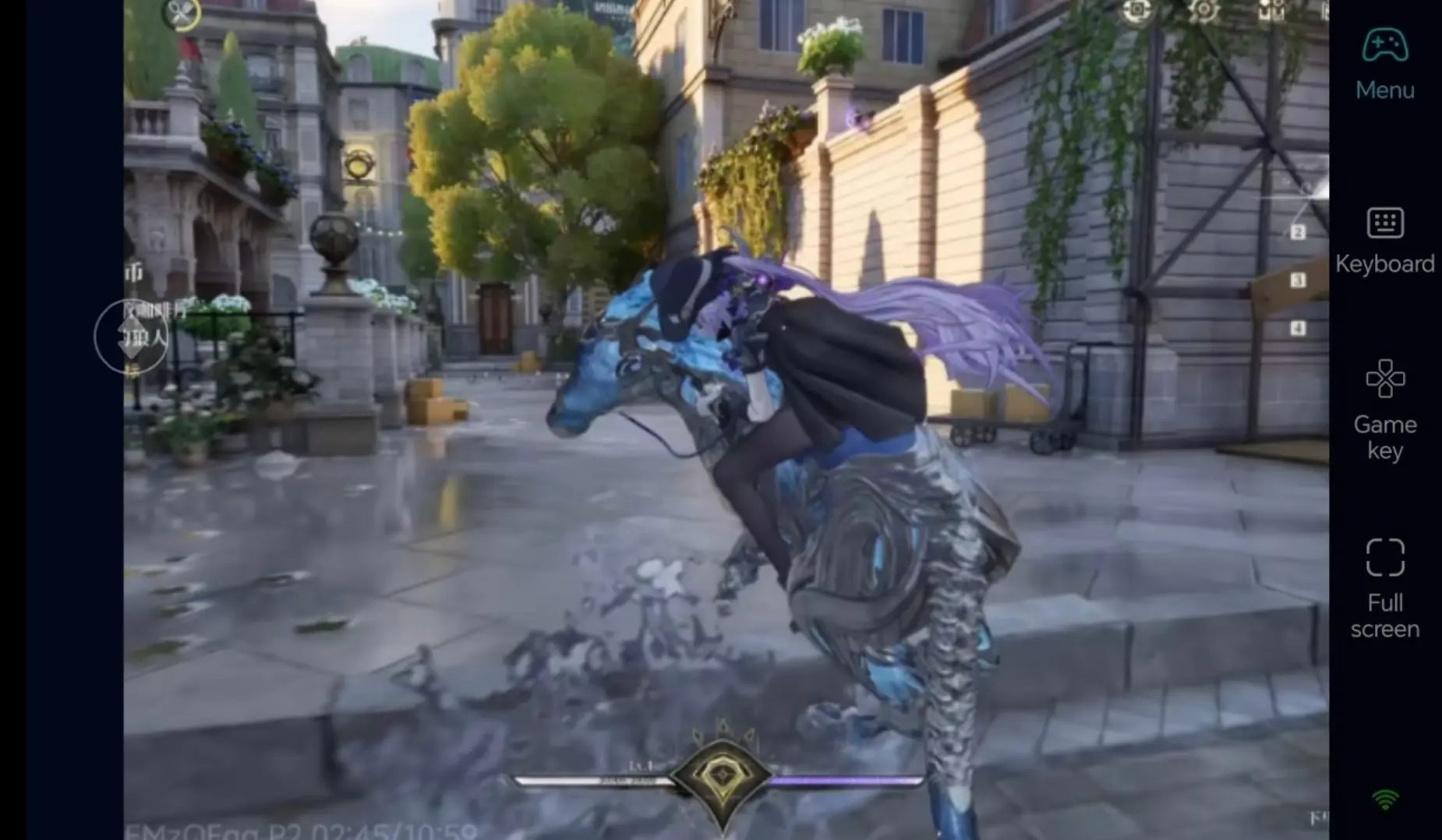
3. Seamless Progress Sync, Local PC Save Storage
All game save files are stored locally on your computer. Your mobile remote play sessions are 100% synced with your PC gameplay. Whether exploring new zones or testing combat strategies, you can always pick up right where you left off.
Frequently Asked Questions
Q1: When will Silver Palace officially launch?
A1: The game is scheduled to release in 2026. Follow official community announcements for future launch date updates.
Q2: Can I remotely control my PC and play this game on Android and iOS phones?
A2: OSLink fully supports Android and iOS devices. Users of both mobile systems can download the client for remote PC connection, with no mobile system restrictions.
Q3: Can I only install the game on PC without using OSLink?
A3: Without OSLink, you can only play while sitting in front of your computer. If you want to continue your adventure remotely when you leave home, OSLink is highly recommended. OSLink supports remote game streaming to your mobile device, so you can continue your game progress anywhere.
Conclusion
Once you complete all setup steps above, you can remotely control your PC to play Silver Palace via mobile. Whether commuting or heading out, you can check game status remotely through OSLink, advance quests continuously and collect all types of resources without missing any game content.
We recommend adjusting graphic settings according to your PC hardware specifications. Please also abide by the game’s official terms of service to enjoy a seamless remote adventure experience.
 Download