English
 Granblue Fantasy: Relink boasts spectacular aerial combat, diverse character progression, multiplayer co-op raids and a signature art style, earning massive popularity worldwide as a premium Japanese RPG. Its DLC, Granblue Fantasy: Relink – Endless Ragnarok, has also been officially released. The game only officially supports PC and home consoles by default. Many players are tied to their desktop setups and unable to grind materials or advance the main plot during commutes or trips, which drastically cuts down their available playtime. This guide details the complete setup for remotely streaming the PC game to mobile phones, compatible with a wide range of network environments and devices, to help you build a portable gaming setup effortlessly.
OSLink is a handy tool to simplify cross-device play for Granblue Fantasy: Relink. Simply install and log into the same OSLink account on both your PC and mobile phone — no complicated port forwarding required. Your phone can directly connect to your home PC running the game. You only need to carry your mobile device when heading out, and you can resume your Granblue adventure seamlessly with any spare time.
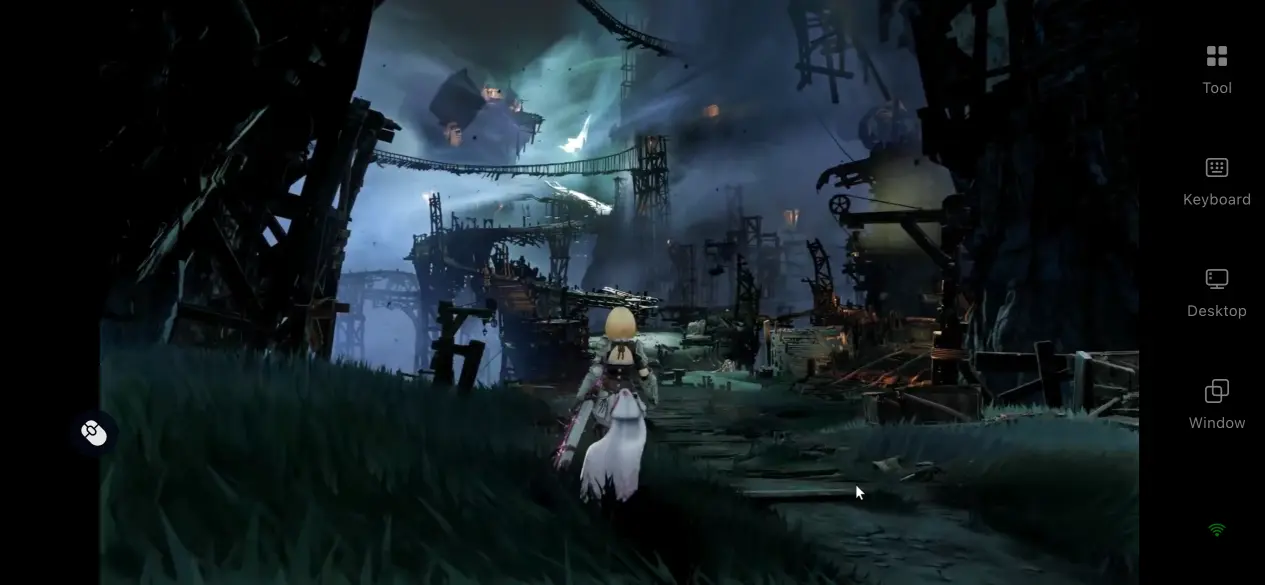
1. Steps to Stream Granblue Fantasy: Relink on Mobile
1.1 Install Granblue Fantasy: Relink on PC First
The foundation of mobile remote streaming is having the full game fully downloaded and installed on your PC, with confirmed hardware compatibility to guarantee smooth, stable performance.
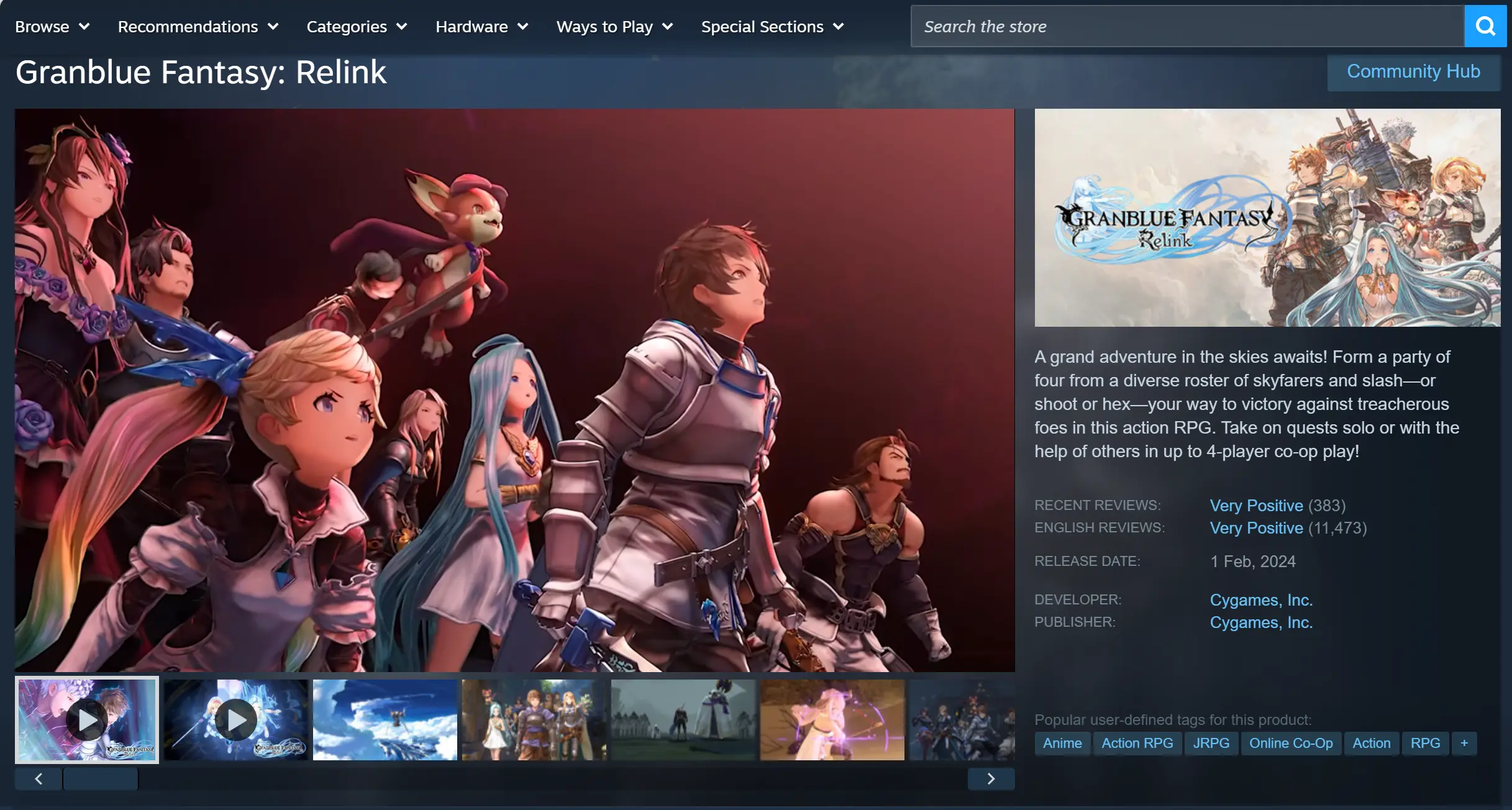
You can purchase the game via Steam by searching its English title on the Steam store page. Key installation reminders: set the entire install folder path to English characters only, and reserve over 90GB of free hard drive space before starting the download. Once the download finishes, verify the integrity of game files, install all available DLC updates, close bandwidth-heavy background programs, right-click the game executable and launch it once with administrator privileges to rule out startup errors before proceeding with remote connection setup.
1.2 Install OSLink on Both PC and Mobile Devices
PC installation: Open mainstream browsers like Chrome, search for OSLink, access its official website and download the Windows desktop client. Mobile installation.
Android installation: users can find OSLink on Google Play for installation, while iOS users can download it from the App Store.
Log into the identical OSLink account on both devices. The two devices will automatically sync and pair to enable smooth subsequent connections.
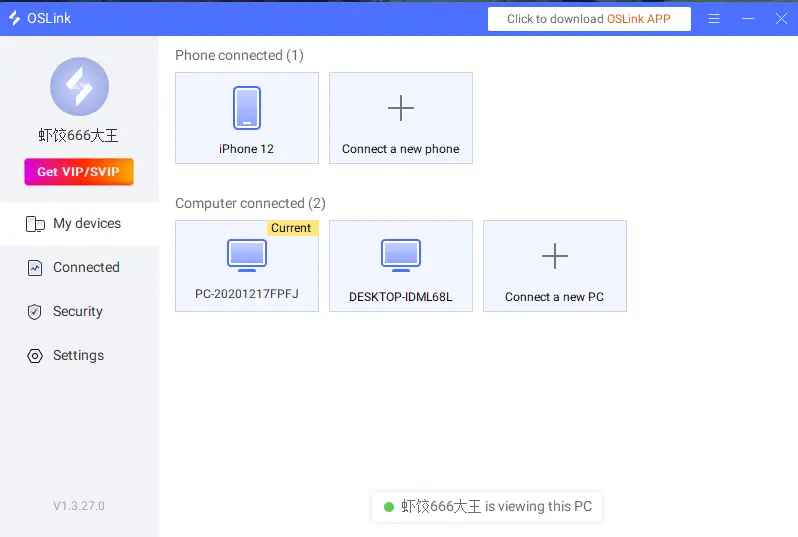
1.3 Launch Granblue Fantasy: Relink via OSLink on Your Phone
Launch the game on your PC first and wait until you reach a fully controllable in-game screen. Next, open OSLink on your mobile phone, select your paired desktop PC from the device list to pull up the real-time remote desktop feed.
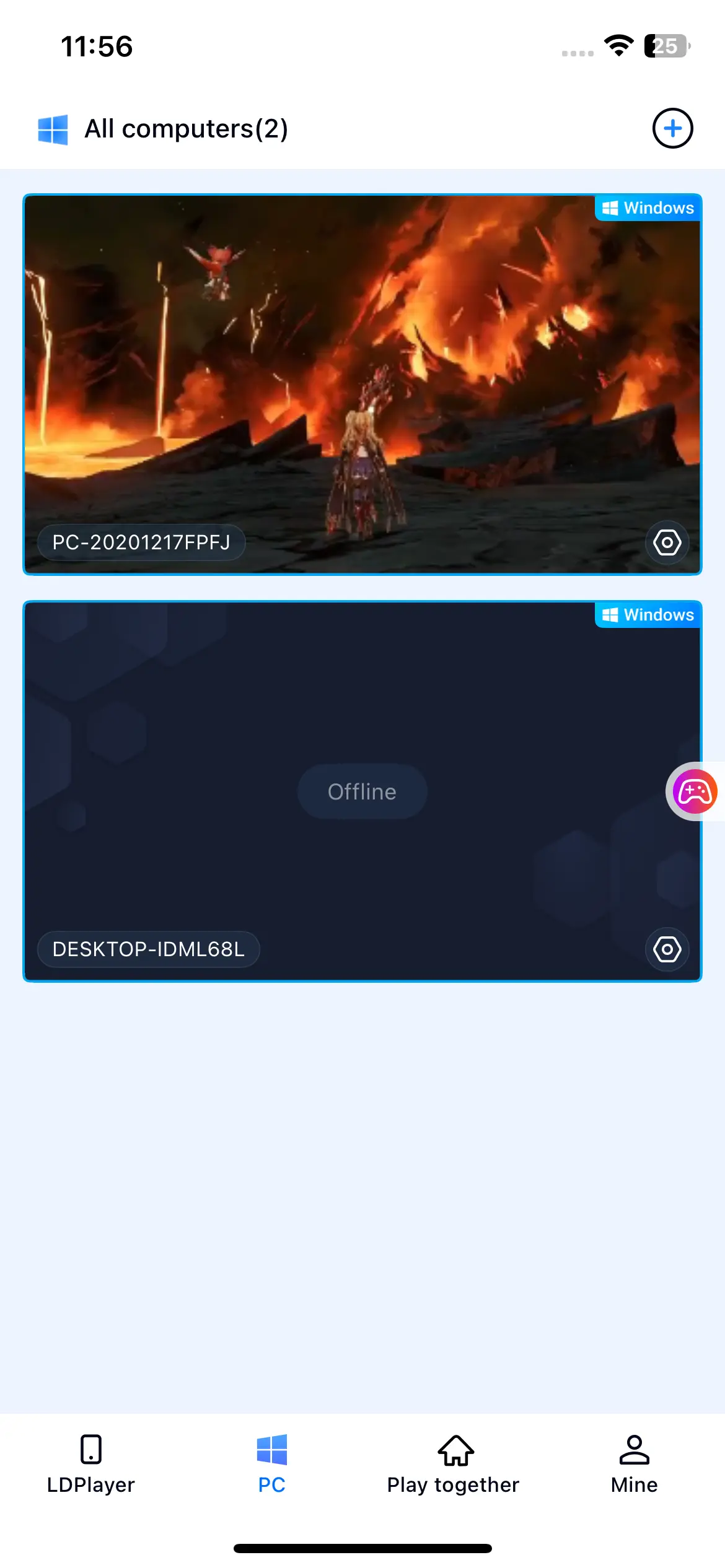
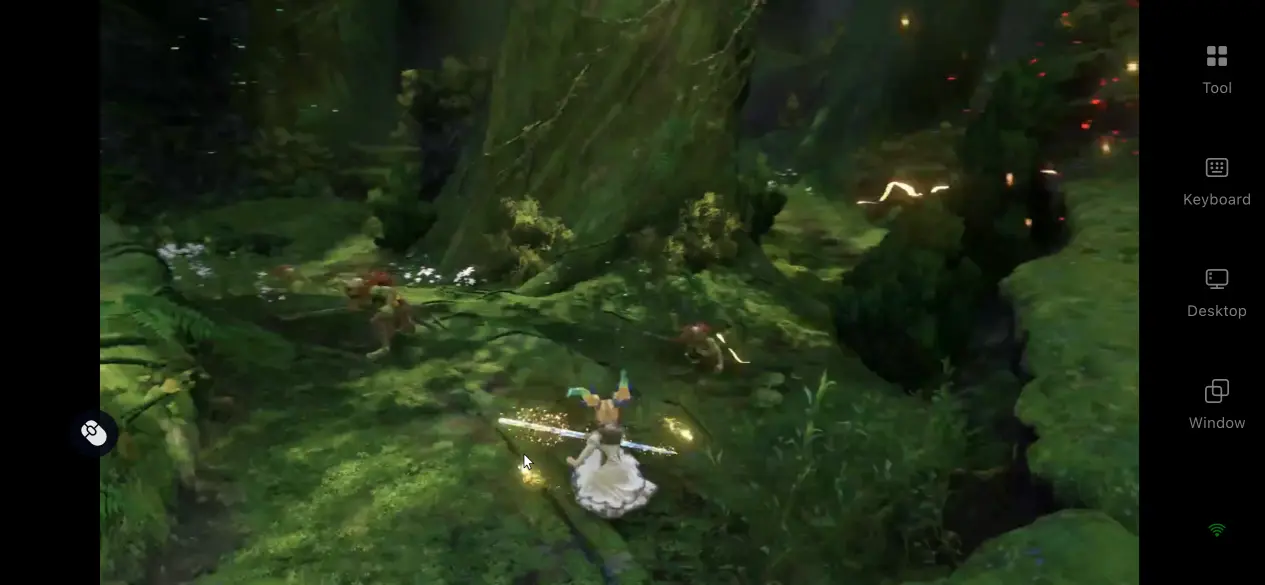
Your PC’s desktop will mirror live on your mobile screen. If you’re new to game streaming, tap the toolbar on the right side of the OSLink mobile interface and activate the "60fps PC Game Mode". This preset optimizes all streaming parameters tailored for action games, delivering sharper, more gameplay in-game controls.
2. Core Advantages of Playing Granblue Fantasy: Relink Remotely via Mobile
Unrestricted play locations
Jump into the game instantly during travel or short breaks instead of being stuck at your desk. Use your free time to complete daily material farming and solo trial dungeons.
Real-time synchronized save data
All character progression and gear saves are stored on your PC. OSLink transmits all remote in-game operations instantly, so you will never lose progress when switching between devices.
No local storage consumption on mobile
The full 90GB game resources remain stored on your PC’s hard drive. You do not need to clear massive storage space on your phone, and even older low-spec mobile devices can run the stream smoothly.
3. Optimize Game Experience with OSLink Built-in Auxiliary Functions
60fps PC Game Mode
Enable this option from the right-side toolbar within the mobile OSLink app. This mode fine-tunes streaming settings exclusively for action titles, cutting input lag and making dodges and combo chains feel nearly identical to native PC gameplay.
Customizable virtual touch controls
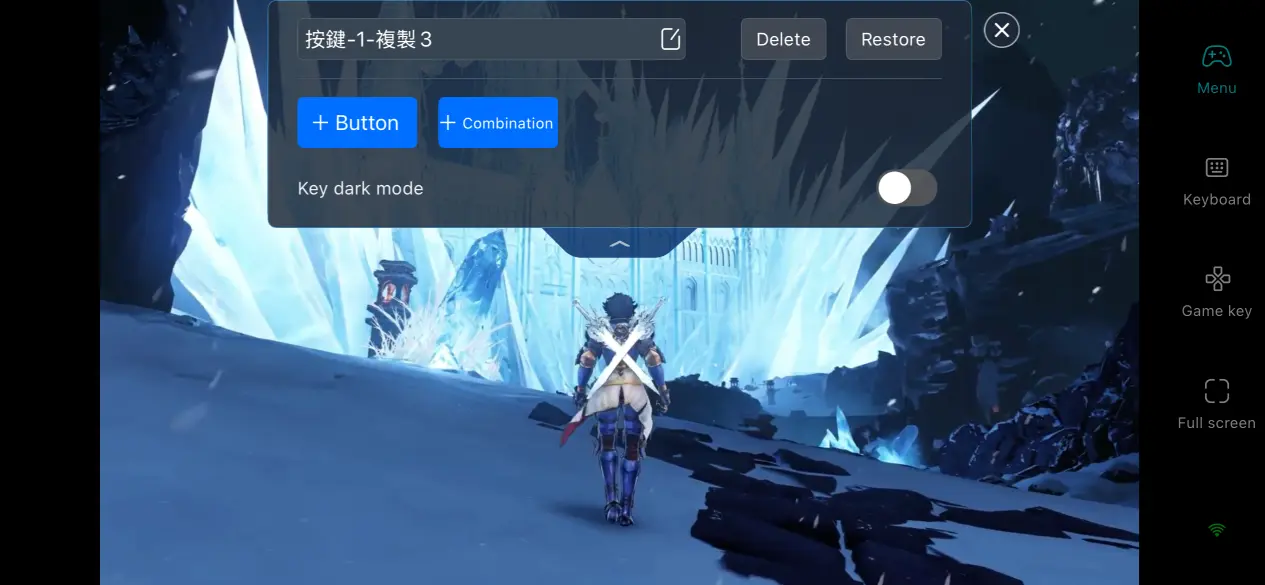
OSLink supports full remapping of on-screen virtual buttons. You can freely adjust each button’s size, position and transparency based on your personal play habits. Place frequently used inputs such as basic attacks, skills and evasion within easy finger reach, freeing you from rigid fixed keyboard-style touch layouts.
Bluetooth controller compatibility
If touchscreen controls feel awkward, OSLink supports Bluetooth connectivity for Xbox and PlayStation controllers on mobile devices. The app automatically recognizes and pairs connected controllers, delivering far more precise inputs for challenging high-difficulty raids.
4. Common Troubleshooting Q&A
Q: Can I connect remotely if my phone and PC are not on the same Wi-Fi network?
A: OSLink establishes connections through your shared account system, so a shared local network is unnecessary. Just keep your PC powered on and OSLink running in the background.
Q: I notice obvious input lag while playing, how can I fix this?
A: Check your network connection and prioritize 5GHz Wi-Fi. Turning on the "60fps PC Game Mode" will also effectively reduce lag.
Q: Why does the OSLink stream disconnect randomly mid-game?
A: Turn off your phone’s battery saver mode and lift background app freeze restrictions for OSLink. On your PC, disable automatic screen sleep to keep the display active at all times.
Q: Parts of the game screen get cut off when displayed on my phone, what should I do?
A: Switch the game on your PC to windowed mode and adjust its resolution to match your mobile screen’s aspect ratio.
Conclusion
Granblue Fantasy: Relink has no official mobile port, so standard methods make on-the-go play impossible. OSLink perfectly fulfills the demand for remotely controlling PC games from mobile phones, breaking hardware and location limitations. This complete tutorial covers the full streaming workflow for Granblue Fantasy: Relink using OSLink for cross-device gameplay. Players using any device or client can follow this guide to make full use of their spare time to boost character progression, and enjoy a more convenient, relaxed portable Granblue adventure.
 Download