English
 Aniimo is an MMORPG centered around open-world exploration and pet raising, beloved for its unique human-pet bond mechanics and immersive creature growth systems. It abandons the repetitive monster battling loop typical of similar pet games. Players travel across the vast continent of Edel to catch magical Aniimo creatures, each with distinct appearances and unique skills. You strengthen your bond with them by feeding, accompanying them on journeys, and adventuring side-by-side. A special bonding system even lets you transform into your pet's form to solve map puzzles, take part in creative combat, and explore the sprawling game world. Right now, Aniimo only offers a PC client; nearly all pet care, progression, and multiplayer features require a computer to access. This tutorial covers a complete remote mobile streaming workaround using OSLink to break hardware limits. Follow the step-by-step instructions to seamlessly pick up your saved PC progress on your phone and tend to your pets no matter where you are.
If you want to keep advancing your Aniimo pet growth progress from your mobile, OSLink remote streaming is the perfect tool. The full game runs locally on your computer, while your phone only receives the video feed. Simply launch the app on your commute to jump straight into your save file—you can tend to your pets alone or join multiplayer lobbies with steady performance. There's no need to download separate game clients or splurge on pricey high-spec devices.
1. How to Download Aniimo on PC
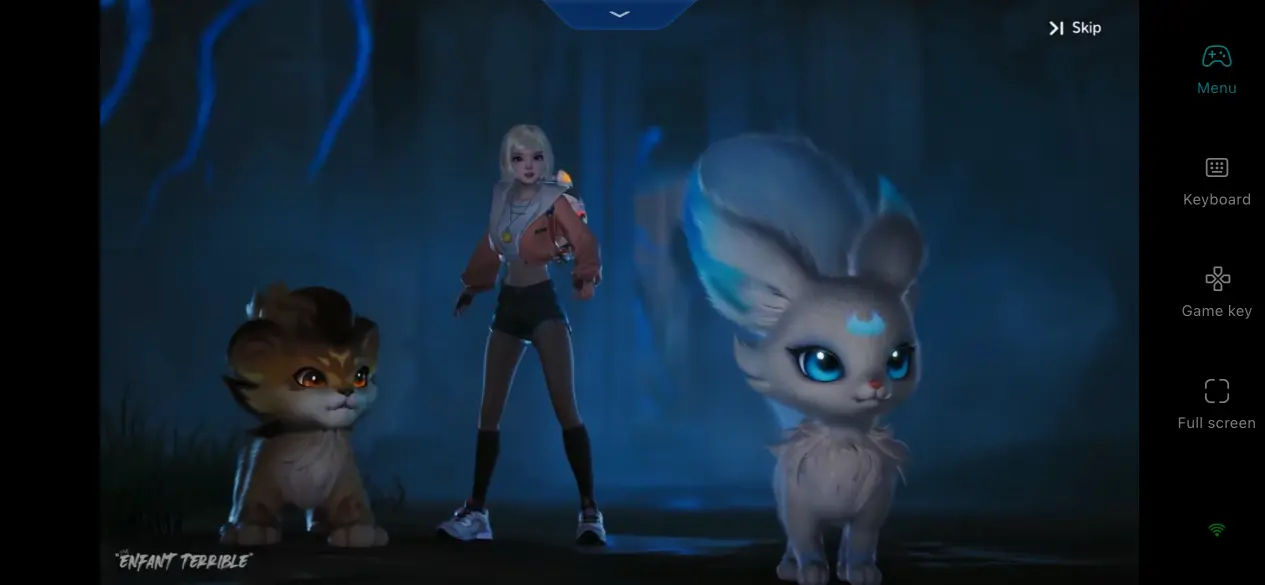
The PC build of Aniimo can currently be downloaded via platforms like WeGame.
Double-check your hardware specs before installation: Intel i7-9700 or equivalent AMD Ryzen processor, RTX 2060 or AMD RX 5600 XT graphics card minimum, 16GB RAM at minimum, Windows 10 or newer operating system, and 30GB of free storage space (SSD highly recommended).
For smooth, high-quality gameplay, the recommended specs are a 12th-gen Intel i7 paired with an RTX 3080 GPU and 32GB RAM. The game is still in testing, so hardware requirements may shift as developers roll out optimization patches later on.
2. Step-by-Step OSLink Installation for PC & Mobile
PC Setup & Configuration
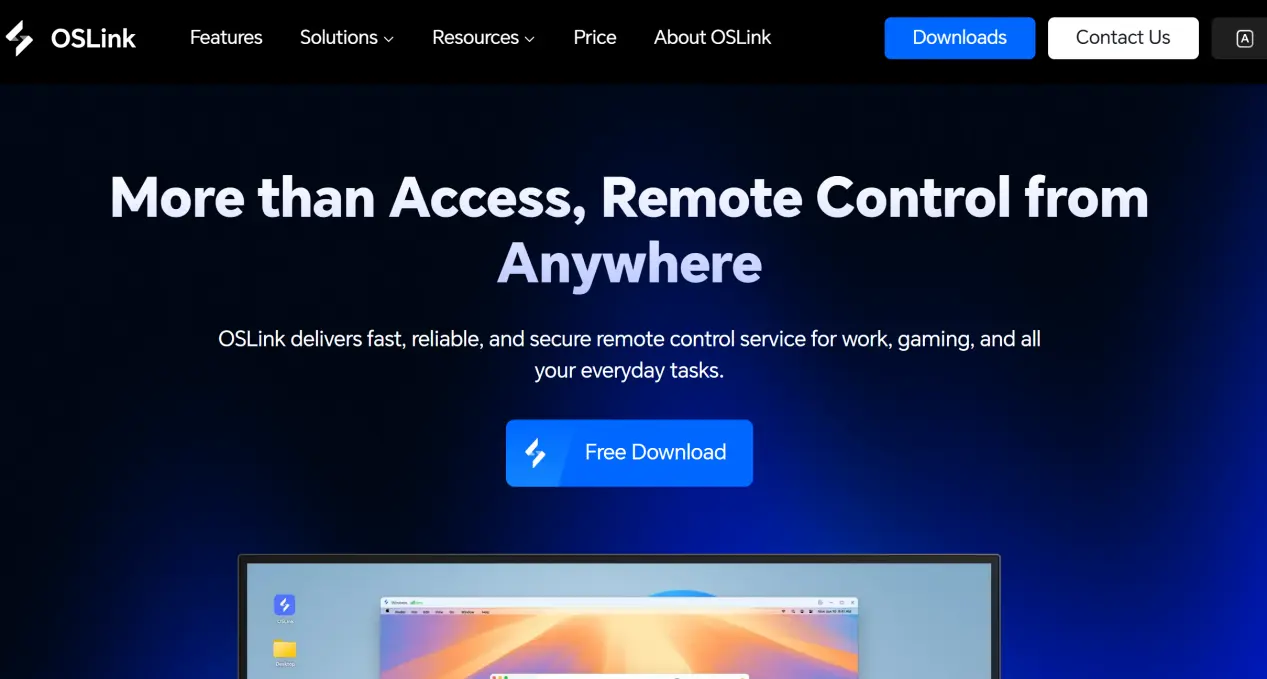
Head to OSLink's official website to grab the Windows desktop client. Once installed, log into your exclusive account. Turn off your PC's auto-sleep and automatic network disconnect features, grant the software full desktop remote control permissions, and leave OSLink running in the background at all times.
Mobile Download & Device Pairing
Android users can search the app store for the software name to download it; iOS players can find it on the App Store.
After installing the app on both devices, log into the exact same account on each. The system will automatically detect all online PCs linked to your account—no manual pairing codes required.
3. Play Aniimo PC on Mobile via OSLink
Make sure Aniimo is fully installed on your PC and runs smoothly with no hardware compatibility errors, then keep OSLink active in the background of your computer.
Open OSLink on your phone, select your home desktop from the device list to establish a connection, and switch to full-screen casting mode.
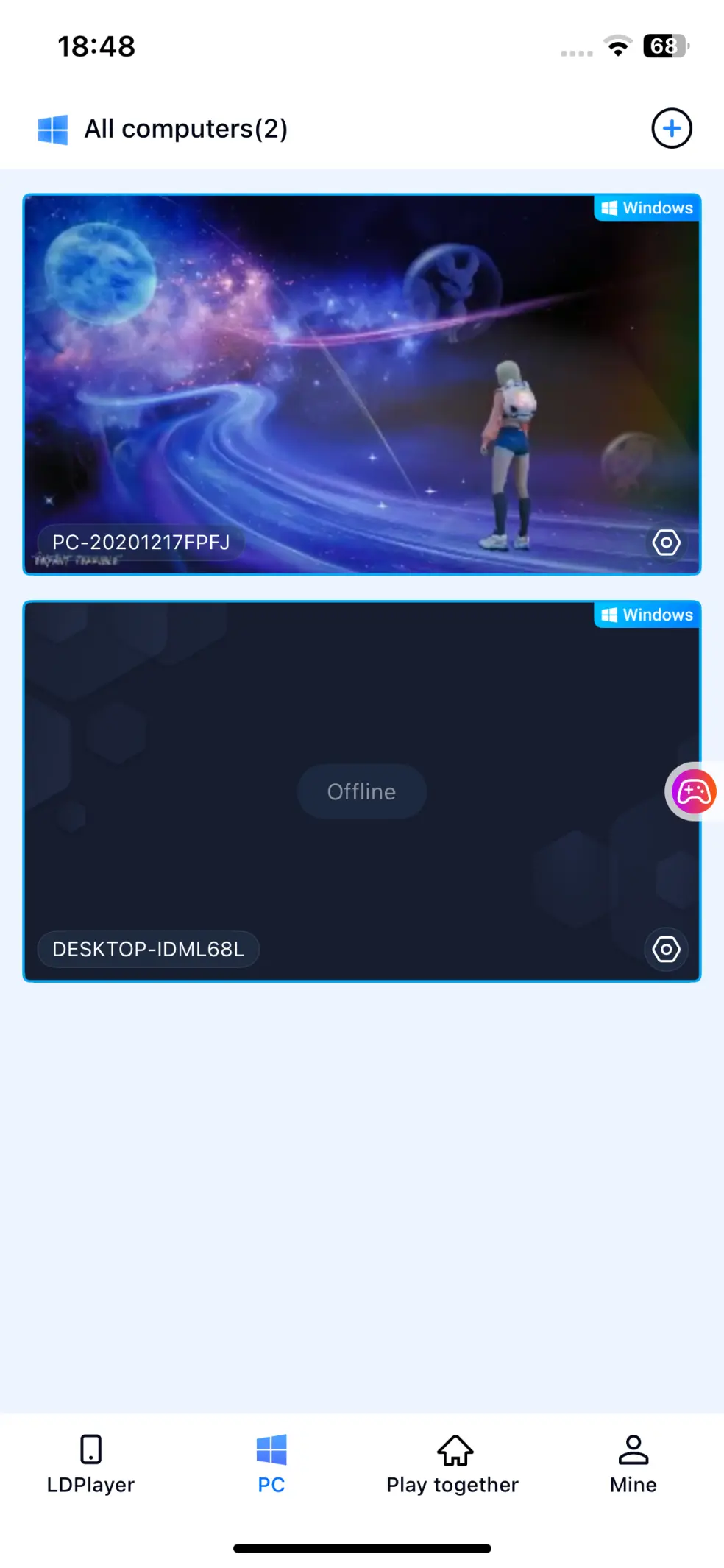
Locate the quick-launch sidebar on the stream screen, tap the Aniimo icon to boot up the game remotely on your PC.
Wait for the video feed to fully sync, pull up custom touch controls, adjust the size and placement of on-screen buttons, then you're ready to care for your pets and play.
4. Key Perks of Playing Aniimo Remotely via OSLink
Tend to Your Pets During Spare Moments
You can feed, clean, and play mini bonding games with your Aniimo on your commute or while running errands. You'll never miss out on limited daily pet growth rewards, and you don't have to stay glued to your desktop all day.
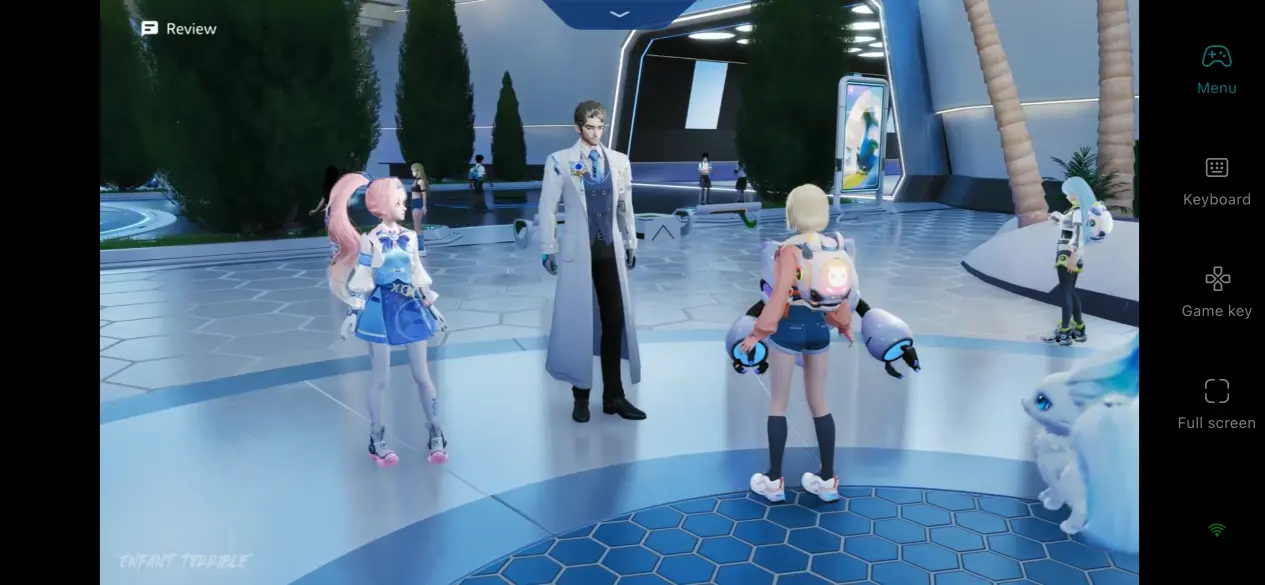
Supports Multiplayer Lobby Co-op
OSLink's Group Play feature lets you create lobbies and send invites to friends. Your buddies don't need a gaming PC—they just install OSLink on their phones to join in. Generate a lobby invite code, share it with friends, and once they join, everyone can interact with the same game screen together.
Zero Local Storage Usage on Mobile
All Aniimo game files live entirely on your computer's hard drive. Your phone never needs to download the full game installer, so even low-storage or mid-range phones can stream stably without clearing out cached files to free up space.
5. Extra Advantages of OSLink for Aniimo
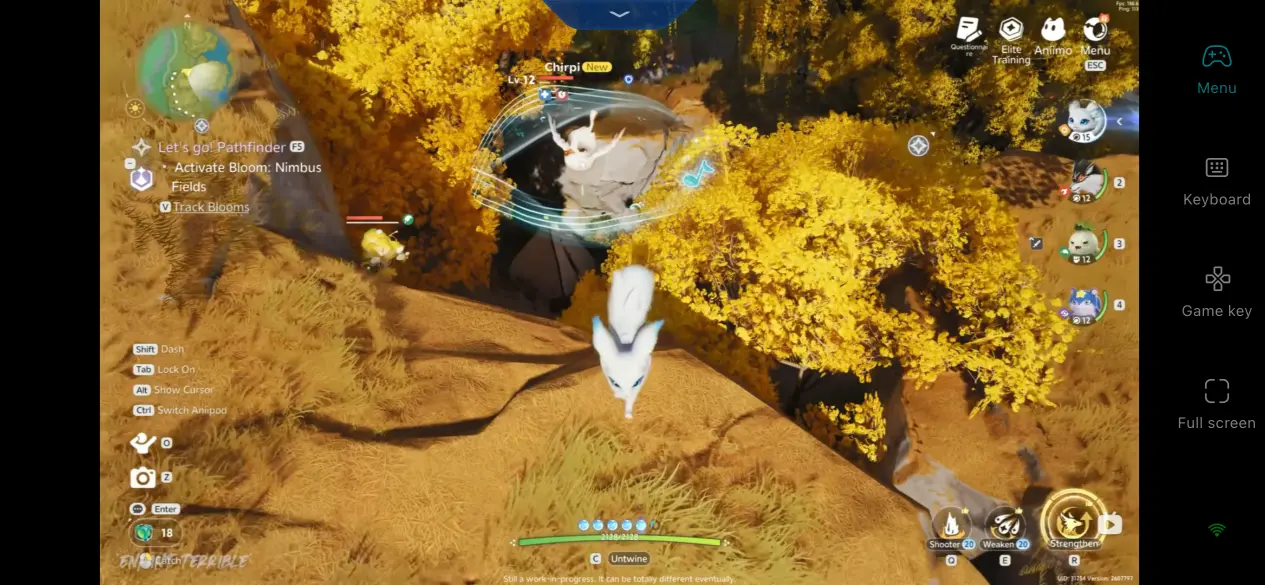
Smooth 60FPS Ultra HD Streaming
Toggle this setting on to unlock high-frame-rate streaming with consistent 60fps performance. The tool has custom graphical tuning built specifically for Aniimo's detailed creature models and expansive open-world landscapes. Pet interactions and map exploration feel ultra-smooth with zero input lag.
Multi-Window Synchronization
If you run multiple separate Aniimo game windows on your PC at once, OSLink's Multi-Sync feature links all instances together. Any action you complete in one window—such as claiming daily rewards or feeding your pets—automatically replicates across every other open game window. Players managing multiple accounts skip repetitive manual clicks and finish all pet care tasks in one go.
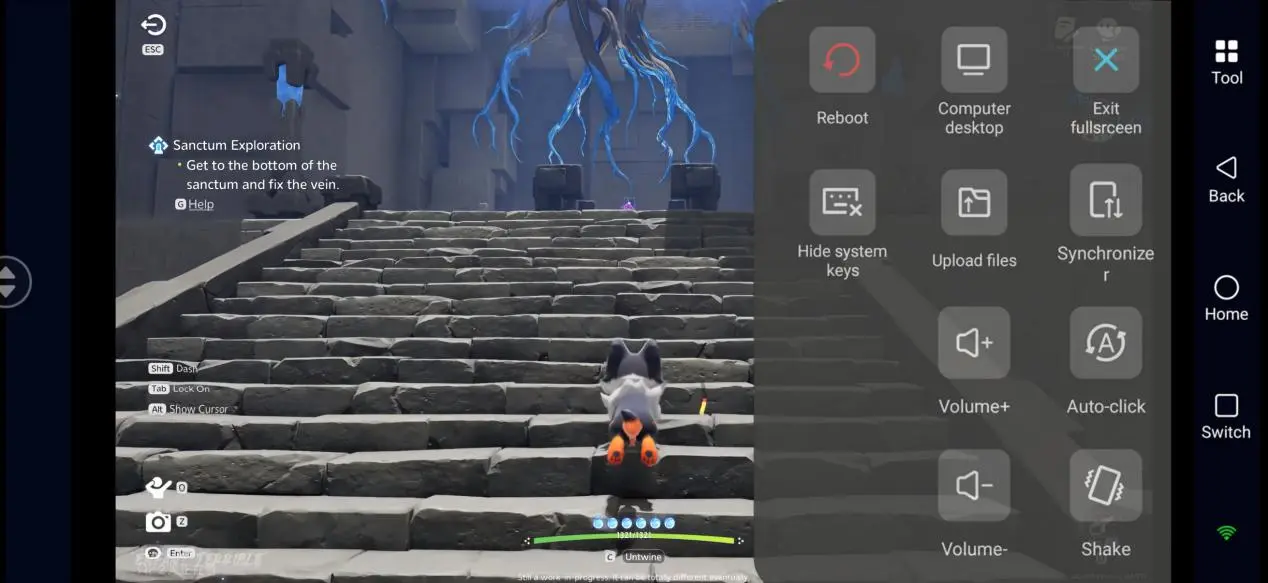
Smart Anti-Sleep Floating Widget
A persistent floating icon stays on your phone's screen while you're remotely controlling your PC through OSLink. This stops your phone from locking or entering sleep mode automatically. Activities like resource farming AFK or waiting for pet egg incubation take a long time, and the stream cuts out instantly if your phone dims the screen. This feature keeps your display active so you don't need to check it constantly.
Full Remote Access Logging
OSLink saves a complete log of every remote connection, including timestamps, device information, and connection methods. If multiple people share a single PC account, you can look up who logged in, what time they connected, and how long they controlled the game. This creates a clear audit trail if accidental actions or unintended resource consumption happen.
Custom Virtual Keyboard & Mouse Mapping
OSLink includes pre-built touch control layouts for keyboard-and-mouse games like Aniimo, with full customization for every on-screen button. Map WASD movement keys to a left-side virtual joystick, and assign skill hotkeys to button slots on the right. You can tweak each button's transparency and size separately without covering up critical game visuals.
6. Common Issues & Fixes
Q: My phone can't connect to my PC through OSLink.
A: Double-check that your PC isn't shut down or sleeping, confirm both devices are logged into the identical account, and update OSLink to the newest available version.
Q: My friend can't join my multiplayer lobby, or the invite code stops working.
A: Update OSLink on all mobile devices to the latest build—old and new app versions have incompatible lobby protocols. Invite codes expire after 60 seconds, so generate a new one if time runs out. The lobby caps out at 5 concurrent users; no extra players can join once the limit is hit.
Q: The stream video stutters heavily while playing Aniimo—Is this a phone or PC issue? A: The problem usually stems from your computer. Verify Aniimo runs smoothly locally on your PC, and check if your monitor is turned off. Many PCs drop their GPU into low-power mode when the display is disabled, which ruins streaming performance.
Q: Custom mapped touch buttons don't respond during gameplay.
A: Check for a “Driver Error” alert inside OSLink, then tap “Repair Now” to resolve the issue instantly.
Conclusion
This guide covers every aspect of running Aniimo on PC, installing and pairing OSLink across devices, remotely launching the game from your phone, core streaming benefits, optimized features, and troubleshooting frequent errors. With OSLink streaming technology, you break free from desktop-only play and complete all pet care and multiplayer activities using small pockets of free time. Anyone who wants to keep advancing their pet growth progress while traveling or commuting can use this setup—just leave your PC online, and you'll have stable, round-the-clock mobile access to raise your Aniimo creatures.
 Download