English
 The Japanese-style fantasy RPG Dragon Traveler has officially launched, inviting players into a world where humans and dragons coexist. With story-driven exploration, character development, and diverse combat systems at its core, the game places heavy emphasis on early character pulls and long-term resource management.
Because early gacha results and growth pacing can significantly affect progression, many players choose to reroll at launch or experiment with multiple accounts to test different team compositions. By combining OSLink with the LDPlayer, you can easily run multiple instances on PC, synchronize actions across accounts, and automate early-stage farming—saving time while maintaining steady progress without constant manual input.
Software Download
1. Install OSLink and the LDPlayer
On PC: Download and install OSLink and an Android emulator such as LDPlayer from their official websites.
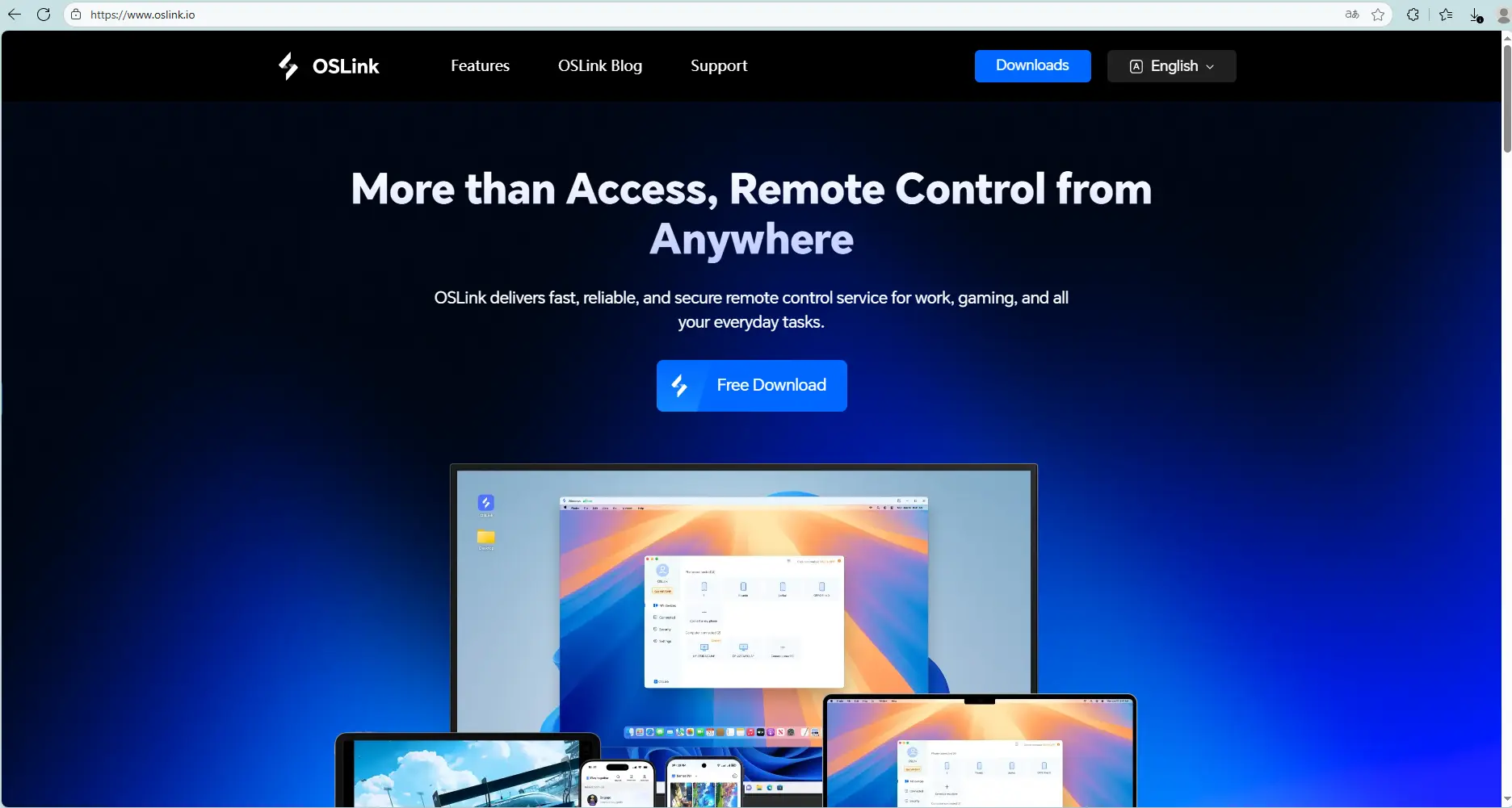
On Mobile: Install OSLink from the App Store or Google Play (or download the APK from the official site if needed).Logging in with the same account as your PC will automatically connect them.
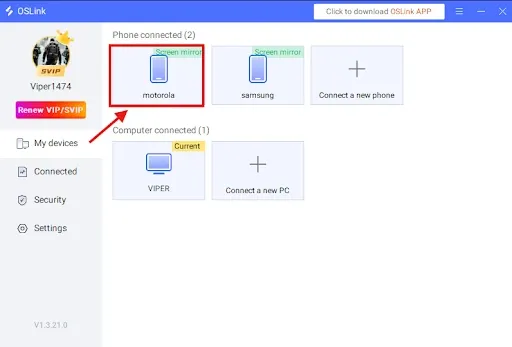
2. Install Dragon Traveler on the LDPlayer
Launch the LDPlayer, open its app store (or Play Store), search Dragon Traveler, and install the game. Run it on the large screen to begin.
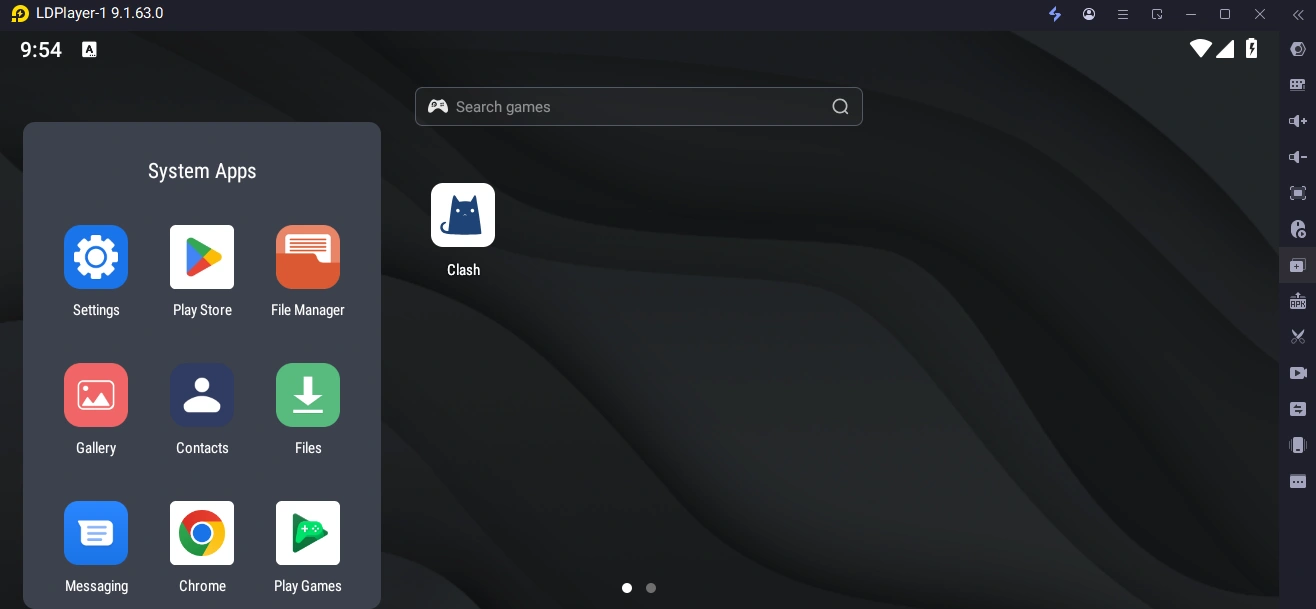
Setting Up OSLink for Dragon Traveler
Auto-farming Setup
Many daily dungeons, gear runs, and progression tasks in Dragon Traveler require repeating the same content. Use OSLink’s auto-click feature to automate those loops:
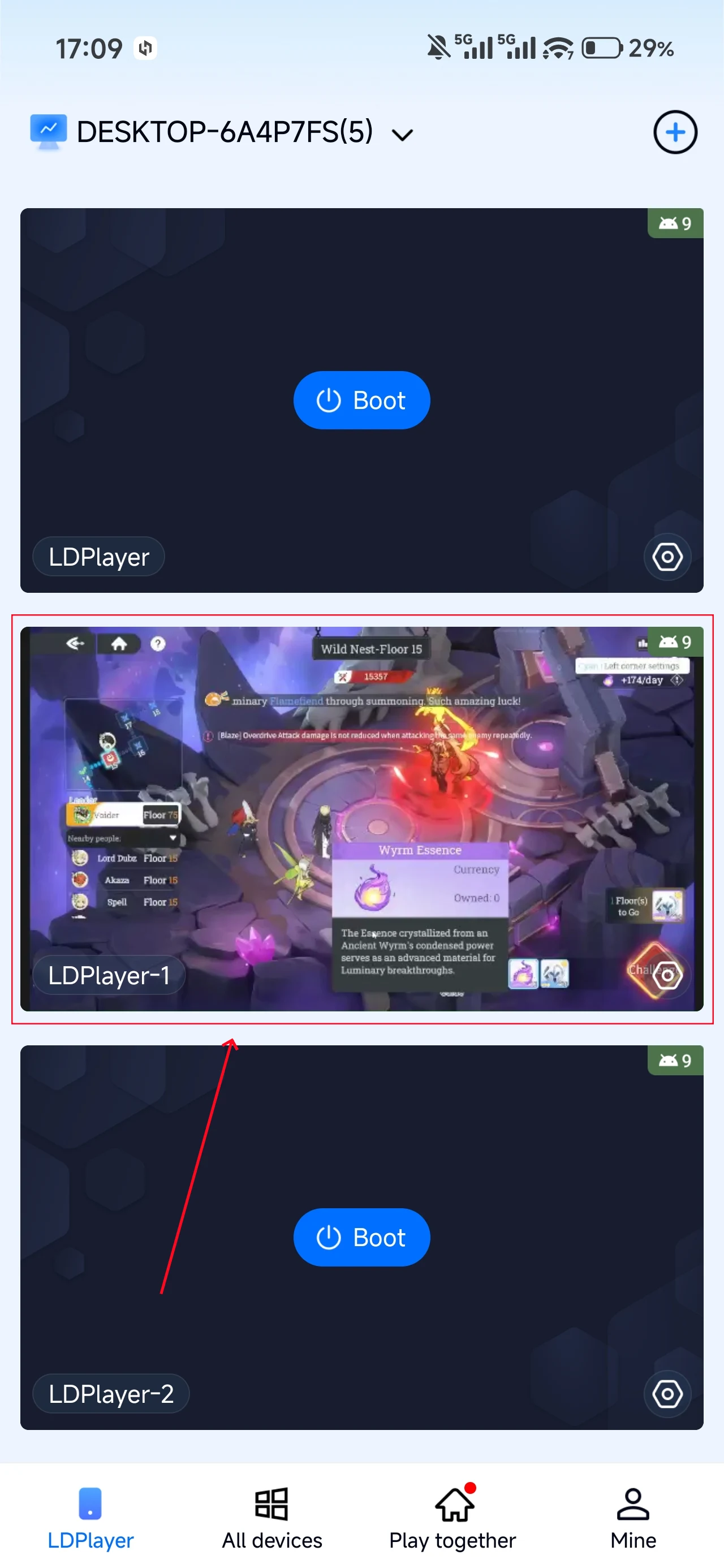
1.Launch Dragon Traveler in the LDPlayer, then connect to that PC from your phone using the OSLink app.
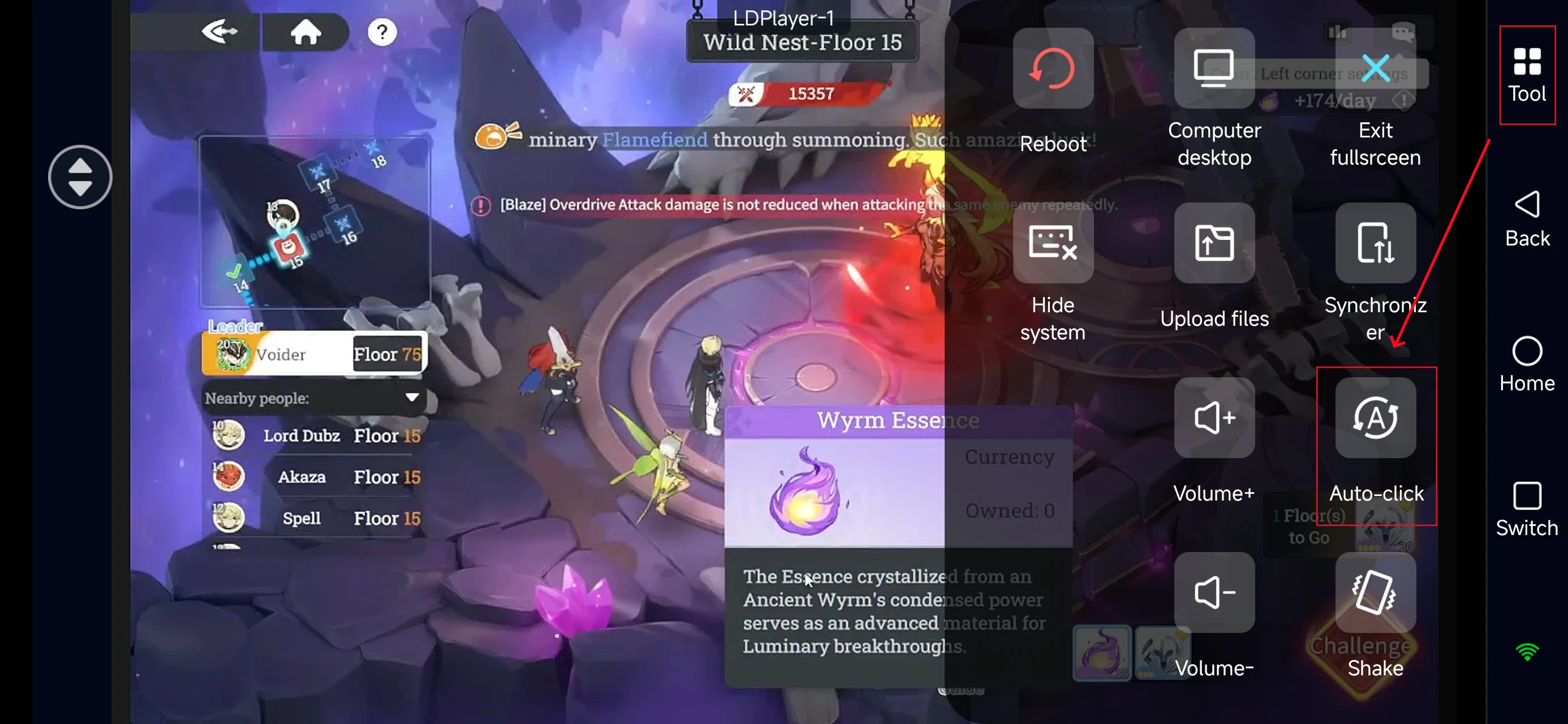
2. Open OSLink’s Auto-Click tool.
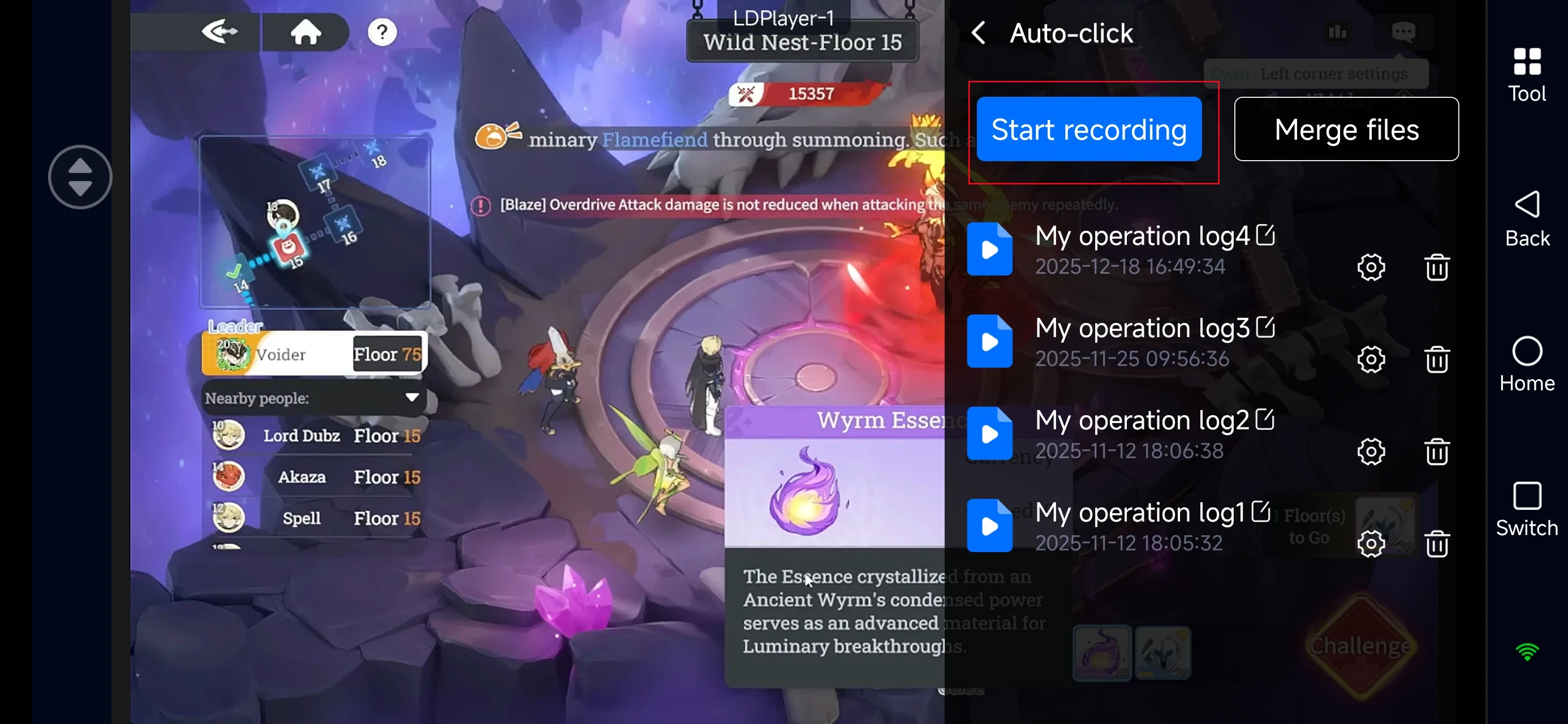
3.Record actions like Start Battle → Enable Auto-Combat → Claim Rewards.
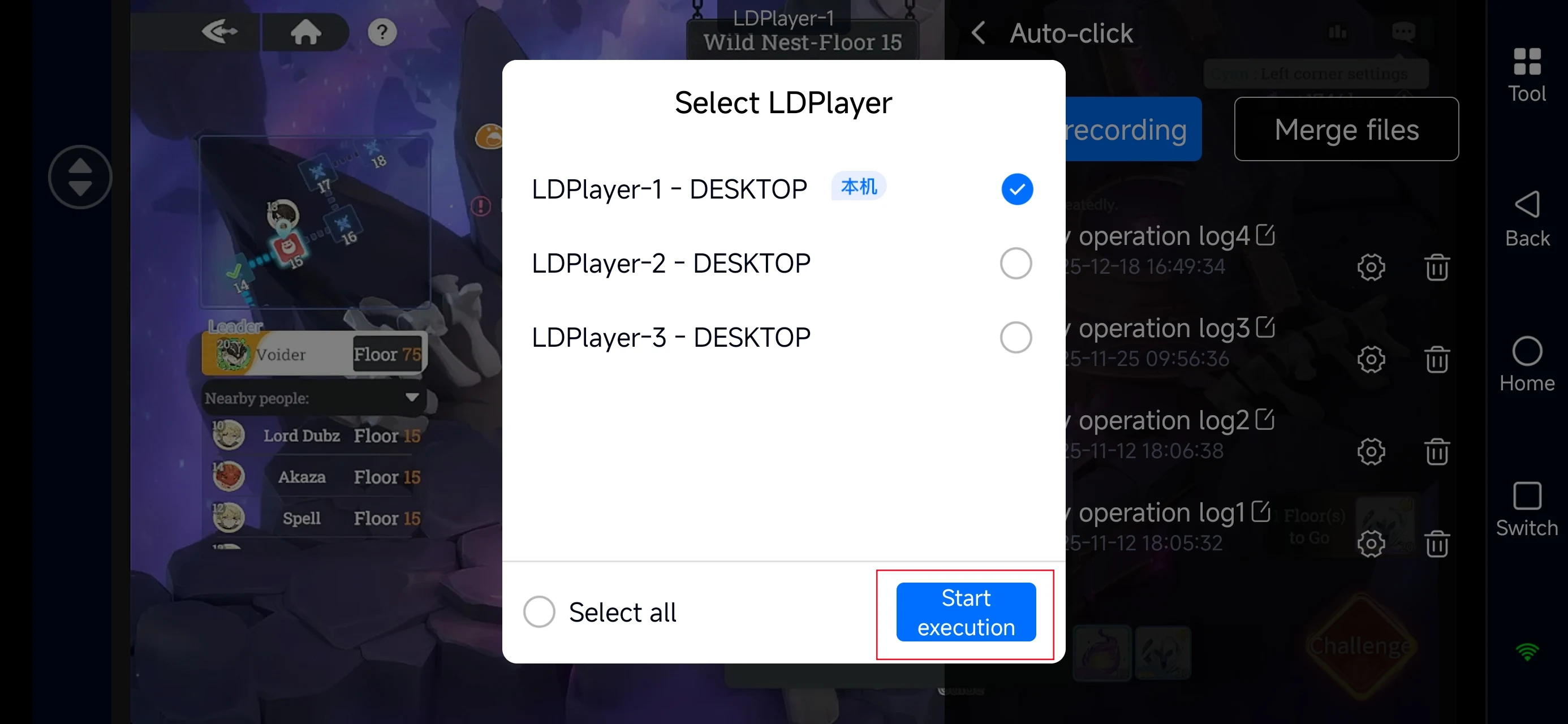
4. Assign the recorded script to the emulator instance you want to run.
Once set up, stages will run automatically, allowing continuous progression and reward collection.
Multi-Instance Reroll Method
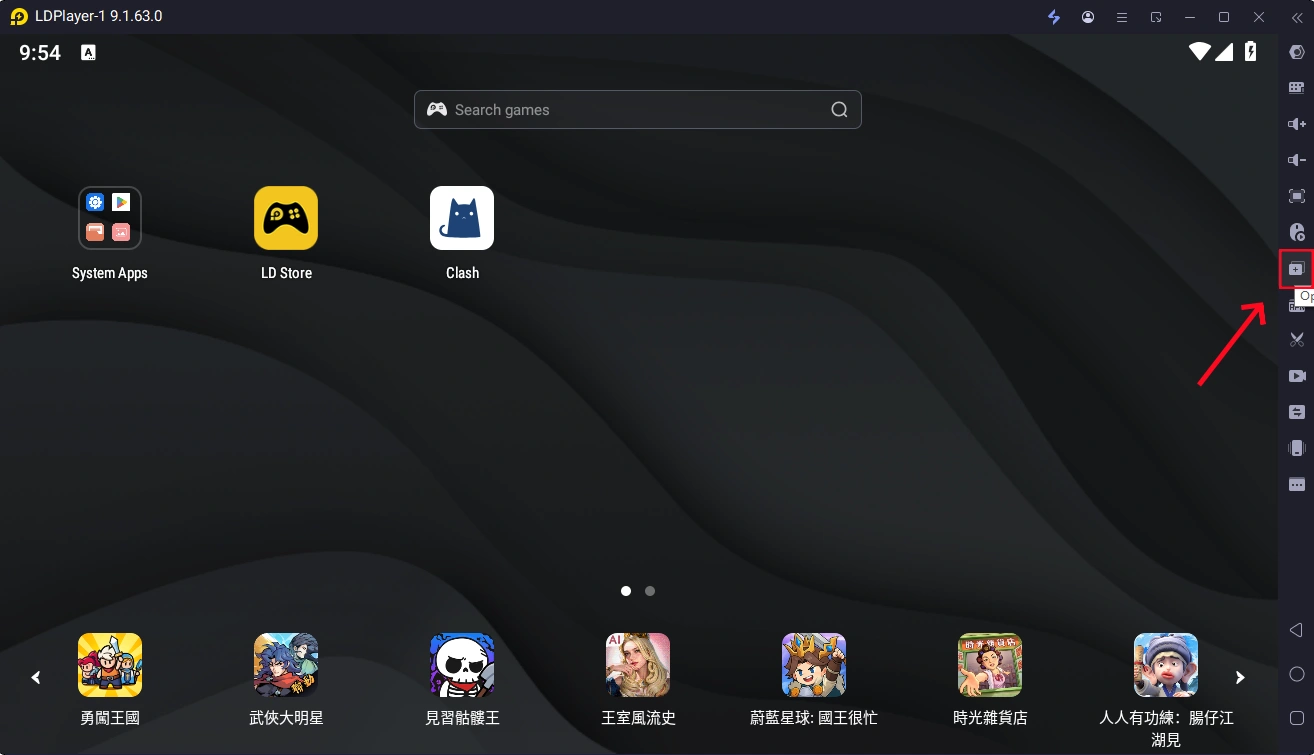
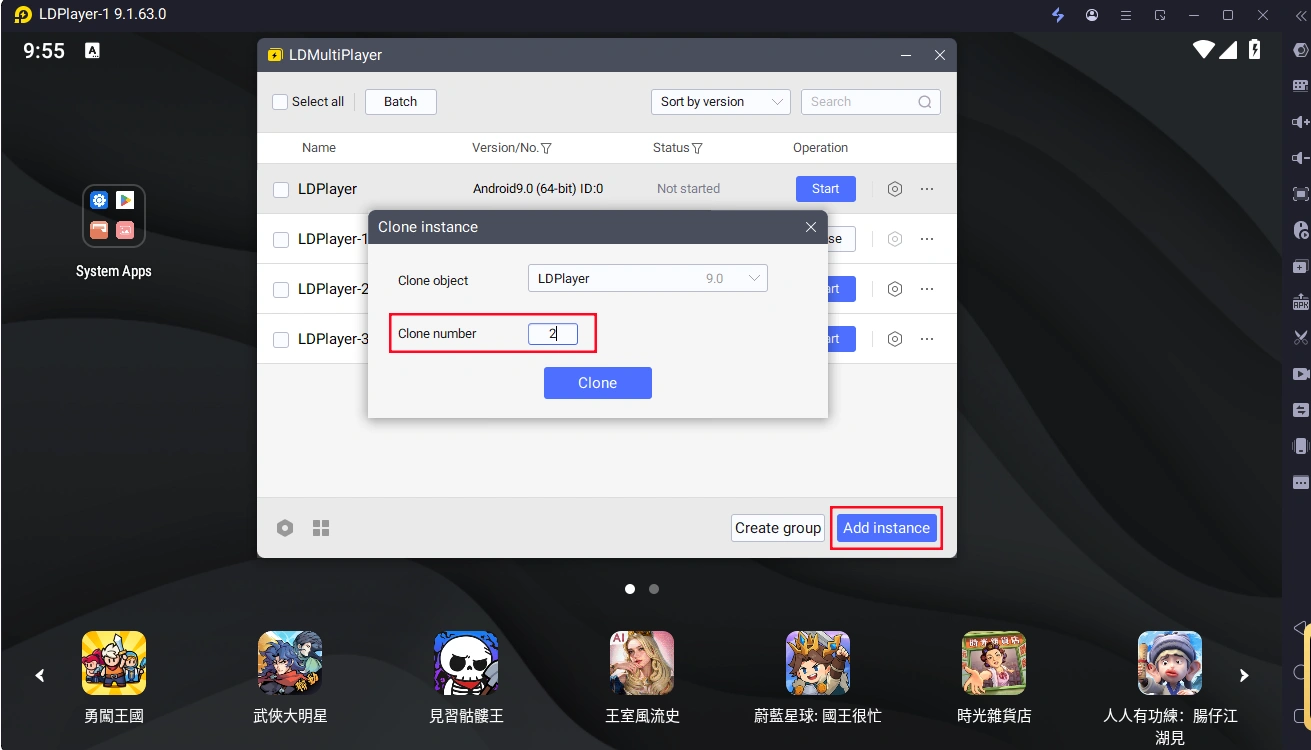
1.In your LDPlayer, create multiple instances (Add Instance → Clone Instance).
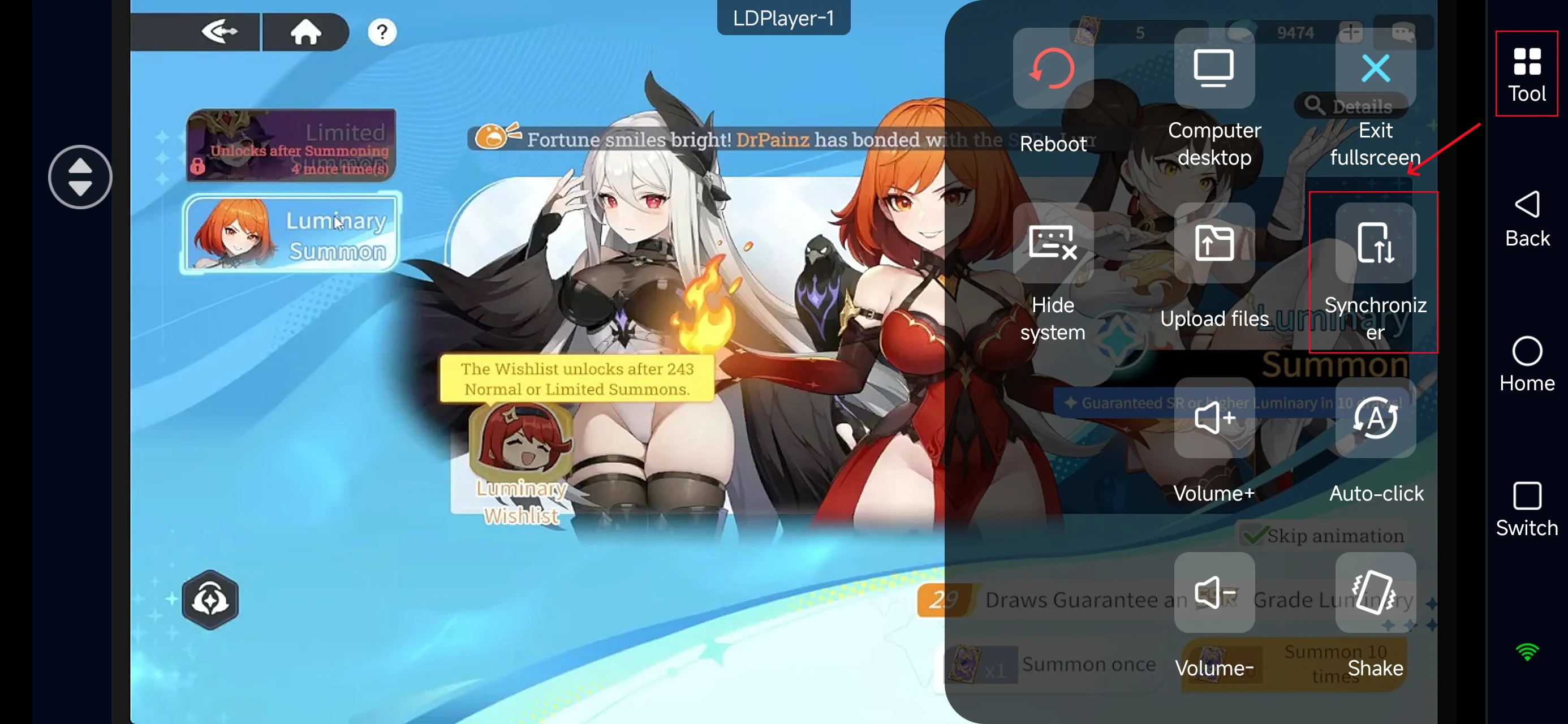
2. In Mobile OSLink, open the Tools panel on the right, and select Synchronizer.
3. Check all emulator instances you want to synchronize, and start sync.
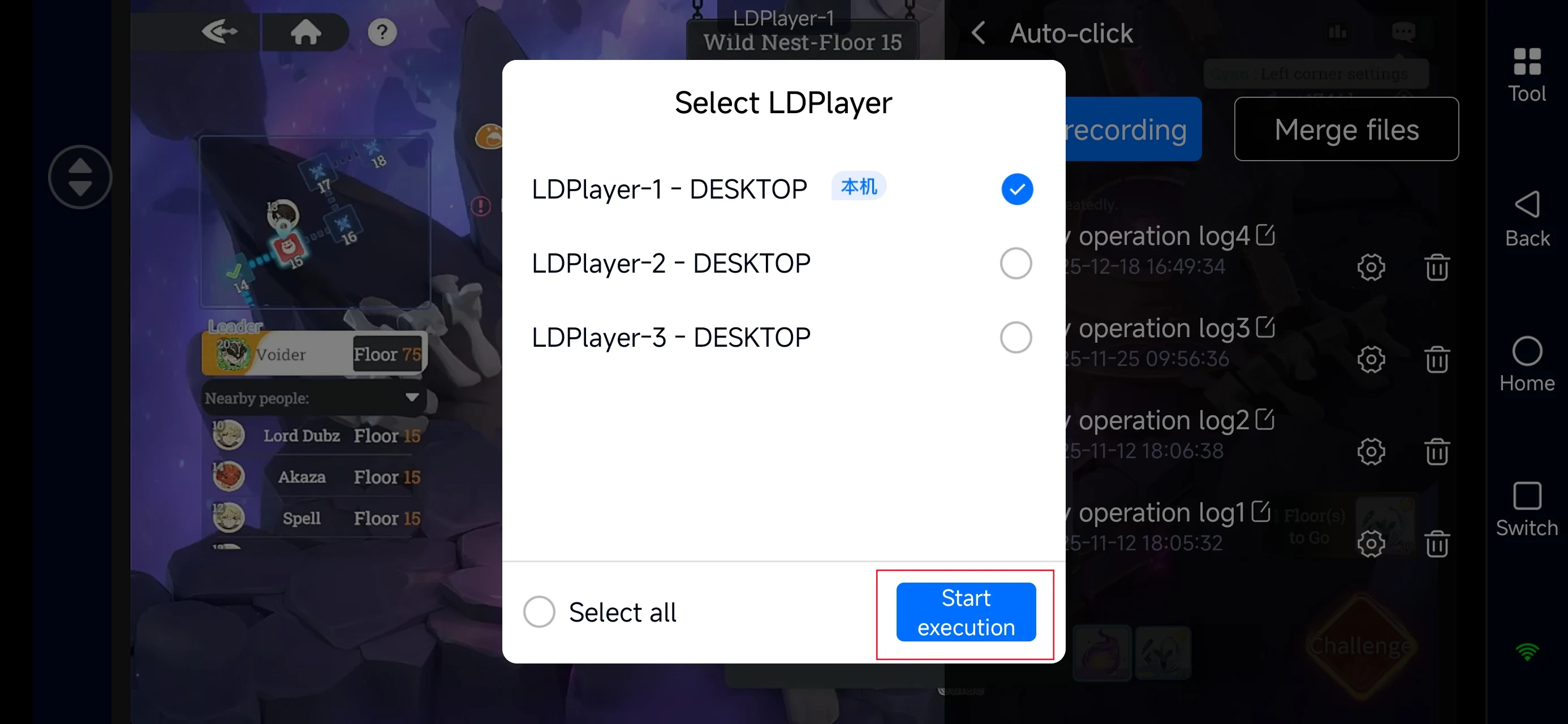
This allows you to reroll multiple accounts at once, dramatically reducing the time needed to secure a strong opening roster.
Recommended Reroll Characters
Ifrit
One of the strongest AoE damage dealers in the current version. Her Ultimate floods the battlefield with projectiles, making her ideal for fast stage clearing and early progression.

Poseidon
A cornerstone character for elemental teams and crowd control strategies. Her opening skill pushes enemies back across the entire screen, instantly disrupting enemy formations.

Hades
A top-tier single-target burst DPS. Her Ultimate features an extremely high damage multiplier, capable of instantly eliminating priority targets. Defeating enemies resets the cooldown and restores energy, making her exceptional in PvP and high-difficulty boss fights.

Conclusion
Whether you’re aiming for the perfect reroll start or looking to streamline long-term character development, OSLink provides a flexible and efficient way to manage your journey. Start your adventure in Dragon Traveler with less hassle and a smoother growth curve—and focus on what really matters: building your team and exploring the world alongside your dragons.
 Download