English
  Blog Remote Solutions 5 Ways to Mirror Your Phone to Laptop (Windows 10 & 11): Best Free & Wireless Methods
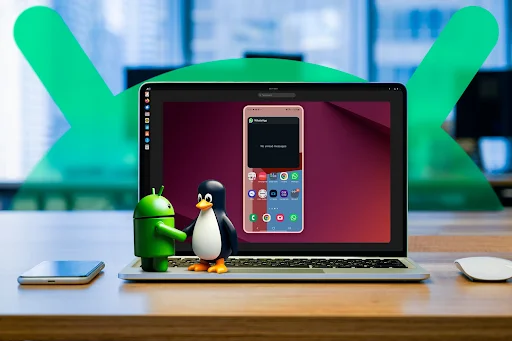
Mirroring your phone to a laptop is one of the easiest ways to stay productive without constantly switching between devices. If you’re searching for how to mirror your phone to a laptop, there are several free and reliable methods available for both Windows 10 and Windows 11 laptop users.
Whether you want to mirror your phone screen on a laptop wirelessly or use built-in Windows 10 features, modern screen mirroring tools make it simple to stay connected on a larger display.
In this guide, we’ll explain how to screen mirror a phone to a laptop, compare free tools to mirror phone to laptop, and help you choose the best app to share a phone to a laptop based on productivity, wireless performance, or gaming needs.
OSLink: Best App to Mirror Phone to Laptop on Windows 10 & 11
OSLink is a powerful all-in-one solution designed to mirror your phone to a laptop with full control and smooth performance. It allows users to screen mirror phone to laptop in high resolution while using a mouse and keyboard for real-time interaction. Whether you need to mirror Android to a laptop for productivity or gaming, OSLink supports both wireless and USB connections for flexible use on Windows 10 and Windows 11 laptops.
To keep things flexible, OSLink offers a free ad-supported plan, with an optional paid version that removes ads for a cleaner experience.
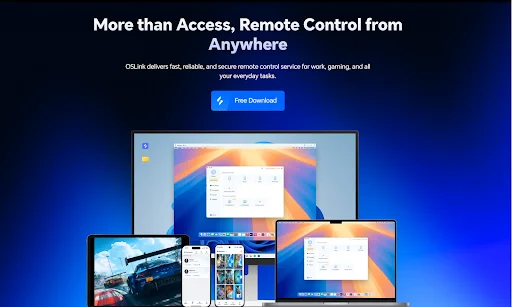
Why OSLink Stands Out
-
Full phone control using the mouse and keyboard
-
Works over Wireless (Wi-Fi) or USB mode
-
Custom key mapping for mobile games
-
Optimized for games like COD, PUBG, Delta Force, and other action titles
-
No emulator required to play mobile games on PC, reducing the risk of game bans
Compared to basic free tools to mirror phone to laptop, OSLink goes beyond simple screen sharing by offering full device control and optimized performance.
How to Set Up OSLink
Step 1: Download
-
Visit oslink.io
-
Download and install the PC application
-
Install the OSLink mobile app on your phone
Step 2: Log In
-
Log in on both PC and phone using the same email
-
Your connected devices will appear automatically
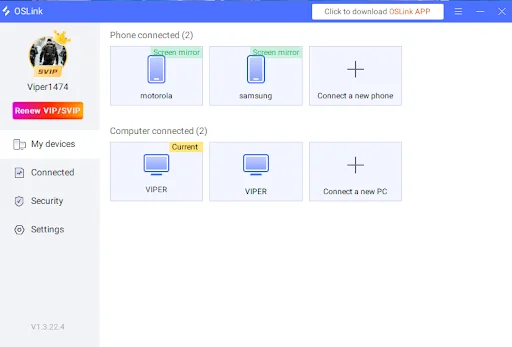
Step 3: Connect Your Phone
-
Open the OSLink PC app
-
Select your phone from the device list
-
Choose one of the connection modes below
Connection Modes
These connection options allow you to mirror your phone screen on a laptop wirelessly or through USB, depending on whether you prioritize convenience or performance.
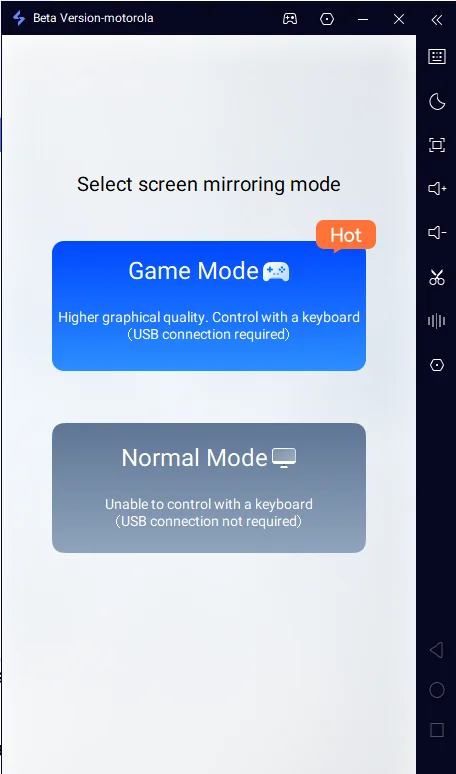
🔹 Game Mode (USB Mode)
This mode is best for gaming and supports real-time interaction
-
Requires a USB cable
-
Lower latency
-
Higher FPS
-
Most stable connection
🔹 Normal Mode (Wireless Mode)
This mode is Ideal for messaging, notifications, and social media work
-
Works over Wi-Fi
-
No cable required
-
Quick and convenient setup
Permissions Required (Normal Mode)
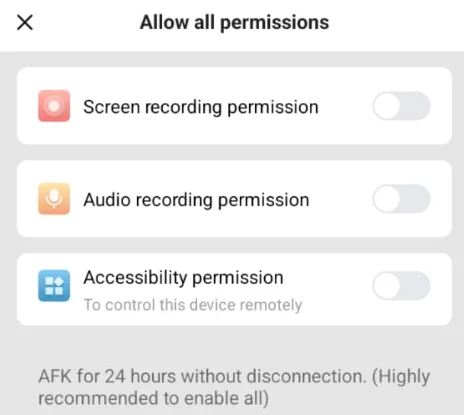
When using Wireless / Normal Mode, OSLink may request a few standard Android permissions. These permissions are required for screen mirroring to function correctly and are not saved, stored, or processed by OSLink.
The permissions requested are:
-
Screen Recording – Allows OSLink to display your phone screen on your laptop
-
Audio Recording – Enables audio playback during screen mirroring
-
Accessibility Access – Allows mouse and keyboard control from your laptop
These are standard permissions used by screen mirroring apps and are only active while the connection is running.
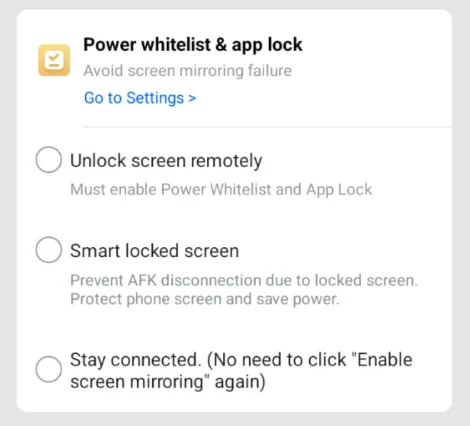
For better stability, also enable:
-
Power whitelist
-
App lock
-
Remote unlock
-
Stay connected to instantly open your device from your PC
These settings prevent disconnections and allow long, uninterrupted mirroring sessions.
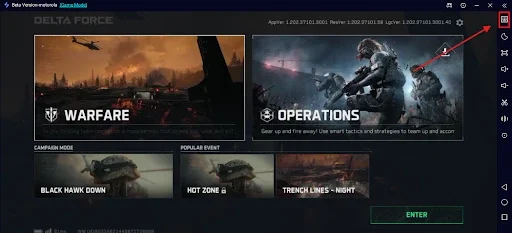
Key Mapping for Games
For mobile gaming on PC:
-
Open the Key Mapping menu
-
Drag and drop controls onto the game screen
-
Save the layout and start playing
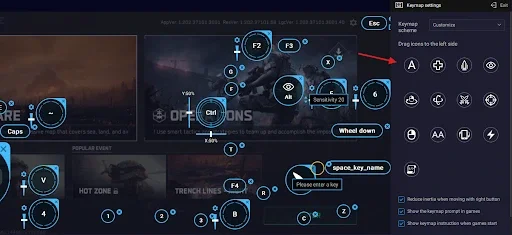
This makes mobile games feel much closer to native PC gameplay.
How to Mirror Android to Laptop Using Built-in Windows 10 & 11 Features
If you prefer not to install third-party software, you can mirror Android to a laptop using the built-in Windows 10 and Windows 11 Wireless Display features. This method lets you screen mirror your phone to a laptop wirelessly for free, making it a convenient option for presentations, demos, and basic screen sharing.
Best For
-
Basic screen sharing
-
Presentations and demonstrations
-
Users who want a no-install solution
Key Features
-
Built-in Windows feature (no third-party software)
-
Wireless screen mirroring over Wi-Fi
-
Free to use
-
Works with Miracast-supported Android devices
Limitations
-
Noticeable latency compared to wired solutions
-
Limited device compatibility (Miracast required)
-
No mouse or keyboard control
-
No audio control in some device combinations
-
Not suitable for gaming or real-time interaction
How to Enable Wireless Display
Step 1: Install Wireless Display
-
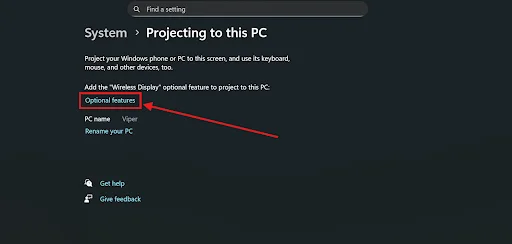
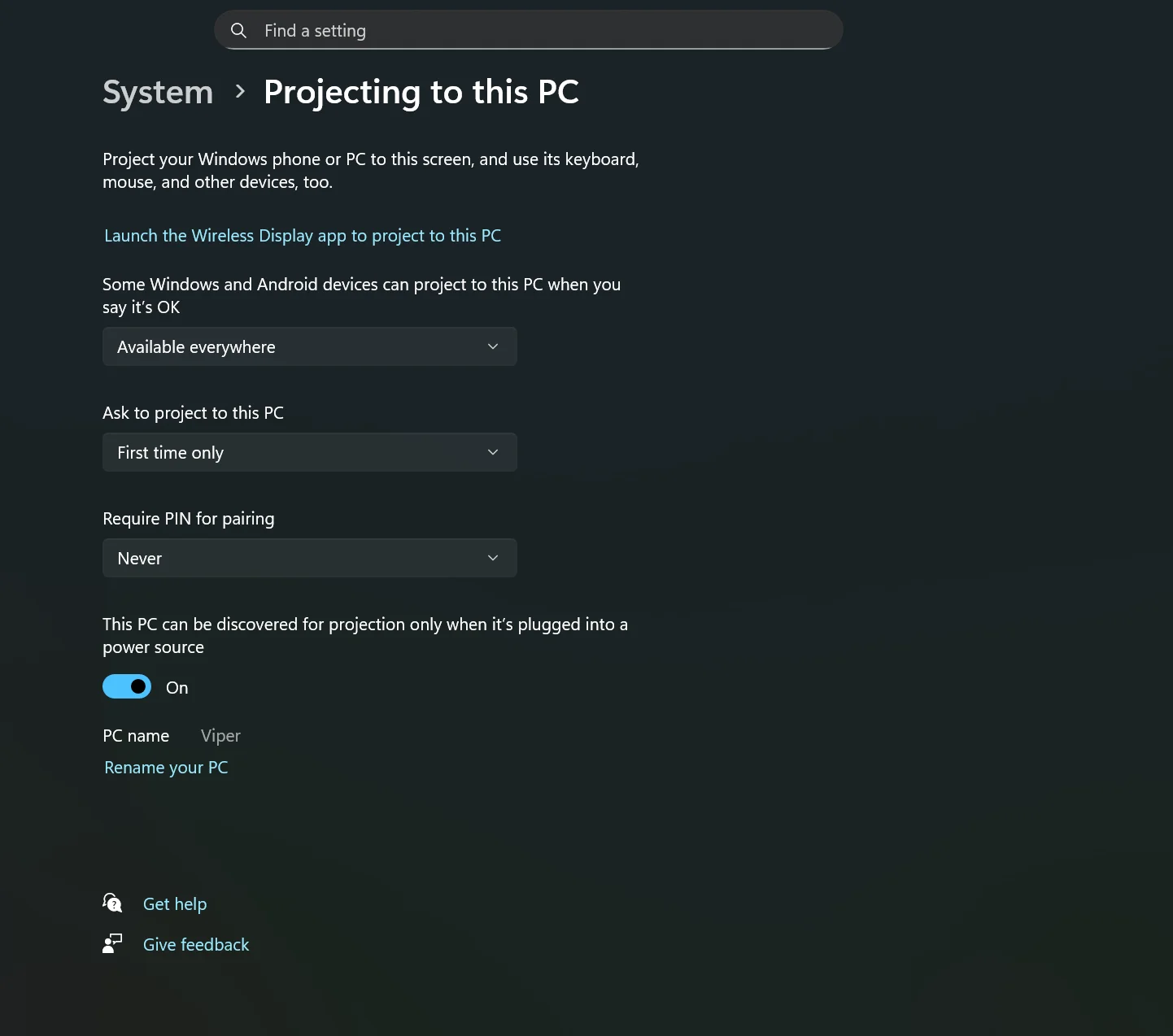
Go to Start → Settings → System → Projecting to this PC
-
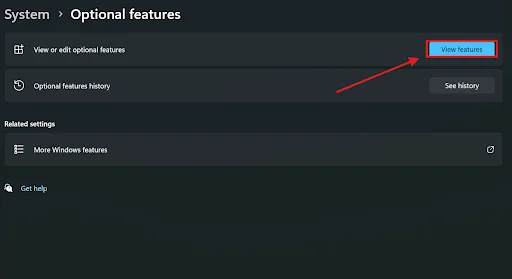
Open Optional features
-
Click View features
-
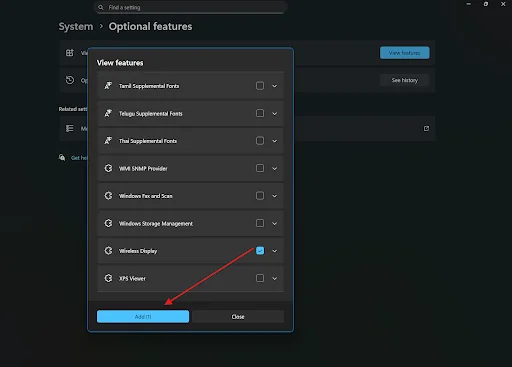
find the Wireless Display in “See available features” window
-
Select it and click Install
Step 2: Configure Projecting Settings
-
Return to Projecting to this PC
-
Adjust permissions and availability as needed. For some Windows and Android devices can project to this PC → Set to Available everywhere
-
Ask to project to this PC → Set to First time only or Every time
-
Require PIN for pairing → Optional (enable if you want confirmation)
Step 3: Cast from Android
-
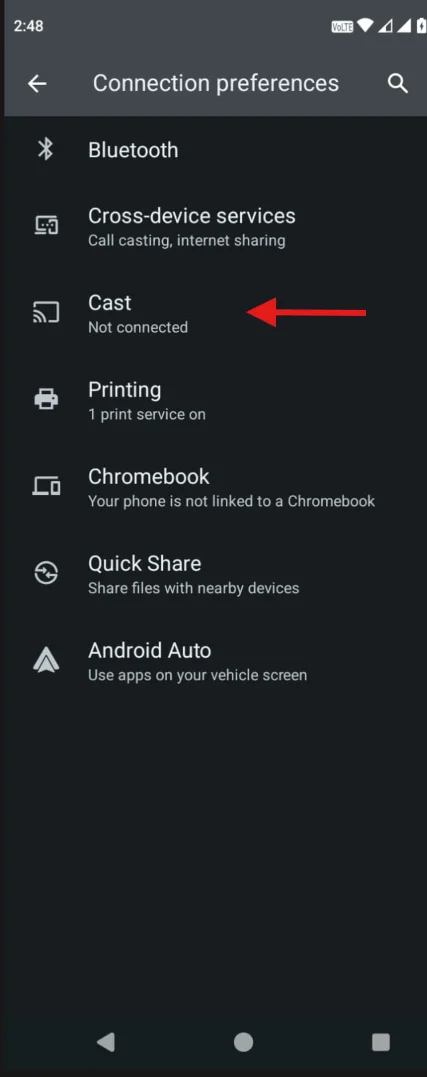
Open Quick Settings on your Android phone
-
Look for Cast, Smart View, or Screen Mirroring
-
Select your PC from the list
-
Approve the connection on your PC
Your phone screen should now appear on your laptop.
Microsoft Phone Link (Built-in Windows Option)
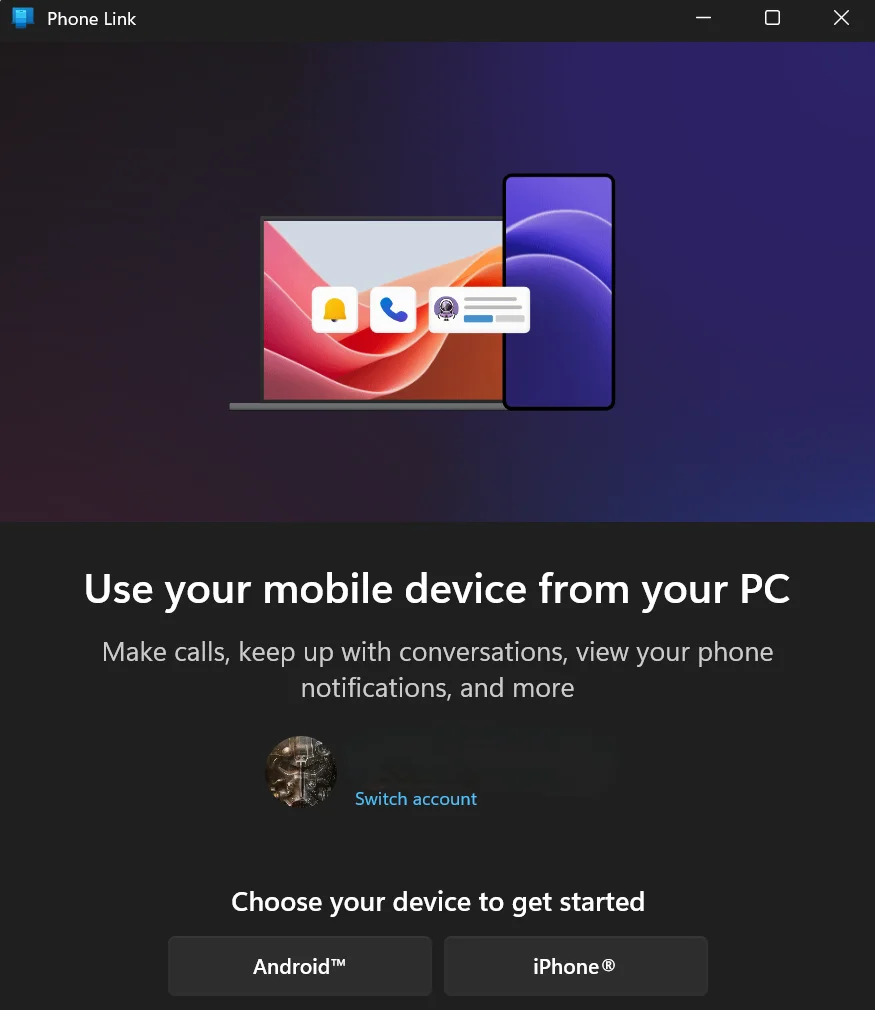
Microsoft Phone Link is a built-in Windows 10 and Windows 11 feature that allows you to connect and partially mirror your phone to a laptop without installing third-party desktop software. While it doesn’t offer full-screen control, it works well as a free tool to mirror phone to laptop for messaging, notifications, and light app access.
Best for
-
Viewing notifications
-
Sending and receiving SMS
-
Making and answering calls
-
Basic app access (on supported devices)
Key Features
-
View and respond to SMS messages directly from your laptop
-
Receive and manage phone notifications on Windows
-
Make and receive phone calls using your PC
-
Access photos instantly without manual file transfer
-
Launch and use Android apps on PC (supported devices only)
-
Works wirelessly over Wi-Fi or Bluetooth
Limitations
-
Limited screen control
-
Not suitable for gaming
-
Performance and features depend on the phone model
Good choice if you want a simple, no-install option for daily communication tasks. Not ideal if you need full control or real-time interaction.
Samsung DeX: Screen Mirror Phone to Laptop for Samsung Devices
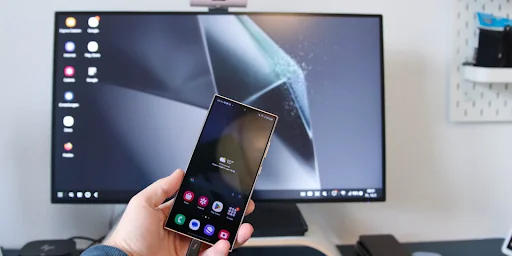
Samsung DeX is a built-in feature on supported Samsung Galaxy devices that allows users to mirror their phone to a laptop and use it in a desktop-style interface. It’s one of the most polished options to screen mirror phone to laptop for productivity on Windows 10 and Windows 11 laptops, especially for multitasking and office work.
Best for
-
Samsung Galaxy users
-
Productivity and multitasking
-
Presentation and office work
Key Features
-
Official Samsung solution (no third-party risk)
-
USB or wireless connection
-
Desktop-style UI optimized for large screens
-
Keyboard and mouse support
Limitations
-
Only available on supported Samsung devices
-
Not designed for gaming
-
No custom key mapping
How to Set up Samsung DeX
Step 1: Check Device Support
-
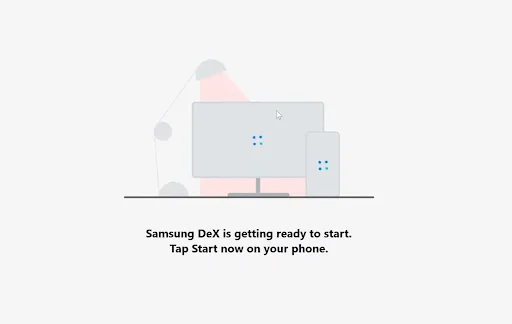
Ensure your Samsung Galaxy device supports Samsung DeX
-
Works on most Galaxy S, Note, and Z series, and some Galaxy Tab models
Step 2: Connect to Your Laptop
-
USB Mode: Connect your phone to the laptop using a USB cable
-
Wireless Mode: Make sure both the phone and the laptop are on the same Wi-Fi network
Step 3: Launch DeX
-
Open Samsung DeX on your phone
-
Select your PC from the available devices
-
Accept the connection prompt on your laptop
Step 4: Start Using DeX
-
Your phone opens in a desktop-style interface
-
Use your laptop’s mouse and keyboard to control apps
No additional permissions are required beyond standard screen sharing.
Vysor: Free Tool to Mirror Android to Laptop
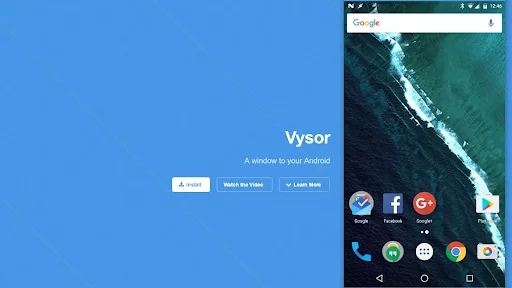
Vysor is a popular Android screen mirroring tool that lets users mirror Android to a laptop using USB or Wi-Fi. It’s commonly used by developers and testers who need a simple way to screen mirror phone to laptop with basic mouse and keyboard control.
Best for
-
USB-based mirroring
-
App testing and demonstrations
-
Users who want simple phone control from a PC
Key Features
-
USB and wireless mirroring
-
Mouse and keyboard control
-
Simple setup compared to developer tools
-
Cross-platform support (Windows, macOS)
Limitations
-
Free version has resolution limits
-
Wireless mode requires paid version
-
No gaming-focused features
How to Set Up Vysor
Step 1: Enable Developer Options
-
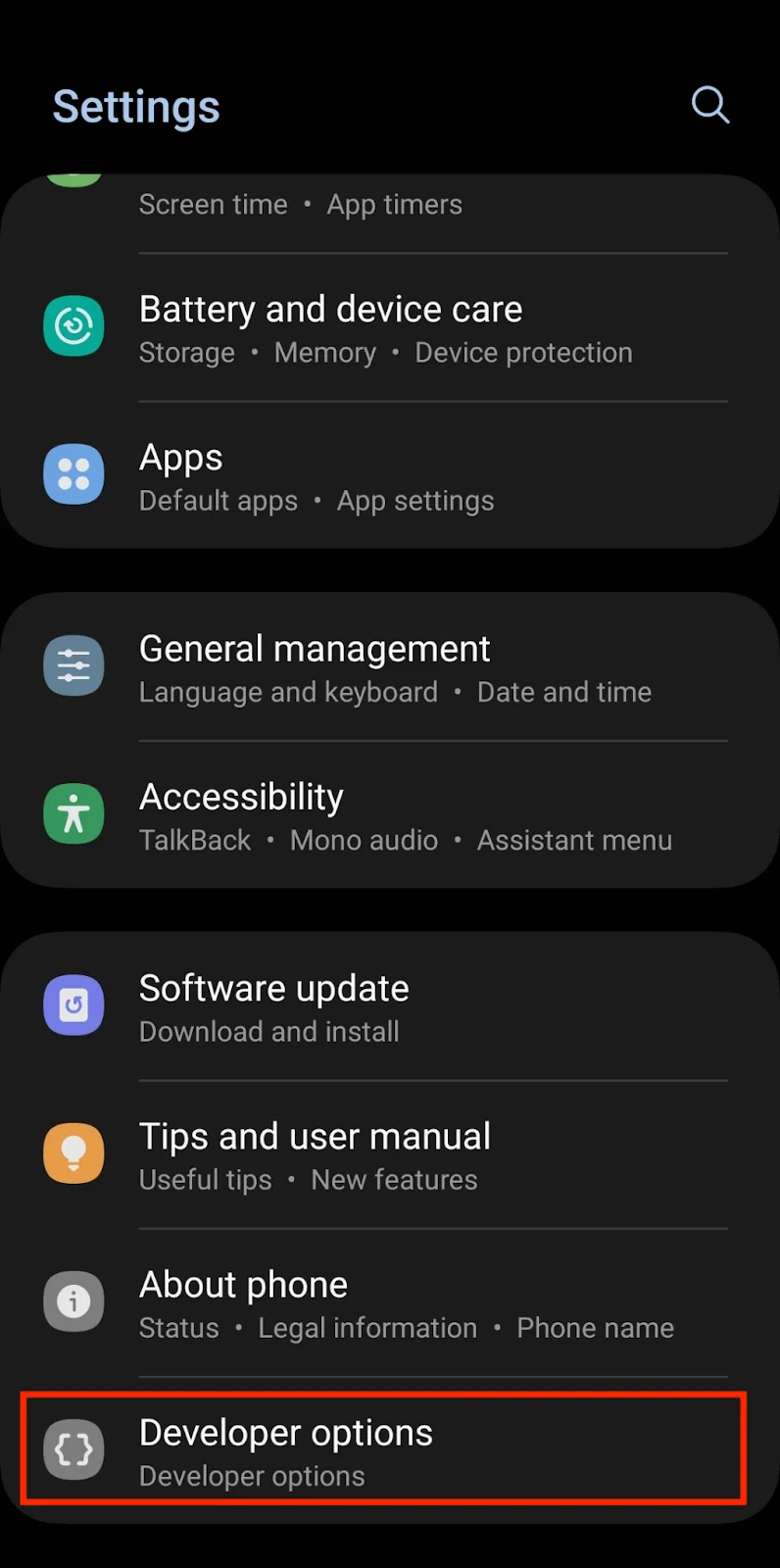
Go to Settings → About phone
-
Tap Build number 7 times to enable Developer Options
Step 2: Enable USB Debugging
-
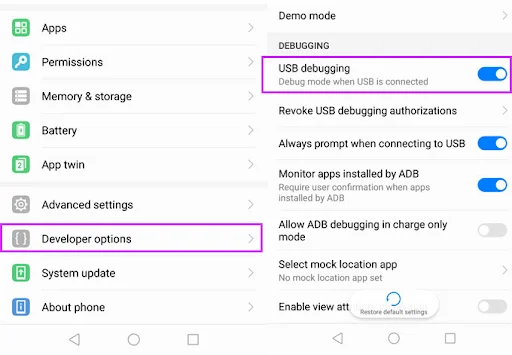
Open Settings → Developer options
-
Turn on USB debugging
Step 3: Install Vysor
-
Install Vysor on your laptop
-
Install the Vysor app on your Android phone
Step 4: Connect Your Phone
-
Connect your phone to the laptop using a USB cable
-
Open Vysor on both devices
-
Grant the USB debugging permission on your phone
Step 5: Start Mirroring
-
Click View in the Vysor desktop app
-
Your phone screen appears on your laptop
Wireless mirroring is available but requires the paid version.
How to Choose the Best Tool to Screen Mirror Phone to Laptop
Choosing the right solution depends on how you plan to mirror your phone to a laptop, whether you need wireless convenience, full control, or gaming-level performance.
-
Choose OSLink if you want full control of your phone from your laptop, smooth screen mirroring, and the ability to play mobile games on PC without using emulators. It’s best for users who need real-time interaction, mouse and keyboard control, and flexible wireless or USB connections.
-
Choose Microsoft Phone Link if your main needs are checking notifications, sending and receiving messages, making calls, and light app access without full screen mirroring or advanced controls.
-
Choose Samsung DeX if you use a compatible Samsung Galaxy device and want a desktop-style experience optimized for productivity, multitasking, and presentations.
-
Choose Vysor if you want a simple Android screen mirroring solution using USB or Wi-Fi, especially for app testing, demonstrations, or basic phone control.
Frequently Asked Questions (FAQ)
How do I mirror my phone to a laptop on Windows 10 or Windows 11?
You can mirror your phone to a laptop using screen mirroring apps like OSLink, built-in Windows features on Windows 10 and Windows 11, or open-source tools such as scrcpy. The best option depends on whether you need wireless access, basic viewing, or full mouse and keyboard control.
Can I mirror my phone screen on a laptop wirelessly for free?
Yes, many tools allow you to mirror your phone screen to a laptop wirelessly over Wi-Fi. Wireless mirroring is ideal for notifications, messaging, and presentations, while USB connections usually offer better performance.
What is the best free tool to mirror a phone to a laptop?
Several free tools are available, but OSLink provides a balanced free option with wireless and USB mirroring, full control, and optional advanced features. Other free tools may be limited in usability or performance.
Can I mirror Android to a laptop running Windows 10 or Windows 11?
Yes, Android devices can be mirrored to laptops running Windows 10 or Windows 11 using built-in features like Phone Link or Wireless Display, as well as third-party screen mirroring apps.
Does screen mirroring require an internet connection?
No, screen mirroring does not require internet access if both devices are connected to the same Wi-Fi network or via a USB cable. The Internet is only needed for login or cloud-based features in some apps.
Is screen mirroring safe to use?
Yes, screen mirroring is safe when using trusted and reputable tools. Most apps use secure local connections and require user permissions to protect your data.
Can I control my phone from my laptop after mirroring?
Some screen mirroring tools allow full control of your phone using a mouse and keyboard, while others only display the screen. If you need interaction, choose a tool that supports remote control features.
Can I play mobile games on a laptop using screen mirroring?
Yes, but only certain tools are effective for gaming. For smooth gameplay, low latency and key mapping support are essential, as basic mirroring tools are not designed for gaming.
Conclusion
Learning how to mirror your phone to a laptop can significantly improve productivity, reduce distractions, and make everyday tasks more efficient. While built-in Windows 10 features work for basic needs and some free tools cover simple use cases, they often lack advanced control and performance. If you’re looking for the best app to share phone to laptop, with smooth performance, full mouse and keyboard control, and support for both wireless and USB connections, OSLink stands out as a complete and reliable solution.
 Download