English
 OpenClaw is powerful, but sometimes you need a clean reset. Whether you're troubleshooting issues or switching setups, knowing how to uninstall OpenClaw properly is important. Many tutorials only remove part of it, leaving behind files, data, or services that can cause problems later.
Table of Contents
In this OpenClaw uninstall guide, you’ll learn how to completely remove everything, including the gateway, data, and CLI, so your system is truly clean and ready for a fresh start or safe removal.
Why You Might Need to Uninstall OpenClaw
Sometimes uninstalling isn’t optional, it’s necessary:

-
Setup issues – Errors, broken configs, or failed installs
-
Clean reinstall – To Install OpenClaw fresh without leftover data
-
Security concerns – Remove access and API keys
-
Switching devices – Moving to another PC or mobile setup
-
System cleanup – Free up space and remove unused tools
If you’re looking for how to uninstall OpenClaw or Clawbot, this guide will help you remove OpenClaw completely without leaving any files behind.
Before You Uninstall OpenClaw
Before starting the OpenClaw uninstall, take a minute to prepare. This helps you avoid errors and makes sure nothing important is lost.
Stop OpenClaw First
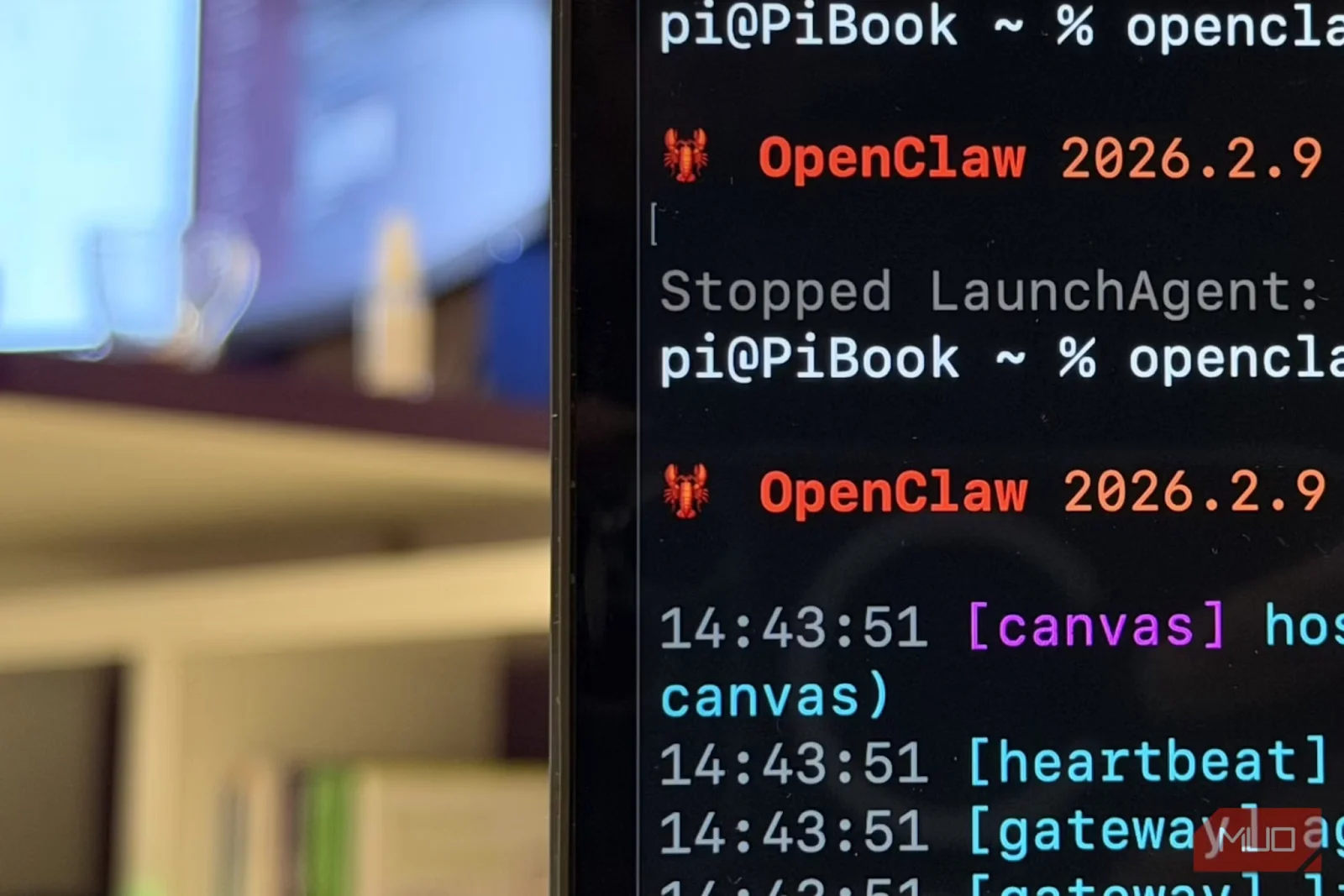
Make sure OpenClaw is not running.
-
Stop the gateway service before uninstalling
-
This prevents errors and incomplete removal
Save Anything Important
Uninstalling will remove:
-
Config files
-
Session data
-
Workflows
If you need anything later, back it up now
Revoke Your API Keys (Very Important)
OpenClaw uses API keys to connect with services. After uninstalling, you should disable or delete them.
-
Google AI Studio (Gemini)
-
OpenRouter / Anthropic / OpenAI
This protects your account and prevents unwanted usage
Close Terminal Sessions
-
Close extra terminals running OpenClaw
-
Stop background processes if needed
Taking these small steps ensures your OpenClaw uninstall guide process is clean, safe, and error-free.
OpenClaw Uninstall: Step-by-Step Guide
Follow these steps in order to completely remove OpenClaw from your system.
Step 1: Stop OpenClaw (Gateway)
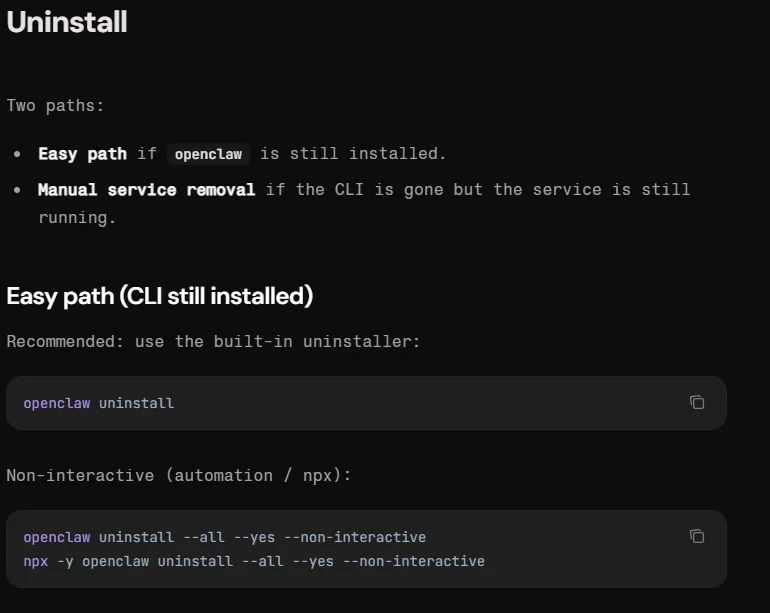
Before uninstalling, you must stop OpenClaw from running.
Open Command Prompt, copy and paste this command, then press Enter:
openclaw gateway stop
This command stops the gateway service, which acts as the connection between OpenClaw and your tasks. If you skip this step, the uninstall process may fail or leave files behind.
Step 2: Remove the Background Service
Now remove the OpenClaw gateway service from your system.
Command to copy:
openclaw gateway uninstall
This removes the background service that runs OpenClaw automatically. After this step, OpenClaw will no longer run in the background.
Step 3: Uninstall OpenClaw (npm Package)
Next, remove OpenClaw completely from your system.
Command to copy:
npm uninstall -g openclaw
This deletes the main OpenClaw installation (CLI tool).
Important: Many guides stop here, but this does NOT remove everything
Step 4: Delete All OpenClaw Data
Even after uninstalling, OpenClaw may leave behind files like:
-
Config files
-
Credentials
-
Workspace data
You need to remove them manually.
Common locations to delete:
~/.openclaw
This ensures all local data is fully removed.
Step 5: Verify OpenClaw Is Removed
Check if everything is successfully removed.
Command to copy:
openclaw --version
If you see:
command not found
That means OpenClaw is completely uninstalled
OpenClaw Uninstall on Android (Termux)
If you installed OpenClaw using Termux on an Android device, the uninstall process is similar, but you need to make sure you're inside the Linux (Ubuntu) environment first.
Step 1: Enter Ubuntu Environment
Open Termux and log into Ubuntu:
Command to copy:
proot-distro login ubuntu
Make sure you run all uninstall commands inside Ubuntu, not the default Termux shell.
Step 2: Stop OpenClaw
Stop the running OpenClaw service:
Command to copy:
openclaw gateway stop
This ensures OpenClaw is not running during removal.
Step 3: Remove OpenClaw
Uninstall OpenClaw from your system:
Command to copy:
openclaw gateway uninstall
This removes the gateway and main OpenClaw setup.
Step 4: Remove OpenClaw CLI (npm)
Now remove the global package:
Command to copy:
npm uninstall -g openclaw
This deletes the OpenClaw CLI tool completely.
Step 5: Delete Remaining Data
Remove all leftover files:
Command to copy:
rm -rf ~/.openclaw
This deletes:
-
Config files
-
Tokens
-
Local data
Step 6 (Optional): Remove Ubuntu (Full Reset)
If you want a complete cleanup, you can remove Ubuntu from Termux:
Command to copy:
proot-distro remove ubuntu
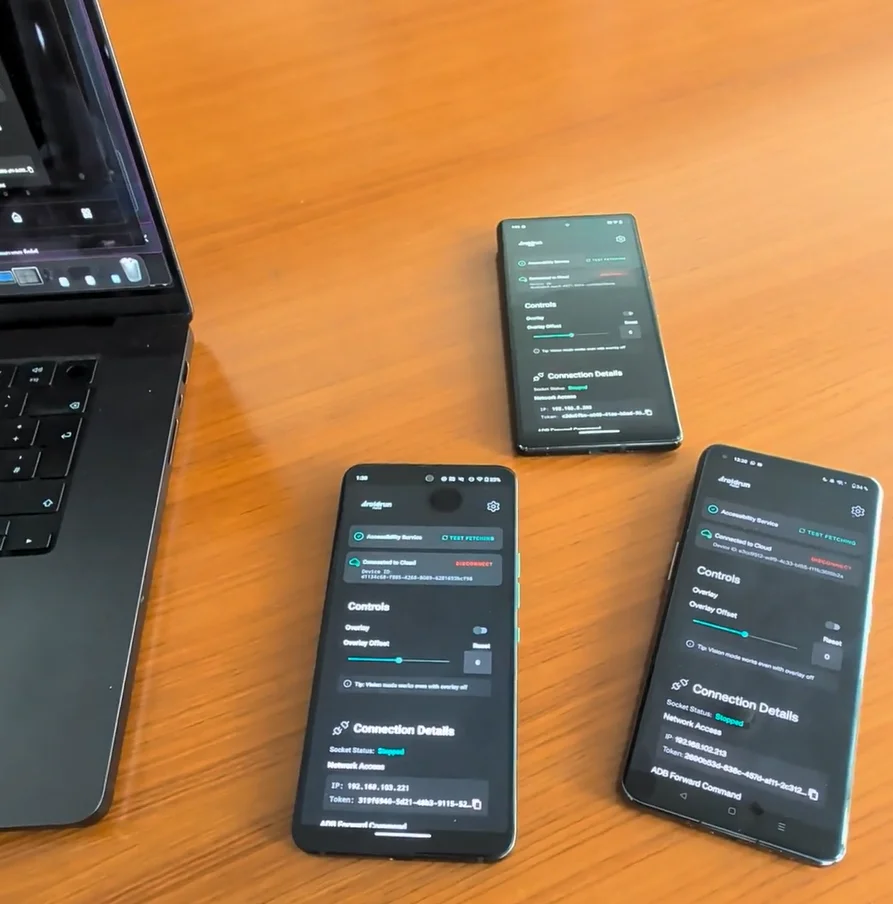
After completing these steps, OpenClaw is fully removed from your Android device. If you’re running OpenClaw on multiple devices (old phones, spare PCs, or mixed setups), managing everything can quickly become difficult. With OSLink, you can:
-
Control multiple Android devices from one phone
-
Access and manage remote PCs easily
-
Switch between devices instantly
-
Manage multiple OpenClaw agents in one place
OpenClaw Uninstall FAQ
How to uninstall OpenClaw completely?
To fully remove OpenClaw, you need to:
-
Stop the gateway
-
Uninstall the service
-
Remove the npm package
-
Delete all local data
Following this OpenClaw uninstall guide ensures nothing is left behind.
Does uninstalling OpenClaw delete all data?
Not always.
-
The uninstall command removes most data
-
But some files (like config and credentials) may remain
That’s why manual cleanup (like deleting .openclaw) is important.
Can I reinstall OpenClaw after uninstalling?
Yes, you can reinstall anytime.
In fact, doing a full OpenClaw uninstall is the best way to fix broken setups before reinstalling.
Do I need to remove Node.js or Termux?
No.
-
You only need to remove OpenClaw
-
Node.js, Termux, or Ubuntu can stay
Remove them only if you want a full system cleanup.
I ran the uninstall commands, but OpenClaw is still there. Why?
This usually happens when some parts were not fully removed.
Common reasons:
-
The gateway service is still running
-
The npm package wasn’t removed
-
Leftover files (like .openclaw) still exist
Make sure you complete all steps in this OpenClaw uninstall guide, including manual file deletion and verification.
Conclusion
Uninstalling OpenClaw doesn’t have to be complicated, you just need to follow the right steps to remove the gateway, CLI, and all leftover data for a truly clean system. Whether you're troubleshooting, switching devices, or starting fresh, a proper OpenClaw uninstall gives you a stable base to work from. And if you’re running multiple setups or planning to scale again, tools like OSLink make it easy to manage all your devices from one place, so you stay in control without the hassle.
 Download