English
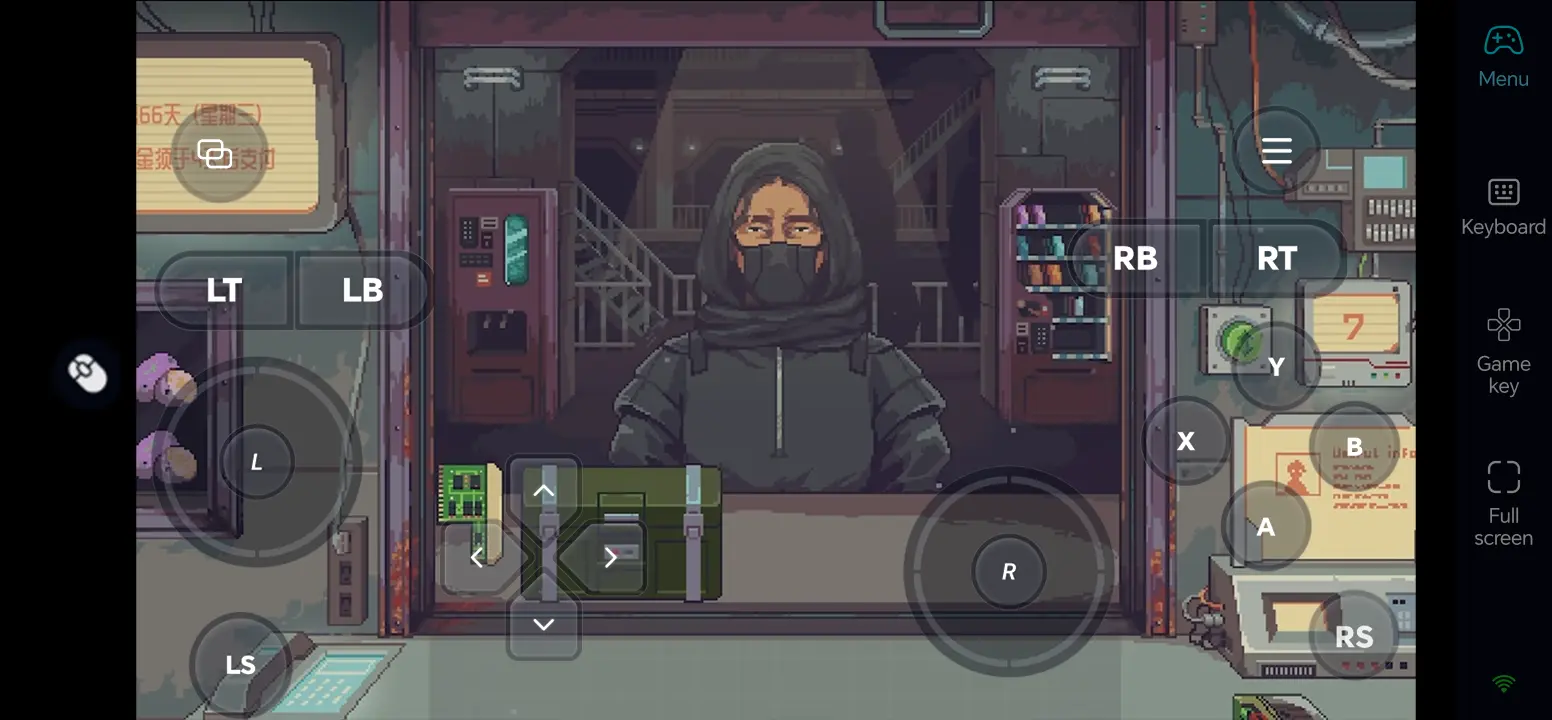
Probably Stolen - Cyberpunk Shopkeeper Sim is a store management game set on a dystopian space station. As a former scavenger with a storefront, you inspect goods, negotiate prices, decide which customers to trust, and navigate faction and security risks. Rent keeps rising, so inventory and each deal matter. When you're away from your PC, keeping up with your shop becomes more difficult.
OSLink lets your Android or iOS phone control your own Windows PC while Probably Stolen runs there. This guide covers Steam installation, device pairing, and a touch layout suited to storekeeping.
How to Get Probably Stolen on Steam
Steam Download and Local Check
Find Probably Stolen on Steam and check the matching game page. Choose the base game, complete the purchase, and install it from your Library. First launch it on your PC and check saving, item inspection, trading, and menus. Once the local version works, set up remote play.
Play Probably Stolen Remotely on Mobile
Step 1: Install OSLink and Connect Your Devices
1. Install OSLink on Your PC
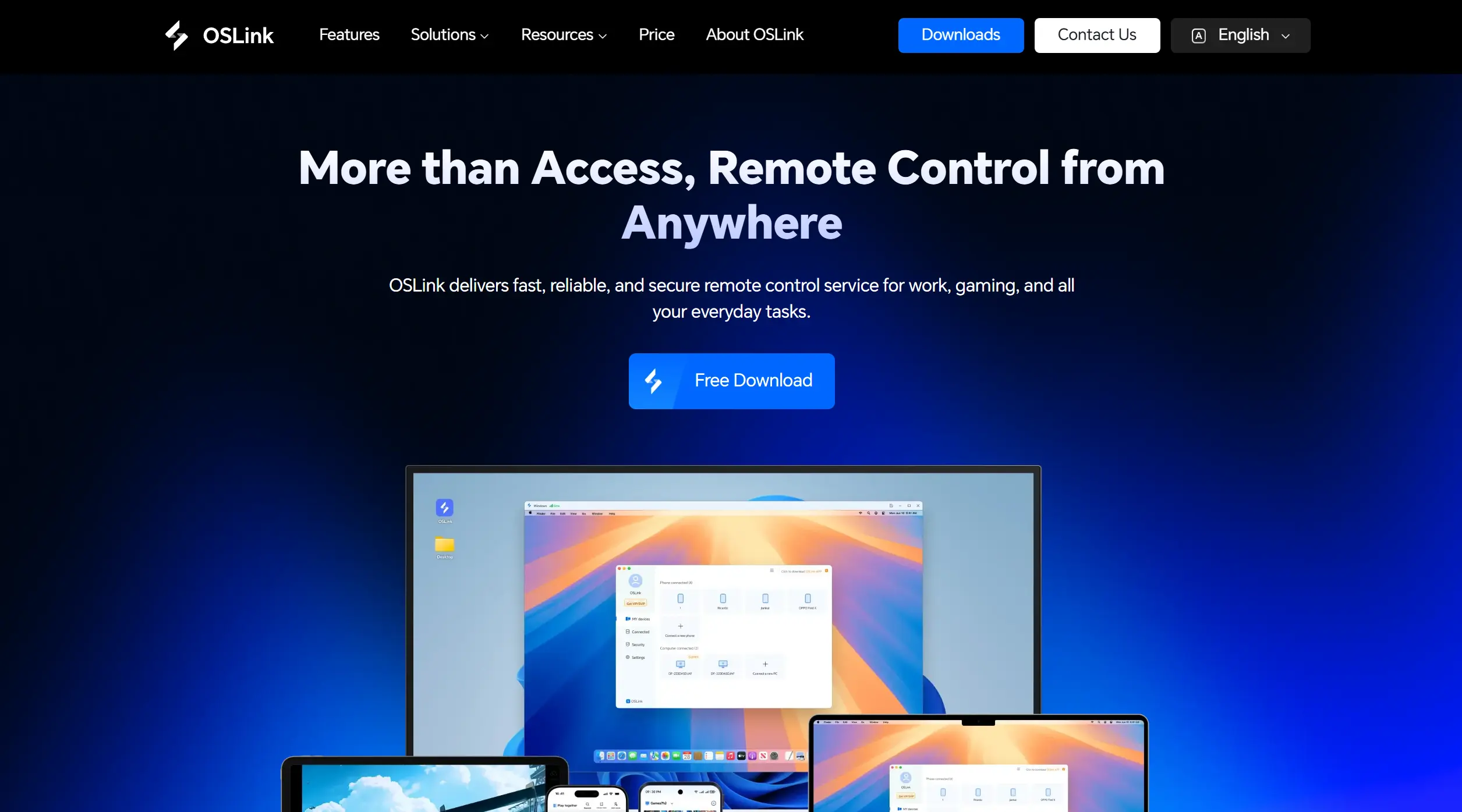
Download the OSLink Windows client on the PC that runs the game and sign in. Keep the host PC powered on, signed in, and connected to a stable network during remote play.
2. Install OSLink on Your Phone
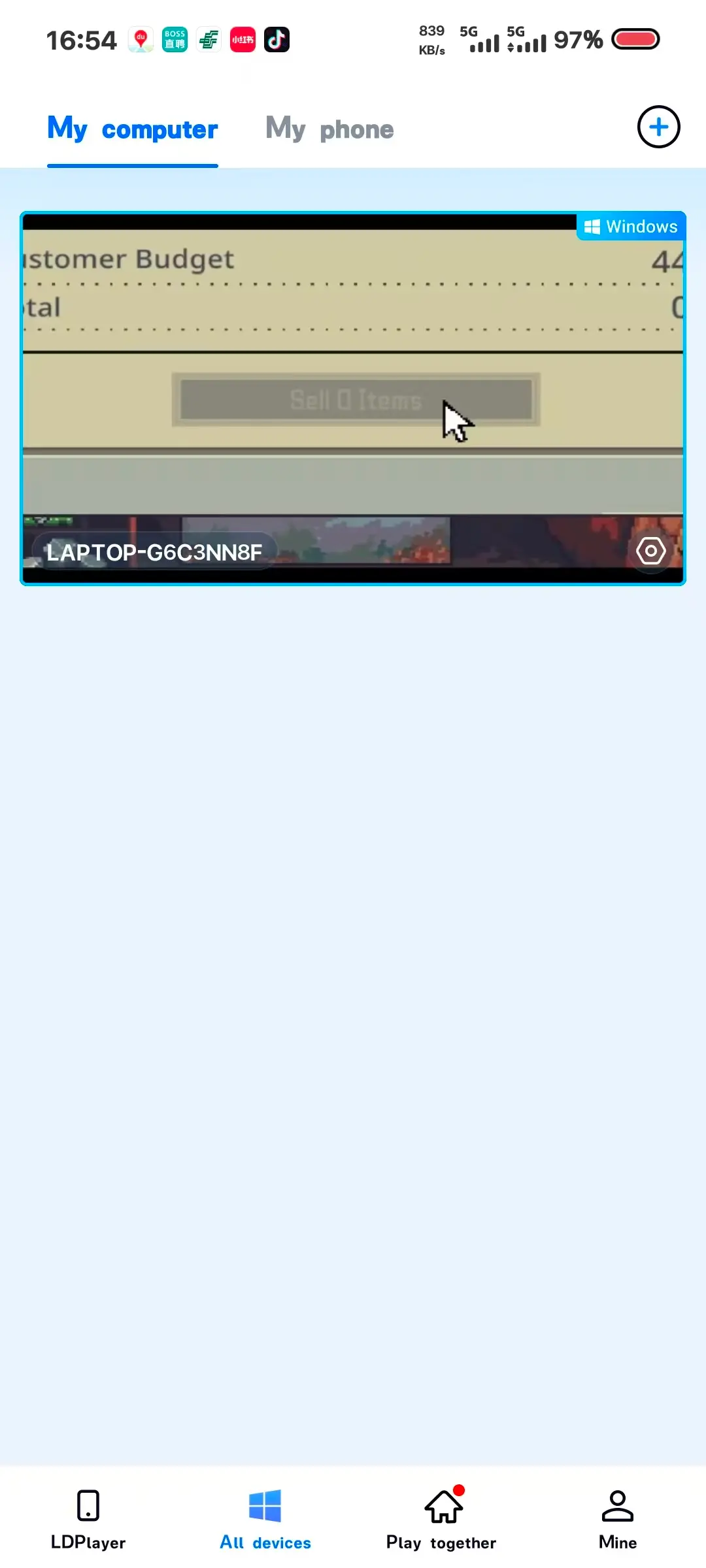
Install OSLink from Google Play on Android or the App Store on iPhone. Sign in with the same account, then select the online PC in the device list.
Step 2: Optimize Remote Controls
1. Launch the Game on the Host PC
Launch Probably Stolen from Steam on the host PC. Enter the shop and check that text and item details are easy to read.
2. Connect and Test Both Devices
On your phone, open the remote desktop. Check picture and sound, then test movement, item inspection, customer selection, bargaining, and inventory access.
3. Turn On 60 FPS PC Gaming Mode
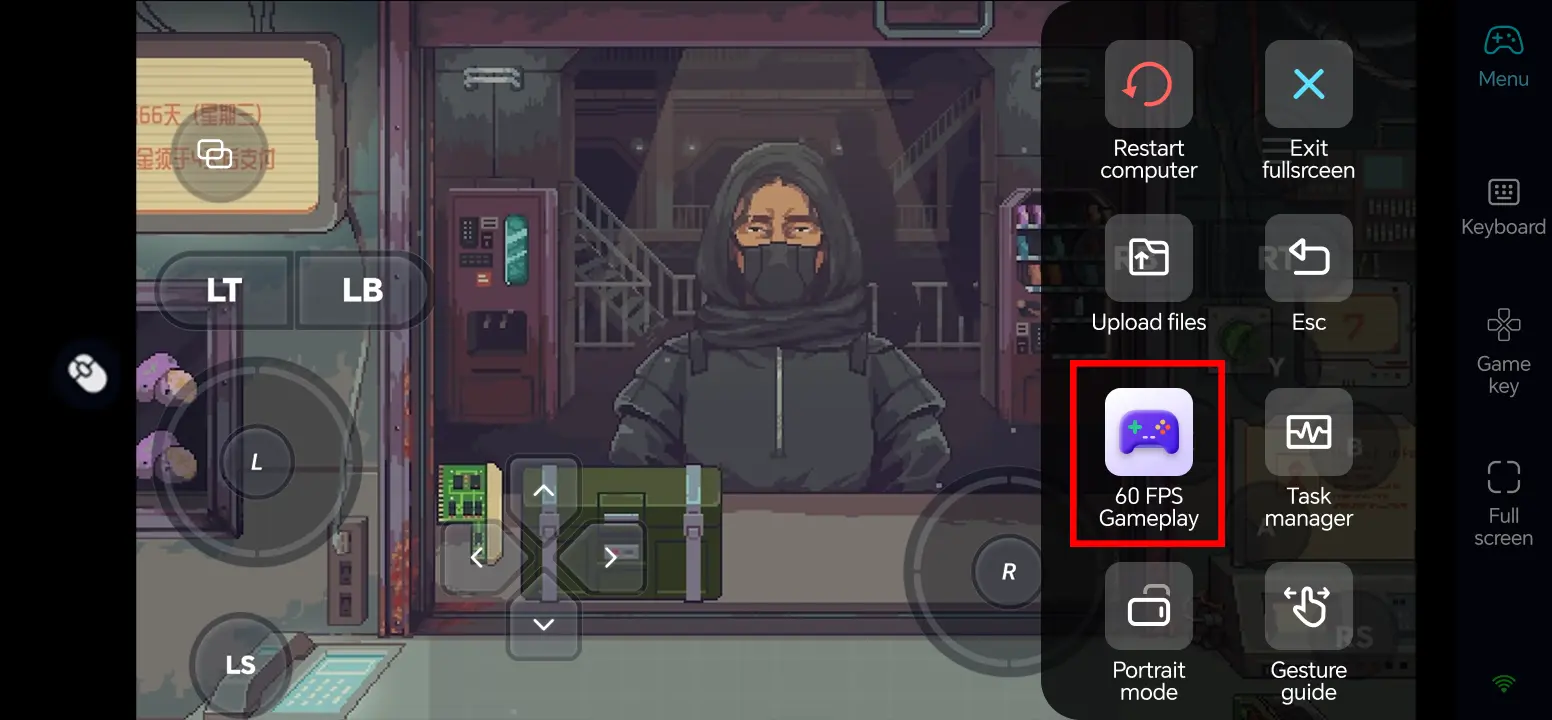
In the full-screen remote desktop, use the top-right toolbar and select Tools > Play PC games at 60 frames. If the picture is unstable, lower the game resolution or streaming quality and retest.
4. Customize Touch Controls
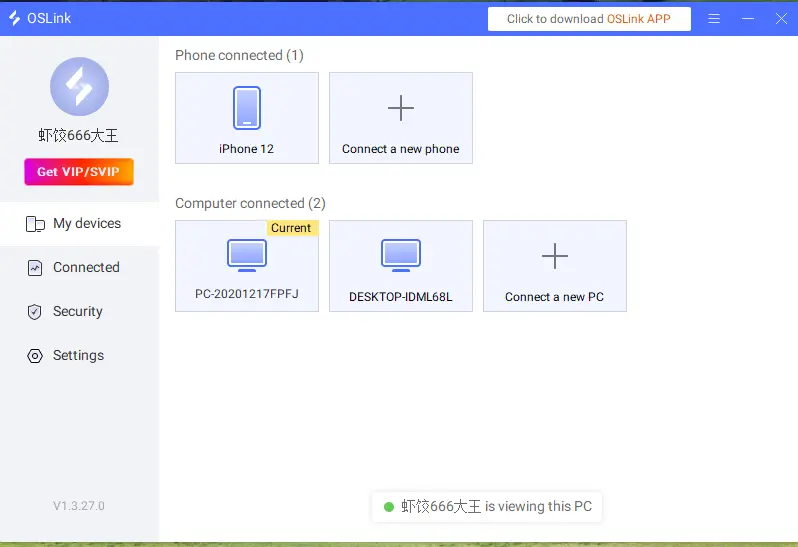
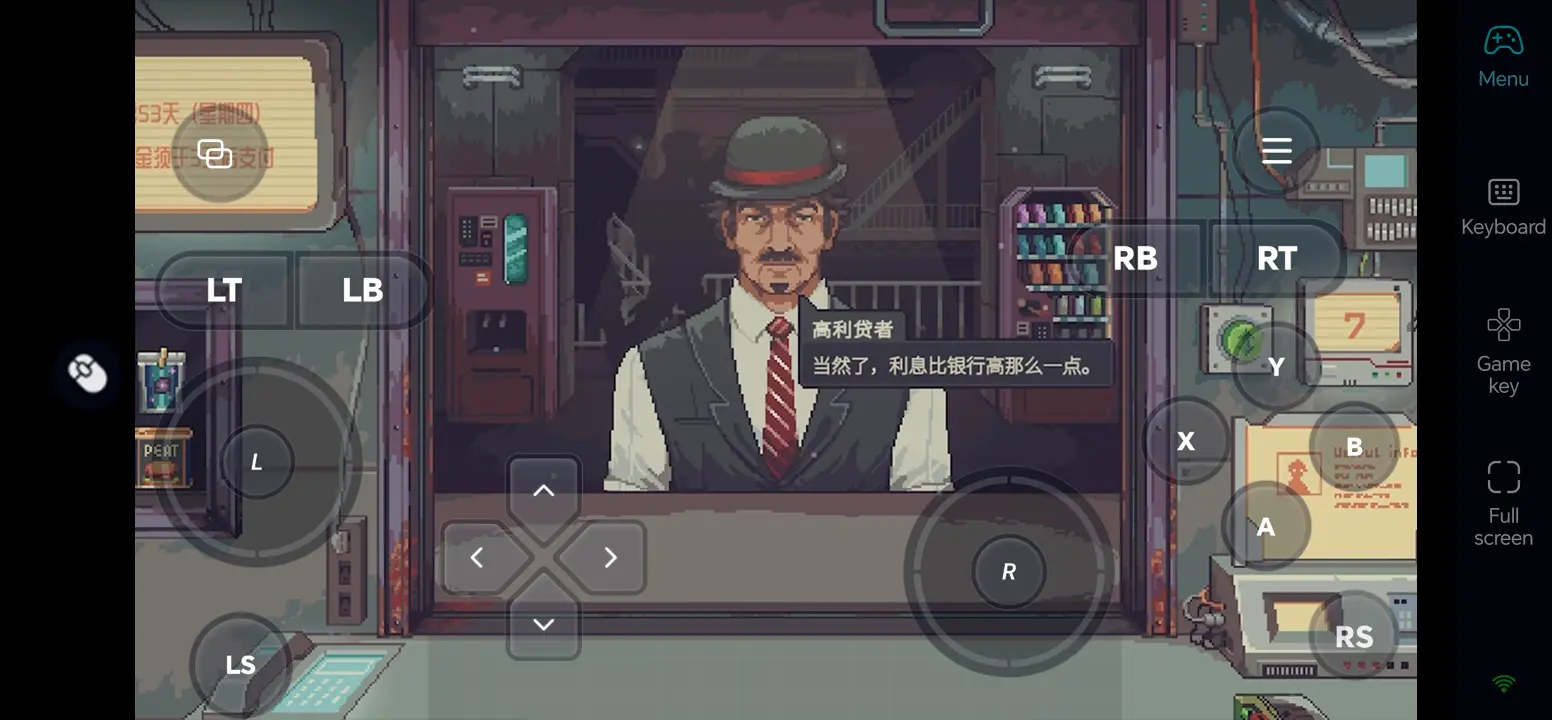
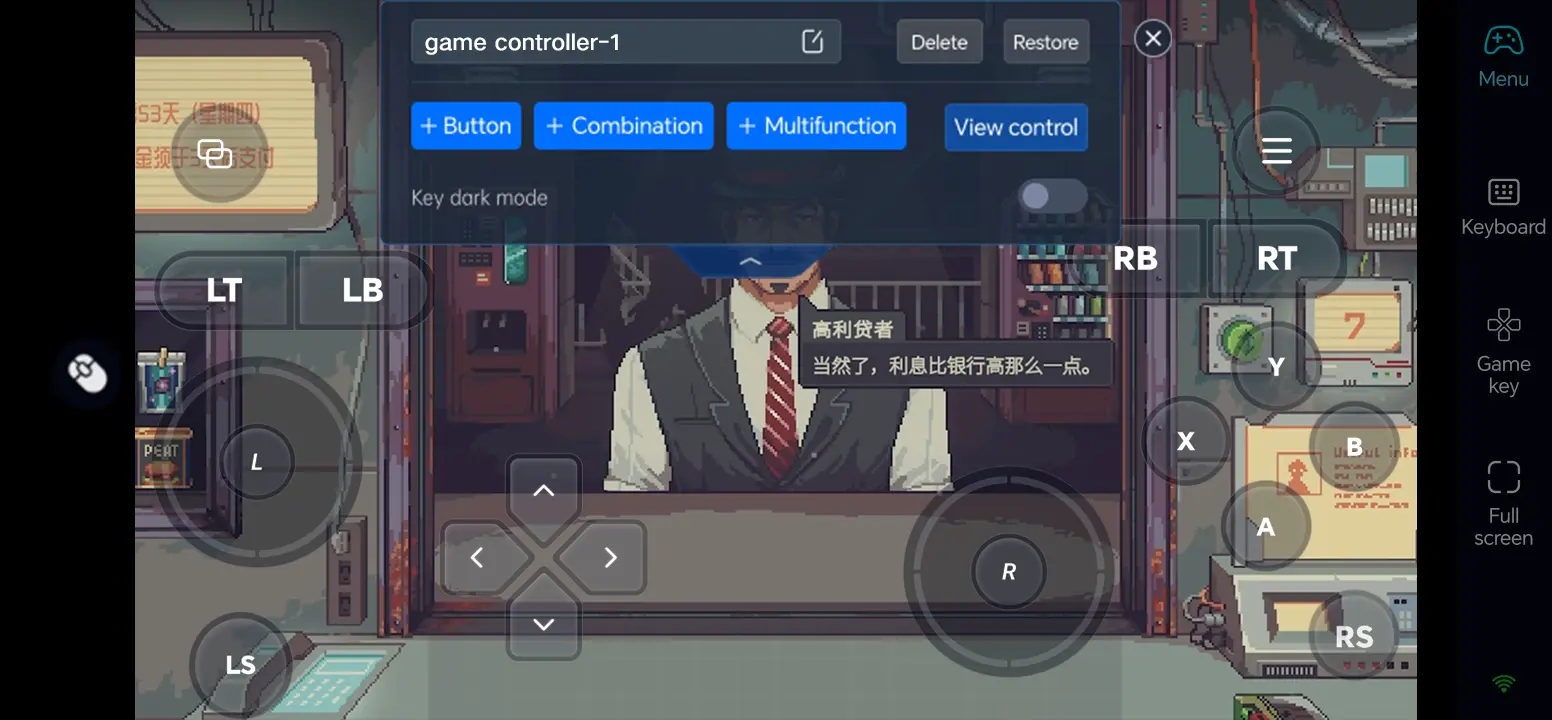
Open the Game Button menu and select the edit option. Place movement, camera, interaction, item inspection, confirm, and back actions away from product details and dialogue options. Save the layout and test it with a simple trade.
5. Connect an External Input Device
For detailed item checks or repeated price comparisons, connect a compatible keyboard and mouse to your phone. You can also test a Bluetooth controller; actual input support depends on the game and device.
What You Can Do After Setup
Review inventory and item condition, authenticate rare goods, and weigh buying or resale prices.
Meet customers and decide whether to approve, refuse, or report questionable deals while watching faction and security risks.
Restock, manage production, expand the shop, and keep cash available as rent rises.
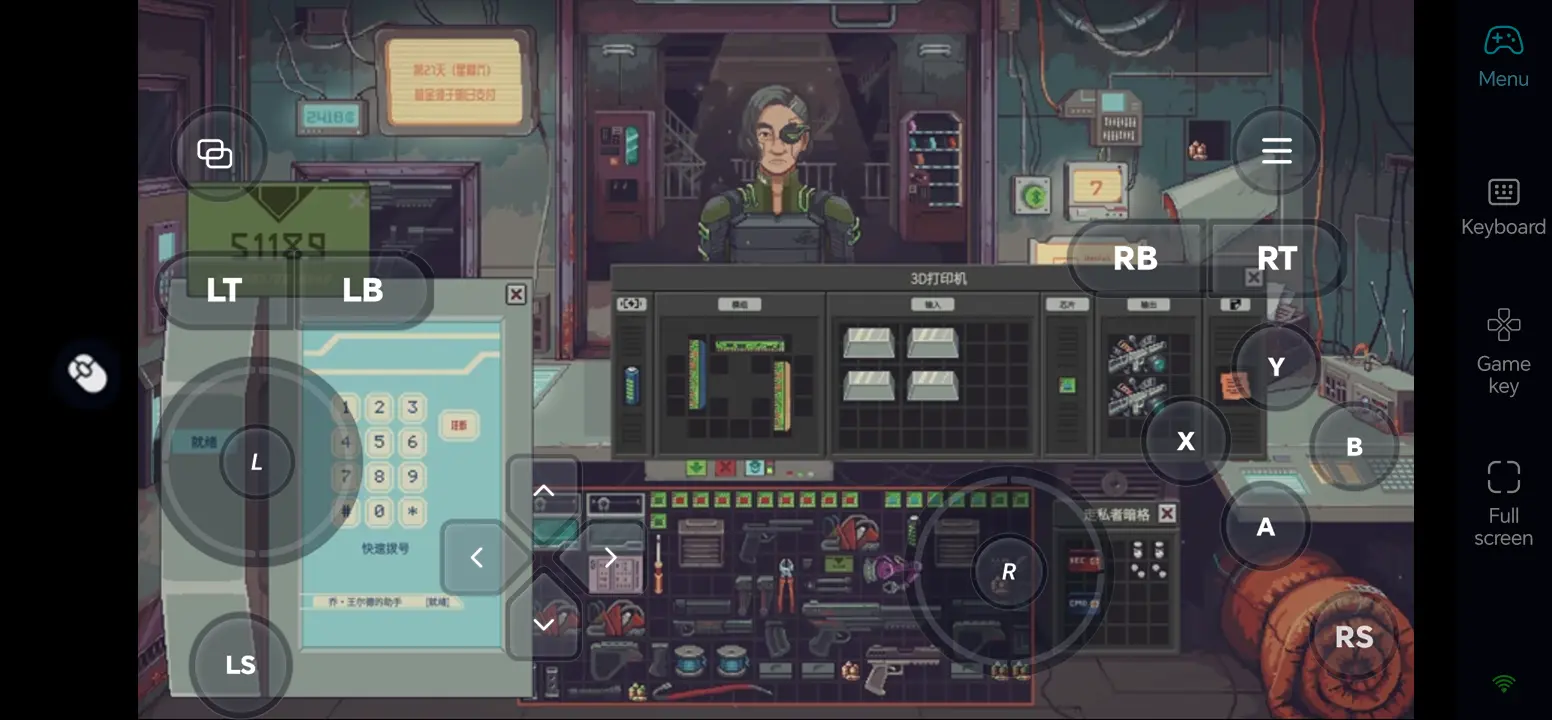
Three OSLink Benefits for Probably Stolen
1. Handle shop decisions away from the desk
Check stock, customers, and rent pressure when you cannot sit at the host PC.
2. Keep product information visible
Position touch actions away from item descriptions and dialogue choices to reduce mistaken taps.
3. Use a keyboard and mouse for precise trading
External input can make price selection, stock review, and inventory navigation more comfortable.
Frequently Asked Questions
Q1: What is the release date of Probably Stolen?
The release date of Probably Stolen is October 28, 2026. Steam lists this date; access to the full game depends on your region and account.
Q2: Can I play Probably Stolen directly on Android?
Steam does not list a native Android version of Probably Stolen. Run the PC game on your own Windows computer and control it from Android with OSLink.
Q3: Can I play Probably Stolen directly on iOS?
Steam does not list a native iOS version of Probably Stolen. You can access the Windows game running on your own PC from an iPhone with OSLink.
Q4: What PC specifications does Probably Stolen require?
According to Steam, the minimum requirements include Windows 10 (64-bit), an Intel Core i3 or equivalent processor, 8 GB of RAM, a GTX 650 Ti or equivalent GPU, DirectX 10, and 1 GB of available storage. Its recommended section currently specifies only a 64-bit processor and OS, without more detailed figures.
Q5: How can I inspect goods and negotiate accurately on a phone?
Give item inspection, selection, and confirmation their own controls, keeping product details visible. A compatible keyboard and mouse can help with small text and precise choices.
Conclusion
Install and test Probably Stolen on Steam first, then pair your phone with the host PC through OSLink. Set up touch controls for inspection, interaction, and confirmation so you can manage trades and inventory even when you're away from your desk.
 Download