English
 Playing CookieRun: OvenSmash on mobile can feel a bit restrictive—especially during fast-paced, real-time battles where quick reactions and precise control are key. With multiple Cookies clashing on screen, it’s easy to miss important moments or struggle with touch controls.
With OSLink, you can take the action to your PC and play using a keyboard, mouse, or controller. This gives you a clearer view of the battlefield, smoother inputs, and a more responsive experience overall.
Follow this guide to set everything up and enjoy CookieRun: OvenSmash the way it’s meant to be played.
Table of Contents
How to Play CookieRun: OvenSmash on PC
1. Install the game on your phone
Open Google Play and search for “CookieRun: OvenSmash”.
If the game is unavailable in your region, download the APK from a trusted third-party source.
2. Install OSLink on both PC and phone
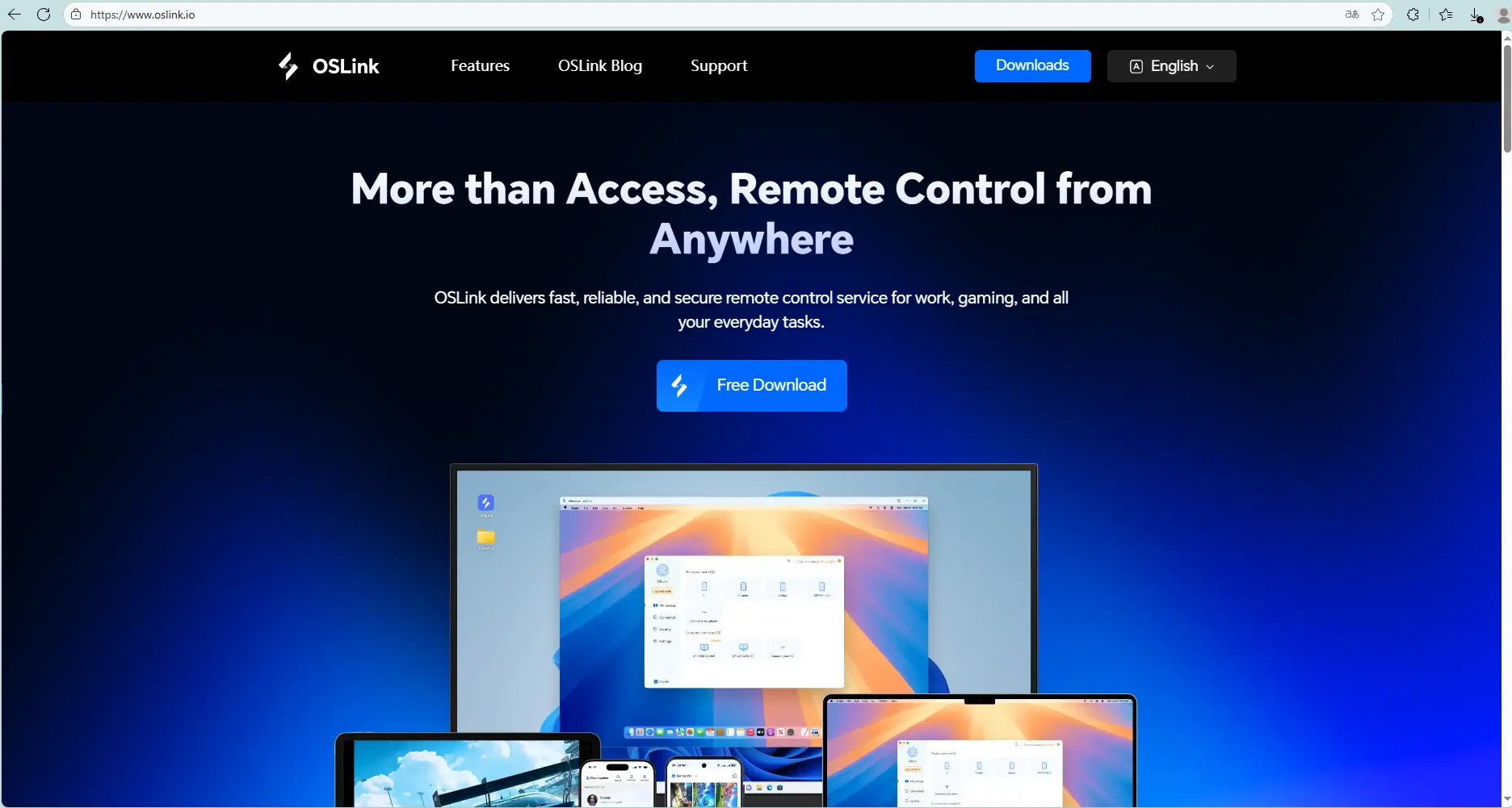
Visit the official OSLink website and download the app for PC and mobile.
3. Connect your phone to your PC
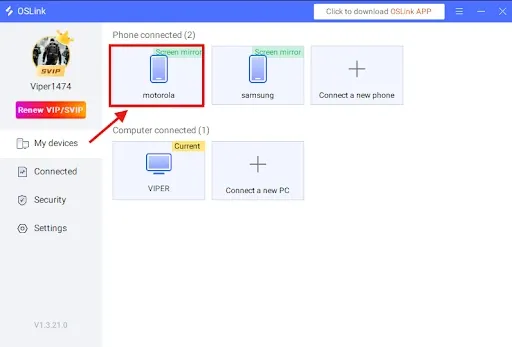
Launch OSLink on both devices, and log in using the same email.
Connect your phone to the PC using a USB cable.
Select your device in OSLink on your PC.
4.Select “Game Mode” for best performance
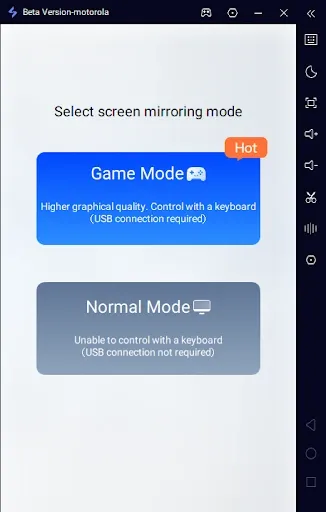
When prompted:
Choose Game Mode (USB required).
Tap Start Mirroring on your phone.
5.Enable Developer Options and USB Debugging
If it’s your first time:
In OSLink tap Enable Developer Mode, then follow the instructions:
Go to Settings → About Phone.
Tap Build Number 7 times until you become a developer.
Enter your device password if required.
Search for USB Debugging and enable it.
6.Start screen mirroring
Return to OSLink and confirm.
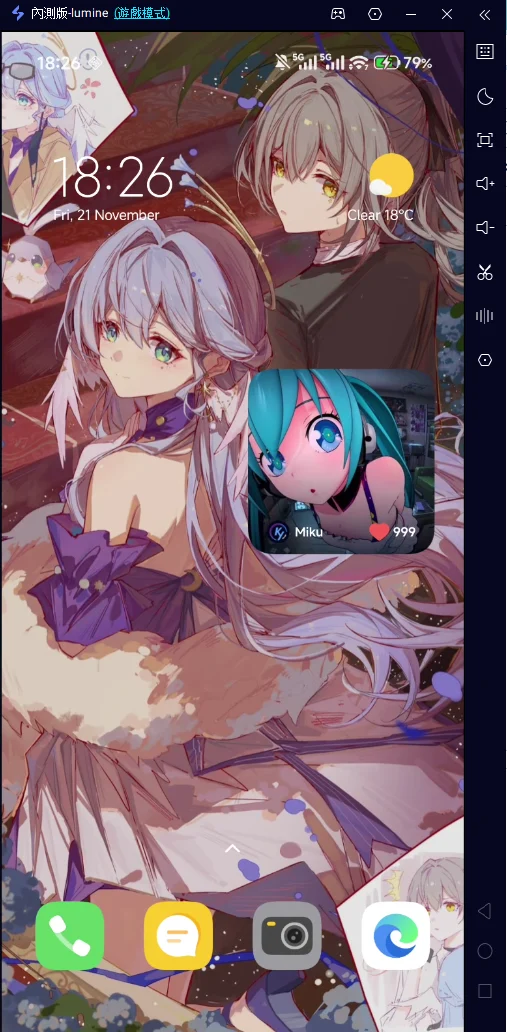
Your phone screen should now appear on your PC.
Keyboard & Mouse Setup for CookieRun: OvenSmash
After mirroring:
Click the keyboard icon on OSLink’s side toolbar.
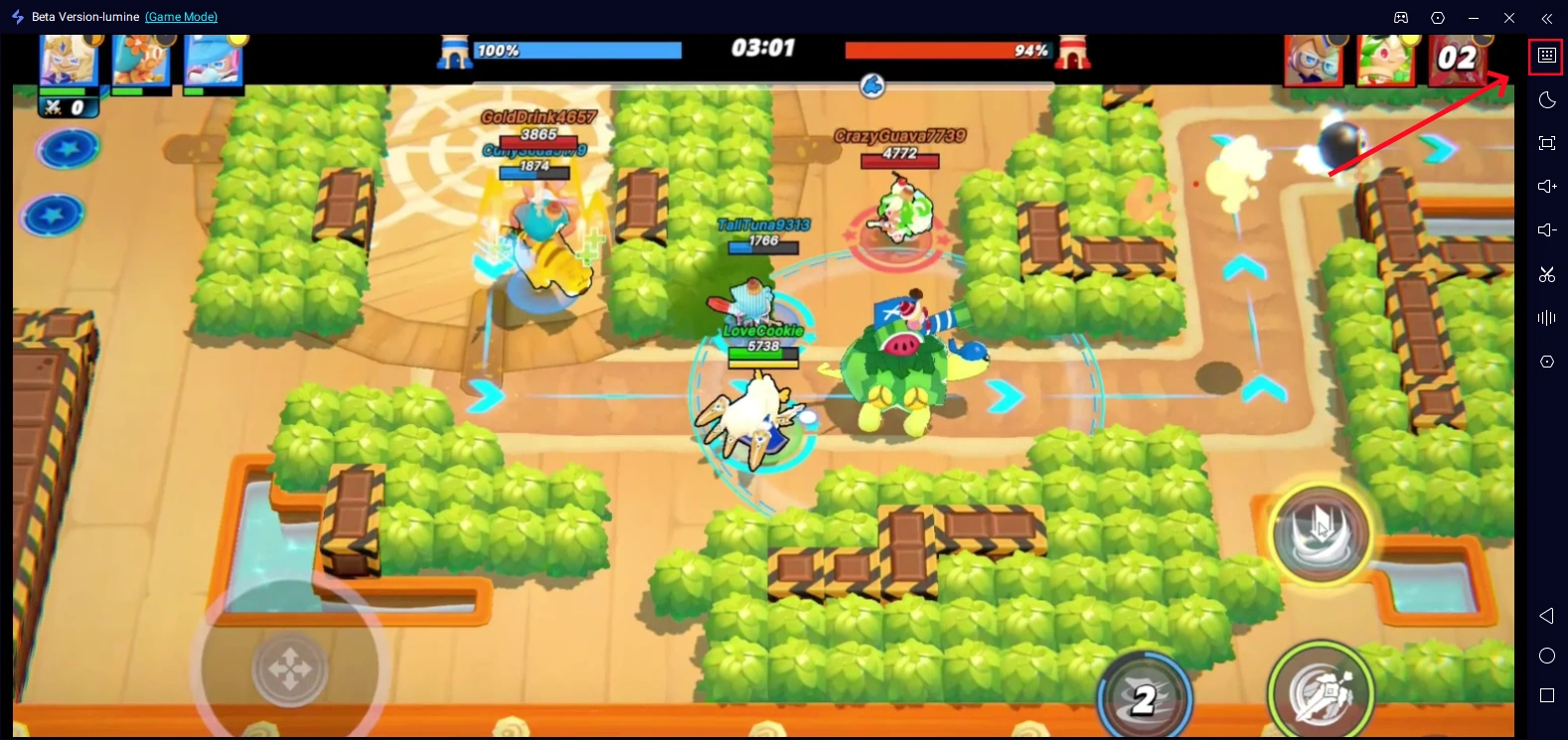
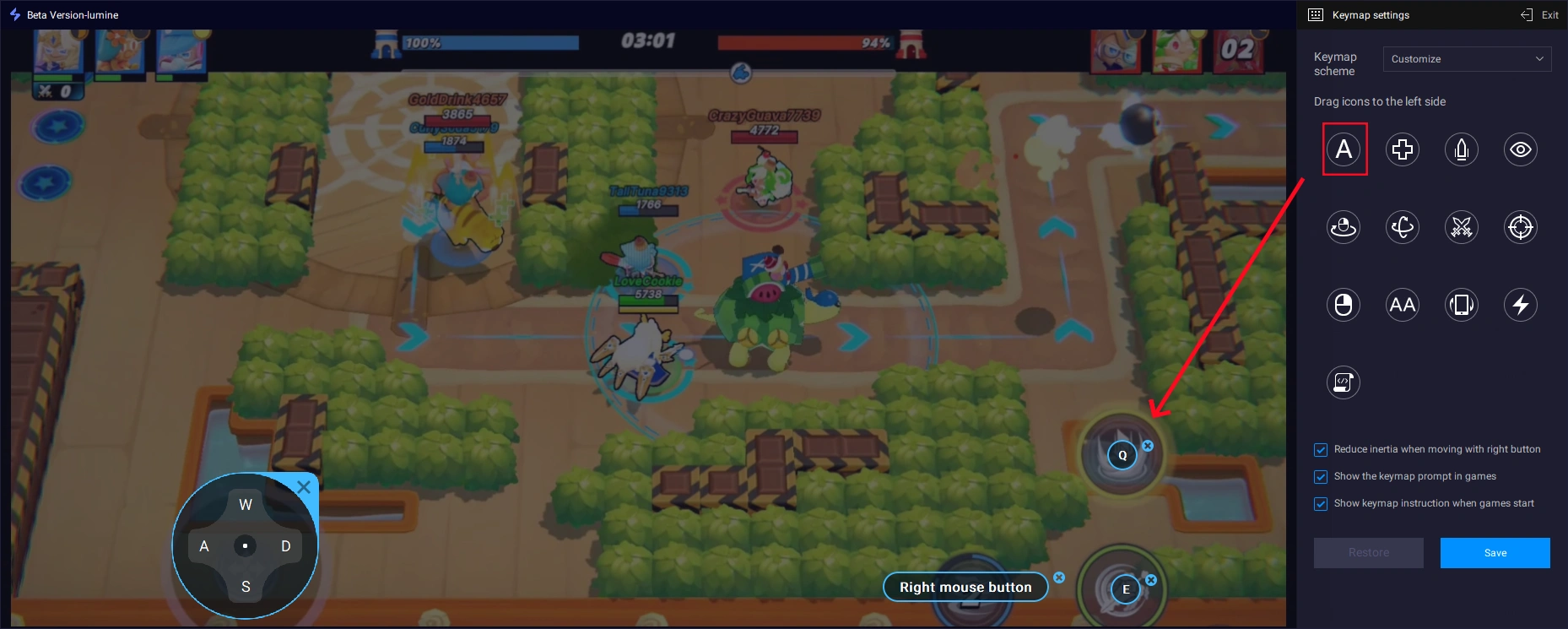
Open the key-mapping editor.Drag and align the virtual buttons to match the in-game controls. Add new buttons from the panel if needed.
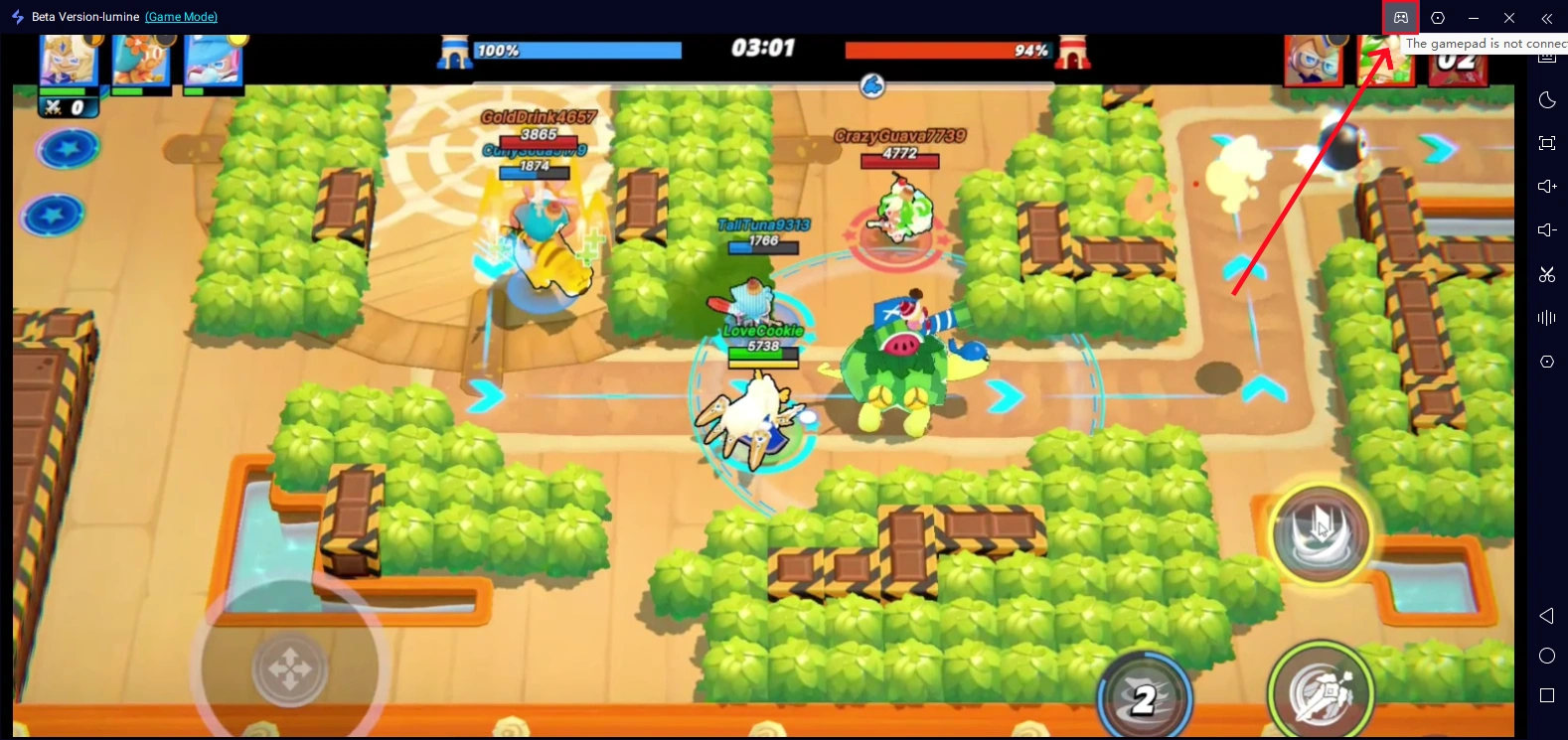
If you prefer, OSLink also supports external controllers, letting you play Subnautica: Below Zero with a gamepad.
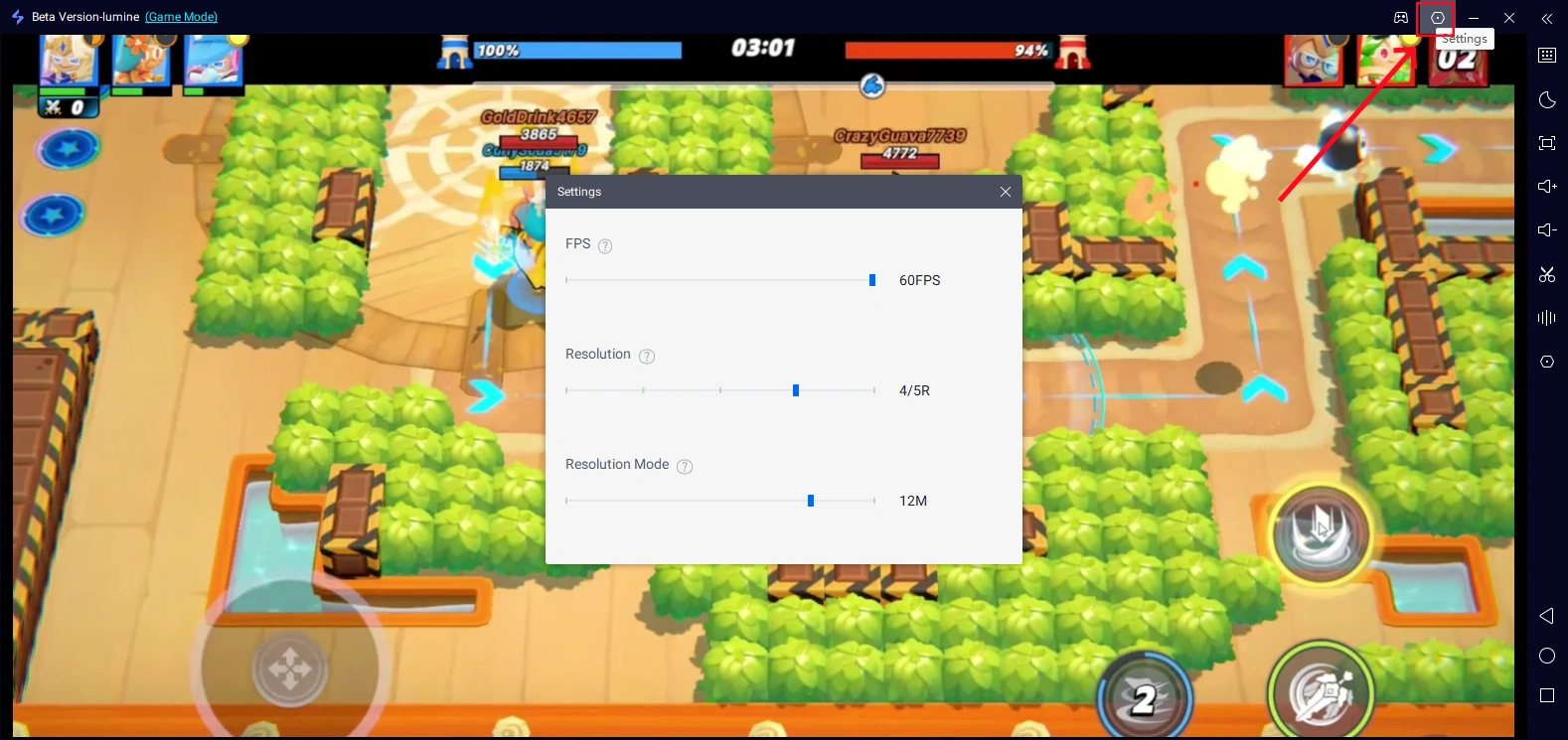
Also don't forget to adjust your FPS and resolution depending on your device.
Important Tips
For the smoothest experience:
Use a high-quality USB cable, ideally USB 3.0 or higher.Avoid cheap charging-only cables that may cause input delay.
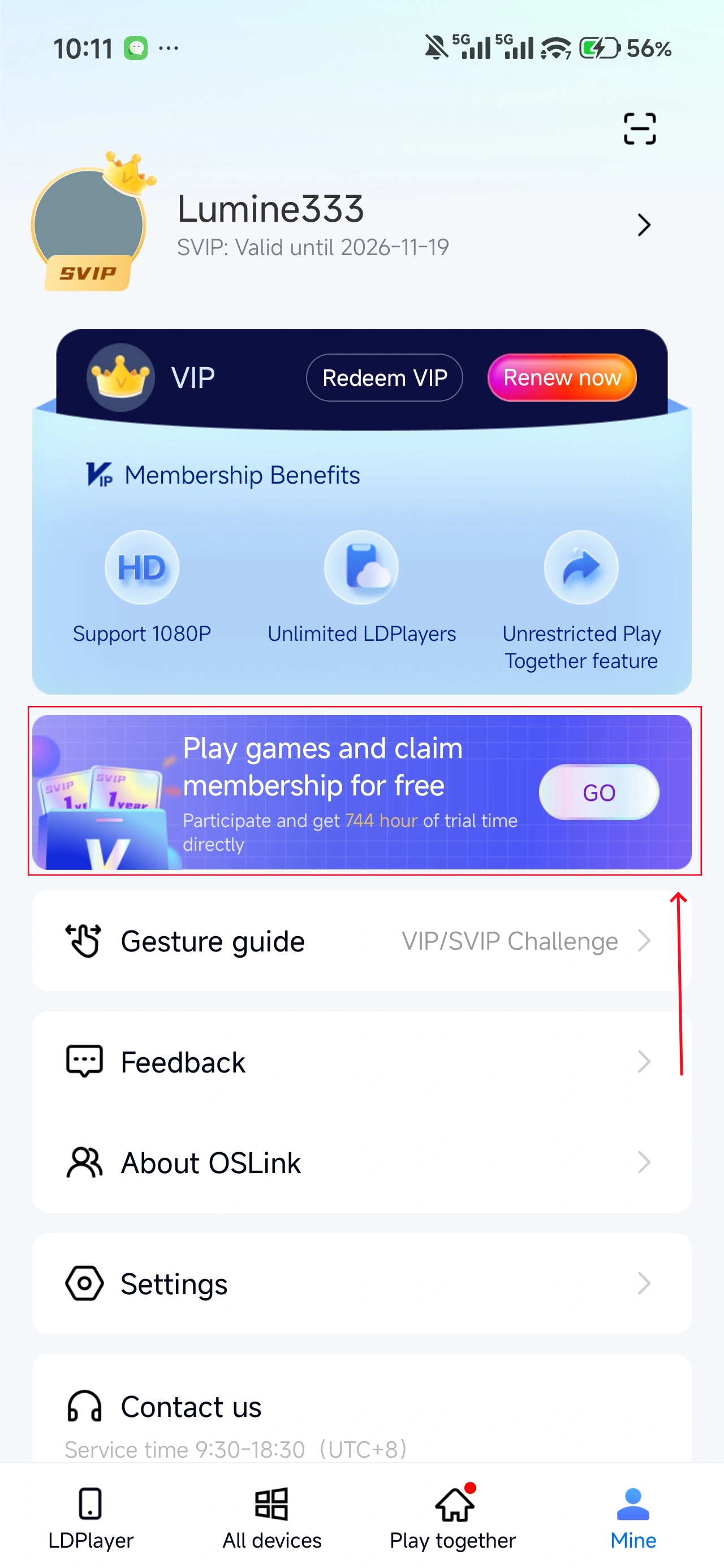
In OSLink (mobile) → Mine, you can earn free usage time by watching ads or completing tasks.
FAQ
Q: What is the release date of CookieRun: OvenSmash ?
A: The game officially launched on March 28, 2026, and is available on mobile platforms.
Q: What are the minimum system requirements?
A: To ensure stable performance, your device should meet the following requirements:
-
Storage: The game requires around 4 GB of space. It’s recommended to keep additional free space for updates and cache.
-
RAM: At least 4 GB RAM is recommended for smooth gameplay.
-
Android: Android 8.0 or higher
-
iOS: Requires iOS 15.0 or later
For smoother gameplay, higher-end devices are strongly recommended.
Q: Can I play CookieRun: OvenSmash on PC?
A: There is no official PC version. However, you can use OSLink to mirror your phone to your computer and play with a larger screen and better controls.
Conclusion
With OSLink, you can unlock a whole new way to enjoy CookieRun: OvenSmash. A bigger screen, improved controls, and smoother performance make a noticeable difference in fast-paced battles.
Set it up in just a few steps and take your gameplay to the next level—whether you're competing in matches or just enjoying the chaos in Platter City.
 Download