English
 The idle RPG StoneAge: Idle Adventure has officially launched, bringing players back to the classic Stone Age world filled with adorable and powerful pets. As the latest title based on the beloved Stone Age IP, the game retains the core mechanics of capturing and raising pets while introducing modern idle gameplay systems designed for mobile players.
Since progression in StoneAge: Idle Adventure relies heavily on long-term resource farming and pet development, many players prefer running the game on PC for extended sessions. By combining OSLink with LDPlayer, you can remotely control the game from your phone while it runs on your computer. This allows you to manage multiple accounts, automate grinding, and keep resource farming running for long periods, making progression much more efficient.
Software Download
1. Install OSLink and the LDPlayer
On PC: Download and install OSLink and an Android emulator such as LDPlayer from their official websites.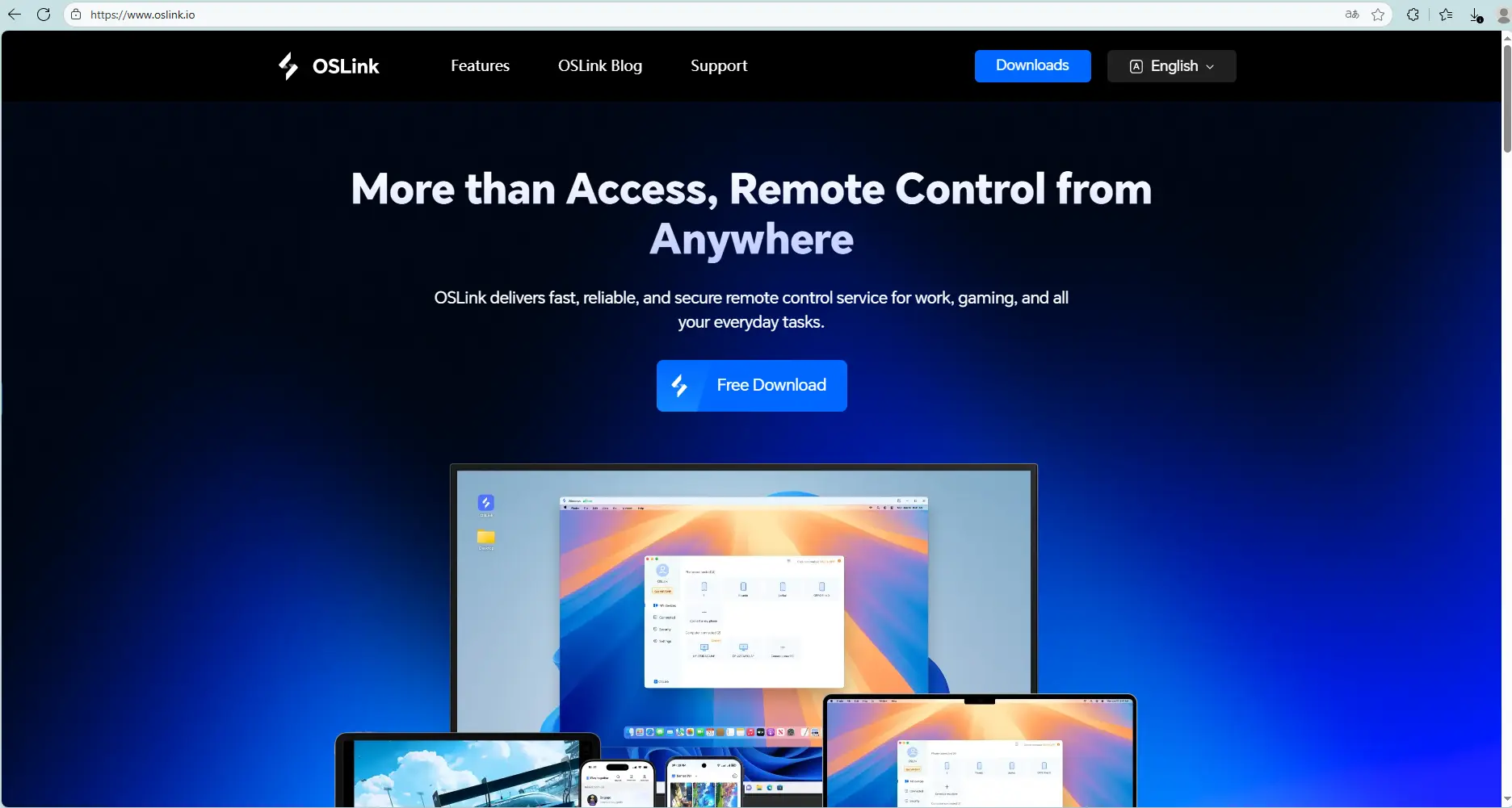
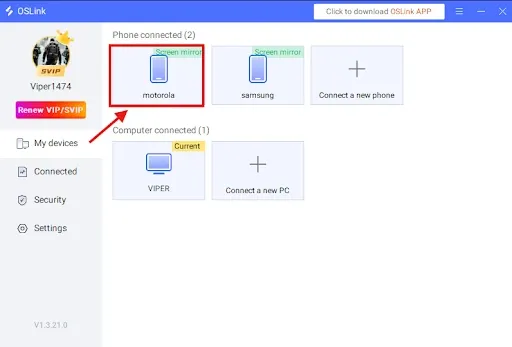
On Mobile: Install OSLink from the App Store or Google Play (or download the APK from the official site if needed).Logging in with the same account as your PC will automatically connect them.
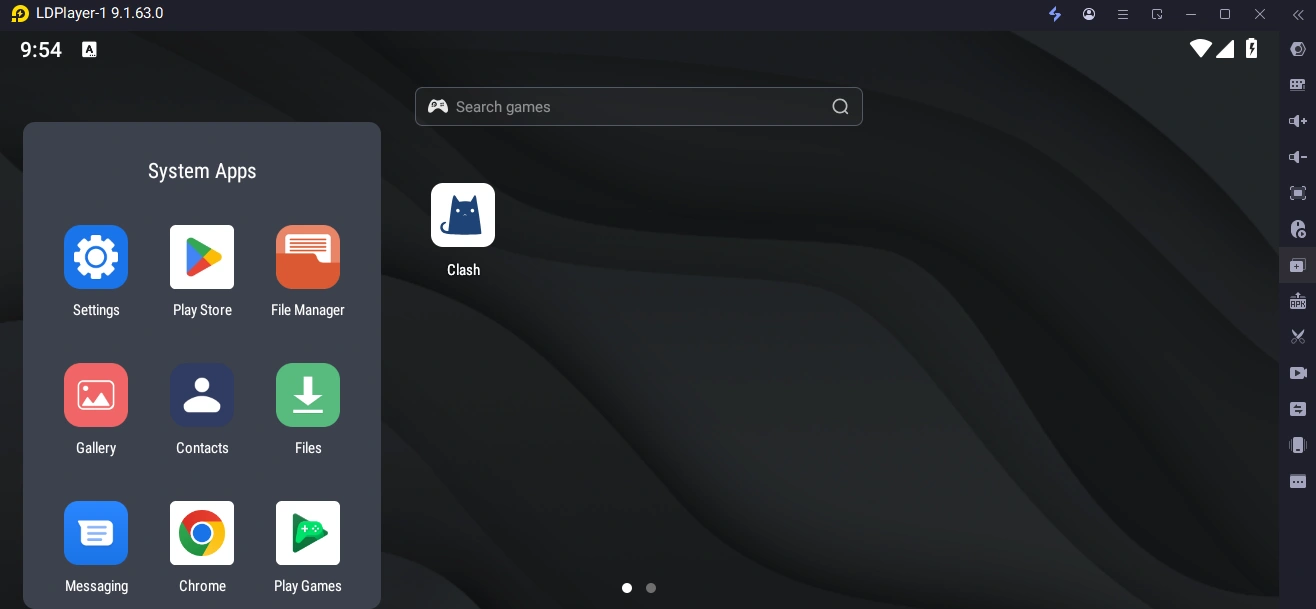
2. Install StoneAge: Idle Adventure on the LDPlayer
Launch the LDPlayer, open its app store (or Play Store), search StoneAge: Idle Adventure, and install the game. Run it on the large screen to begin.
Setting Up OSLink for StoneAge: Idle Adventure
Auto-farming Setup
Many daily dungeons, gear runs, and progression tasks in StoneAge: Idle Adventure require repeating the same content. Use OSLink’s auto-click feature to automate those loops:
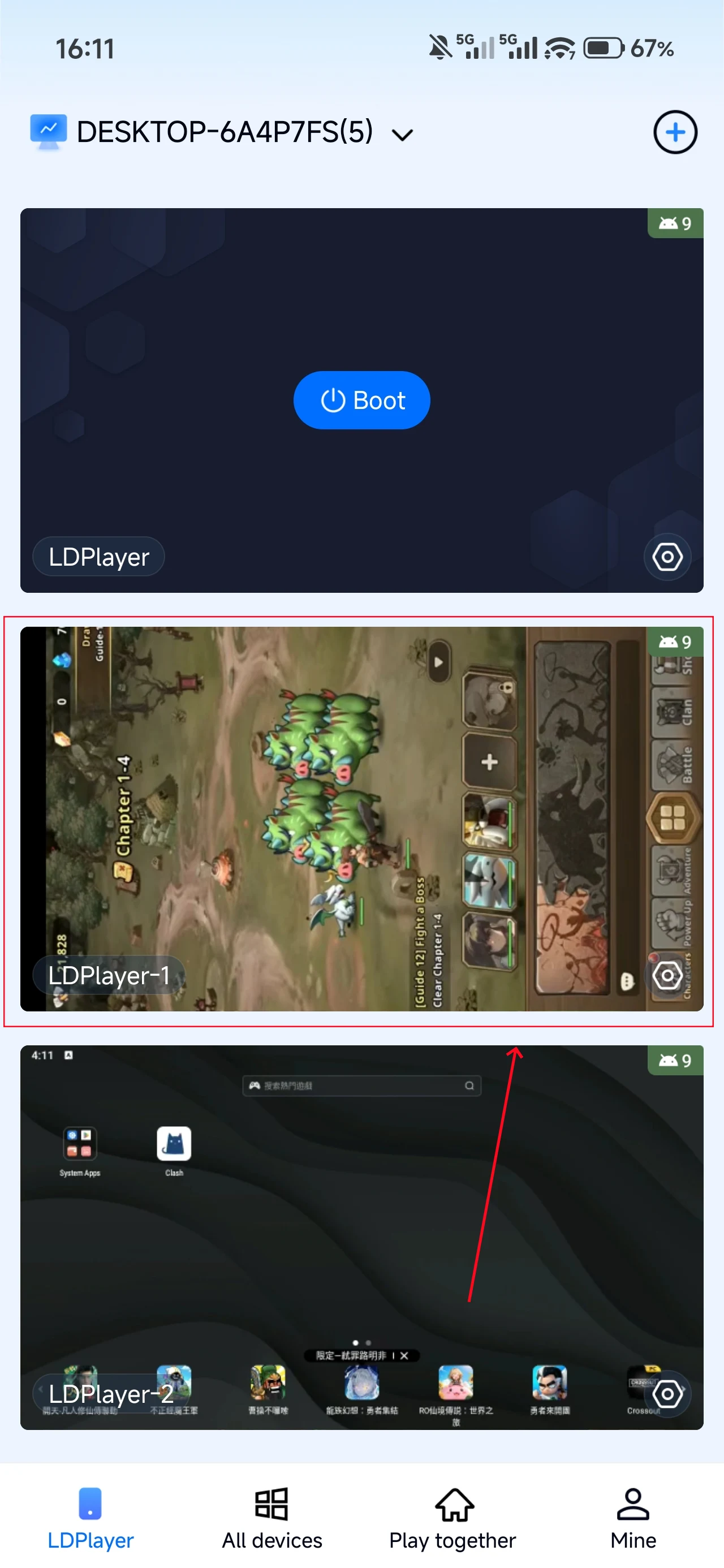
1. Launch StoneAge: Idle Adventure in the LDPlayer, then connect to that PC from your phone using the OSLink app.
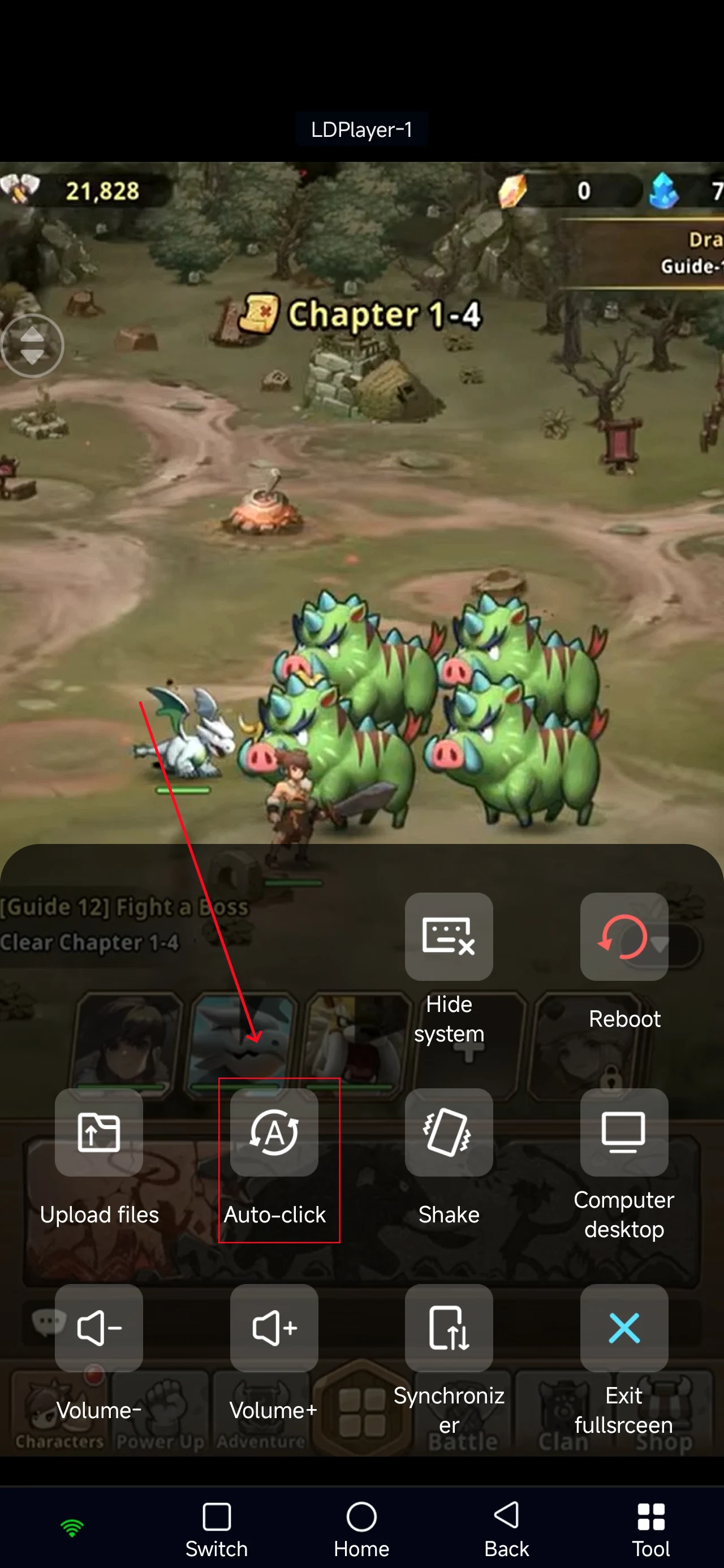
2. Open OSLink’s Auto-Click tool.
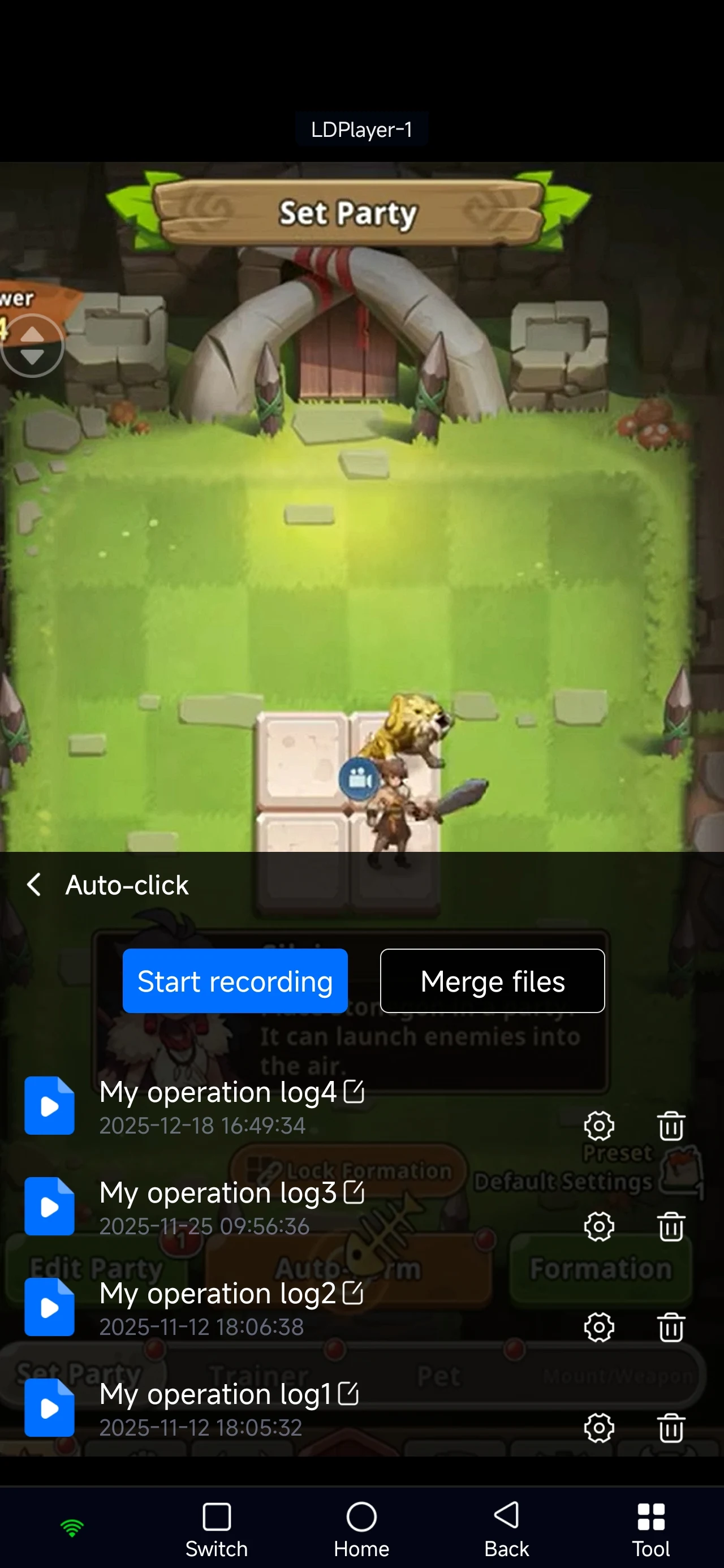
3. Record a single run: tap Enter Checkpoint → enable Auto-Battle → confirm result/collect rewards. Make sure to record each required touch in order.
4. Assign the recorded script to the emulator instance you want to run.
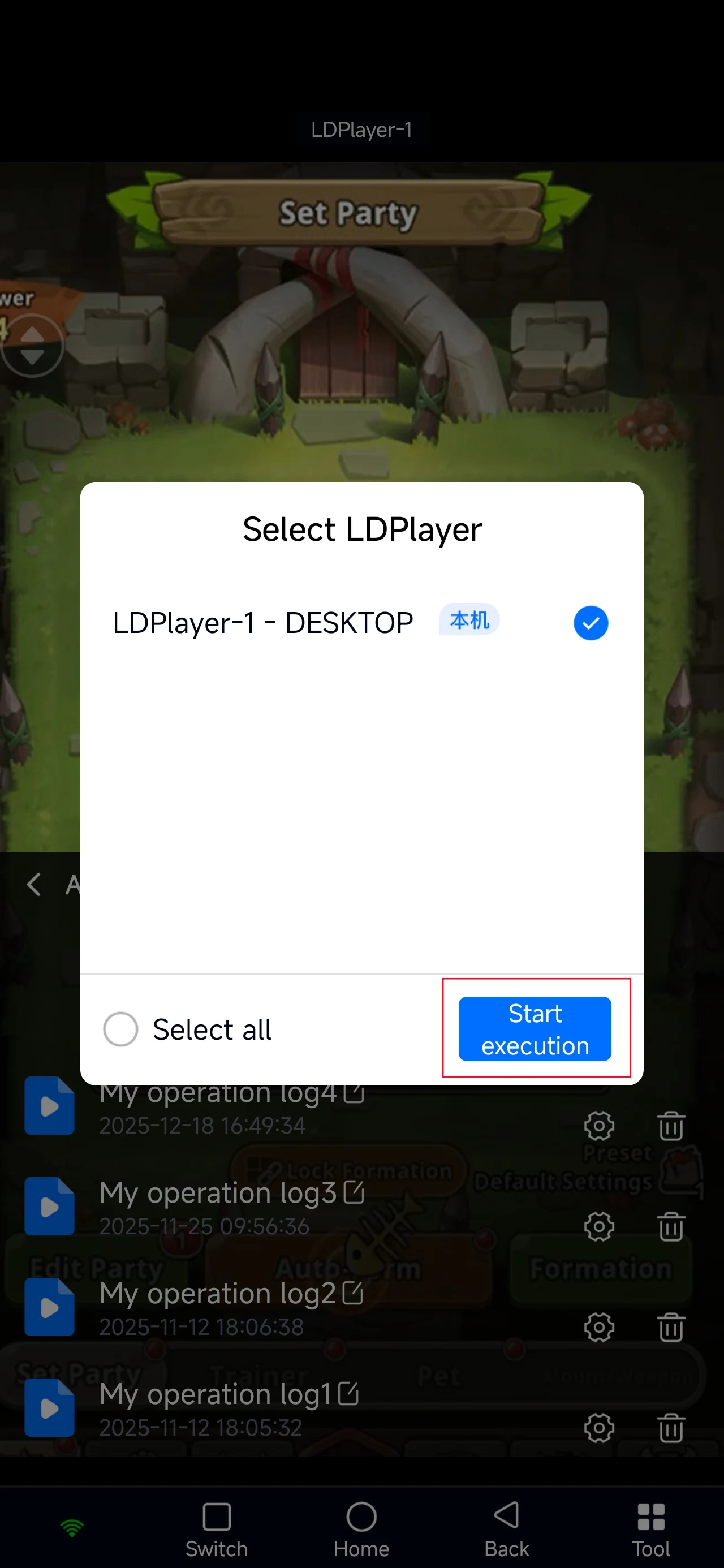
After these steps, by the script, your character will automatically Enter Checkpoint, trigger auto-battle, and collect rewards on repeat.
Multi-Instance Leveling
In your LDPlayer, create multiple instances (Add Instance → Clone Instance).
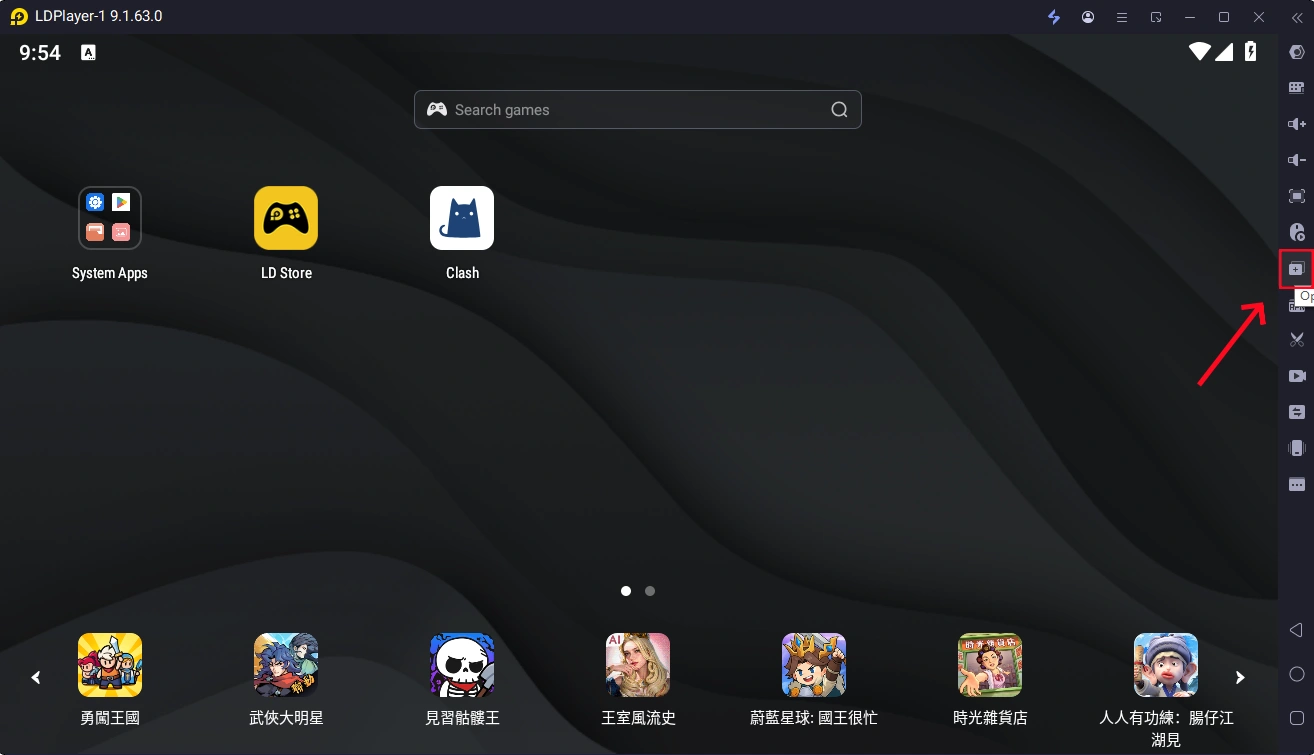
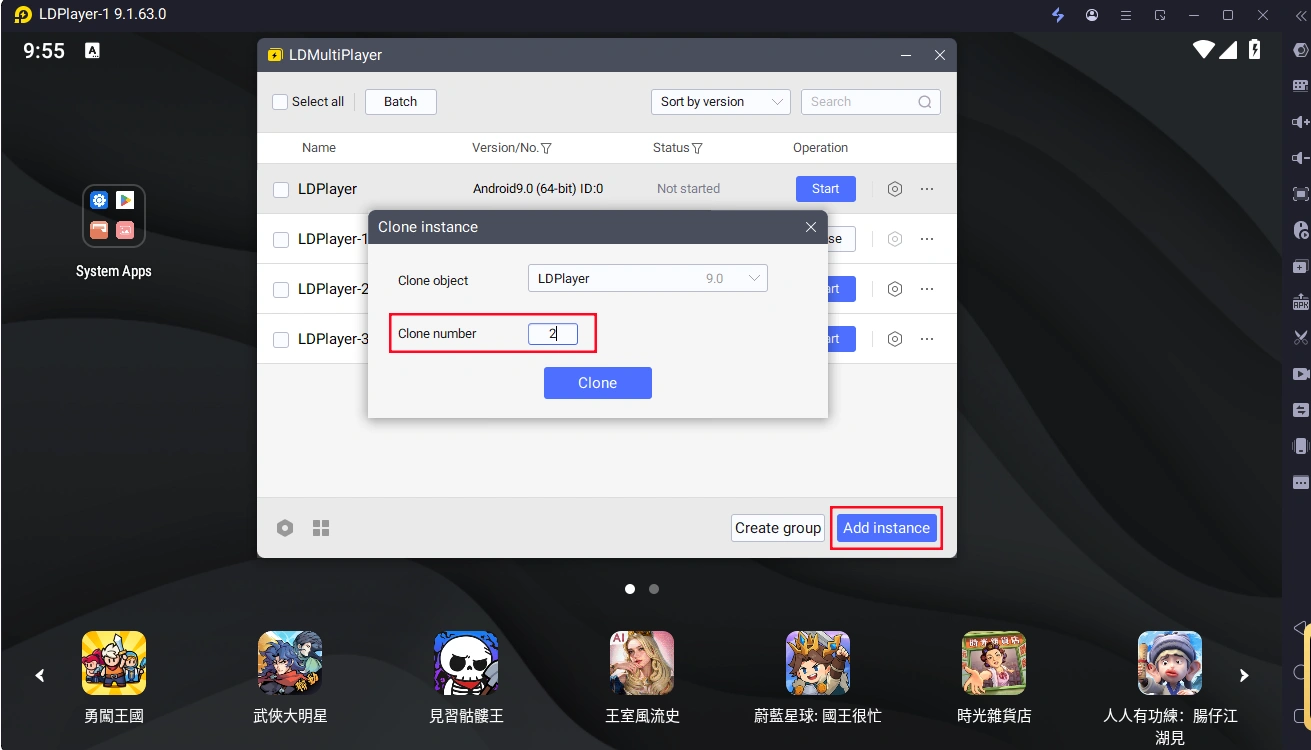
2. In Mobile OSLink, open the Tools panel on the right, and select Synchronizer.
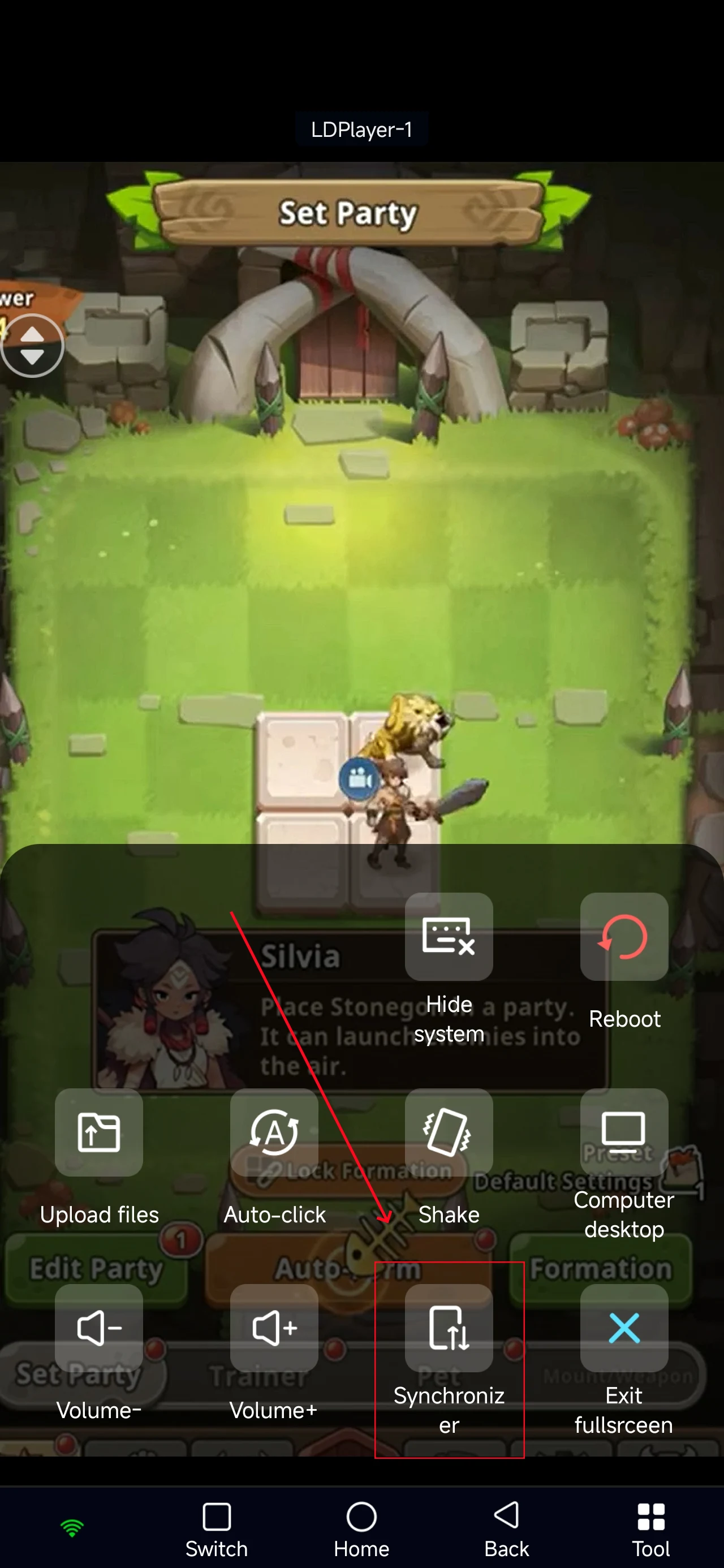
3. Check all emulator instances you want to synchronize, and start sync.
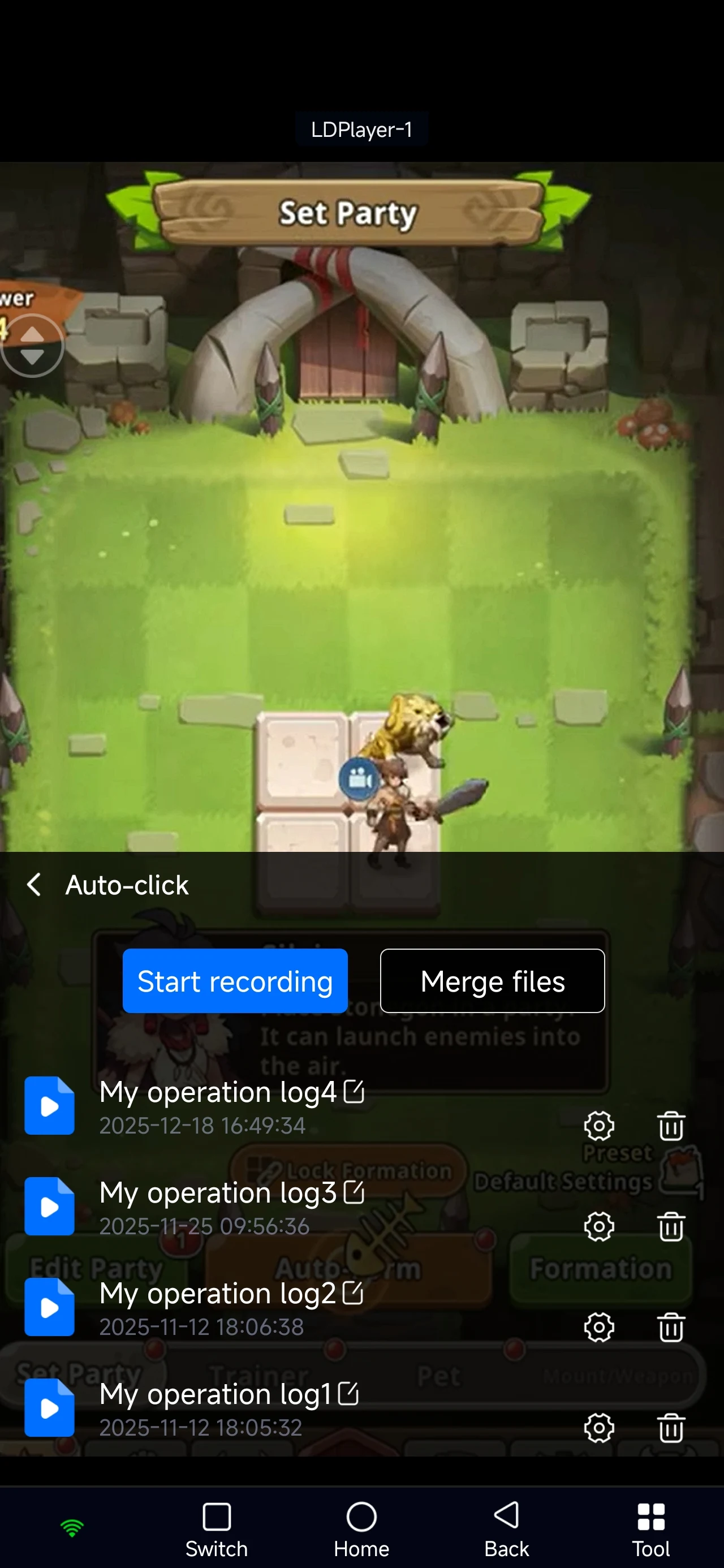
This setup lets you grow many accounts at once, speeding up leveling and farming materials efficiently.
Conclusion
This concludes our StoneAge: Idle Adventure OSLink remote control guide. With OSLink, you can easily manage multiple accounts and keep resource farming running efficiently, even when you’re away from your PC.
Whether you're farming materials, strengthening your pets, or pushing higher stages, OSLink helps maintain continuous progression with minimal effort.
Start using OSLink today and make your StoneAge: Idle Adventure journey smoother, faster, and more efficient.
 Download