English
 As a classic MMORPG built around exploration and character progression, Ragnarok: The New World offers plenty of long-term content, including character development, gear enhancement, material farming, and daily activities. As your character grows stronger, you'll naturally spend more time repeating the same tasks, whether it's clearing dungeons for resources, farming upgrade materials, or managing multiple accounts at once.
This guide walks you through the entire multi-instance AFK setup process for Ragnarok: The New World, from installing the required software to enabling remote gameplay. Even if you've never tried this kind of setup before, you can follow along and build a reliable farming system with ease, making daily progression much more efficient.
If you're looking for an easier way to manage multiple Ragnarok: The New World accounts, pairing LDPlayer with OSLink is a practical solution. LDPlayer provides a stable Android emulation environment with support for running multiple instances simultaneously, while OSLink mirrors your PC to your mobile device, allowing you to control everything remotely. This combination makes account management, resource farming, and routine tasks far more convenient, especially for players raising several characters over the long term.
I. Install LDPlayer and OSLink on Your PC
Download and Install LDPlayer
Visit the official LDPlayer website and download the latest Windows installer.
Install and Configure the OSLink PC Client
Download the Windows client from the official OSLink website. Before installation, temporarily disable any firewall rules that may block remote connections to prevent connection issues during setup.
II. Installing Ragnarok: The New World in LDPlayer
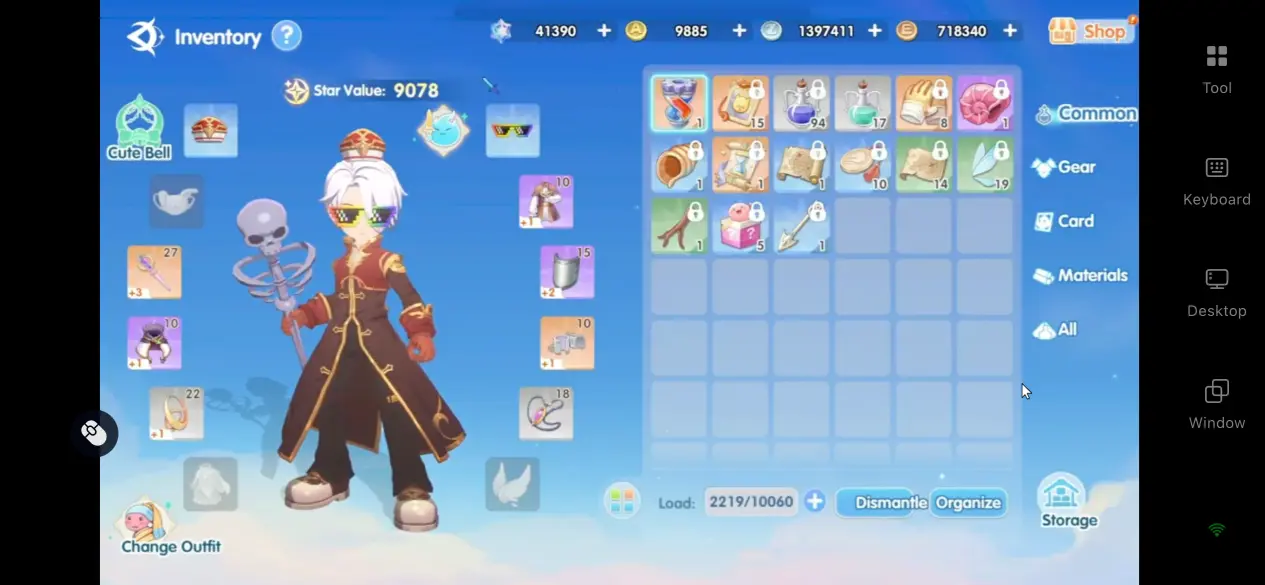
Launch the built-in app store inside LDPlayer, search for Ragnarok: The New World, then download and install the game.
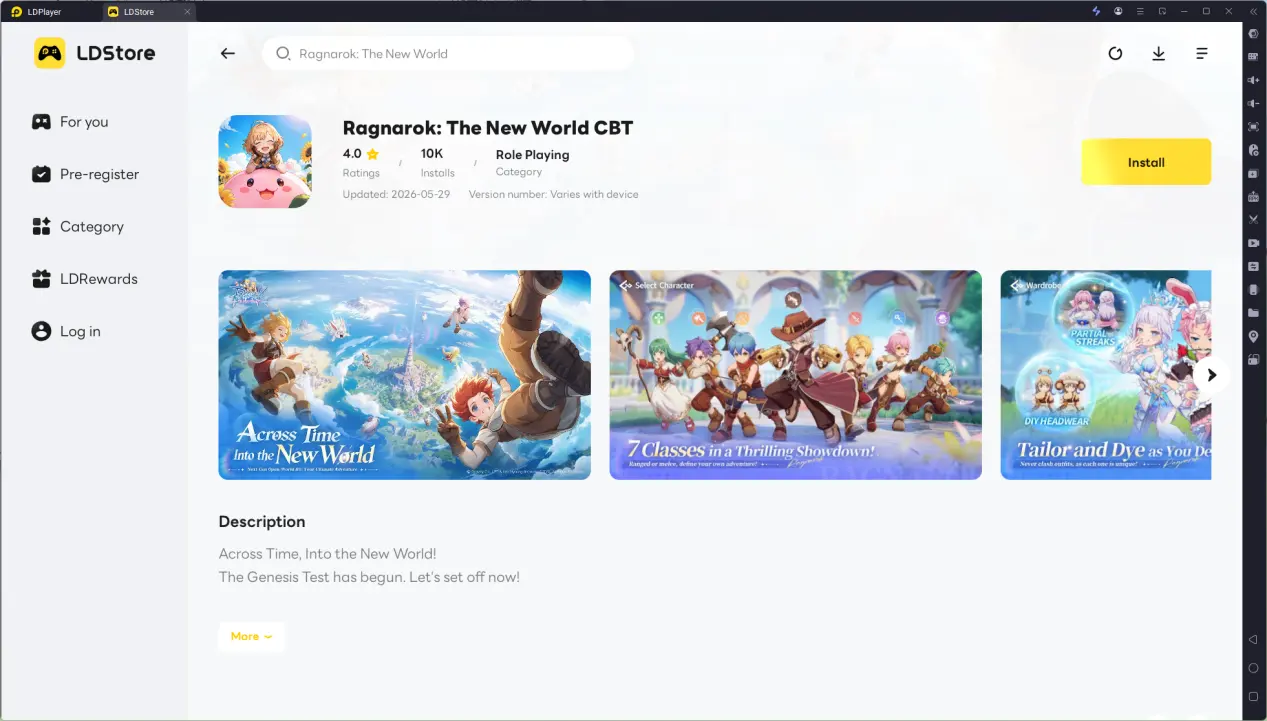
After the installation finishes, start the game. Once you're in-game, take a moment to verify that core gameplay features such as field monster farming, mining, fishing, gathering, and dungeon runs all work properly before continuing with the remaining setup steps.
III. Install OSLink on Your Mobile Device and Pair Your Devices
1. Download OSLink on Your Phone
Android users can download OSLink from the official website or supported app stores. iPhone and iPad users can simply search for OSLink in the App Store and install it directly.
When launching the app for the first time, grant all required permissions, including screen recording and touch control. Without these permissions, remote tapping and other control functions may not work correctly.
2. Sign In with the Same Account to Pair Your Devices
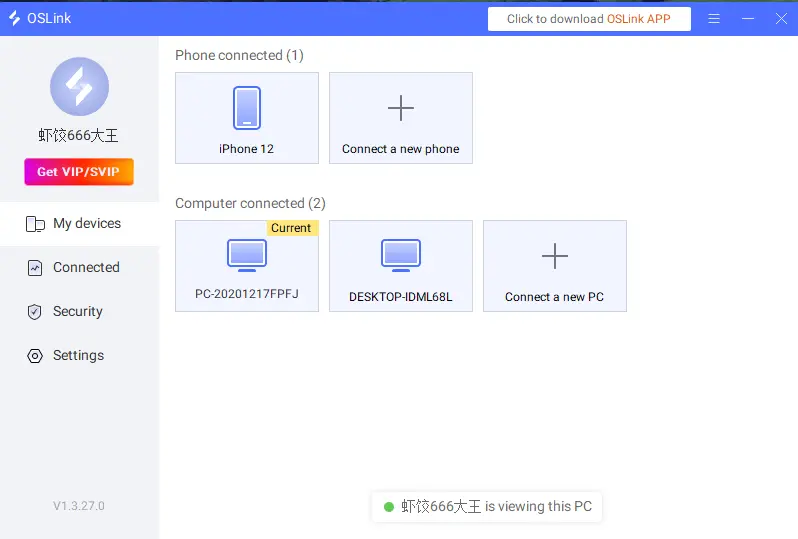
Once OSLink has been installed on both your PC and mobile device, sign in using the same OSLink account on both ends. Under normal circumstances, the devices will detect each other automatically and establish a connection. Your computer will then appear in the device list within the mobile app.
After the connection is established, your phone will display the emulator running on your PC in real time, so there's no need for any additional device configuration.
IV. Launch Ragnarok: The New World Remotely with OSLink
1. Connect Your PC and Mobile Device
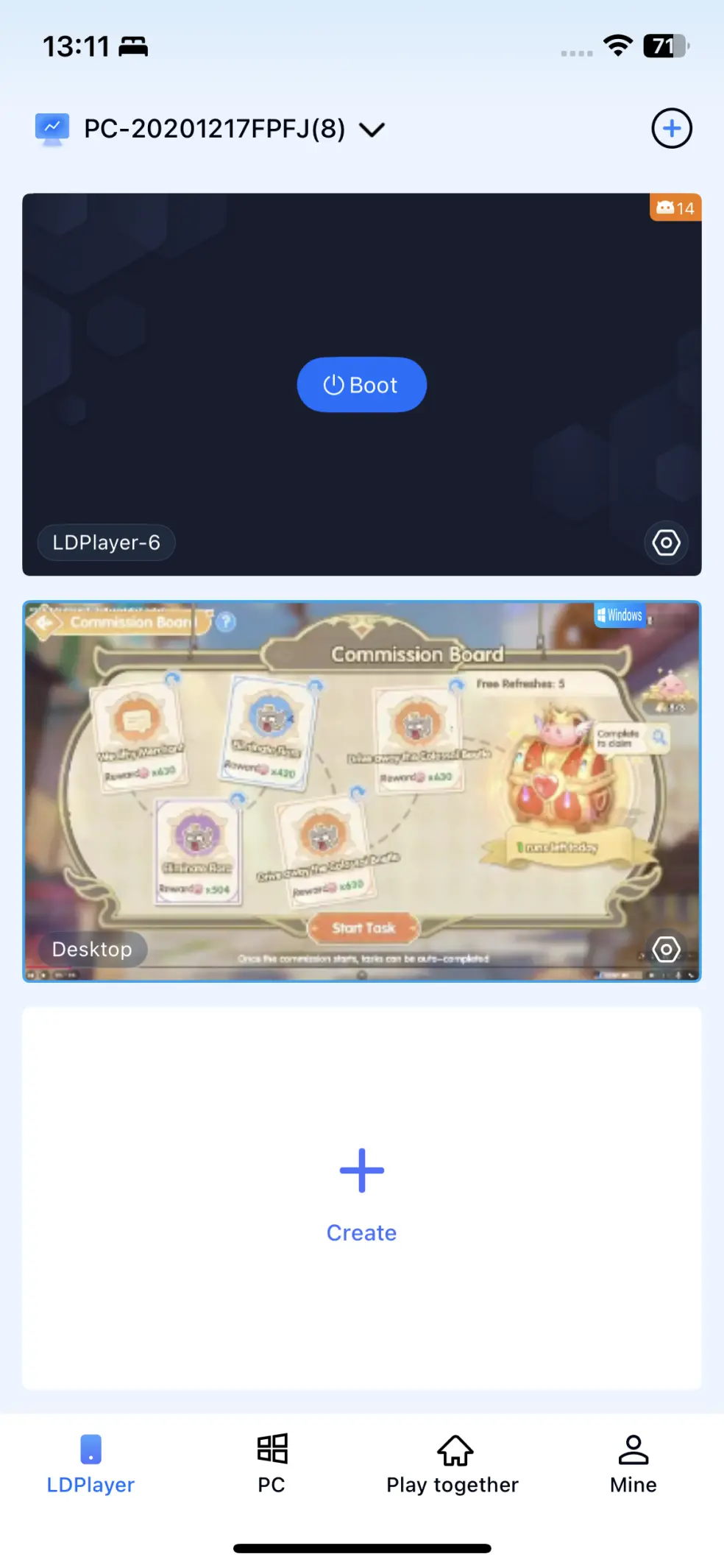
Open the device list in the OSLink mobile app and select the connected PC to enter the remote control interface. Then launch Ragnarok: The New World in LDPlayer. The game screen will instantly sync to your phone, allowing you to control everything remotely.
2. Control the Game from Your Phone
Once connected, you can operate the emulator directly from your mobile device using touch controls. This includes launching the game, claiming rewards, adjusting your character's progression, and handling other routine in-game tasks just as if you were sitting at your PC.
V. Setting Up Automatic AFK Farming with OSLink
Record an Auto-Farming Script
Step 1
After your phone has successfully connected to your computer through OSLink, launch Ragnarok: The New World in LDPlayer.
Step 2
Once the remote connection is stable, open OSLink's built-in auto-click feature and record a complete farming loop. The recording can include fixed-location monster grinding, picking up loot, auto-pathing for mining, logging, fishing, gathering, repeatedly clearing dungeons, and claiming daily rewards.
Step 3
Customize the script's loop interval and the number of repetitions. Once the settings are saved, start the script to continuously farm the materials needed for character progression without requiring constant manual input.
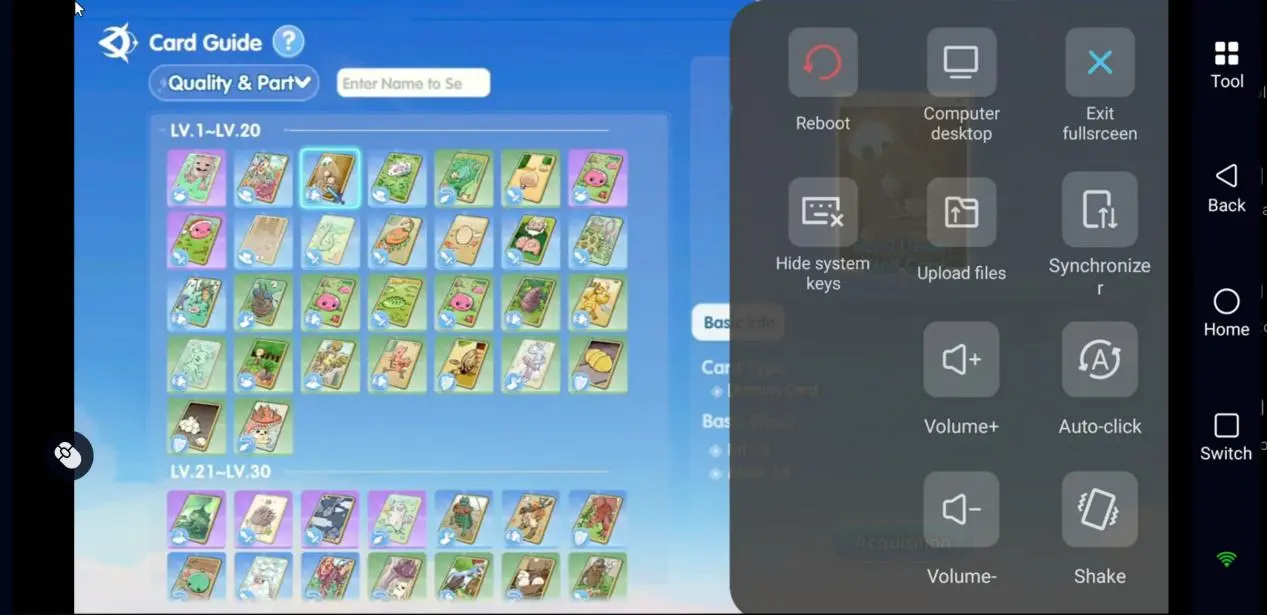
When recording your automation script, don't forget to include actions that close pop-up windows. Event announcements, promotional notices, or gift pack pop-ups can interrupt the automation if they aren't handled during the recording process.
Managing Multiple Accounts Simultaneously
Step 1
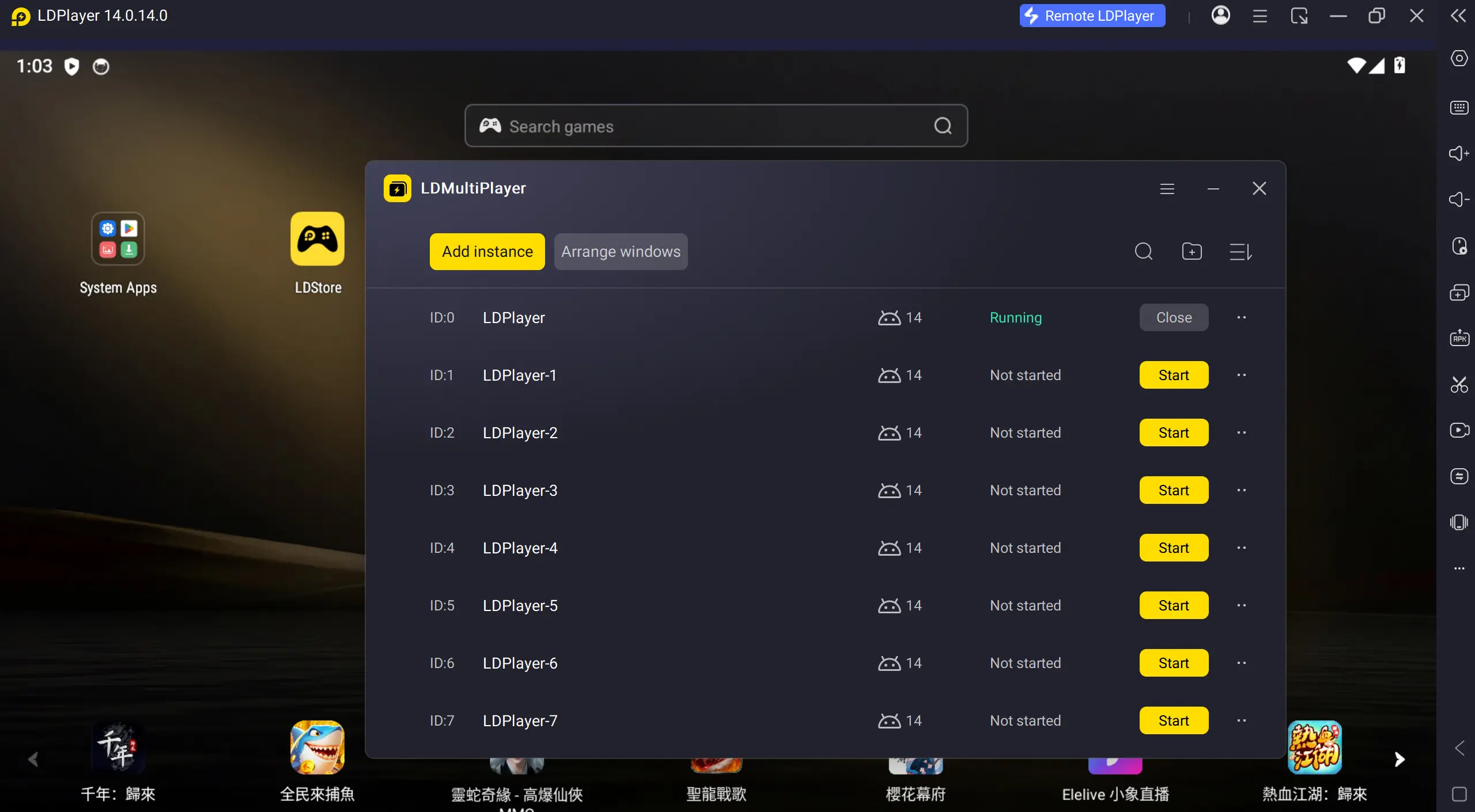
Open LDPlayer's Multi-Instance Manager and create multiple independent emulator instances. Sign in to a different Ragnarok: The New World account on each instance.
Step 2
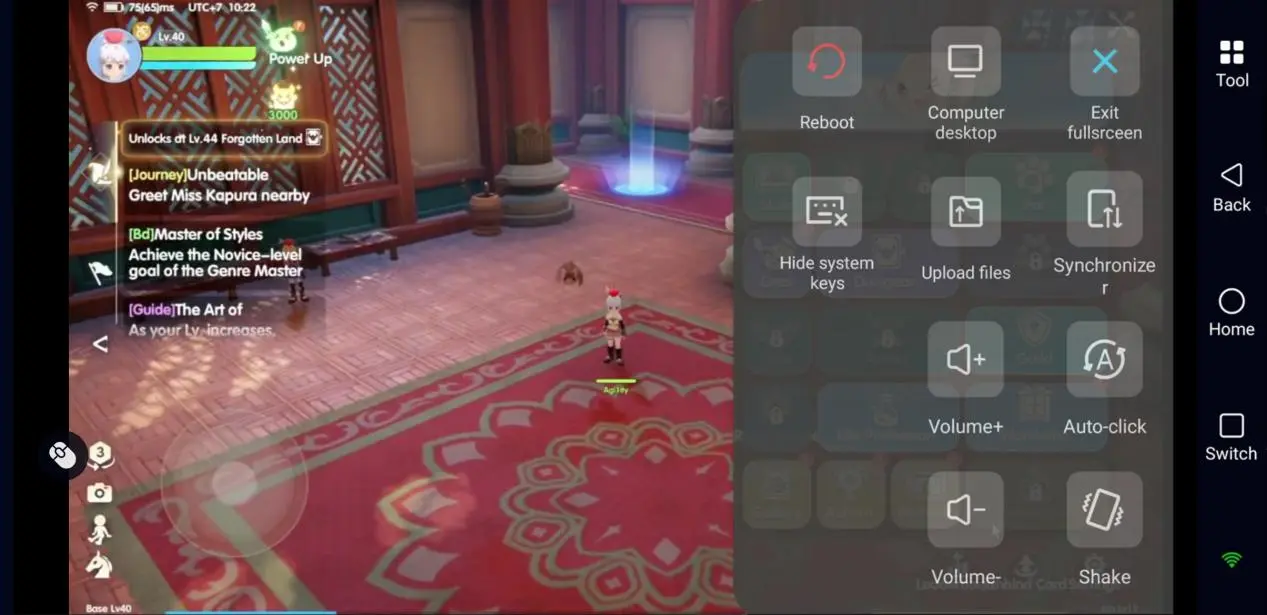
On the OSLink mobile app, enable the synchronized control feature and select every emulator window you want to manage at the same time.
Step 3
After everything has been configured, you can freely explore maps or challenge MVPs and bosses on your main character while each alternate account continues running independently in the background.
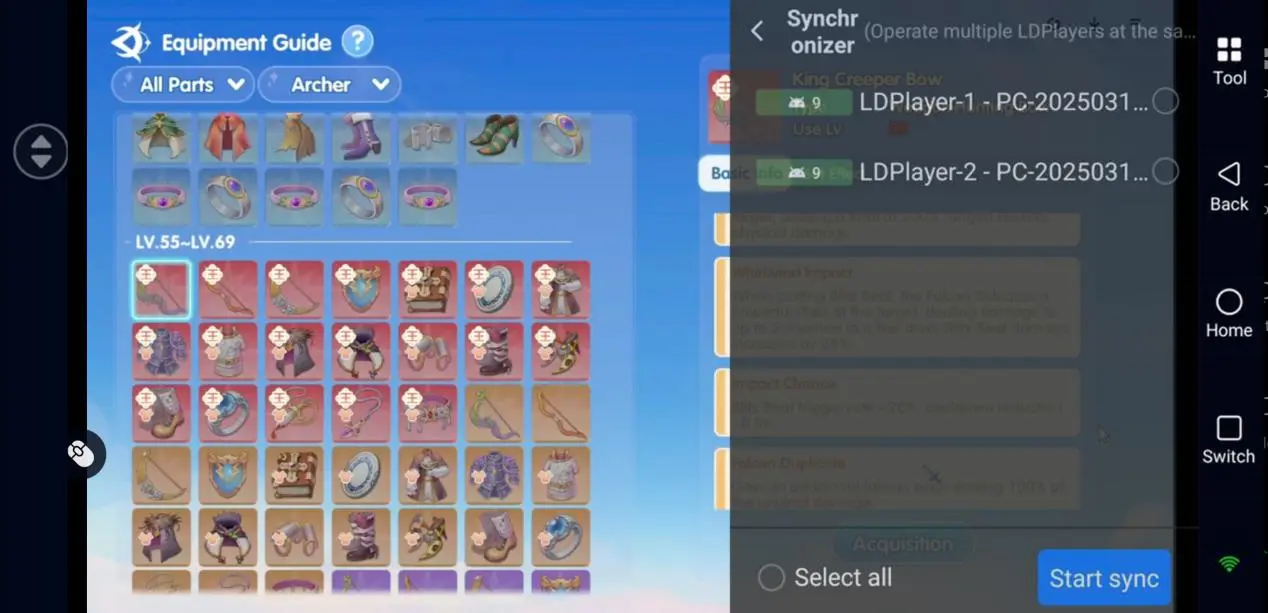
If you'd like to control all accounts at once, simply send a single touch command through the synchronized control feature. The same input will be executed across every selected emulator instance, allowing all characters to farm monsters, gather resources, or complete daily activities simultaneously, making multi-account resource farming far more efficient.
VI. Frequently Asked Questions About Remote AFK Farming with OSLink
Q: When was Ragnarok: The New World officially released?
A: Ragnarok: The New World was released on July 16, 2026, and is officially available across all supported platforms.
Q: Can I run multiple game accounts on an iPhone or iPad?
A: Due to iOS system restrictions, it's not possible to install multiple copies of the same game or log in to several accounts locally on a single device. But with OSLink remote control tool, you can conveniently manage dozens of game accounts from your iPhone or iPad without being limited by iOS itself.
Q: What PC specifications are recommended for this setup?
A: The number of emulator instances you can run depends largely on your hardware. A system with 8 GB of RAM is best suited for running 1–2 emulator instances.16 GB of RAM can comfortably handle 3–4 instances.32 GB of RAM or more is recommended if you plan to run 5 or more instances simultaneously.
Q: What should I do if remote control feels laggy?
A: If you experience noticeable delay while streaming the game remotely, first disable any battery-saving mode on your mobile device. Then switch OSLink to its low-latency transmission mode. On the PC side, lowering the emulator's display resolution and frame rate can reduce the amount of streaming data, resulting in a smoother remote control experience.
Conclusion
Running multiple Ragnarok: The New World accounts with AFK automation mainly comes down to three key components: a stable emulator environment, reliable remote access, and efficient multi-account management.By creating multiple game instances in LDPlayer and controlling them remotely through OSLink, you can handle resource farming, daily activities, and character progression much more conveniently. For players planning to invest in several characters over the long term, this setup minimizes repetitive manual work, streamlines everyday account management, and makes the overall gameplay experience far more relaxing and efficient.
 Download