English
 With its Outer Rim setting, hover-vehicle racing, and competitive driving mechanics, STAR WARS: Galactic Racer™ has caught the attention of both Star Wars fans and racing enthusiasts. However, the game is only available on PC and major console platforms, with no native mobile version. Many racing fans want to continue their progress during commutes or other short breaks away from home, whether they are working through league challenges or simply looking to squeeze in another race.
This guide walks you through a simple way to play the PC version remotely on your phone. It covers everything from getting the game and installing the required software to connecting your devices and optimizing performance. Follow the steps below to get everything set up.
Still wondering which software to use for game streaming? OSLink can stream STAR WARS: Galactic Racer™ running on your PC directly to your phone. The setup is straightforward and does not require complicated hardware modifications, allowing you to leave the desk behind and continue playing your PC racing game from your phone.
1. Where to Get STAR WARS: Galactic Racer™
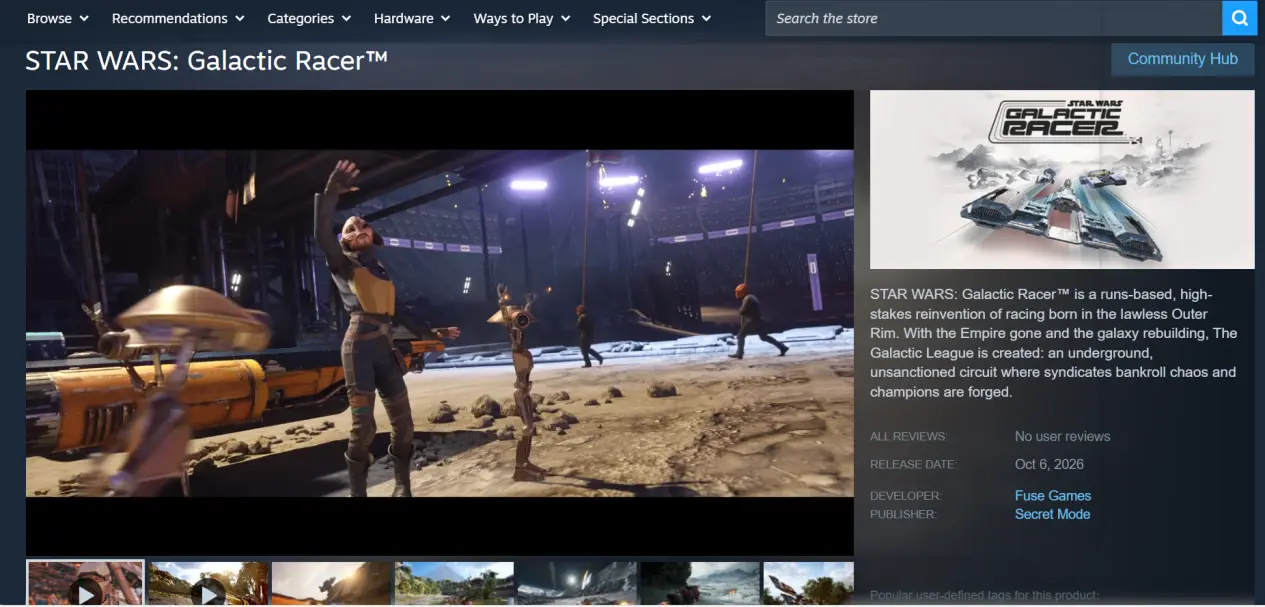
STAR WARS: Galactic Racer™ is available on Steam. Open the Steam client, search for the full game title in the store, purchase the game, and then download and install it from your Steam library.
Once the download is complete, it is recommended that you launch the game at least once and make sure it runs properly on your PC. Check for crashes, stuttering, or other issues before setting up game streaming. This makes it easier to identify the source of any problems later on.
2. How to Download and Install OSLink
PC Installation
Open your browser and visit the official OSLink website. Download the Windows installer, complete the installation, then launch the program, create an account, and sign in.
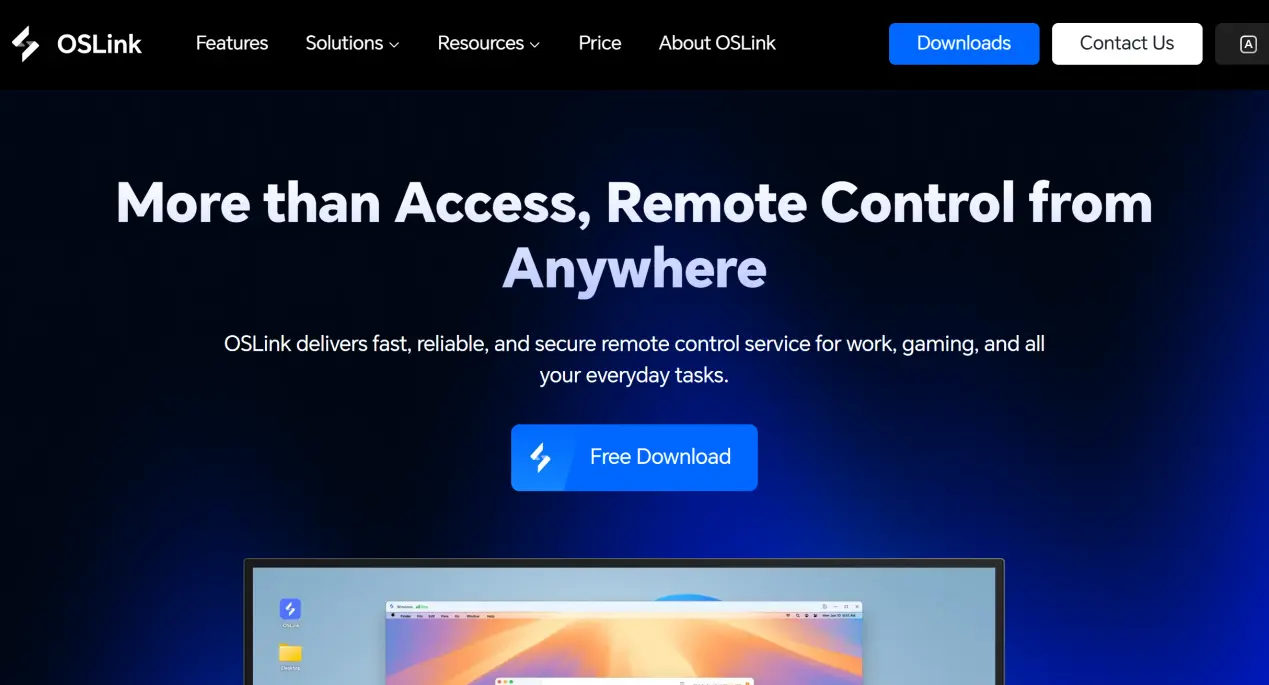
OSLink needs to remain running in the background. It is recommended that you disable automatic sleep and network adapter sleep settings in your system's power management options. This helps prevent the network connection from being interrupted while your PC is idle, so your phone can connect whenever you need it.
Mobile Installation
Android users can search for and download OSLink from the official app store or visit the official website and install the app manually. iOS users can open the App Store and search for the corresponding OSLink client.
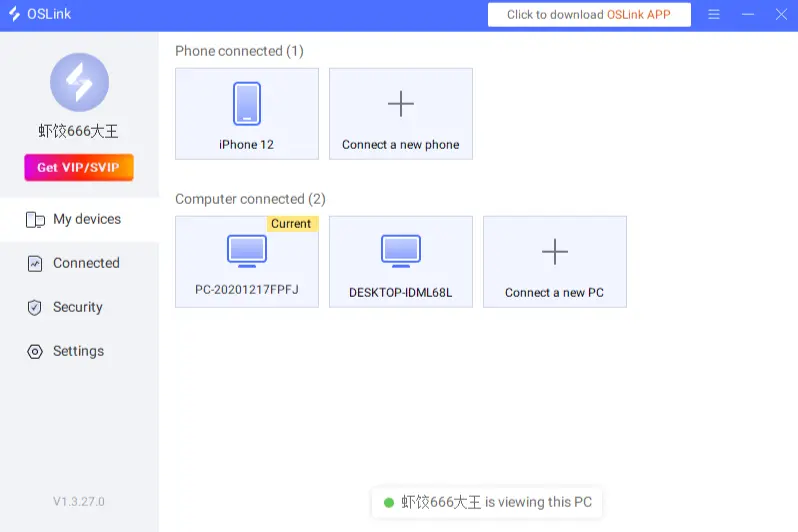
When signing in, make sure the account on your phone is the same as the one used on your PC. OSLink can automatically detect all online devices signed in to the same account. It supports automatic pairing over both local networks and the internet, so there is no need to enter a device ID manually.
3. How to Play STAR WARS: Galactic Racer™ on Mobile with OSLink
Step 1: Make sure OSLink is running normally in the background on your PC. Launch Steam and open STAR WARS: Galactic Racer™. Stay on the track selection or event preparation screen and keep the game window open in the foreground. Do not minimize it.
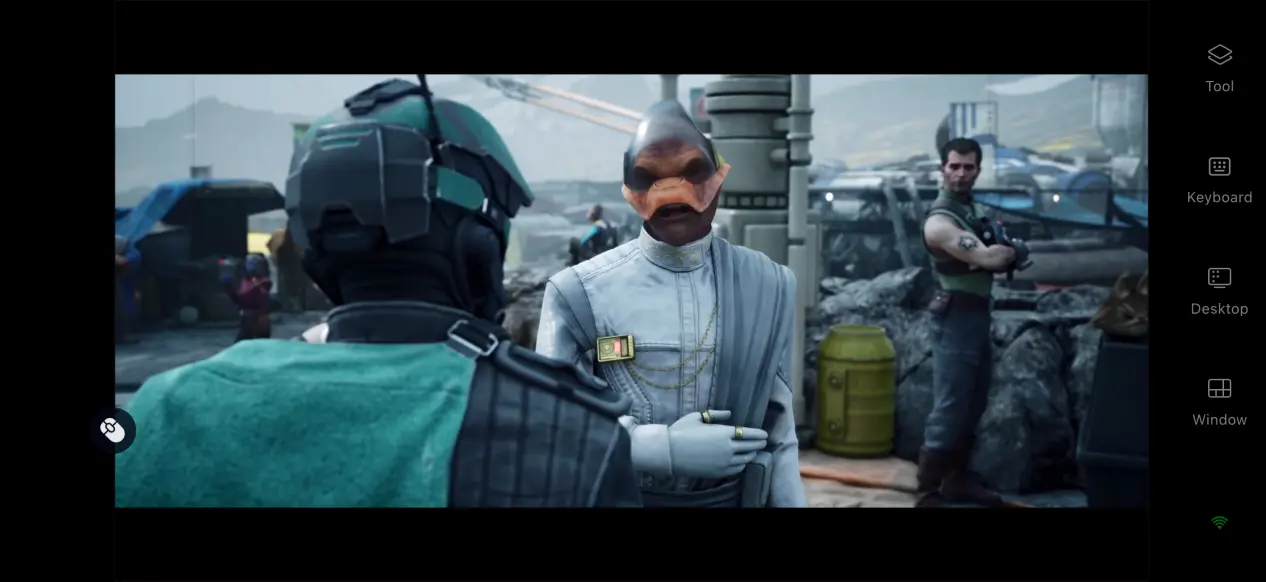
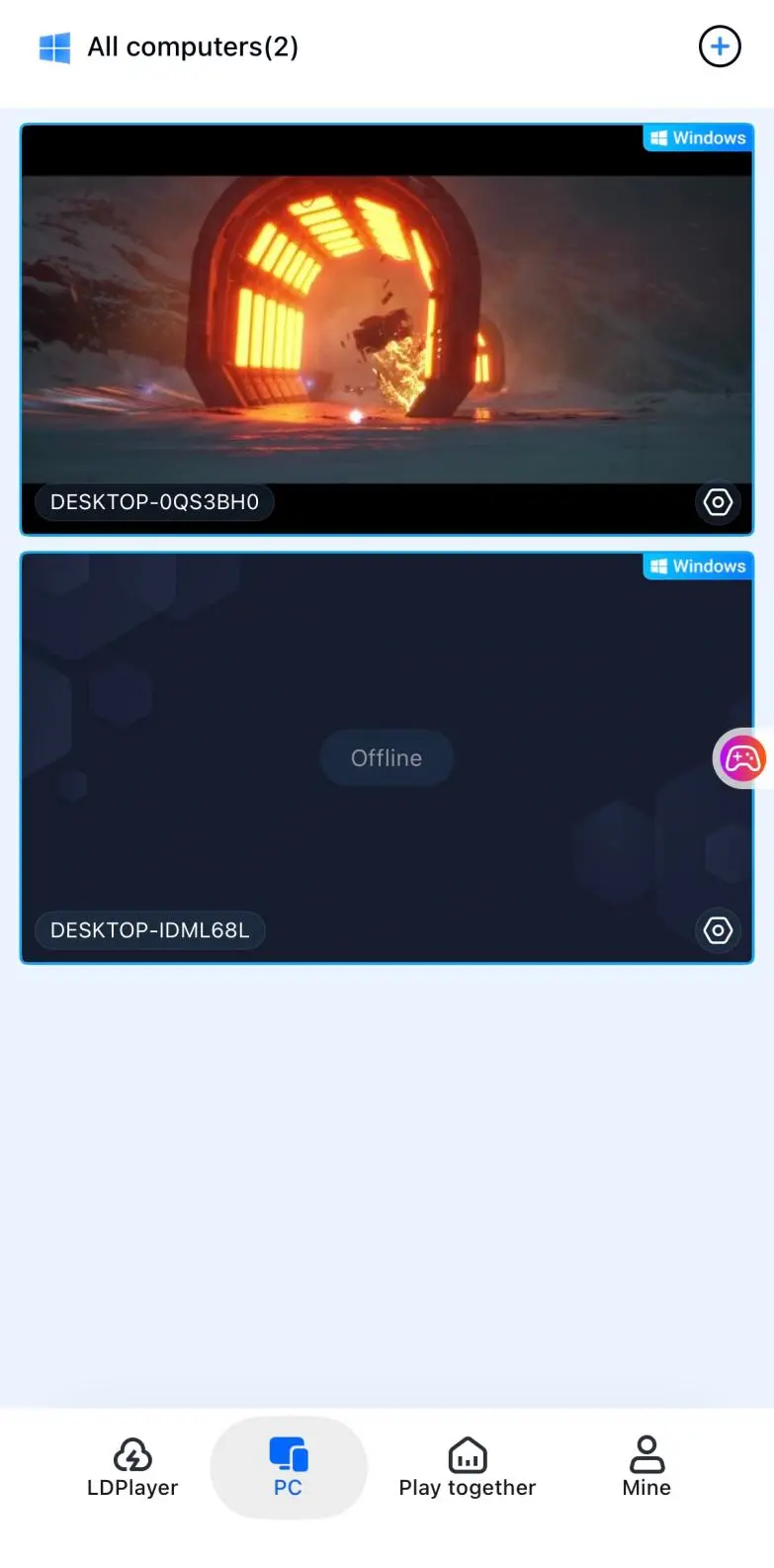
Step 2: Open the OSLink client on your phone. The device list will show the computers currently online and signed in to your account. Tap the target PC to establish the streaming connection.
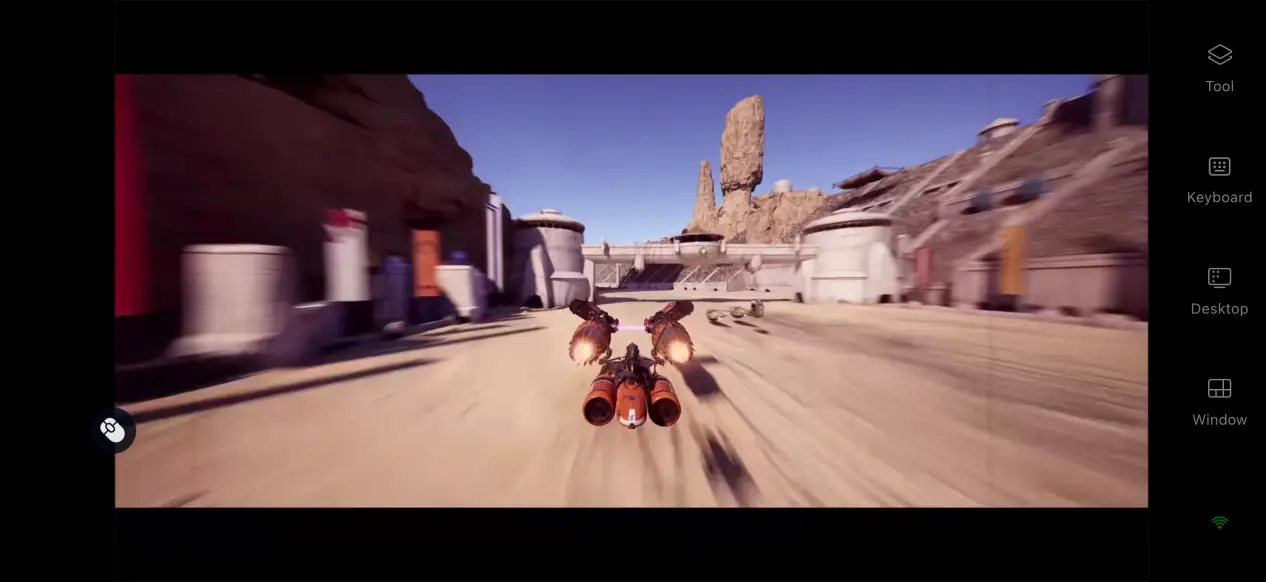
Step 3: Once the streaming connection is established, open the side toolbar and switch to the dedicated racing game mode. Load the preset virtual controls for racing games, then adjust the button positions to match your preferred controls. You can then use your phone to steer, accelerate, activate nitrous, perform aggressive collisions, and handle other racing actions in both solo leagues and multiplayer races.
4. Benefits of Playing STAR WARS: Galactic Racer™ on Your Phone
Multiplayer Co-Play Support
OSLink comes with a room-sharing feature that lets you share an active STAR WARS: Galactic Racer™ session from your PC with a room. Even if your friends do not have the game installed on their own devices, they can connect to the session and participate. This is useful for watching each other's racing techniques, testing vehicle setups together, and sharing the gaming experience across multiple devices.
Play Whenever You Have Time
As long as your PC remains powered on and connected to the internet, you can connect to the game from your phone over either Wi-Fi or mobile data. Whether you are waiting somewhere or traveling a short distance, you can pick up an existing save, continue making progress in the league, and unlock new vehicle liveries. Instead of setting aside a large block of time for racing, you can fit shorter sessions into your everyday schedule.
No Need to Use Your Phone's Local Storage
All game files and save data remain stored on the PC's local drive. Your phone only receives the streamed video and sends control inputs back to the PC. Even if your phone has limited storage or modest hardware, you can still play normally without having to delete files to free up a large amount of space.
5. How to Optimize Your OSLink Gaming Experience
Customize the Control Layout
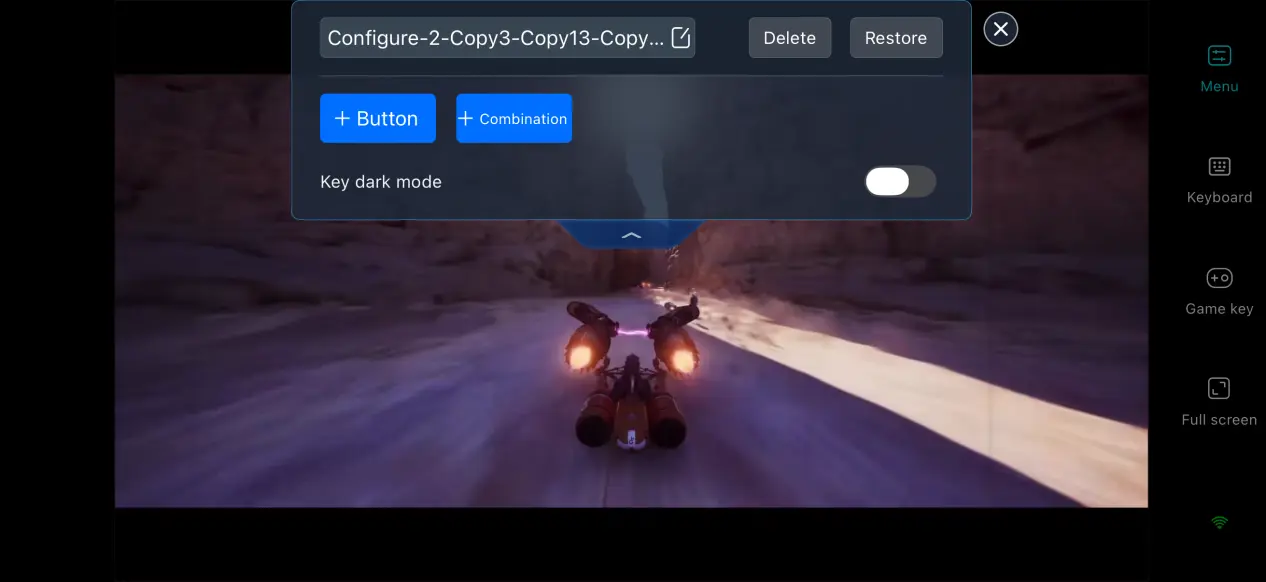
OSLink gives you full control over virtual button editing. You can add or remove touch controls and adjust their size, transparency, and position. For the frequent inputs required in racing games, you can place important controls such as nitrous, the handbrake, and collision actions within easy reach of your thumbs. You can also save multiple control presets and switch between them quickly for different types of tracks.
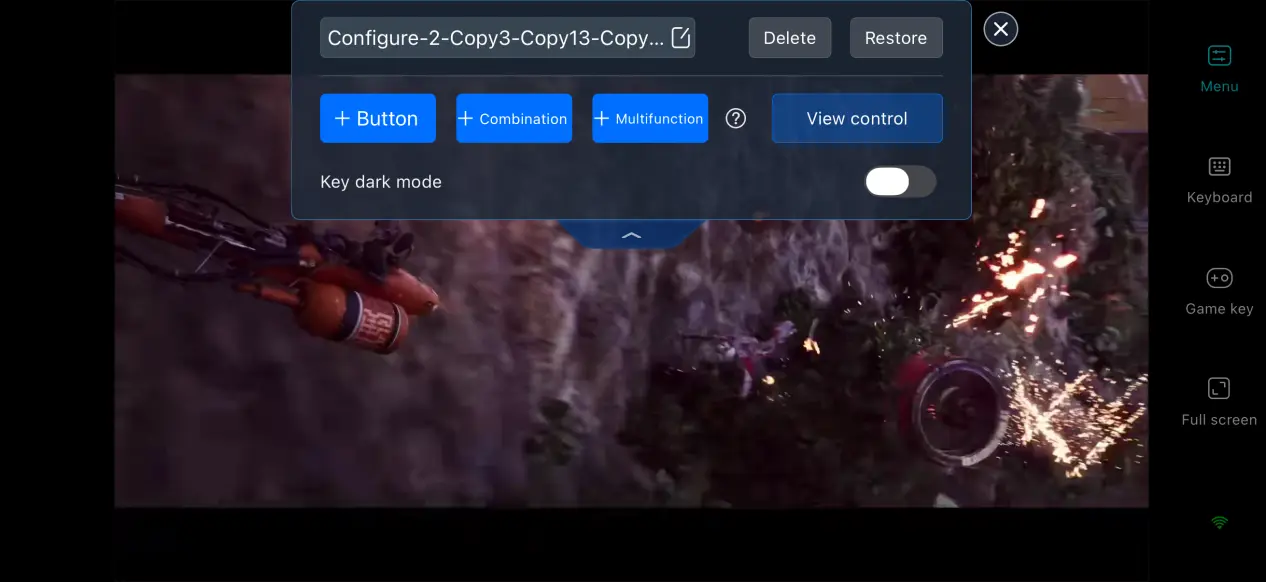
Adjust the Mobile Display
You can enable full-screen mode on your phone and hide the system status bar and gesture bar so that the game fills the entire display. When the PC output resolution does not match your phone's screen ratio, you can choose adaptive scaling or preserve the original aspect ratio with black bars. This prevents the track UI and vehicle models from being stretched or distorted while keeping the racing visuals looking natural.
High-FPS, Low-Latency PC Gaming Mode
Enable the dedicated 60 FPS PC gaming mode. The software automatically adjusts its image encoding to reduce motion blur during high-speed multi-car battles and consecutive corners while shortening input transmission delays. This makes steering, nitrous activation, and collision inputs feel more responsive.
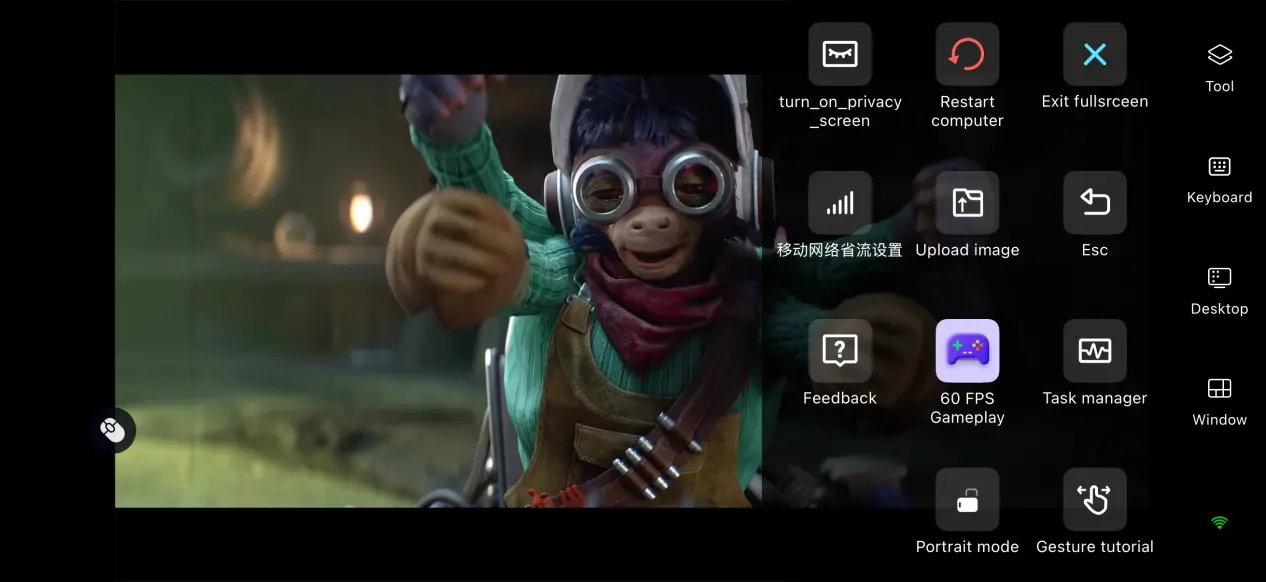
Support for Multiple External Devices
OSLink supports mainstream wired and Bluetooth game controllers. Once a controller is connected to your phone, OSLink automatically adapts the control layout to the controller. Physical buttons can make vehicle control easier and reduce accidental touches on the screen. This can make long racing sessions and repeated attempts at difficult league challenges more comfortable on a smaller display.
6. Frequently Asked Questions About Playing STAR WARS: Galactic Racer™ on OSLink
Q: What iS STAR WARS: Galactic Racer™ release time?
A: STAR WARS: Galactic Racer™ release date is October 6, 2026. The PC version will be available on Steam, and there is no official native mobile version.
Q: What are the PC system requirements for STAR WARS: Galactic Racer™?
A: Minimum requirements: Windows 10, an Intel i5-8400 or AMD Ryzen 5 2600-class processor, 12 GB of RAM, an RTX 2060-class graphics card, an SSD, and 50 GB of available storage.
Q: Can I play STAR WARS: Galactic Racer™ directly on an Android or iOS device?
A: There is no native Android or ioS version. You can play STAR WARS: Galactic Racer™ remotely through OSLink.
Conclusion
STAR WARS: Galactic Racer™ is a sci-fi racing game centered around underground leagues in the Outer Rim, featuring a variety of vehicles and competitive racing mechanics. However, there is no official native mobile version, so the game cannot be installed and played directly on a phone. If you want to experience the high-speed action of the Outer Rim on mobile, OSLink provides a convenient remote streaming solution.
All game rendering and processing are handled by the PC, while the phone works as a display and control terminal. Once everything is set up, you can make better use of short breaks throughout the day to take on league challenges, unlock vehicles, and enjoy STAR WARS: Galactic Racer™ wherever you have time to play.
 Download