English
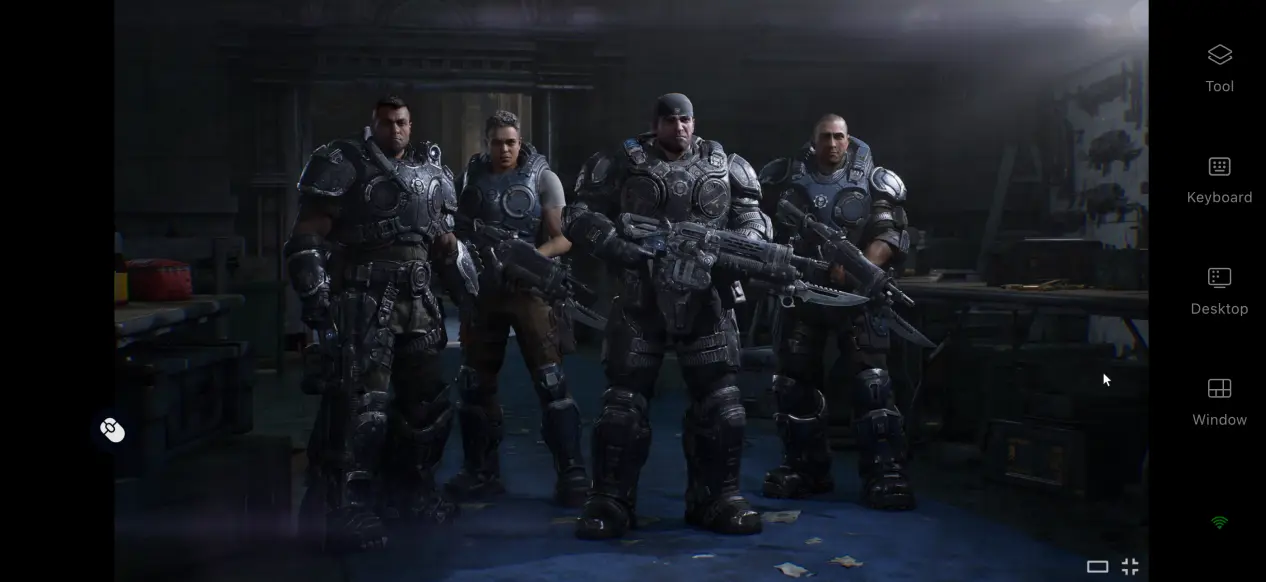
 As the latest third-person shooter exploring the origins of the series, Gears of War: E-Day recreates the chaos of Emergence Day, from cities falling apart to the Locust rising from underground. Whether you prefer the solo campaign or cooperative multiplayer defense, there is plenty to enjoy. However, the game is only available on PC and Xbox consoles, so many players are looking for a way to play without being tied to a desk. This guide focuses on using your phone to remotely access the game, giving you more freedom over where and when you play.
OSLink lets you stream Gears of War: E-Day from your PC to a mobile device. The software also optimizes input handling for shooter games, keeping the delay for actions such as firing, moving between cover, reloading, and dodging low. Even during intense encounters with large groups of enemies, controls remain responsive and smooth.
1. How to Play Gears of War: E-Day
Getting the Game
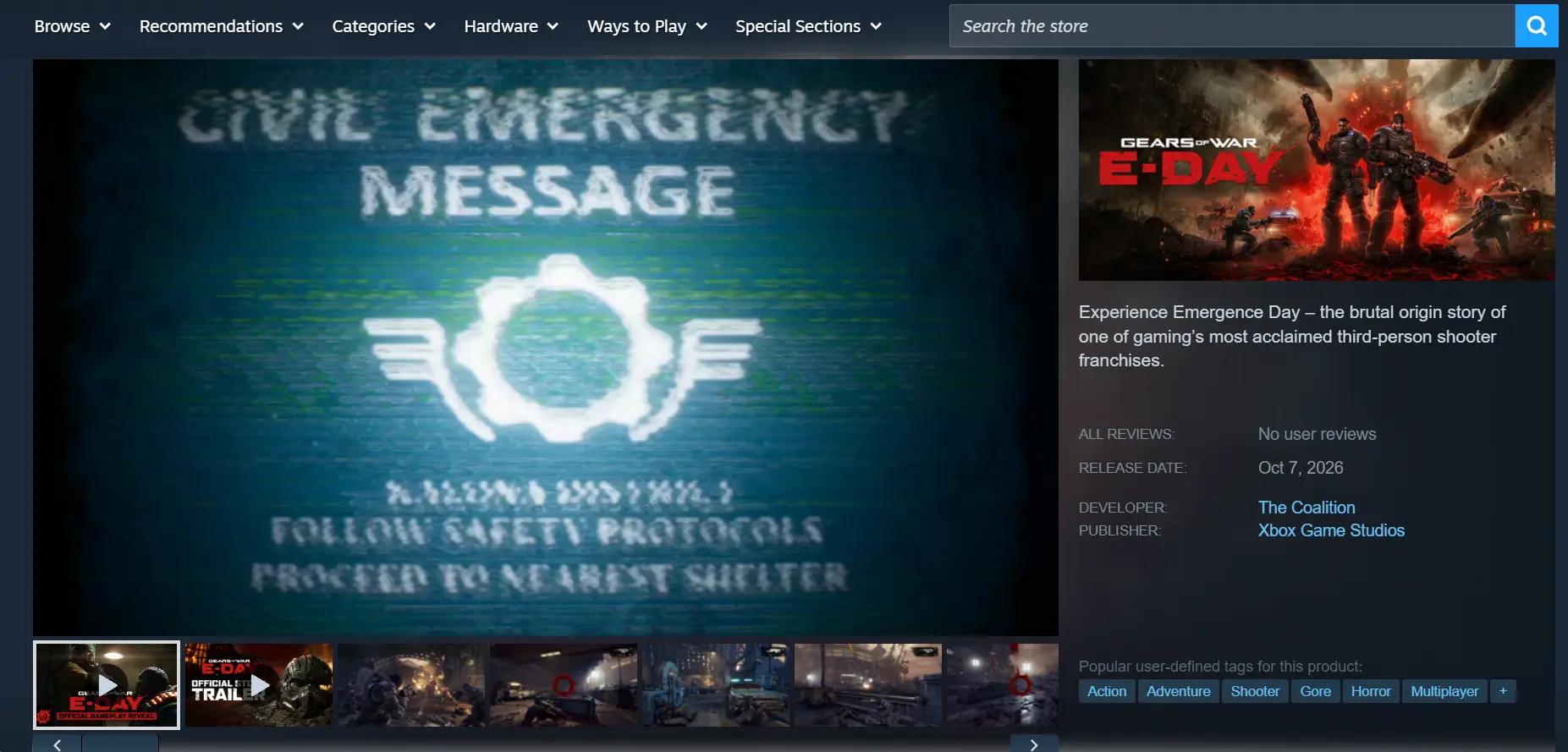
Gears of War: E-Day is available on both Steam and the Microsoft Store. Open the corresponding store on your client, search for the full game title, and purchase or pre-order it. Once the purchase is complete, download and install the game from your library.
Check Local Performance
After installation, it is recommended that you launch the game once to make sure your PC can run it properly. Check for issues such as crashes during level loading or combat before moving on to the remote-streaming setup.
2. Install OSLink on Your PC and Phone
Windows PC Setup
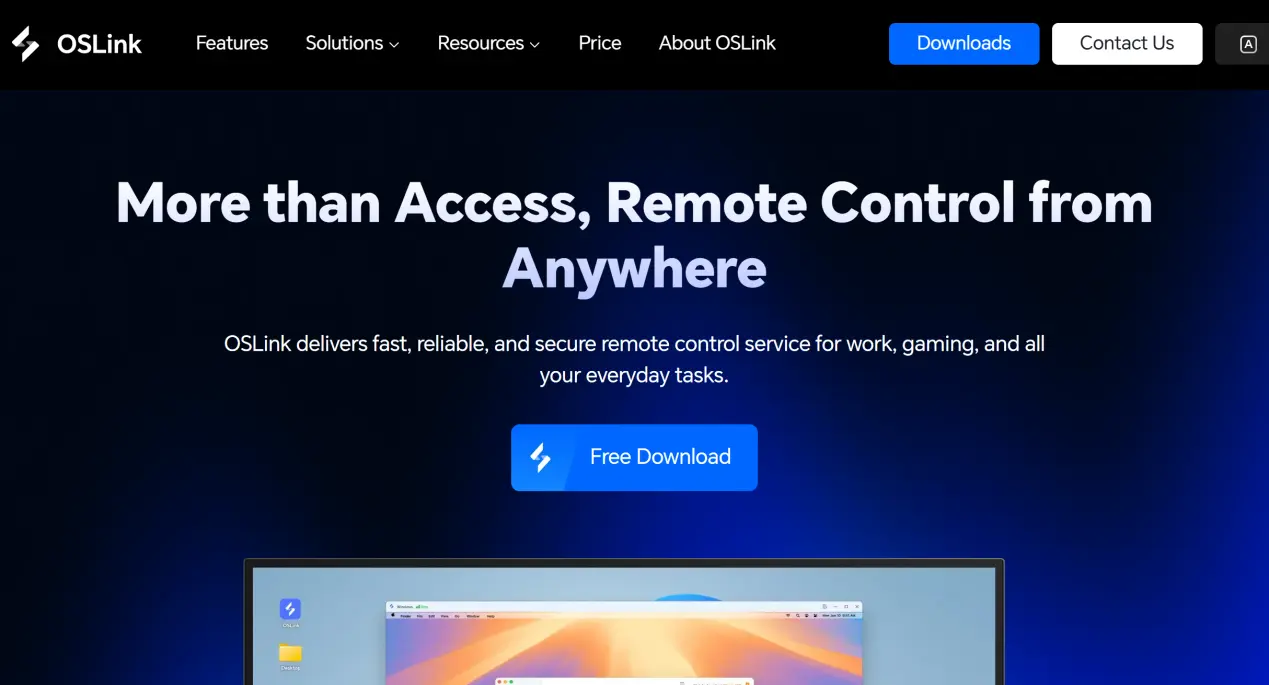
Open a browser and visit the official OSLink website to download the Windows installer. Follow the setup instructions to complete the installation, then launch the software and register or sign in to your account.
OSLink needs to stay running in the background for extended periods. It is recommended that you open your PC's power settings and disable automatic system sleep and network adapter sleep. This helps prevent the network connection from dropping while the PC is idle, allowing your phone to connect whenever needed.
Install the Mobile Client
Android users can download the client from the official app marketplace or get the installer from the official website and install it manually. iOS users can search for OSLink on the App Store and install the app from there.
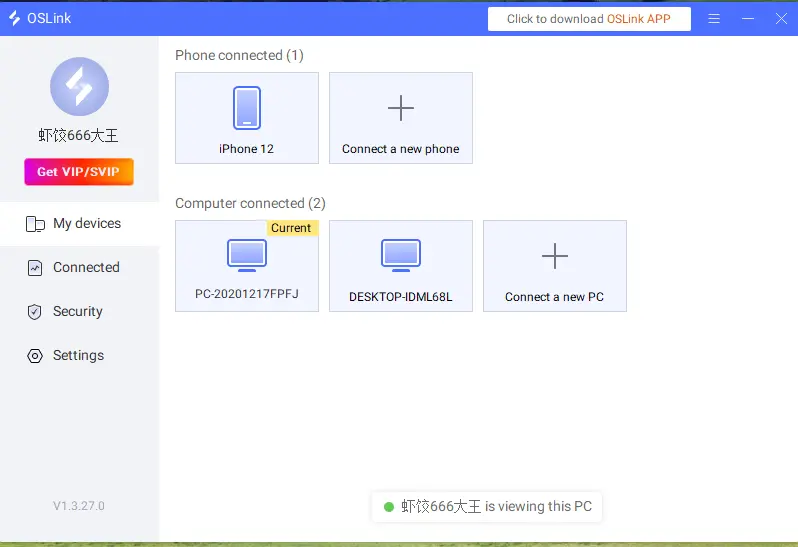
Note: The account signed in on your phone must match the account used on your PC. OSLink can automatically detect online devices signed in to the same account and pair them over either a local network or the internet, so there is no need to enter a device ID manually.
3. How to Run Gears of War: E-Day Through OSLink on Your Phone
1. Make sure OSLink is running in the background on your PC. Open Steam or the Microsoft Store client and launch Gears of War: E-Day. Keep the game window open in the foreground instead of minimizing it, and leave it at the campaign menu or battle preparation screen.
2. Open the OSLink mobile client. The device list will show online PCs linked to the same account. Tap the name of the target PC to establish the streaming connection.
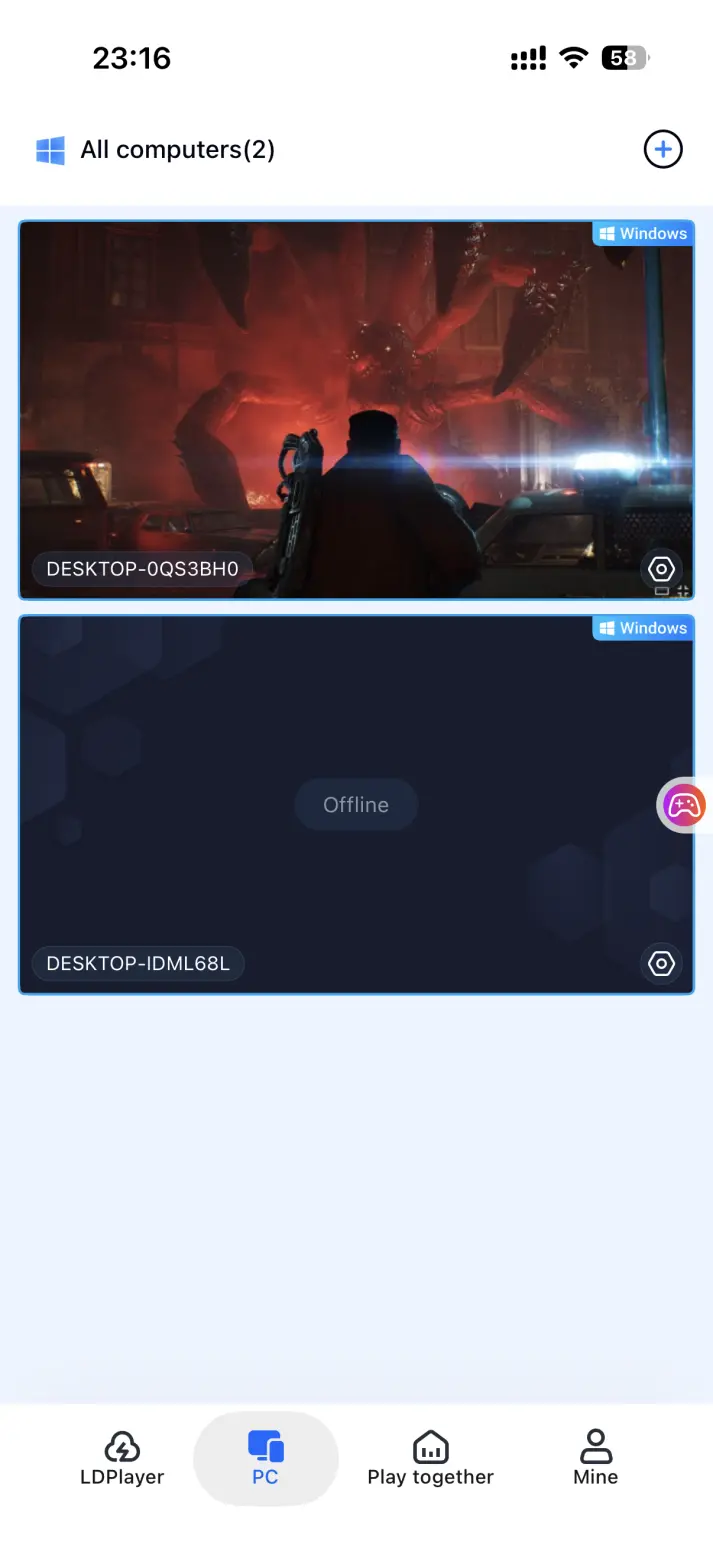
3. Once the streaming connection is established, open the side menu and switch to the dedicated shooter-game mode. Load the default virtual control layout for shooter games, then adjust the button positions to match your preferred controls. Once everything is set up, you can jump straight into multiplayer battles.
4. Benefits of Playing Gears of War: E-Day on Your Phone
Pick Up Where You Left Off Anywhere
As long as your PC stays powered on and connected to the internet, you can access the game from your phone over home Wi-Fi or a mobile network. Whether you are commuting or taking a short trip, you can continue from your PC save and progress through the campaign without being stuck at your desk.
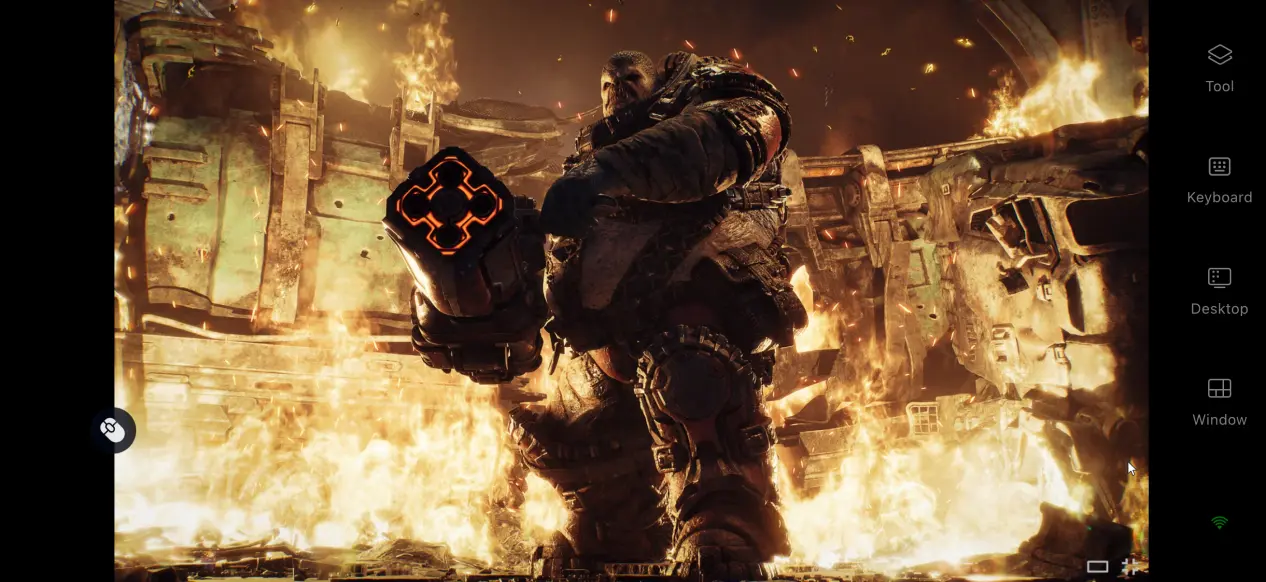
Room Sharing for Cooperative Play
OSLink comes with a room-sharing feature that lets you share a PC game currently running on your device. Other users on the same account can join the room and control the game together, making it suitable for experiencing the game's cooperative campaign with friends.
No Need to Use Up Phone Storage
All game files and save data remain stored on your PC's hard drive, while your phone only receives the streamed video and sends back control inputs. Even if your phone has limited storage or modest hardware, you can still play normally without setting aside a large amount of space for the game client.
5. How to Optimize Your OSLink Gaming Experience
Customize Your Controls
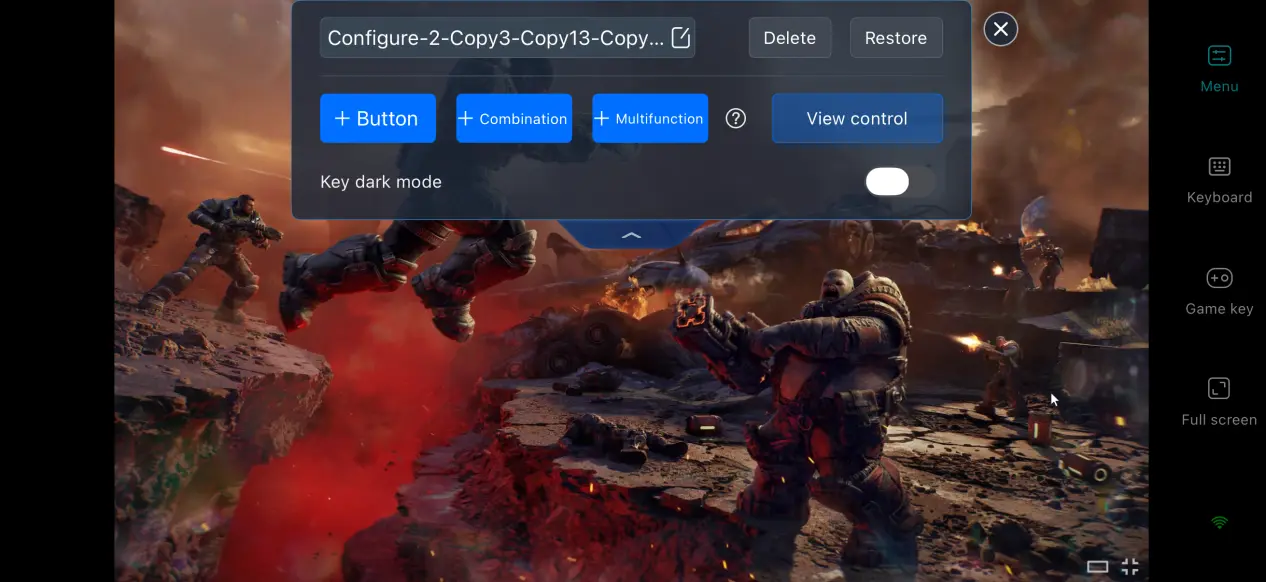
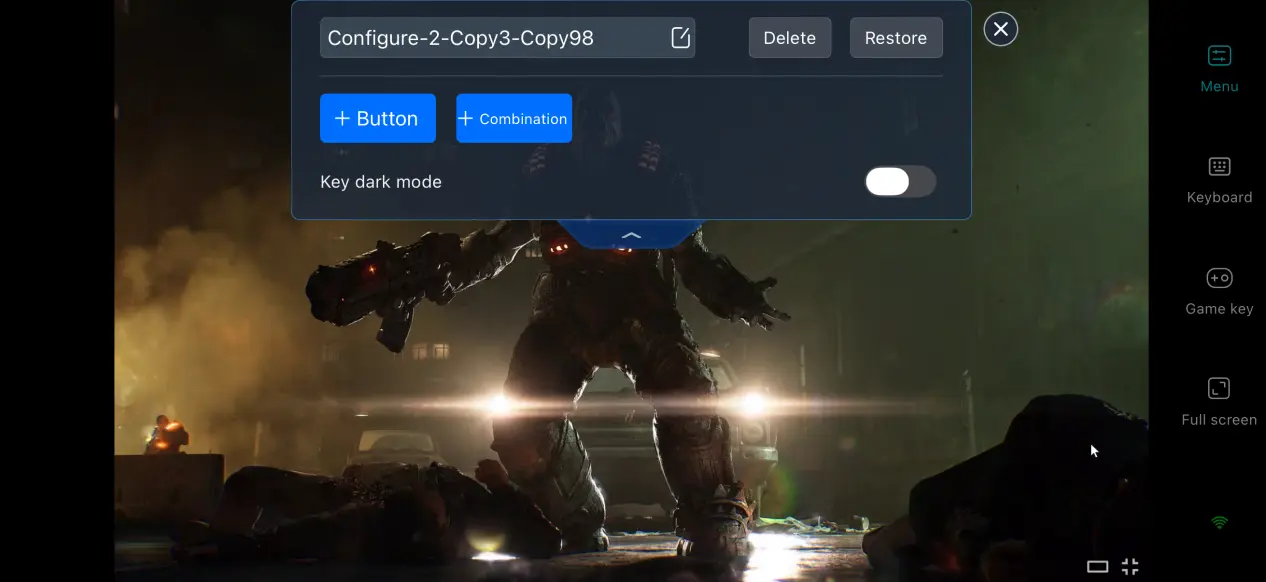
After opening the control editor, you can add or remove virtual touch buttons and adjust their size, transparency, and position. It is recommended to place frequently used controls such as shooting, reloading, and interacting with cover within easy reach. You can also save multiple control layouts and switch between them as needed for different combat and story situations.
Support for Multiple Peripherals
OSLink supports mainstream wired and Bluetooth game controllers. Once a controller is connected to your phone, the software automatically adapts the input layout, allowing you to play shooters with physical buttons. This can help reduce accidental touches and make longer gaming sessions more comfortable.
Dedicated PC Game Streaming Mode
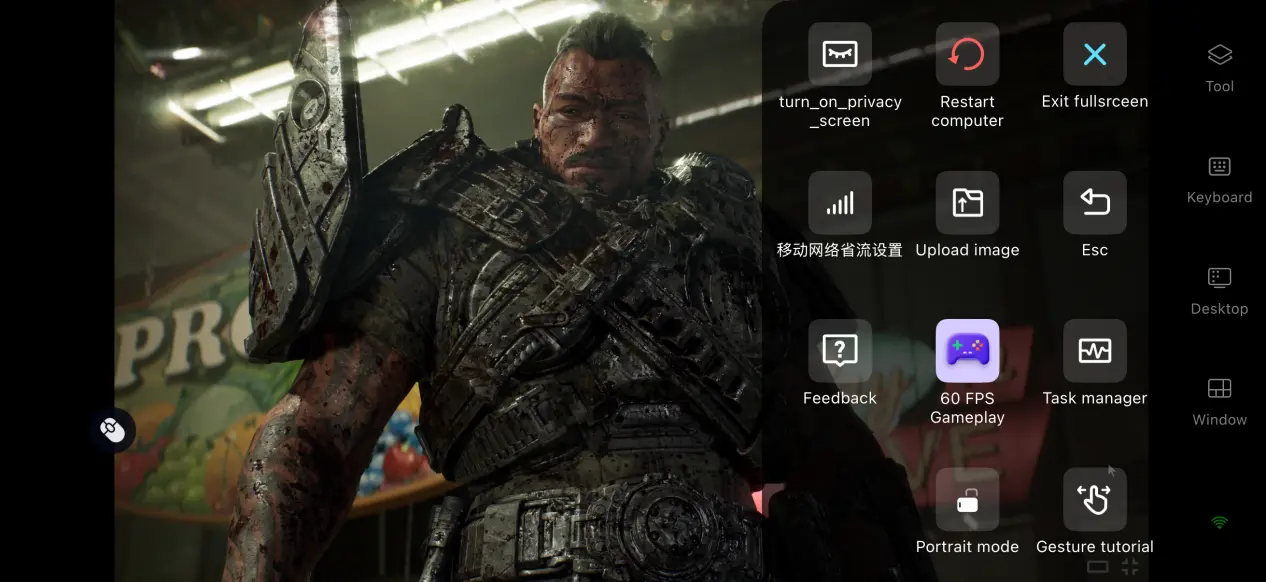
After enabling the dedicated 60 FPS PC gaming mode, OSLink automatically adjusts its video encoding strategy. During battles with large numbers of enemies on screen, it helps reduce motion trails and shorten input transmission delays, making real-time actions such as firing, dodging, and taking cover feel more responsive.
Adjust Mobile Screen Mapping
You can enable full-screen display and hide the phone's system status bar so that the game fills the entire screen. If the PC game's resolution does not match your phone's aspect ratio, you can choose automatic scaling or keep the original aspect ratio with black bars to prevent characters and UI elements from appearing stretched or distorted.
6. Frequently Asked Questions About Playing Gears of War: E-Day on OSLink
Q: What is Gears of War: E-Day release time?
A: Gears of War: E-Day release date is October 6, 2026. Players who purchase the Deluxe Edition can get early access starting October 1.
Q: What are the PC requirements for Gears of War: E-Day?
A: The minimum requirements include a 64-bit version of Windows 10 or later, a Ryzen 5 2600X or Intel Core i5-10400-class processor, 12 GB of RAM, DirectX 12 support, and at least 115 GB of available SSD storage. For the recommended setup, Windows 11 is suggested along with a higher-end CPU and graphics card. Installing the game on a high-speed SSD can also help reduce loading times.
Q: Can I play Gears of War: E-Day on an Android or iOS device?
A: The game does not have a native Android or iOS version. You can stream the PC version remotely through OSLink. The game itself cannot be directly downloaded and installed on mobile.
Summary
Gears of War: E-Day is a third-person shooter that explores the origins of the Locust invasion and recreates humanity's struggle to survive as Emergence Day begins. However, the game is only released for PC and consoles, with no native mobile version. For players who want to make progress during their free time, OSLink's remote-streaming solution provides a way to break free from the desktop and continue making progress in more places, while experiencing the game's intense gunfights and gripping post-apocalyptic story.
 Download