English
 RuneScape: Dragonwilds is an open-world survival game with a full skill progression system, magic combat, and multiplayer base building. However, the official full release is currently available on PC and console platforms, with no native Android or iOS version. Many players are therefore looking for a simple way to enjoy the game on mobile. This guide walks you through the entire remote play process, from getting the game and installing the software to connecting your devices, adjusting settings, and answering common questions, so you can keep your adventure going in Ashenfall.
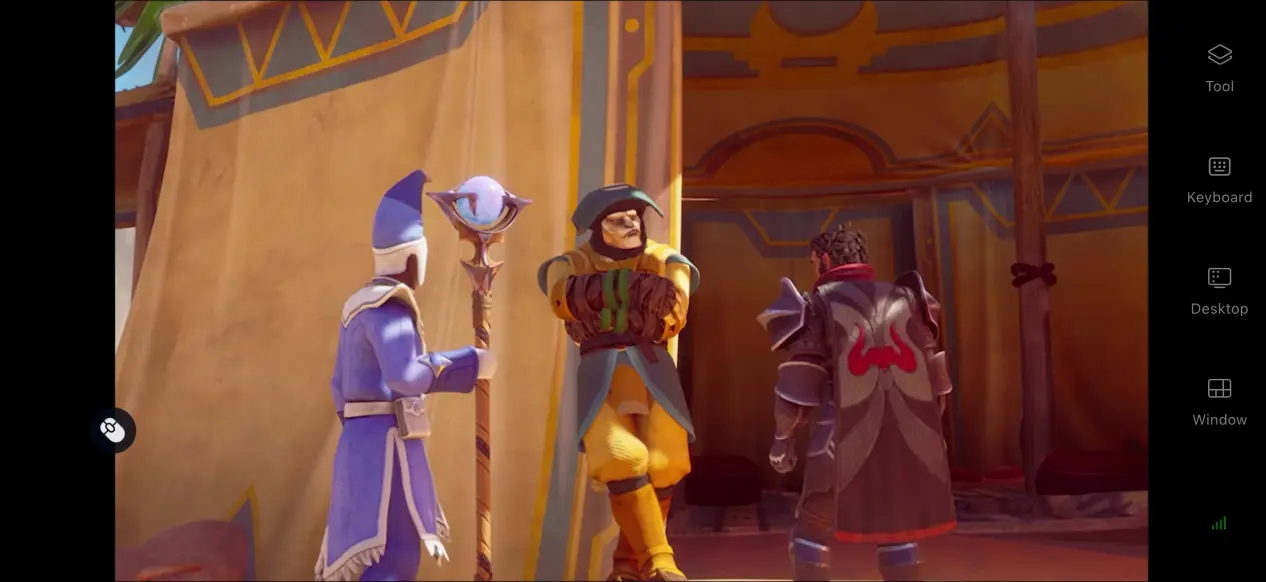
If you're looking for a quick and convenient way to stream your game, OSLink has you covered. It can automatically stream your PC game to your mobile device while sending your touch and controller inputs back to the PC, without requiring complicated configuration. Once your accounts are paired, you can control most in-game interactions from your phone, including gathering resources, placing structures, casting spells, and crafting gear.
1. How to Play RuneScape: Dragonwilds
Getting RuneScape: Dragonwilds
The PC version of RuneScape: Dragonwilds is mainly available through Steam. Open the Steam client, search for the full game title in the store, purchase the game, and start the download from your library.
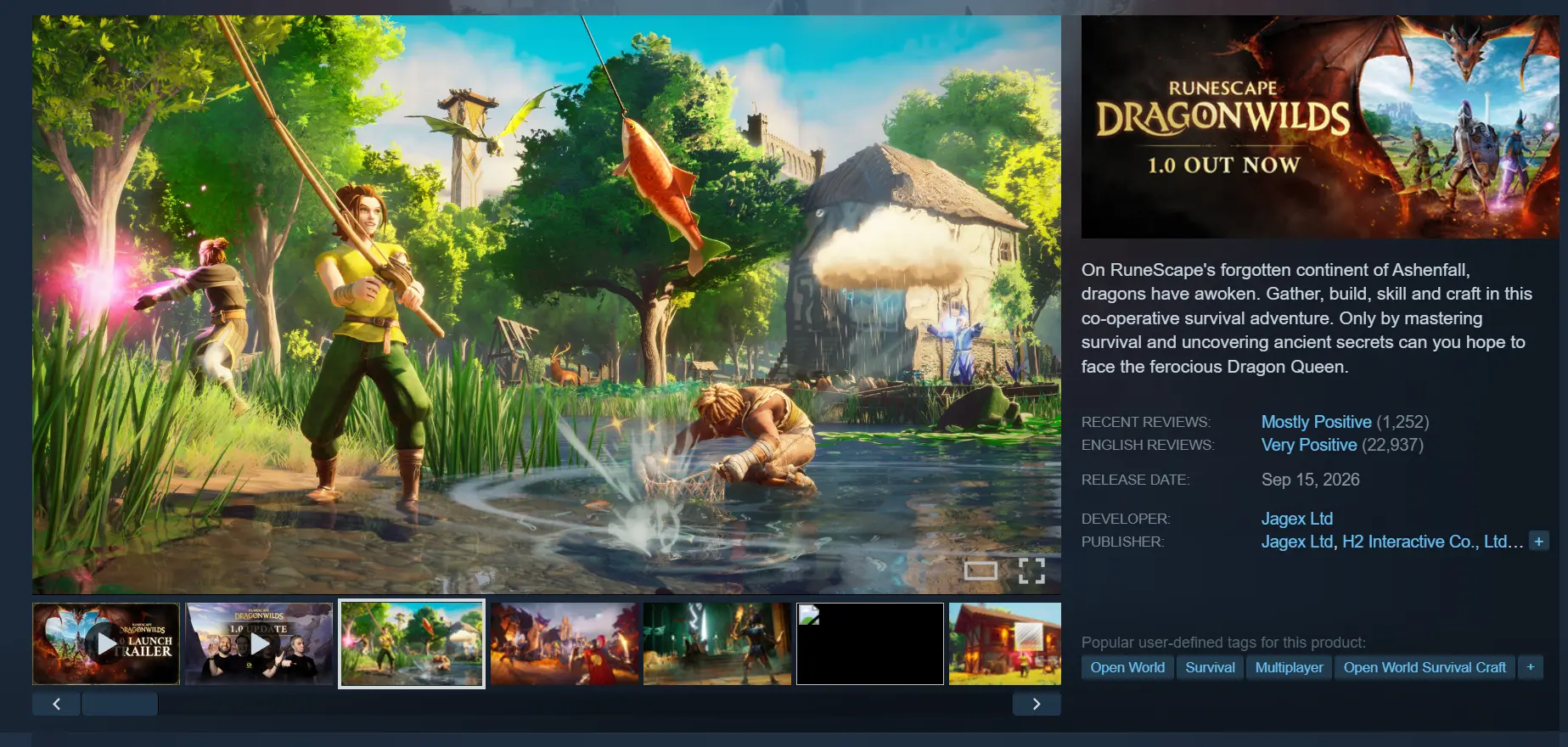
Once the download is complete, it's recommended that you launch the game manually at least once. Make sure you can enter the main menu normally and that there are no crashes, visual glitches, or other issues when building your base, fighting in the wild, or progressing your Skills. Once everything is running smoothly, you can move on to the remote streaming setup.
2. How to Install OSLink on PC and Mobile
Installing OSLink on PC
Open your browser and visit the official OSLink website. Download the installer for your operating system, complete the installation, then launch the software and sign in or create an account.
OSLink needs to keep running in the background. We recommend opening your PC's power settings, disabling automatic sleep, and turning off the network adapter's power-saving settings. This helps prevent the network connection from dropping while the computer is idle, so your mobile device can connect whenever you need it.
Installing OSLink on Mobile
Android users can search for OSLink on Google Play and install the app.
iOS users can search for the OSLink app on the App Store and download it.
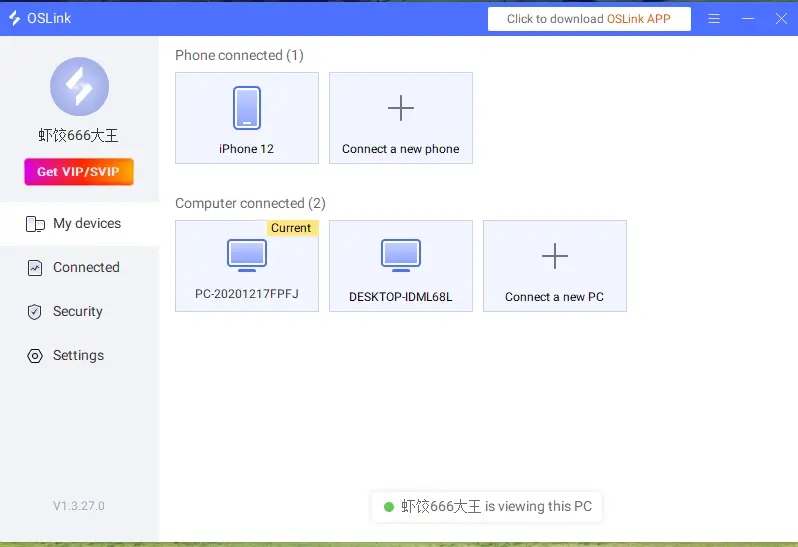
You must sign in to the same OSLink account on both your phone and PC. OSLink can automatically devices signed in to the same account on the same network, so you don't need to enter a device ID manually. The devices will be paired automatically.
3. How to Run RuneScape: Dragonwilds on OSLink Mobile
Open the game client on your PC and launch RuneScape: Dragonwilds. Stay on the main menu and keep the game window running in the foreground. Keep the game window open and running in the foreground.
Open OSLink on your phone. The device list will show online PCs linked to the same account. Tap the target PC to establish the streaming connection.
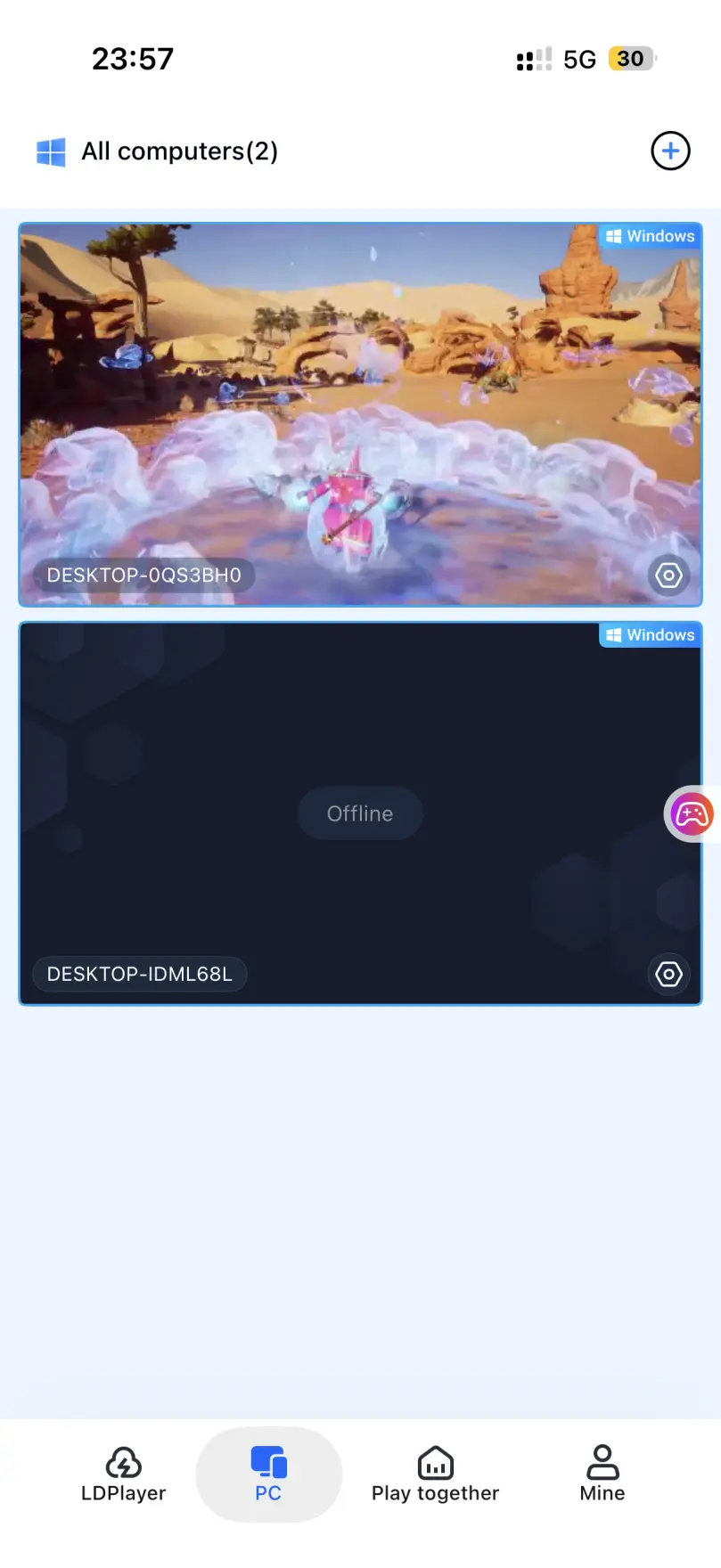
Once the PC screen loads, open the side toolbar, enable Game Mode, and load the preset virtual control layout for open-world survival games.
Adjust the button positions to match your preferred controls. You can also connect an external controller or other input device. Once everything is set up, you can start gathering resources, building your base, and exploring the wilderness directly from your phone.
4. Benefits of Playing RuneScape: Dragonwilds on Mobile
Continue Your Adventure During Your Free Time
As long as your PC stays powered on and connected to the internet, you can establish a streaming connection over either Wi-Fi or mobile data. Even when you're away from home, you can continue from your existing save without having to stay in front of your PC.
No Need to Store the Game on Your Phone
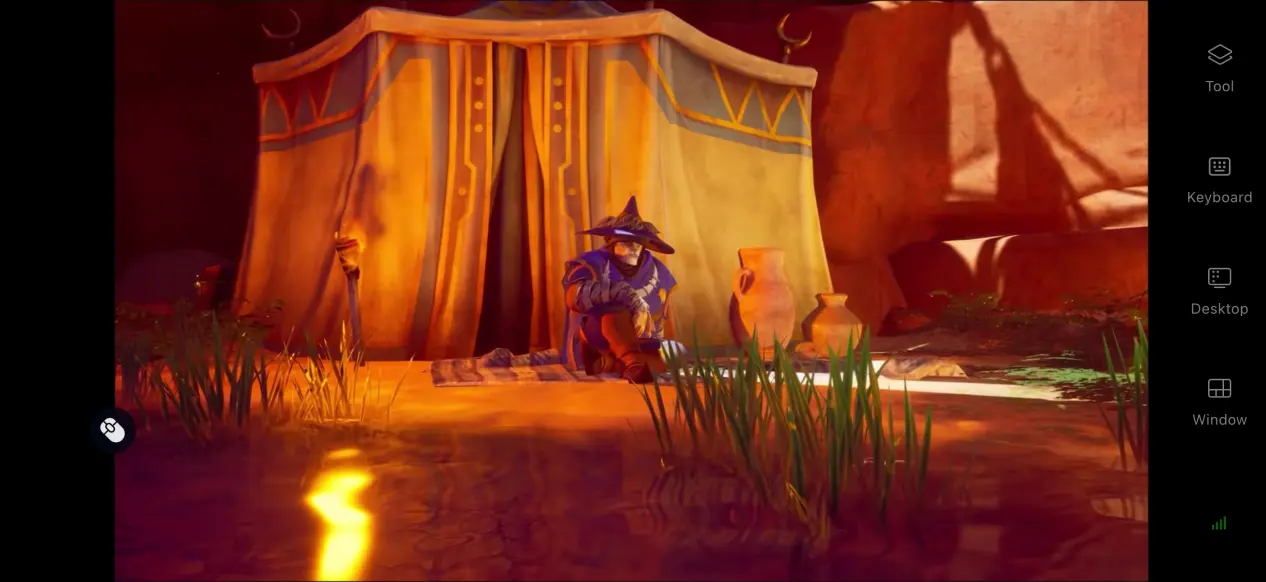
The game's files and save data stay on your PC's hard drive. Your phone only receives the game video and sends your control inputs back to the PC. Even if your phone has limited storage or lower-end hardware, you can still play the game normally.
Multiplayer Room Sharing
OSLink comes with a room-sharing feature. The host can create a dedicated room on the PC and share it with others using a link or invitation code. Other players can join with the invitation details and view the game screen together, making it possible to watch and interact with a PC game remotely as a group.
5. How to Optimize Your OSLink Gaming Experience
60 FPS PC Gaming Mode
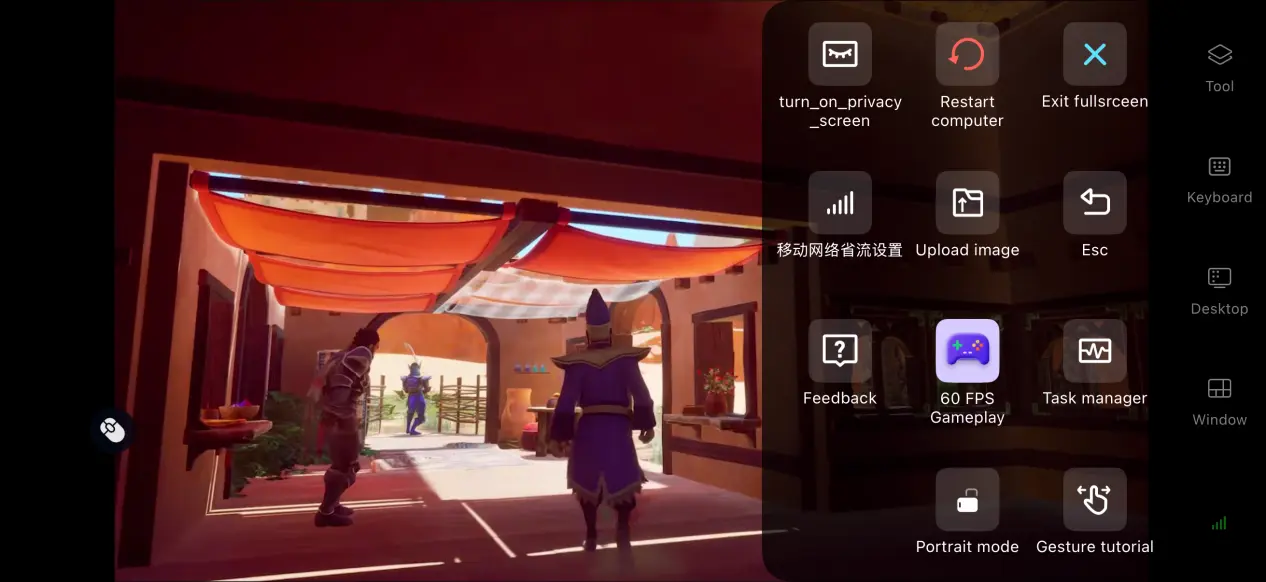
Enable 60 FPS PC Gaming Mode to let the software optimize its encoding for open-world games. This can reduce motion trails when switching between large areas or when multiple enemies appear on screen, while also shortening the delay between your input and the on-screen response. Casting spells and dodging enemy attacks will feel more responsive and fluid.
Custom Controls
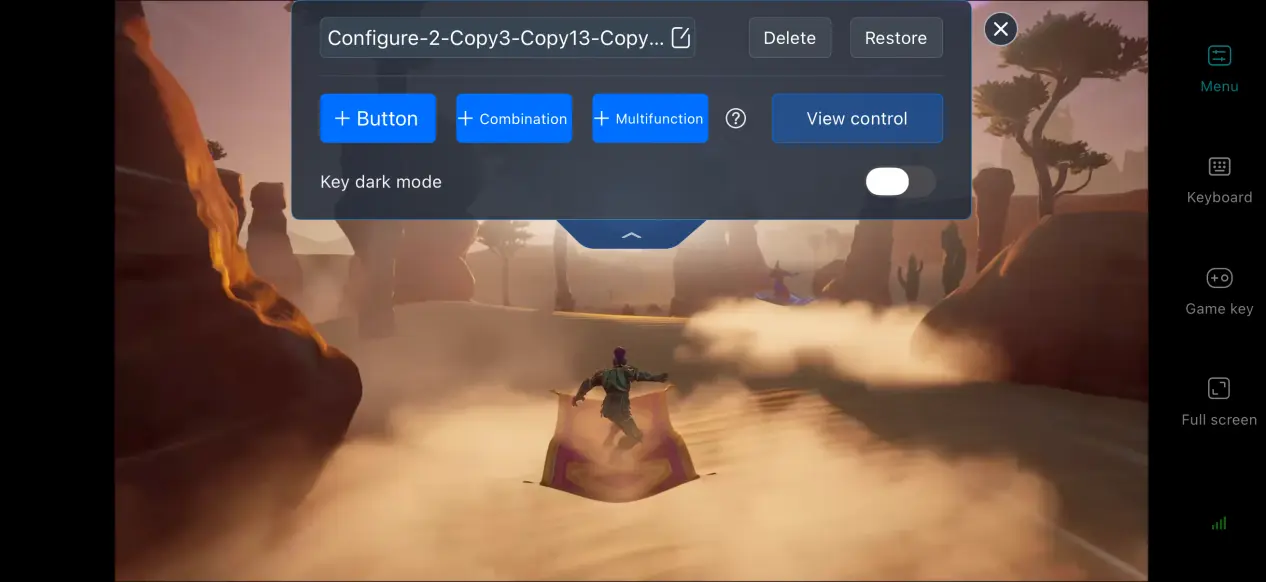
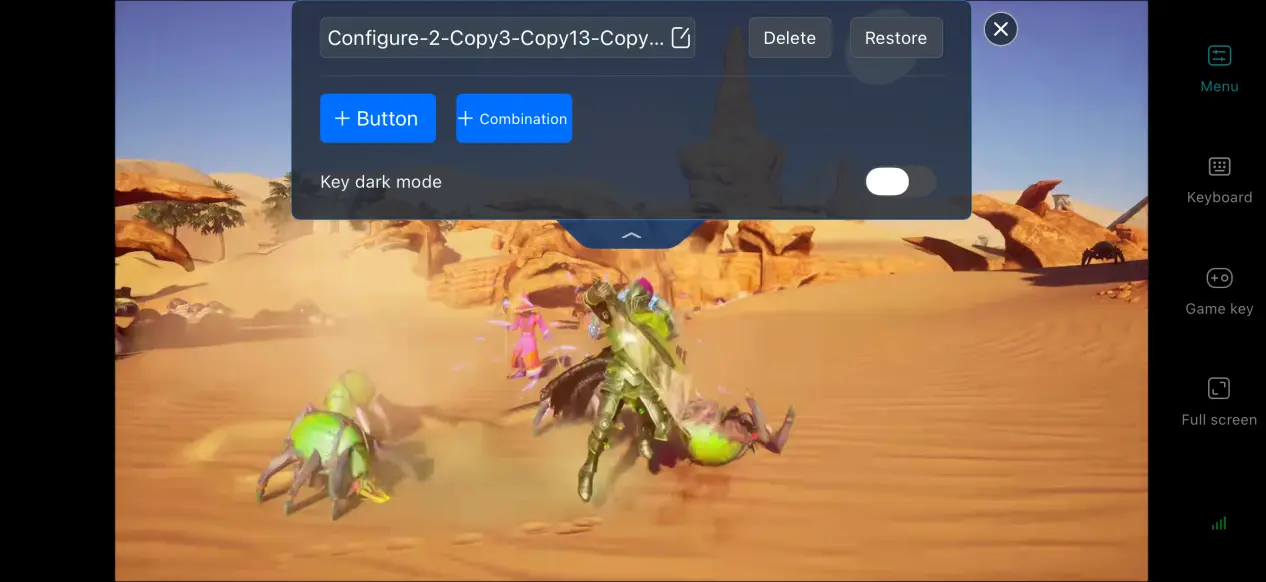
You can add or remove virtual touch buttons and adjust their size, transparency, and position. For RuneScape: Dragonwilds, you can place frequently used controls such as gathering, spell casting, building, and item switching within easy reach. Multiple control layouts can also be saved, making it easy to switch between combat and building setups.
Streaming History
OSLink keeps a record of previous streaming sessions, including the connected device and session time. You can select a target device directly from the history list instead of searching for and pairing it again, reducing the time needed to start playing each time.
Support for Multiple External Devices
OSLink supports most mainstream wired and Bluetooth controllers, keyboards, and mice. Once a controller is connected, the system automatically recognizes it, helping reduce accidental touches and making the setup better suited to intense combat and large-scale base building. You can also manually adjust the streaming bitrate. When your network connection is strong, increase the bitrate to preserve more visual detail. When the connection becomes unstable, lower the bitrate to keep the stream smooth.
6. Frequently Asked Questions About Playing RuneScape: Dragonwilds on OSLink
Q: What's the RuneScape: Dragonwilds 1.0 release time?
A: RuneScape: Dragonwilds was released in early access on April 15, 2025, and RuneScape: Dragonwilds 1.0 release date is September 15, 2026. It launched on Steam for PC and on console platforms. There is currently no native mobile version of the game.
Q: What PC specifications are required for RuneScape: Dragonwilds?
A: The minimum requirements are a 64-bit version of Windows 10, an Intel Core i3-8100 or AMD Ryzen 5 1600 processor, 8 GB of RAM, a GTX 1060 or RX 5600XT graphics card, and 25 GB of available SSD storage. The recommended setup is a 64-bit version of Windows 10, an Intel Core i5-10600 or AMD Ryzen 5 3600 processor, 16 GB of RAM, an RTX 2070 or RX 5700XT graphics card, and 25 GB of available SSD storage. An SSD is recommended for running the game.
Q: Can I play RuneScape: Dragonwilds on Android or iOS?
A: The official version does not provide a native mobile installation package. You can run the game through remote streaming from a PC and cannot directly download and install the game itself.
Conclusion
RuneScape: Dragonwilds is an open-world survival RPG set in the classic RuneScape universe. Due to its current release plan, there is no native mobile client, so the game cannot be directly installed and played on a mobile device. OSLink's remote streaming solution lets you use your existing PC save without downloading the game files again, extending your PC gaming experience to your mobile device. With this setup, you can continue building your base or exploring the wilderness during your commute or while you're away from home, giving you more freedom to keep your survival adventure going wherever you are.
 Download