English
 Want to keep playing the PC version of Petit Planet even when you’re away from your desk? This guide walks you through remote play on mobile, so you can return to your own planet and take care of daily gathering and home building right from your phone.
Petit Planet is a life-sim building game set in a colorful interstellar countryside. It combines planet customization, crop farming, exploration across different planets, and character interactions, giving players plenty to do. Many players want to carry their progress over to mobile so they can look after their own planet during commutes or whenever they have a little free time. That makes it important to find a practical way to connect to the PC version while keeping movement and interactions comfortable on a phone.
OSLink lets you stream your PC screen to your mobile device and send control inputs back to your PC. The setup process is straightforward and doesn’t require a lot of manual tweaking. Once you sign in with the same account and pair your devices, your phone can take over the game’s controls. Tasks such as editing the terrain, planting and harvesting crops, and exploring the Star Sea islands can all be handled remotely for a smooth mobile gaming experience.
1. Setting Up OSLink
1. Install OSLink on Your PC
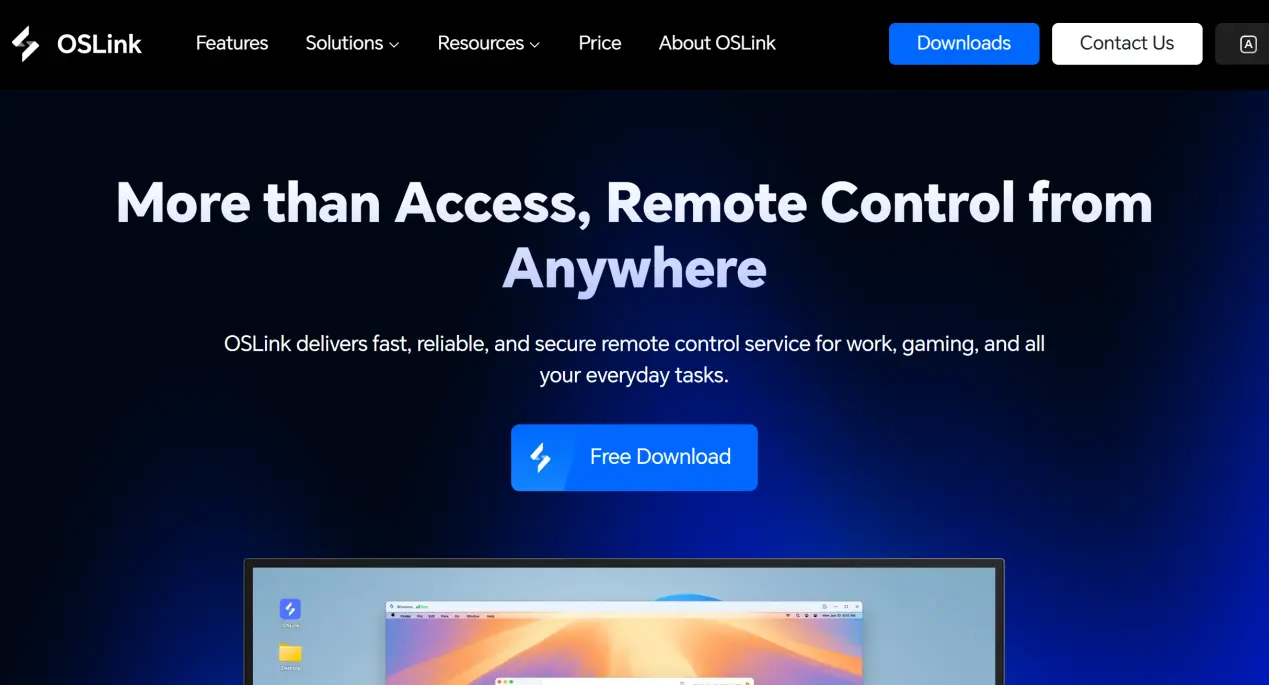
On the Windows PC you plan to use for the game, visit the official OSLink website, download the Windows version of OSLink, and complete the installation. Then register and sign in to your account.
In the settings, make sure the PC is set to stay powered on, connected to the internet, and running the program. Adjust the sleep settings as needed to prevent your phone from losing access to the host PC when connecting remotely.
2. Install OSLink on Your Phone
Android users can search for OSLink in their app store and install it. iOS users can open the App Store and download the corresponding client.
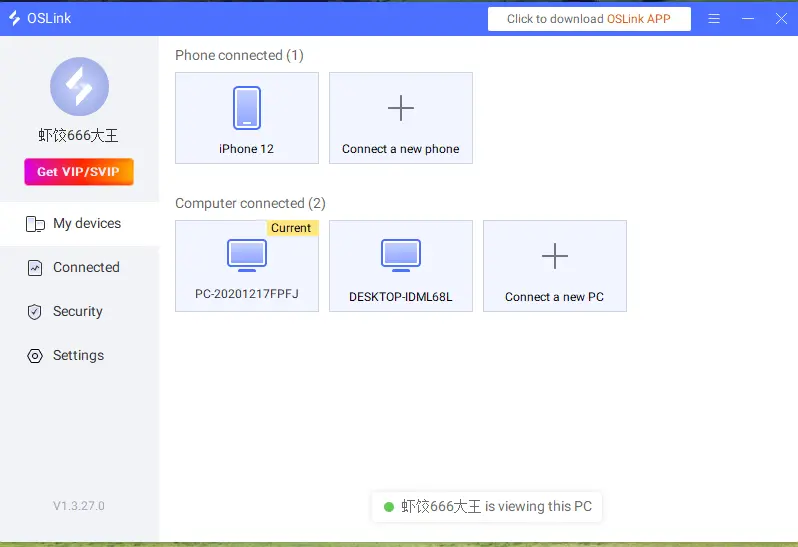
The account signed in on your phone must be exactly the same as the one used on your PC. OSLink can automatically detect devices signed in on the same local network, so you don’t need to enter a device ID manually to complete the pairing process.
Note: The account being paired here is your OSLink account on both devices. You still need to use the HoYoverse account that has Petit Planet access to log into the game. The two accounts serve different purposes.
2. Play Petit Planet Through Cross-Device Streaming
1. Launch an Available PC Version
On a computer that has the required access and meets the test requirements, launch the Petit Planet PC client. Complete the login and update process, then make sure your character can move, interact with objects, and open the menus normally. If you see a message saying you don’t have access or the server is not available, follow the game’s official instructions and wait before starting the streaming process.
2. Pair Both Devices and Test the Controls
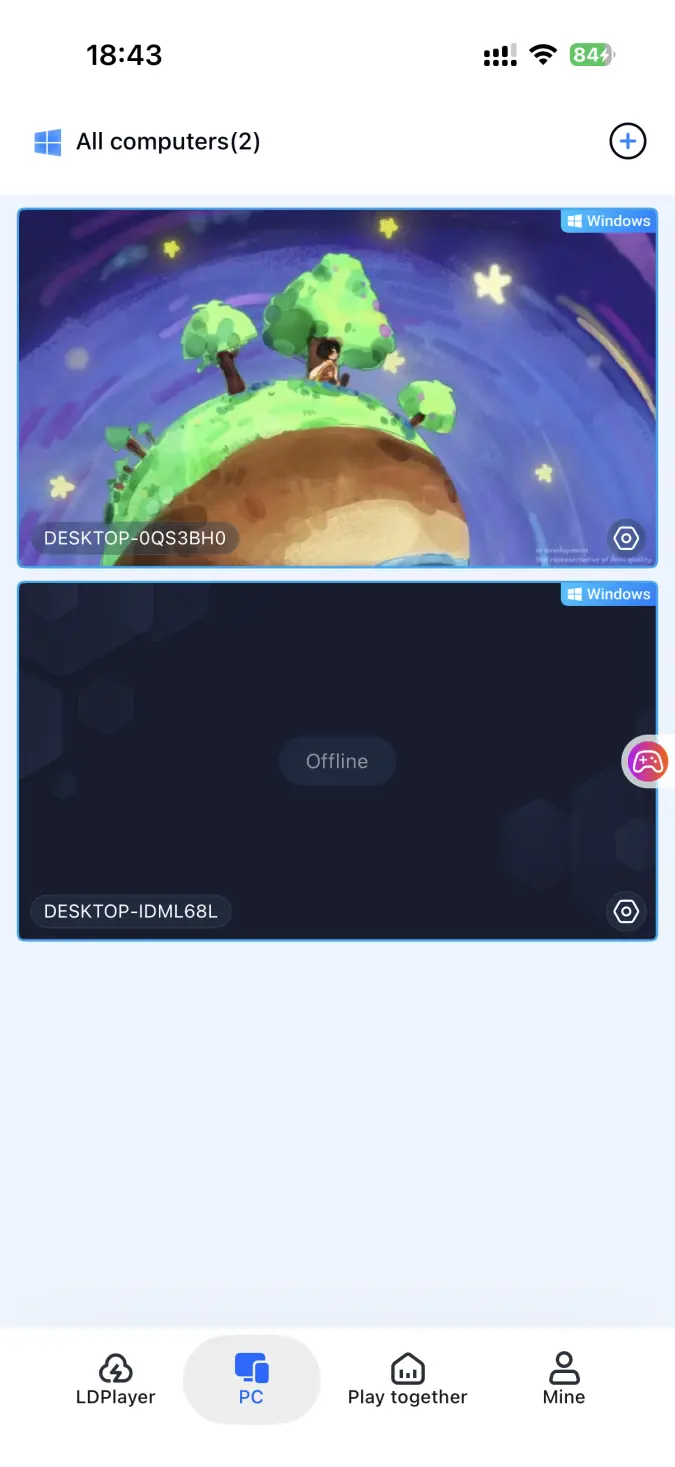
Open the OSLink client on your phone. The device list will show online computers using the same account. Tap the corresponding PC name to establish the streaming connection.
Start by walking around in an easy-to-recognize area for a short while. Open a menu and return to the game to make sure the game responds correctly to your inputs from the phone. Once everything works as expected, you can start using the tools or adjusting your planet layout.
3. Enable the Dedicated PC Game Mode
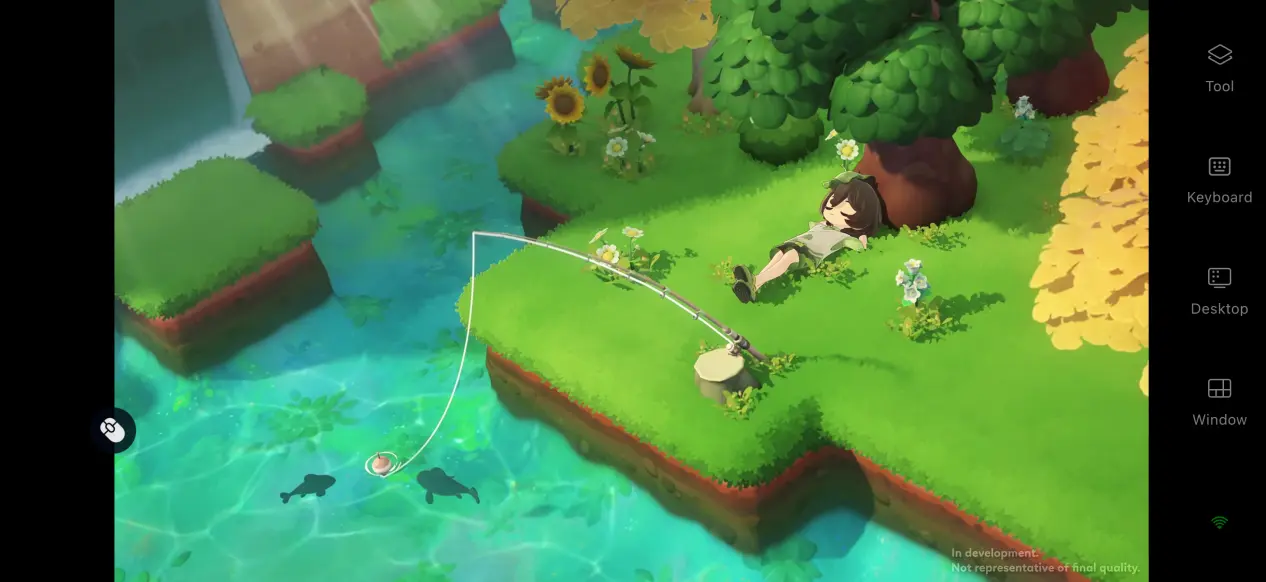
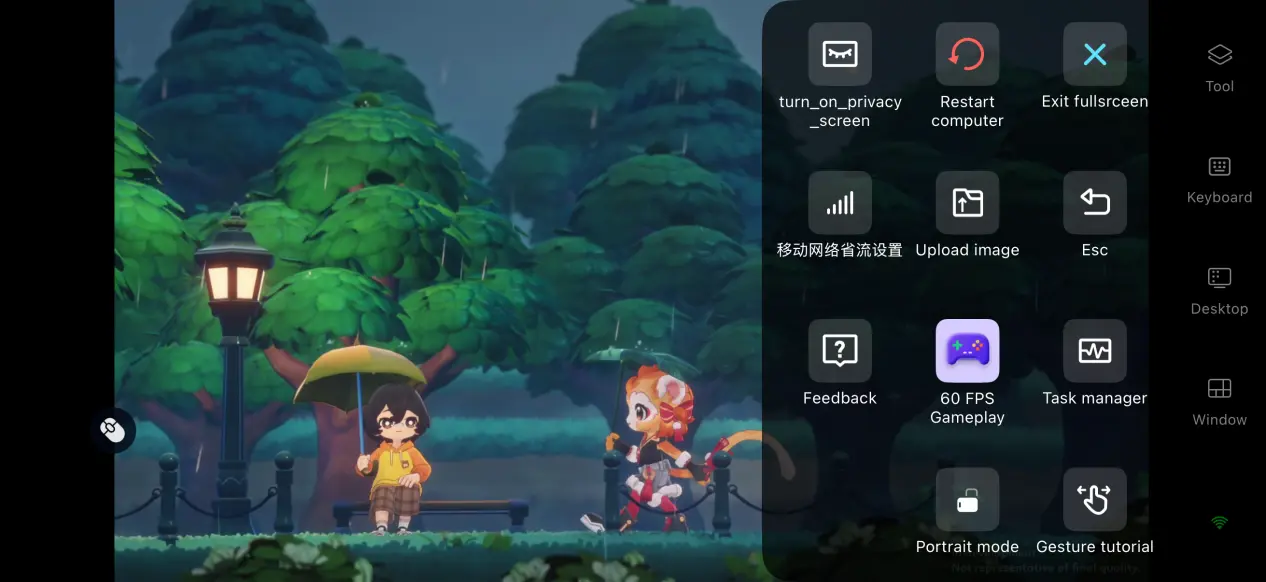
Once the PC screen has finished loading, open the side toolbar and switch to 60 FPS PC Game Mode. Adjust the button layout to match your control preferences. You can also load the preset virtual controls for simulation and management games or connect an external controller.
After everything is configured, you can remodel your planet and head out to explore different islands directly from your phone.
3. Benefits of Playing PC Games on Your Phone
Play Anytime During Your Free Time
As long as your computer stays powered on and connected to the internet, your phone can establish a streaming connection over either Wi-Fi or mobile data. Even when you’re away from home, you can continue from your existing save, take care of crops, and complete daily gathering tasks without having to stay at your desk.
No Need to Use Your Phone’s Storage
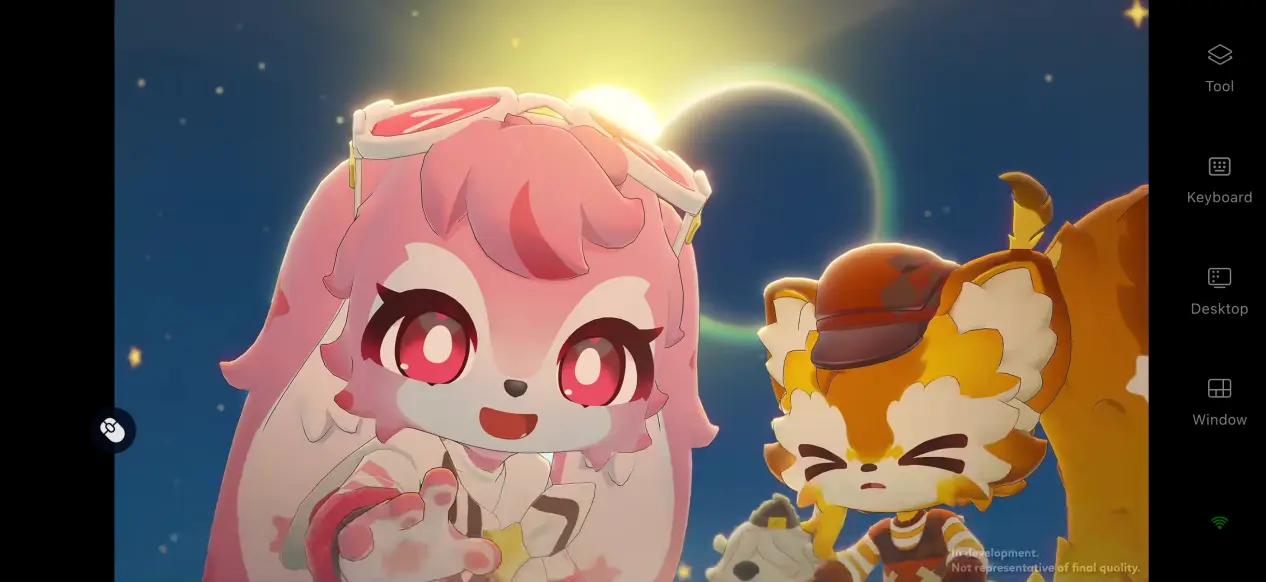
Your phone doesn’t need to download the full game files. All game assets and save data remain stored on your computer’s hard drive.
Your phone only receives the streamed visuals and sends control inputs back to the PC, so even older phones or devices with limited storage can still be used to play the game remotely.
Multiplayer Room Sharing
OSLink includes a room-sharing feature. The host can create a private room and share it with other players through a link or invitation code. After joining the room, other players can watch the game screen in sync and can also be given control access to help with building the planet together.
4. How to Optimize Your OSLink Experience
60 FPS Game Mode
With 60 FPS PC Game Mode enabled, OSLink adjusts its encoding for simulation and management games. This helps reduce visual trails when switching scenes or loading many objects at once, while also shortening the delay between tapping a control and seeing the result on screen.
Large-scale planet terrain editing should also feel more responsive and fluid.
Full Streaming History
OSLink keeps records of previous connections, including connection duration and network status data. You can review your play history under different network conditions to determine which setup works best for remote play.
You can also reconnect quickly through your streaming history, saving you the trouble of setting up the connection again each time.
Custom Controls
OSLink includes a custom control layout. For Petit Planet, you can place controls for frequently used actions such as planting, gathering, rotating objects, and opening your backpack within easy reach of your fingers.
You can save multiple control layouts and switch between them quickly when switching between building and Star Sea exploration.
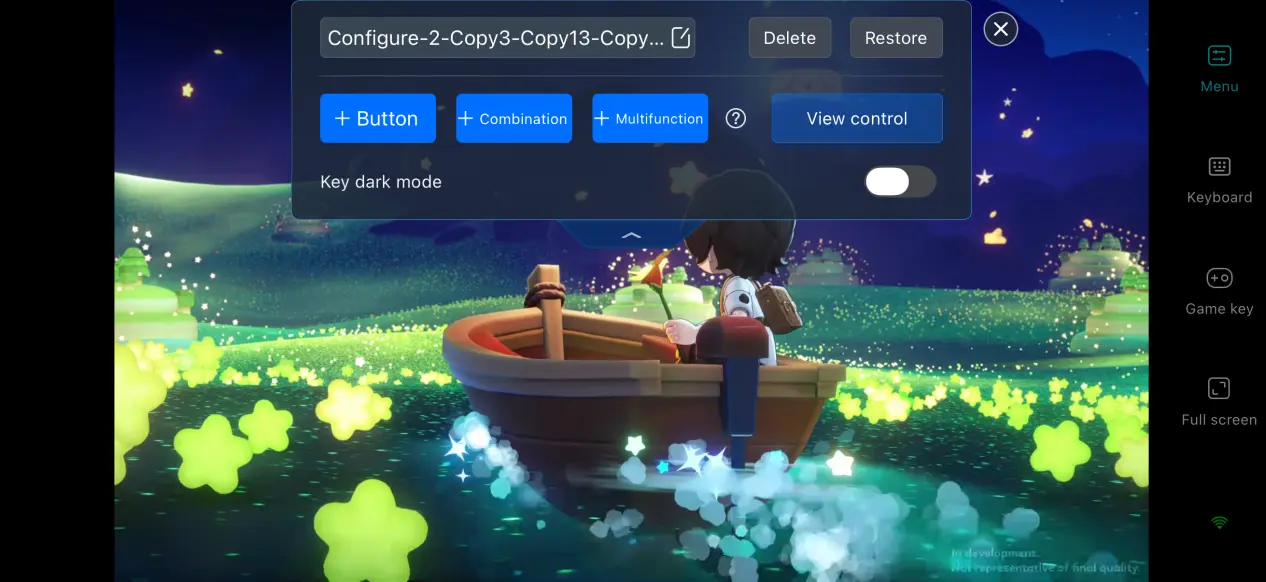
Screen Mapping for Mobile Devices
You can manually adjust the streaming bitrate. When your network connection is stable, increase the bitrate to preserve more visual detail. When the connection becomes unstable, lower the bitrate to keep the stream smooth.
The system can also detect network conditions automatically and adjust the output quality dynamically, balancing image clarity with connection stability.
5. Frequently Asked Questions About Playing the PC Version on Mobile
Q1: What is Petit Planet release date?
A: Petit Planet release time is winter 2026, but an exact public beta date has not yet been confirmed.
The “Connection Test” began on September 20, 2026. It is a limited, data-wiping test with no paid content available. Interested players can visit the official website to check how to obtain access to the test server.
Q2: What PC specifications are required?
A: Windows 10 or later, an Intel Core i5 11th Gen / AMD Ryzen 5 5000 Series processor or above, an NVIDIA GeForce RTX 2060 / AMD Radeon RX 5600 XT or above, at least 16 GB of RAM, and 18 GB of available storage space.
Q3: Can I play Petit Planet directly on iOS and Android?
A: The “Connection Test” is currently available across multiple platforms, but whether you can log in directly depends on the platform access granted to your account and your device specifications. Not everyone can download and play immediately.
If Petit Planet is already running normally on your PC, you can also try using OSLink to remotely control the PC version.
Summary
Petit Planet is an interstellar simulation and building game that combines planet customization, resource gathering, and light social features. Players can grow crops and build structures on their own planet, travel between unique islands, and build bonds with neighbors who each have their own personalities.
Although the game does not currently offer a native mobile client, OSLink’s streaming solution lets players continue managing their planets during spare moments without being tied to a specific location. Whether you’re tending to your crops or working on your interstellar home, you can jump back into your planet whenever you have the time.
 Download