English
 Boasting seamless switching between Peter and Miles, high-speed web rushing, brutal symbiote combat, and massive map collectible content, the game only offers a PC client. Players cannot advance dual storylines without their desktop computers. OSLink removes location restrictions: with your PC powered on, mobile remote connections let you swap protagonists and tackle side stages whenever you have free time.
Step 1: Download OSLink & Pair Devices
1. PC Client
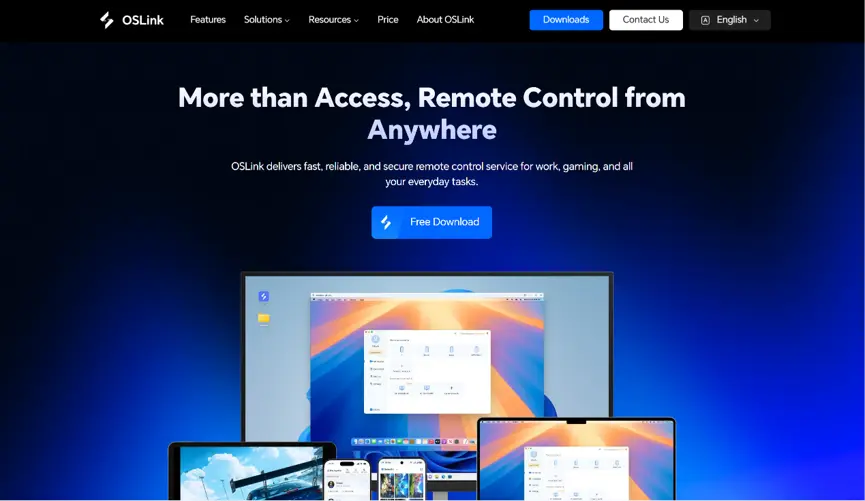
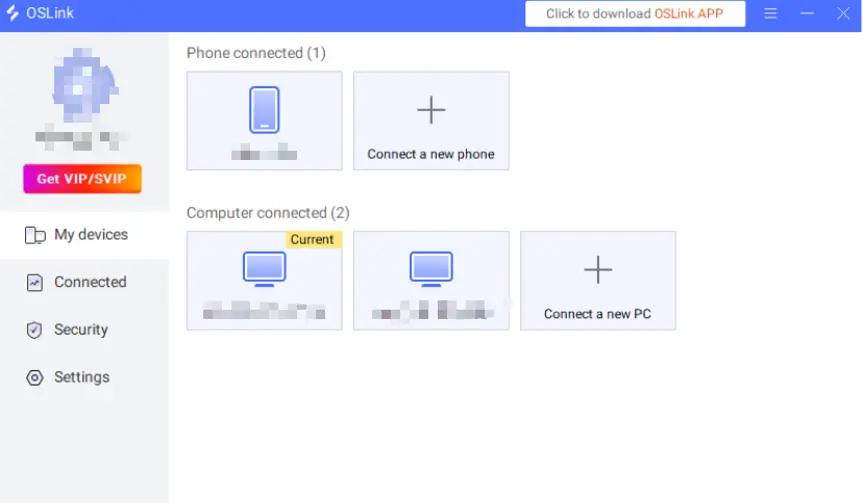
Download and install the PC client from the official OSLink website (https://www.oslink.io) and log into your account. Disable automatic system sleep to prevent unexpected remote connection drops.
2. Mobile Client
Install the OSLink mobile app from the App Store or Google Play; installation packages are also hosted on the official website. Log in with the same account as your PC to trigger automatic device pairing and stable remote connections.
Step 2: Optimize Control Settings
1. Launch the Game
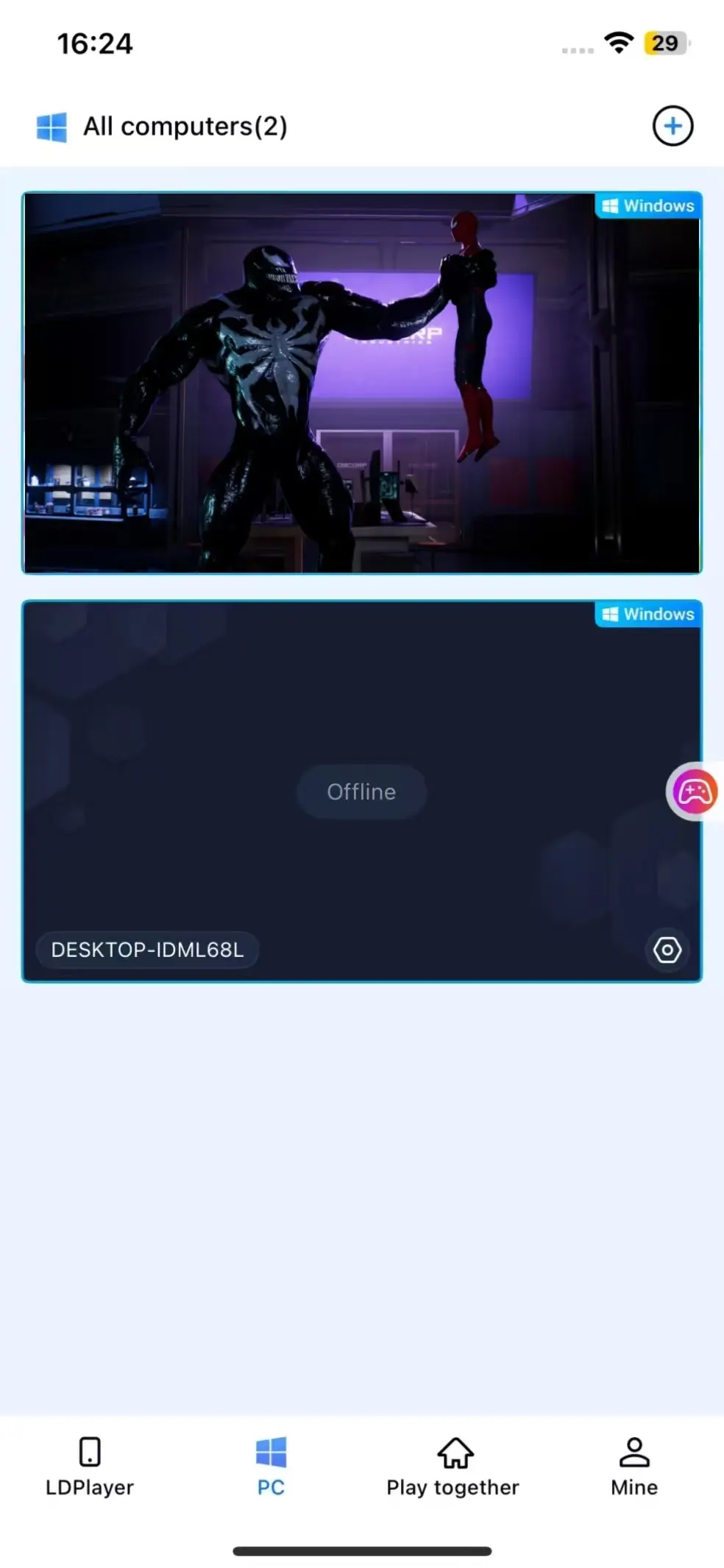
Pre-launch Marvel’s Spider-Man 2 on your PC, or tap the game shortcut within the mobile OSLink app to boot the game remotely in one tap.
2. Activate 60fps PC Gaming Mode
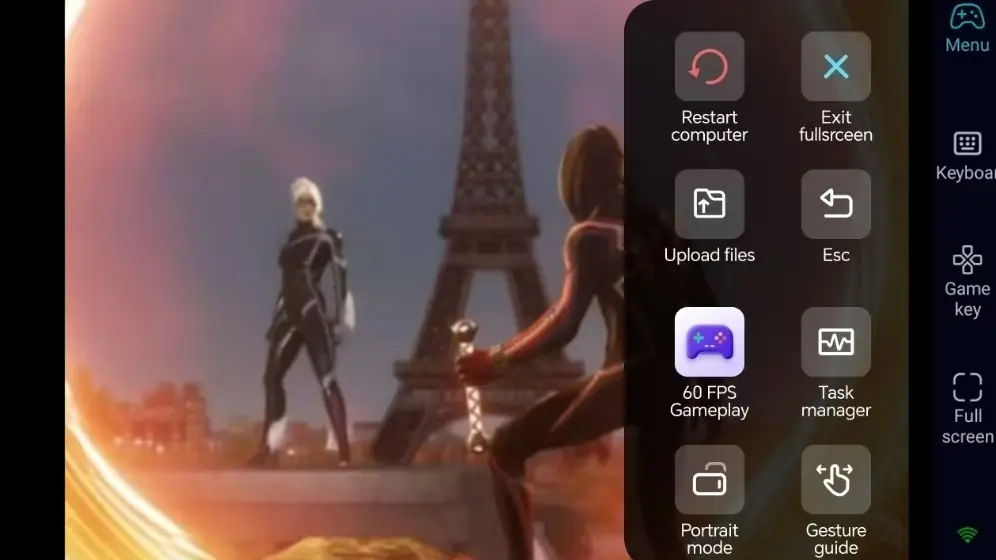
Once screen streaming initiates, enable the dedicated "60fps PC Gaming Mode" from the right sidebar. Choose virtual touch controls or pair a Bluetooth gamepad to replicate smooth, fast-paced combat controls.
3. Customize Dual-Protagonist Keybinds
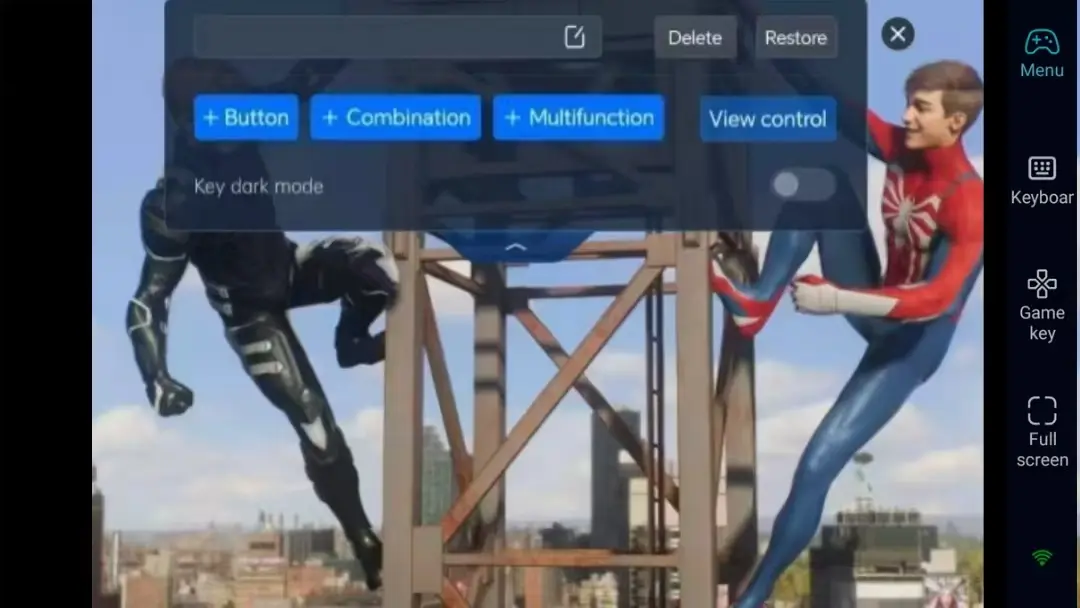
Adjust button layouts for web rushing, symbiote strikes, protagonist switching, dodging, and environmental interaction to match dual-character combat habits. Resize and adjust button transparency, paired with camera lock functionality for smoother web-swinging and combat.
4. Pair External Gamepads
OSLink is fully compatible with Bluetooth controllers. Gamepad inputs mirror PC control logic closely, drastically lowering the learning curve for fast-paced remote combat, with superior comfort for long map traversal and high-difficulty boss fights.
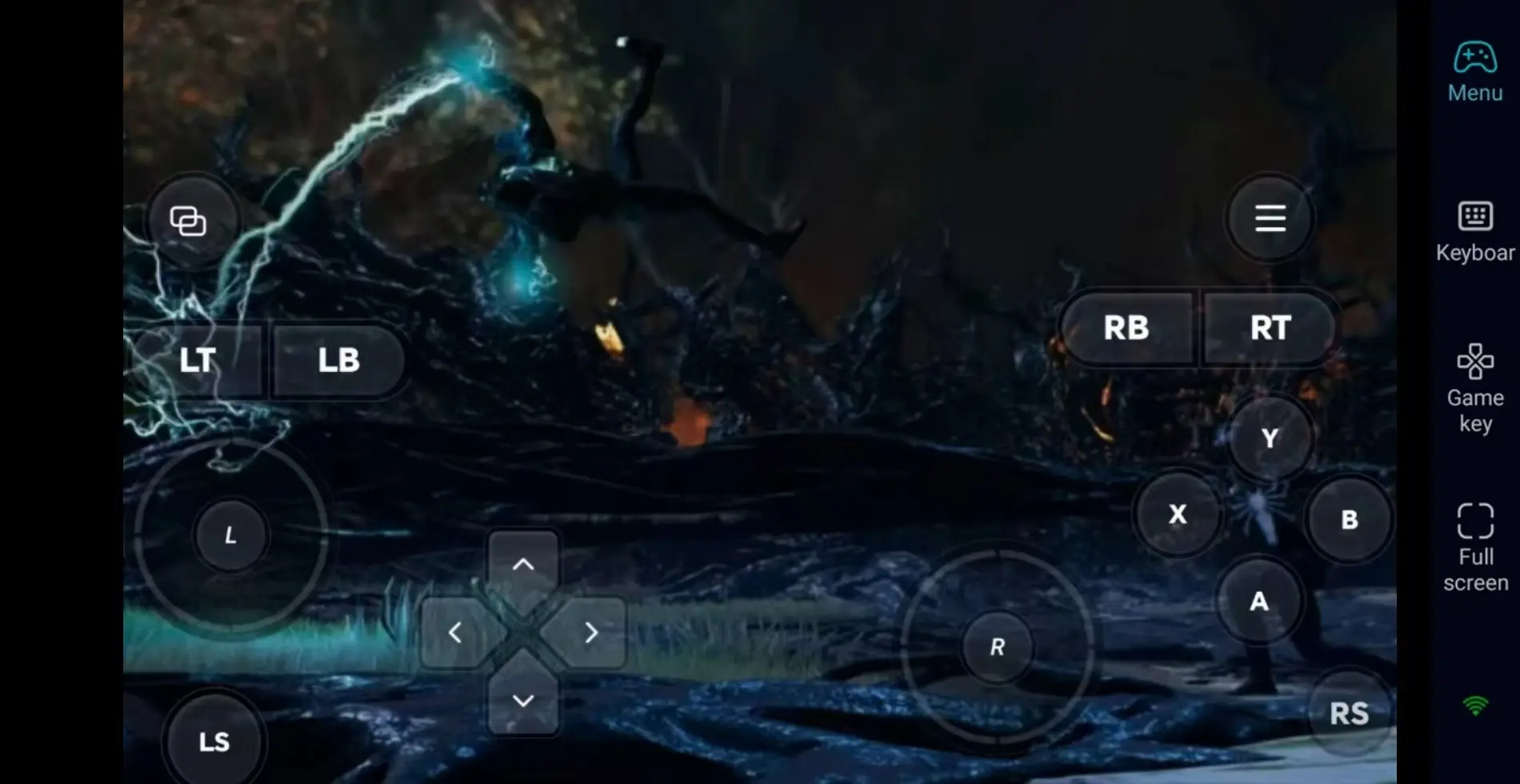
Step 3: Swap Protagonists Anytime to Advance Dual Storylines
After finalizing all parameters, smartphones and tablets function as remote controllers. As long as your PC stays powered on, connect via OSLink during spare time to switch between Peter and Miles, clear regional missions, and unlock suits. Fill idle hours by finishing incomplete main story chapters.
Why Choose OSLink for Marvel’s Spider-Man 2?
No Location Restrictions–Continue Your Adventure Anywhere
Complete map collectibles and solo side quests remotely during outings, then resume main story arcs seamlessly at home. Local network low-latency streaming fully supports the fast response needs of high-speed web rushing and continuous melee combos.
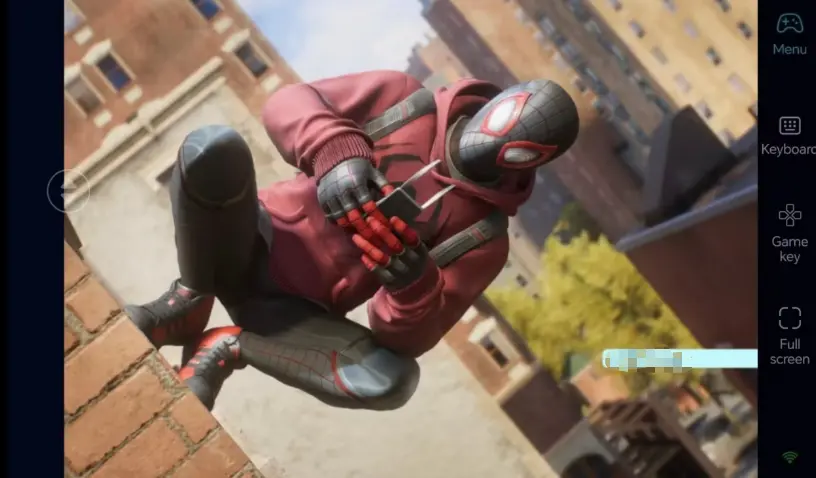
60fps High-Definition Streaming to Render Epic Symbiote Battles
Consistent 60fps output renders vast city landscapes and intricate symbiote visual effects clearly. Custom keybinds deliver precise protagonist switching and fast combos for immersive dual-protagonist combat.
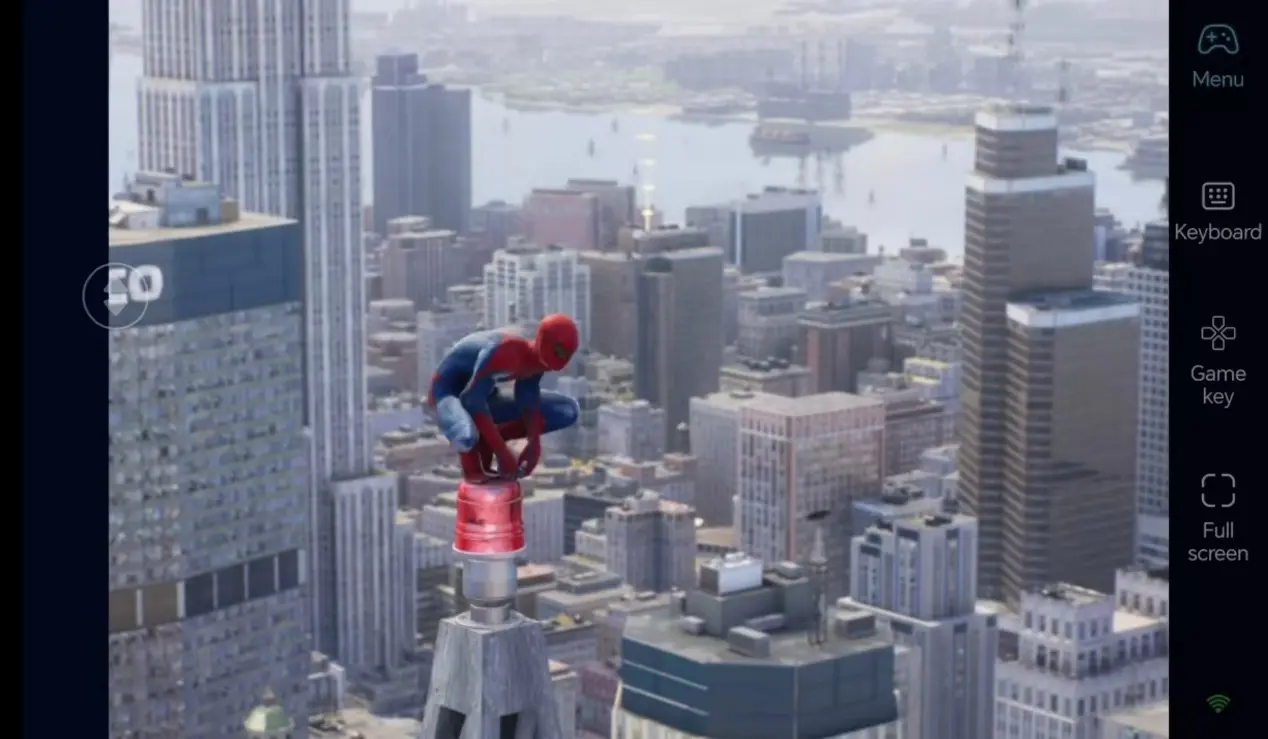
Real-Time Progress Sync with Local PC Storage
All game save data resides locally on your computer, keeping your progress synchronized between remote mobile play and direct PC sessions. Every exclusive suit unlock and high-risk crime boss defeat carries over for uninterrupted gameplay.
FAQ – Frequently Asked Questions
Q: Can all mobile operating systems connect to OSLink without issues?
A: Android and iOS are both fully supported. Any smartphone model running official OSLink with a matching account login will establish reliable remote control connections.
Q: Will remote gameplay damage save files or trigger account security flags?
A: It will not. All game data and save files remain stored locally on your PC hardware. OSLink only transmits screen visuals and input commands, so there is zero risk of account bans, anomalies, or lost save data.
Q: Can I play Marvel’s Spider-Man 2 on iOS and Android?
A: There is no native mobile build for iOS or Android. However, you can use OSLink to remotely connect to your PC and play the game on both iOS and Android devices.
Summary
Keep progressing through Marvel's Spider-Man 2 wherever you are with OSLink remote streaming. Keep your PC powered on, connect remotely from your phone to launch Marvel’s Spider-Man 2, swap characters to explore the city, and keep advancing through dual-story content during spare time.
 Download