English
 Want to keep playing It Takes Two with your partner even when you’re away from your PC?
With OSLink, you can remotely stream and control your home computer from your phone, letting you continue your shared progress anytime. Whether you’re solving puzzles, navigating split-screen platforming sections, or tackling co-op boss encounters, you can stay connected to your adventure without being tied to your desk.
This guide walks you through the complete setup and shows you how to use OSLink’s Play Together feature to team up with a friend using only a phone.
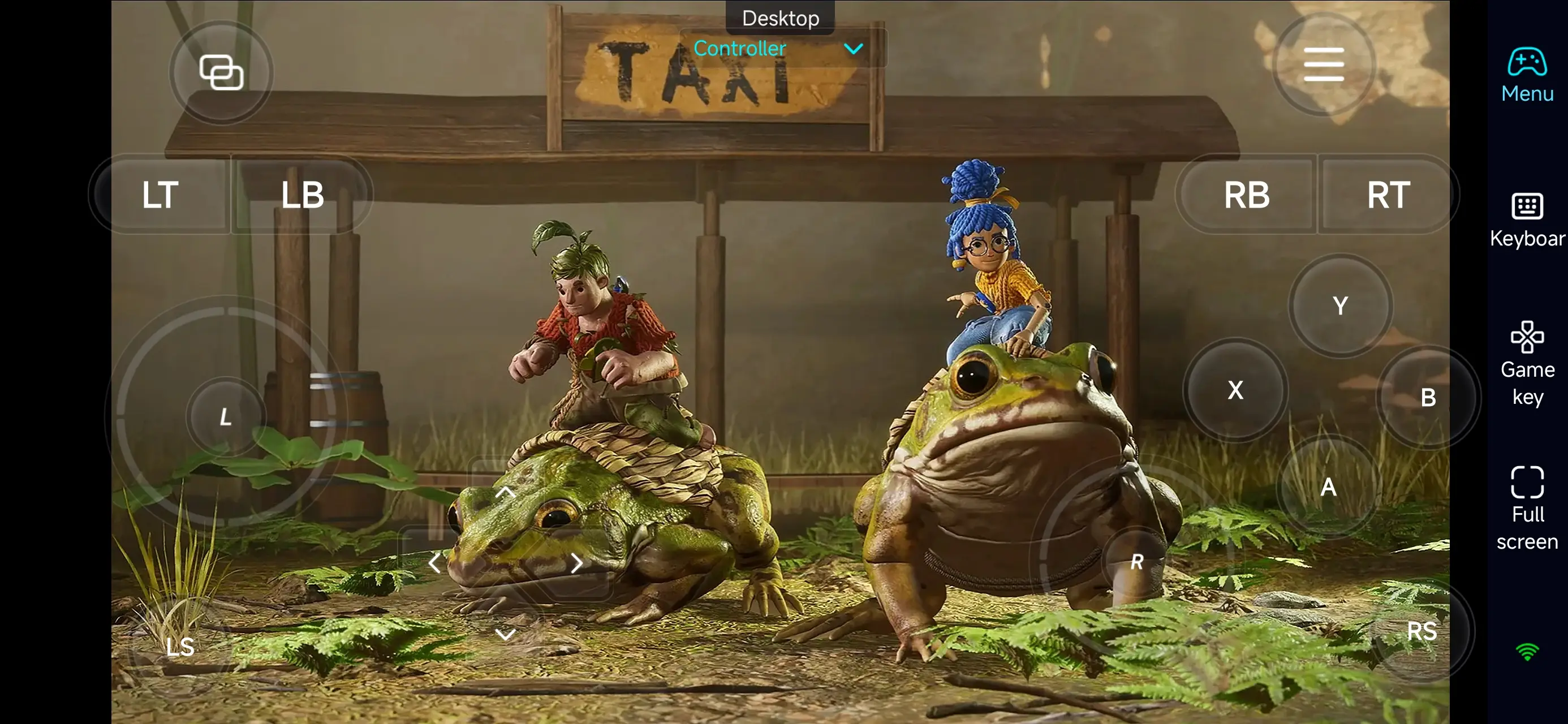
Step-by-Step Guide to Play It Takes Two on Mobile with OSLink
1. Prepare Your PC for Remote Gaming
Install It Takes Two, and ensure a stable internet connection to support smooth mobile streaming.

2. Install OSLink on PC and Mobile
PC: Download the OSLink app from oslink.io and install.
Mobile: Get the OSLink app from Google Play Store or Apple App Store.
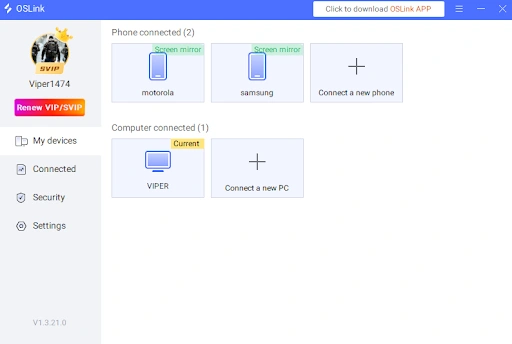
Log in with the same account on both devices to link them.
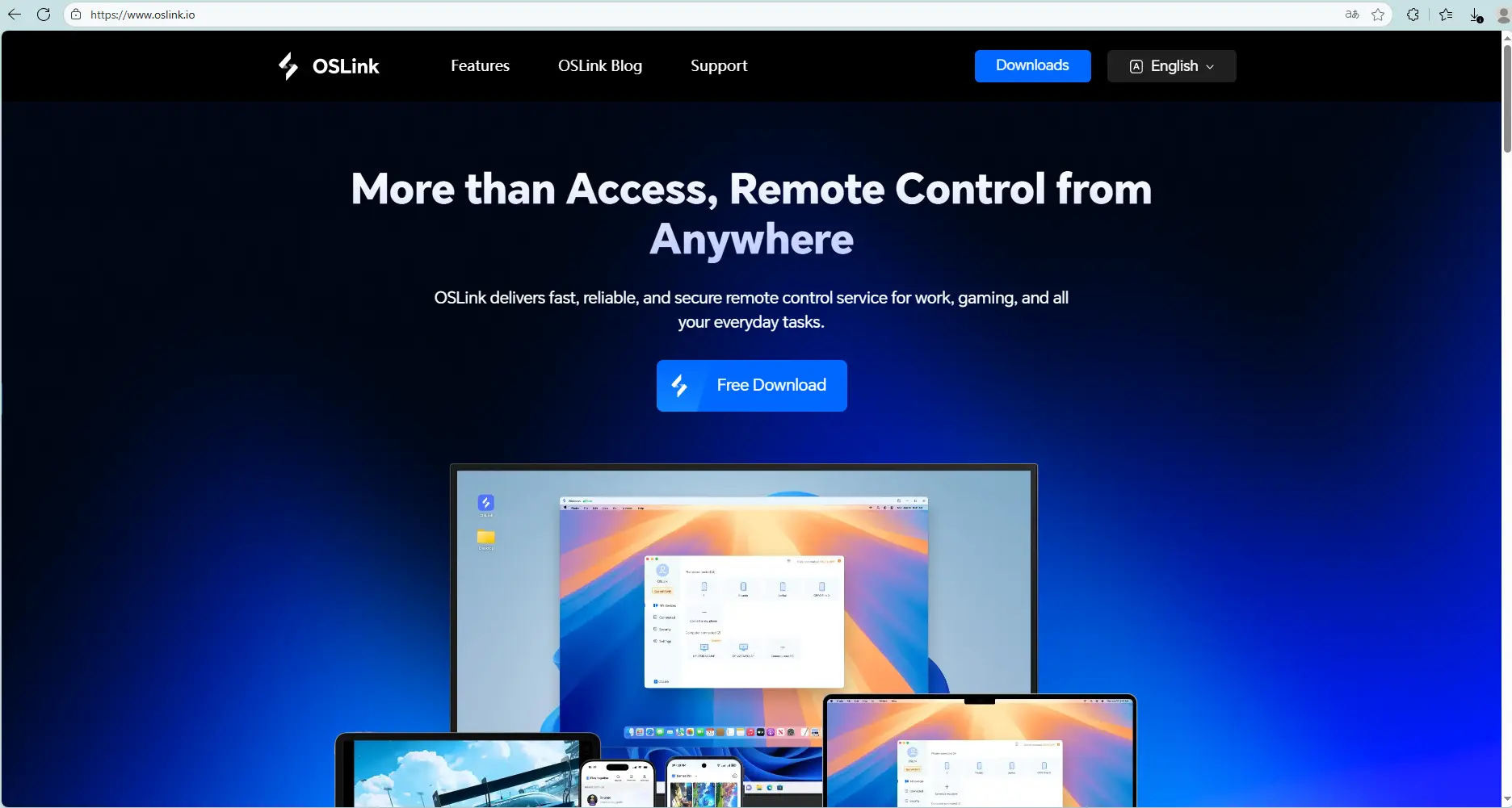
3. Connect Devices for Remote Play
PC: Keep the OSLink app running.
Mobile: Open the app, select your PC, and connect. Initially, it functions as a remote desktop with virtual keyboard and mouse.
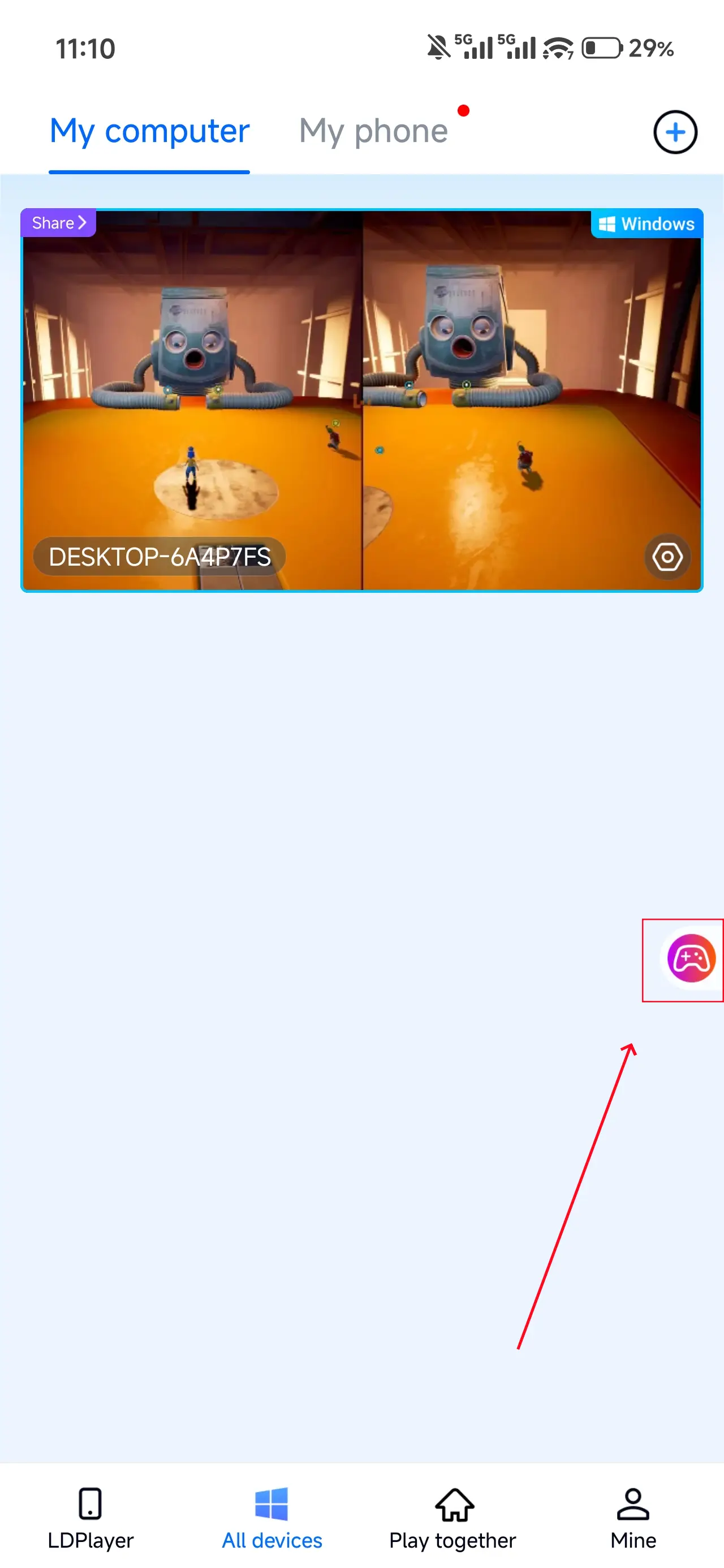
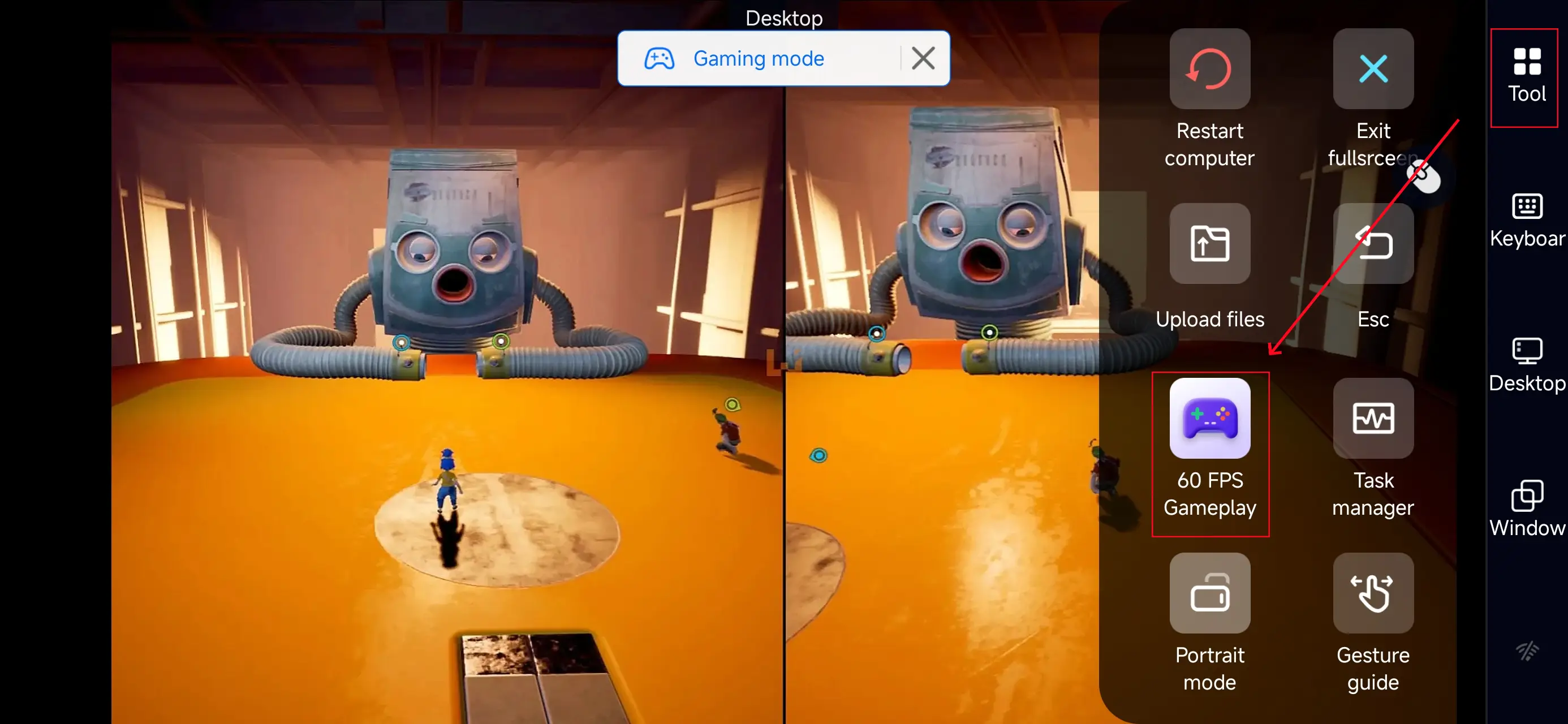
4. Enable 60 FPS Game Mode for Touch Controls
In the mobile app, tap "Tools" and select "60 FPS Gameplay" to switch to touch-enabled gaming.
This mode optimizes streaming for It Takes Two’s real-time mechanics.
5. Configure Touch Controls
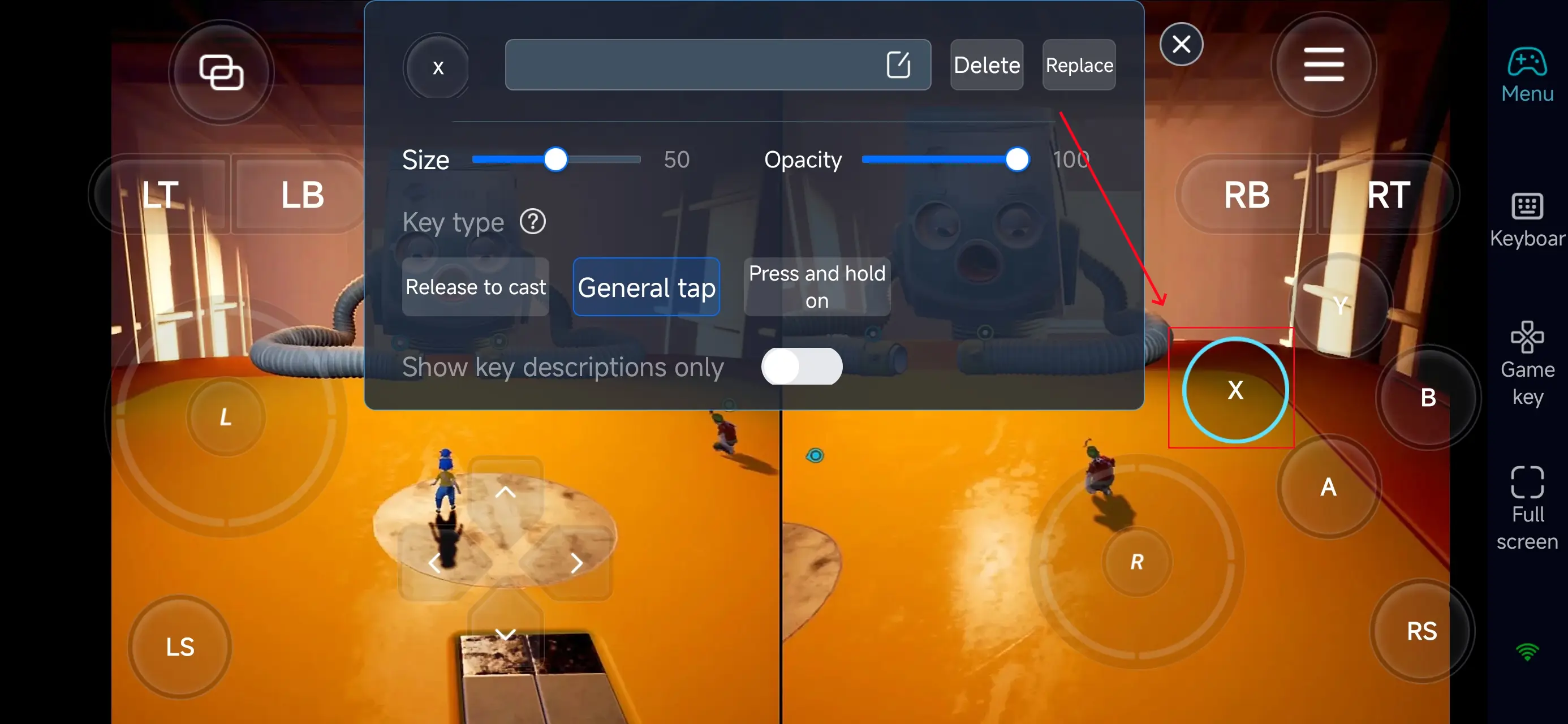
After entering '60 FPS PC Games, you can adjust the size, position, and transparency of the keys to create your own personalized interface.
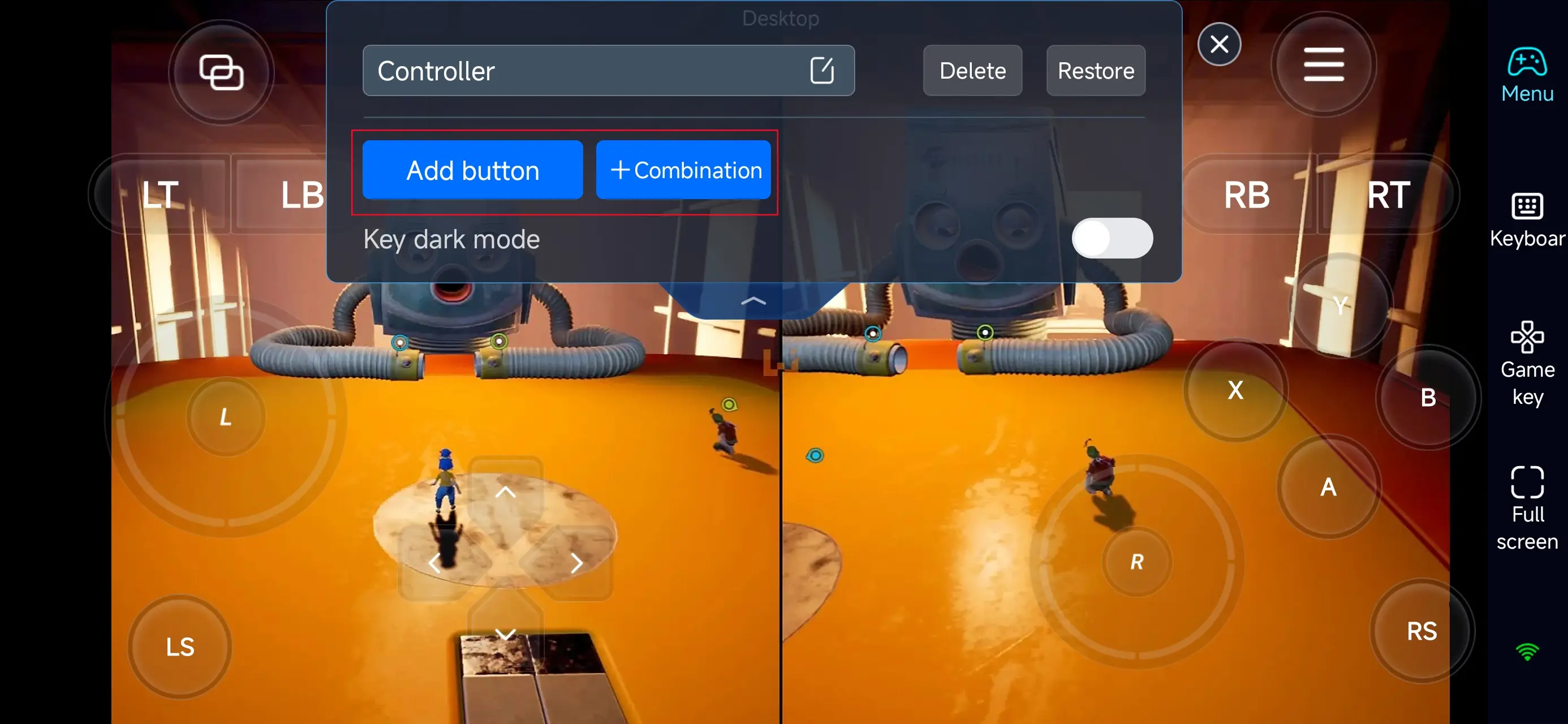
You can enter the editing interface by clicking a single button.
Play It Takes Two Online with Your Friends
Many players have run into the same problem — you buy a game, but your friend doesn’t have a PC to play it with you. Or maybe they do have one, but don’t use Steam, don’t know how to install the game, or can’t run it properly.
With OSLink, all of these barriers disappear. Using the “Play Together” feature, your friend can join your game directly from their phone through OSLink, no PC or game installation required. Here’s a step-by-step guide on how to set it up.
1.Set Up the Game
Follow the above steps to start It Takes Two via OSLink.
2.Create a Play Together Room
Go to "Play Together" in the OSLink app.
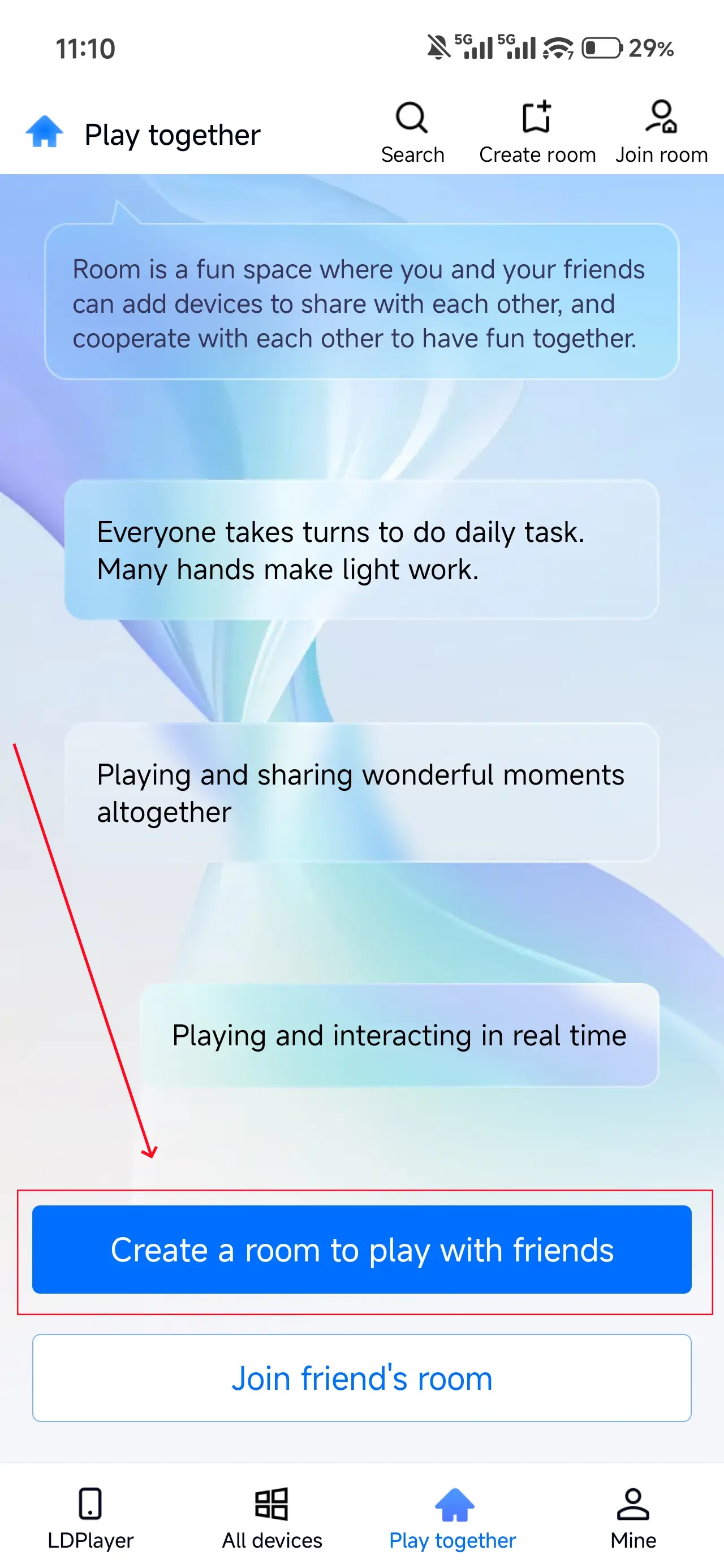
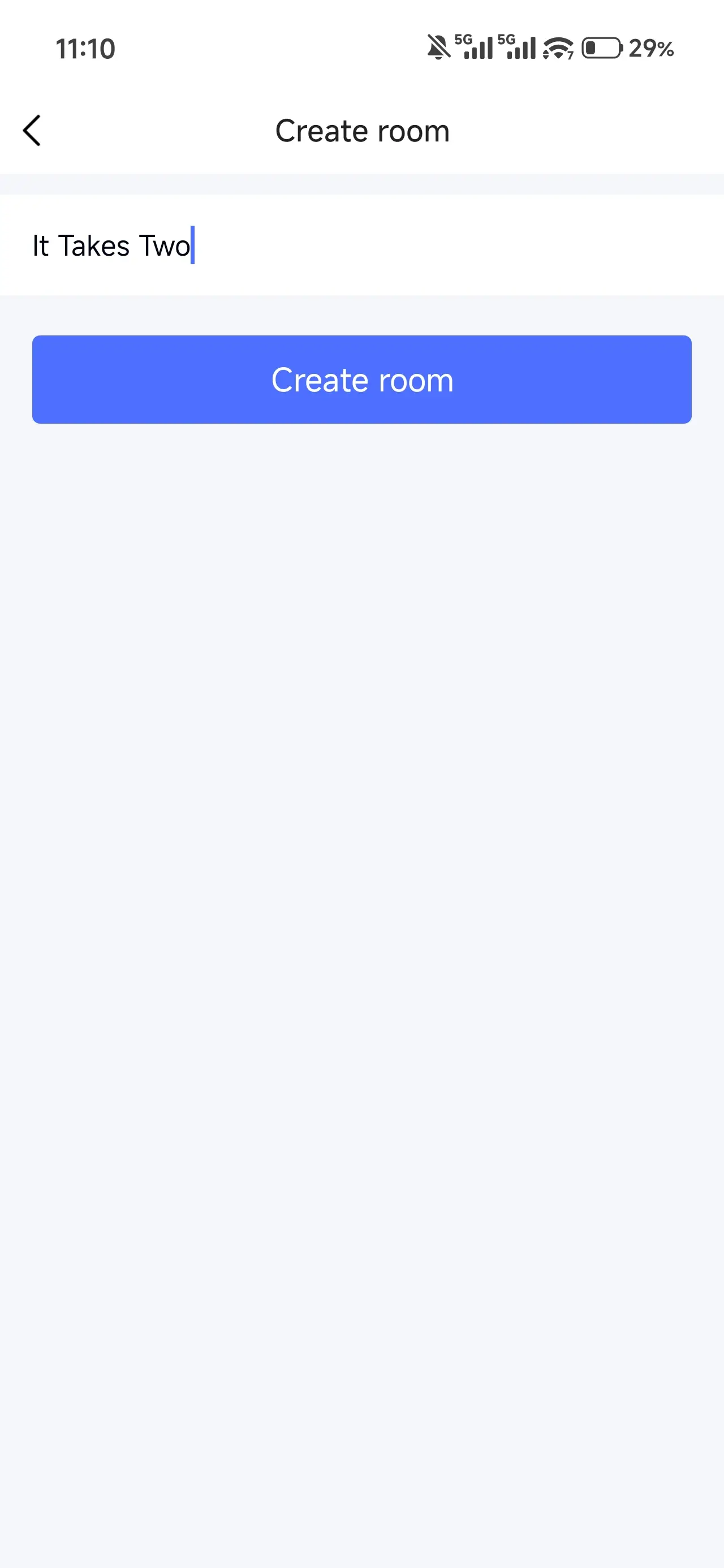
Name your room (e.g., “It Takes Two ”) and tap "Create Room."
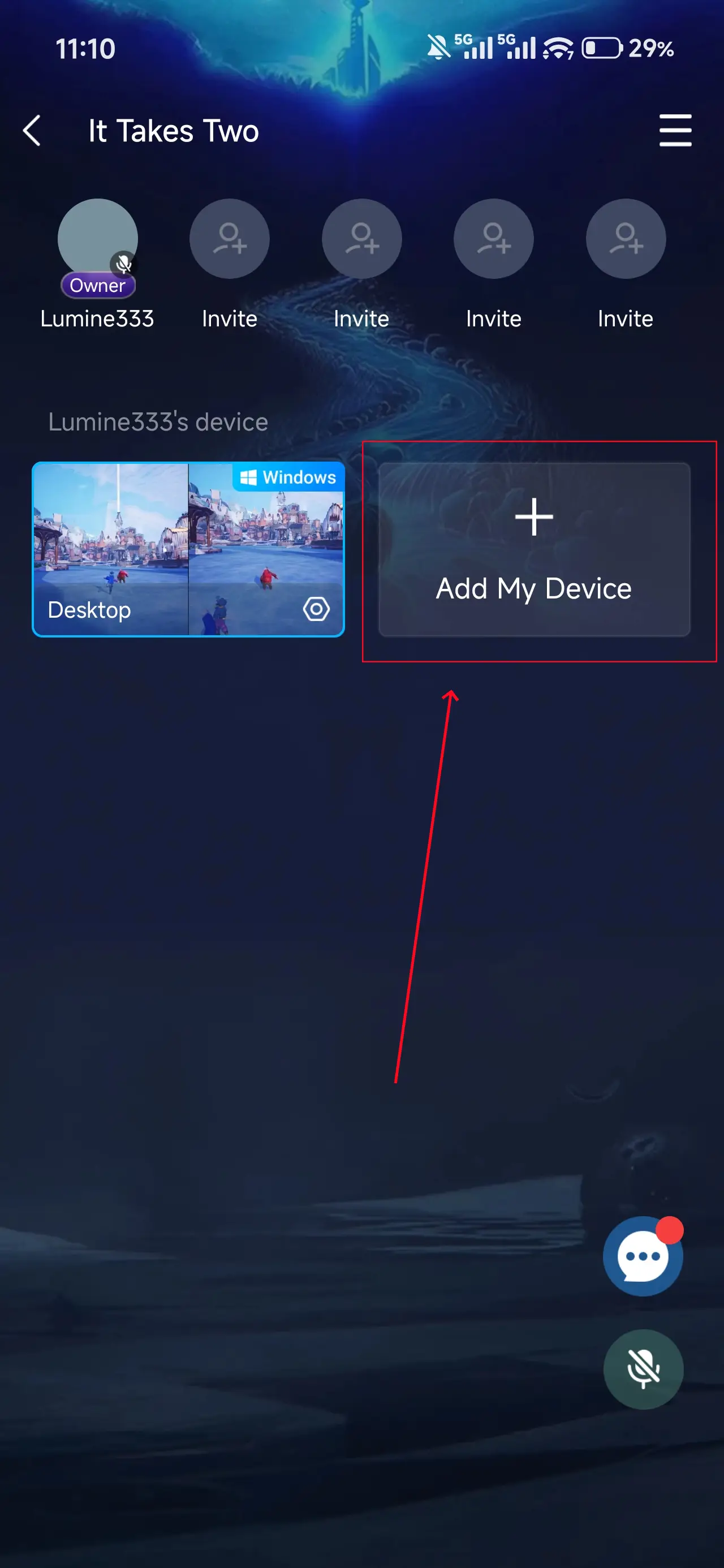
Add the game window to the room using the "Add My Device" button.
3.Invite Friends
Share the room password via apps like Discord or WhatsApp.
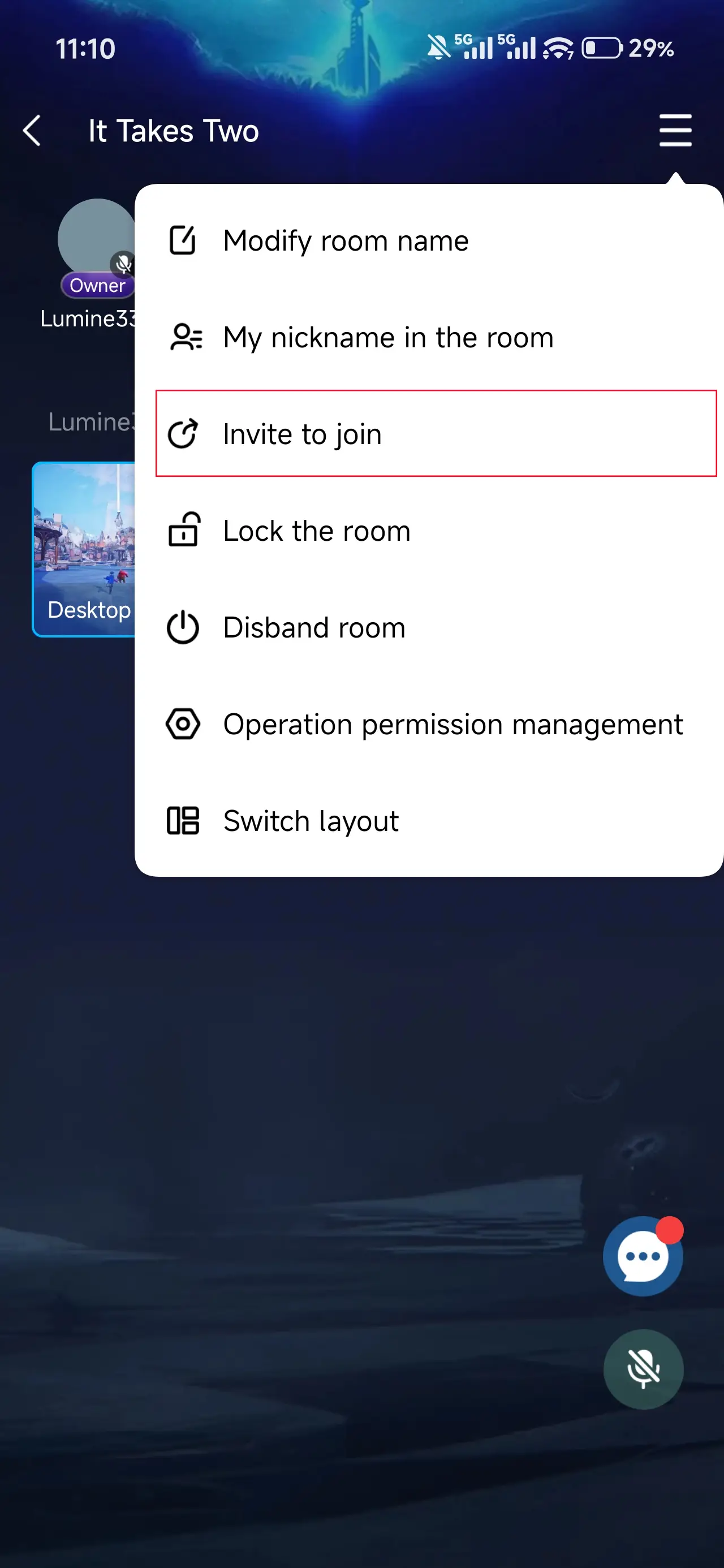
Friends need the OSLink app to join by selecting “Join a Room” and entering the password.
Use the built-in chat or voice system to connect.
4. Enjoy Together
After your friend joins, he can control the computer via his phone, select 'Player 2' to join the game, and use a controller to play smoothly!
Conclusion
It Takes Two is all about shared problem-solving, precise coordination, and playful co-op challenges. With OSLink, your phone becomes a full remote gateway to your PC, allowing you and your partner to continue your journey through creative puzzles and cooperative stages wherever you are. Start your next co-op session anytime—and keep your teamwork going, even when you’re away from your desk.
 Download