English
 Want to keep tending your farm even when you’re away from your computer? With OSLink, you can remotely control your PC and continue playing Stardew Valley on your phone or tablet—without interrupting your save file or daily schedule.
Whether you’re watering crops, fishing by the river, mining in Skull Cavern, organizing your chests, or chatting with villagers, everything runs directly from your home PC and streams smoothly to your mobile device.
This guide walks you through a simple setup and shows how to optimize controls for Stardew Valley’s relaxed but detail-focused gameplay—so you can keep your farm running anytime, anywhere.
Quick Setup Tutorial for Playing Stardew Valley on Mobile
Step 1: Download OSLink and Connect Devices
PC Side:
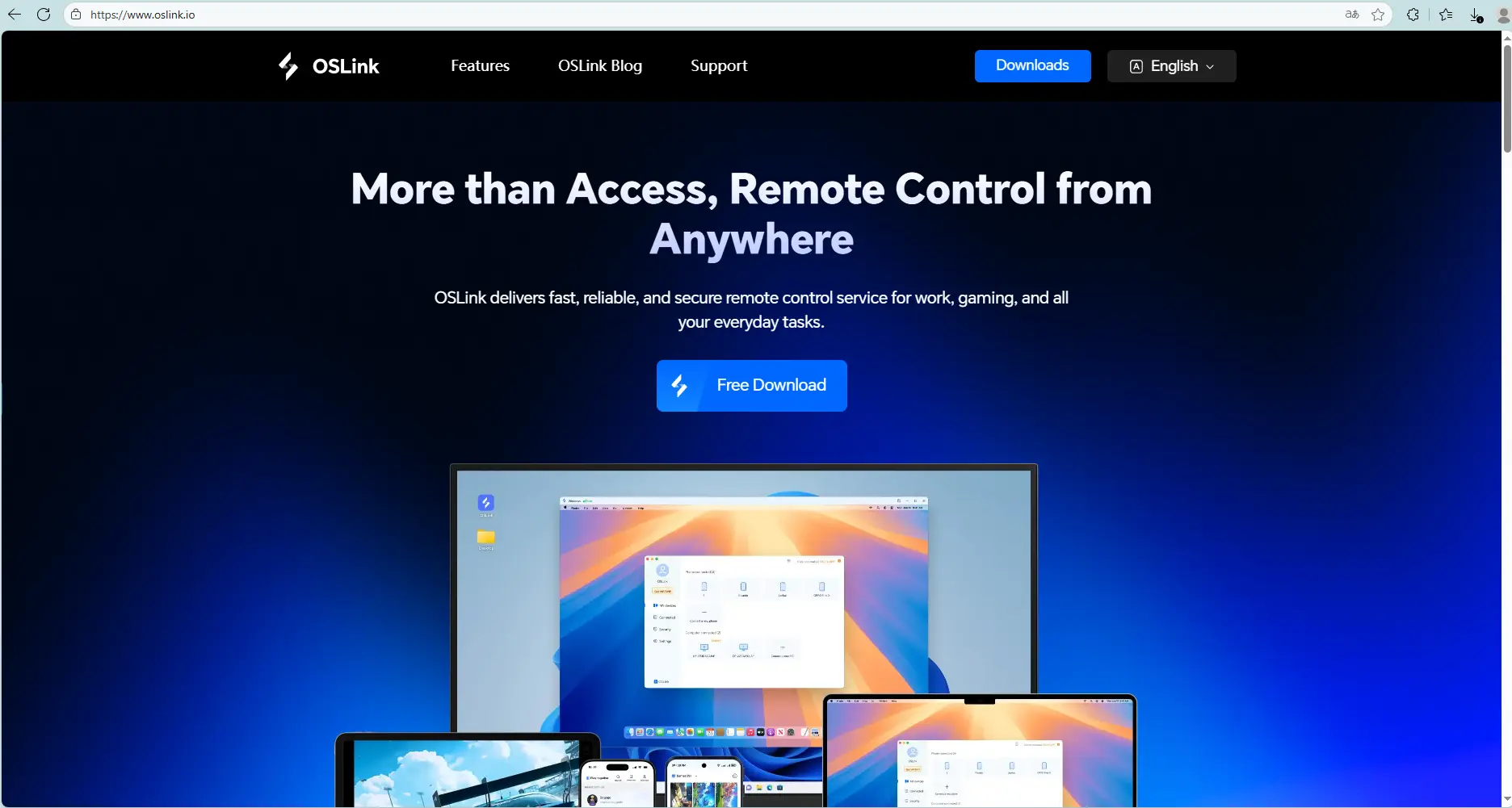
Visit the OSLink official website to download the software and complete the installation.
Mobile Side:
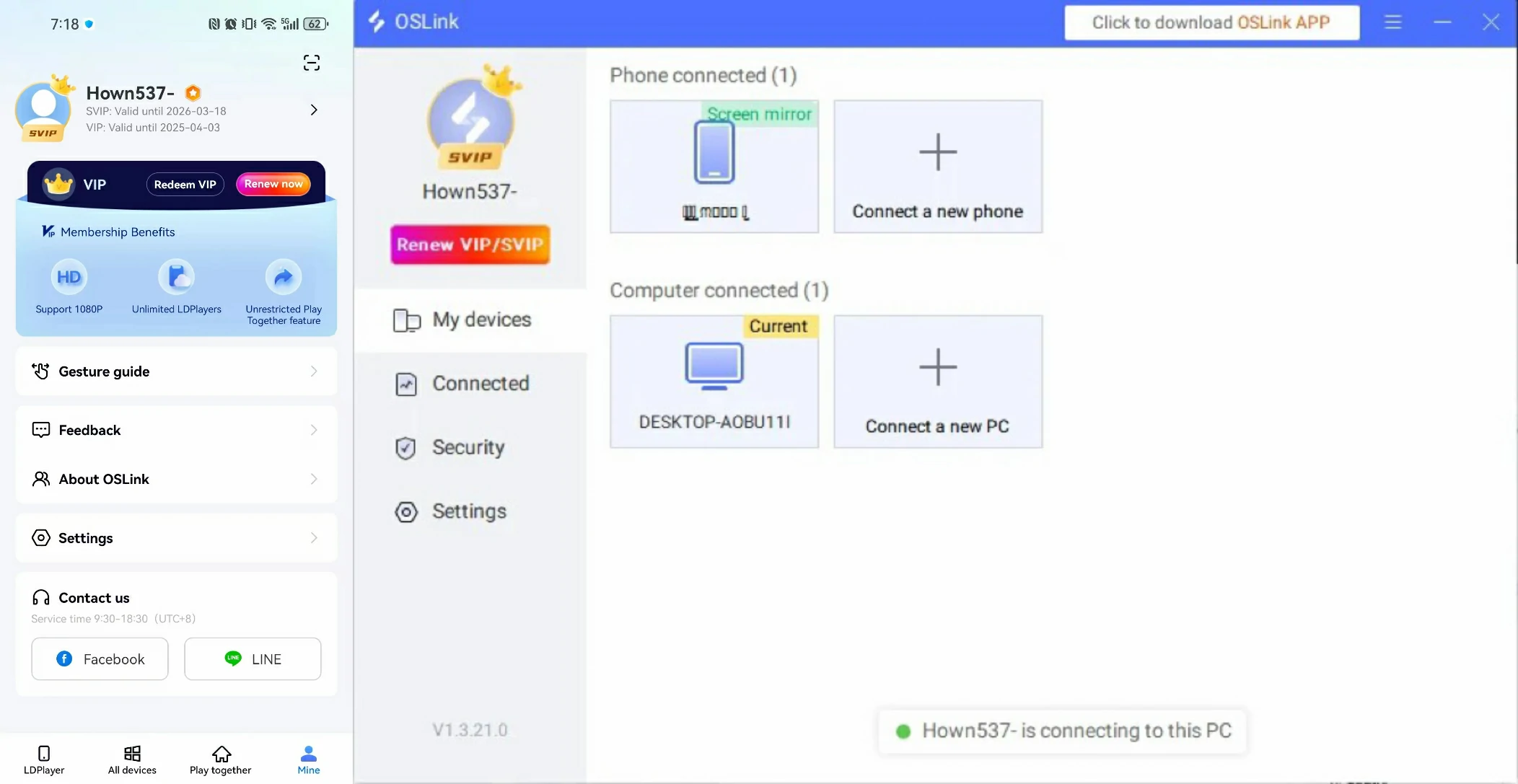
Download the OSLink App from the App Store or Google Play; the official website also offers APK downloads.
Log in with the same account as on the PC side to automatically connect.
Step 2: Control Optimization
1. Launch the Game
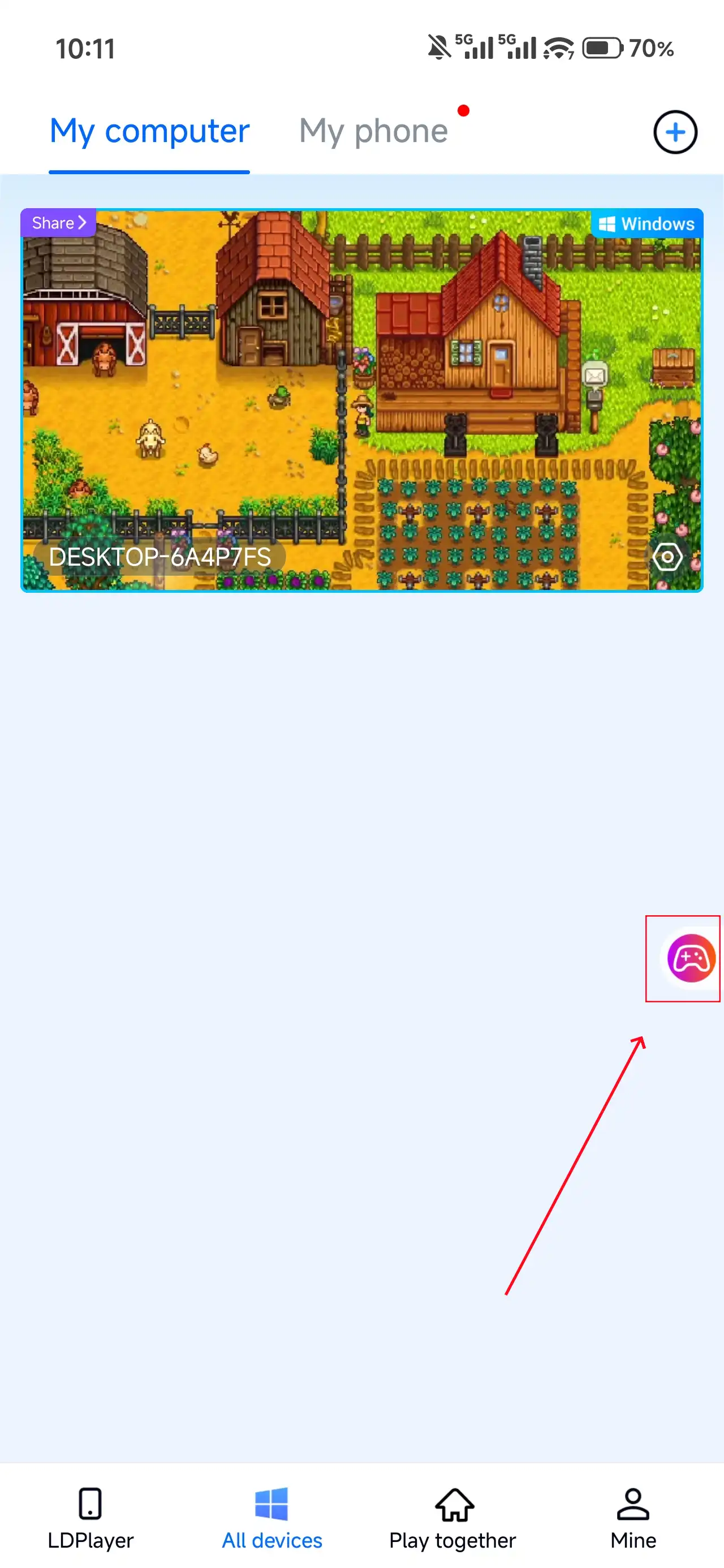
Open Stardew Valley on your PC, and the mobile side can connect directly; if Resident Evil Requiem hasn't been launched on the PC yet, click the game icon on the mobile side for quick startup.
2. Control Mode
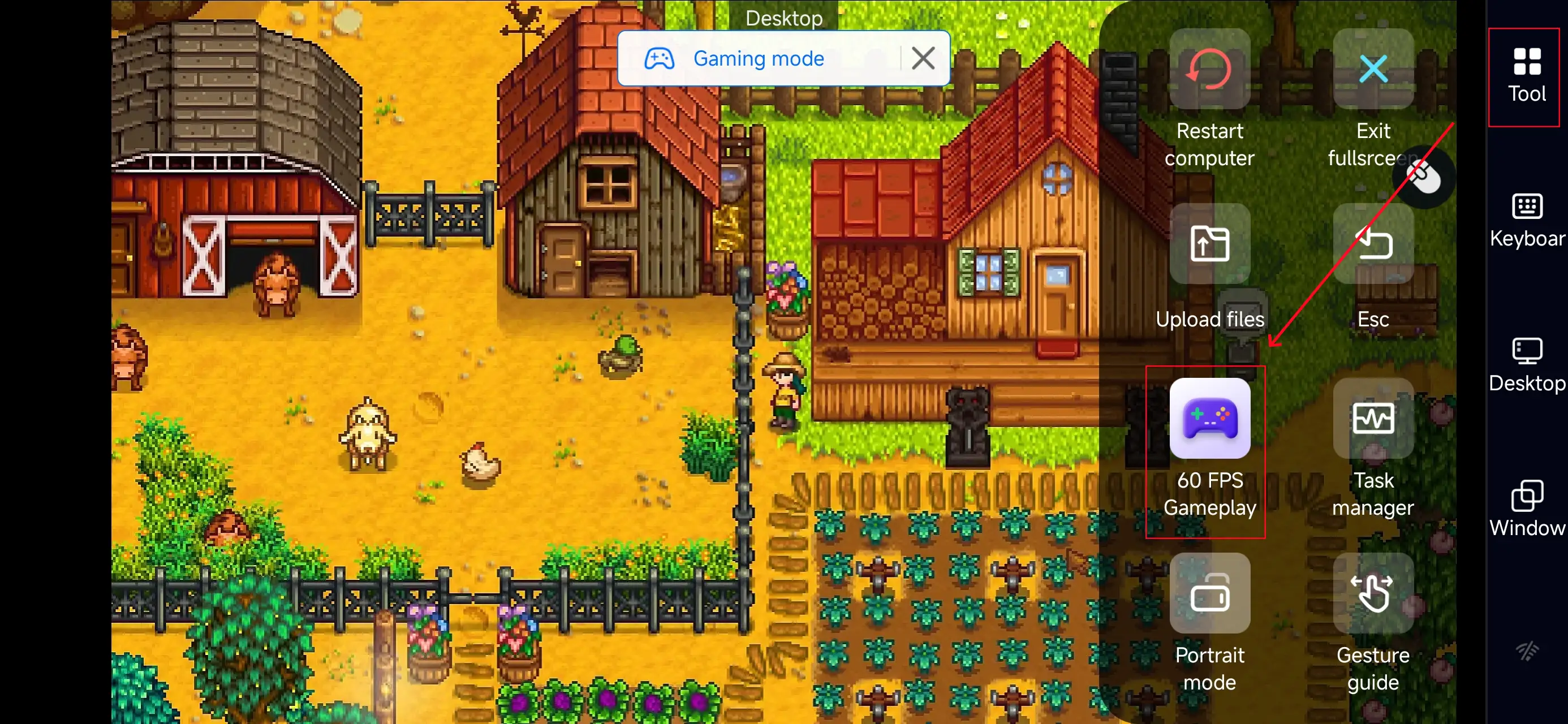
Click the toolbar on the right side of the mobile app, enter "60 FPS Gameplay," and choose key mode or link a controller based on your gaming preferences.
3. Key Selection
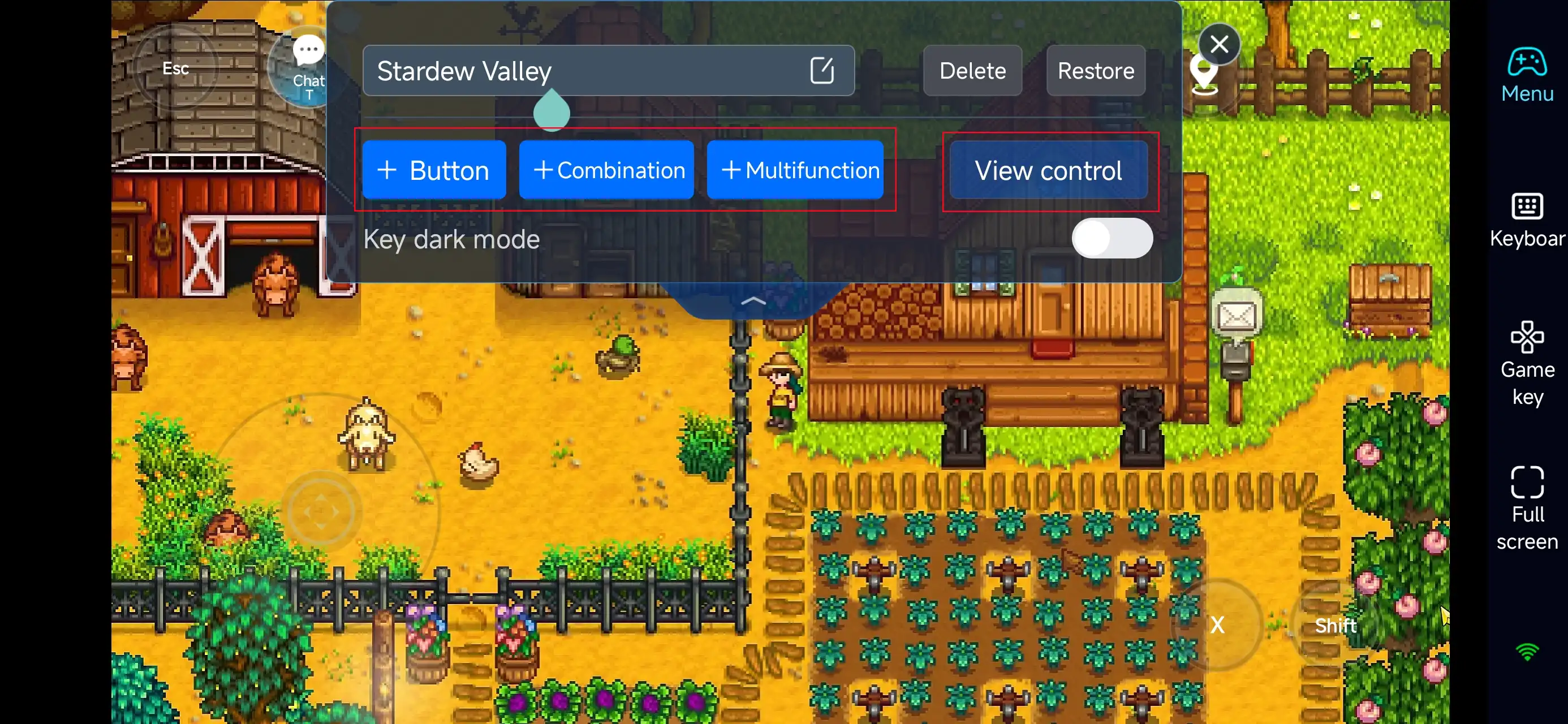
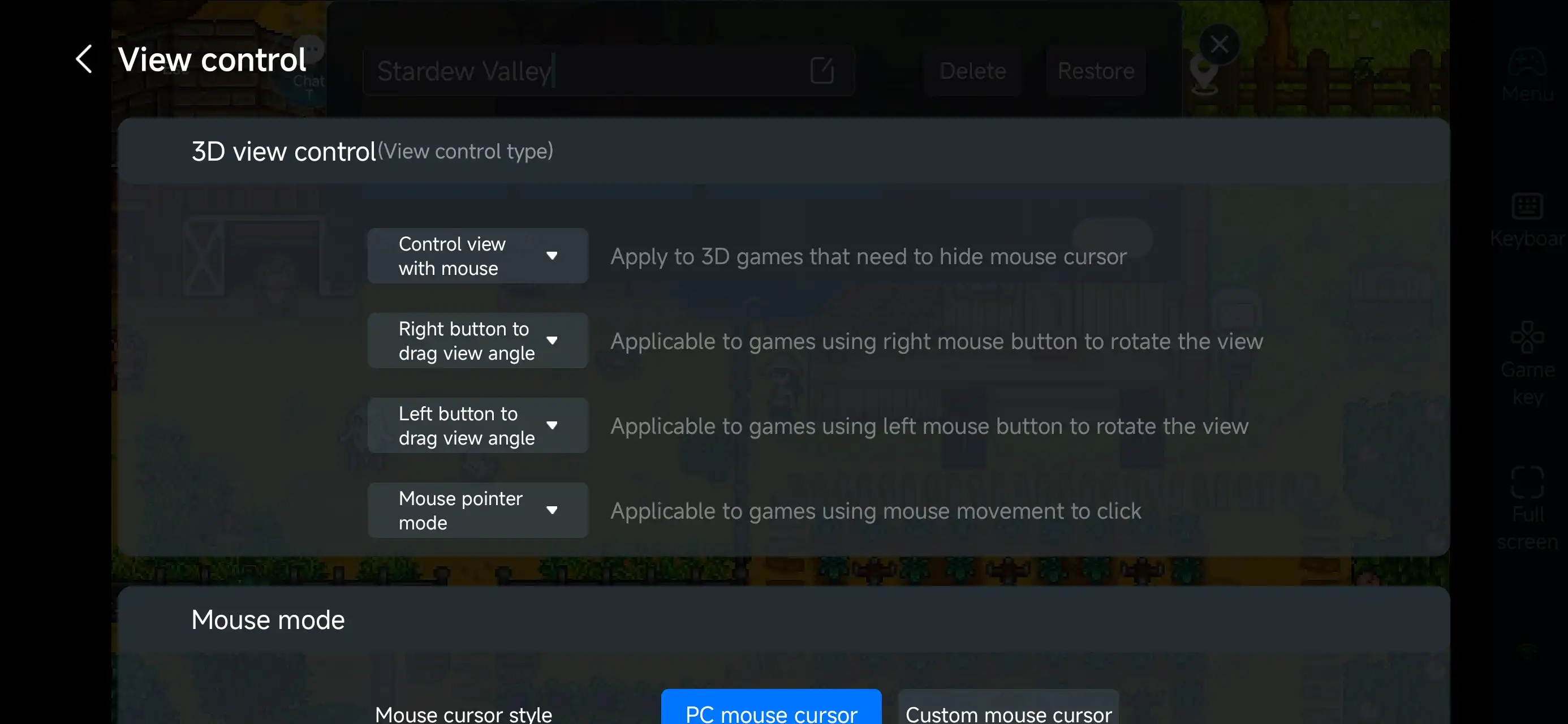
After enabling PC game mode, open the on-screen control panel and select a layout suitable for Stardew Valley.
You can freely customize buttons for:
-
Character movement
-
Tool usage (hoe, axe, pickaxe, watering can, etc.)
-
Interactions and dialogue
-
Inventory and hotbar switching
-
Fishing actions
-
Combat inside the mines
OSLink allows you to resize buttons, adjust transparency, and reposition every control so nothing blocks your view. This makes everyday tasks like farming, fishing, organizing items, and dungeon runs much more comfortable on a touchscreen—while still keeping the calm and precise pace Stardew Valley is known for.
4.Connect external devices
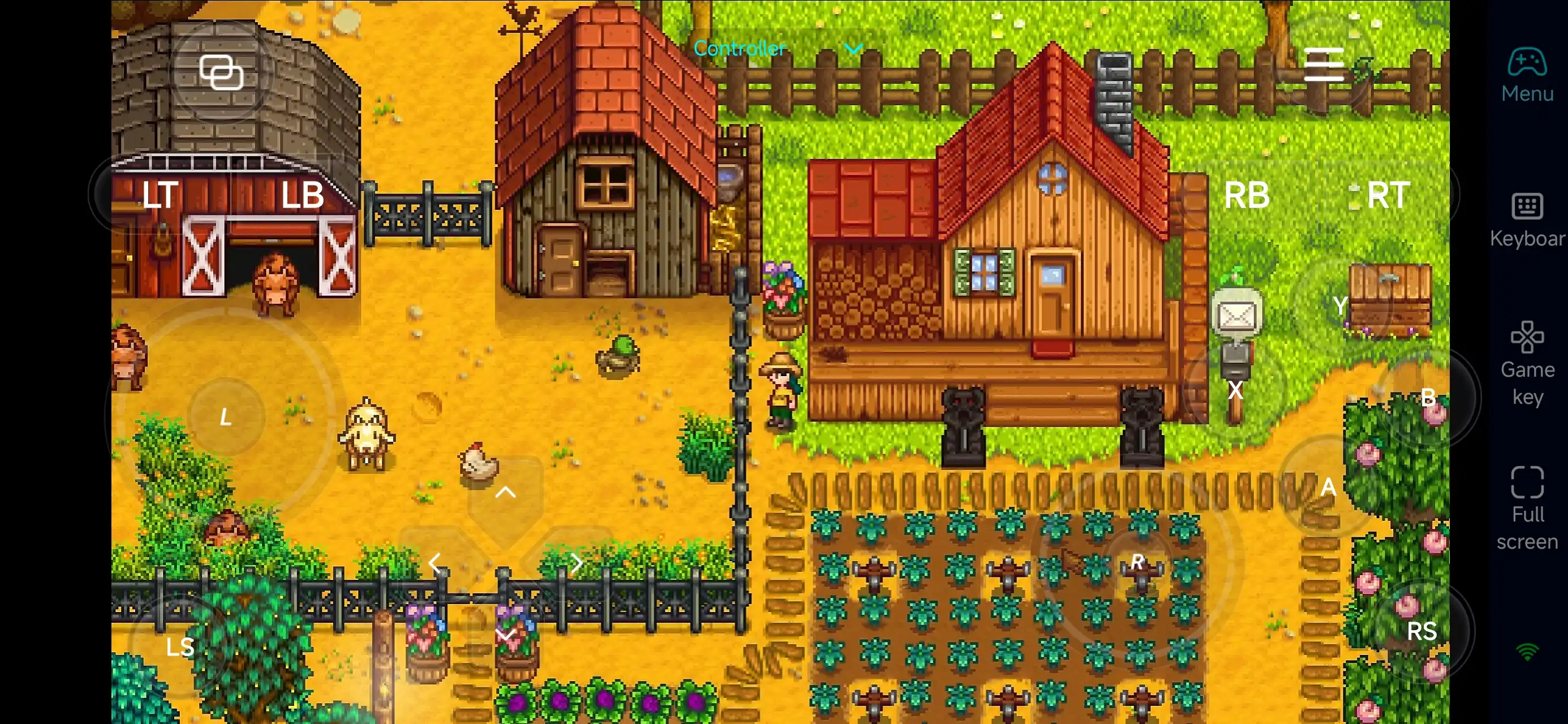
Beyond customizable buttons, OSLink supports a variety of external devices such as Bluetooth controllers and mobile gamepads clipped to your phone. This compatibility frees you from touchscreen limitations and offers a wider range of control options.
Step 3: Continue your farm life anytime
Once setup is complete, your phone becomes a portable control hub for Stardew Valley.
Just open OSLink and connect to your PC to:
-
Water crops and harvest fields
-
Sort your inventory and storage chests
-
Talk to villagers and manage relationships
-
Go fishing or prepare mining runs
-
Plan the next in-game day
Even when you’re away from your desk, you can seamlessly continue your progress and keep every in-game day productive.
Play Stardew Valley Co-op Remotely with OSLink
Stardew Valley already supports full co-op multiplayer, letting you and your friends run the same farm, divide daily work, explore the mines, fish together, and take part in seasonal festivals.
In reality, though, some friends may not own a PC—or simply don’t want to deal with launchers and installation.
With OSLink’s “Play Together” feature, your friends only need to install OSLink on their phones. They can remotely join your PC session and take part in your Stardew Valley multiplayer farm directly, making it much easier to start co-op farming, exploring, and building your shared world—without complicated setup on their side. Here’s a step-by-step guide on how to set it up.
1.Set Up the Game
Follow the above steps to start Stardew Valley via OSLink.
2.Create a Play Together Room
Go to "Play Together" in the OSLink app.
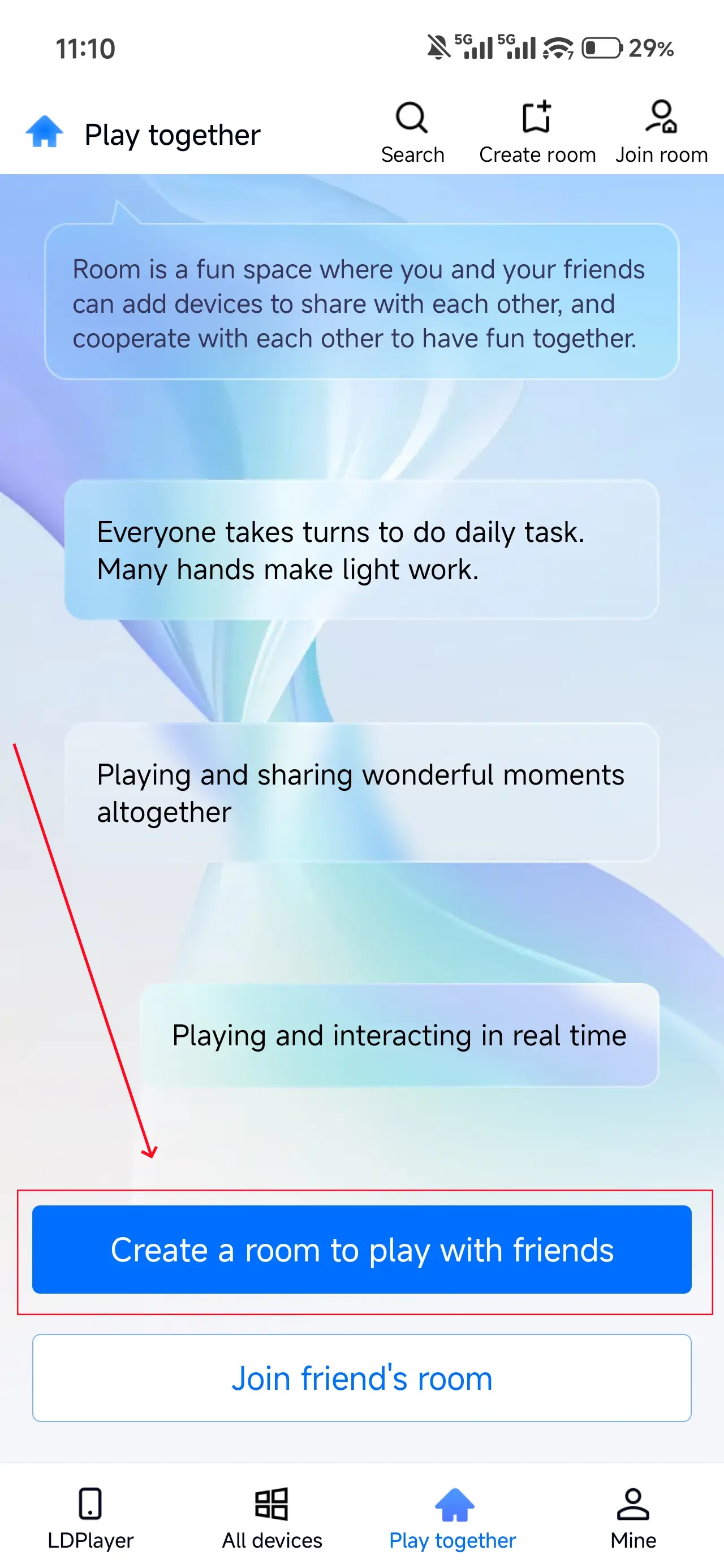
Name your room (e.g., “Stardew Valley ”) and tap "Create Room."

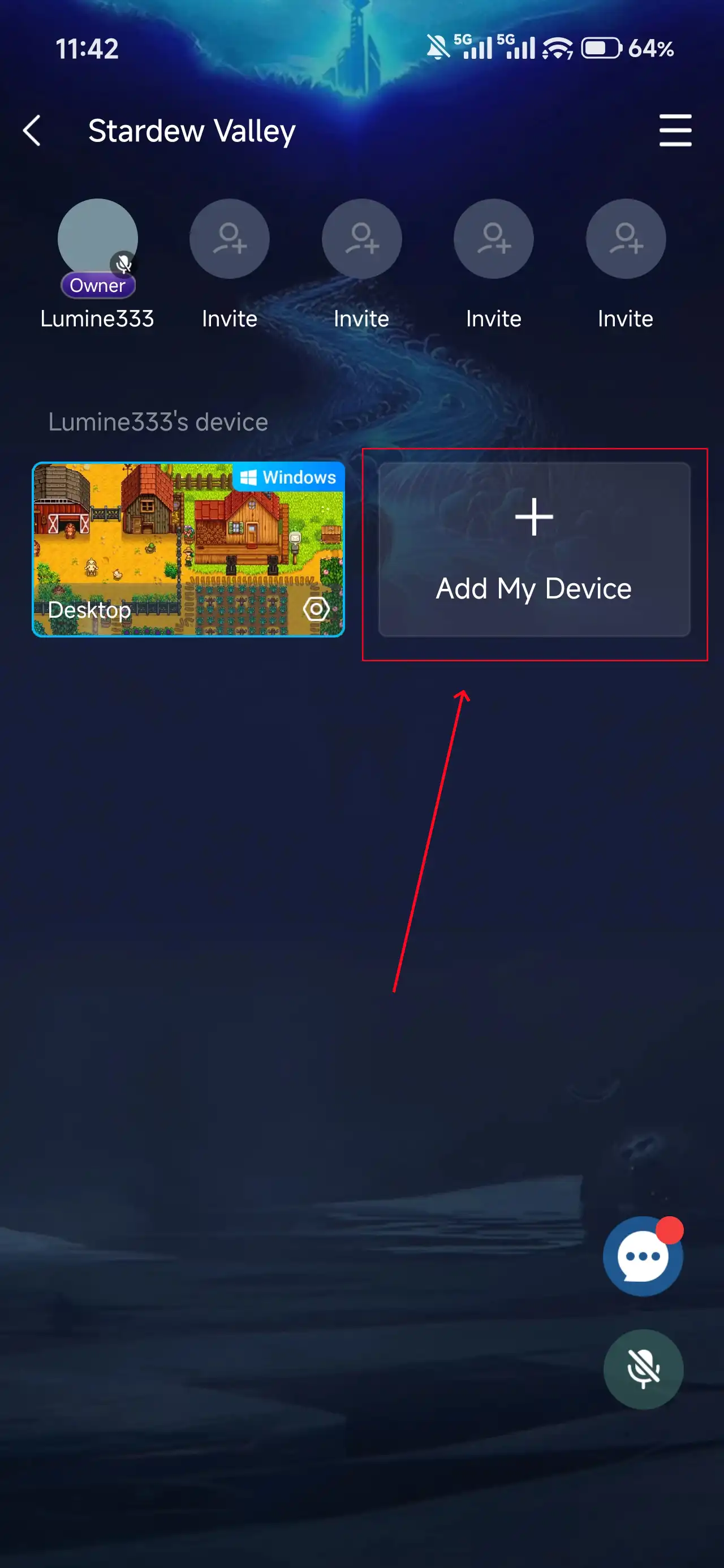
Add the game window to the room using the "Add My Device" button.
3.Invite Friends
Share the room password via apps like Discord or WhatsApp.
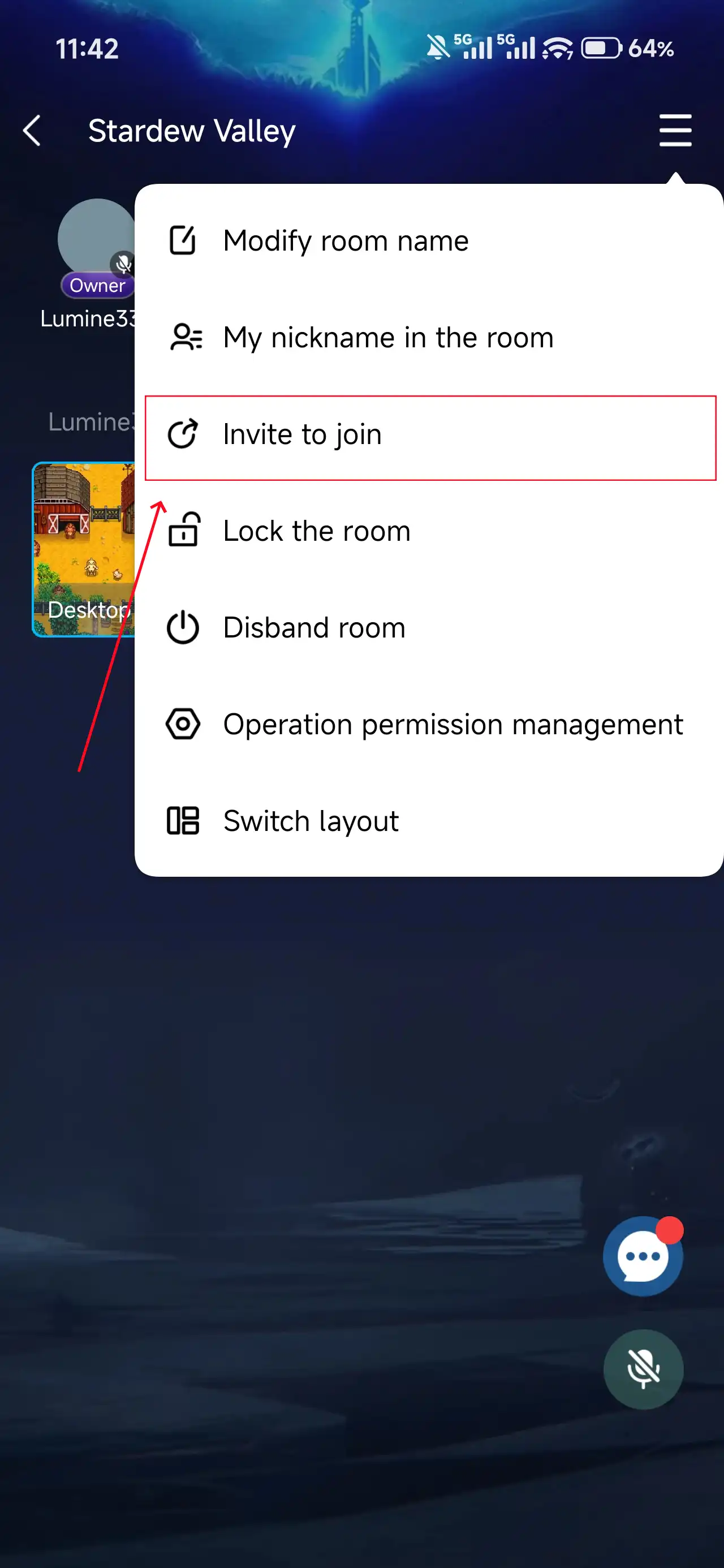
Friends need the OSLink app to join by selecting “Join a Room” and entering the password.
Use the built-in chat or voice system to connect.
4. Enjoy Together
After your friend joins, he can control the computer via his phone, and use a controller to play smoothly!
Conclusion
Stardew Valley focuses on a relaxed, cozy style of farming and cooperative play. Using OSLink, your warm and stress-free multiplayer farm life isn’t tied to a single place or device—you can keep playing, cooperating, and growing your farm with friends whenever you have time.
 Download