English
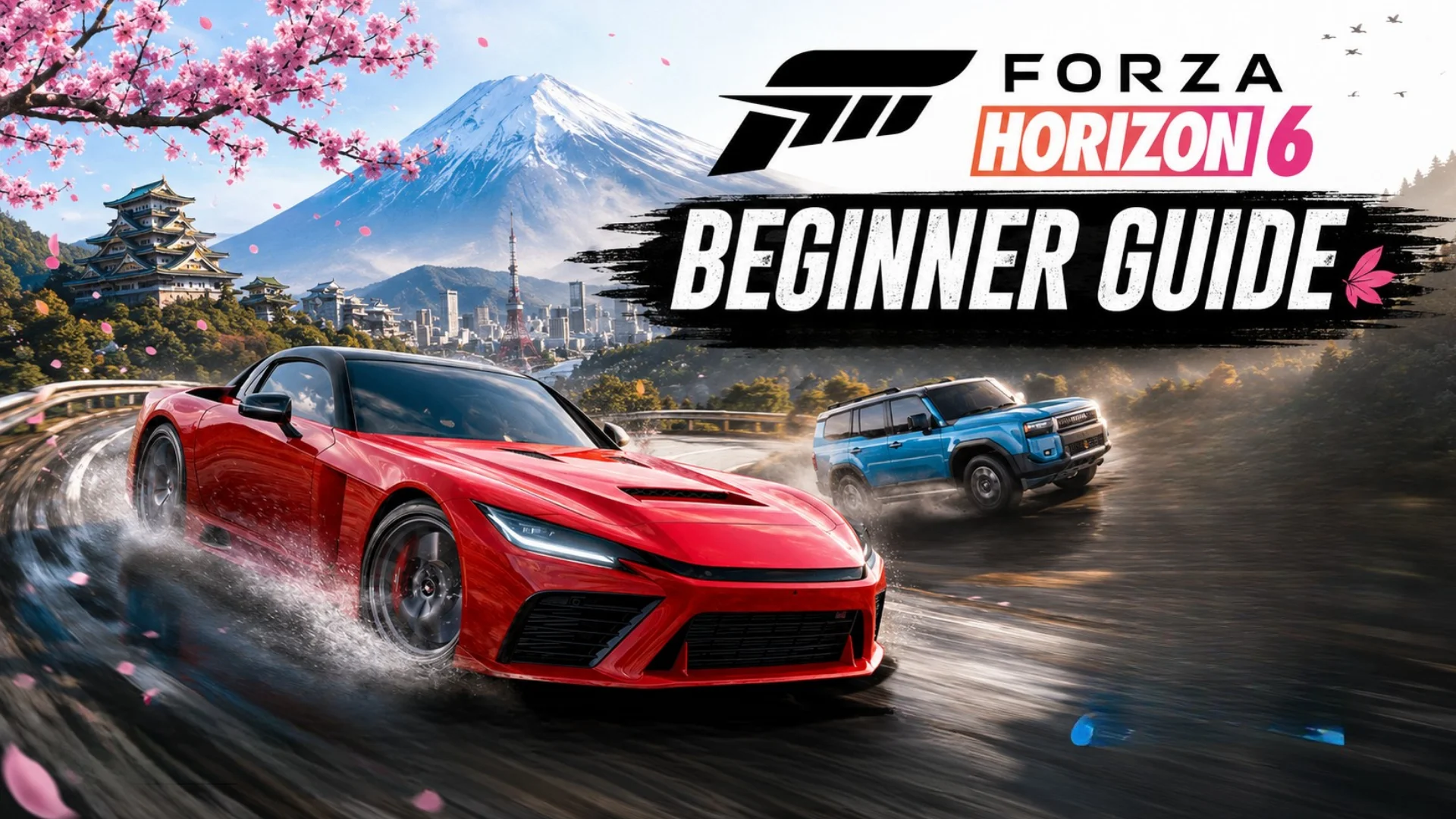
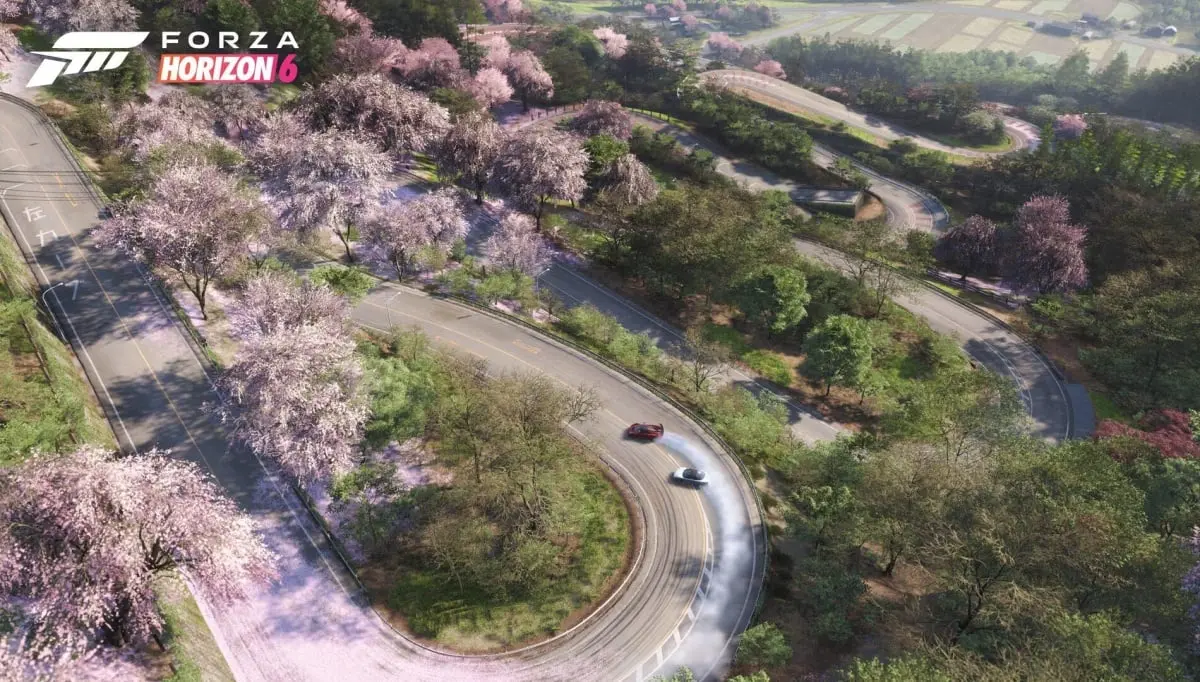
 Forza Horizon 6 is the first entry in the Forza Horizon series to feature Japan as its main setting, delivering a massive open-world racing experience inspired by Japanese car culture. The game combines Tokyo expressways, mountain pass racing, rainy-night drifting, and car meet culture. Players begin as rookie drivers and gradually raise their Wristband rank to unlock higher-level events and vehicles.
Unlike previous entries that focused heavily on quickly giving players access to high-performance supercars, Forza Horizon 6 puts far greater emphasis on gradual progression and authentic driving culture. From the Civic and Silvia to the GT-R, every car’s tuning setup and handling characteristics directly affect your performance on Touge roads.
If you want to farm Skill Points, complete PR Stunts, or clear daily challenges during your commute, lunch break, or before bed, OSLink lets your phone or tablet remotely connect to your home PC so you can jump back into the game anytime.
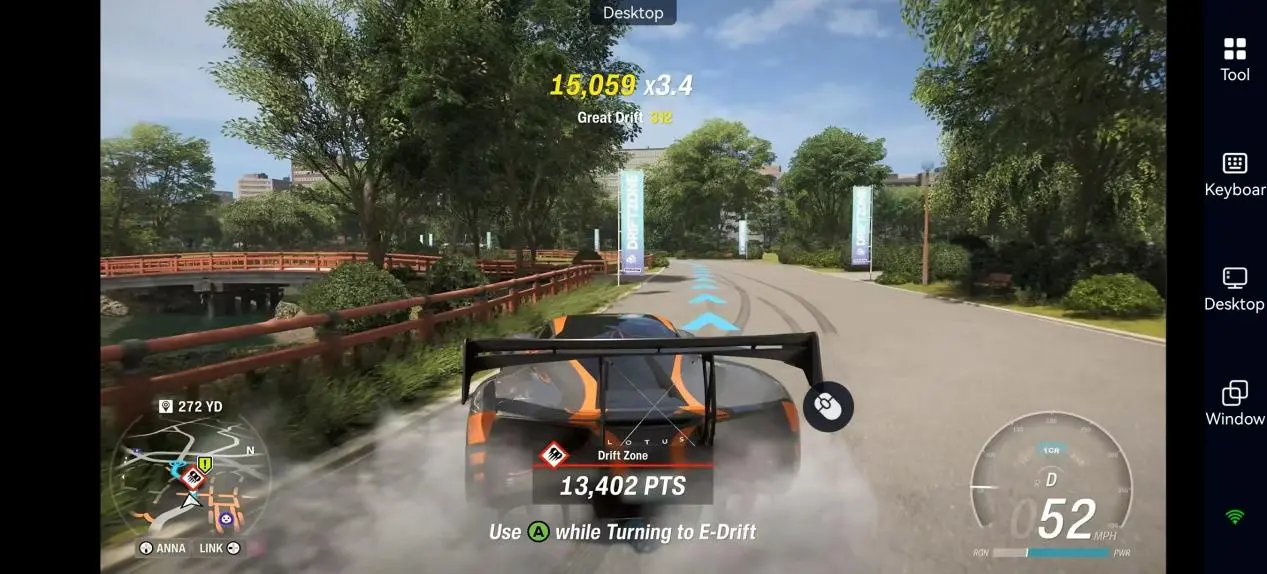
Mobile Remote Play Setup Guide for Forza Horizon 6
1. Install OSLink and Connect Your Devices
On PC
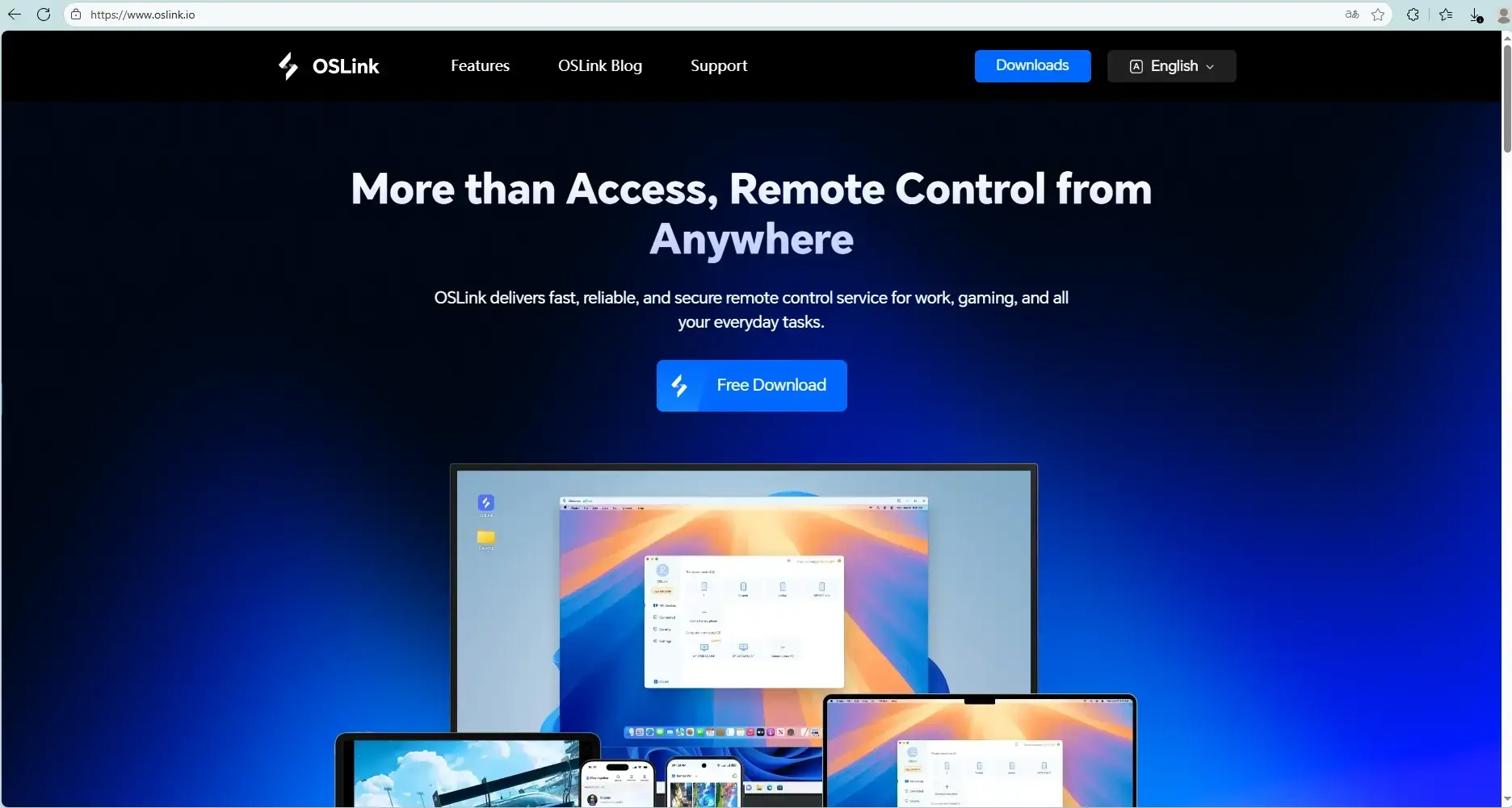
Go to the OSLink official website, download and install the PC client, then log in and keep your computer powered on.
On Mobile
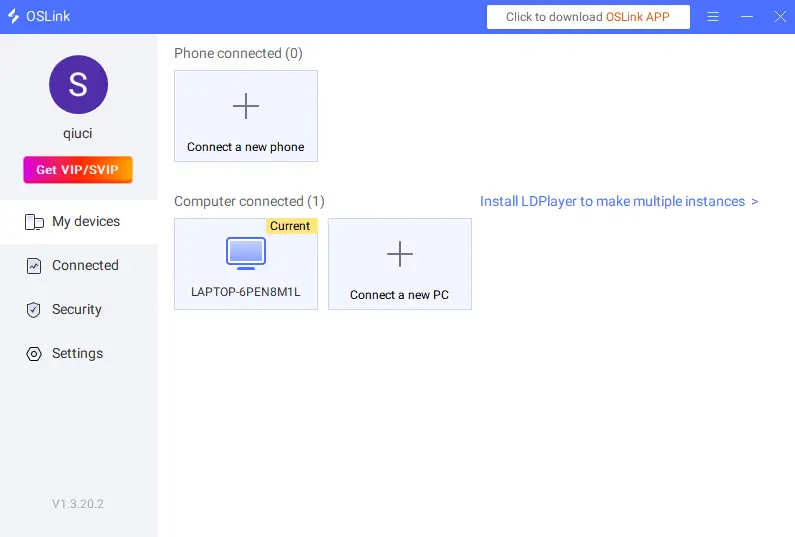
Search for “OSLink” on Google Play or the App Store and install the app. Log in with the same account to pair your devices automatically.
2. Launch Forza Horizon 6
After connecting successfully, tap your PC desktop from the mobile app to launch Forza Horizon 6 directly through Steam or the Xbox App.
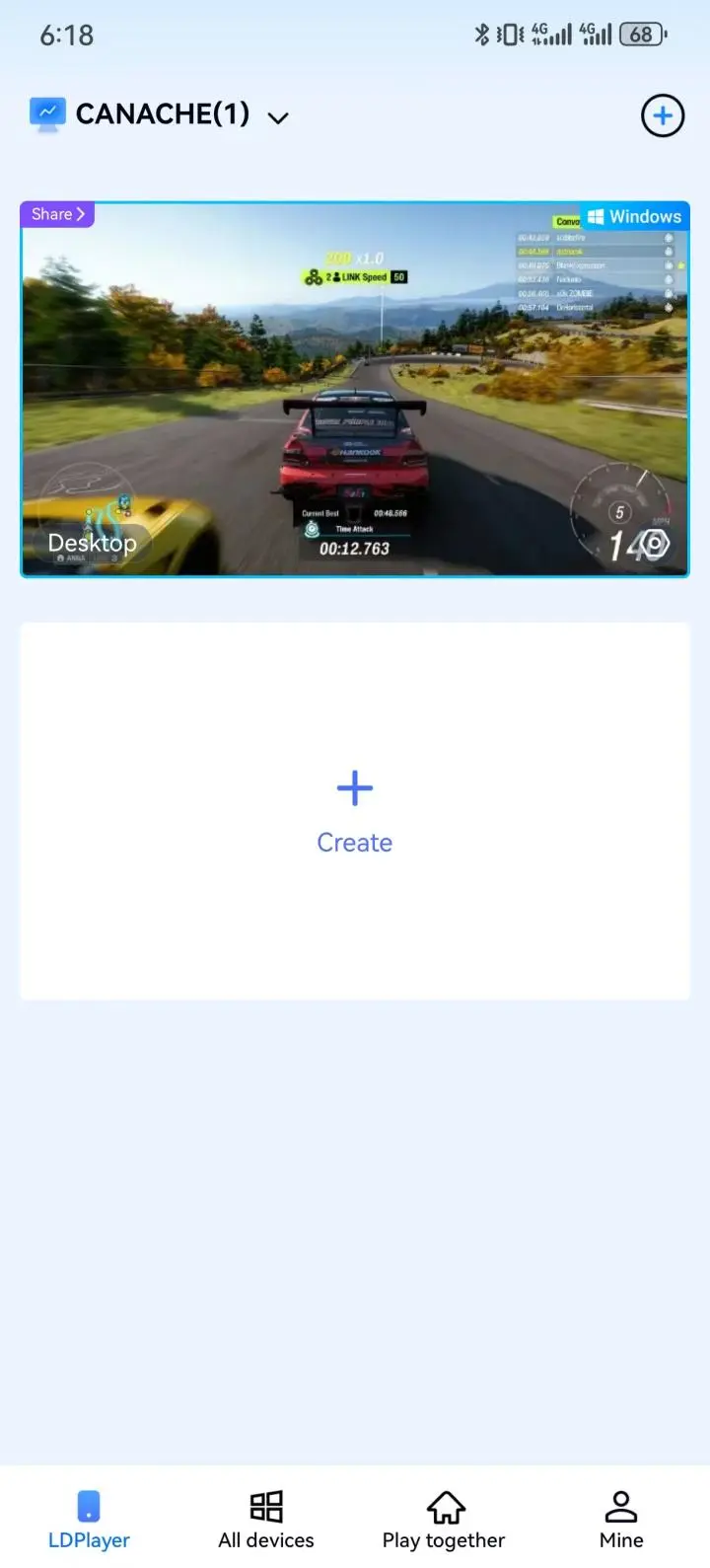
If you have already added the game to the OSLink game library, you can also launch it with one tap for even faster access.
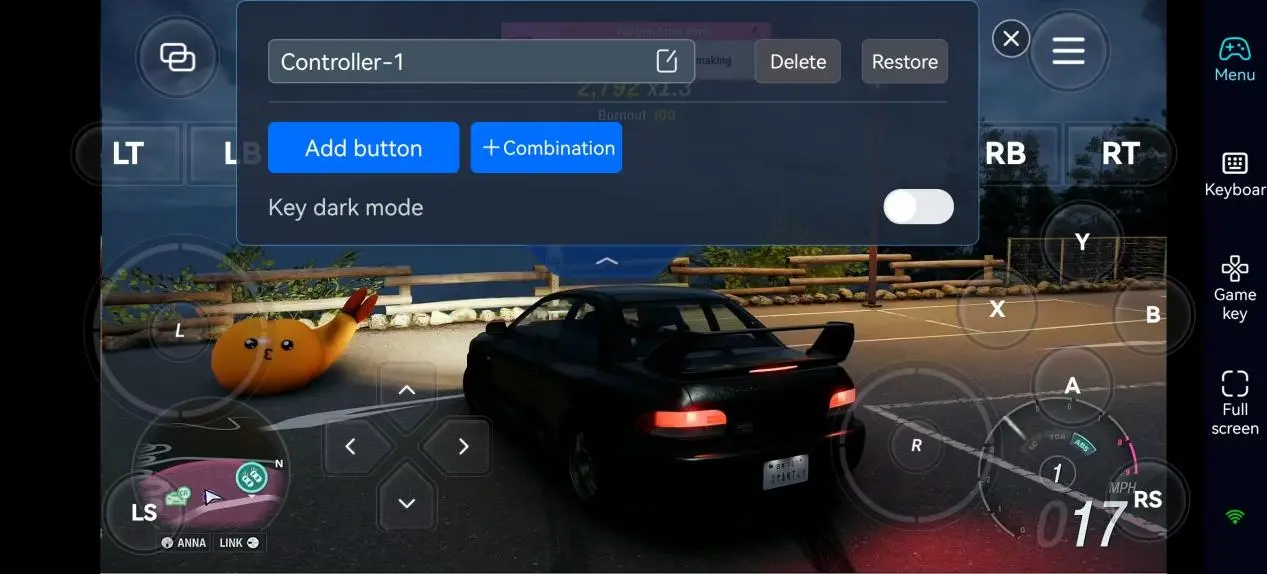
3. Adjust Control Layouts and Key Bindings
Tap the toolbar on the right side of the mobile app and enter the “60 FPS PC Gaming” mode. From there, choose your preferred button layout or use a virtual controller.
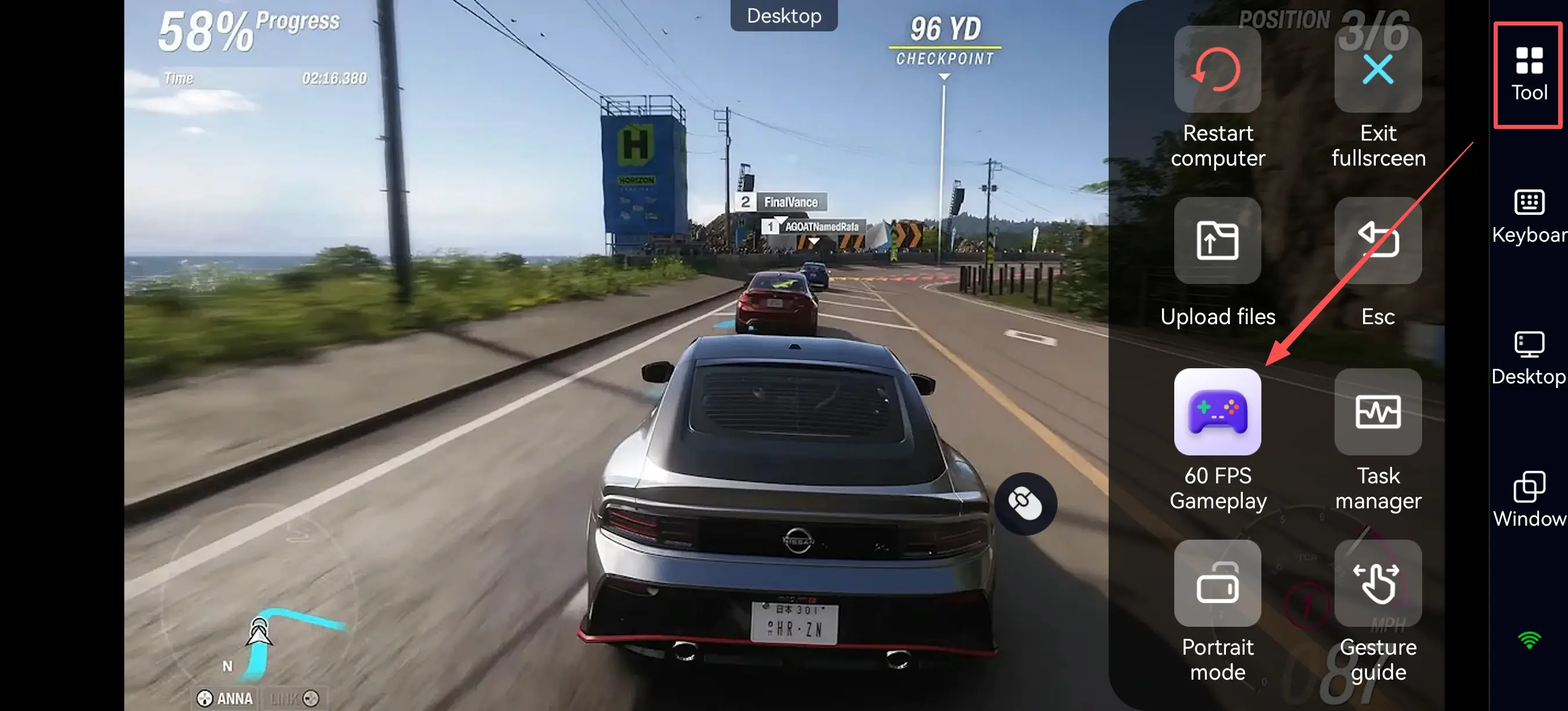
Since Forza Horizon 6 places a stronger focus on mountain roads and drifting compared to previous games, it is recommended to prioritize the following controls:
|
Function Area |
Recommended Controls |
Purpose |
|
Vehicle Controls |
Throttle, Brake, Handbrake, Steering |
Core racing and drifting controls |
|
Touge Driving |
Downshift, Weight Transfer Control, Quick Countersteer |
Essential for mountain pass racing |
|
Quick Functions |
Map, Car Switching, Photo Mode |
Useful for cruising and exploration |
|
Assist Features |
Rewind, Navigation |
Makes driving more forgiving for beginners |
Beginner Gameplay Tips for Forza Horizon 6
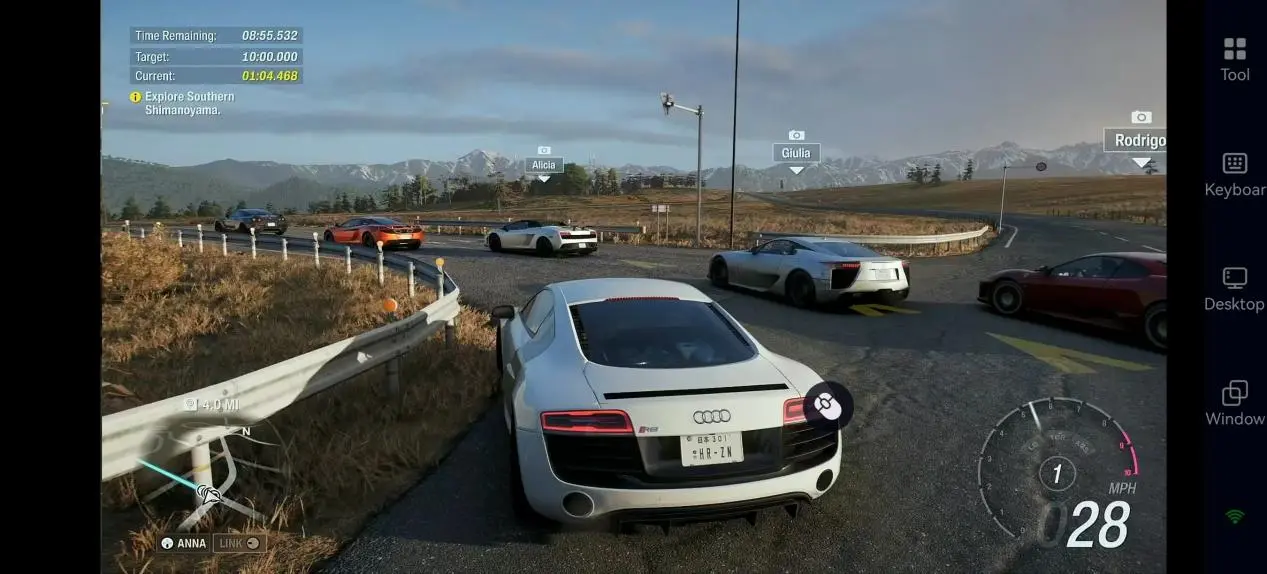
One of the biggest changes in Forza Horizon 6 is the return of a progression-based career system. Players must gradually increase their Wristband rank to unlock more advanced events.
Wristband Progression System
|
Rank |
Unlocks |
|
Yellow |
Beginner Road Racing events |
|
Green |
Additional Road Racing events |
|
Blue |
Mid-tier competitions |
|
Pink |
High-performance car events |
|
Gold |
Horizon Legend endgame content |
Progress can be earned through:
- Road Racing
- Drift Skills
- PR Stunts
- Skill Chains
- Cross Country events
Because of this structure, Forza Horizon 6 is great for short play sessions and steady progression. You can practice drifting, run mountain passes for Skill Points, complete daily objectives, or join nighttime cruise events directly from your phone without needing to sit at your desk for hours.
Why Forza Horizon 6 Is Perfect for Remote Play
1. Night Cruising and Free Roam Fit Short Play Sessions
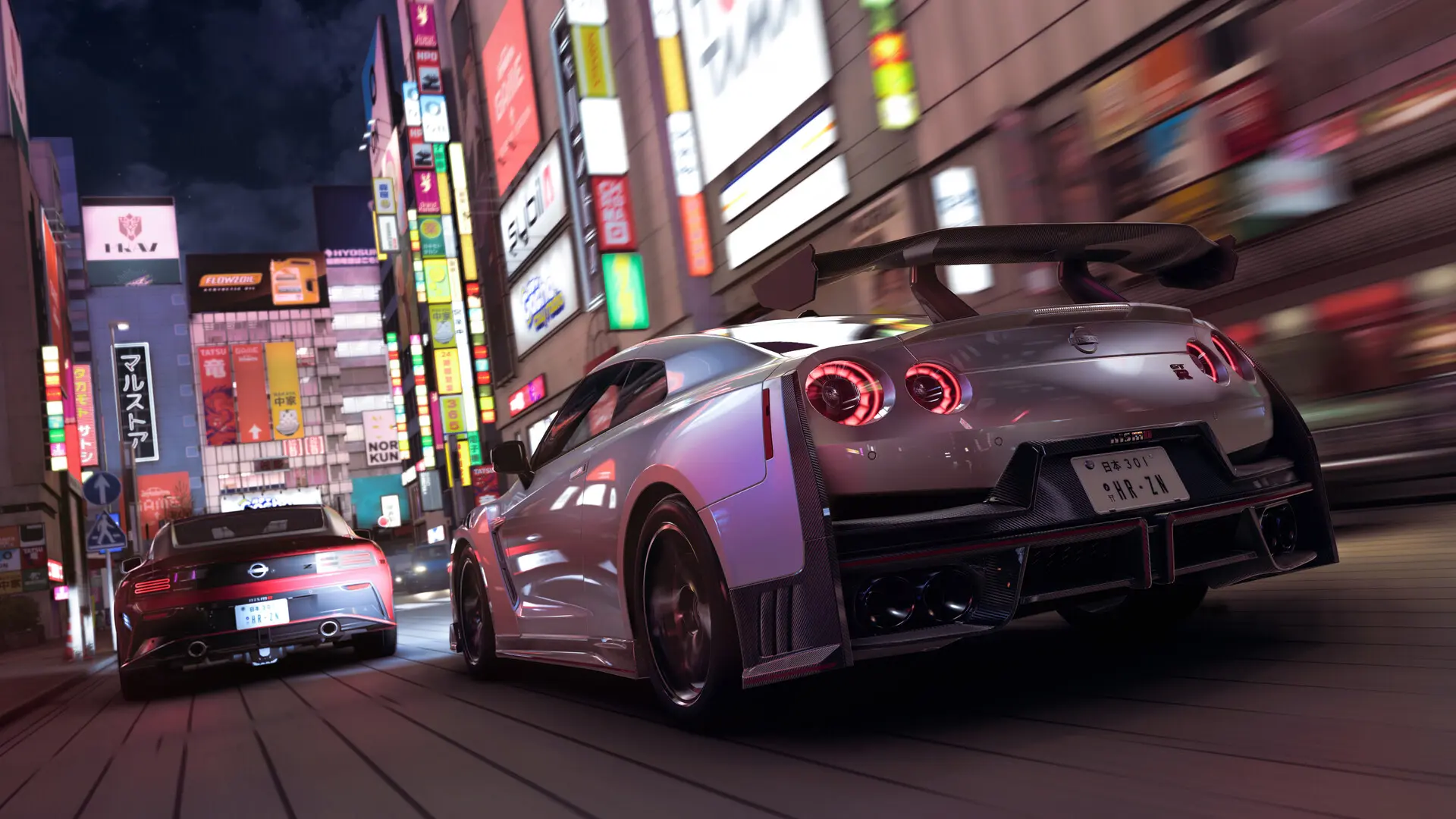
One of the most anticipated features in Forza Horizon 6 is its Japanese nightlife atmosphere and Wangan highway cruising.
Whether it’s Tokyo expressways, rain-soaked neon streets, winding mountain roads, or parking lot car meets, the game is perfect for short, relaxing play sessions.
With OSLink, you can remotely access your home PC while outside and continue exploring the map or farming Credits and Skill Points anytime.
2. Better Graphics and High Frame Rate Experience on PC
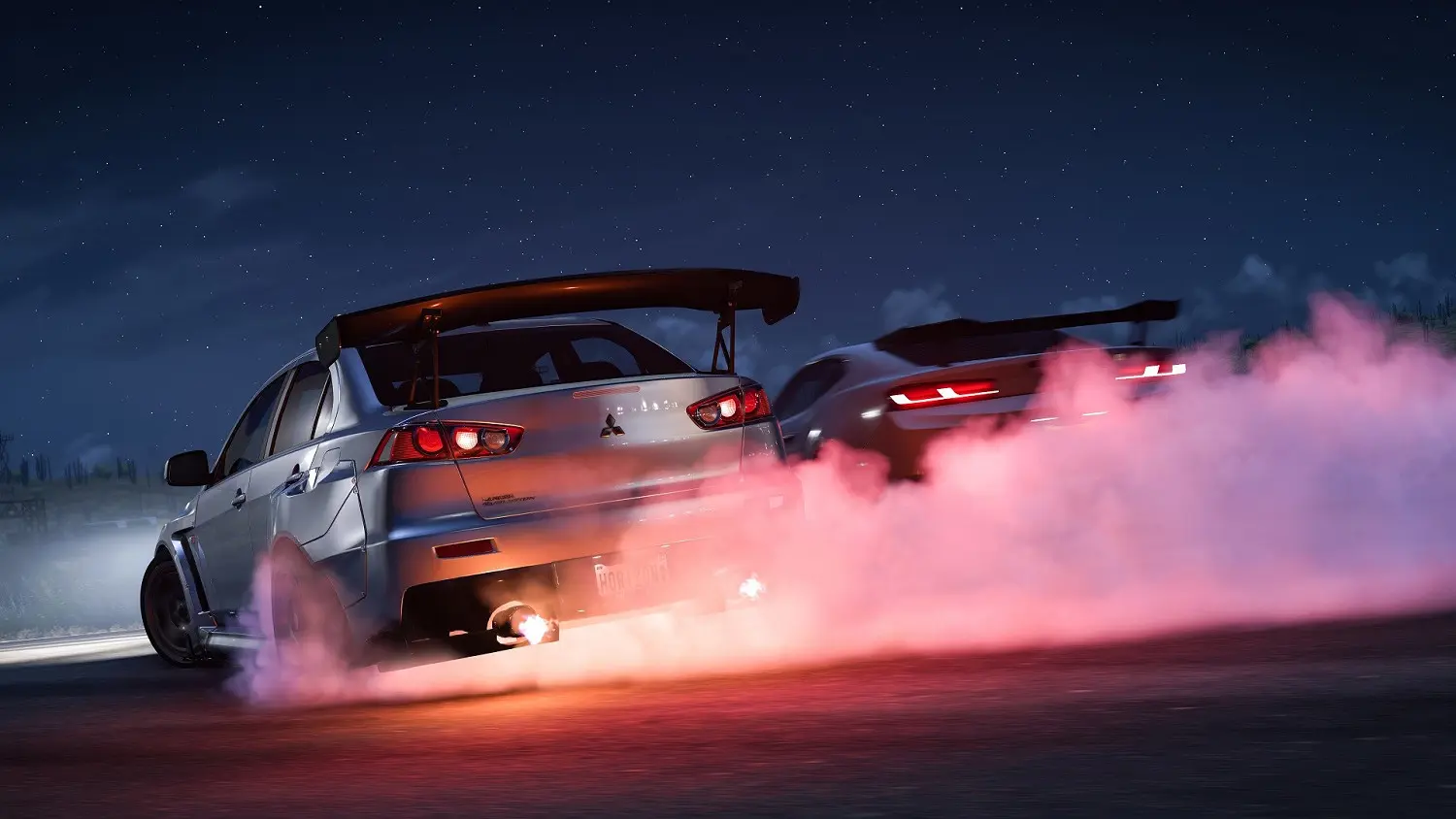
Forza Horizon 6 is highly demanding when it comes to graphics and frame rate performance, especially for:
- Rain reflections
- Dynamic lighting
- Car paint rendering
- High-speed environment streaming
With OSLink remote streaming, your phone only handles video playback while all rendering and processing are performed on your home PC. This means even mid-range phones can still enjoy high-quality visuals and smooth gameplay.
FAQ
Q: When was Forza Horizon 6 released?
A: The game officially launched on May 19, 2026, for Xbox Series X/S and Windows platforms, and is also available through Game Pass Ultimate and PC Game Pass.
Q: Can I play Forza Horizon 6 on mobile?
A: There is currently no official Android or iOS native version. However, you can remotely play the PC version on your phone through OSLink streaming.
Q: Does remote play introduce input lag?
A: A stable Wi-Fi or 5G connection is recommended. Since Forza Horizon 6 is a high-speed racing game, network stability will affect responsiveness, but casual cruising, exploration, and drifting are generally very playable.
Q: Does Forza Horizon 6 require a powerful PC?
A: Recommended specifications include:
|
Component |
Recommended Specs |
|
OS |
Windows 10 / 11 64-bit |
|
CPU |
Intel Core i5 / Ryzen 5 |
|
RAM |
16GB |
|
GPU |
RTX 3060 or equivalent |
|
Storage |
SSD with 80GB+ free space |
Higher-end hardware is recommended for ultra graphics settings and ray tracing.
Conclusion
What makes Forza Horizon 6 stand out is not just the racing, but the atmosphere of Japanese driving culture. From Tokyo’s neon-lit Wangan highways and Touge mountain battles to parking lot car meets and rainy-night drifting, Forza Horizon 6 delivers a much more immersive driving experience than previous entries.
With OSLink remote streaming, you no longer need to stay at your desktop. Whether you want to squeeze in a quick race during your commute, drift through mountain roads during lunch break, or cruise Tokyo’s highways in an RX-7 before bed, you can continue your Horizon journey anytime, anywhere.
 Download