English
 Big Walk is a co-op open-world adventure game. You and your friends trek across vast, otherworldly landscapes, unravel ancient riddles, and overcome mysterious challenges. The game features a striking, artistic visual style paired with clever interactive puzzles that keep players captivated for hours.
Want to dive into this whimsical world while you’re out and about? OSLink lets you stream your PC’s game screen directly to your phone. Whether you’re commuting or traveling, you can seamlessly pick up your adventure right where you left off. Below is a complete step-by-step setup tutorial for playing Big Walk remotely with OSLink.
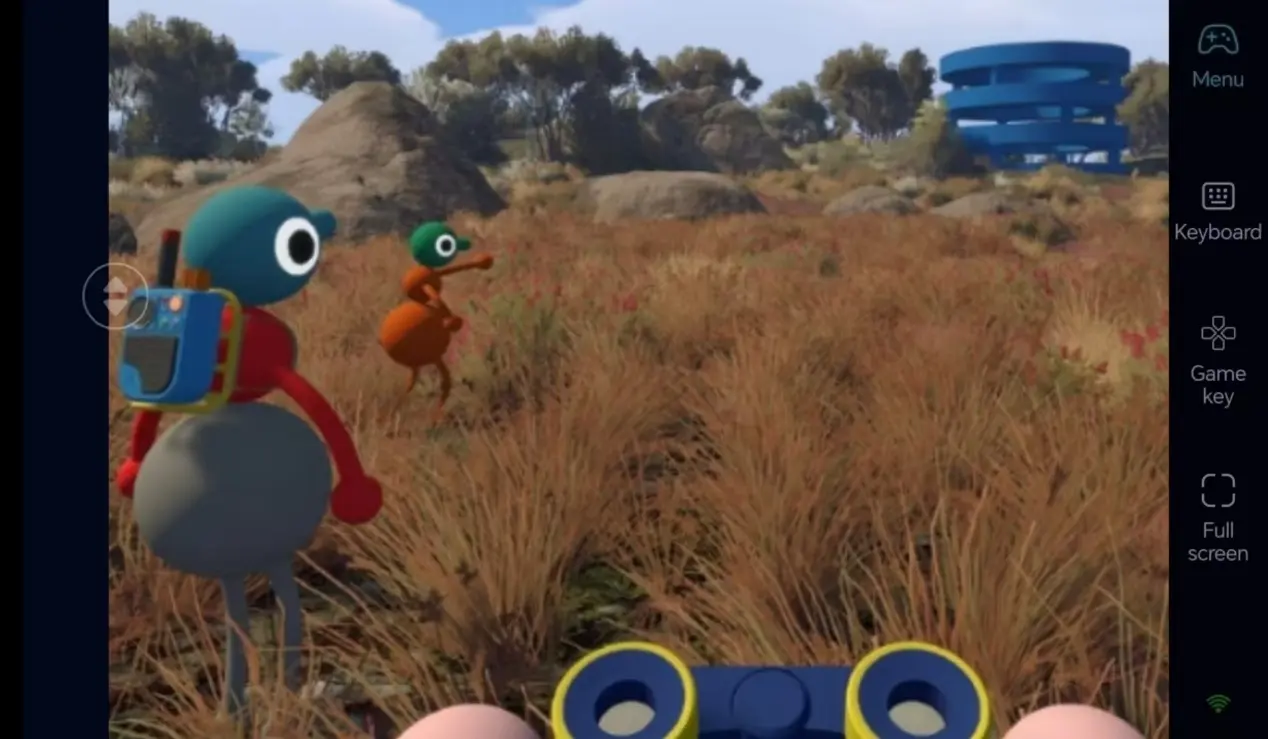
Quick Setup Guide for Playing Big Walk on Mobile
Step 1: Download OSLink & Pair Devices
PC Client
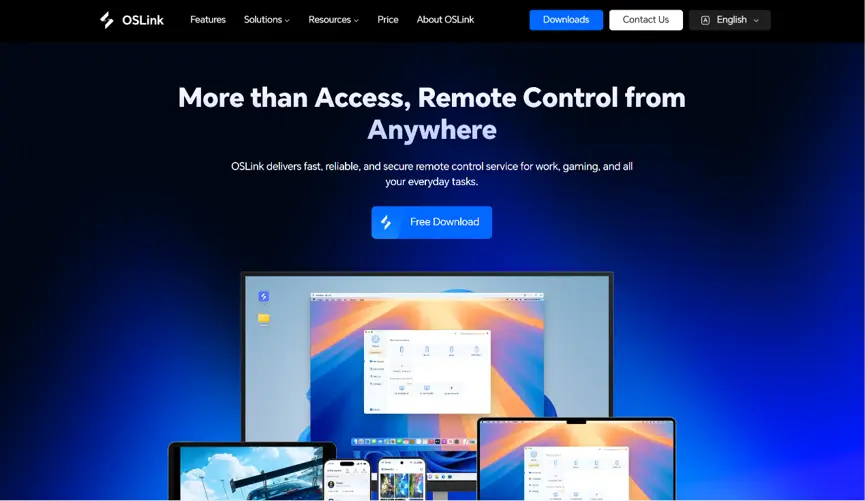
Head to the official OSLink website to download and install the desktop client. We recommend a wired ethernet connection or high-speed Wi-Fi to minimize input lag.
Mobile Client
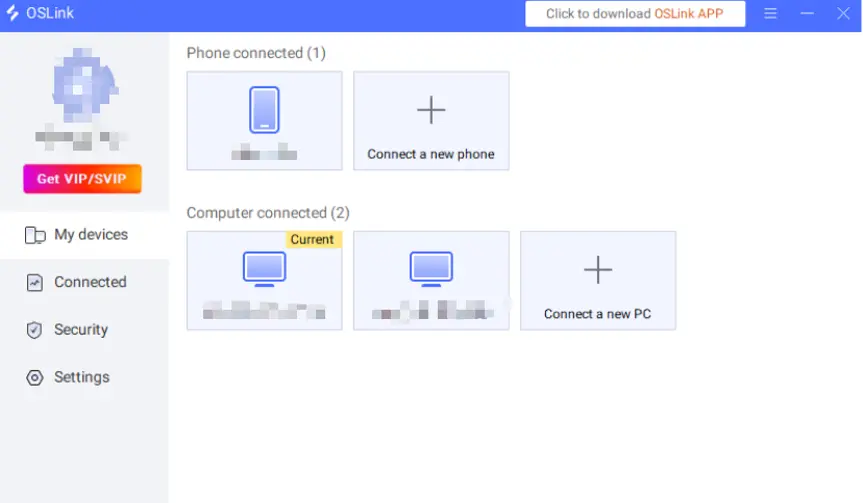
Download the OSLink app from the Apple App Store or Google Play Store; the official website also offers the standalone APK file. Log into the exact same account used on your PC, and your devices will automatically pair.
Step 2: Optimize Controls & Customize Keybinds
1. Launch the Game
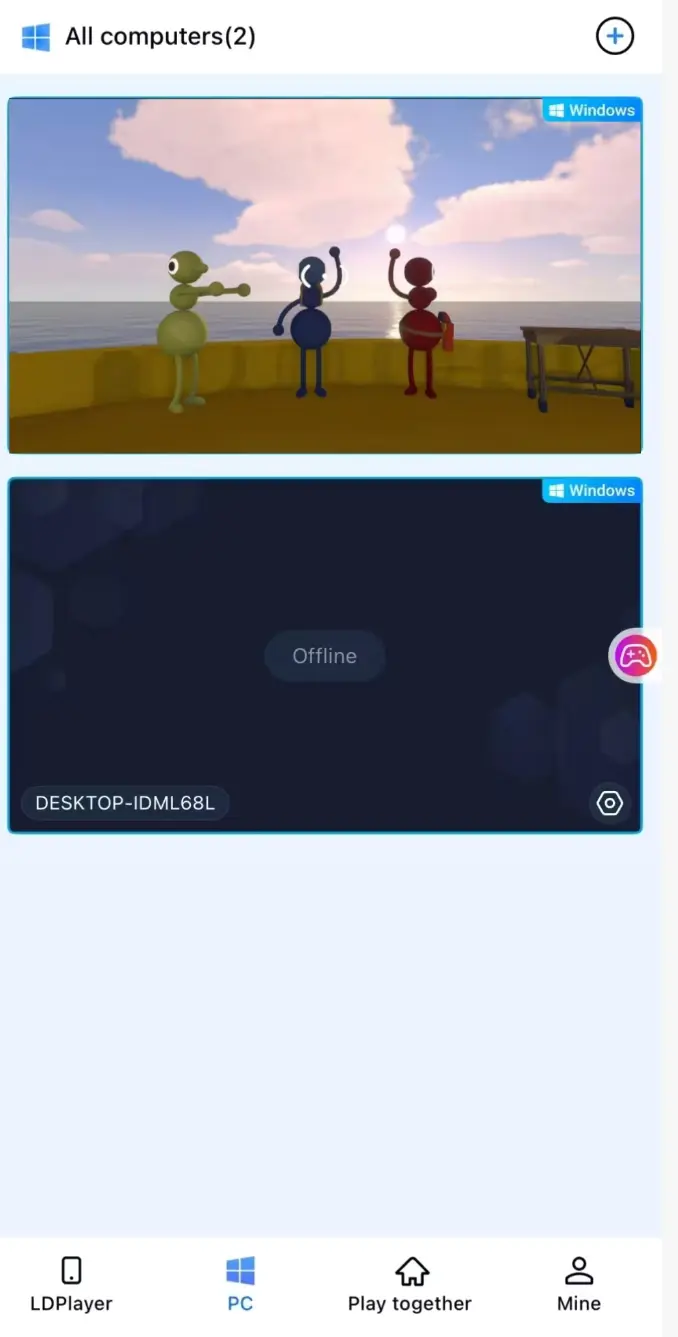
Open Big Walk on your desktop PC. Once your mobile device connects successfully, you can control the game entirely from your phone. If the game isn’t already open on your PC, tap the game icon within the mobile OSLink interface to launch it instantly.
2. Activate Keyboard Mapping
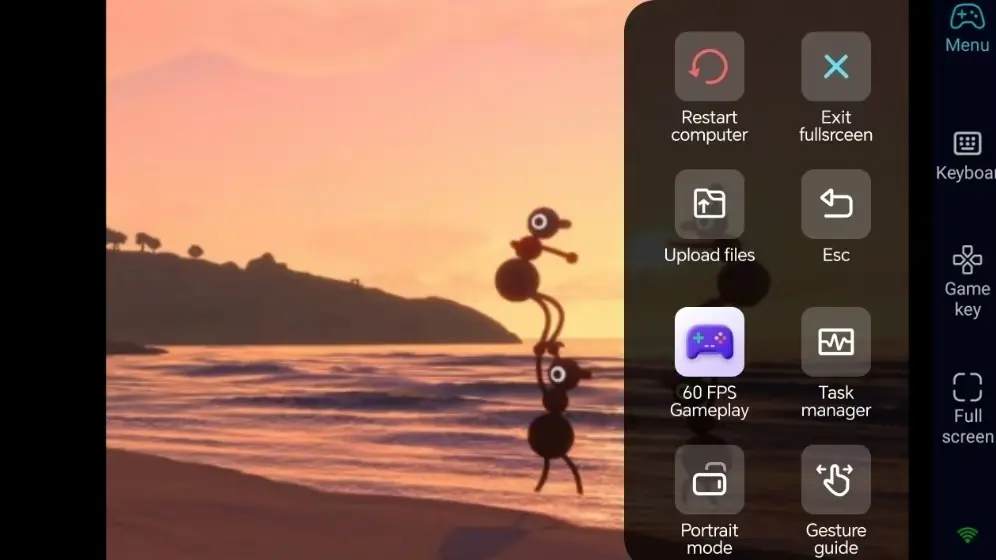
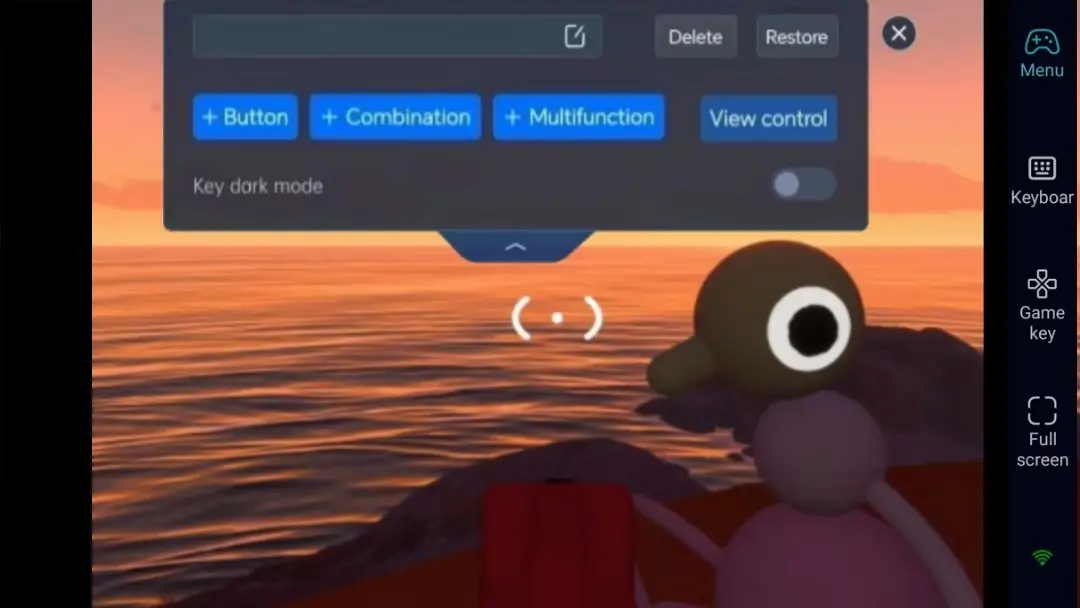
Tap the Tools icon on the right side of your mobile screen. Select the 60 FPS PC Game Mode, then open the custom keybind settings menu.
3. Customize Exploration-Focused Keybinds
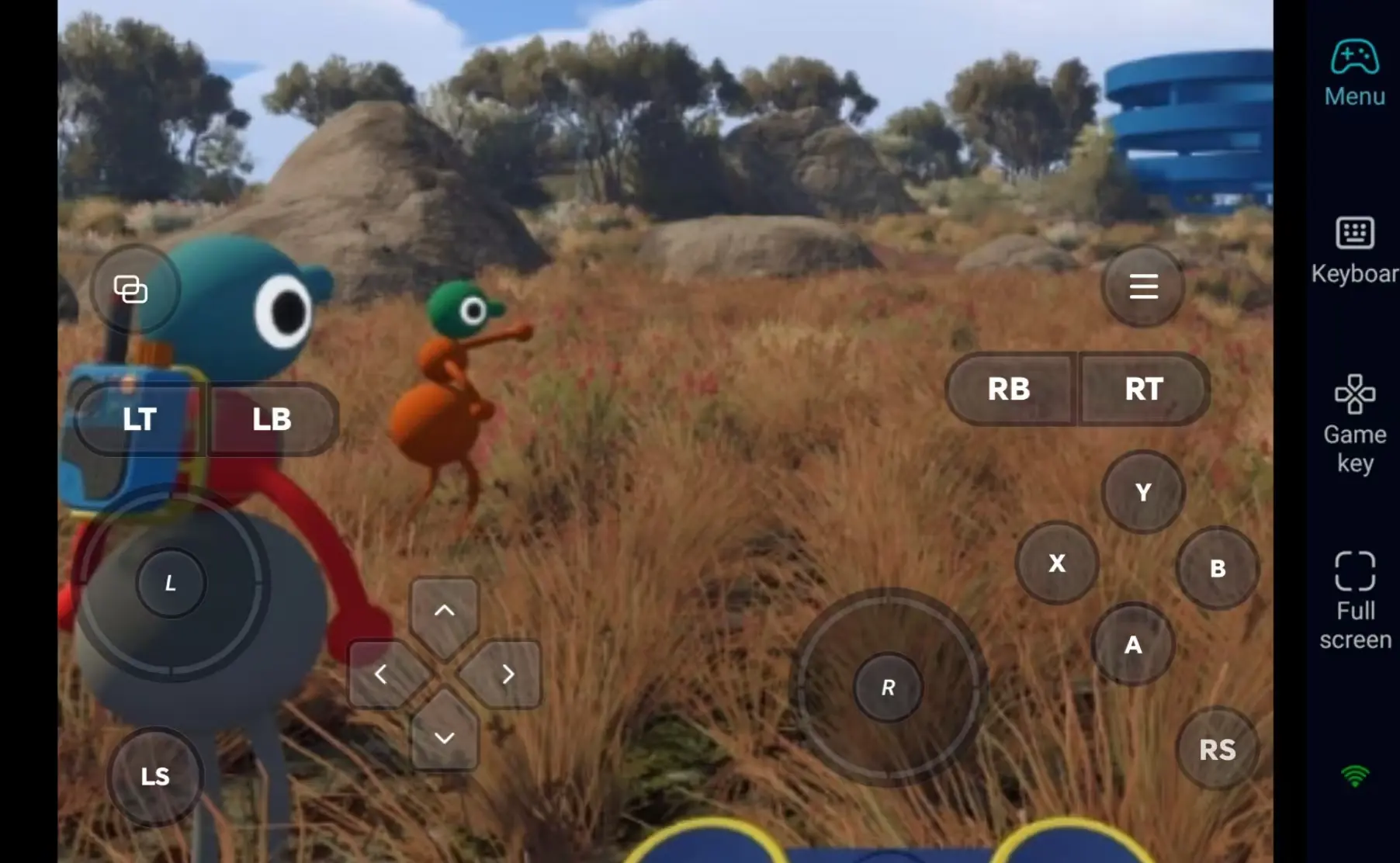
OSLink lets you freely reposition joysticks, jump buttons, sprint controls, interaction buttons, camera controls, and inventory shortcuts.
You can also adjust button transparency and scale each control to your preferred size or hide the control overlay to keep the game view clear.
4. Connect External Game Controllers
OSLink fully supports Bluetooth gamepads. After pairing your controller, you can enjoy PC-like controls with smooth movement and precise inputs, perfect for long play sessions completing quests and gathering resources across the map.
Step 3: Begin Your Magical Big Walk Adventure
Once your setup is finished, your phone or tablet transforms into a portable remote control hub for the game. As long as you maintain an active OSLink connection, you can explore stunning landscapes or escape dangerous encounters-no longer tied down to your desktop monitor.
Why Choose OSLink to Play Big Walk?
1. Break Free From Time & Location Restrictions
Control your character and solve puzzles during your commute or while waiting, then seamlessly continue your adventure on PC when you return home. Low-latency technology ensures fluid character movement, sharp camera turns, and responsive interactions. Controls remain responsive even during precise platforming and jumping sequences.
2. Enjoy PC-Quality Visuals on Mobile
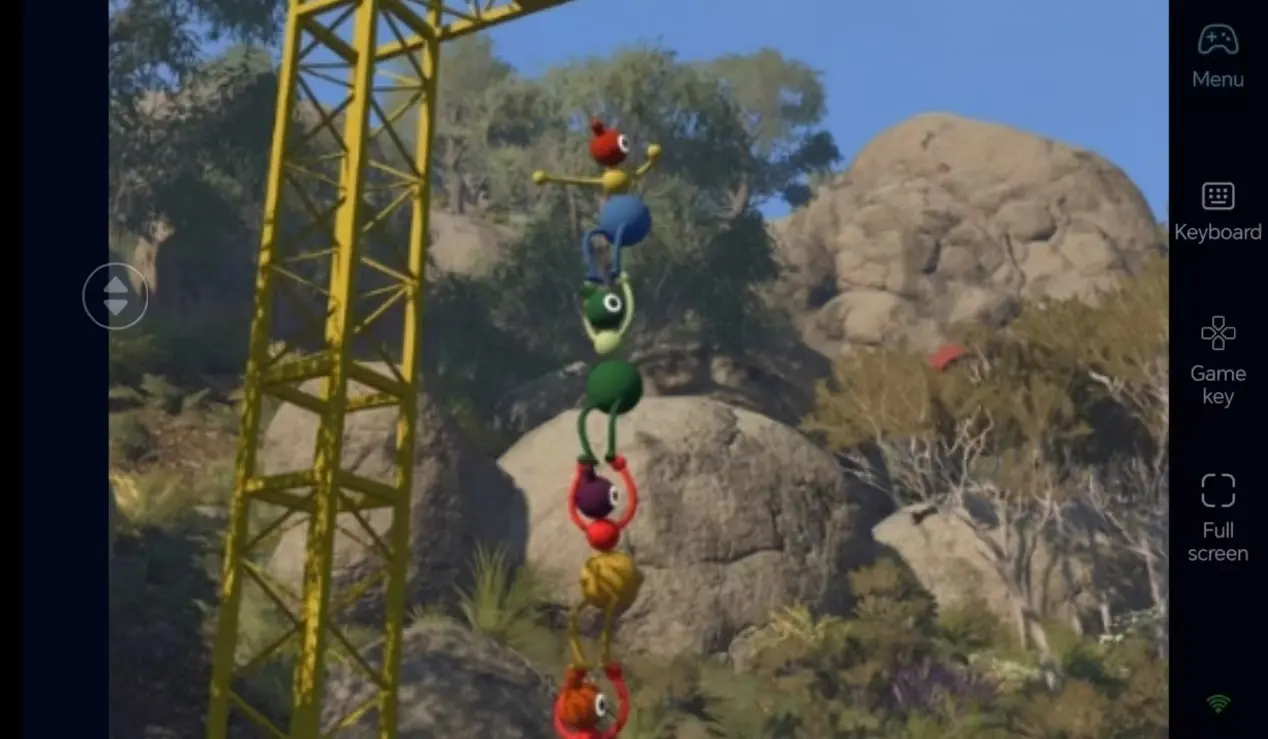
Enjoy a smooth 60 FPS experience that faithfully renders Big Walk’s rich environments, delicate lighting shifts, and signature artistic aesthetic. Custom virtual controls ensure exploration, jumping, climbing, and puzzle-solving actions operate with the same pinpoint accuracy as they do on PC-delivering a smooth and responsive gameplay experience.
3. Seamless Cross-Device Progression & Co-Op Play
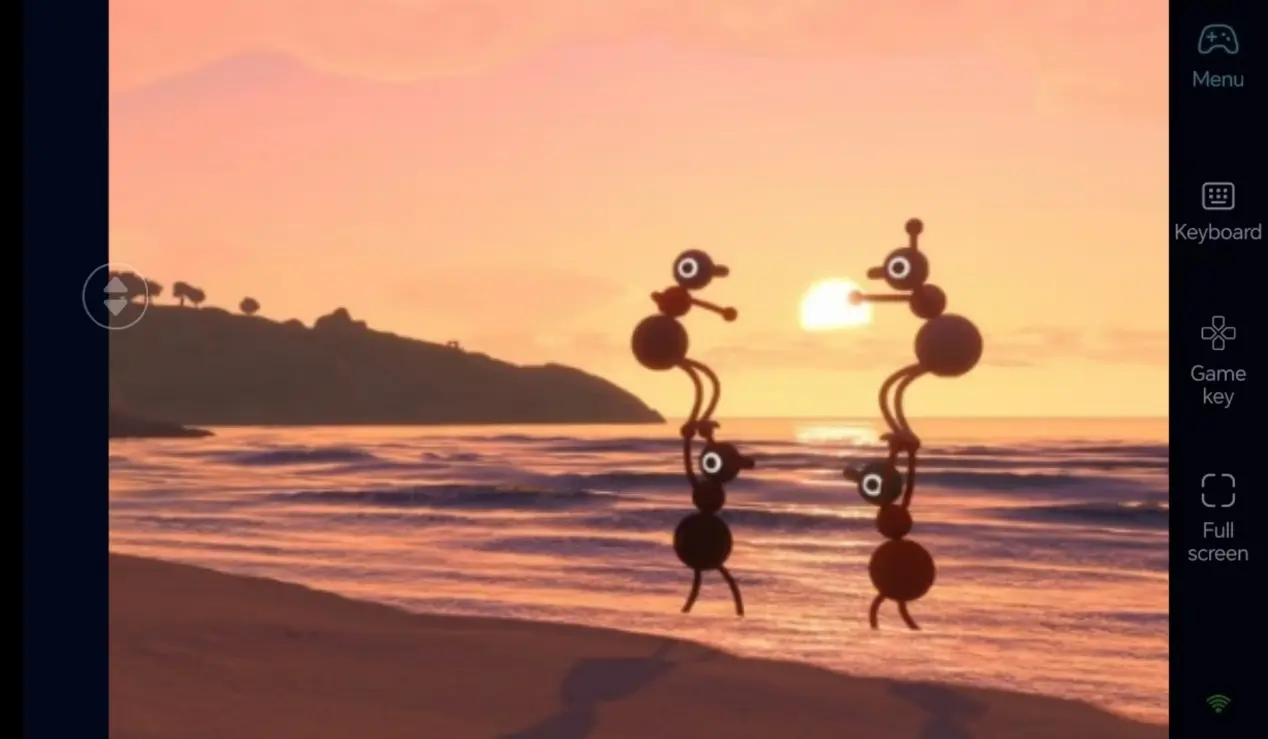
Since the game continues running on your PC, your existing save progress remains unchanged during remote play. Best of all, you’ll never miss a co-op session with friends while you’re away from home. Simply open OSLink and log in from any location to jump straight back into the endless whimsical journey.
FAQ-Frequently Asked Questions
Q1: When will Big Walk officially launch?
A1: Big Walk was officially released on August 4, 2026. You can use OSLink to remotely play the game from their mobile devices..
Q2: Can I remotely play games with OSLink on both iOS and Android phones?
A2: Absolutely! OSLink supports both iOS and Android devices. Simply search for the “OSLink” app in the Apple App Store or Google Play Store to download and complete device pairing. The matching process is streamlined and delivers incredibly stable connections-with a reliable network, you can remotely control PC games smoothly from your mobile device.
Q3: Can I download and play Big Walk directly on my iOS or Android phone?
A3: Not at this time. The developers have not released an official native mobile version of Big Walk, so the game cannot be downloaded directly from iOS or Android app marketplaces. However, you can install the OSLink remote streaming tool to connect your iOS or Android phone directly to your desktop PC. This method lets you use your mobile screen to remotely control and play Big Walk, providing a convenient way to play the PC version on your phone.
Conclusion
OSLink lets you access Big Walk on your PC remotely from your mobile device. After a quick pairing process, you can turn spare moments into wonderful exploration sessions. You won’t have to compromise on visual quality found in the desktop version-with just your phone in hand, you can immerse yourself fully in the vast, imaginative world crafted by the development team. With the setup complete, you can continue your Big Walk adventure remotely whenever you're away from your PC.
 Download