English
 Want to fully experience Battlefield™ 6 battles anytime on your phone or tablet without being tied to your PC? With OSLink’s remote control feature, you can easily connect to your home computer and play the full PC version remotely. Whether you’re completing missions, leading your squad, or scouting the battlefield, everything runs smoothly.
This guide walks you through setting up OSLink step-by-step, optimizing controls and visuals, so you can stay engaged in the action during your commute, breaks, or downtime—never missing a crucial moment.
Quick Setup Tutorial for Playing Battlefield™ 6 on Mobile
Step 1: Download OSLink and Connect Devices
PC Side:
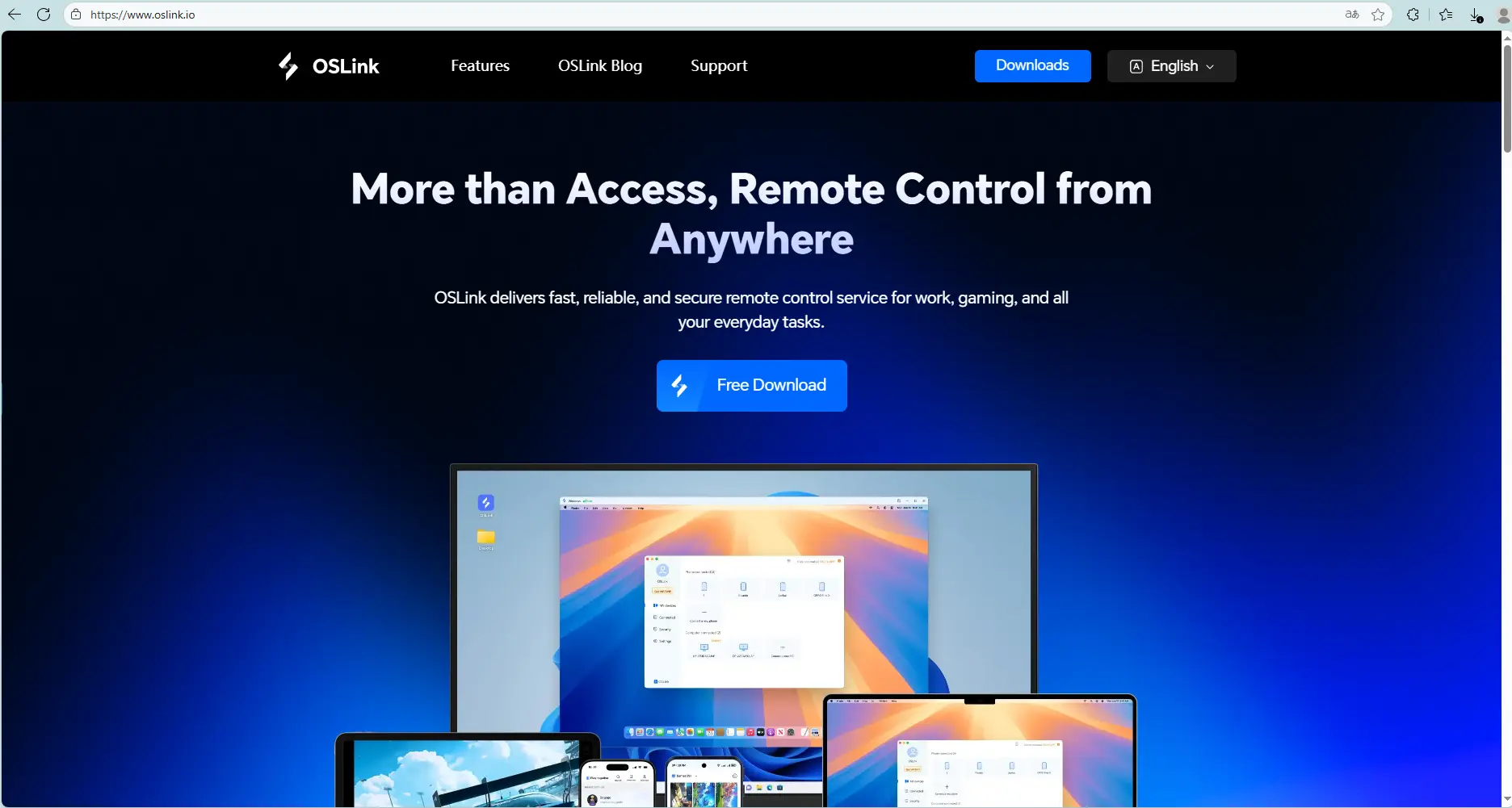
Visit the OSLink official website to download the software and complete the installation.
Mobile Side:
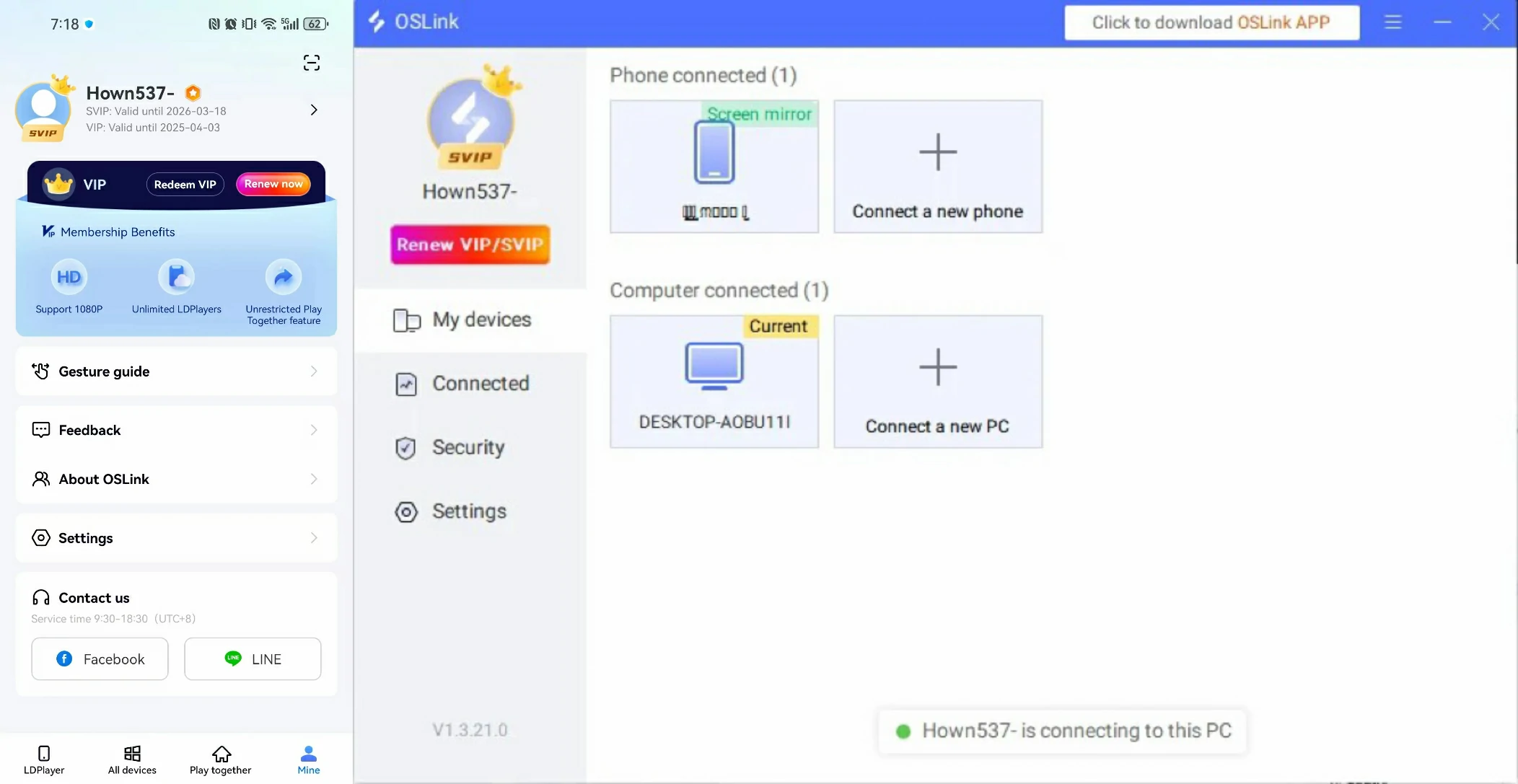
Download the OSLink App from the App Store or Google Play; the official website also offers APK downloads.
Log in with the same account as on the PC side to automatically connect.
Step 2: Control Optimization
1. Launch the Game
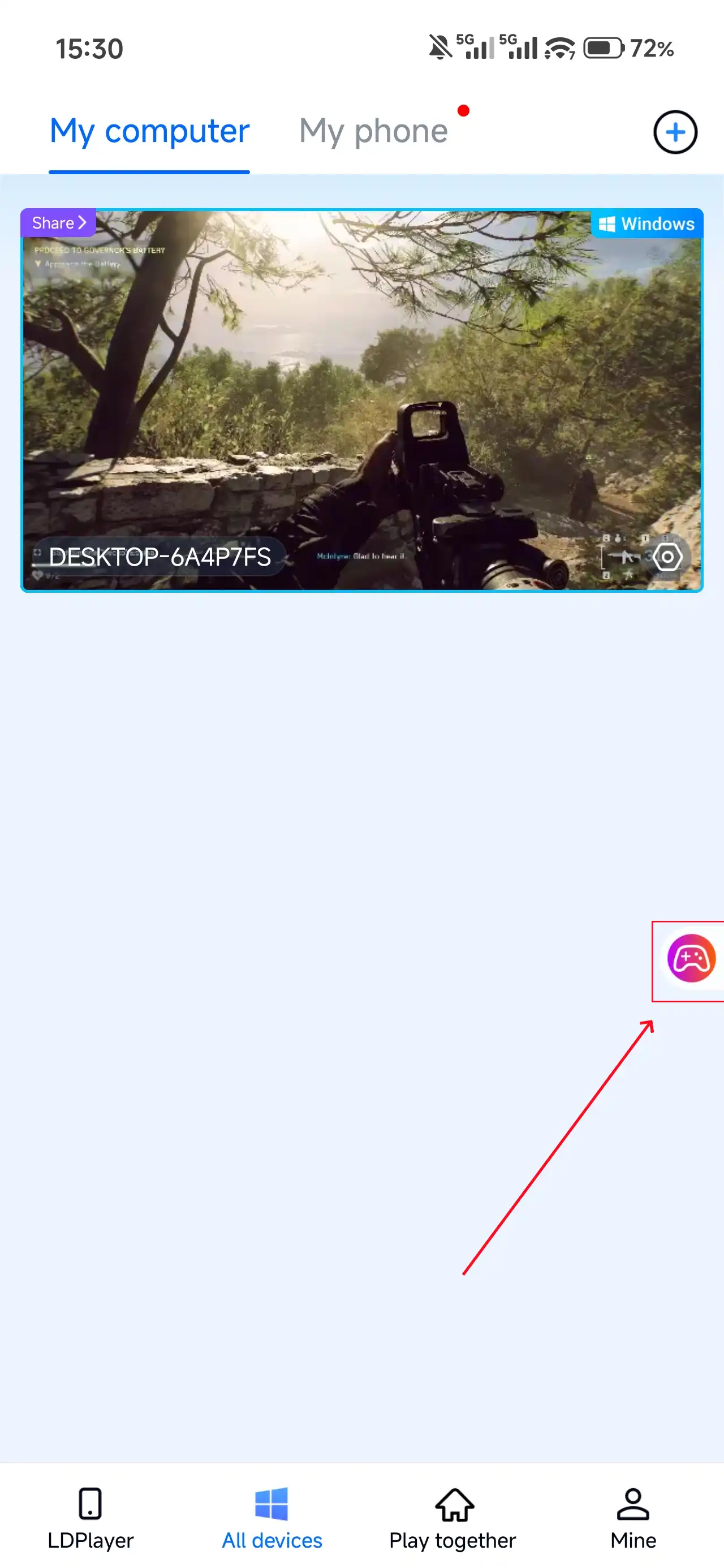
Open Battlefield™ 6 on your PC, and the mobile side can connect directly; if Battlefield™ 6 hasn't been launched on the PC yet, click the game icon on the mobile side for quick startup.
2. Control Mode
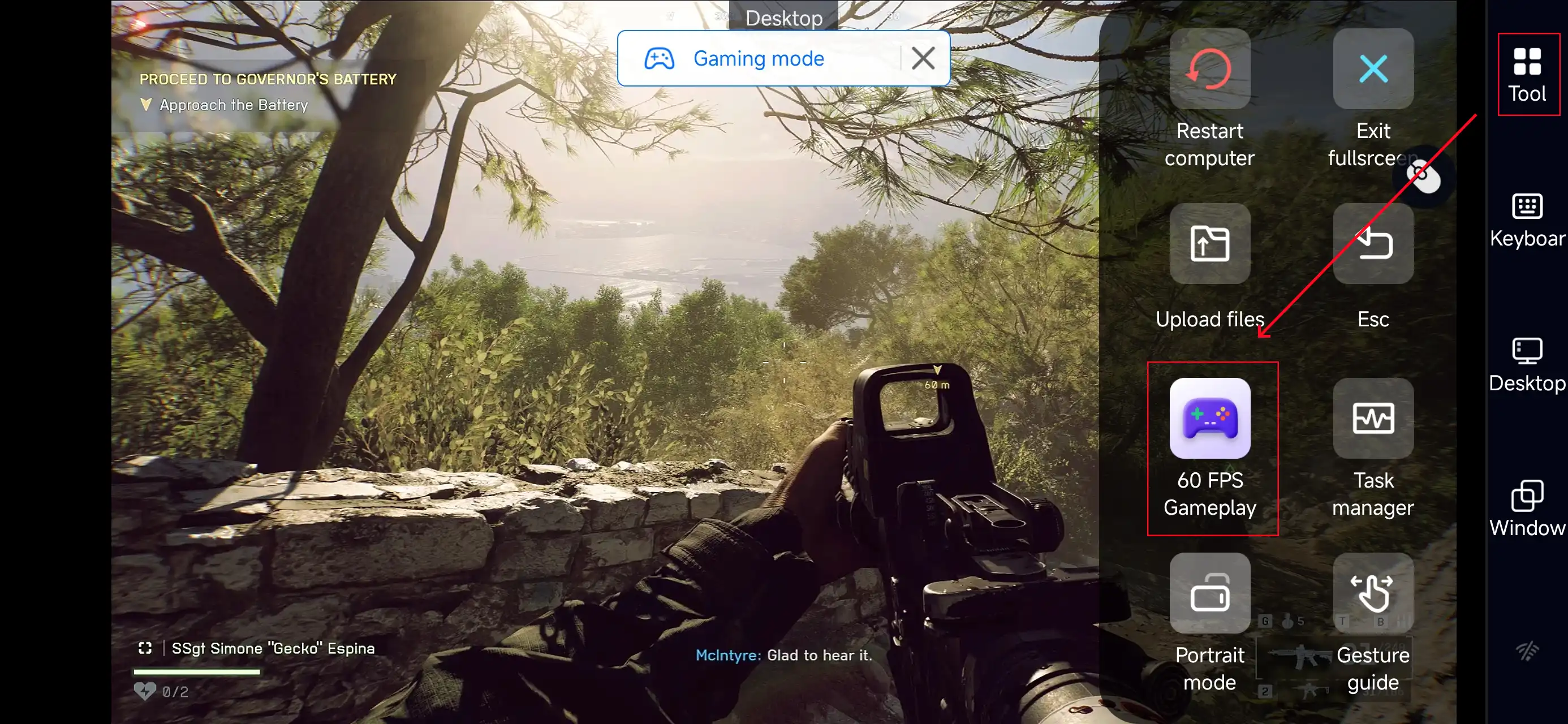
Click the toolbar on the right side of the mobile app, enter "60 FPS Gameplay," and choose key mode or link a controller based on your gaming preferences.
3. Key Selection
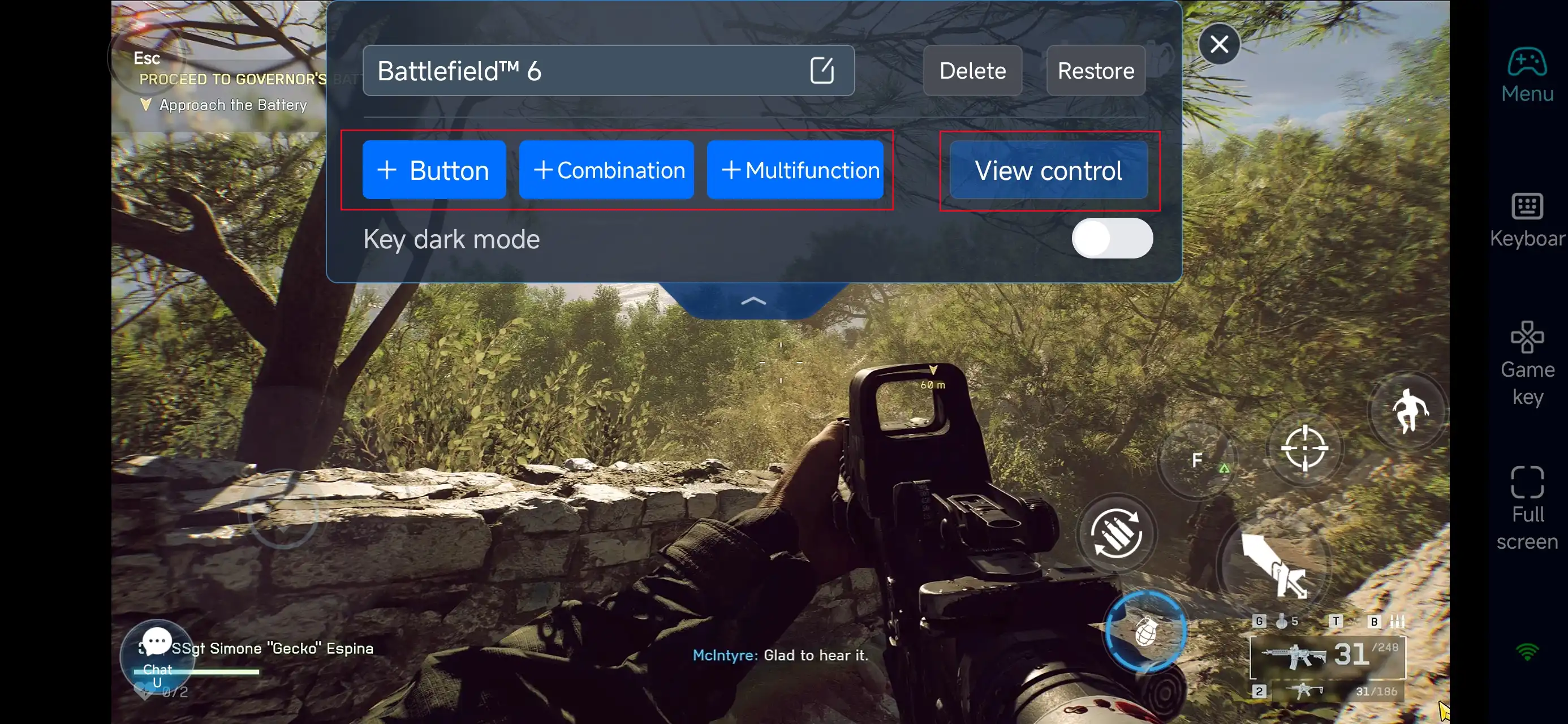
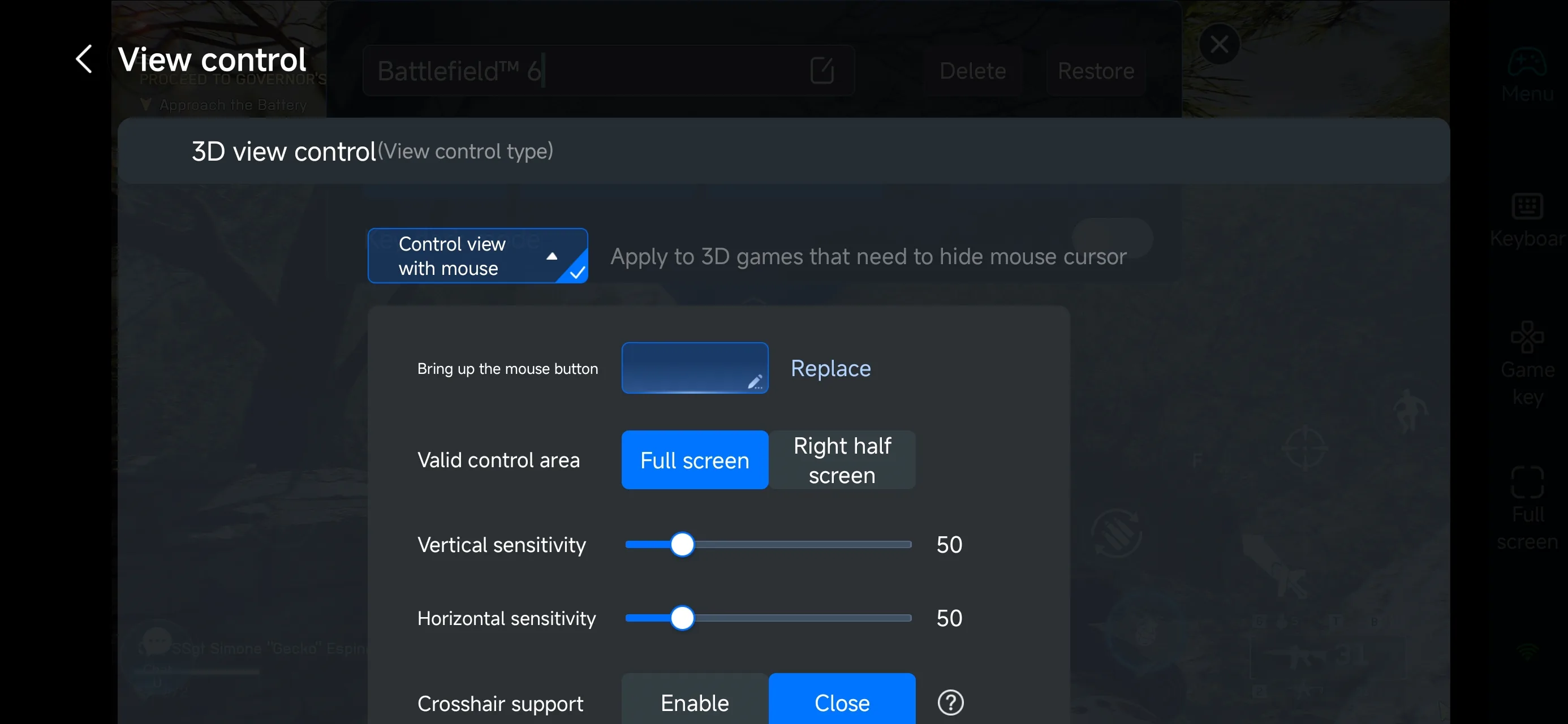
Once you enable PC mode, you’ll find preset shooting layouts on the right side of your mobile screen. You can customize the position of view dragging, crosshair control, aiming, firing, and interaction buttons to suit your playstyle. OSLink offers highly customizable controls, letting you add, adjust, or remove buttons and fine-tune their size, transparency, and activation method—ensuring the screen stays clear while maintaining fast responsiveness.
For players who prefer fast-paced gameplay, OSLink lets you combine multiple actions into multifunctional buttons. Chain commands like aim → shoot → switch stance, quick reloads, grenade throws, calling for support, or retreat commands to match the intense tactical shooting rhythm of Battlefield™ 6, creating the most intuitive and stable remote combat setup.
4.Connect external devices
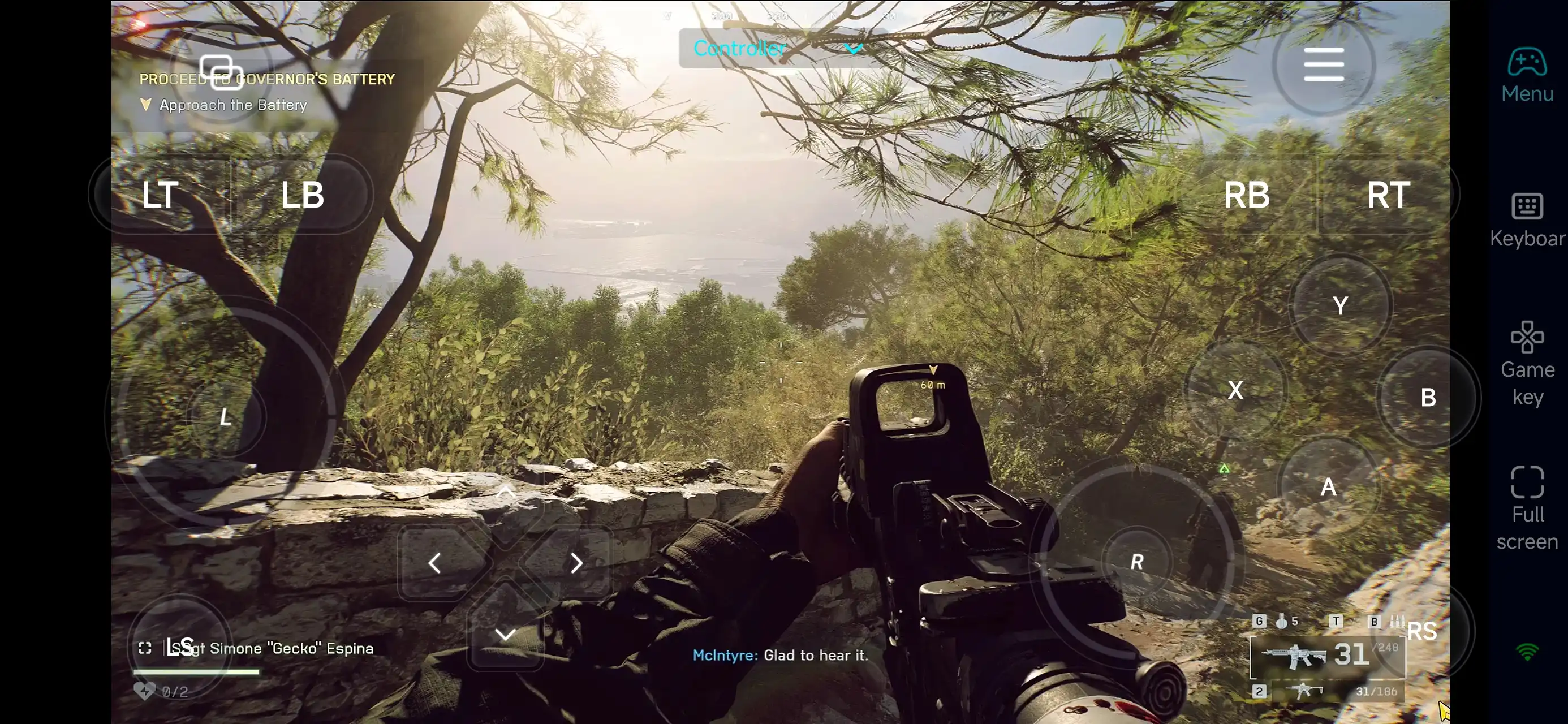
Beyond customizable buttons, OSLink supports a variety of external devices such as Bluetooth controllers and mobile gamepads clipped to your phone. This compatibility frees you from touchscreen limitations and offers a wider range of control options.
Step 3: Jump back into the fight anytime
Once set up, your mobile device transforms into a portable command center for Battlefield™ 6. Whether commuting or taking a short break, simply launch OSLink to instantly connect to your home PC and keep scouting, commanding, or executing tactical withdrawals without missing a beat. Your progress stays seamless, and every assault stays under your control.
Why choose OSLink for playing Battlefield™ 6?
1.Break free from time and device constraints
With OSLink, you can truly play the full PC version of Battlefield™ 6 anywhere via your phone. Whether on your commute, waiting in line, or away from your desk, as long as you’re connected, you can complete objectives, manage gear, and jump into battles—never missing a critical moment and keeping the momentum going.
2.Highly customizable controls for better combat efficiency
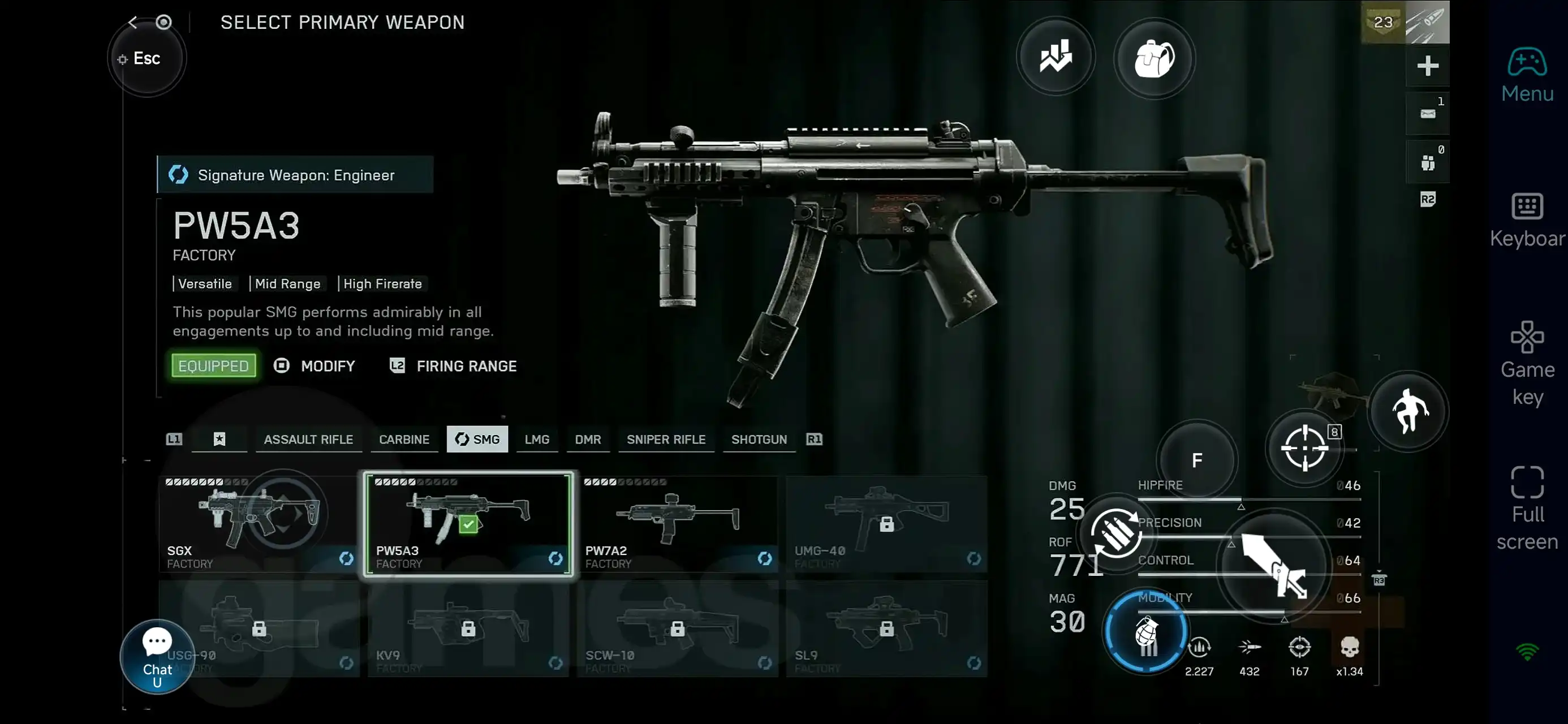
Battlefield™ 6 demands precise input, and OSLink delivers with full custom key mapping and virtual controls. Actions like shooting, aiming, peeking, stance switching, and calling support can all be tailored to your preferences on mobile. Combined with virtual joysticks and quick-access buttons, OSLink maintains near-PC-level smoothness remotely, perfect for tactical movement and battlefield management.
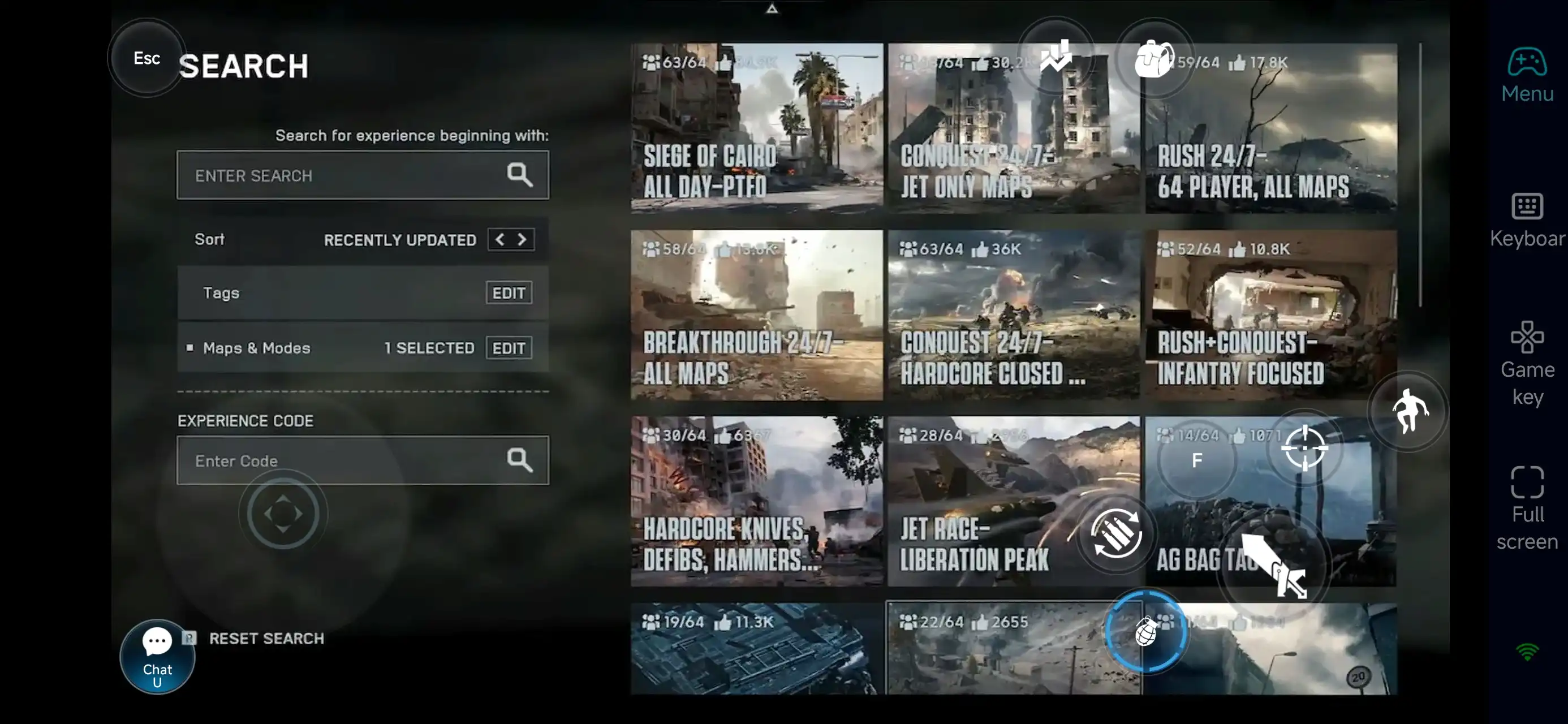
3.Reduce the stress of preparation phases
The challenge of Battlefield™ 6 isn’t just the firefights—it’s also the complex prep work before and after missions: equipping gear, resupplying ammo, coordinating with teammates, and confirming objectives. OSLink allows you to handle these necessary but time-consuming tasks outside of combat, so when you’re at your PC, you can focus entirely on the high-risk battles. Breaking down the workload like this helps keep your gameplay relaxed and reduces errors caused by fatigue.
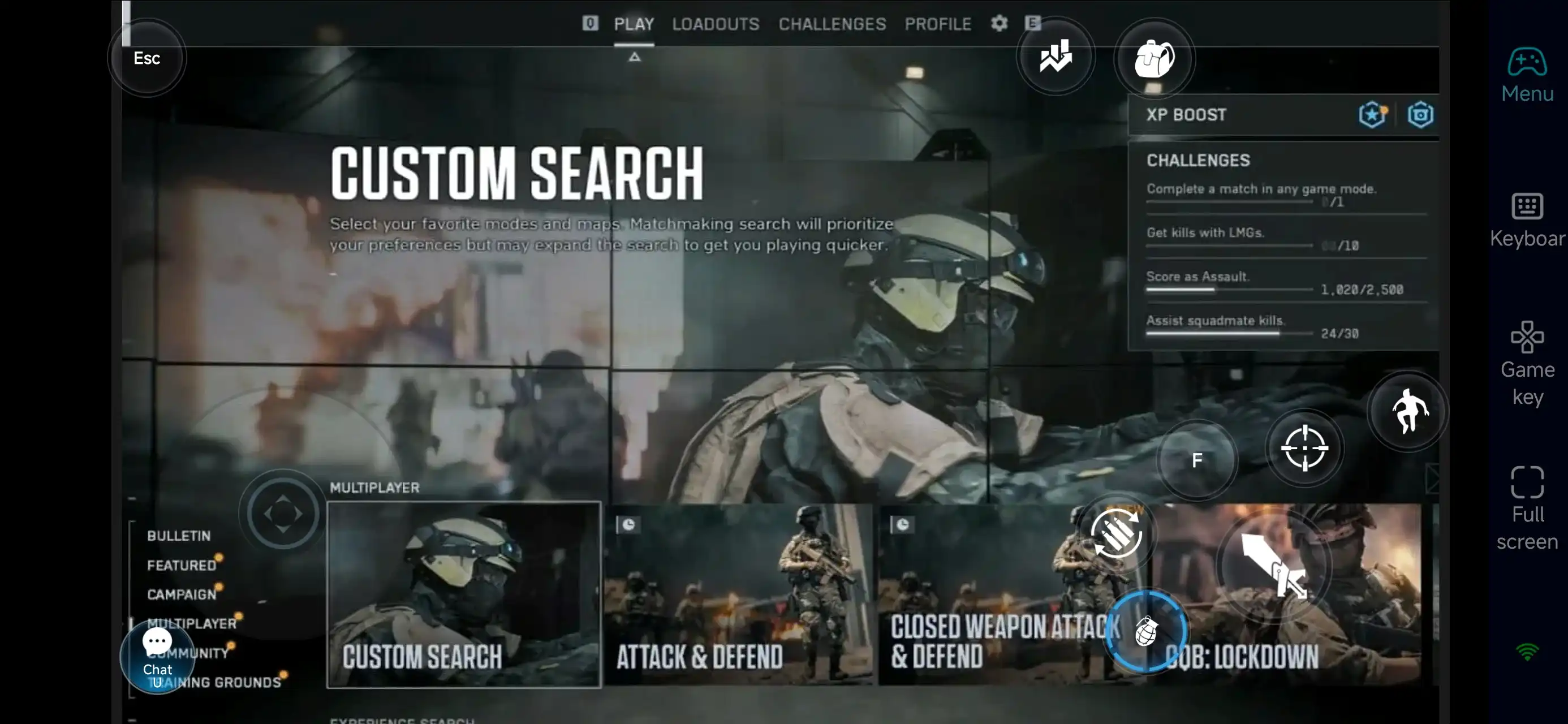
With OSLink, your mobile device becomes an extension of your Battlefield™ 6 battlefield. Launch it to instantly connect to your PC, manage your inventory, push forward missions, or conduct low-risk operations anytime, anywhere. For players who spend long hours gathering resources and frequently entering and exiting battles, remote play boosts efficiency and lessens the pressure to stay glued to the computer. Make the most of OSLink to turn idle moments into meaningful progress, making every operation count.
 Download