English
  Blog Remote Solutions Best PC Remote Control Software for Work (2026) - Stay Productive Anywhere
Remote work has changed how we use computers, and reliable PC remote control software is no longer just a convenience, it’s essential for staying productive away from your desk. With the right remote control software for computer use, you can access files, run applications, and manage tasks from another device, such as a smartphone or laptop.
Table of Contents
- OSLink: Mobile-First PC Remote Control Software
- TeamViewer: Enterprise-Grade Remote Control PC Software
- AnyDesk
- Splashtop: Secure Remote Control Software for Computer Work
- RemotePC: Traditional Remote PC Control Software for Business
- How to Choose the Best PC Remote Control Software
- PC Remote Control Software FAQ
- Conclusion

Today’s remote PC software ranges from enterprise-focused platforms designed for IT teams to simpler, mobile-friendly options built for everyday work. Some tools focus on full desktop control, while others prioritize quick phone-to-PC access, including free PC remote control software with limited features.
In this guide, we compare the best PC remote control software for work and help you choose the right software for remote PC control based on how and where you work.
OSLink: Mobile-First PC Remote Control Software
OSLink is a remote PC control software designed specifically for phone-to-PC access. Unlike traditional tools that replicate a full desktop remote environment, OSLink focuses on making PC remote control software practical for everyday mobile use. This approach makes it easier to handle quick tasks without carrying a laptop or dealing with complex configuration.
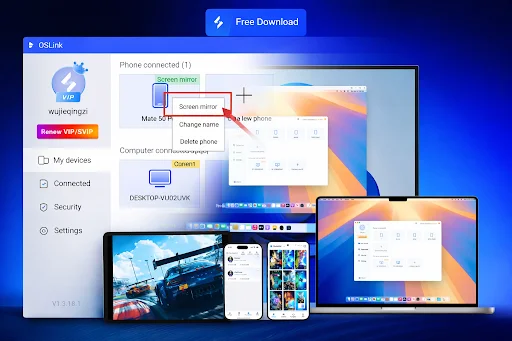
For users who often rely on their smartphone while traveling, commuting, or stepping away briefly, OSLink feels more natural than traditional remote desktop tools designed for long, structured work sessions.
What OSLink Is Best For
OSLink works best for individual productivity and short to medium remote sessions where speed and simplicity matter more than advanced enterprise controls. In real-world use, it’s well-suited for:
-
Accessing a personal or work PC directly from a smartphone
-
Handling everyday tasks like opening files, checking progress, or managing applications
-
Users who want remote access without enterprise-level configuration
This makes OSLink a practical choice for personal workflows rather than team-based IT environments.
Key Features
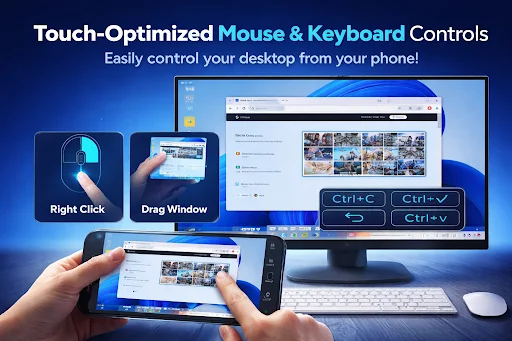
Instead of offering a long list of enterprise tools, OSLink focuses on features that make touch-based PC control feel natural on mobile devices:
-
Real-time screen viewing and interaction
-
Touch-optimized mouse and keyboard controls
-
Connectivity via Wi-Fi or USB
-
A clean, mobile-friendly interface
Together, these features support efficient remote access without unnecessary complexity.
Ease of Setup and Use
One of OSLink’s strongest points is how quickly it can be set up. There’s no multi-step authorization or complicated pairing process:
-
Install the app on both PC and mobile
-
Sign in with the same account
-
Select the PC and start controlling it
Most users can begin using OSLink within minutes, even without prior experience with remote desktop software.
When OSLink Makes Sense
OSLink is most effective when mobility and ease of use are the priority. It’s a sensible option if:
-
Your main goal is to control a PC from a smartphone
-
You prefer a lightweight tool over feature-heavy remote desktop software
-
You want quick access without ongoing configuration
For individual users, OSLink stands out as lightweight remote PC software built around mobility rather than enterprise workflows.
TeamViewer: Enterprise-Grade Remote Control PC Software
TeamViewer is one of the most established remote control PC software platforms, widely used in professional and enterprise environments. It’s commonly associated with IT support, troubleshooting, and structured workflows where secure remote PC control software is a daily requirement.
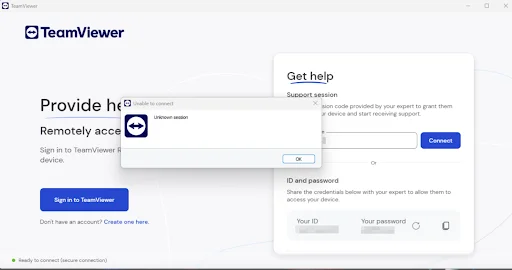
Rather than focusing on casual or mobile-first access, TeamViewer is built for controlled, multi-device remote connectivity. This makes it a familiar choice in corporate and technical settings, but not always the most natural option for quick phone-based use.
What TeamViewer Is Best For
TeamViewer is designed for professional workflows that require consistent, secure access across multiple systems. In real-world use, it works best for:
-
Remote IT support and troubleshooting
-
Accessing office PCs from different locations
-
Managing multiple devices in business environments
These use cases reflect TeamViewer’s strength as a structured remote access tool rather than a lightweight productivity solution.
Key Strengths
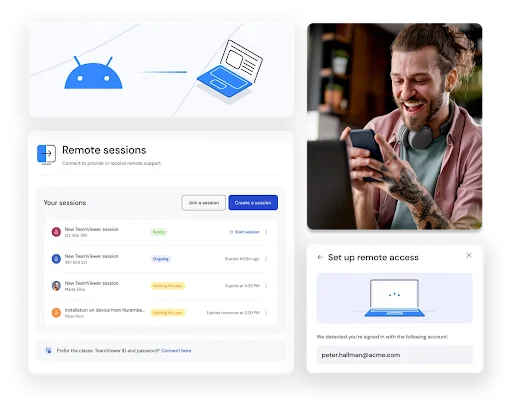
One of TeamViewer’s biggest advantages is its broad feature set and platform support, which is important in mixed-technology environments:
-
Support for Windows, macOS, Linux, Android, and iOS
-
Strong security features suitable for professional use
-
Built-in tools for file transfer and remote assistance
These capabilities make TeamViewer a dependable choice for organizations that rely on remote access daily.
Limitations for Everyday Use
While powerful, TeamViewer can feel excessive for users with simple needs. Its interface and workflow are optimized for professional use, which may introduce friction for casual access:
-
Paid licenses required for work or commercial use
-
A heavier interface compared to lightweight tools
-
A mobile experience focused on functionality rather than touch-first simplicity
For users who mainly rely on smartphones, this can make everyday control feel less intuitive.
When TeamViewer Makes Sense
TeamViewer is most effective when remote access is part of a professional or organizational workflow. It’s a strong choice if:
-
You work in IT, technical support, or managed services
-
You need secure, stable access across multiple systems
-
You manage or support other users remotely
For individuals who want fast, intuitive phone-to-PC control, simpler mobile-focused tools may feel easier to use. However, for enterprise and support-driven scenarios, TeamViewer remains a well-established solution.
AnyDesk
AnyDesk is a remote desktop solution best known for its speed and low-latency performance. It’s often used in professional environments where responsiveness matters, especially when working over slower or unstable network connections.
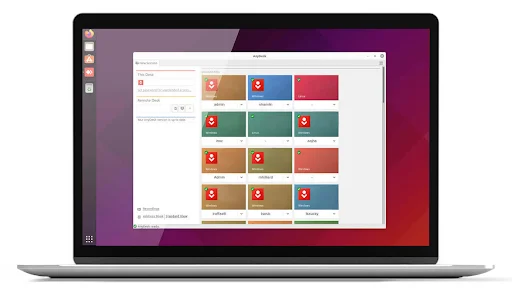
Rather than emphasizing simplicity or mobile-first design, AnyDesk focuses on delivering a fast, desktop-like remote experience that closely mirrors working directly on the host machine.
What AnyDesk Is Best For
AnyDesk is suited for users who prioritize performance over interface simplicity. In real-world use, it works well for:
-
Performance-sensitive remote work
-
Accessing PCs over limited or unstable internet connections
-
Professional remote sessions that require precise control
These scenarios highlight AnyDesk’s strength in maintaining smooth interaction even under challenging conditions.
Key Strengths
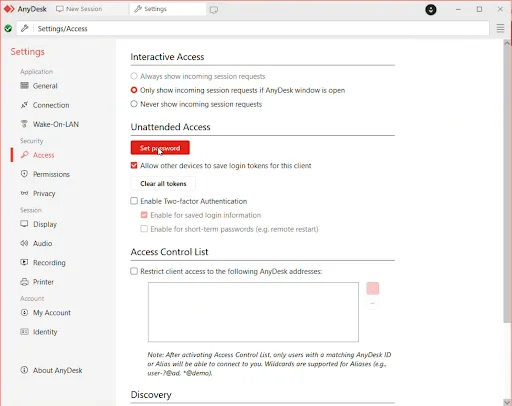
The core appeal of AnyDesk lies in its ability to remain responsive while using minimal bandwidth:
-
Low-latency remote desktop performance
-
Cross-platform support, including mobile devices
-
Stable connections on slower networks
These features make AnyDesk a reliable option for demanding workloads where delays impact productivity.
Limitations for Mobile-First Use
While AnyDesk supports mobile access, its interface is primarily optimized for desktop workflows. As a result, phone-based control may feel less intuitive:
-
Paid licenses required for professional use
-
Menus and controls designed for mouse and keyboard
-
A mobile experience that can feel technical for casual users
For frequent phone-to-PC use, this can add friction.
When AnyDesk Makes Sense
AnyDesk is a strong choice when performance and responsiveness matter more than convenience. It’s a good fit if:
-
You need low-latency remote access for work
-
You often connect over unreliable networks
-
You’re comfortable with traditional desktop-style remote tools
For users who mainly want quick, touch-friendly phone-to-PC access, mobile-first solutions may feel easier to use. However, for speed-critical professional tasks, AnyDesk remains a solid option.
Splashtop: Secure Remote Control Software for Computer Work
Splashtop is a remote control software for computer access designed primarily for remote and hybrid work. It focuses on secure, stable connections for accessing work PCs from different locations, making it a common choice among professionals who rely on remote PC control software daily.
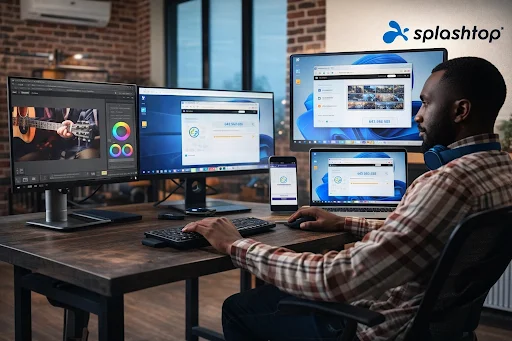
Unlike mobile-first tools or performance-focused desktop solutions, Splashtop is built around consistent, day-to-day remote work, where reliability and security matter more than speed or simplicity.
What Splashtop Is Best For
Splashtop works best for users who rely on remote access as part of their regular work routine. In practice, it’s well suited for:
-
Remote and hybrid work environments
-
Secure access to office or home PCs
-
Team-based or professional workflows
These use cases reflect Splashtop’s focus on structured work rather than occasional or on-the-go access.
Key Strengths
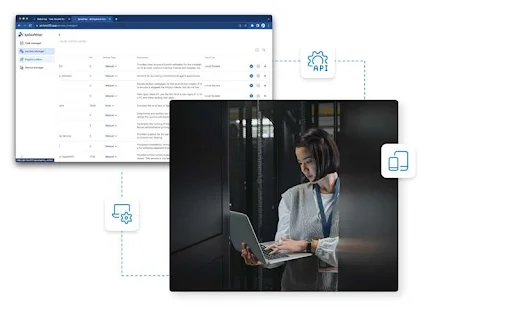
Splashtop’s main strengths lie in connection stability and security, especially during longer sessions:
-
Security features designed for professional use
-
Stable, reliable remote connections
-
Support for both phone-to-PC and PC-to-PC access
These features make it dependable for users who work remotely on a regular basis.
Limitations for Individual Users
While effective in professional settings, Splashtop may feel less flexible for casual or occasional use:
-
A paid subscription required for most work scenarios
-
Feature design oriented toward teams rather than solo users
-
A mobile experience that works well but isn’t fully touch-optimized
For users who mainly want quick phone-based control, it can feel more formal than necessary.
When Splashtop Makes Sense
Splashtop is a strong fit when remote access is part of a consistent work setup. It’s a good option if:
-
You work remotely or in a hybrid environment
-
Security and reliability are top priorities
-
You prefer subscription-based professional tools
For fast, casual phone-to-PC access, lighter mobile-focused tools may feel easier. However, for structured remote work, Splashtop provides a stable and secure experience.
RemotePC: Traditional Remote PC Control Software for Business
RemotePC is a remote PC control software solution aimed at business users who want dependable access to office or work computers from remote locations. It follows a traditional remote desktop approach, focusing on stability and familiar workflows rather than mobile-first design.
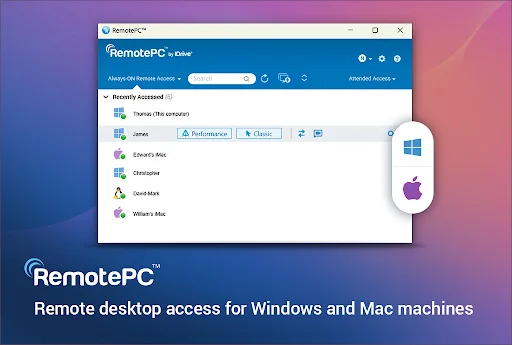
Instead of advanced IT tooling or simplified phone controls, RemotePC prioritizes reliable access to files and applications for everyday work.
What RemotePC Is Best For
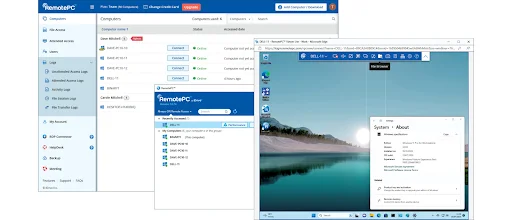
RemotePC works well for users who prefer a conventional remote desktop experience and need consistent access to work systems. In practice, it’s suited for:
-
Business access to office PCs
-
Working with files and applications remotely
-
Small business and professional workflows
These use cases reflect RemotePC’s focus on practicality rather than specialization.
Key Strengths
RemotePC covers the essentials needed for routine professional remote access:
-
Support for both phone-to-PC and PC-to-PC connections
-
File transfer and full system control
-
A workflow familiar to traditional remote desktop users
These features make it a reliable option for standard business use.
Limitations for Mobile-First Use
Although RemotePC supports mobile access, its interface is optimized for desktop workflows:
-
Paid plans required for ongoing work use
-
Less intuitive touch-based controls on smartphones
-
A mobile experience that can feel rigid for quick tasks
For frequent phone-based control, this may introduce friction.
When RemotePC Makes Sense
RemotePC is most effective in traditional business scenarios where reliability matters more than simplicity. It’s a good choice if:
-
You need dependable remote access for work
-
You prefer familiar desktop-style interfaces
-
File access and system control are central to your workflow
For users who want quick, intuitive phone-to-PC control, mobile-focused tools may feel easier. However, for straightforward business remote access, RemotePC remains a solid and dependable option.
How to Choose the Best PC Remote Control Software
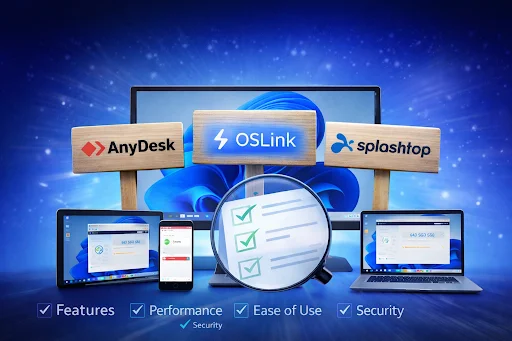
Choosing the right PC remote control software depends on how you work, which devices you use, and whether you need mobile-friendly access or full desktop-style remote control software for computer tasks.
-
Choose OSLink if you want simple, fast, and intuitive phone-to-PC control for daily tasks without enterprise complexity.
-
Choose TeamViewer if you work in IT or need structured, secure remote access for teams and professional support scenarios.
-
Choose AnyDesk if performance and low latency are your top priorities, especially on unstable or slower networks.
-
Choose Splashtop if you need reliable, secure remote access for consistent remote or hybrid work.
-
Choose RemotePC if you prefer a traditional remote desktop experience for routine business tasks.
Most premium remote control software is designed around PC-to-PC access and enterprise workflows. OSLink takes a different approach by focusing on mobile-first phone-to-PC control, making it easier to work on the go without learning complex interfaces or paying for heavy subscriptions.
PC Remote Control Software FAQ
Below are some common questions about PC remote control software for work. This section covers how remote access works, security considerations, and choosing the right phone-to-PC solution for daily use.
What is PC remote control software for work?
PC remote control software allows you to access and control your work computer from another device, such as a smartphone or another PC. It helps you work remotely, manage files, and run applications from anywhere.
Can I control my PC remotely from my phone using remote PC software?
Yes, many remote control tools allow phone-to-PC access so you can control your computer using your mobile device. This is useful when you are away from your desk and need quick access to your work PC.
Is remote PC control software safe for work use?
Remote PC access is safe when using trusted and reputable tools. Most premium solutions use encrypted connections and security features designed for professional environments.
Do I need fast internet for remote control software?
A stable internet connection is recommended for smooth performance. Some tools are optimized to work well even on slower networks, but higher speeds improve responsiveness.
What is the best PC remote control software for daily work?
The best tool depends on your needs, but OSLink is a strong choice for daily phone-to-PC control due to its simple setup, mobile-friendly design, and ease of use. Other tools focus more on enterprise or team-based workflows.
What is the difference between phone-to-PC and PC-to-PC remote control?
Phone-to-PC remote control lets you access your computer from a mobile device, while PC-to-PC remote control is mainly used for IT support and desktop-to-desktop access. Phone-to-PC solutions are usually simpler and more mobile-focused.
Are premium remote control tools worth paying for?
Premium tools are worth it if you need advanced security, team management, or professional support. For individual users who need quick and simple access, lighter phone-first tools may be more practical.
Can I switch between multiple PCs using remote control software?
Yes, many remote control tools allow you to switch between multiple connected PCs. This is useful for multitasking or managing more than one work system.
Conclusion
PC remote control software plays a key role in modern work, allowing professionals to access and manage their computers from anywhere. While enterprise-focused solutions like TeamViewer, AnyDesk, Splashtop, and RemotePC offer powerful features for structured and team-based workflows, they can feel heavy for everyday use. If your priority is simple, reliable phone-to-PC access, OSLink offers a more practical approach. As a mobile-first remote PC control software, it delivers intuitive control without unnecessary complexity, making it a strong choice for daily work and on-the-go productivity.
 Download