English

Looking for a reliable way to play PC games remotely? OSLink and Moonlight are two popular options for streaming games from your PC to other devices. Both let you access your gaming setup remotely, but they offer different features and approaches to remote gaming.
In this OSLink vs Moonlight comparison, we'll look at their streaming capabilities, performance, device compatibility, and ease of use. Whether you're searching for a Moonlight alternative or a remote gaming tool that also supports mobile gaming and phone-to-phone control, this guide will help you decide which one suits your needs.
OSLink vs Moonlight: Quick Comparison
OSLink and Moonlight both let you access and play PC games remotely, but they serve slightly different purposes. OSLink combines game streaming with remote device control and mobile gaming features, while Moonlight focuses on streaming games and desktop content from a host PC.
Here's a quick look at how they compare:
|
Feature |
OSLink |
Moonlight |
|
Main purpose |
Remote gaming and device control |
PC game and desktop streaming |
|
PC game streaming |
Yes |
Yes, using a host such as Sunshine |
|
Android game streaming |
Yes, through mobile screen mirroring |
Not natively |
|
Remote Android control |
Yes |
No |
|
Remote desktop |
Yes |
Yes |
|
Touch controls |
Yes, with customizable controls |
Yes, through supported client controls |
|
Keyboard and mouse |
Yes |
Yes |
|
Game controllers |
Yes, including supported Bluetooth controllers |
Yes, with support for various game controllers |
|
Multi-instance management |
Yes, with LDPlayer |
Not built in |
|
Setup |
Integrated app and account |
Moonlight client and a compatible host setup, such as Sunshine |
|
Phone-to-phone remote control |
Yes, remotely control another Android or iPhone device. |
Not supported natively |
|
Pricing |
Free and paid plans |
Free and open source |
As the table shows, Moonlight focuses on delivering a flexible PC game streaming experience, while OSLink offers additional tools for remote device control and mobile gaming. The better choice depends on whether you mainly want to stream PC games or need a broader remote gaming and device management solution.
OSLink vs Moonlight: Feature Comparison
Although OSLink and Moonlight both offer remote PC game streaming, their capabilities go beyond the same use case in different ways. Let's compare their features to see which tool better suits your needs.
How OSLink Game Streaming Works
OSLink connects your Windows PC to your phone or tablet, allowing you to access your computer and play installed PC games remotely. Unlike traditional game streaming setups, you don't need to install a separate streaming host or manually configure your network.
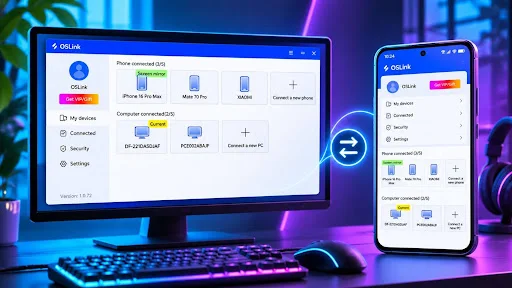
Getting started only takes a few steps:
-
Install OSLink: Download and install OSLink on your Windows PC and mobile device.
-
Sign in: Log in to the same OSLink account on both devices.
-
Connect to your PC: Open OSLink on your mobile device and select your connected PC to establish a remote connection.
-
Start playing: Switch to PC Gaming Mode to access touchscreen keymapping and customizable controls, then launch your PC games.
OSLink also supports external keyboards, mice, and game controllers, so you can choose the input method that suits your games. It works with titles from platforms such as Steam and Epic Games, as well as games running through PC emulators.
How Moonlight Game Streaming Works
Moonlight uses a different setup process. It's an open-source game streaming client that receives video and audio from your gaming PC and sends your keyboard, mouse, or controller inputs back to it. Unlike OSLink, Moonlight needs compatible host software to capture and stream games from your PC.
For most modern setups, Sunshine is the recommended host software. It handles game capture, encoding, and streaming, while Moonlight acts as the receiving client. Older NVIDIA GameStream setups are another option, but Sunshine is generally recommended for new configurations.
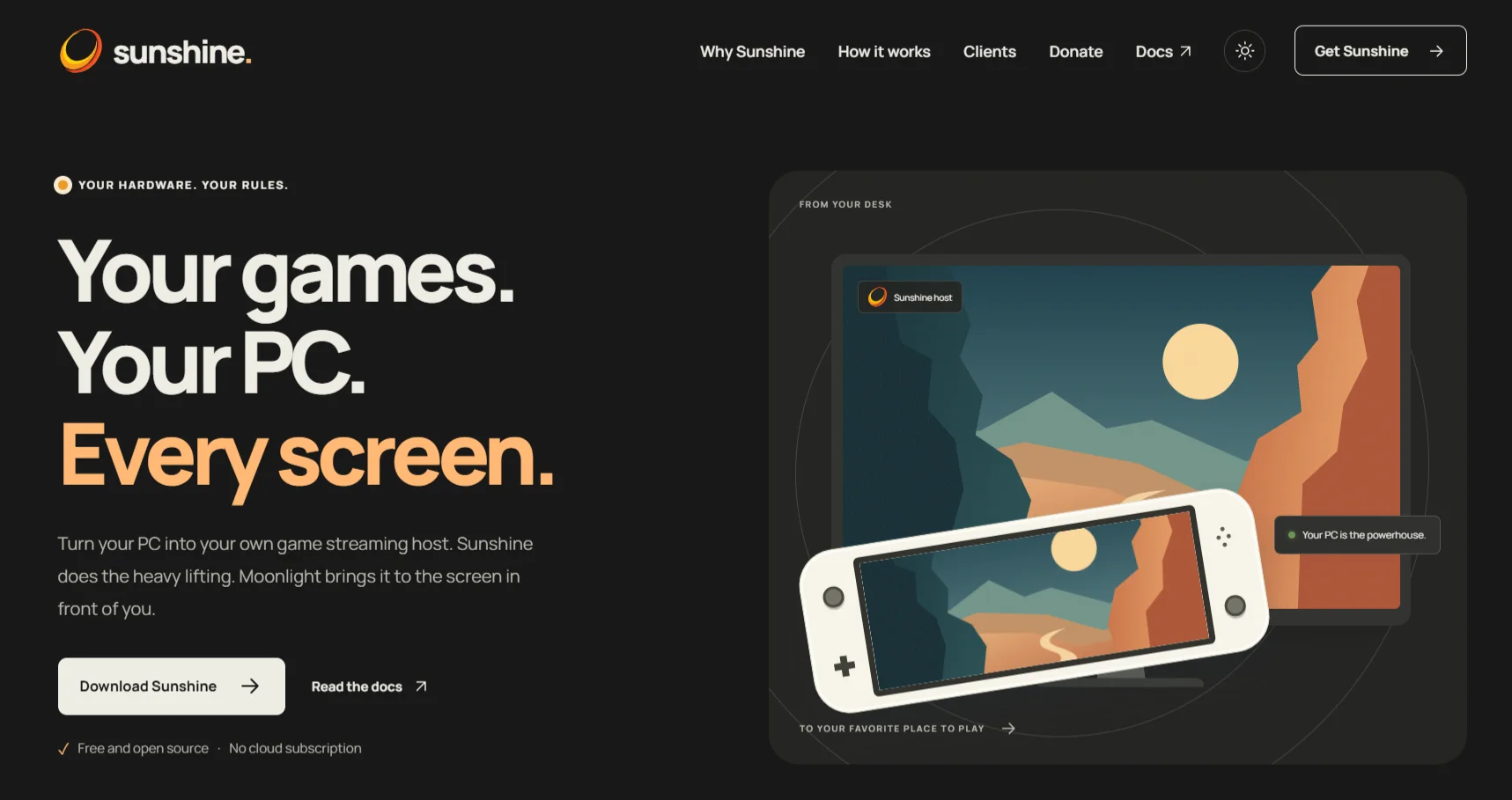
Getting started with Moonlight involves a little more preparation:
-
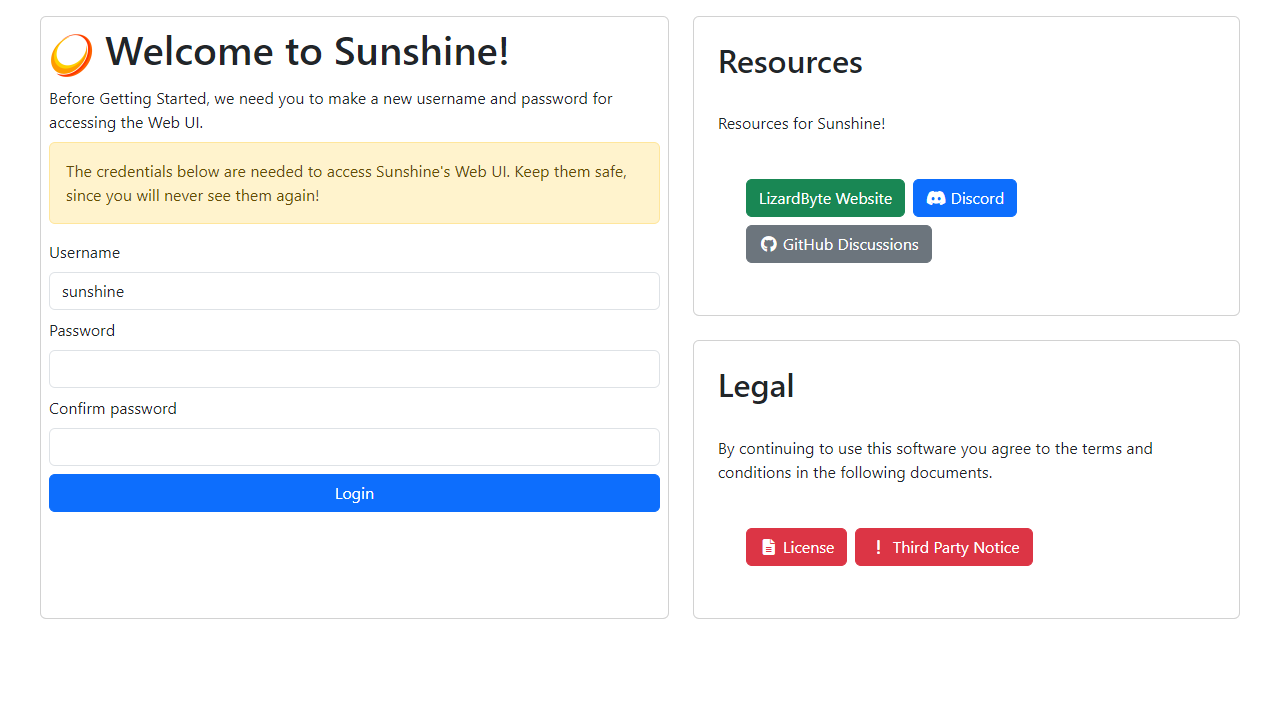
Install Sunshine: Download the appropriate Sunshine installer for your PC and complete the installation. Sunshine supports compatible NVIDIA, AMD, and Intel hardware.
-
Configure Sunshine: Open its web-based configuration interface, create a username and password, and complete the initial setup. You can select the desktop or Steam, or add individual games and applications to the list.
-
Install Moonlight: Download Moonlight on your receiving device, such as an Android phone, tablet, or another computer.
-
Pair your devices: Connect both devices to the same local network, open Moonlight, and select your gaming PC. Moonlight will display a PIN that you need to enter in Sunshine to authorize the connection.
-
Start streaming: Once paired, select a game or application to begin streaming. You can also stream your entire desktop to access other programs.
Playing over the internet requires an additional step. Your gaming PC needs to be accessible from outside your home network. There are two common ways to do this:
-
Use a private network tool: Services such as Tailscale and NordVPN Meshnet let you connect your gaming PC and receiving device through a private network. To use Tailscale, install it on both devices and sign in with the same account. Once connected, find your PC's Tailscale IP address, add it as a host in Moonlight, and pair the devices using the Sunshine PIN. NordVPN Meshnet works in a similar way, allowing you to use your PC's Meshnet address to establish the connection.
-
Configure port forwarding or UPnP: Another option is to configure your router to make Sunshine accessible over the internet. You can do this using port forwarding rules or UPnP. This means you don't need a separate networking tool, but it requires more attention to network security. Use strong credentials, follow Sunshine's networking guidance, and avoid exposing its web configuration interface unnecessarily.
For most users, a private network tool is the easier option because it avoids manually changing router settings. However, you'll still need to install and configure additional software on both devices. Streaming quality also depends on your home's internet upload speed, the receiving device's connection, and the overall network quality.
Moonlight offers plenty of flexibility, but getting it working over the internet can involve a few extra setup steps. OSLink takes a more integrated approach to remote connections, which may be more convenient for players who prefer a simpler setup without configuring separate networking tools or router rules.
Supported Games and Launchers
Neither OSLink nor Moonlight requires you to purchase games through a dedicated store. Since games run on your host PC, you can stream titles you already own, provided your computer can run them.
OSLink supports PC games from platforms such as Steam and Epic Games, along with games running through PC emulators. Its PC Gaming Mode also makes it easier to play supported titles on a phone using touchscreen keymapping and customizable controls.
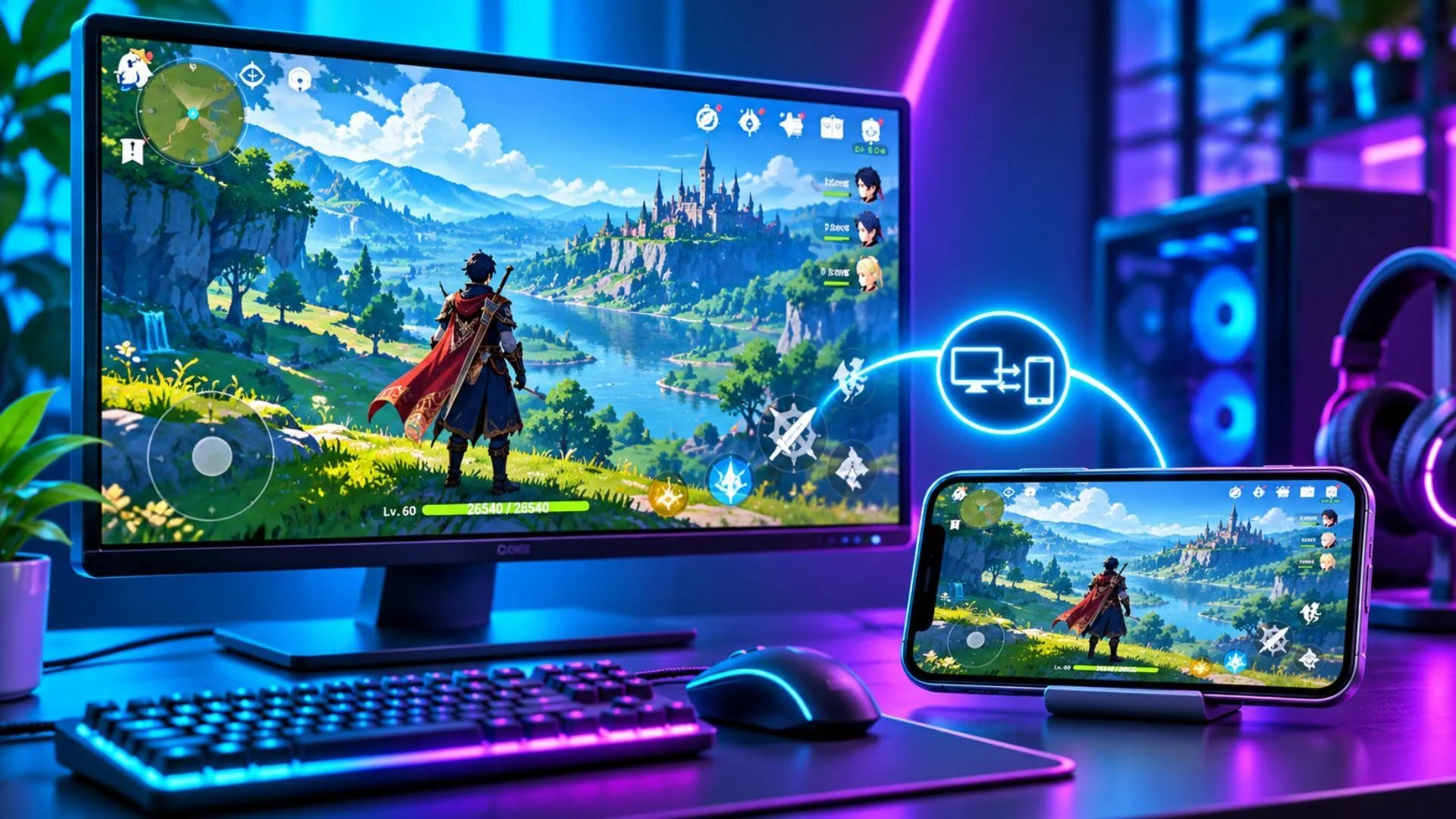
Moonlight can stream games and applications from different launchers and storefronts. Through Sunshine, you can add individual games and programs to your streaming list or access your entire desktop to launch anything available on your PC.
Both tools offer flexibility when it comes to game compatibility, but OSLink provides additional convenience for touchscreen gaming, while Moonlight gives users more control over accessing their PC applications.
Playing PC Games on Your Phone or Another PC
Both OSLink and Moonlight let you take your PC gaming setup beyond your desk, but they offer different experiences depending on your receiving device.
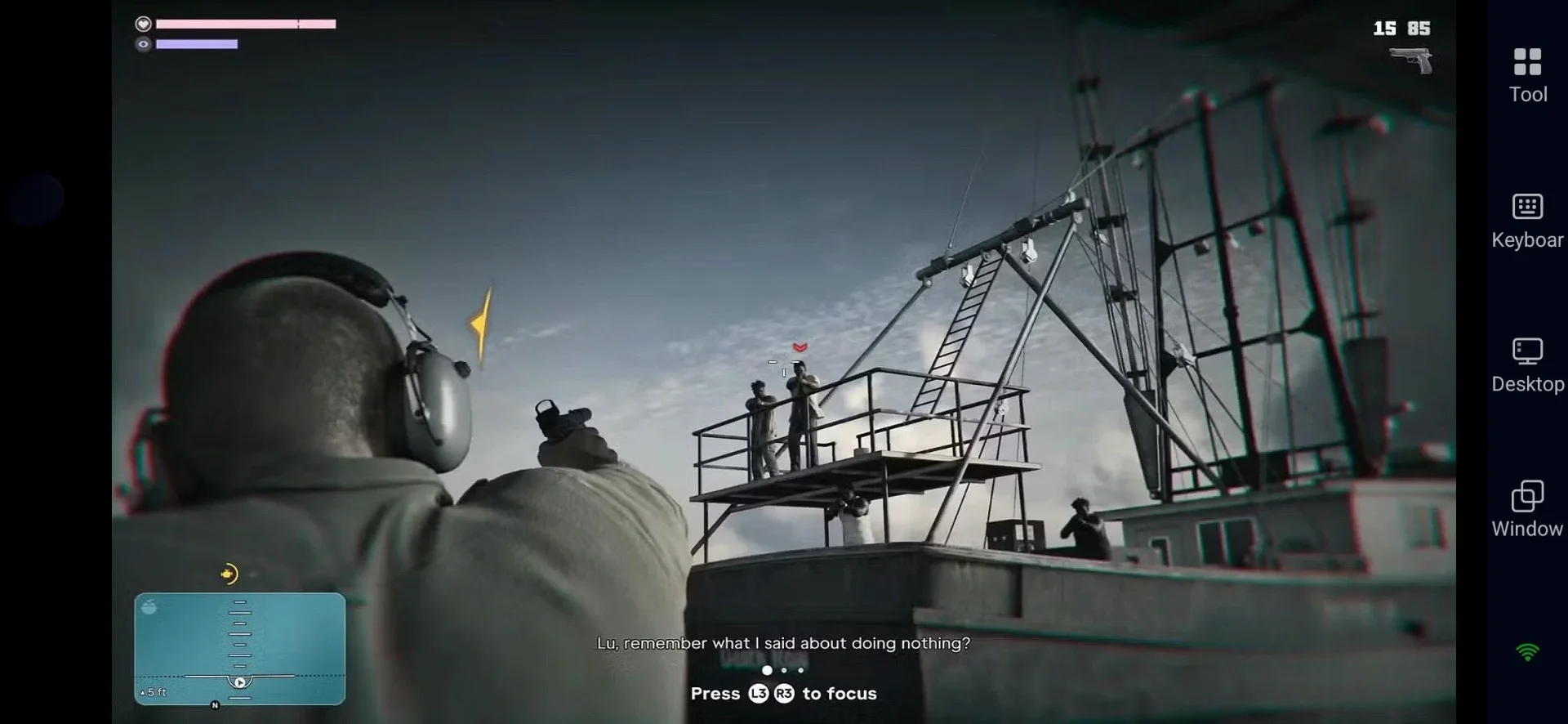
OSLink is particularly convenient for playing PC games on phones and tablets. Its PC Gaming Mode provides touchscreen keymapping and customizable controls, making it easier to play games that weren't originally designed for touchscreens. You can also connect a keyboard, mouse, or game controller if you prefer physical controls.
Moonlight supports a wider range of client platforms, including Windows, macOS, Linux, Android, and iOS. This makes it a flexible option if you want to stream games from your gaming PC to another computer, phone, or tablet.
Ultimately, Moonlight is a versatile choice for streaming across different devices, while OSLink offers a more integrated mobile gaming experience, particularly for players who prefer touchscreen controls.
Mobile Gaming and Remote Device Control
Beyond PC game streaming, OSLink offers additional features for users who want to access and manage Android devices remotely. These capabilities make it useful for both PC and mobile gaming.
-
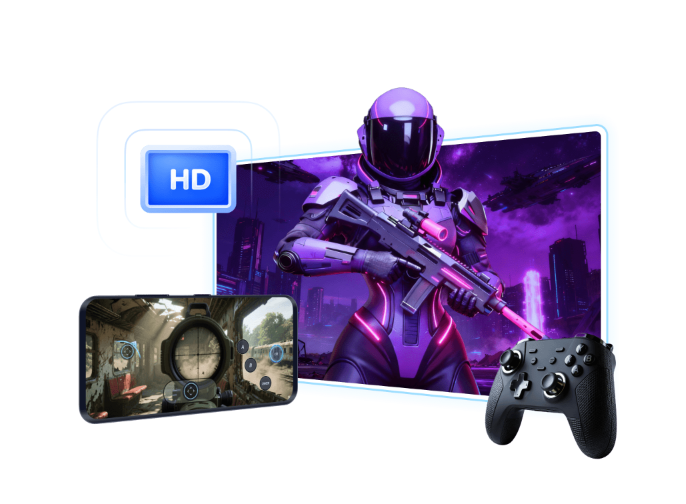
Phone-to-phone control: Connect two Android phones and remotely operate one from the other. This lets you access apps, manage mobile games, and check on another device without handling it directly.
-
Mobile-to-PC mirroring: Mirror your Android phone screen to your PC and play mobile games using a larger display, keyboard, and mouse.
-
Remote mobile gaming: Access your Android device over the internet and continue playing installed mobile games from another location, provided the host device remains powered on and connected.
Moonlight focuses on streaming content from a PC and doesn't natively offer phone-to-phone control, Android device management, or mobile-to-PC mirroring. If you want one tool for accessing both PC and Android gaming setups remotely, OSLink offers considerably more flexibility.
Streaming Quality and Performance
Streaming quality plays an important role in remote gaming, especially when playing fast-paced games. Both OSLink and Moonlight can deliver smooth gameplay, but the actual experience depends on your hardware, network connection, and streaming settings.
-
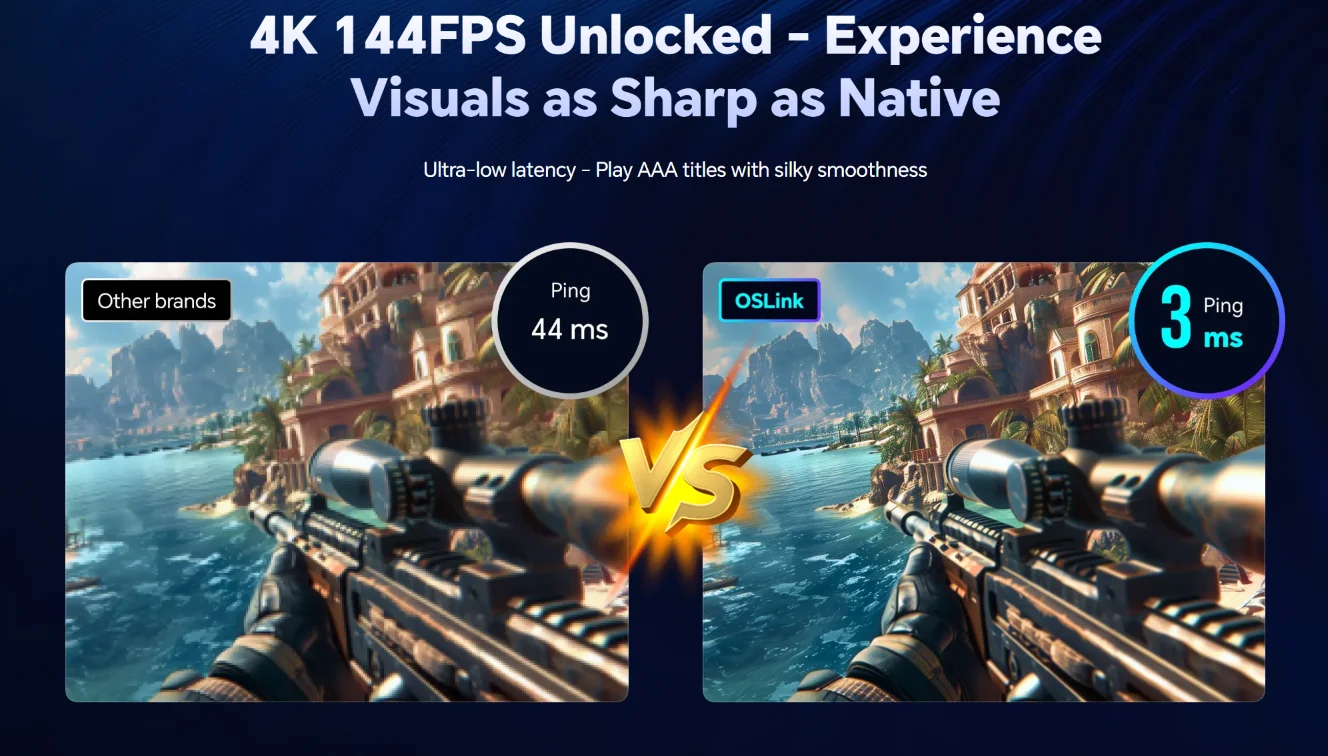
Resolution and frame rate: Moonlight lets users configure streaming resolution and frame rate, with options such as 4K and 120 FPS when the host PC, receiving device, and display support them. OSLink's streaming quality depends on the membership plan: VIP supports up to 720p, while SVIP can reach 1080p under suitable network conditions.
-
Hardware encoding and decoding: Both solutions encode the game on the host device and decode the stream on the receiving device. Sunshine supports compatible NVIDIA, AMD, and Intel hardware encoders, while Moonlight can use hardware decoding on supported client devices. The available hardware and codec support can affect performance and image quality.
-
Streaming customization: Moonlight offers more control over settings such as bitrate, video codecs, encoder presets, resolution, and frame pacing. Users can adjust these options to balance image quality, bandwidth usage, and encoding latency. OSLink provides a more integrated experience, with fewer settings for users to manage manually.
-
Network and latency: A stable, low-latency connection is important for both tools. When streaming over the internet, your host PC's upload speed matters, while the receiving device also needs a reliable connection. Using Ethernet for the host PC and 5 GHz Wi-Fi for the receiving device can help reduce interruptions. Higher resolutions, frame rates, and bitrates also require more network bandwidth.
Overall, Moonlight gives users more control over streaming quality and performance, making it appealing to those who want to fine-tune their setup. OSLink offers a simpler experience with defined streaming quality limits based on its membership plans. Neither guarantees lower latency or smoother gameplay in every situation, as the final experience depends heavily on your hardware and network conditions.
Keyboard, Mouse, Touch Controls, and Controllers
Both OSLink and Moonlight support multiple input methods, allowing you to play PC games using a keyboard, mouse, touchscreen, or game controller.
|
Input Method |
OSLink |
Moonlight |
|
Keyboard and mouse |
Supported |
Supported |
|
Touchscreen controls |
Built-in touchscreen controls and customizable keymapping |
Touchscreen mouse and trackpad controls |
|
Bluetooth controllers |
Supported |
Supported on compatible clients and devices |
|
Custom keymapping |
Built-in presets and customizable key layouts |
More limited in the standard client, with additional options available through alternative clients |
OSLink makes touchscreen gaming easier with built-in keymapping presets and customizable layouts. You can assign keyboard and mouse actions to on-screen buttons, making it more practical to play PC games designed around traditional desktop controls on a phone.
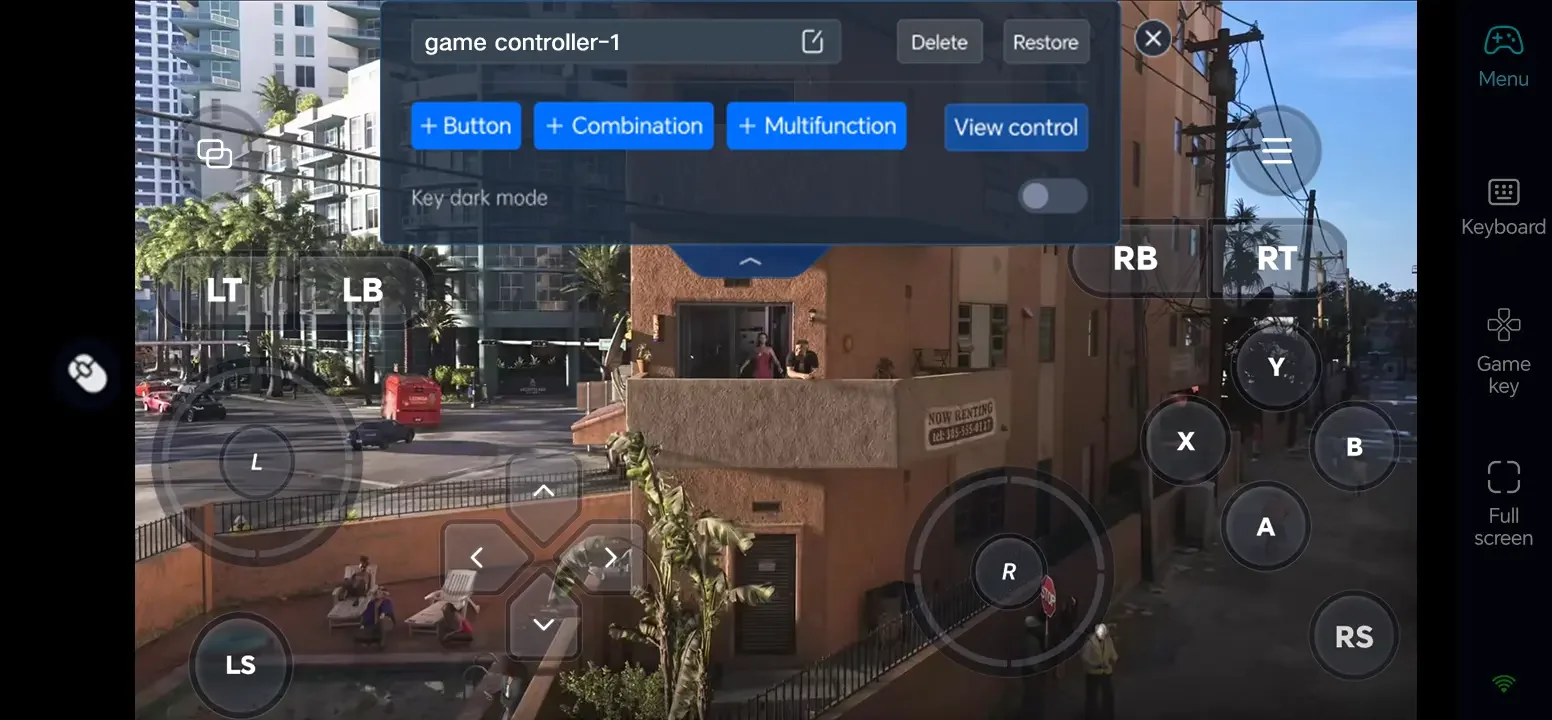
Moonlight also supports touchscreen input, but its standard controls primarily focus on mouse and trackpad interactions rather than ready-made game-specific keymaps. Alternative clients, such as Artemis for Android, offer additional touchscreen customization options. Physical keyboards, mice, and compatible game controllers are also supported across Moonlight's clients.
If you mainly play PC games on a phone using touchscreen controls, OSLink offers a more convenient way to configure your inputs. Moonlight remains a flexible option if you prefer playing with a physical controller, keyboard, or mouse.
Setup and Ease of Use
Both OSLink and Moonlight are relatively straightforward to set up for local streaming, but the overall experience differs when connecting to your PC remotely.
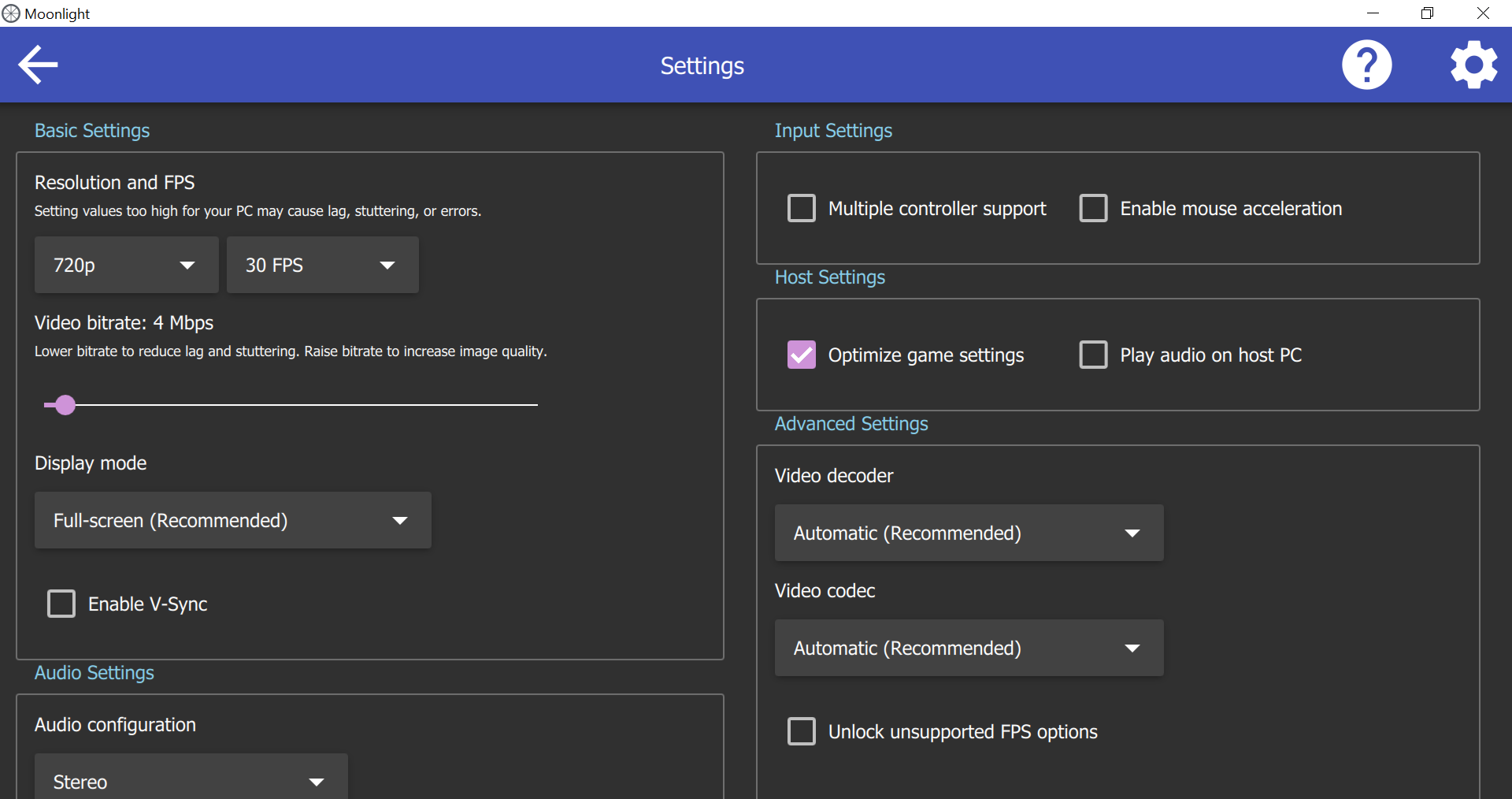
OSLink offers a more integrated setup. You install the applications on your PC and mobile device, sign in using the same account, and select your connected PC. The connection process is handled within the app, so you don't need to configure separate networking tools or router settings for normal remote access.
Moonlight requires separate host and client applications, with Sunshine running on your gaming PC and Moonlight installed on the receiving device. Pairing them locally is manageable, but accessing your PC over the internet requires additional configuration, such as connecting both devices through Tailscale or Meshnet, or configuring port forwarding.
Moonlight isn't necessarily difficult to use once everything is working. However, users have more responsibility for setting up and maintaining the connection, while Sunshine also provides additional settings for those who want to fine-tune their streaming experience.
Overall, OSLink is more convenient for users who want a straightforward connection process with fewer networking steps. Moonlight is a capable alternative for users who don't mind configuring their own streaming environment and prefer having more control over it.
Security and Privacy
When using remote access software, protecting your devices and personal data is important. OSLink and Moonlight handle device connections differently, so the security considerations also depend on how you use them.
-
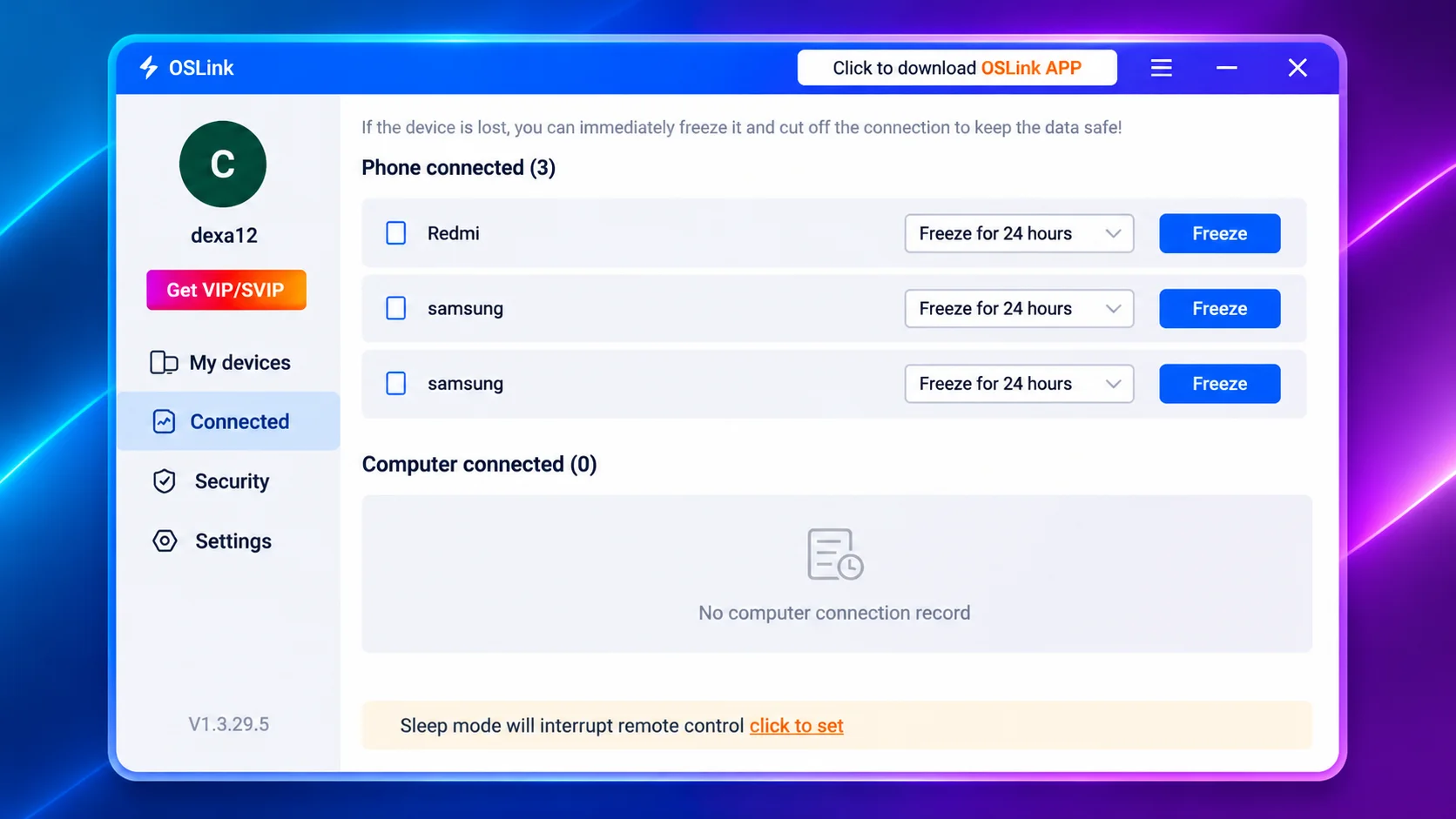
OSLink: Uses an account-based connection process, allowing users to access their connected devices through the app. Its integrated connection workflow means you don't need to manually configure router port forwarding or set up a separate private network for normal remote access. However, you should still protect your account credentials and only grant access to devices you trust.
-
Moonlight + Sunshine: Uses PIN-based pairing to authorize receiving devices. Streaming over a trusted local network is relatively straightforward, but accessing your PC over the internet requires additional configuration. UPnP or port forwarding can expose Sunshine services to external connections, so users need to understand what they're making accessible and protect the Sunshine configuration interface with strong credentials.
Overall, OSLink offers a more integrated connection process with fewer networking settings for users to manage. Moonlight provides more flexibility in how remote connections are established, but users also take on more responsibility for configuring and securing their network.
OSLink vs Moonlight: Strengths and Weaknesses
Both tools offer capable remote gaming solutions, but they cater to different needs. OSLink combines PC game streaming with mobile device control and additional features, while Moonlight focuses on flexible, open-source PC game streaming.
OSLink
Strengths:
-
Combines PC game streaming with remote device control and mobile-to-PC screen mirroring.
-
Supports Android-to-Android remote control, making it useful for managing mobile devices remotely.
-
Offers built-in touchscreen keymapping and customizable controls for playing PC games on mobile.
-
Includes LDPlayer multi-instance management and other remote-control features.
-
Provides an integrated connection process without requiring users to configure separate networking tools or router settings for normal remote access.
-
Provides app updates and customer support directly from the OSLink team
Considerations:
-
Some features and higher streaming quality limits require a paid subscription.
-
Streaming quality depends on the subscription plan, host hardware, and network conditions.
-
Its broader feature set may be unnecessary for users who only want to stream PC games.
Moonlight
Strengths:
-
Free and open source, with no subscription required.
-
Benefits from an open-source community and a flexible host ecosystem built around Sunshine.
-
Supports a wide range of client platforms and compatible game controllers.
-
Offers detailed streaming settings, allowing users to adjust bitrate, resolution, frame rate, and encoding options.
-
Supports different remote-access methods, including private networking tools and router-based configurations.
Considerations:
-
Requires separate host and client software, such as Sunshine and Moonlight.
-
Remote access involves additional networking configuration, which may require extra software or router settings.
-
Advanced customization and troubleshooting can require more technical knowledge.
-
Doesn't include OSLink's Android remote control, phone-to-phone access, or LDPlayer multi-instance management features.
FAQs
1. Is OSLink a Good Moonlight Alternative?
Yes. OSLink is a great Moonlight alternative if you're looking for more than just PC game streaming. It offers PC game streaming, customizable touchscreen controls, remote Android access, and mobile game mirroring.
While Moonlight focuses mainly on PC game streaming, OSLink provides a wider range of gaming and remote-control features in one platform, making it a versatile choice for both PC and mobile gamers.
2. Do I need an NVIDIA GPU to use Moonlight with Sunshine?
No. Sunshine supports NVIDIA, AMD, and Intel GPUs, so you don't need an NVIDIA graphics card to use Moonlight. However, your GPU should support hardware video encoding, such as NVIDIA NVENC, AMD VCE/VCN, or Intel Quick Sync.
If hardware encoding isn't available, Sunshine can use CPU-based x264 encoding, although this may result in higher CPU usage and lower streaming performance.
4. Can I Use OSLink Away from Home?
Yes. You can remotely access your connected PC or Android device over the internet, even when you're away from home. Just make sure the host device is powered on, connected to the internet, and configured for remote access.
5. What Internet Speed Do I Need for Remote Game Streaming?
There isn't one fixed internet speed requirement for every setup. Your ideal connection depends on the streaming resolution, bitrate, and network conditions. A stable, low-latency connection is generally more important than having a high download speed alone.
6. Can I Stream Games That Aren't on Steam Using Moonlight?
Yes. Moonlight supports non-Steam games, but you may need to use Sunshine to manually add games and applications or configure desktop streaming. This requires some additional setup compared to more straightforward remote gaming solutions.
Conclusion
Both OSLink and Moonlight offer convenient ways to enjoy PC games remotely, but the right choice depends on what you need. Moonlight is an excellent option for dedicated PC game streaming, while OSLink goes beyond PC gaming with Android remote control, phone-to-phone access, mobile game mirroring, and LDPlayer management. If you're looking for a versatile Moonlight alternative that brings PC and mobile gaming features together, give OSLink a try.
 Download